Course
Introduction to Docker
4 hr
51.5K
The story goes something like this: You've built your Docker image, tagged it, and deployed it. Everything seems great until your security team flags vulnerabilities in a package you didn't even know was there. Or even worse, compliance asks for a Software Bill of Materials (SBOM) and you're wondering how to figure out what dependencies ship with your images. Container images can be black boxes, and that's a problem when you're responsible for what runs in production.
Docker Scout gives you visibility into your container images by scanning them for vulnerabilities and generating SBOMs automatically. It's built into Docker, so there's no separate tool to install or learn.
In this guide, I'll show you how to scan images with Docker Scout and understand the vulnerability reports it generates, so you can know when it makes sense to use it.
If you’re new to Docker, check our article on the Top 18 Docker Commands. These will set you on the right track to build, run, and manage containers.
Docker Scout is Docker's native image analysis tool that scans your container images for vulnerabilities and generates Software Bills of Materials (SBOMs).
It analyzes everything inside your image, from base OS packages, language-specific dependencies, to application libraries. It then cross-references them against known vulnerability databases. You get a report showing which packages have security issues, how severe they are, and what versions would fix them.
So instead of using third-party scanners or waiting for security teams to flag problems after deployment, you can scan images right where you build them. Scout runs in Docker Desktop, through the CLI, and integrates with Docker Hub.
Here's how it fits into Docker's ecosystem: Docker builds and runs your containers, Docker Hub stores them, and Docker Scout tells you what's inside them. It’s important to remember that it's part of the platform now, not a separate add-on.
Docker Scout replaces the older docker scan command, which relied on Snyk's scanning engine. Scout uses Docker's own vulnerability database and gives you more control over the scanning process. If you're still using docker scan, it's deprecated - Scout is the official replacement and it's already available in recent Docker Desktop versions.
Docker Scout comes built into Docker Desktop 4.17 and later, so if you're running a recent version, you already have it.
It works through the Docker CLI and shows up in Docker Desktop's GUI. If you're using Docker Desktop, Scout is enabled by default - you can start scanning images right away.
To check if Scout is available on your system, run this command:
docker scout versionYou'll see output showing the Scout CLI version and plugin status.
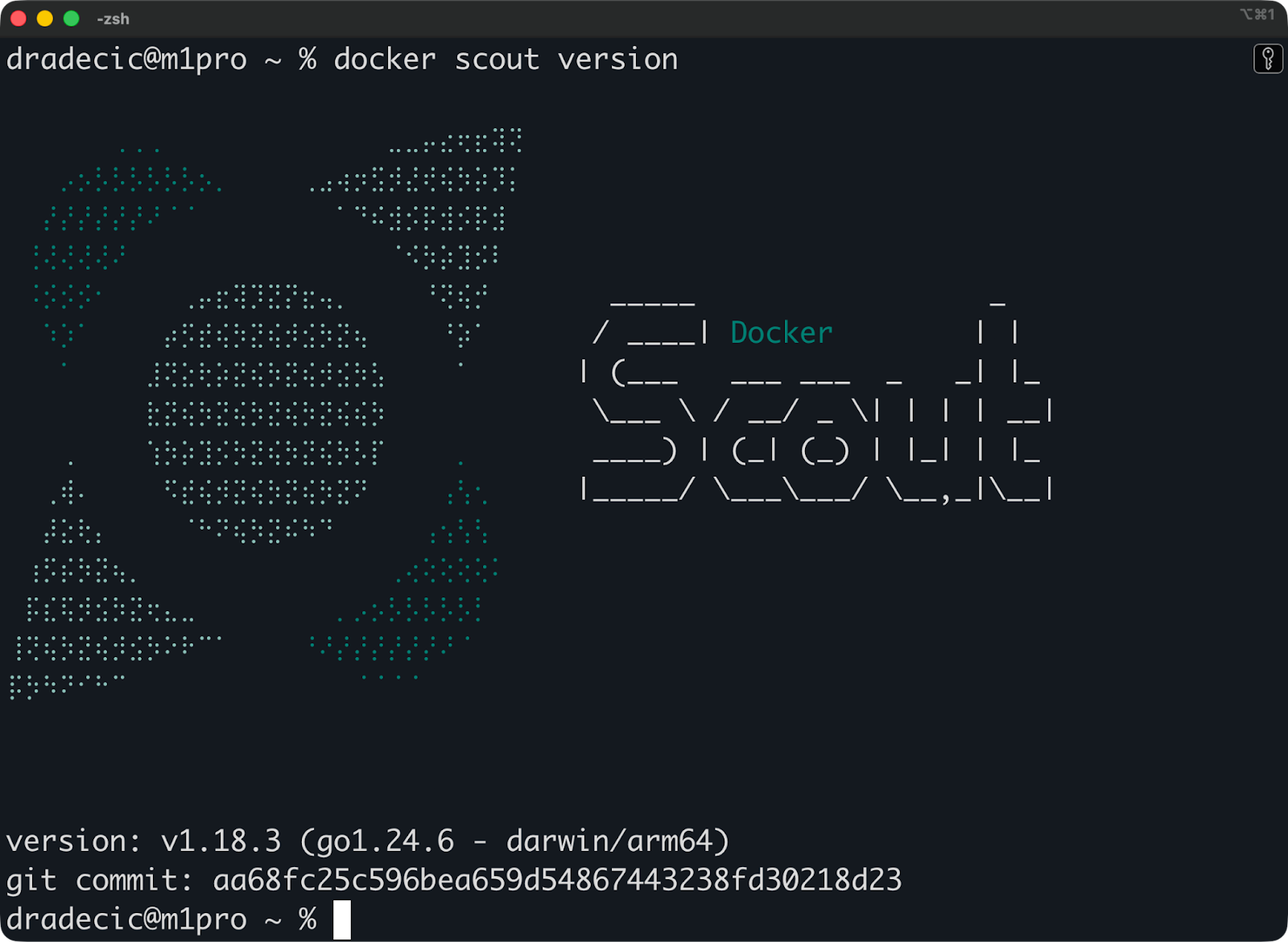
Docker scout version
If the command works, you're ready to scan images.
If you get a "command not found" error, your Docker version is too old. Update Docker Desktop to the latest version to get access to Docker Scout.
Running the scan takes one command, and that’s the easy part. What can be challenging at times is understanding what Scout finds.
You can run this command to scan a local image by passing its name or ID to Docker Scout:
docker scout cves python:3.14Scout analyzes the image layers, extracts package information, and checks for known vulnerabilities. The scan finishes within 30 seconds for most images.

Scan results for Python 3.14 image
You can also scan images that aren't on your machine yet:
docker scout cves postgres:18.1Scout pulls metadata from the registry without downloading the full image. This lets you check images before you pull them locally.
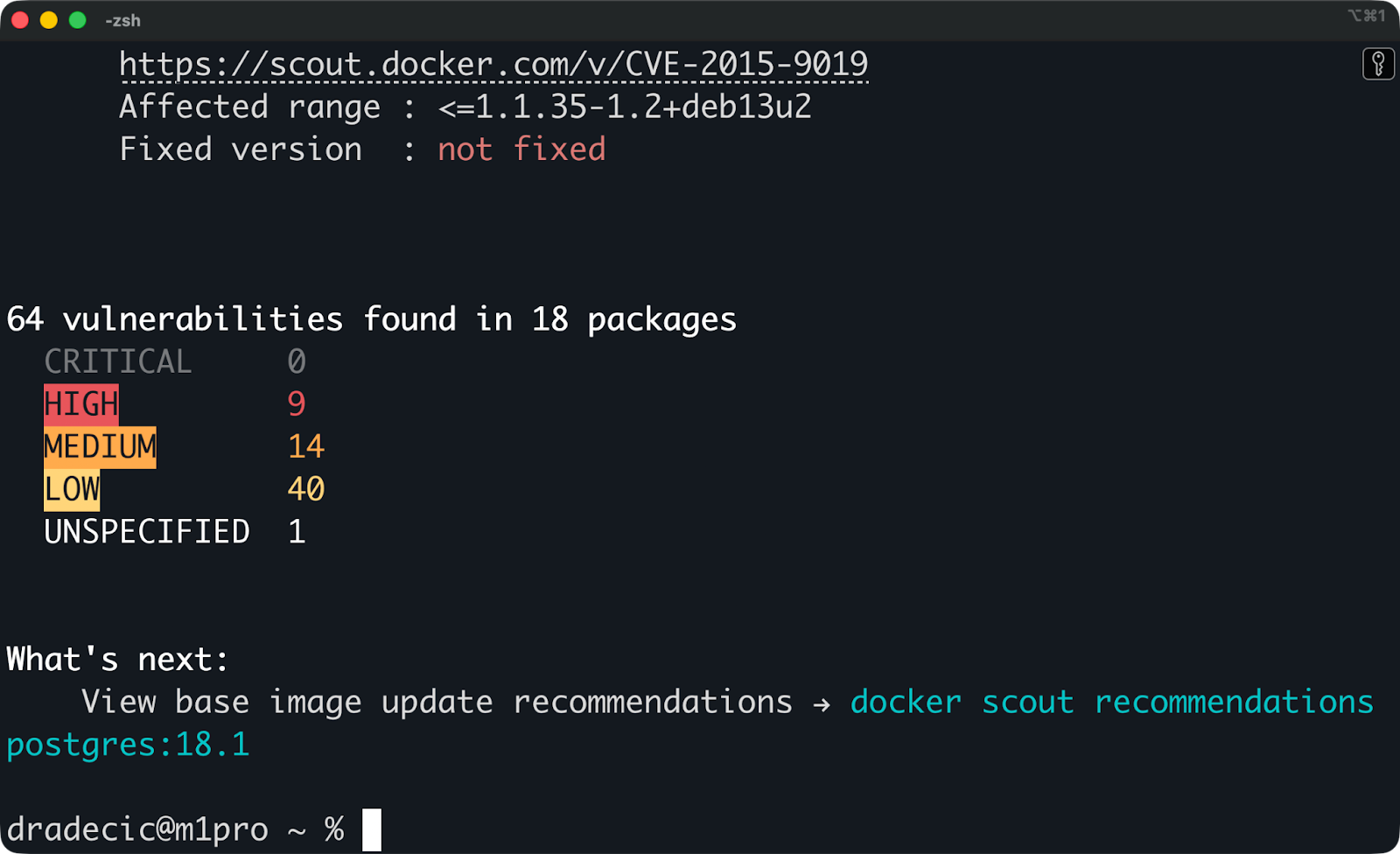
Scan results for Postgres 18.1 image
During the analysis, Scout unpacks each layer, identifies installed packages and dependencies, then cross-references everything against its vulnerability database. It tracks packages from the base OS (like apt packages in Ubuntu-based images) and language-specific dependencies (like Python packages or Node modules).
Scout groups vulnerabilities by severity: Critical, High, Medium, and Low.
Critical and High vulnerabilities need attention first. These are actively exploited issues or severe bugs that could compromise your system. Medium severity issues matter but rarely need immediate fixes. Low severity vulnerabilities are worth tracking but don't usually block deployments.
Each vulnerability shows which package contains the issue. You'll see output like this if you scroll through the report:
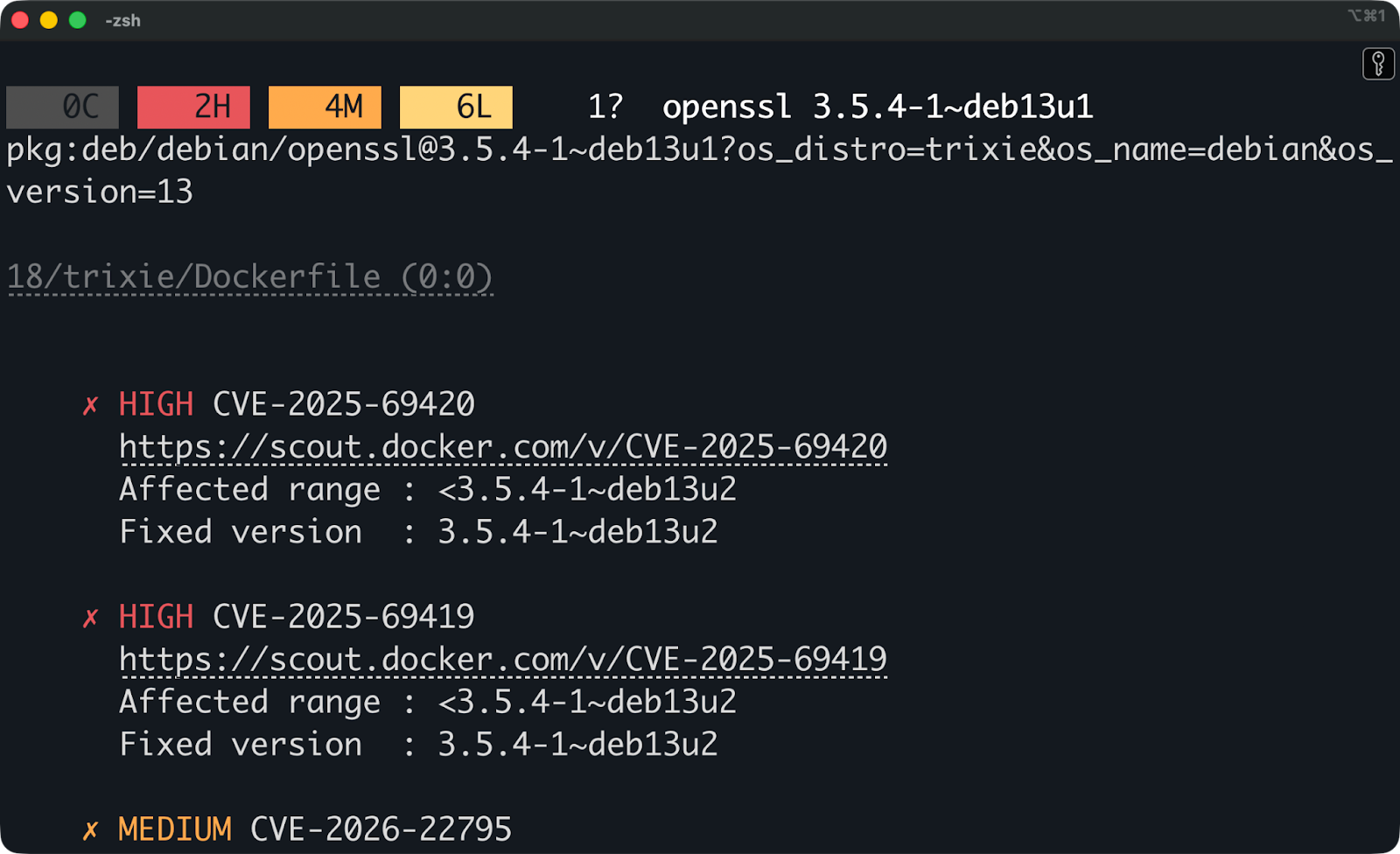
Vulnerability report
This tells you exactly what's vulnerable (openssl), which version you're running, and which version fixes it. Scout also links to the CVE details so you can read about the vulnerability yourself.
The package attribution shows where vulnerabilities come from - base image packages, application dependencies, or system libraries. This helps you decide whether to update the base image, upgrade a dependency in your code, or wait for an upstream fix.
A Software Bill of Materials (SBOM) is a complete inventory of everything inside your container image - every package, library, and dependency.
It tells you exactly what went into your image, down to specific version numbers. Security teams use SBOMs to track what's running in production, and compliance frameworks often require them.
Docker Scout generates SBOMs automatically when you scan an image using commands I showed in the previous section. Just to reiterate:
docker scout sbom postgres:18.1This outputs the complete package list to your terminal. Scout analyzes the image layers and extracts package metadata, then formats it as an SBOM you can save or share.
You can export the SBOM to a file instead of printing it to the screen:
docker scout sbom postgres:18.1 --format spdx > postgres-sbom.json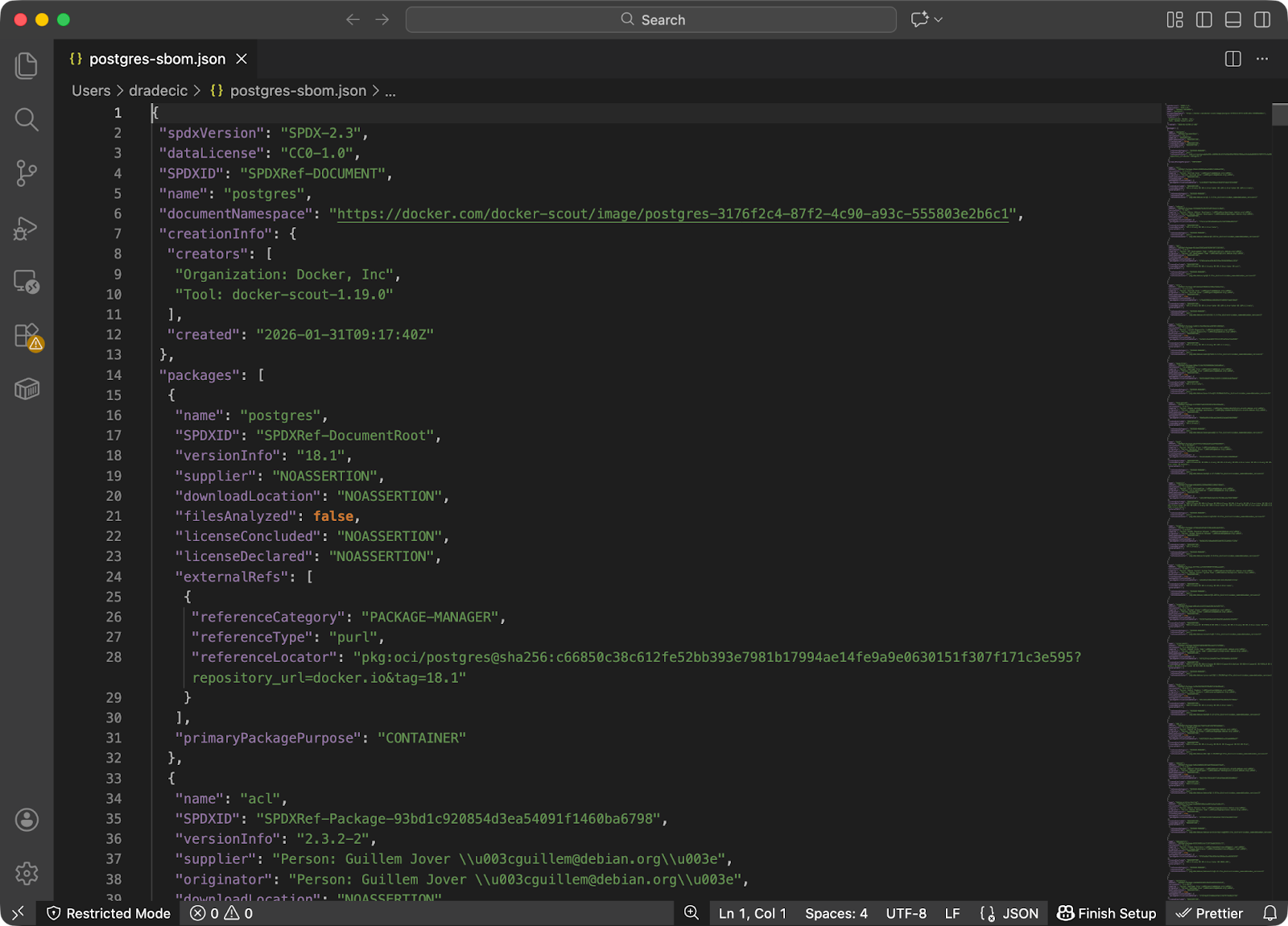
SBOM SPDX report
Scout supports two standard SBOM formats: SPDX (Software Package Data Exchange) and CycloneDX. Both are widely used industry standards. SPDX works well for compliance and legal reviews, while CycloneDX focuses on security use cases and vulnerability tracking.
You can switch between formats with the --format flag:
docker scout sbom postgres:18.1 --format cyclonedx > postgres-sbom.json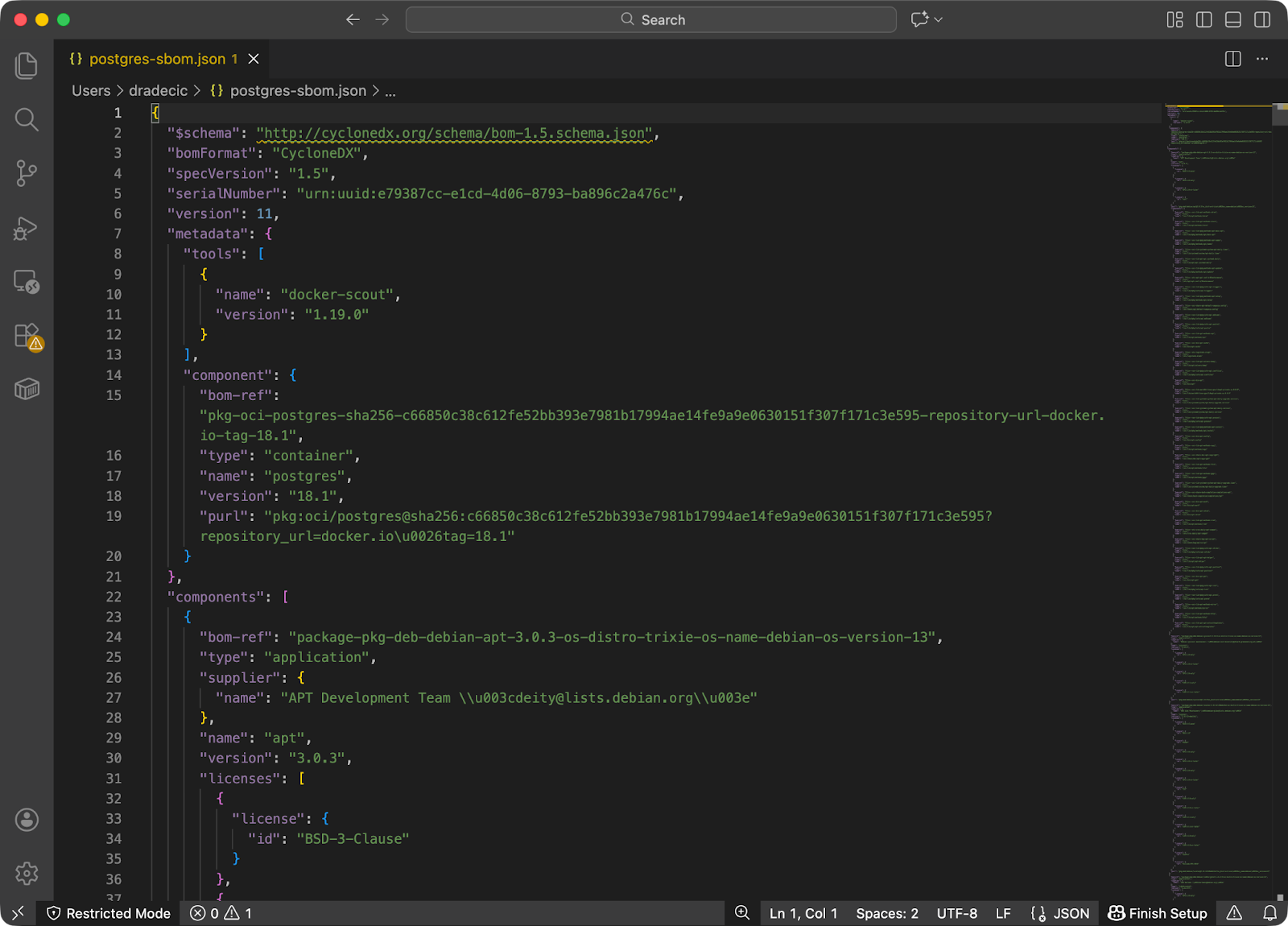
SBOX CycloneDX report
Once you have an SBOM file, you can share it with security teams, feed it into other scanning tools, or archive it for compliance audits.
Docker Scout finds vulnerabilities by matching packages in your image against a database of known security issues.
When you run docker scout cves, Scout extracts every package from your image - OS packages, language libraries, application dependencies - then checks each one against Common Vulnerabilities and Exposures (CVE) records. A CVE is a publicly disclosed security flaw with a unique ID like CVE-2024-1234.
Scout pulls CVE data from multiple sources:
This means Scout can catch vulnerabilities in both your base image's OS packages and your application's dependencies.
That said, it’s important you remember the analysis works differently depending on where your image lives.
Both methods give you the same vulnerability information. They only differ in where Scout reads the image data from.
When Scout finds a vulnerability with an available patch, it shows you the exact version that fixes the issue. You'll see output like "Fixed in: 1.2.3" next to each CVE. This what you know whether you need to update a package, rebuild your image with a newer base, or wait for an upstream fix.
Scout also recommends base image upgrades when switching to a newer base would eliminate vulnerabilities. If you're using python:3.13 and Scout finds issues in the base OS packages, it might suggest upgrading to python:3.14 or even a more specific patch version.
These recommendations show up when Scout detects that a different base image tag has fewer vulnerabilities than your current one. The suggestions are actionable - you can literally copy the new tag into your Dockerfile and rebuild.
So, why does this matter?
Your base image contains the OS packages, system libraries, and language runtimes that everything else depends on. A vulnerable base image means every container you build from it inherits those vulnerabilities. When you pick a minimal and actively maintained base image, you reduce the attack options.
Official images from Docker Hub get regular security updates, but you still need to rebuild your images to pick up those fixes. For example, pulling python:3.13 today gives you different packages than pulling it six months ago.
Teams integrate Docker Scout into CI pipelines to catch vulnerabilities before images reach production.
The idea is simple: scan every image as part of your build process, then fail the build if critical vulnerabilities show up. You find problems during development instead of after deployment. Most teams set up Scout to run automatically whenever someone pushes a new Dockerfile or updates a base image.
Pipelines typically check for two things:
Integration with GitHub Actions, GitLab CI, or Jenkins works the same way conceptually. You build your image, run docker scout cves on it, parse the results, and decide whether to pass or fail the pipeline based on your criteria. Some teams integrate Scout into their container registry workflows instead to scan images right after they're pushed.
Docker Scout is not the only tool you have available. It competes with tools like Trivy and Snyk, but each one targets different workflows.
Pick Docker Scout if your team builds and runs containers with Docker tools and you want security visibility without adding complexity. Pick Trivy if you need a flexible, open-source option that works anywhere. Pick Snyk if you want complete security across containers, code, and infrastructure with automated fixes.
Docker Scout scans container images, but it doesn't monitor what happens after you deploy them.
It analyzes static images - the packages and files built into your container. It can't detect runtime issues like privilege escalation attacks, network intrusions, or malicious processes that start after deployment. If you need runtime security monitoring, you'll want tools like Falco or Sysdig that watch container behavior in production.
Scout also isn't a replacement for full SAST (Static Application Security Testing) or DAST (Dynamic Application Security Testing). SAST tools analyze your source code for security flaws before you build anything. DAST tools test running applications by simulating attacks. Scout only looks at the packages inside your built image - it won't catch vulnerabilities in your application logic or configuration mistakes in your code.
What Scout does well is give you visibility into what's inside your images and guide you toward fixes. It tells you which packages are vulnerable, which versions fix them, and which base images reduce the attack possibilities. This makes Scout useful for build-time security checks and compliance tracking, but you'll need other tools to cover the full security aspect.
Here’s a checklist you can use to get the most out of Docker Scout.
Scan early in your development cycle. Run Scout on images during local development, not just in CI or before deployment. Finding vulnerabilities early means you fix them when context is fresh and changes are cheap. Waiting until production means scrambling to patch issues under pressure.
Compare images over time to track security trends. Scout can show you whether your security is improving or getting worse. Run scans on every build and compare the results. If your new build introduces more critical vulnerabilities than the last one, something changed - maybe a dependency update or a base image shift. You need to investigate.
Treat Scout's findings as prioritization signals, not absolute blockers. Not every vulnerability needs immediate action. A low severity CVE in a development dependency you don't use in production can wait. A critical CVE in a publicly exposed service needs attention immediately. Use Scout's severity ratings and package context to decide what matters for your specific deployment.
Pair Scout with base image hygiene. Pick minimal, actively maintained base images and update them regularly. Using python:3.14-slim instead of python:3.14 cuts out packages you don't need. Rebuilding your images monthly picks up security patches in the base layer. Scout can tell you what's vulnerable, but choosing good bases prevents many vulnerabilities from appearing in the first place.
Docker Scout gives you a practical way to start understanding what's inside your container images.
It fits into Docker-based development - no separate tools to install, no accounts to set up beyond what you're already using. You run a command, get vulnerability reports, and see which packages need updates.
Scout works best as part of a broader security approach, not as your only option. Pair it with runtime monitoring, source code analysis, and regular base image updates. Use it to catch vulnerabilities during builds, then add other tools to cover what happens after deployment.
If you’re wondering how Docker fits into CI/CD pipelines for machine learning, enroll in our CI/CD for Machine Learning course. You’ll have all the answers in one afternoon.
Learn Docker with DataCamp
Course
Course
Track
cheat-sheet
Richie Cotton
5 min
Tutorial
Benito Martin
11 min
Tutorial
Arunn Thevapalan
15 min
Tutorial
Benito Martin
12 min
Tutorial
Srujana Maddula
9 min
Tutorial
Dario Radečić
12 min