
Course
Introduction to Docker
4 hr
51.5K
Updating Docker can mean three completely different things. You might need to update Docker Engine, Docker Desktop, or the images your containers run on.
Most developers don't know which one they actually need to update, so they either update everything (and risk breaking their setup) or avoid updates entirely (and expose themselves to vulnerabilities). To update Docker safely, you just need to know what you're updating and follow the right steps for each scenario.
In this article, I’ll walk you through the safest, most common update paths without the guesswork. You'll learn what each type of Docker update actually does, when you need each one, and how to execute updates step by step without breaking your existing containers.
If you're new to Docker, start with Introduction to Docker to build a foundation before working on updates and maintenance.
As I mentioned, the term "updating Docker" can refer to three different things, and mixing them up is how you can accidentally break a working system. You might update the Docker Engine (the core software that runs containers), Docker Desktop (the GUI application), or the container images your applications use.
Each update type affects your system differently. Let me explain.
Docker Engine is the runtime that manages your containers.
When you update Docker Engine, you're upgrading the software that creates, runs, and manages containers on your system. This is a system-level change that affects how Docker operates. You're installing new binaries, updating the daemon, and potentially changing how Docker interacts with your operating system.
Container images are the blueprints your containers run from.
Updating an image means pulling a newer version of the application packaged inside that container. For example, if you're running PostgreSQL 14 in a container and want to upgrade to PostgreSQL 18, updating the image means pulling that new version. The Docker Engine itself doesn't change - just the software inside your containers.
The key thing to remember is that updating Docker Engine can affect all your containers, while updating an image only affects containers built from that specific image.
Docker Engine updates don't automatically restart your containers.
When you update Docker Engine on Linux, the Docker daemon restarts, but your containers keep running in most modern setups. Docker uses a feature called live restore that keeps containers alive during daemon updates. You can check if it's enabled by running docker info and looking for "Live Restore Enabled: true."
Docker Desktop is a different story.
On macOS and Windows, updating Docker Desktop will stop all running containers. The entire Docker VM restarts during the update process. Your containers won't start automatically after the update completes. You'll need to start them manually or use restart policies.
Image updates require you to recreate containers.
Pulling a new image version doesn't touch running containers at all. If you want to use the updated image, you need to stop the old container, remove it, and create a new one from the updated image.
This is why understanding the difference between Engine updates and image updates matters. One might require downtime planning, the other won't.
Outdated Docker versions expose you to known security vulnerabilities and compatibility issues. If that alone doesn’t convince you, read on.
Each Docker release patches security flaws discovered in previous versions.
Running an old version means you're vulnerable to exploits that attackers already know about. Security researchers and the Docker community actively find and report these issues, and the company behind Docker fixes them in newer releases. If you're not updating, you're leaving the door open.
Also, stability improves with each release. Bug fixes in newer versions address things that annoy most users and that could take down your containers in production.
You don't need to update every single time a new version drops, but skipping updates for months means you're missing out on dozens of security patches and stability improvements.
Operating systems and development tools move forward whether you update Docker or not.
Your OS receives updates, your CI/CD tools get new features, and orchestration platforms like Kubernetes will eventually drop support for older Docker versions. If you're running Docker from two years ago, you'll start seeing compatibility warnings, then errors, then complete breakage.
Modern container images also expect newer Docker features. Image builders use multi-stage builds, BuildKit optimizations, and newer storage drivers that old Docker versions don't support. You might pull an image that simply won't run on your outdated setup.
If you're planning to use orchestration tools alongside Docker, our Introduction to Kubernetes is a great course to get you up and running.
Before updating, it’s a good practice to check your current version.
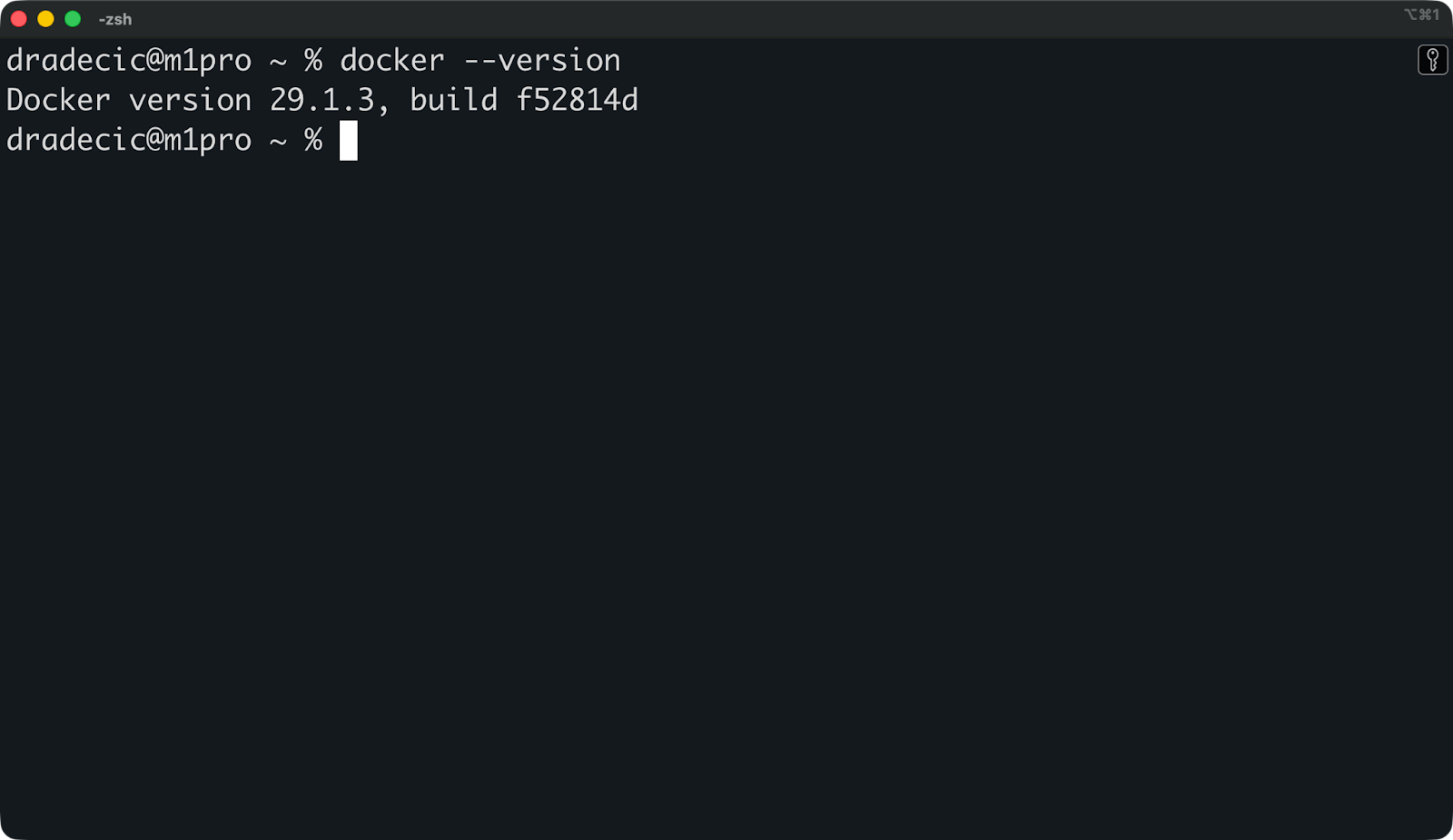
Run this command to see your current Docker version:
docker --versionThis shows you the Docker Engine version installed on your system:
The version number follows semantic versioning: major.minor.patch. In this example, 29 is the major version, 1 is the minor version, and 3 is the patch version.
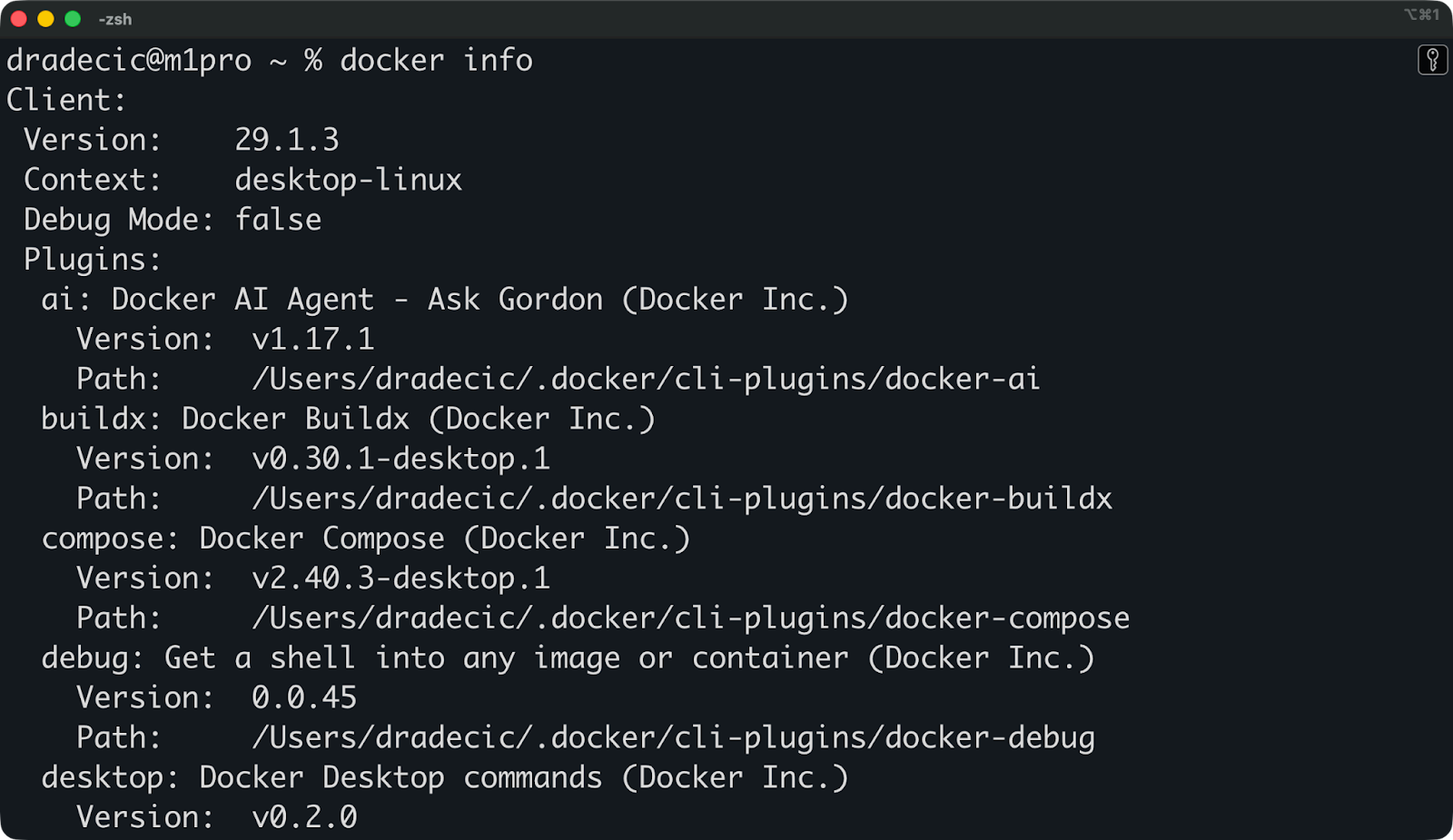
For more details about your Docker setup, run this command instead:
docker info
It dumps a ton of information about your Docker installation, including the server version, storage driver, kernel version, and whether features like live restore are enabled. You don't need all this information for a basic update, but it's handy for troubleshooting.
Minor version updates are usually safe and should be applied regularly.
If you're on Docker 29.1.0 and 29.1.3 is available, that's a minor update with bug fixes and security patches. These updates rarely break anything, and you should apply them when convenient.
Major version updates require more caution. Jumping from Docker 24 to Docker 29 might introduce breaking changes, deprecated features, or new requirements. Before updating across major versions, check the Docker release notes for your target version to see what changed.
You can find the latest Docker version on the official Docker docs or GitHub releases page. Compare it to what docker –version shows you to see how far behind you are.
The update process depends on whether you're running Docker Engine on Linux or Docker Desktop on macOS/Windows.
Linux uses your system's package manager to update Docker Engine.
The exact commands vary by distribution, but the process is the same:
Here's how it works on Ubuntu and Debian-based systems:
sudo apt update
sudo apt upgrade docker-ce docker-ce-cli containerd.io
For Red Hat-based systems like CentOS or Fedora, run the following:
sudo yum update docker-ce docker-ce-cli containerd.ioThe Docker daemon restarts automatically during the update.
If you have live restore enabled (check with docker info), your running containers will keep running. If not, they'll stop and you'll need to start them manually.
After the update completes, you can verify the new version:
docker --versionIf you installed Docker using the convenience script instead of package repositories, you'll need to download and run the script again to update.
Docker Desktop handles updates differently than Docker Engine on Linux.
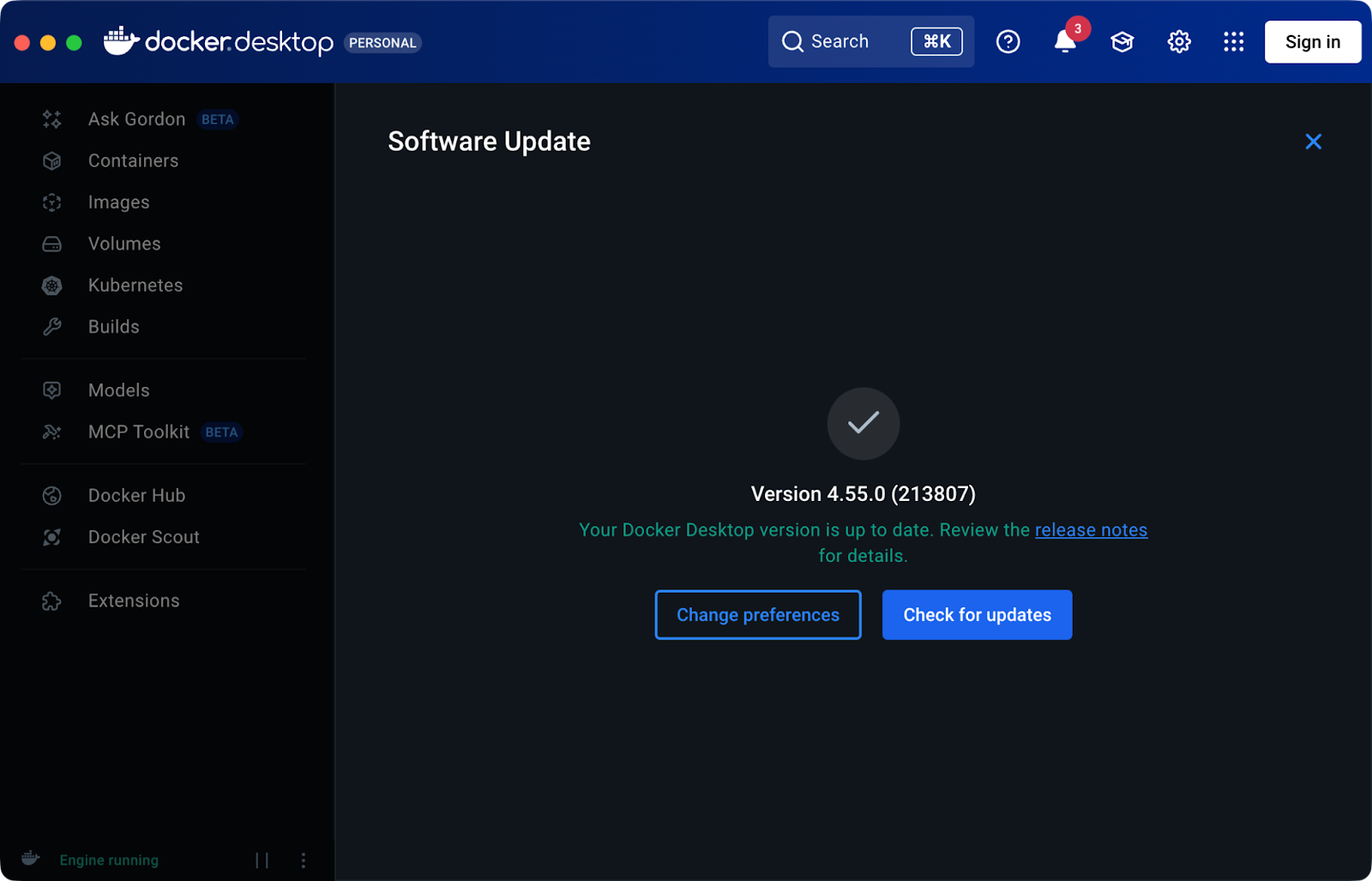
Auto-update is enabled by default. Docker Desktop checks for updates when it starts and shows a notification when a new version is available. Click the notification, and Docker Desktop downloads and installs the update for you.
If you prefer manual updates, open Docker Desktop settings and look for the "Check for updates" option. You can disable automatic updates here and check manually whenever you want.
It’s also fine to update Docker manually.
Just download the latest Docker Desktop installer from the Docker website and run it. The installer will detect your existing installation and upgrade it without removing your images or containers.
Just remember that Docker Desktop will stop all containers during the update. The entire Docker VM restarts, so plan for a couple minutes of downtime. Your containers won't restart automatically unless you configured them with restart policies like --restart always.
After updating, open Docker Desktop and let it start up completely before running docker –version to confirm the new version.
Managing multiple containers individually isn’t something to be proud of. Check out our Docker Compose Guide to learn about multi-container builds.
Docker should now be updated - but let’s verify if that’s really the case.
Check the version number first:
docker --versionThe output should show your target version. If it still shows the old version, the update didn't complete properly or you need to restart your terminal to pick up the new binaries.
The version is unchanged on my machine, but that’s only because I was already on the latest version.
The next step is to check the Docker daemon status:
docker infoIf it fails with "Cannot connect to the Docker daemon," the daemon isn't running. On Linux, restart it with the following command:
sudo systemctl restart dockerOn macOS and Windows, just open Docker Desktop and wait for it to start.
Learn the essential commands for day-to-day container work in our recent article showcasing Top 18 Docker Commands.
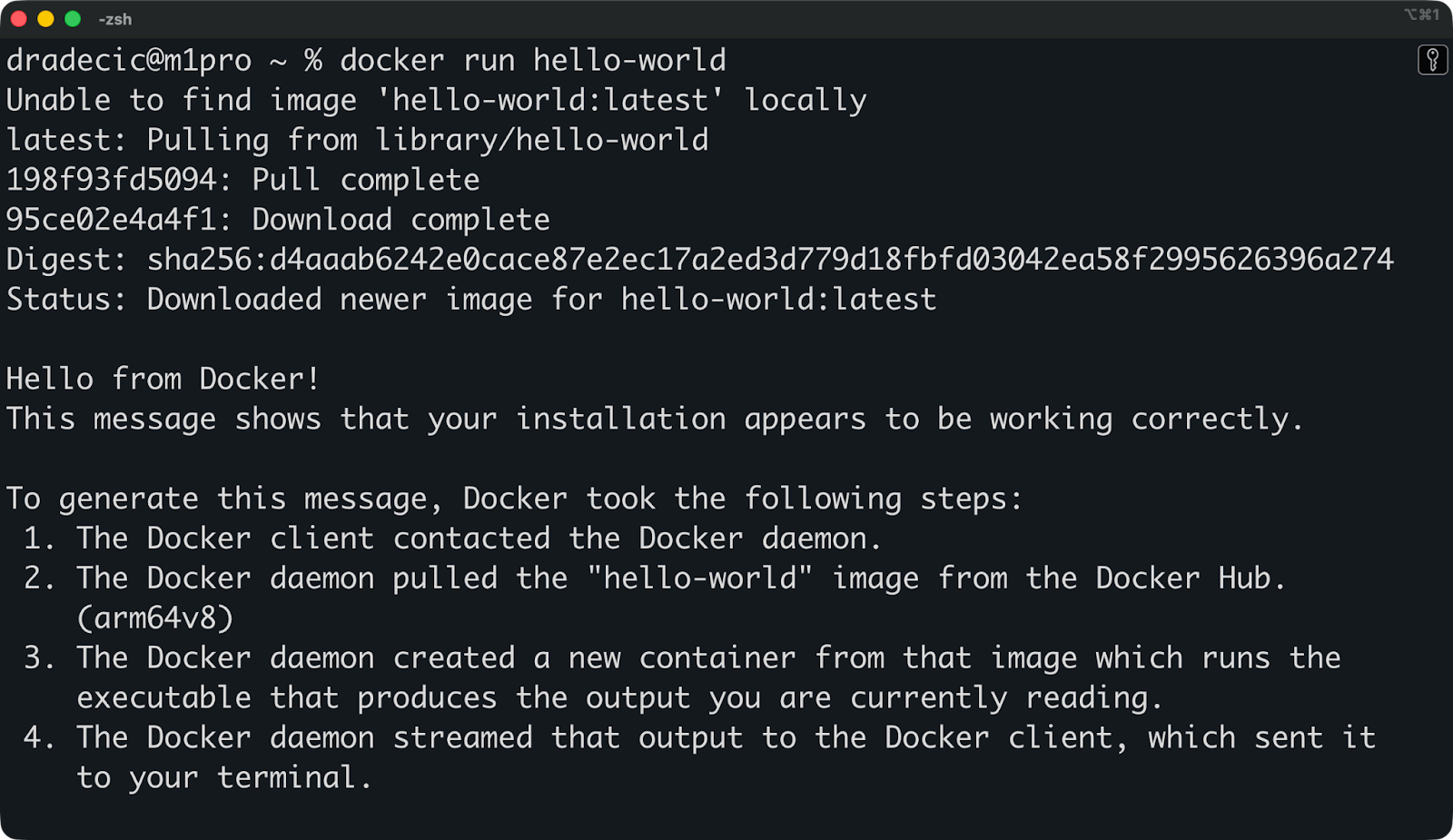
To verify nothing is broken after the update, try pulling and running a simple container:
docker run hello-worldThis command pulls the tiny hello-world image and runs it. You'll see a message explaining that Docker is working correctly:
Updating Docker Engine doesn't update your container images - you need to handle those separately.
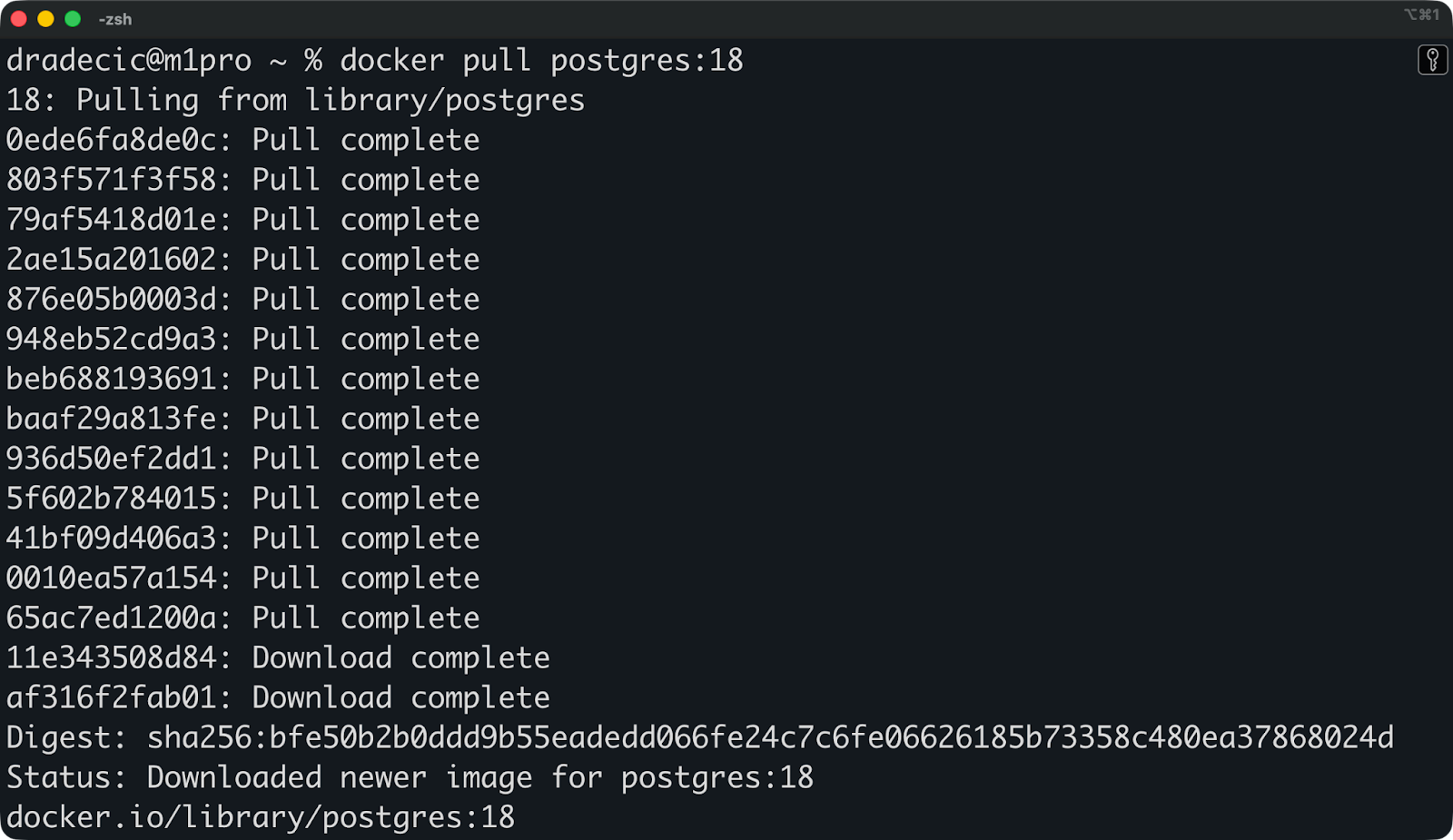
You can run the docker pull command to get the latest version of an image:
docker pull postgresThis pulls the newest version of the PostgreSQL image with the latest tag. But it doesn't always mean what you think it means - it's just a tag that image maintainers can point to any version they want.
It’s always recommended to be explicit with the tags to avoid surprises:
docker pull postgres:18
This pulls PostgreSQL version 18 specifically. If version 18.1 comes out, running this command again will pull the updated 18.1 image while staying within the version 18 series.
For other images, first check their current versions with docker images command. Then pull newer versions as needed. Your existing containers keep running the old image until you recreate them with the new one.
If you build your own images with Dockerfiles, you need to rebuild them after pulling base image updates.
Say your Dockerfile starts with FROM python:3.14. Even if you pull the latest python:3.14 image, your custom image still uses the old cached layers. Rebuild it to pick up the updates:
docker build --no-cache -t myapp:latest .This ignores all cached layers and rebuilds everything from scratch. It takes longer but guarantees you're using the freshest base images and dependencies.
After rebuilding, stop your old containers and start new ones with the updated image - updates don't apply to running containers automatically.
Need to free up disk space after updating? Our Docker Prune tutorial shows you how to clean up unused images and containers safely.
Docker updates fail in predictable ways, and most problems have quick fixes. Let me show you a couple I’ve encountered personally.
"Permission denied" errors mean your user can't access the Docker socket.
On Linux, add your user to the docker group:
sudo usermod -aG docker $USERLog out and back in for the change to take effect. You shouldn't need sudo for docker commands after this.
"Cannot connect to the Docker daemon" errors mean Docker isn't running.
Check the service status:
sudo systemctl status dockerIf it's stopped or failed, start it:
sudo systemctl start dockerIf it won't start, check the logs with journalctl -u docker to see what's breaking.
On macOS and Windows, simply start the Docker Desktop app.
Package conflicts during installation happen when old Docker packages interfere with new ones.
You can run this command to remove old Docker packages before installing the updated version:
sudo apt remove docker docker-engine docker.io containerd runcThen reinstall Docker following the official installation instructions for your distribution.
If the update breaks your setup, you can downgrade to a previous version.
On Linux, find available versions in your package manager:
apt list -a docker-ceInstall a specific older version:
sudo apt install <specific-version>Replace the tag with whatever version you need. Your containers and images stay intact during the downgrade.
For macOS and Windows, rollback is simpler. Download the older installer from Docker's release archive and run it. The installer replaces the current version with the older one without touching your containers or images.
The best piece of advice is to keep Docker updated regularly. If you haven’t done so in years, search the release pages for any breaking changes.
Set a reminder for checking Docker updates instead of waiting for problems.
Check for updates monthly - not because you need to install every single one, but because you need to know what's available. And you need something to remind you. Security patches matter more than feature updates, so prioritize those when they drop.
A good practice is to document your current setup before updating. Write down your Docker version, list your running containers with docker ps, and note any custom configurations. If something breaks, you'll know exactly what changed.
Test updates on a development machine first if you're running Docker in production. Spin up a similar environment, update Docker there, and make sure your containers still work before touching production.
Automation makes sense for development environments where downtime doesn't matter.
You can configure Docker Desktop to auto-update or set up unattended upgrades on Linux for security patches. This works well for local development machines where a restart won't disrupt critical services.
Don't automate updates in production without proper safeguards.
You need monitoring, rollback strategies, and testing before applying updates to systems that run real workloads. Docker updates can break things - you want a human in the loop for production systems.
Manual updates through monthly reminders is my preferred way, and I’ve never had issues.
Updating Docker starts with understanding what you're actually updating.
Docker Engine updates, Docker Desktop updates, and image updates are three different things with different impacts on your system. Know which one you need, follow the right process for your platform, and test afterward. That's it.
Set a reminder on your phone. Check for updates monthly, prioritize security patches, and document what you're running before you change anything. Updates shouldn't be something you stress over - they should be a routine maintenance task.
For production environments, remember that your containers depend on Docker working correctly. Treat updates with the same care you'd give any other critical infrastructure change - deliberately, with testing, and with a rollback plan if things go wrong.
Now you know how to update Docker - the next step is to take your container skills further with our Intermediate Docker course. You’ll learn all about networking, advanced container images, and Docker Compose.
Learn Docker with DataCamp
Course
Course
Course
blog
Joel Wembo
14 min
blog
Laiba Siddiqui
15 min
Tutorial
Khalid Abdelaty
5 min
Tutorial
Derrick Mwiti
Tutorial
Dario Radečić
15 min
Tutorial
Arunn Thevapalan
15 min