Track
AI Agent Fundamentals
6 hr
MiniMax M3 is the next step after MiniMax M2.7. Its predecessor was already a strong model for agentic coding, as I’ve covered in this tutorial for Running MiniMax M2.7 Locally, but M3 brings bigger changes for real software development workflows.
Its biggest updates include:
The biggest update is the 1M-token context window, powered by the new MiniMax Sparse Attention architecture. This helps M3 work with much larger codebases, longer files, full project context, and multi-step workflows more efficiently, especially when working across multiple files, tools, and conversations.
Another major improvement is multimodal support. M3 can work with text, images, and video, which makes it useful for understanding UI screenshots, reviewing app designs, checking visual outputs, and connecting them with code changes.
MiniMax shows strong benchmark results for M3 across coding and agentic tasks. In its benchmark chart, M3 performs competitively on SWE Bench Pro, Terminal Bench 2.1, VIBE V2, SVG-Bench, BrowseComp, KernelBench Hard, MCP Atlas, and OSWorld-verified.
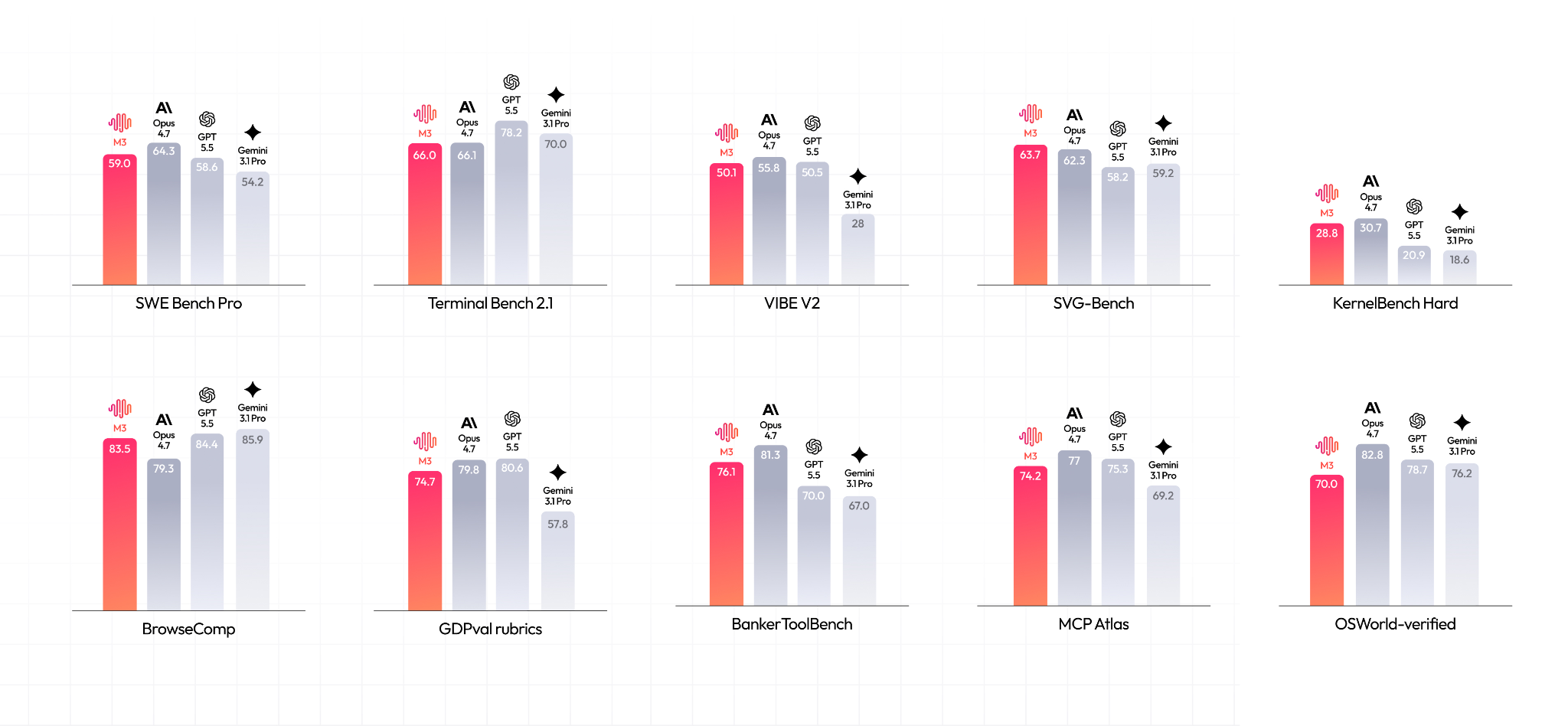
Source: MiniMax M3 Benchmark
MiniMax pricing can be a little confusing because there are three things to understand: the Token Plan, Credit packages, and normal pay-as-you-go API billing.
The Token Plan is the monthly subscription option. It is useful if you are a regular MiniMax Code user and plan to use coding agents, long-context workflows, or supported MiniMax tools often. The Token Plan uses a separate Token Plan Key, which is different from the normal pay-as-you-go API key.
With the M3 release, MiniMax offers three main monthly plans:
|
Plan |
Price |
Approximate M3 Usage |
|
Plus |
$20/month |
~1.7B tokens/month |
|
Max |
$50/month |
~5.1B tokens/month |
|
Ultra |
$120/month |
~9.8B tokens/month |
Credits are prepaid top-ups that work with the Token Plan Key. They can be used on their own or after your monthly Token Plan quota runs out. Credits are valid for one year from the purchase date, which makes them useful for testing, occasional usage, or covering extra usage without upgrading your monthly plan.
In simple terms:
MiniMax Code is available across web and desktop, giving users a flexible workspace for creating, managing, and automating tasks with MiniMax M3. The platform brings together agents, skills, files, scheduled tasks, and mobile connectivity into a single interface.
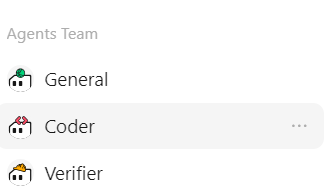
The Agent Team feature lets users choose between different role-based agents depending on the task. Instead of using one general assistant for everything, users can select the most suitable agent for their workflow.
Available agents include:
This makes MiniMax Code useful for more structured workflows where different stages of work need different types of support.
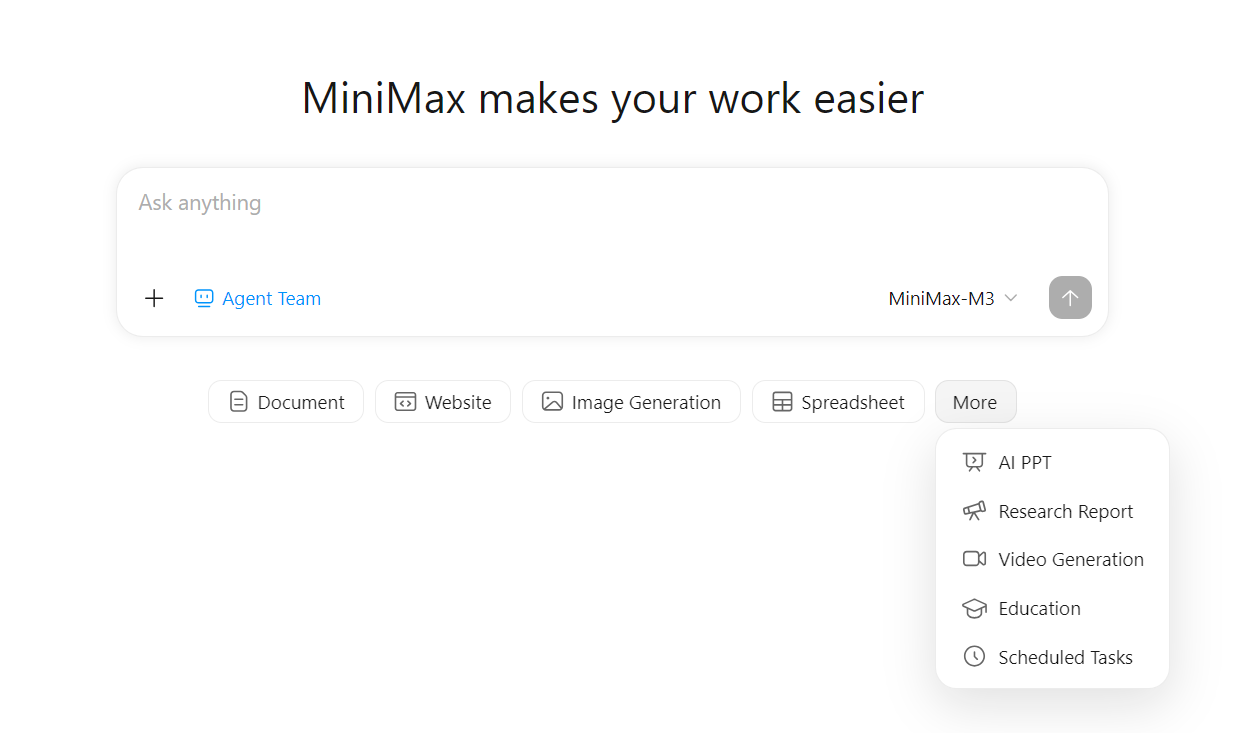
MiniMax Code also provides quick shortcuts for common work formats directly from the main workspace. These include:
These task modes help users quickly start the type of work they need without setting everything up manually.
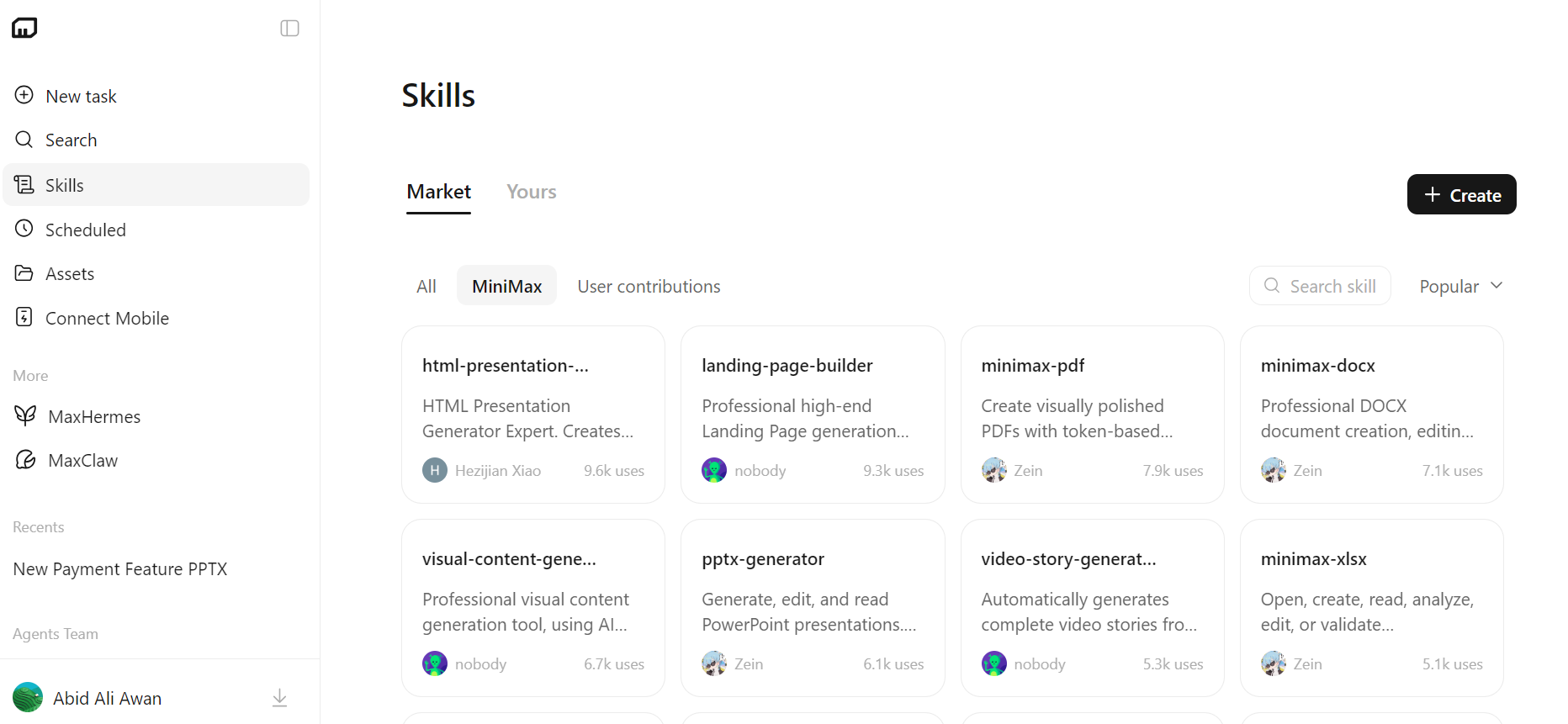
The Skills section allows users to extend MiniMax Code with specialized capabilities. Users can browse and use agent skills for tasks such as presentation generation, landing page building, PDF creation, DOCX editing, spreadsheet work, and video story generation.
This makes the platform more flexible because users can add ready-made workflows for specific tasks.
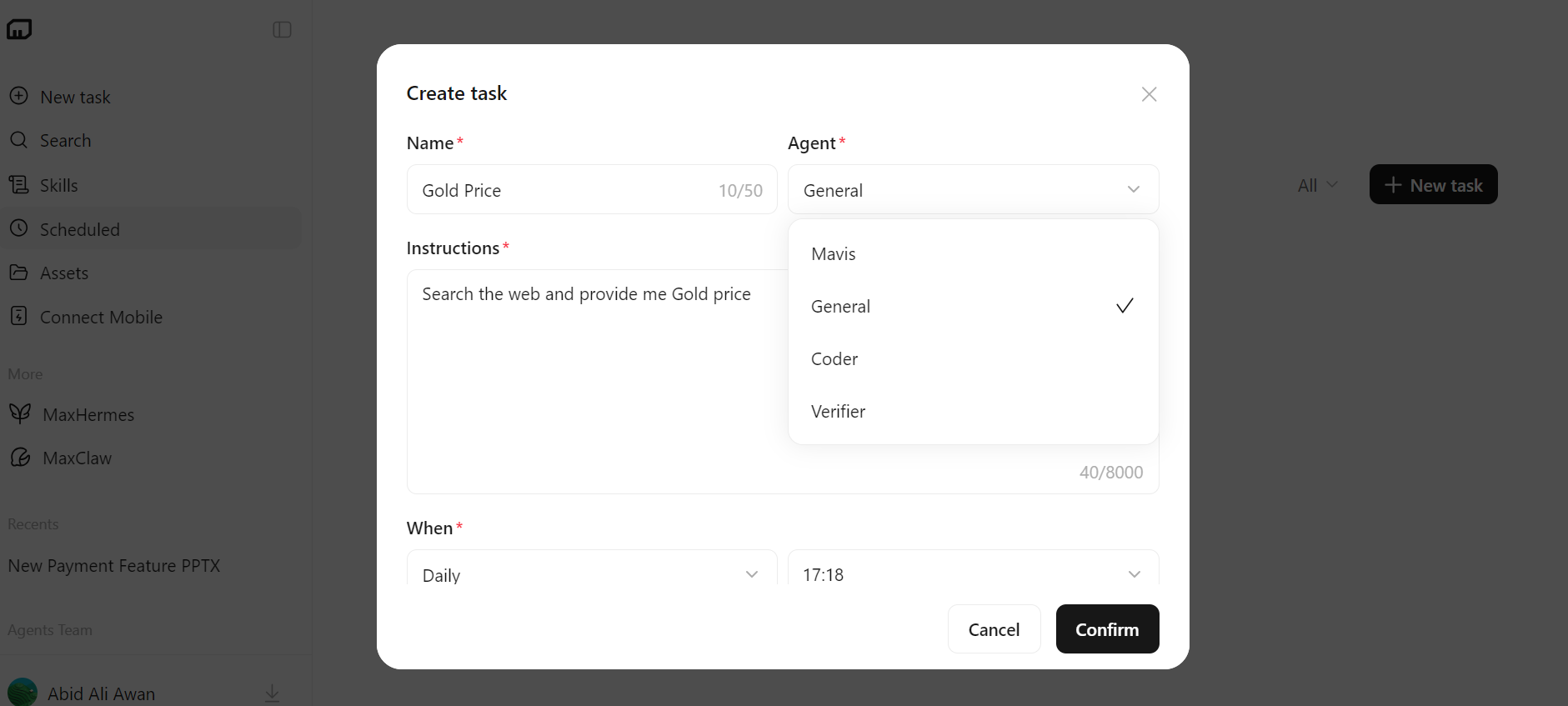
The Scheduled Tasks feature lets users automate recurring actions. Users can create a task, choose an agent, write the instructions, and set the task's run time.
For example, a user can schedule MiniMax Code to check the gold price every day, create recurring reports, or monitor updates.
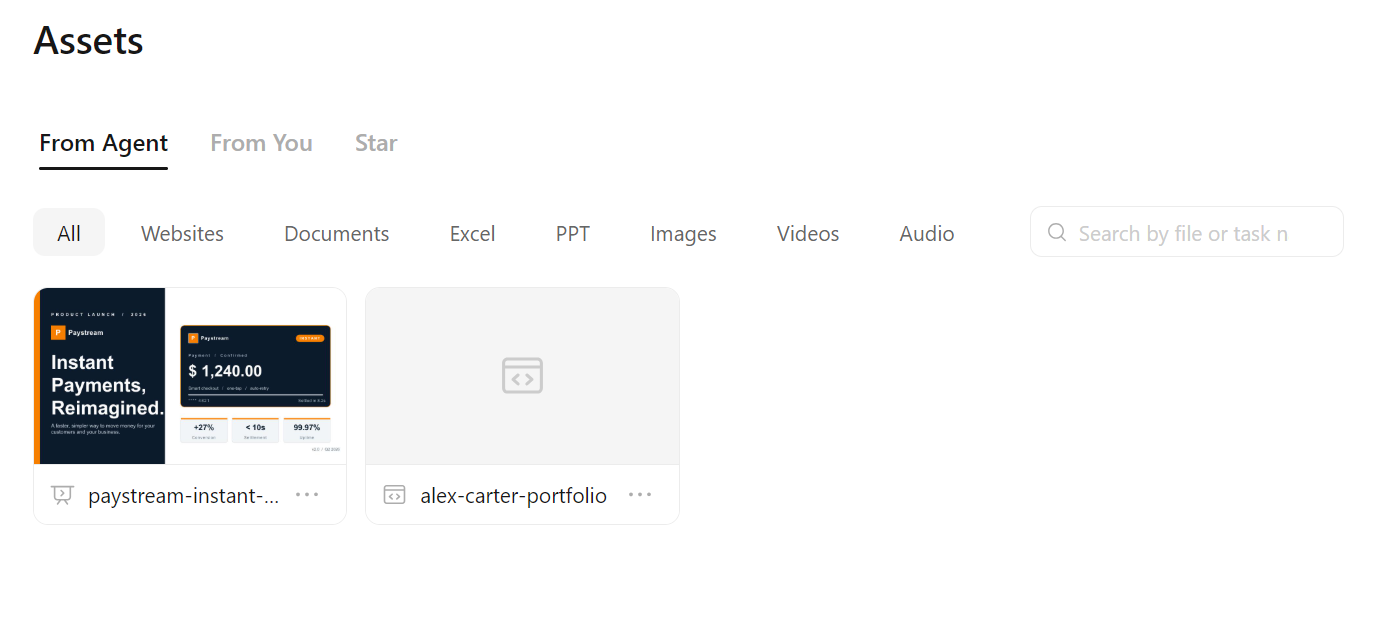
The Assets section stores files and outputs created inside MiniMax Code. It organizes assets by type, including websites, documents, Excel files, PPTs, images, videos, and audio.
This makes it easier to find, reuse, and manage previous work.
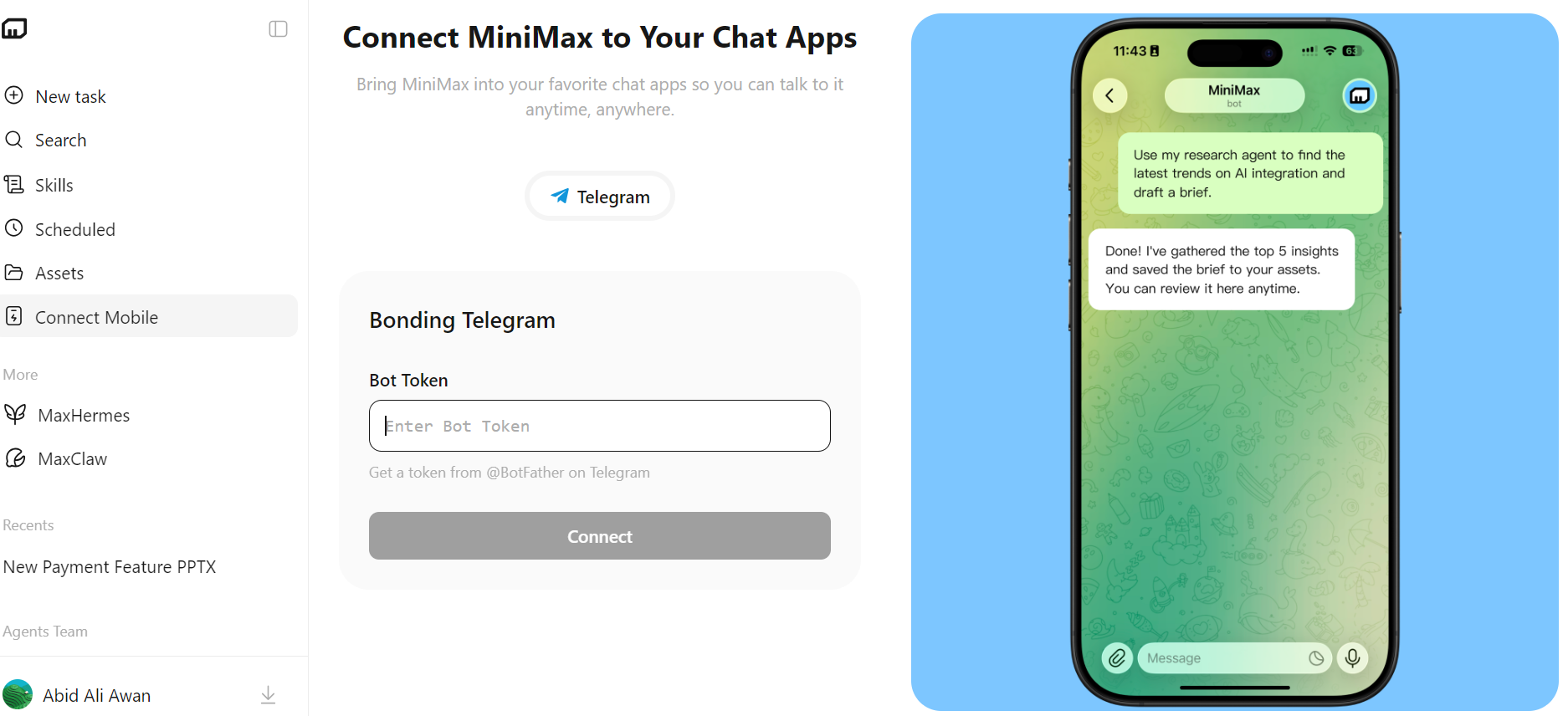
The Connect Mobile feature allows users to connect MiniMax to chat apps such as Telegram. Once connected, users can send tasks and interact with their assistant from mobile.
Similar to the Claude Code channels feature, this gives users access to MiniMax Code beyond the web or desktop interface.
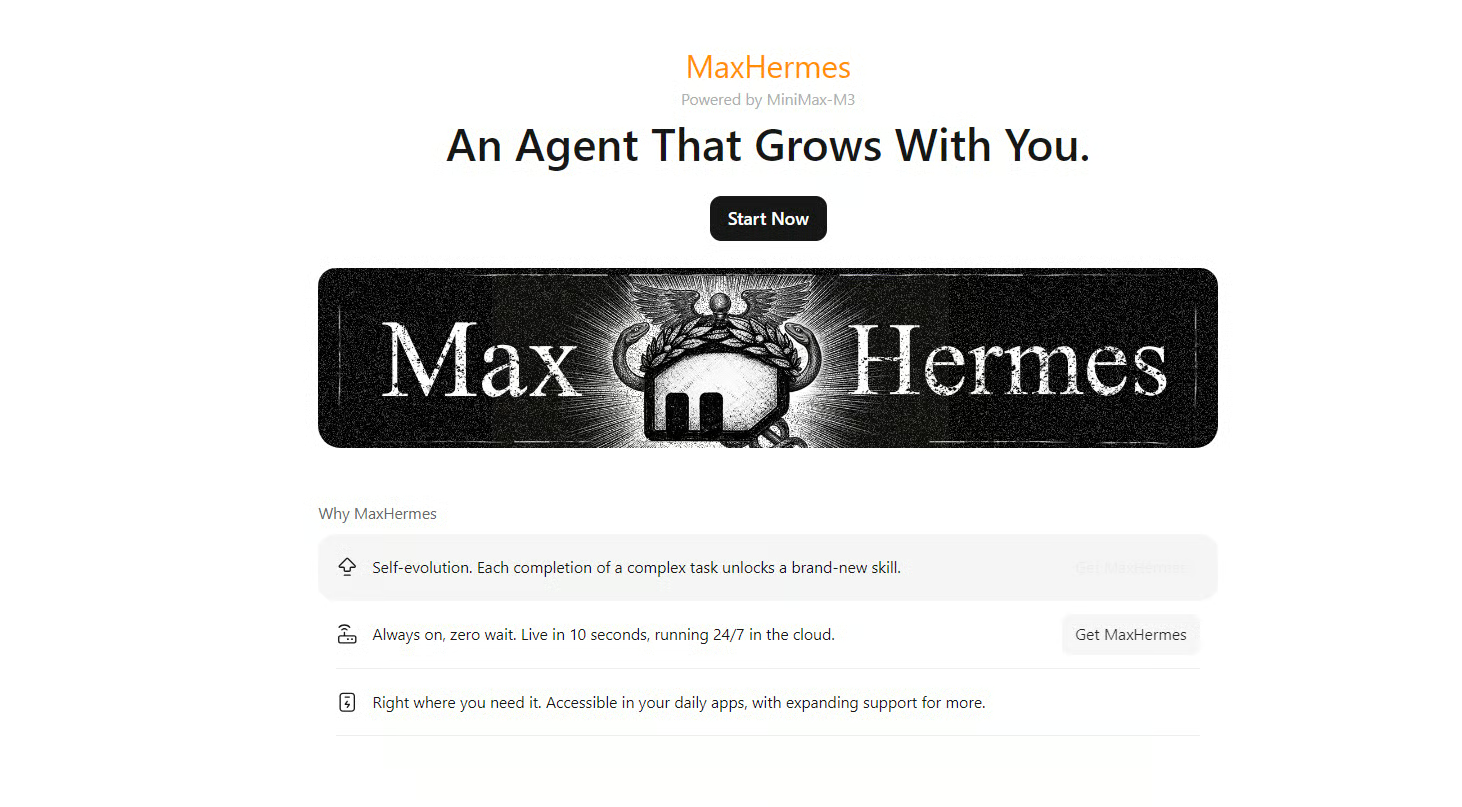
MaxHermes is based on the Nous Research Hermes Agent and designed to grow with the user over time. It focuses on self-evolution, skill development, and always-on cloud availability.
Key features include:
To activate MaxHermes, users need an active Token Plan. It also requires a monthly sandbox hosting fee of 4,000 credits.
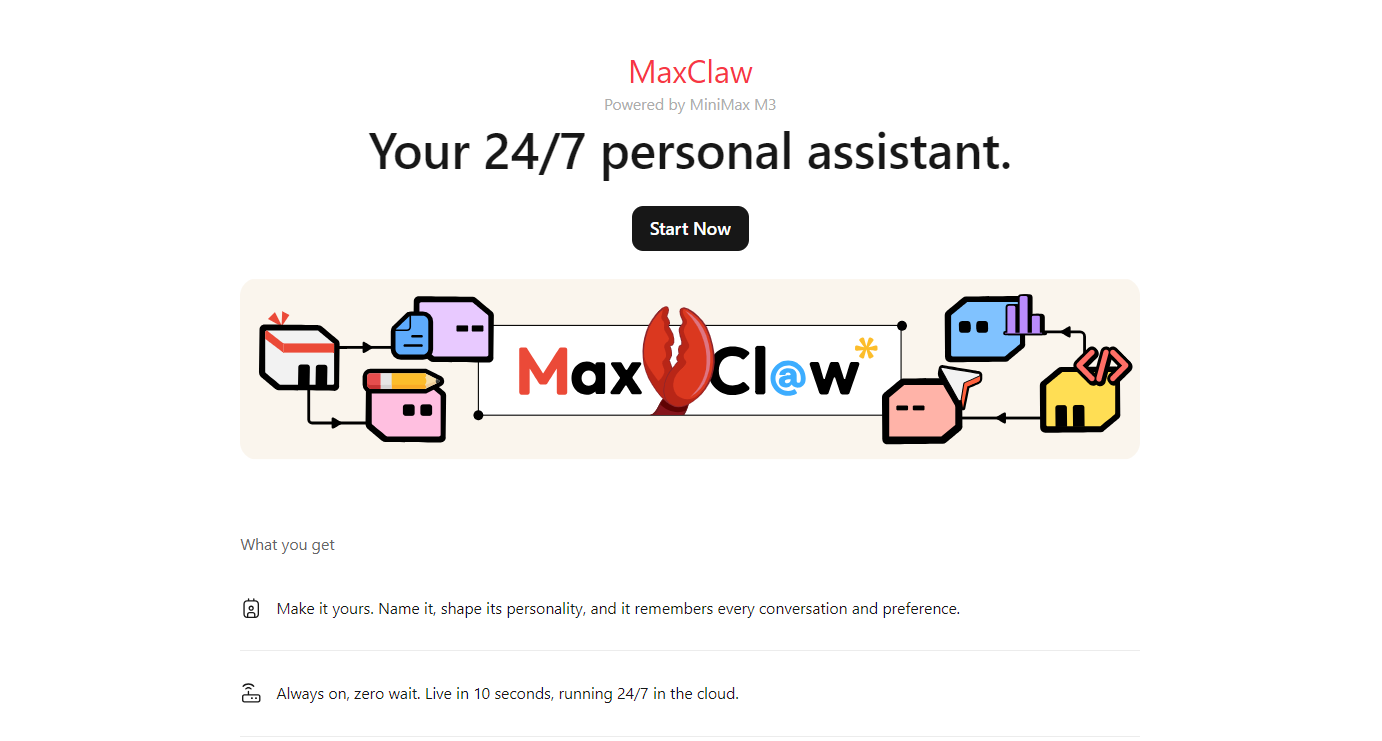
MaxClaw is based on OpenClaw, an open-source local-first autonomous AI agent framework. In MiniMax Code, MaxClaw is positioned as a 24/7 personal assistant powered by MiniMax M3.
Key features include:
Like MaxHermes, MaxClaw also requires an active Token Plan and a monthly sandbox hosting fee of 4,000 credits.
To try MiniMax Code on the web, go to https://agent.minimax.io/ and create an account. MiniMax Code gives you limited free usage, so you can test a few simple tasks before buying credits or subscribing to a Token Plan.
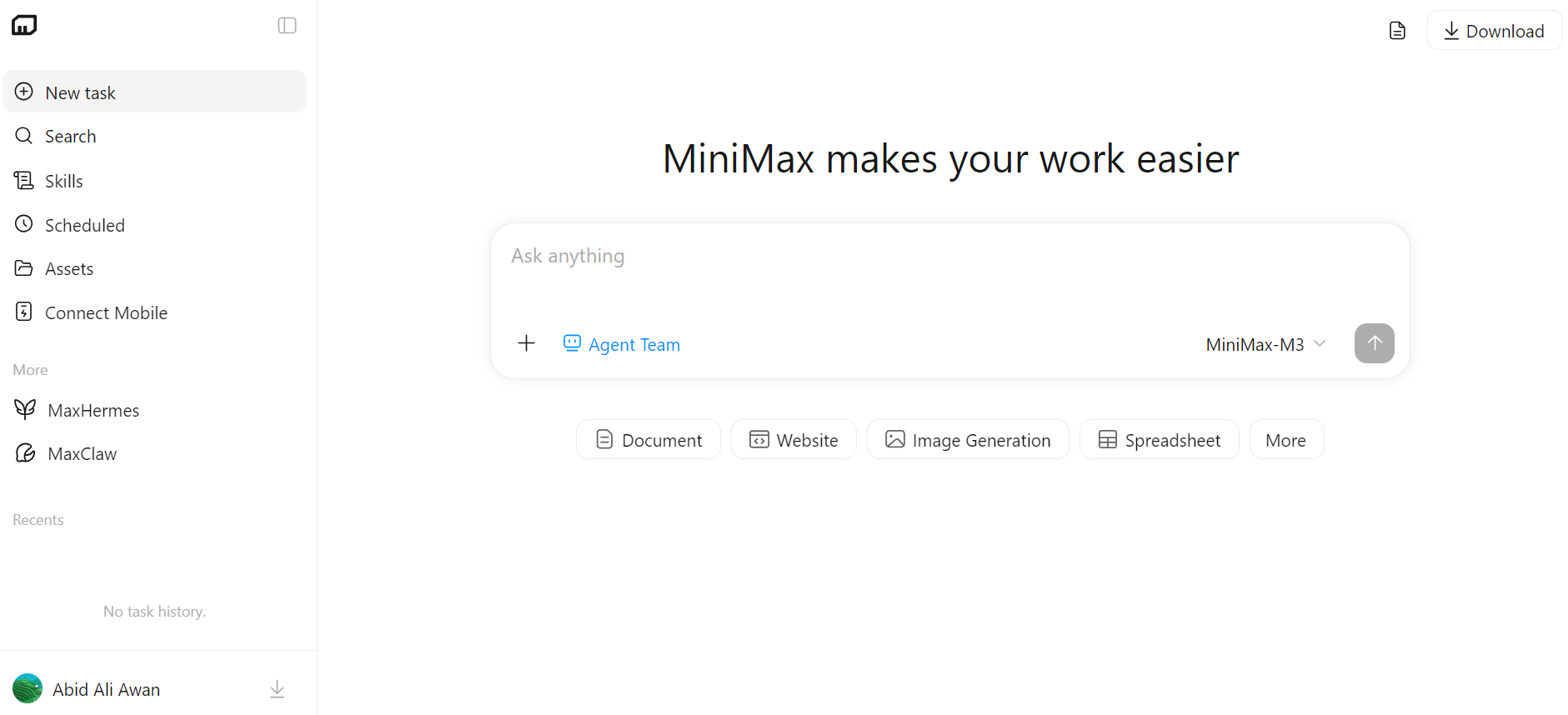
Source: MiniMax Agent: Minimize Effort, Maximize Intelligence
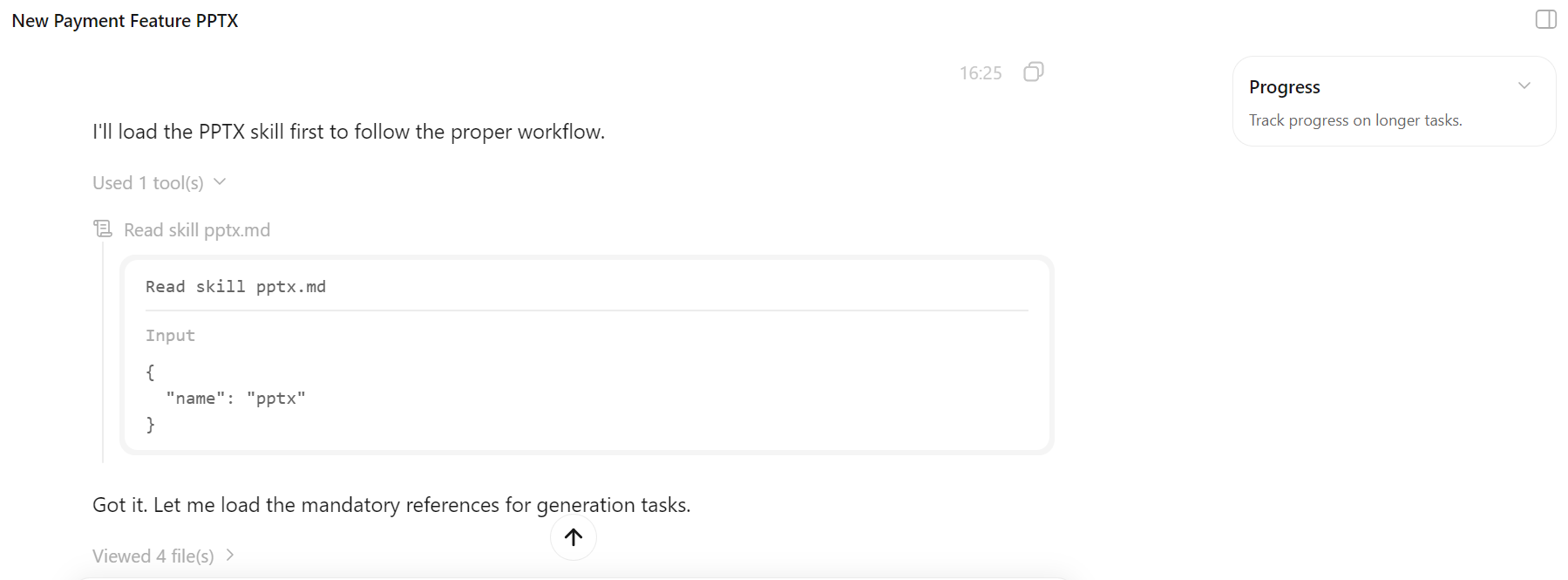
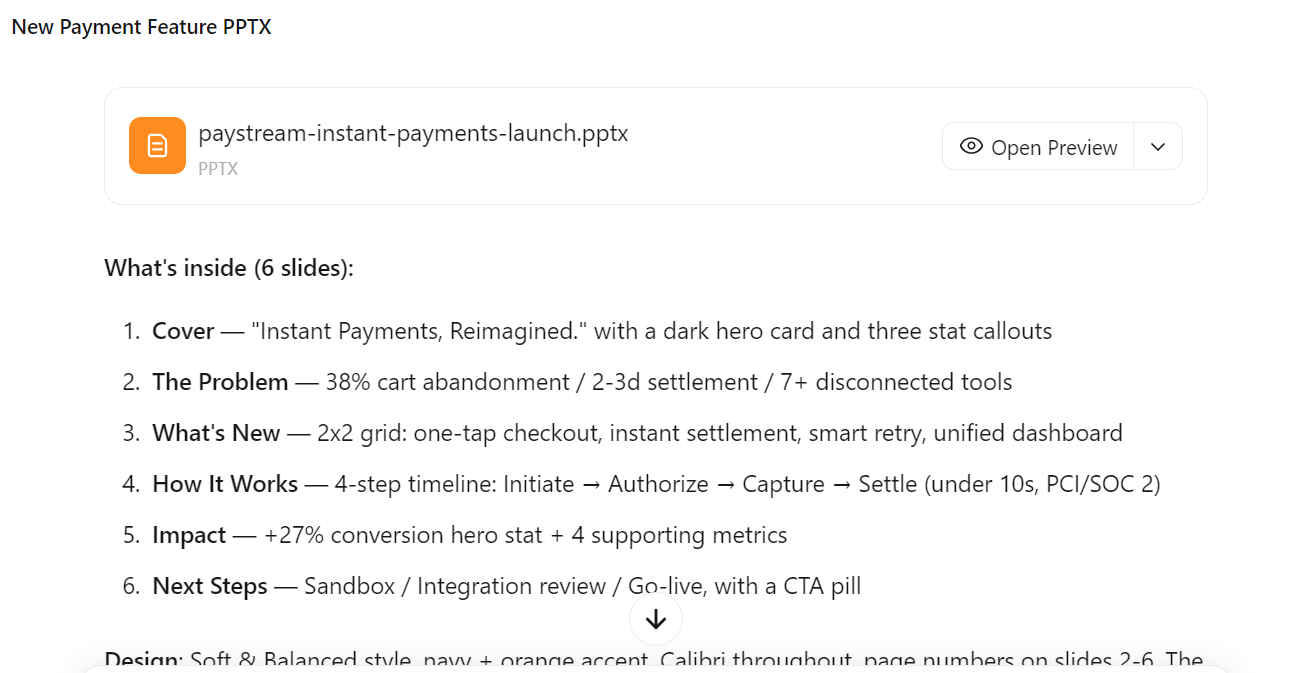
I started by asking it to create a presentation. For this, I used the PPTX skill directly in the prompt:
/pptx Create a short, professional PPTX presentation introducing our new payment feature. Keep it concise, modern, and visually clean.As soon as I entered the prompt, MiniMax Code understood that it needed to use the PPTX skill and started working on the presentation.
During the task, my free usage limit was exceeded, so it asked me to buy credits to continue using MiniMax Code.
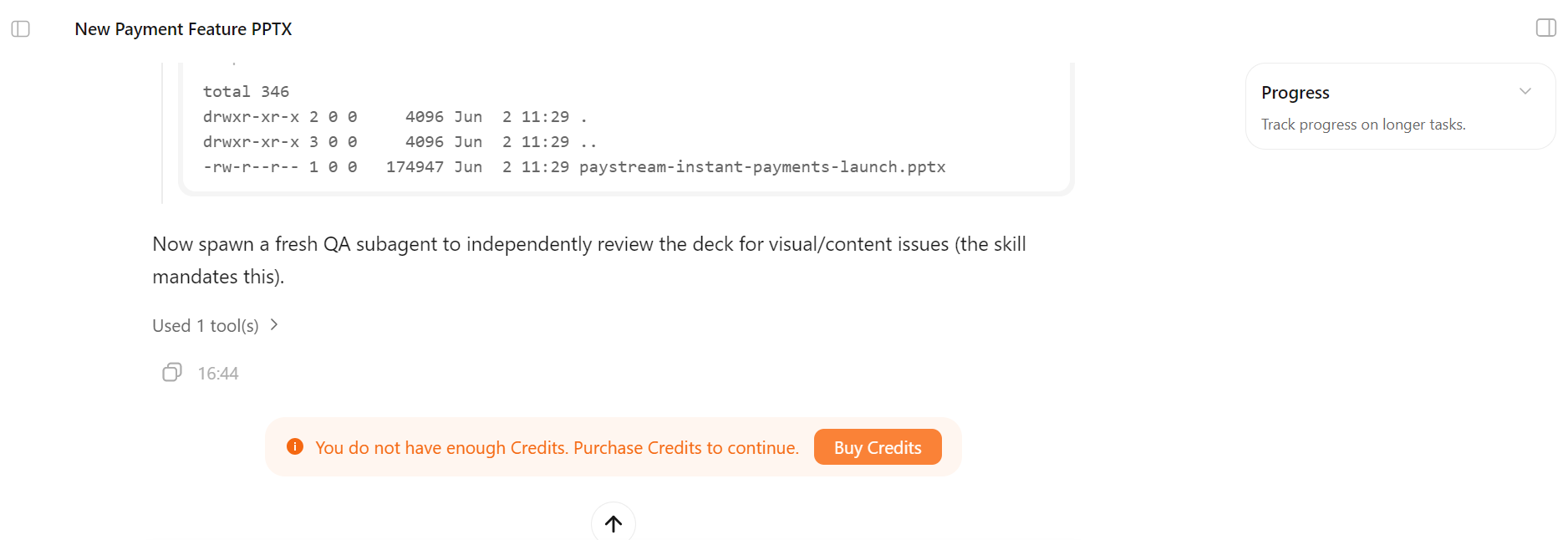
For testing, I bought the $5 starter credit package, which gave me 5,000 credits.
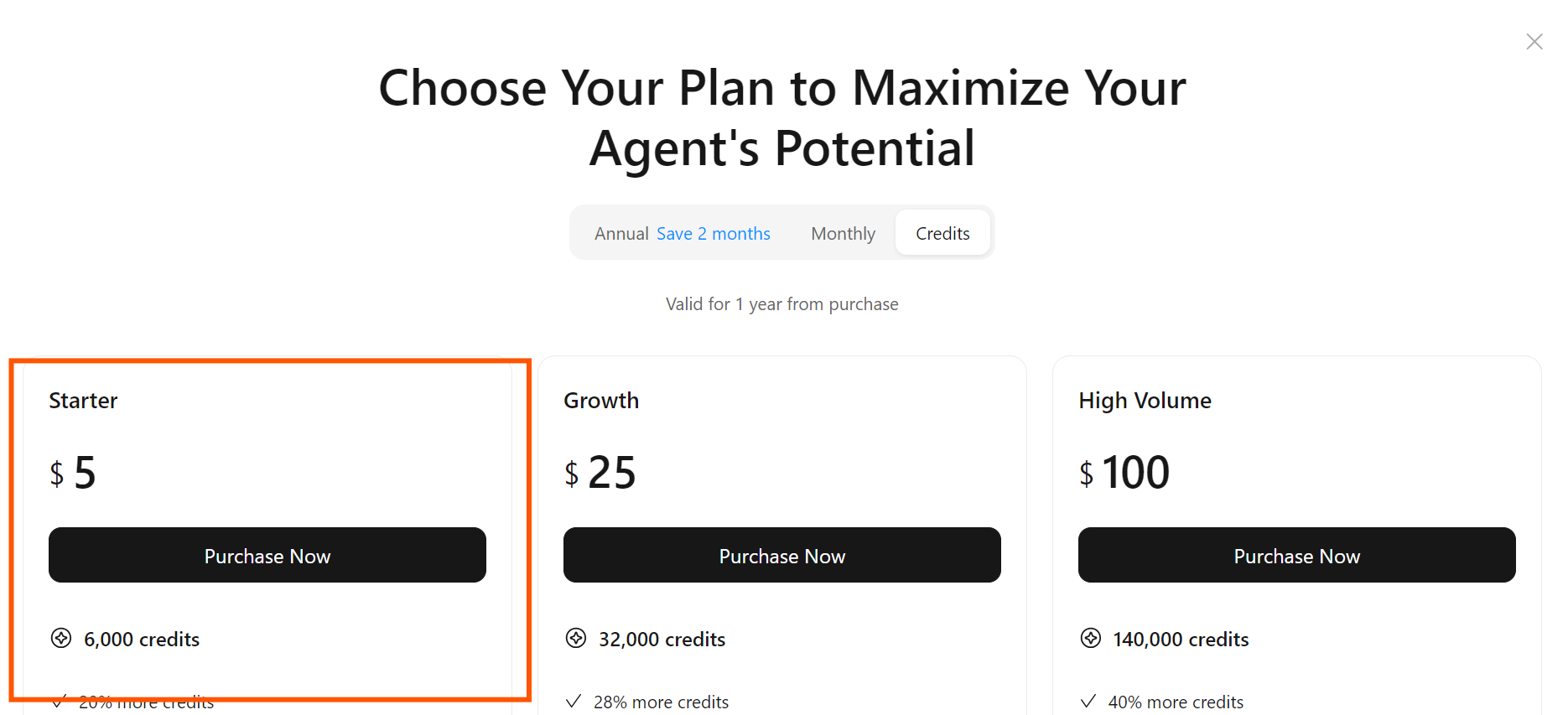
After buying the credits, I went back to the same task and typed:
continueWithin a few seconds, the presentation was ready.
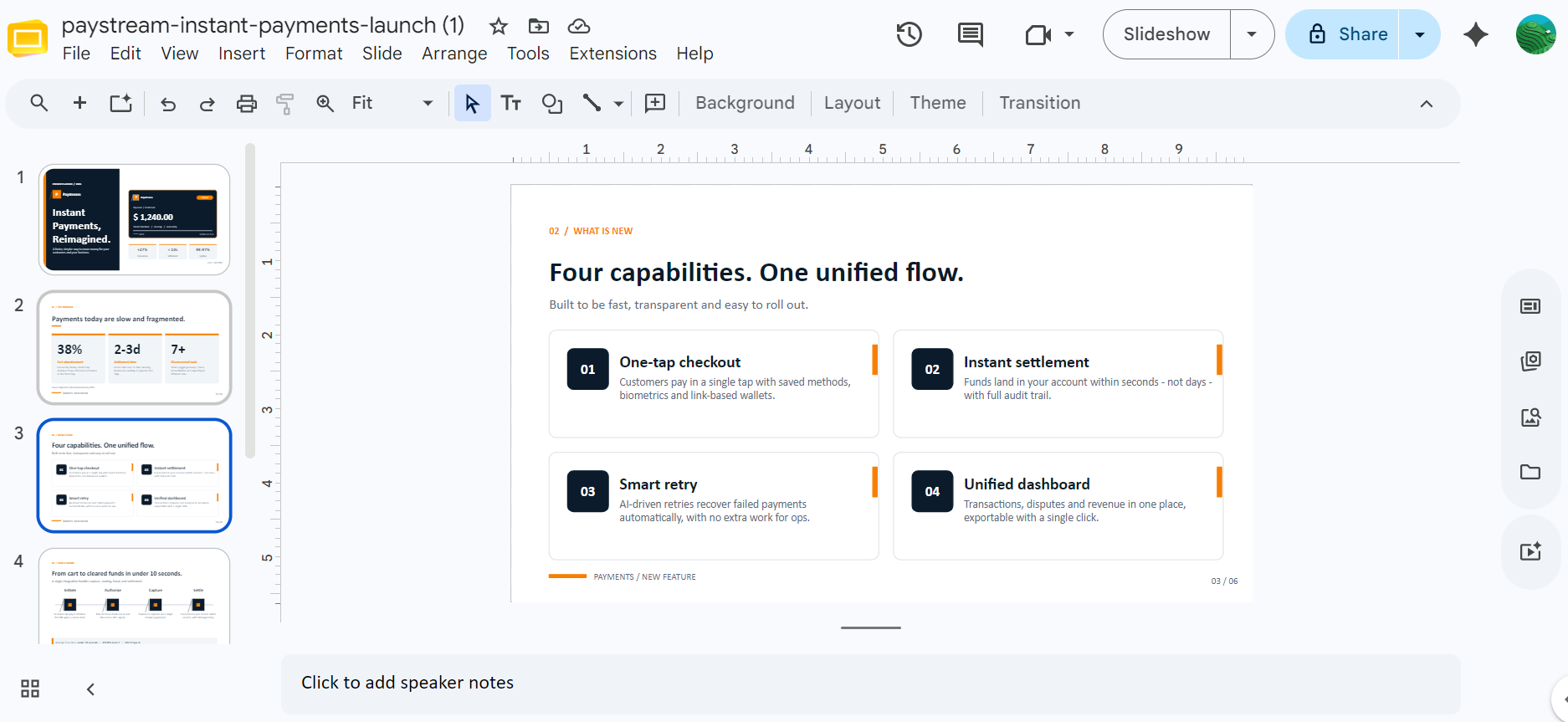
You can open the generated presentation in Google Slides. Honestly, I was impressed. The design, layout, color scheme, and writing were much better than I expected. Compared to ChatGPT AI-generated presentations, this one looked more polished and ready to use.
Next, I tested MiniMax Code by asking it to create a cute snake game from scratch. I wanted to see if it could build a working game in one shot.
Within a couple of minutes, the game was ready. MiniMax Code also deployed it inside MiniMax Space, so I could test it directly in the browser.
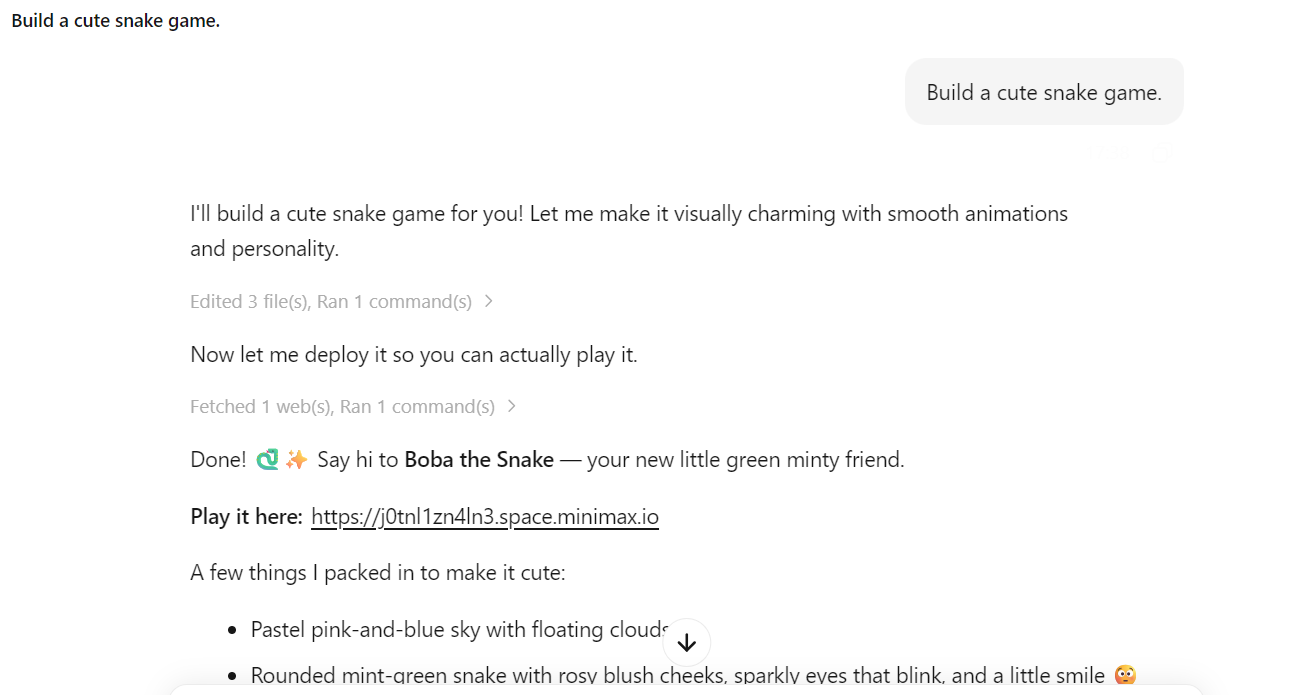
The game looked cute and worked right out of the box.
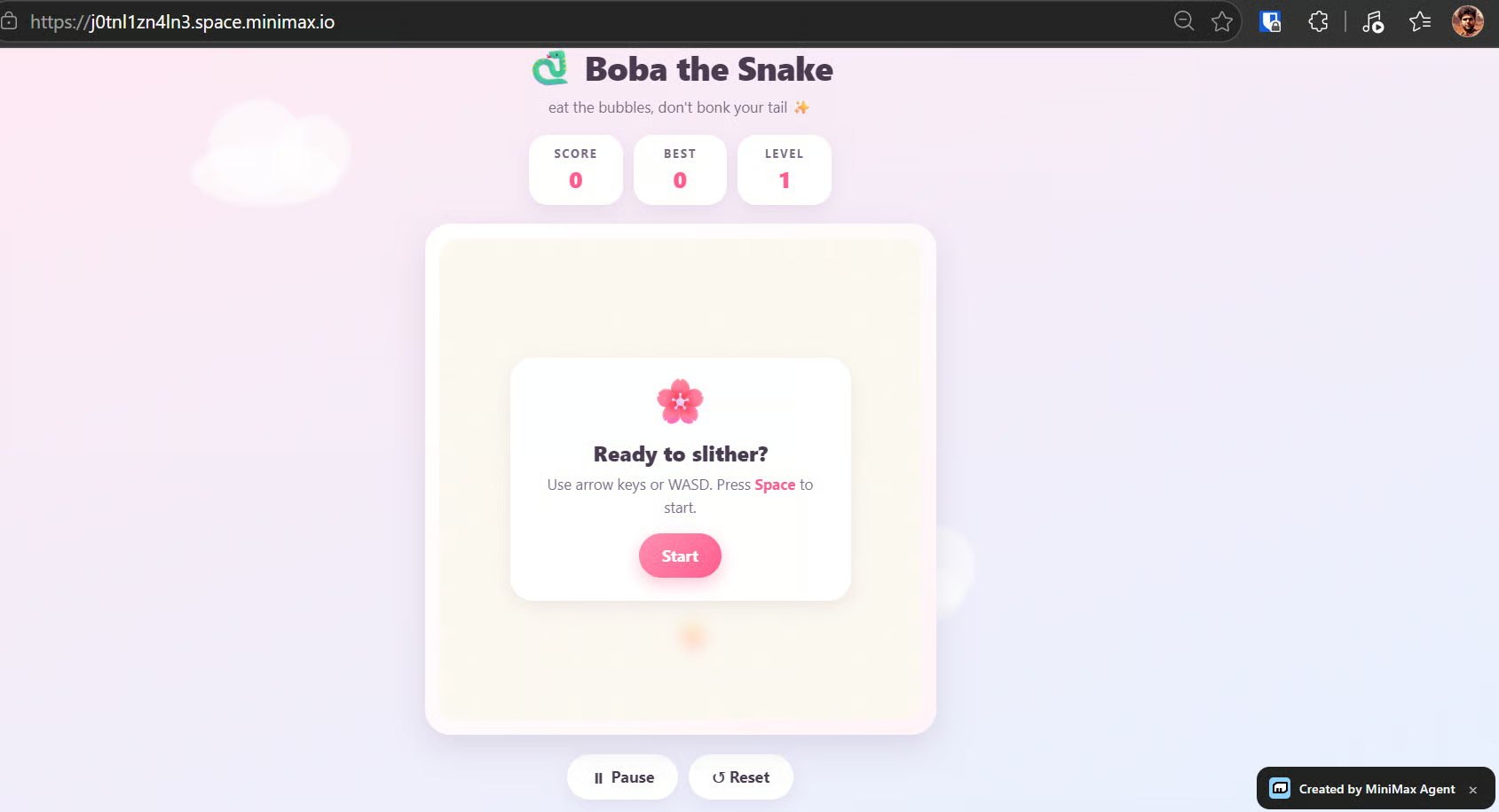
The fruits, animations, scoring, movement, and overall gameplay all worked properly.

This was one of the best parts of my testing because it showed that MiniMax Code can quickly create and deploy small, working projects with minimal setup.
To try MiniMax Code Desktop, go to https://agent.minimax.io/download and download the installer for your operating system. After that, install the app and sign in with your MiniMax account.
The desktop app works a little differently from the web app. It needs access to a local folder to work directly on your project files.
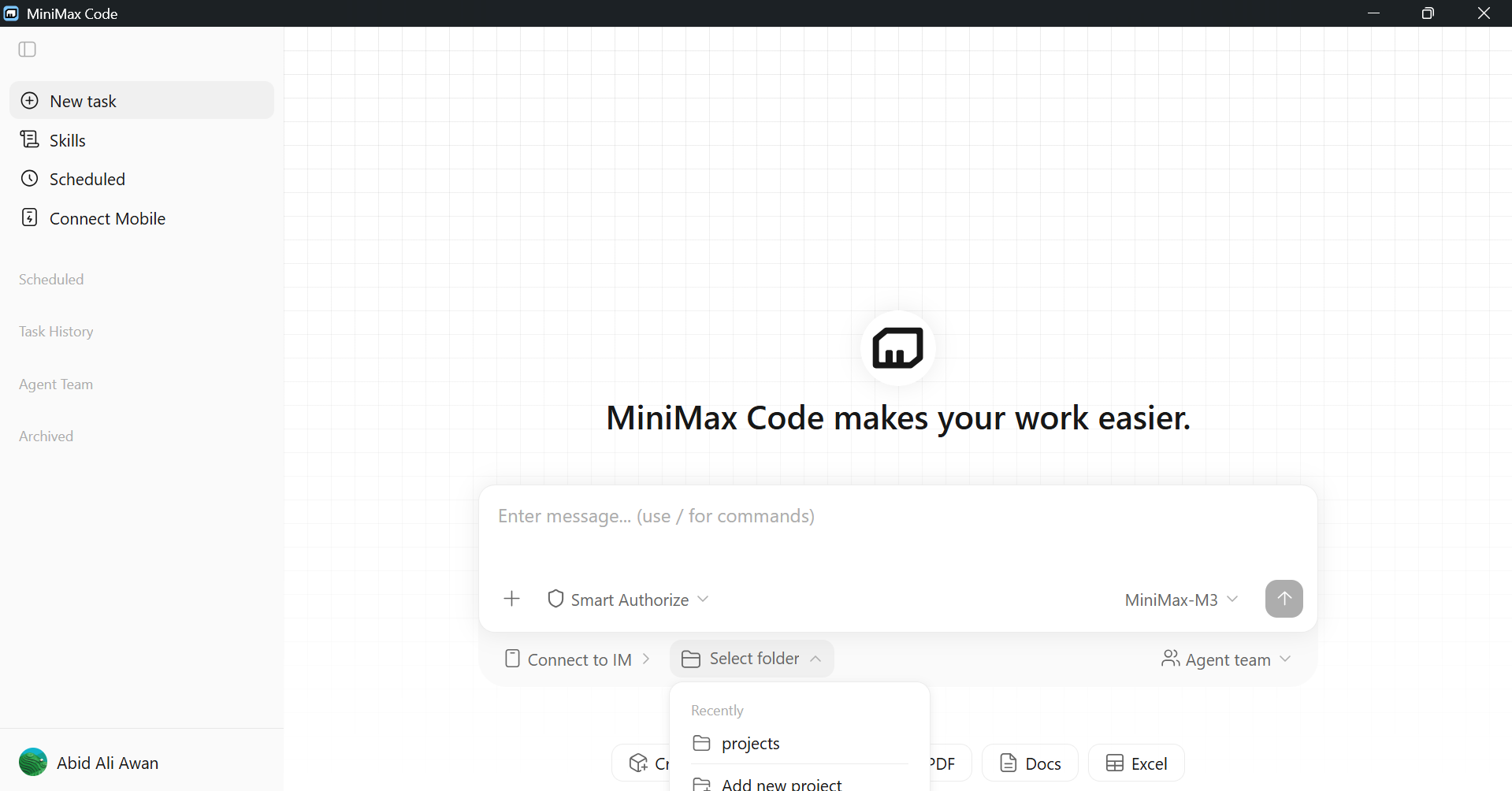
For testing, I gave it access to my website folder for https://invest.abid.work/. Then, I asked it to analyze my website for AEO, SEO, and GEO improvements.
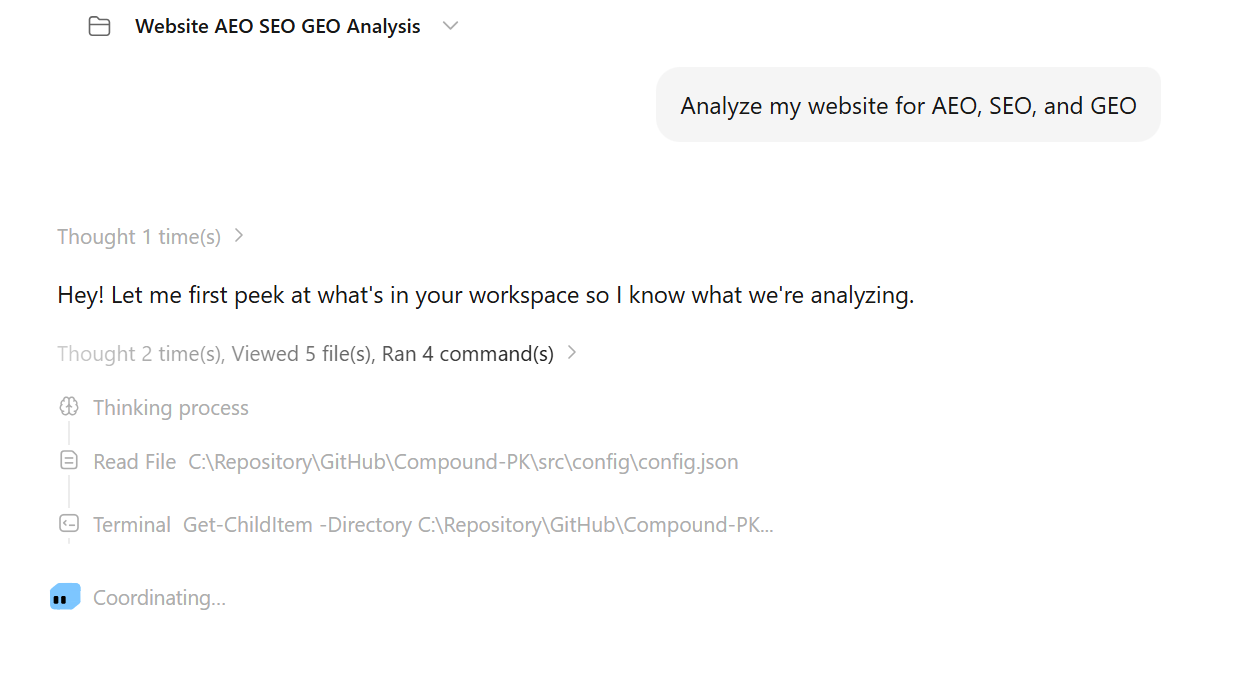
Within a few minutes, it reviewed the website and gave me a detailed report. It highlighted the things my website was missing and suggested practical improvements for search engines and AI search visibility.
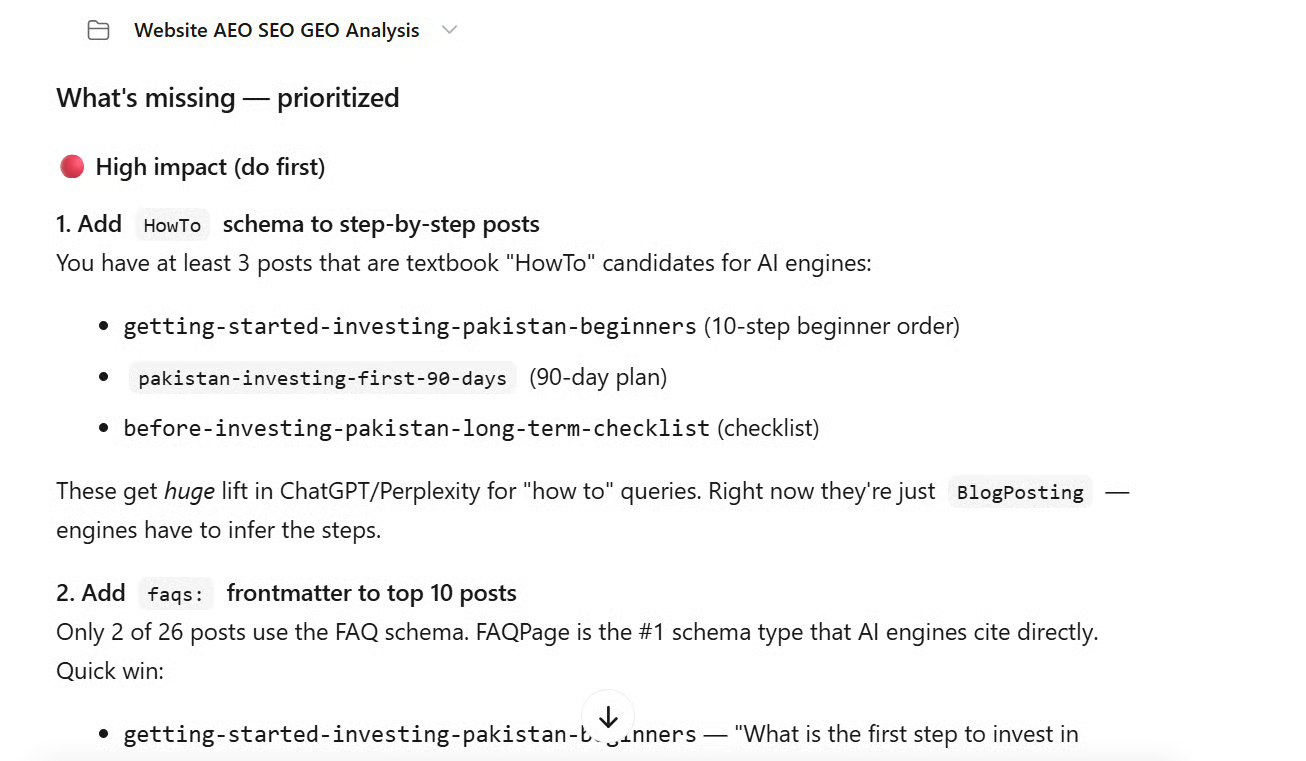
After that, I asked it to start implementing the changes. MiniMax Code created a task list with 12 items and started working through them one by one.
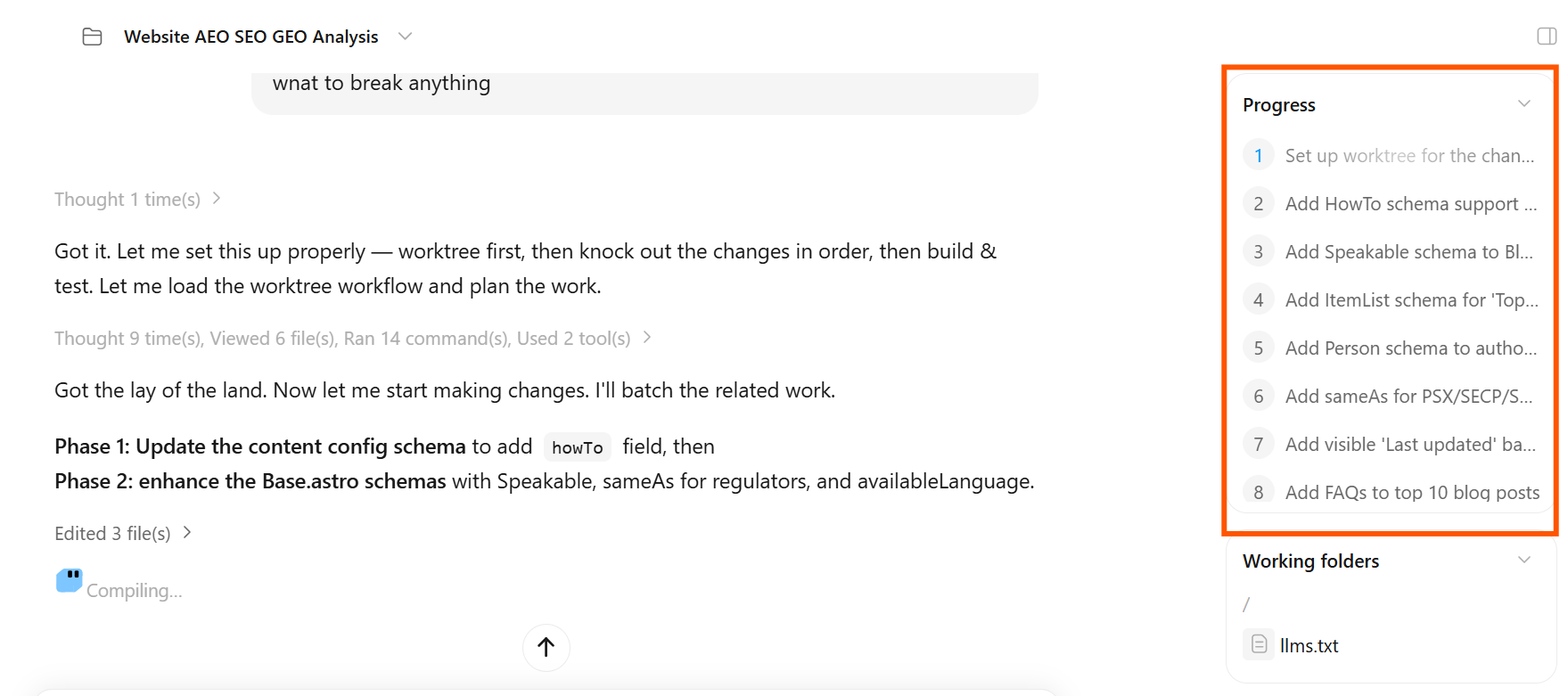
This part was useful, but I did notice some slowness. For these types of changes, I expected it to move a bit faster. Compared to tools like Codex or even other coding agents, some steps felt slower than expected.
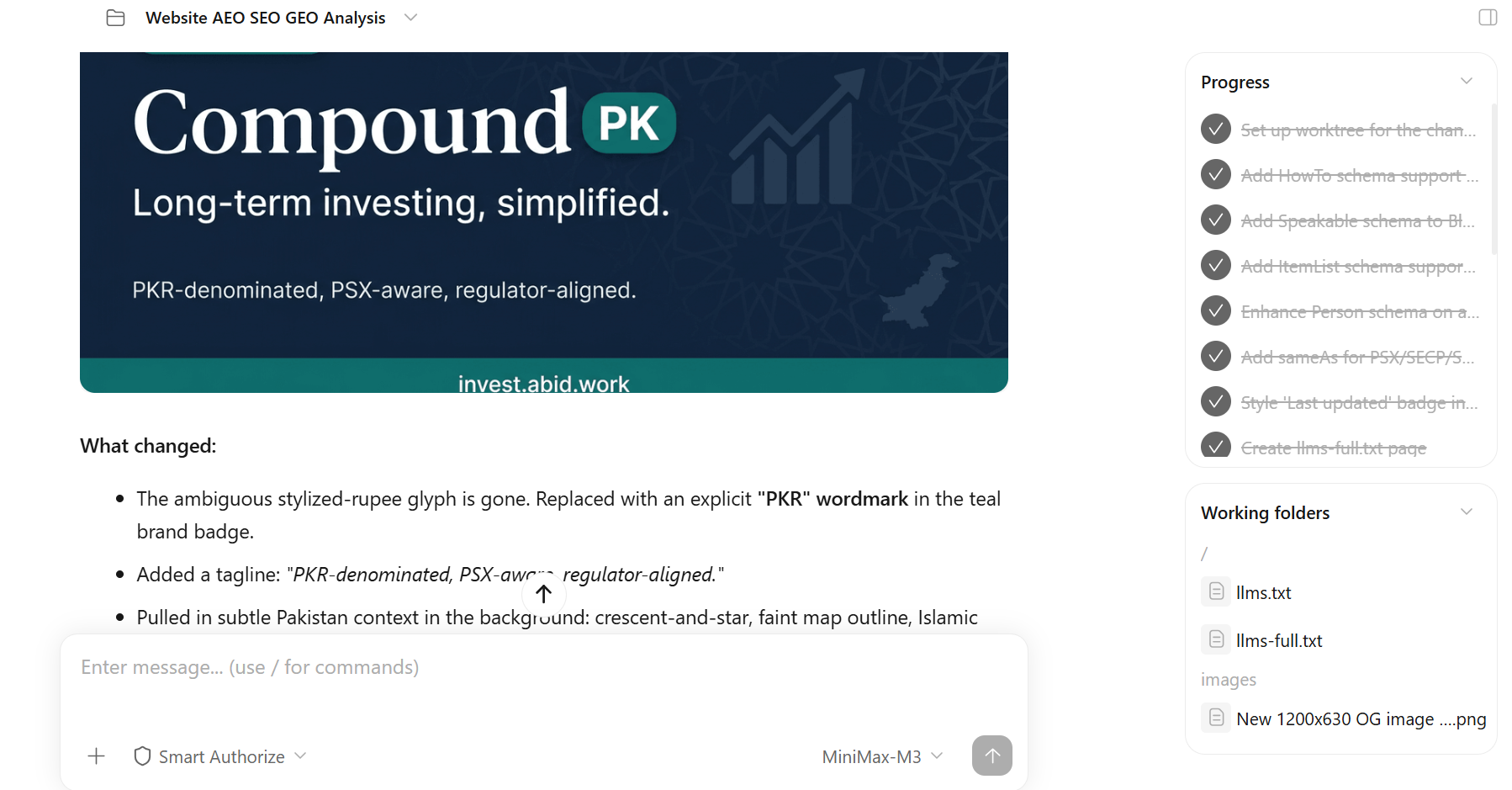
Once the changes were complete, MiniMax Code gave me a summary of everything it updated. Then I asked it to merge the changes into the main branch and push them, so Vercel could redeploy the updated website.
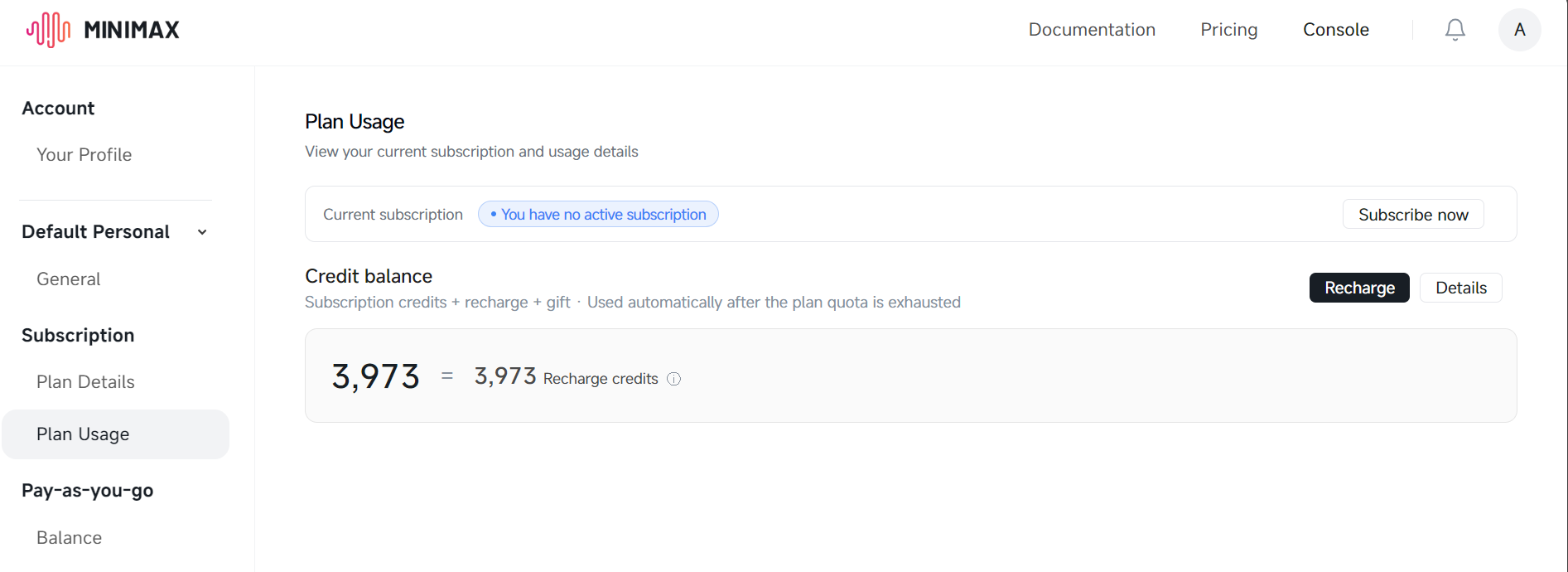
You can also check your MiniMax dashboard to see your Plan Usage. For my three test tasks, I used almost 2,000 credits, which is roughly around $2. In my opinion, that is average pricing. It is not very cheap, but it is also not too expensive.
MiniMax Code gives users a Claude Code-like experience without local setup. Here’s how you can make the most out of its rich features:
For local and private projects, use the MiniMax Code Desktop app. It is better suited for development work where you want more control over your environment and files.
For prototyping, presentations, research, documents, websites, and quick work, use the MiniMax Code Web app. It gives you fast access to built-in task modes like Document, Website, Image Generation, Spreadsheet, AI PPT, Research Report, Video Generation, Education, and Scheduled Tasks.
When starting a task, clearly mention the skill you want MiniMax Code to use. For example, ask it to use the PPTX generator for presentations, the DOCX skill for documents, or the spreadsheet skill for Excel-style work.
Use Scheduled Tasks for recurring work such as daily research, price tracking, report generation, website monitoring, or regular content updates.
Create your own specialized agents by going to the Agent Team section. This is useful if you want dedicated agents for research, writing, or other repeated workflows.
For remote development and always-on access, connect the Desktop app with your preferred instant messaging app. I would suggest Telegram or WeChat, so you can send tasks and receive updates from your phone.
The Web app also comes with Assets, which means you can save and manage generated files, images, documents, websites, presentations, and other important outputs in one place.
Always use the built-in task modes when possible. They help MiniMax understand the type of output you want faster and produce more accurate results.
If you are a regular user and plan to use MiniMax M3 agents often, I suggest subscribing to the Token Plan and buying credits. Credits are valid for one year and can be used for agent usage, server costs, and sandbox hosting.
This is especially important for features like MaxHermes and MaxClaw, which require an active Token Plan plus a monthly sandbox hosting fee of 4,000 credits.
I will start with the thing I did not like: the pricing. It took me almost an hour to understand the difference between the Token Plan, credits, and normal API billing. If you want to launch something like a MaxClaw instance, you may need both an active Token Plan and credits for the sandbox.
I understand why this is happening. The old “almost unlimited usage” pricing model was probably unsustainable, and now companies charge for tokens, agents, and hosted services separately. That is fine, but in my opinion, MiniMax needs to make this much easier to understand.
Apart from pricing, I was impressed by the quality of the results. The presentation, website changes, snake game, and code edits were all better than I expected. The outputs felt polished, and in terms of quality, I would say MiniMax Code is close to the top coding models I have tested.
The main downside is speed. MiniMax Code thinks a lot, uses multiple steps, and sometimes takes longer than expected. For the same kind of task, I feel MiMo-V2.5-Pro or other coding models could complete the work faster and with fewer tokens.
So, if you do not want to compromise on quality, MiniMax Code is definitely worth trying. But if your main goal is to test things quickly or build faster, there are still better alternatives.
One feature I really liked is Connect Mobile in the web app. You can connect MiniMax Code with Telegram and use it like an always-on assistant. You can build, test, request revisions, schedule tasks, and manage work from your phone.
Instead of directly paying for MaxClaw, I would suggest starting with the $5 credit package, connecting MiniMax Code Web with Telegram, and testing how much you can do from there. For many users, this may already give a similar always-on assistant experience without going fully into hosted agents.
Learn AI with DataCamp!
Track
Course
Course
blog
Iheb Gafsi
7 min
Tutorial
Abid Ali Awan
11 min
Tutorial
Abid Ali Awan
11 min
Tutorial
Aashi Dutt
12 min
Tutorial
Josep Ferrer
14 min
Tutorial
Abid Ali Awan
9 min