Cours
Coder avec l’aide de l’IA pour les développeurs
1 h 30 min
10.2K
Qwen Image 2.1 is a unified image generation and editing model.
Its visual generation component contains 7 billion parameters. The model supports text-to-image generation, native transparency, multiple reference images, and local editing guided by annotations or masks. This tutorial focuses on single-reference RGB editing.
The model already provides the editing capability. Our application adds the workflow around it: selecting the input, reviewing candidates, managing accepted frames, and exporting them. We are not training a new model or adding a motion module.
The resulting GIF plays independently generated still images. It can demonstrate pose changes and visual variations, but it is not equivalent to temporally consistent video generation.
The official architecture description identifies four main components:
|
Component |
Specification |
Role |
|
Visual transformer |
32-layer, 7B-parameter single-stream diffusion transformer (DiT) |
Processes conditioning and target-image tokens in a shared stream |
|
Text and image encoder |
Qwen3-VL 8B |
Encodes instructions and reference images into a unified representation |
|
Image autoencoder (VAE) |
64 latent channels, RGBA support, 16× spatial compression |
Converts images to compact latents and decodes generated latents into pixels |
|
Generation process |
Flow matching with Euler discrete scheduling and dynamic shifting |
Iteratively updates the target-image latents toward the generated image |
The visual transformer contains 7 billion parameters. This count excludes the text-and-image encoder and VAE.
The VAE's 64 channels refer to its latent representation, not 64 output color channels.
RGBA output contains red, green, blue, and alpha channels. The app flattens uploads to RGB, so it does not demonstrate the model's native transparency support.
Qwen Image 2.1 uses a mixed-granularity attention mask where Colored cells allow attention, while the gray cells block it.
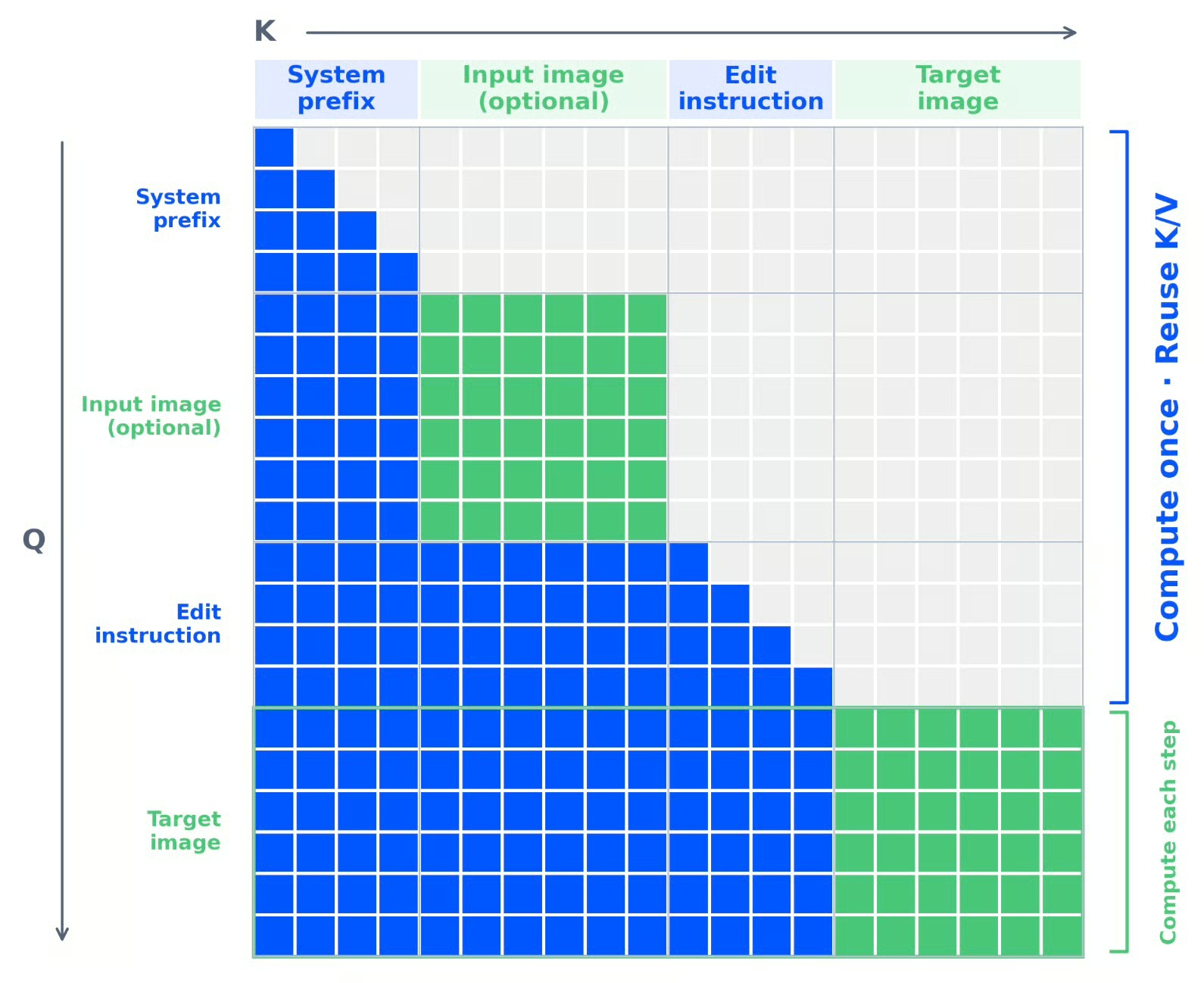
Figure 1: Qwen Image 2.1 mixed-granularity attention architecture(Qwen blogpost)
Read the diagram by row: Q represents the query tokens, and K represents the tokens they can attend to. The sequence contains a system prefix, an optional input image, an editing instruction, and the target image.
Text uses causal attention because a text token can attend to itself and earlier positions. Tokens within the same image block can attend to one another in both directions.
This produces the triangular text regions and solid image blocks shown in figure 1.
The mask rule expresses that combination as:
allowed = (q_idx >= kv_idx) or same_image_blockThis is a conceptual rule for a pair of token positions, not an additional setting to paste into the notebook. It permits attention to earlier positions and allows all-to-all attention within each image block.
The system prefix, reference image, and instruction cannot attend to the later target-image block.
Their representations, therefore, do not need to change as the target image is updated.
Qwen computes their attention keys and values once at the first denoising step and reuses them in subsequent steps. The target-image tokens still require computation at every step, attending to the cached prefix and to one another.
With 40 steps, the fixed prefix can be reused after the first step; this does not mean a 40× speedup because substantial target-image computation remains.
This cache reuse happens across denoising steps within a generation. It does not mean the model remembers earlier user requests, or that our app automatically reuses the same cache across separately submitted edits.
Before building the app, let’s separate model settings from application decisions. Note that increasing the number of steps will not fix a pipeline that keeps feeding damaged images back into the model.
|
Setting |
Value used |
Why it matters |
|
Reference image |
Original image for every final-app edit |
Avoids passing artifacts from one generated frame to the next |
|
Resolution |
1024 |
Approximately a one-megapixel editing target in this backend |
|
Inference steps |
40 |
The sampling budget used throughout the main experiments |
|
Seed |
42 |
Holds the sampling seed fixed while testing instructions |
|
CFG |
1.0 |
Matches the supplied workflow; standard negative-branch guidance does not contribute at this value |
|
Sampler/scheduler |
Euler / simple |
Keeps the supplied sampling configuration unchanged |
|
Denoise |
1.0 |
Matches this instruction-edit workflow; it is not a conventional low-denoise img2img recipe |
|
VAE decoding |
Untiled in the final configuration |
Selected after a qualitative improvement during development |
|
Weights |
INT8 ConvRot image model and text encoder; BF16 VAE |
The memory-conscious backend used for the demo |
|
CPU encoder/reference cache offload |
Disabled initially |
The A100 run fit without enabling these additional offload settings |
These are working settings for this project, but not a globally optimal configuration. We did not run a systematic sweep of steps, CFG, samplers, or quantization formats.
The sampler values come from the image-edit workflow, which allowed me to run this model on low VRAM.
The recorded runtime used an NVIDIA A100-SXM4-40GB, with 83.5 GiB of host RAM.
I used the alesha-pro installation package to install ComfyUI and download the quantized weights.
Note that you need to plan for roughly 45 GB of free storage, including the environment, models, caches, and outputs.
A high-RAM runtime gives headroom during loading and offloading.
First, establish the paths and check the GPU:
import sys, os, json, time, uuid, shutil, subprocess, copy, io, threading
from pathlib import Path
from PIL import Image, ImageDraw, ImageFilter, ImageOps
import numpy as np
import requests
import gradio as gr
from IPython.display import display, Image as DisplayImage

ROOT = Path('/content/qwen_gif_demo')
ROOT.mkdir(parents=True, exist_ok=True)
TOOLS = ROOT / 'tools'
COMFY = ROOT / 'ComfyUI'
RUNS = ROOT / 'runs'
RUNS.mkdir(exist_ok=True)
REPO_REV = 'dc0083c0d17581f04ebbca962771e36f82f31af8'
BASE = 'http://127.0.0.1:8188'

def run_cmd(args, **kwargs):
    print('Running:', ' '.join(map(str, args)), flush=True)
    subprocess.run(list(map(str, args)), check=True, **kwargs)

if not shutil.which('nvidia-smi'):
    raise RuntimeError('Select a GPU runtime before continuing.')
print(subprocess.check_output(['nvidia-smi'], text=True))
The GPU check stops execution if Colab is still using a CPU runtime, and we also print details about host RAM and free disk space before installation.
The imports are quite basic, including Python’s standard libraries, which handle file paths, JSON workflows, backend processes, timing, and background monitoring.
Pillow and NumPy handle image processing, Requests communicates with ComfyUI, Gradio provides the interface, and IPython displays images in the notebook.
ComfyUI runs in its own virtual environment. The notebook kernel handles uploads, HTTP requests, and Gradio.
if not TOOLS.exists():
    run_cmd(['git', 'init', TOOLS])
    run_cmd(['git', '-C', TOOLS, 'remote', 'add', 'origin', 'https://github.com/alesha-pro/tools.git'])
    run_cmd(['git', '-C', TOOLS, 'fetch', '--depth', '1', 'origin', REPO_REV])
    run_cmd(['git', '-C', TOOLS, 'checkout', '--detach', 'FETCH_HEAD'])
assert subprocess.check_output(['git', '-C', str(TOOLS), 'rev-parse', 'HEAD'], text=True).strip() == REPO_REV
PKG = TOOLS / 'qwen-image-2.1'
VERSIONS = json.loads((PKG / 'install/versions.json').read_text())
print('Pinned backend:', VERSIONS)
driver = subprocess.check_output(['nvidia-smi', '--query-gpu=driver_version', '--format=csv,noheader'], text=True).splitlines()[0]
# Conservative selector; the backend CUDA smoke test is authoritative.
TORCH_INDEX = 'https://download.pytorch.org/whl/cu130' if int(driver.split('.')[0]) >= 580 else 'https://download.pytorch.org/whl/cu128'
print('Driver:', driver, '| wheel index:', TORCH_INDEX)
run_cmd([sys.executable, PKG / 'install/setup.py', 'install', '--dir', COMFY, '--torch-index', TORCH_INDEX])
BACKEND_PY = COMFY / '.venv/bin/python'
run_cmd([BACKEND_PY, '-c', "import torch; print(torch.__version__, torch.version.cuda); print(torch.cuda.get_device_name(0)); x=torch.ones(16,device='cuda'); print(x.sum().item())"])
run_cmd([BACKEND_PY, PKG / 'install/download_models.py', '--models-dir', COMFY / 'models'])
This code fetches the pinned source, reads its version configuration, installs the backend, tests a CUDA tensor operation, and downloads the models.
The CUDA wheel selection uses the driver version as an initial heuristic.
The CUDA smoke test is an important verification because an A100 by itself does not establish compatibility with every PyTorch build. My session used driver 580.82.07.
The startup cell launches ComfyUI on 127.0.0.1:8188, waits for readiness, and retrieves the available node definitions.
The code communicates with it through a small HTTP helper:
def api(path, body=None):
    r = requests.get(BASE + path, timeout=30) if body is None else requests.post(BASE + path, json=body, timeout=30)
    if not r.ok:
        raise RuntimeError(f'{path}: HTTP {r.status_code}: {r.text[:3000]}')
    return r.json()
This helper turns server-side failures into readable exceptions. After startup, the node schema is available through:
INFO = api('/object_info')The startup code checks for an existing server before launching another process. So that there is no separate public ComfyUI tunnel in this setup.
Now set the parameters we will use for editing:
CPU_ENCODER = False
CPU_REFERENCE_CACHE = False
TILED_VAE = False
STEPS = 40
SIZE = 1024
SEED = 42
Here is how to interpret these settings:
STEPS: More sampling iterations generally cost more time. We used 40.SIZE: In the edit graph, resolution 1024 targets approximately one megapixel while adapting dimensions to the reference. It does not force a square output.SEED: A fixed seed makes comparisons easier within the same setup. It does not guarantee identity preservation or smooth transitions between different prompts.TILED_VAE: Untiled decoding processes the image without the configured small-tile decode path. It may require more memory. Our preference for it came from visual testing, not a controlled proof that tiling caused every artifact.Similarly, a negative prompt is not the primary control to tune at CFG 1. Keep it empty instead of expecting a long list of unwanted properties to repair a weak edit.
The workflow builder loads an API graph and replaces its request-specific inputs. The following snippet shows the editing path:
g = json.loads((PKG / 'workflows/api/03-image-edit.json').read_text())
g['4']['inputs'].update(prompt=prompt, resolution=SIZE)
g['6']['inputs'].update(seed=int(seed), steps=int(STEPS))
g['9']['inputs']['image'] = upload_image(image_path)

if CPU_REFERENCE_CACHE:
    g['11']['inputs']['device'] = 'cpu'
if CPU_ENCODER:
    g['2']['inputs']['device'] = 'cpu'
Here, Node 4 receives the editing instruction and resolution.
Node 6 controls sampling, and node 9 loads the uploaded reference.
The other two overrides optionally move encoder or reference-cache work toward host memory.
The inference helper then submits the graph and waits for its own request ID:
response = api('/prompt', {
    'prompt': g,
    'client_id': uuid.uuid4().hex,
})
result = collect_result(response['prompt_id'], folder)
Here, folder is the per-request output directory created inside infer().
The collector polls history and downloads the generated PNG when the matching job completes.
We also save the input, graph, submission, history, and metrics. That makes it possible to inspect the actual request when an output looks wrong.
A timeout does not automatically cancel the GPU job, so retain the request ID before deciding to retry.
The final app always needs an unchanged reference to return to. The following upload path applies orientation correction, flattens transparency, and adds the image to a square canvas before passing it to the model:
python
from google.colab import files
uploaded = files.upload()
assert len(uploaded) == 1, 'Upload exactly one image.'
with Image.open(io.BytesIO(next(iter(uploaded.values())))) as image:
    rgba = ImageOps.exif_transpose(image).convert('RGBA')
    background = Image.new('RGBA', rgba.size, (250, 240, 230, 255))
    original = Image.alpha_composite(background, rgba).convert('RGB')
    original = ImageOps.pad(original, (SIZE, SIZE), color=(250, 240, 230))

BASE_FRAME = ROOT / f'original-{uuid.uuid4().hex[:8]}.png'
original.save(BASE_FRAME)
Padding preserves the aspect ratio rather than stretching the subject. But it can introduce borders.
A direct upload in the Gradio editor follows its own upload handler and can retain the uploaded dimensions. That is why the app also checks candidate dimensions before export.
For pose editing, choose an image with enough room for the requested movement and add an instruction according to the boundary.
A drawing is useful when the target could be ambiguous, such as choosing one arm or one object in a crowded scene.
It is completely optional in our application.
The Gradio’s editor provides the background, drawing layers, and composite image, and the important rule for our final design is to load the original and add only the drawing layers:
layers = editor_data.get('layers') or []
has_marks = any(
    np.any(np.asarray(layer.convert('RGBA'))[..., 3] > 0)
    for layer in layers if layer is not None
)
with Image.open(original_path) as image:
    source = image.convert('RGBA').copy()
if has_marks:
    for layer in layers:
        if layer is None:
            continue
        layer = layer.convert('RGBA')
        if layer.size != source.size:
            raise ValueError('Clear the drawing and redraw on the original.')
        source = Image.alpha_composite(source, layer)
This is the core logic inside the edit callback.
The alpha channel reveals whether a layer contains visible marks, such as you drew a circle, rectangle, or rough stroke, which can all serve as visual guidance.
These marks are not a hard inpainting mask. They tell the model where to focus, but they do not guarantee unchanged pixels elsewhere.
We can add the region explanation only when marks exist:
region_instruction = (
    'The red hand-drawn marks identify the target region. '
    'For an outline, edit the enclosed area; for painted strokes, '
    'edit the indicated area. Remove the annotation marks '
    'from the final result. '
) if has_marks else ''

prompt = (
    'Edit <image1>. '
    + region_instruction
    + f'Requested change: {instruction.strip()} '
    + "Preserve unrelated content and the image's framing. "
    + "Keep the subject's identity and visual style consistent "
    + 'unless the requested change explicitly alters them.'
)
The preservation clause tells the model what matters, but it remains an instruction rather than a guarantee.
For a more explicit test, specify the image-relative side and the finished pose, like:
instruction = (
    'Lower the arm on the right side of the image so it extends '
    'diagonally downward. Keep the other arm, face, body position, '
    'camera framing, and background unchanged.'
)
Avoid “move it a little more” when every request starts from the original.
The model is not receiving the previous conversation or the last accepted pose.
The first version of this project generated a sequence by feeding each output into the next request:
result = edit_frame(manifest['frames'][-1], POSES[pose_index])
It is the behavior I changed for the final app because repeated editing can propagate artifacts, as every new request begins with the previous model output.
In our early plant sequence, later images became substantially noisier.
The final generation path uses the original reference, optionally annotated, instead:
input_path = ROOT / f'edit-input-{uuid.uuid4().hex[:8]}.png'
source.convert('RGB').save(input_path)
result_path = infer(
    'edit',
    prompt,
    seed=int(seed),
    image_path=input_path,
)
This removes the feedback path through previously generated images.
It does not eliminate artifacts in individual outputs, and it does not force independently generated frames to match perfectly.
If one accepted image holds a rose, the next request does not automatically inherit it. To retain the rose while changing the pose, we need to include both requirements:
instruction = (
    'Make the character hold a red rose in the hand on the right '
    'side of the image, with that arm extended downward. '
    'Preserve the other hand, face, background, and camera framing.'
)
This trade-off is useful for generating variations from a common reference.
For tasks that require cumulative edits, a sequential workflow may still be appropriate, but it needs different expectations about accumulated changes.
The app separates the original, accepted sequence, and pending result using Gradio’s State function:
original_state = gr.State(initial_path)
frames_state = gr.State(initial_frames)
pending_state = gr.State(None)
The sequence starts with the original and grows only when the user accepts a candidate. The pending state holds a generated file that has not yet been accepted.
The central acceptance operation is given by:
updated_frames = list(frames) + [pending_path]After this update, the complete callback clears the pending candidate and prompt, returns the editor to the original.
Discard clears the pending result without changing accepted frames. Reset returns the sequence to a single original frame and clears the current instruction and download output. Neither action requires reloading the model.
The final interface separates editing, saved frames, and export into three tabs.
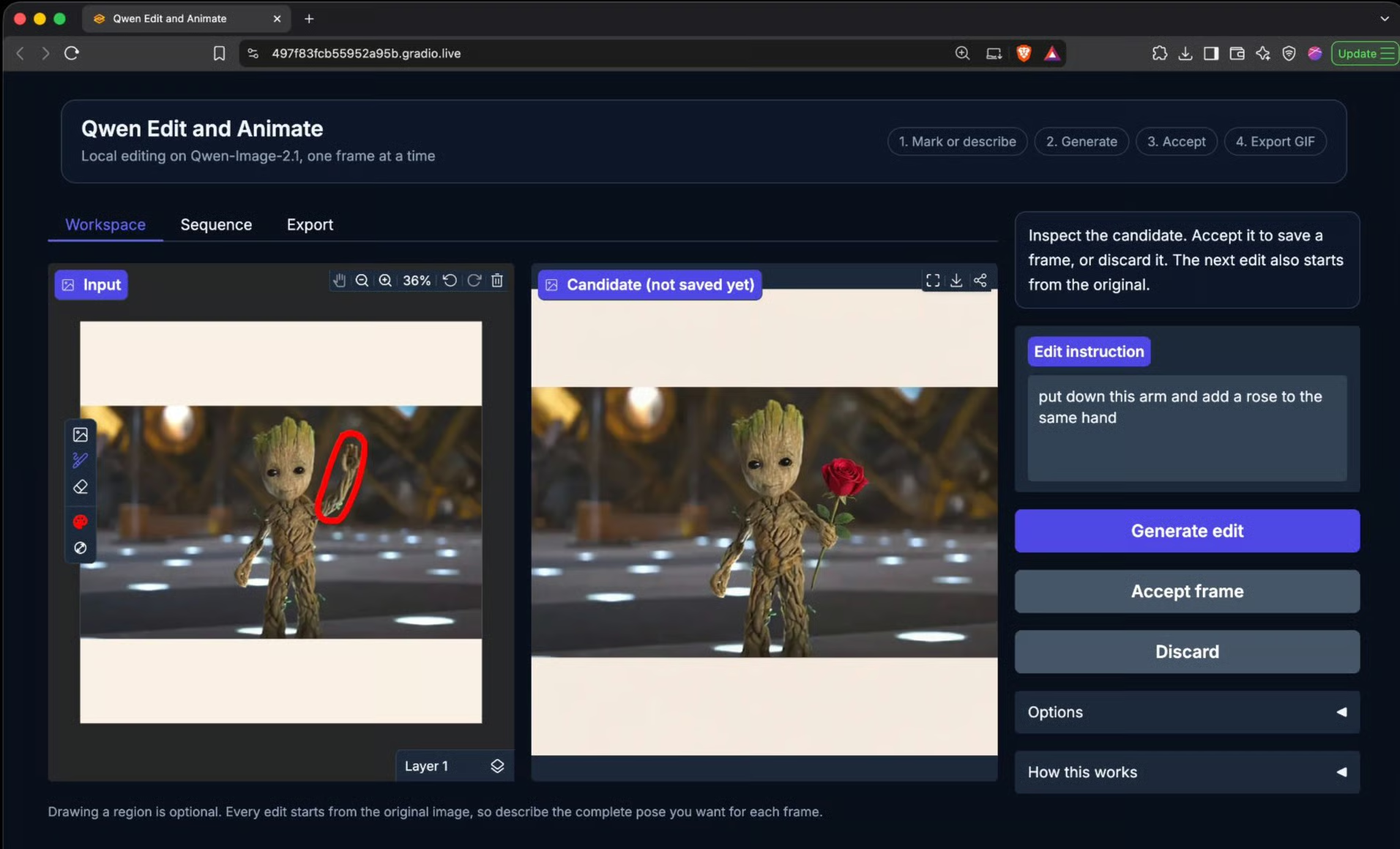
The key component is the image editor:
editor = gr.ImageEditor(
    value=initial_editor,
    type='pil',
    image_mode='RGBA',
    label='Input',
    height=480,
    brush=gr.Brush(
        colors=['#ff0000'],
        color_mode='fixed',
        default_size=8,
    ),
    eraser=gr.Eraser(default_size=20),
    transforms=(),
)
The fixed brush color matches the annotation instruction.
The eraser lets users refine rough regions, while disabled transforms keep cropping and rotation out of this interaction.
The generation event passes the original state into the callback:
event_options = {
    'concurrency_id': 'edit_workflow',
    'concurrency_limit': 1,
}

generate_button.click(
    fn=generate_edit,
    inputs=[editor, instruction, seed, original_state],
    outputs=[candidate, pending_state, status],
    **event_options,
)
These code snippets belong inside the complete Blocks layout.
The shared concurrency group serializes generation and state changes in this demo. Reset waits for its turn; it is not a GPU job cancellation control.
Once the handlers and components are defined, launch the app by running:
demo.queue(default_concurrency_limit=1).launch(
    share=True,
    debug=True,
)
The Gradio share link exposes the frontend, while the backend remains on localhost. Theme and CSS changes improve presentation, but they do not alter image quality.
The exporter uses only accepted frames because it creates a common palette and optionally plays the sequence backward after the final frame:
def export_gif(paths, destination, duration_ms=300, ping_pong=True):
    frames = []
    for path in paths:
        with Image.open(path) as image:
            frames.append(image.convert('RGB').copy())
    if len(frames) < 2:
        raise ValueError('Accept at least one edit first.')
    if len({frame.size for frame in frames}) != 1:
        raise ValueError('Frame dimensions must match.')

    atlas = Image.new('RGB', (128 * len(frames), 128))
    for i, frame in enumerate(frames):
        atlas.paste(frame.resize((128, 128)), (128 * i, 0))
    palette = atlas.quantize(colors=256)
    converted = [
        frame.quantize(palette=palette, dither=Image.Dither.NONE)
        for frame in frames
    ]
    if ping_pong:
        converted += converted[-2:0:-1]
    converted[0].save(
        destination,
        save_all=True,
        append_images=converted[1:],
        duration=int(duration_ms),
        loop=0,
        disposal=2,
        optimize=False,
    )
    return str(destination)
A shared palette reduces one potential source of palette-related flicker.
Disabling dithering avoids adding a dither pattern during conversion, although color reduction can still introduce banding.
Duration is measured in milliseconds, and setting loop=0 requests continuous playback. For four frames, ping-pong playback uses the order 0, 1, 2, 3, 2, 1.
The reverse slice excludes repeated endpoints. This does not interpolate movement as smoother animation requires suitable intermediate poses, not just a different playback speed.
We built a Qwen Image 2.1 editor that accepts text instructions and optional drawings, lets users curate individual results, and exports them as a GIF.
The key quality decision was to retain a fixed original reference rather than repeatedly editing generated outputs.
Start with the working sampling configuration, make the requested change explicit, and inspect raw candidates before altering more settings.
Once those pieces are stable, experiment with resolution or decoding one variable at a time. The result is a useful image-editing workflow with a clear account of both its capabilities and its limitations.
Top DataCamp Courses
Cours
Cours
Cours
Tutoriel
Aashi Dutt
8 min
Tutoriel
Aashi Dutt
9 min
Tutoriel
Bexruz (Bex) Tuychiev
10 min
Tutoriel
Dr Ana Rojo-Echeburúa
12 min
Tutoriel
Aashi Dutt
12 min
Tutoriel
Dr Ana Rojo-Echeburúa
10 min