%22%3E%3Cpath%20d%3D%22m-369%200h408v79h-408z%22%20fill%3D%22%237933ff%22%2F%3E%3Cpath%20d%3D%22m-148%200h306v45h-306z%22%20fill%3D%22%23974dff%22%2F%3E%3C%2Fg%3E%3C%2Fsvg%3E)
%22%2F%3E%3C%2FclipPath%3E%3Cg%20clip-path%3D%22url(%23a)%22%3E%3Cpath%20d%3D%22m76%200h484v36h-484z%22%20fill%3D%22%23974dff%22%2F%3E%3Cpath%20d%3D%22m0%200h384v24h-384z%22%20fill%3D%22%2306bdfc%22%20transform%3D%22matrix(1%200%200%20-1%200%2060)%22%2F%3E%3C%2Fg%3E%3C%2Fsvg%3E)
विजेट्स
विजेट्स, भावना में, HTML के elements जैसे होते हैं। Tkinter में आपको विभिन्न प्रकार के एलिमेंट्स के लिए अलग-अलग प्रकार के विजेट्स मिलेंगे। ये मानक GUI एलिमेंट्स हैं और उपयोगकर्ता को बटन, टेक्स्ट, मेन्यू और टेक्स्ट बॉक्स जैसे कंट्रोल्स देते हैं।
आइए Tkinter में इन सभी विजेट्स को एक उदाहरण के साथ समझें (स्रोत)।
-
Button: बटन विजेट में ऑन/ऑफ स्विच करने का गुण होता है। जब उपयोगकर्ता बटन पर क्लिक करता है, तो Tkinter में एक इवेंट ट्रिगर होता है।
सिंटैक्स: button_widget = tk.Button(widget, option=placeholder) जहाँ
widgetपैरेंट विंडो/फ़्रेम का आर्गुमेंट है, जबकिoptionएक प्लेसहोल्डर है जिसमें foreground और background रंग, फ़ॉन्ट, command (फ़ंक्शन कॉल के लिए), image, बटन की ऊँचाई और चौड़ाई जैसे विभिन्न मान हो सकते हैं। -
Canvas: Canvas आपके GUI में आकृतियाँ बनाने के लिए उपयोग होता है और विभिन्न ड्रॉइंग मेथड्स को सपोर्ट करता है।
सिंटैक्स: canvas_widget = tk.Canvas(widget, option=placeholder) जहाँ
widgetपैरेंट विंडो/फ़्रेम का पैरामीटर है, जबकिoptionमें बॉर्डर-चौड़ाई, बैकग्राउंड रंग, विजेट की ऊँचाई और चौड़ाई जैसे मान हो सकते हैं। -
Checkbutton: Checkbutton ऑन-ऑफ या true-false स्थिति रिकॉर्ड करता है। यह आपको एक समय में एक से अधिक विकल्प चुनने देता है और आप इसे अनचेक भी छोड़ सकते हैं।
सिंटैक्स: checkbutton_widget = tk.CheckButton(widget, option=placeholder) जहाँ
widgetपैरेंट विंडो/फ़्रेम का पैरामीटर है, जबकिoptionमें शीर्षक, टेक्स्ट, बैकग्राउंड और फ़ोरग्राउंड रंग (जब विजेट कर्सर के नीचे हो), फ़ॉन्ट, इमेज आदि जैसे मान हो सकते हैं। -
Entry: Entry विजेट का उपयोग इनपुट फ़ील्ड बनाने या GUI के भीतर उपयोगकर्ता से इनपुट टेक्स्ट लेने के लिए किया जाता है।
सिंटैक्स: entry_widget = tk.Entry(widget, option=placeholder) जहाँ
widgetपैरेंट विंडो/फ़्रेम का पैरामीटर है, जबकिoptionमें बॉर्डर-चौड़ाई, बैकग्राउंड रंग, बटन की चौड़ाई और ऊँचाई आदि जैसे मान हो सकते हैं। -
Frame: Frame का उपयोग Tkinter में विजेट्स को समूहित करने और सही ढंग से व्यवस्थित करने के लिए कंटेनर के रूप में किया जाता है।
सिंटैक्स: frame_widget = tk.Frame(widget, option=placeholder) जहाँ
widgetपैरेंट विंडो/फ़्रेम का पैरामीटर है, जबकिoptionमें बॉर्डर-चौड़ाई, विजेट की ऊँचाई और चौड़ाई, highlightcolor (जब विजेट पर फ़ोकस हो तब का रंग) जैसे मान हो सकते हैं। -
Label: Label का उपयोग एक-लाइन वाले विजेट्स जैसे टेक्स्ट, इमेज आदि बनाने के लिए किया जाता है।
सिंटैक्स: label_widget = tk.Label(widget, option=placeholder) जहाँ
widgetपैरेंट विंडो/फ़्रेम का पैरामीटर है, जबकिoptionमें बटन का फ़ॉन्ट, बैकग्राउंड रंग, इमेज, बटन की चौड़ाई और ऊँचाई जैसे मान हो सकते हैं।
विजेट्स की पूरी सूची आप आधिकारिक Python प्रलेखन में पा सकते हैं।
ज्यामिति प्रबंधन (Geometry Management)
Tkinter के सभी विजेट्स की कुछ ज्यामितीय माप होती हैं। ये माप आपको पैरेंट फ़्रेम्स या पैरेंट विजेट क्षेत्र में विजेट्स को व्यवस्थित करने देती हैं।
ज्यामिति प्रबंधन की कक्षाओं में से एक, यानी pack(), पहले ही यहाँ कवर किया जा चुका है।
इसके लिए, Tkinter आपको तीन मुख्य ज्यामिति मैनेजर क्लास उपलब्ध कराता है:
- pack(): यह विजेट्स को ब्लॉक तरीके से व्यवस्थित करता है और उपलब्ध पूरी चौड़ाई घेर लेता है। विंडो में विजेट्स दिखाने का यह पारंपरिक तरीका है।
- grid(): यह विजेट्स को टेबल-जैसी संरचना में व्यवस्थित करता है। आप इसे इस ट्यूटोरियल में आगे विस्तार से सीखेंगे।
- place(): इसका उद्देश्य विजेट्स को उपयोगकर्ता द्वारा निर्देशित विशिष्ट स्थान पर पैरेंट विजेट में रखना है।
लेआउट और विजेट्स का संगठन
ट्यूटोरियल के इस भाग में, आप geometry और widgets दोनों का उपयोग करेंगे, और Tkinter का कमाल देखेंगे।
window में लेआउट व्यवस्थित करने के लिए, आप Frame विजेट क्लास का उपयोग करेंगे। आइए एक सरल प्रोग्राम बनाते हैं और देखते हैं कि Frame कैसे काम करता है।
-
आप
packक्लास की मदद से दो फ़्रेम — ऊपर (top) और नीचे (bottom) — परिभाषित करेंगे। Frame क्लास विंडो के बीच विभाजन बनाने में मदद करेगा। मूल रूप से, एक ही विंडो को Frame के रूप में ऊपर और नीचे दो बार दर्शाया जाएगा। -
अंत में, आप विंडो में चार बटन बनाएँगे, प्रत्येक फ़्रेम के लिए दो। आप पैरामीटर के रूप में अपने बटनों का नाम और रंग अपनी पसंद से दे सकते हैं।
import tkinter
# Let's create the Tkinter window.
window = tkinter.Tk()
window.title("GUI")
# You will first create a division with the help of Frame class and align them on TOP and BOTTOM with pack() method.
top_frame = tkinter.Frame(window).pack()
bottom_frame = tkinter.Frame(window).pack(side = "bottom")
# Once the frames are created then you are all set to add widgets in both the frames.
btn1 = tkinter.Button(top_frame, text = "Button1", fg = "red").pack() #'fg or foreground' is for coloring the contents (buttons)
btn2 = tkinter.Button(top_frame, text = "Button2", fg = "green").pack()
btn3 = tkinter.Button(bottom_frame, text = "Button3", fg = "purple").pack(side = "left") #'side' is used to left or right align the widgets
btn4 = tkinter.Button(bottom_frame, text = "Button4", fg = "orange").pack(side = "left")
window.mainloop()
आइए ऊपर दिए गए कोड को चलाते हैं और आउटपुट देखते हैं।

ग्रिड
Frame की तरह ही, ग्रिड विजेट्स को व्यवस्थित करने का एक और तरीका है। यह मैट्रिक्स की पंक्ति-स्तंभ (row-column) अवधारणा का उपयोग करता है। नीचे दिए गए आरेख की मदद से grid क्लास और रो-कालम विचार के बीच कुछ समानता समझते हैं।

ग्रिड मुख्यतः दो पैरामीटर लेता है row और column। जैसा कि ऊपर के चित्र में दिखाया गया है, मान लें 00 पहले बटन के अनुरूप है जबकि 01 दूसरे के लिए। और दो बटनों को साथ-साथ रखने के लिए, grid क्रमशः 00 और 01 के रूप में row और column पैरामीटर लेगा।
grid क्लास को समझने के लिए checkbutton का उपयोग करते हैं। आप दो चेकबटन परिभाषित करेंगे और दोनों के लिए कुछ टेक्स्ट निर्दिष्ट करेंगे। चेकबटन की स्थिति onvalue और offvalue से तय होगी, जबकि चेकबटन की वर्तमान स्थिति IntVar() द्वारा ट्रैक की जाएगी, जो एक अलग वैरिएबल में संग्रहीत होगी। जब offvalue=1 और onvalue=0 होगा, तो संबद्ध चेकबटन टिक होगा।
अब grid क्लास पर आते हैं, आप row पैरामीटर पास करेंगे, जो row=0 होने पर बटन को पहली पंक्ति में और row=1 होने पर दूसरी पंक्ति में रखेगा।
import tkinter
from tkinter import *
top = tkinter.Tk()
CheckVar1 = IntVar()
CheckVar2 = IntVar()
tkinter.Checkbutton(top, text = "Machine Learning",variable = CheckVar1,onvalue = 1, offvalue=0).grid(row=0,sticky=W)
tkinter.Checkbutton(top, text = "Deep Learning", variable = CheckVar2, onvalue = 0, offvalue =1).grid(row=1,sticky=W)
top.mainloop()
आइए इस कोड को चलाएँ और आउटपुट देखें।
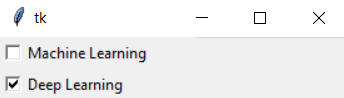
grid को समझने के लिए एक और उदाहरण लेते हैं। इस उदाहरण में, आप row के साथ-साथ column भी पैरामीटर के रूप में पास करेंगे।
import tkinter
# Let's create the Tkinter window
window = tkinter.Tk()
window.title("GUI")
# You will create two text labels namely 'username' and 'password' and and two input labels for them
tkinter.Label(window, text = "Username").grid(row = 0) #'username' is placed on position 00 (row - 0 and column - 0)
# 'Entry' class is used to display the input-field for 'username' text label
tkinter.Entry(window).grid(row = 0, column = 1) # first input-field is placed on position 01 (row - 0 and column - 1)
tkinter.Label(window, text = "Password").grid(row = 1) #'password' is placed on position 10 (row - 1 and column - 0)
tkinter.Entry(window).grid(row = 1, column = 1) #second input-field is placed on position 11 (row - 1 and column - 1)
# 'Checkbutton' class is for creating a checkbutton which will take a 'columnspan' of width two (covers two columns)
tkinter.Checkbutton(window, text = "Keep Me Logged In").grid(columnspan = 2)
window.mainloop()
आइए ऊपर दिए गए कोड का आउटपुट देखते हैं!
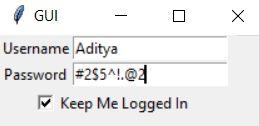
कमाल नहीं है? यह कितना सरल था, और यह HTML में लिखे गए जैसा ही दिखता है।
बाइंडिंग या कमांड फ़ंक्शंस
बाइंडिंग या कमांड फ़ंक्शंस वे होते हैं जिन्हें तब बुलाया जाता है जब कोई इवेंट होता है या ट्रिगर किया जाता है।
बाइंडिंग फ़ंक्शंस को समझने के लिए एक उदाहरण लेते हैं।
आप एक बटन परिभाषित करेंगे जो क्लिक होने पर DataCamp_Tutorial नामक फ़ंक्शन को कॉल करेगा। आगे, DataCamp_Tutorial फ़ंक्शन GUI with Tkinter! टेक्स्ट के साथ एक नया लेबल बनाएगा।
import tkinter
# Let's create the Tkinter window
window = tkinter.Tk()
window.title("GUI")
# creating a function called DataCamp_Tutorial()
def DataCamp_Tutorial():
tkinter.Label(window, text = "GUI with Tkinter!").pack()
tkinter.Button(window, text = "Click Me!", command = DataCamp_Tutorial).pack()
window.mainloop()
आइए कोड चलाएँ और आउटपुट देखें।
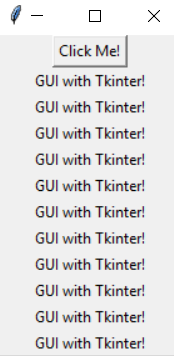
माउस क्लिक से बाइंडिंग फ़ंक्शंस को कॉल करने के अलावा, इवेंट्स को माउस-मूव, माउस-ओवर, क्लिकिंग, स्क्रॉलिंग आदि से भी इनवोक किया जा सकता है।
अब bind फ़ंक्शन पर नज़र डालते हैं, जो आपको ऊपर जैसी ही कार्यक्षमता देता है।
Bind मेथड के ज़रिए माउस क्लिकिंग इवेंट
Bind मेथड माउस क्लिकिंग इवेंट्स को लागू करने का बहुत सरल तरीका देता है। आइए उन तीन प्री-डिफ़ाइंड फ़ंक्शंस को देखें जिन्हें bind मेथड के साथ सीधे उपयोग किया जा सकता है।
क्लिकिंग इवेंट्स तीन प्रकार के होते हैं: leftClick, middleClick, और rightClick।
<Button-1>bind मेथड का पैरामीटर लेफ़्ट-क्लिक इवेंट है, यानी जब आप लेफ़्ट बटन क्लिक करते हैं, तो bind मेथड उसके दूसरे पैरामीटर के रूप में दिए गए फ़ंक्शन को कॉल करेगा।<Button-2>मिडिल-क्लिक के लिए<Button-3>राइट-क्लिक के लिए
अब आप सीखेंगे कि घटित इवेंट के आधार पर किसी विशेष फ़ंक्शन को कैसे कॉल करें।
- निम्न प्रोग्राम चलाएँ और बाएँ, मध्य, दाएँ बटन क्लिक करें ताकि विशिष्ट फ़ंक्शन कॉल हो।
- वह फ़ंक्शन निर्दिष्ट टेक्स्ट के साथ एक नया लेबल बनाएगा।
import tkinter
# Let's create the Tkinter window
window = tkinter.Tk()
window.title("GUI")
#You will create three different functions for three different events
def left_click(event):
tkinter.Label(window, text = "Left Click!").pack()
def middle_click(event):
tkinter.Label(window, text = "Middle Click!").pack()
def right_click(event):
tkinter.Label(window, text = "Right Click!").pack()
window.bind("<Button-1>", left_click)
window.bind("<Button-2>", middle_click)
window.bind("<Button-3>", right_click)
window.mainloop()
आइए ऊपर दिए गए कोड को चलाएँ।
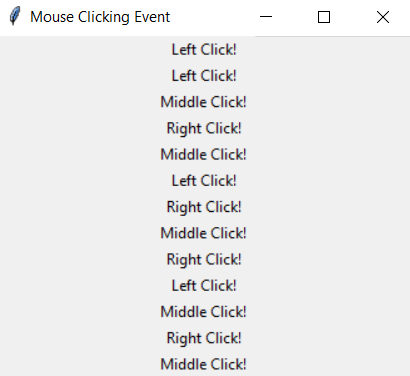
अलर्ट बॉक्स
आप Tkinter में messagebox मेथड का उपयोग करके अलर्ट बॉक्स बना सकते हैं। आप messasgebox मेथड का उपयोग करके प्रश्न भी बना सकते हैं।
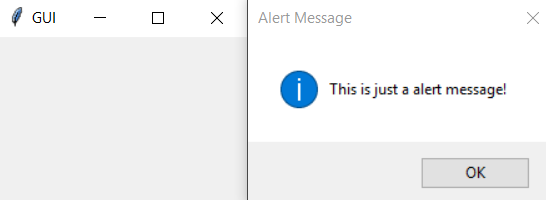
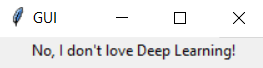
यहाँ आप एक सरल अलर्ट-बॉक्स और एक प्रश्न बनाएँगे। अलर्ट जनरेट करने के लिए आप messagebox का showinfo फ़ंक्शन उपयोग करेंगे। प्रश्न बनाने के लिए आप askquestion मेथड का उपयोग करेंगे, और प्रश्न के उत्तर के आधार पर आप GUI पर एक Label आउटपुट करेंगे।
import tkinter
import tkinter.messagebox
# Let's create the Tkinter window
window = tkinter.Tk()
window.title("GUI")
# Let's create a alert box with 'messagebox' function
tkinter.messagebox.showinfo("Alert Message", "This is just a alert message!")
# Let's also create a question for the user and based upon the response [Yes or No Question] display a message.
response = tkinter.messagebox.askquestion("Tricky Question", "Do you love Deep Learning?")
# A basic 'if/else' block where if user clicks on 'Yes' then it returns 1 else it returns 0. For each response you will display a message with the help of 'Label' method.
if response == 1:
tkinter.Label(window, text = "Yes, offcourse I love Deep Learning!").pack()
else:
tkinter.Label(window, text = "No, I don't love Deep Learning!").pack()
window.mainloop()
आइए ऊपर दिए गए कोड को जल्दी से चलाएँ और आउटपुट देखें।
इमेज रेंडर करना
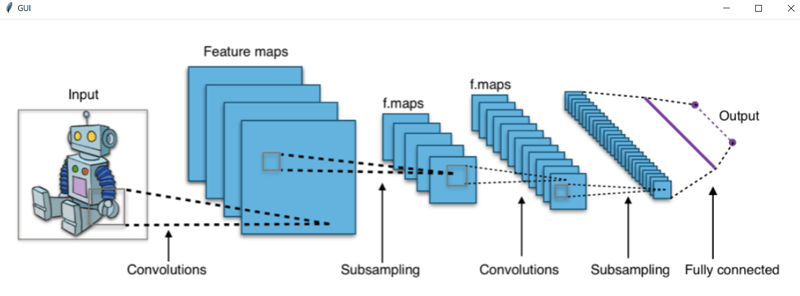
यदि आप यहाँ तक साथ आ पाए हैं, तो GUI में इमेज और आइकन जोड़ना अब बहुत आसान होना चाहिए। आपको बस Tkinter के PhotoImage मेथड का उपयोग करना है और file_path को पैरामीटर के रूप में पास करना है।
तो, बिना देर किए, GUI पर इमेज प्रदर्शित करने का कोड जल्दी से लिखते हैं।
import tkinter
# Let's create the Tkinter window
window = tkinter.Tk()
window.title("GUI")
# In order to display the image in a GUI, you will use the 'PhotoImage' method of Tkinter. It will an image from the directory (specified path) and store the image in a variable.
icon = tkinter.PhotoImage(file = "CNN.png")
# Finally, to display the image you will make use of the 'Label' method and pass the 'image' variriable as a parameter and use the pack() method to display inside the GUI.
label = tkinter.Label(window, image = icon)
label.pack()
window.mainloop()
यदि आप यहाँ तक साथ आ गए हैं, तो बहुत बढ़िया!
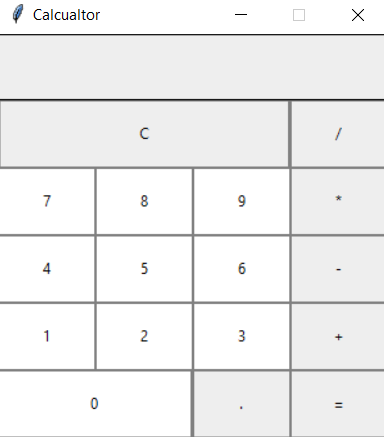
बोनस के तौर पर, आप अब तक सीखी गई सभी बातों का उपयोग करते हुए एक Calculator बनाएँगे। तो, आइए इस ट्यूटोरियल को शानदार अंदाज़ में समाप्त करें।
Tkinter के साथ एक कैलकुलेटर बनाना
हर GUI ऐप दो चरणों में बनता है।
- यूज़र इंटरफ़ेस बनाना
- GUI में फ़ंक्शनैलिटी जोड़ना
आइए कैलकुलेटर बनाना शुरू करें। अधिकांश कोड स्वयं स्पष्ट है, और कुछ पंक्तियों पर टिप्पणियाँ दी गई हैं।
from tkinter import *
# Let's create the Tkinter window
window = Tk()
# Then, you will define the size of the window in width(312) and height(324) using the 'geometry' method
window.geometry("312x324")
# In order to prevent the window from getting resized you will call 'resizable' method on the window
window.resizable(0, 0)
#Finally, define the title of the window
window.title("Calcualtor")
# Let's now define the required functions for the Calculator to function properly.
# 1. First is the button click 'btn_click' function which will continuously update the input field whenever a number is entered or any button is pressed it will act as a button click update.
def btn_click(item):
global expression
expression = expression + str(item)
input_text.set(expression)
# 2. Second is the button clear 'btn_clear' function clears the input field or previous calculations using the button "C"
def btn_clear():
global expression
expression = ""
input_text.set("")
# 3. Third and the final function is button equal ("=") 'btn_equal' function which will calculate the expression present in input field. For example: User clicks button 2, + and 3 then clicks "=" will result in an output 5.
def btn_equal():
global expression
result = str(eval(expression)) # 'eval' function is used for evaluating the string expressions directly
# you can also implement your own function to evalute the expression istead of 'eval' function
input_text.set(result)
expression = ""
expression = ""
# In order to get the instance of the input field 'StringVar()' is used
input_text = StringVar()
# Once all the functions are defined then comes the main section where you will start defining the structure of the calculator inside the GUI.
# The first thing is to create a frame for the input field
input_frame = Frame(window, width = 312, height = 50, bd = 0, highlightbackground = "black", highlightcolor = "black", highlightthickness = 1)
input_frame.pack(side = TOP)
# Then you will create an input field inside the 'Frame' that was created in the previous step. Here the digits or the output will be displayed as 'right' aligned
input_field = Entry(input_frame, font = ('arial', 18, 'bold'), textvariable = input_text, width = 50, bg = "#eee", bd = 0, justify = RIGHT)
input_field.grid(row = 0, column = 0)
input_field.pack(ipady = 10) # 'ipady' is an internal padding to increase the height of input field
# Once you have the input field defined then you need a separate frame which will incorporate all the buttons inside it below the 'input field'
btns_frame = Frame(window, width = 312, height = 272.5, bg = "grey")
btns_frame.pack()
# The first row will comprise of the buttons 'Clear (C)' and 'Divide (/)'
clear = Button(btns_frame, text = "C", fg = "black", width = 32, height = 3, bd = 0, bg = "#eee", cursor = "hand2", command = lambda: btn_clear()).grid(row = 0, column = 0, columnspan = 3, padx = 1, pady = 1)
divide = Button(btns_frame, text = "", fg = "black", width = 10, height = 3, bd = 0, bg = "#eee", cursor = "hand2", command = lambda: btn_click("")).grid(row = 0, column = 3, padx = 1, pady = 1)
# The second row will comprise of the buttons '7', '8', '9' and 'Multiply (*)'
seven = Button(btns_frame, text = "7", fg = "black", width = 10, height = 3, bd = 0, bg = "#fff", cursor = "hand2", command = lambda: btn_click(7)).grid(row = 1, column = 0, padx = 1, pady = 1)
eight = Button(btns_frame, text = "8", fg = "black", width = 10, height = 3, bd = 0, bg = "#fff", cursor = "hand2", command = lambda: btn_click(8)).grid(row = 1, column = 1, padx = 1, pady = 1)
nine = Button(btns_frame, text = "9", fg = "black", width = 10, height = 3, bd = 0, bg = "#fff", cursor = "hand2", command = lambda: btn_click(9)).grid(row = 1, column = 2, padx = 1, pady = 1)
multiply = Button(btns_frame, text = "*", fg = "black", width = 10, height = 3, bd = 0, bg = "#eee", cursor = "hand2", command = lambda: btn_click("*")).grid(row = 1, column = 3, padx = 1, pady = 1)
# The third row will comprise of the buttons '4', '5', '6' and 'Subtract (-)'
four = Button(btns_frame, text = "4", fg = "black", width = 10, height = 3, bd = 0, bg = "#fff", cursor = "hand2", command = lambda: btn_click(4)).grid(row = 2, column = 0, padx = 1, pady = 1)
five = Button(btns_frame, text = "5", fg = "black", width = 10, height = 3, bd = 0, bg = "#fff", cursor = "hand2", command = lambda: btn_click(5)).grid(row = 2, column = 1, padx = 1, pady = 1)
six = Button(btns_frame, text = "6", fg = "black", width = 10, height = 3, bd = 0, bg = "#fff", cursor = "hand2", command = lambda: btn_click(6)).grid(row = 2, column = 2, padx = 1, pady = 1)
minus = Button(btns_frame, text = "-", fg = "black", width = 10, height = 3, bd = 0, bg = "#eee", cursor = "hand2", command = lambda: btn_click("-")).grid(row = 2, column = 3, padx = 1, pady = 1)
# The fourth row will comprise of the buttons '1', '2', '3' and 'Addition (+)'
one = Button(btns_frame, text = "1", fg = "black", width = 10, height = 3, bd = 0, bg = "#fff", cursor = "hand2", command = lambda: btn_click(1)).grid(row = 3, column = 0, padx = 1, pady = 1)
two = Button(btns_frame, text = "2", fg = "black", width = 10, height = 3, bd = 0, bg = "#fff", cursor = "hand2", command = lambda: btn_click(2)).grid(row = 3, column = 1, padx = 1, pady = 1)
three = Button(btns_frame, text = "3", fg = "black", width = 10, height = 3, bd = 0, bg = "#fff", cursor = "hand2", command = lambda: btn_click(3)).grid(row = 3, column = 2, padx = 1, pady = 1)
plus = Button(btns_frame, text = "+", fg = "black", width = 10, height = 3, bd = 0, bg = "#eee", cursor = "hand2", command = lambda: btn_click("+")).grid(row = 3, column = 3, padx = 1, pady = 1)
# Finally, the fifth row will comprise of the buttons '0', 'Decimal (.)', and 'Equal To (=)'
zero = Button(btns_frame, text = "0", fg = "black", width = 21, height = 3, bd = 0, bg = "#fff", cursor = "hand2", command = lambda: btn_click(0)).grid(row = 4, column = 0, columnspan = 2, padx = 1, pady = 1)
point = Button(btns_frame, text = ".", fg = "black", width = 10, height = 3, bd = 0, bg = "#eee", cursor = "hand2", command = lambda: btn_click(".")).grid(row = 4, column = 2, padx = 1, pady = 1)
equals = Button(btns_frame, text = "=", fg = "black", width = 10, height = 3, bd = 0, bg = "#eee", cursor = "hand2", command = lambda: btn_equal()).grid(row = 4, column = 3, padx = 1, pady = 1)
window.mainloop()
निष्कर्ष
इस ट्यूटोरियल को पूरा करने पर बधाई!
इस ट्यूटोरियल से सीखी गई बातों के आधार पर, आप अब कुछ सरल GUI ऐप्स बनाने के लिए तैयार हैं। आपको GUI में ऑब्जेक्ट्स के साथ स्टाइलिंग और इंटरैक्शन के लिए और तरीकों को सीखना होगा।
एक उपयोगी अभ्यास यह होगा कि कैलकुलेटर जैसे अनुप्रयोग विकसित करने की कोशिश करें, जो आपका आत्मविश्वास बढ़ाएगा और Tkinter से संभव चीज़ों का अधिक समग्र विचार देगा।
अभी और बहुत कुछ कवर करना बाकी है, और आप Tkinter में कक्षाओं (Classes) की अवधारणा को एक्सप्लोर करना चाहेंगे, जिसके लिए आप इस प्रलेखन का संदर्भ ले सकते हैं।
कृपया इस ट्यूटोरियल से संबंधित कोई भी प्रश्न नीचे कमेंट सेक्शन में पूछें।
शुरू करने से पहले, Tkinter सीखने के लिए आपको Python से परिचित होना चाहिए। यदि आप Python में नए हैं, तो DataCamp का Introduction to Python कोर्स और हमारा Python कैसे सीखें मार्गदर्शन देखें।
परिचय
अधिकांश लोग कोड लिखते हैं और उसे कमांड-लाइन टर्मिनल या IDE (Integrated Development Environment) में चलाते हैं, और कोड आपके अपेक्षा अनुसार आउटपुट टर्मिनल या IDE पर देता है। लेकिन, अगर आप चाहते हैं कि आपके सिस्टम में आकर्षक यूज़र-इंटरफ़ेस हो या आपके अनुप्रयोग (यूज़-केस) के लिए GUI आवश्यक हो, तो क्या करेंगे?
GUI एक डेस्कटॉप ऐप ही है जो आपको ऐसा इंटरफ़ेस देता है जिससे आप कंप्यूटर के साथ इंटरैक्ट कर सकें और कोड को कमांड (कमांड-लाइन इनपुट) देने के अनुभव को बेहतर बनाता है। इनका उपयोग डेस्कटॉप, लैपटॉप और अन्य इलेक्ट्रॉनिक डिवाइसों पर विभिन्न कार्यों के लिए किया जाता है।
GUI की शक्ति जिन अनुप्रयोगों में उपयोग होती है, उनके कुछ उदाहरण:
एक और रोचक यूज़-केस हो सकता है - अपने लैपटॉप से ड्रोन को नियंत्रित करने के लिए GUI, जिसमें ड्रोन को मोड़ने के लिए बटन हों और एक स्क्रीन हो जिस पर ड्रोन का कैमरा फीड रियल-टाइम में दिखे।
आइए देखते हैं Python में GUI बनाने के लिए कौन-कौन से फ़्रेमवर्क उपलब्ध हैं:
और अंत में, आज के ट्यूटोरियल का विषय यानी Tkinter!
नोट:
TkinterPython3 के साथ पहले से इंस्टॉल आता है, आपको इसे अलग से इंस्टॉल करने की आवश्यकता नहीं है।अब, चलिए Tkinter की मदद से एक बहुत सरल GUI बनाते हैं और एक फ़्लो डायग्राम की सहायता से इसे समझते हैं।
आइए ऊपर दिए गए फ़्लो डायग्राम को हिस्सों में बाँटें और समझें कि हर घटक क्या संभाल रहा है!
Tkinterमॉड्यूल को इम्पोर्ट करते हैं।tkinter.Tk()मेथड से विंडो मैनेजर को इनिशियलाइज़ करते हैं और उसे एक वैरिएबल में असाइन करते हैं। यह मेथड एक खाली विंडो बनाता है जिसमें ऊपर की ओर क्लोज, मैक्सिमाइज़ और मिनिमाइज़ बटन होते हैं, जैसा कि एक सामान्य GUI में होता है।window.title(title_of_the_window)से विंडो का शीर्षक अपनी पसंद के अनुसारRenameकर सकते हैं।Labelनामकwidgetका उपयोग करते हैं, जिसका उपयोग विंडो में कुछ टेक्स्ट डालने के लिए किया जाता है।geometry managementएट्रिब्यूटpack()का उपयोग करते हैं ताकि विजेट उसके आवश्यक आकार में प्रदर्शित हो।उपरोक्त कोड को टर्मिनल में चलाने पर, आपको नीचे दिखाए गए समान आउटपुट दिखाई देगा।
इसी तरह, आप
Buttonविजेट का उपयोग कर सकते हैं, और GUI कुछ टेक्स्ट (Label) की जगह एक बटन दिखाएगा।हालाँकि आपने Tkinter में Widgets का उपयोग करना सीख लिया है, फिर भी आइए जानें कि Tkinter में और कौन-कौन से विजेट उपलब्ध हैं और वे कैसे काम करते हैं।