Curso
Manipulação de dados com pandas
4 h
566K
O método .rename() é a forma mais flexível de executar a operação de renomear colunas em um DataFrame do pandas, e é o que você vai usar com mais frequência.
Ele recebe um dicionário que mapeia nomes antigos para novos, deixa intocadas as colunas que você não mencionar e, por padrão, retorna um novo DataFrame em vez de modificar o original. Isso torna o .rename() seguro para usar em encadeamentos de métodos e mais fácil de entender ao depurar.
O padrão do dicionário é assim:
sales_data.rename(columns={"old_name": "new_name"})Se você está começando com dicionários, recomendo revisar nosso tutorial de métodos de dicionário em Python.
Um ponto rápido antes dos exemplos. O pandas 3.0 descontinuou o parâmetro copy e tornou o Copy-on-Write o comportamento padrão. Na prática, isso significa que você não precisa mais se preocupar se o .rename() faz uma cópia cara dos seus dados. O pandas lida com isso de forma preguiçosa por baixo dos panos. O principal parâmetro que resta considerar é o inplace, que vamos abordar na terceira subseção.
Imagine que você acabou de carregar registros de clientes exportados de um CRM legado. Os nomes das colunas estão abreviados de um jeito que fazia sentido para quem desenhou o banco em 2008, mas não para você. Este é o caso mais simples de renomear no pandas: um nome antigo, um novo, em um dicionário:
import pandas as pd

customers = pd.DataFrame({
    "cust_id_nbr": [4521, 4522, 4523, 4524],
    "first_nm": ["Abe", "Rick", "Pat", "Kim"],
    "signup_dt": ["2008-03-12", "2008-03-15", "2008-03-18", "2008-03-21"]
})

print(customers)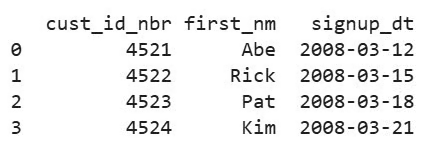
Agora, renomeie cust_id_nbr para algo mais legível:
customers_renamed = customers.rename(columns={"cust_id_nbr": "customer_id"})
print(customers_renamed)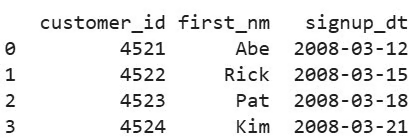
O DataFrame customers original permanece inalterado. O .rename() retornou um novo DataFrame, que atribuimos a customers_renamed. As duas colunas que não mencionamos (first_nm, signup_dt) vieram iguais.
O dicionário escala naturalmente. Para lidar com a tarefa de renomear várias colunas no pandas, basta adicionar mais pares chave-valor ao mapeamento:
customers_clean = customers.rename(columns={
    "cust_id_nbr": "customer_id",
    "first_nm": "first_name",
    "signup_dt": "signup_date"
})

print(customers_clean)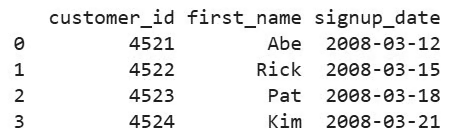
Também existe uma sintaxe alternativa que usa os argumentos mapper e axis em vez da palavra-chave columns:
customers.rename(mapper={"cust_id_nbr": "customer_id"}, axis=1)O axis=1 informa ao pandas que você está mirando nas colunas (em oposição a axis=0 para rótulos do índice de linhas). As duas formas produzem o mesmo resultado. A maior parte do código por aí usa columns={...} porque fica mais claro à primeira vista, então vamos manter esse padrão no restante do tutorial.
Um detalhe útil é que, se você passar uma chave que não corresponde a nenhuma coluna existente, o .rename() ignora silenciosamente por padrão. Isso é conveniente quando você escreve uma função reutilizável que pode lidar com DataFrames com esquemas ligeiramente diferentes, mas também pode esconder typos. Para fazer o pandas lançar um erro em nomes desconhecidos, passe errors='raise'.
Por padrão, o .rename() retorna um novo DataFrame e deixa o original em paz. Se você quiser modificar o DataFrame existente diretamente, passe inplace=True:
# Retorna um novo DataFrame (padrão)
customers_v2 = customers.rename(columns={"first_nm": "first_name"})

# Modifica customers diretamente, retorna None
customers.rename(columns={"first_nm": "first_name"}, inplace=True)

print(customers)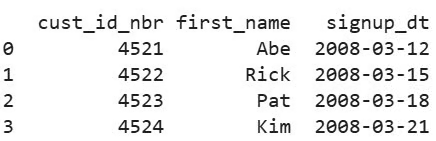
Então, qual usar? Na maioria dos casos, o padrão — retornar um novo DataFrame — é a melhor escolha. Também é mais fácil de depurar, já que você ainda tem o DataFrame original para inspecionar quando algo dá errado. E evita os problemas de aliasing que geram um SettingWithCopyWarning em código mais antigo.
Desempenho também não é mais um motivo para preferir inplace. Com Copy-on-Write como padrão no pandas 3.0+, a versão não-inplace usa cópia preguiçosa. Ela não duplica seus dados até algo ser modificado. O argumento antigo de que inplace=True economiza memória é bem mais fraco hoje.
O único cenário em que inplace=True ainda parece natural é em scripts exploratórios curtos, nos quais você está limpando um único DataFrame passo a passo e não se importa com encadeamento. Para código de produção ou qualquer coisa que você vá revisitar depois, prefira o padrão.
Às vezes você não quer mapear nomes antigos para novos. Você só quer substituir todos os nomes de uma vez. Isso acontece mais do que você imagina, como em CSVs sem cabeçalho em que o pandas atribuiu 0, 1, 2 como nomes de colunas, datasets em que a linha de cabeçalho está em outro idioma, ou exportações de sistemas com nomes como Field1, Field2, Field3.
Existem duas formas comuns de fazer isso: atribuindo diretamente a df.columns ou usando .set_axis(). Elas produzem o mesmo resultado. A troca é entre brevidade e capacidade de encadear.
A abordagem mais direta é atribuir uma nova lista ao atributo columns. Veja este DataFrame, construído a partir de uma lista de listas sem informação de cabeçalho — como quando você lê um CSV sem header. O pandas recorre a nomes de colunas inteiros:
import pandas as pd

sensor_readings = pd.DataFrame([
    [1.2, 22.5, 1013],
    [1.5, 22.7, 1012],
    [1.3, 22.6, 1013]
])

print(sensor_readings)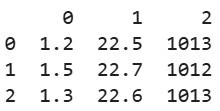
Os nomes de colunas 0, 1 e 2 não ajudam na análise. Substitua-os atribuindo uma nova lista de nomes ao atributo columns:
sensor_readings.columns = ["wind_speed", "temperature_c", "pressure_hpa"]
print(sensor_readings)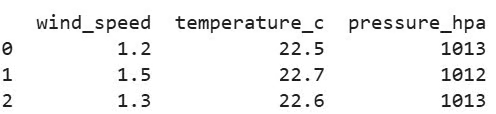
Duas coisas para saber sobre essa abordagem.
O tamanho da lista deve bater exatamente. Se você passar três nomes para um DataFrame com quatro colunas, o pandas lança ValueError: Length mismatch (vamos ver esse erro em detalhe mais adiante).
Ela modifica o DataFrame no lugar. Não existe parâmetro inplace aqui porque a atribuição já é a modificação. Se você quiser uma cópia nova, use .copy() antes ou use .set_axis() abaixo.
O método .set_axis() faz a mesma coisa, mas retorna um novo DataFrame para você poder encadear com outras operações. Veja um DataFrame semelhante, sem cabeçalho, mas desta vez com dados mais bagunçados, como casas decimais extras e uma leitura ausente:
raw_sensor = pd.DataFrame([
    [1.234, 22.567, 1013],
    [1.512, 22.789, 1012],
    [None,  22.601, 1013],
    [1.345, 22.612, 1013]
])

sensor_clean = (
    raw_sensor
    .set_axis(["wind_speed_mps", "temp_celsius", "pressure_hpa"], axis=1)
    .round(1)
    .dropna()
)

print(sensor_clean)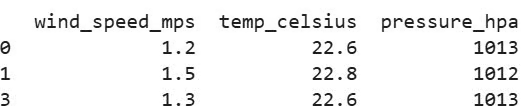
O argumento axis=1 informa ao pandas que você está definindo rótulos de colunas (use axis=0 para definir o índice de linhas). Como .set_axis() retorna um novo DataFrame, ele se encaixa naturalmente nos pipelines de transformações encadeadas que você escreve em ETL ou análises reais. Esse é o principal motivo para preferi-lo à atribuição direta em produção.
Em vez de mapear cada nome antigo para um novo, você pode passar uma função para o .rename(), e o pandas vai aplicá-la a cada nome de coluna. Esta é a ferramenta certa quando você tem uma regra em vez de uma lista. Por exemplo, "deixar tudo em minúsculas" ou "trocar todo espaço por sublinhado".
O caso mais simples é padronizar a caixa. Passe str.lower, str.upper ou str.title diretamente para o argumento columns:
import pandas as pd

orders = pd.DataFrame({
    "Order ID": [1001, 1002, 1003],
    "Customer Name": ["Abe", "Rick", "Pat"],
    "Total Amount": [49.99, 120.00, 75.50]
})

orders_lower = orders.rename(columns=str.lower)
print(orders_lower.columns.tolist())
Note que passamos a função em si (str.lower), e não a chamamos (str.lower()). O pandas a aplica a cada nome de coluna, um por vez. Este é um atalho limpo para padronização de caixa, mas não lida com espaços ou caracteres especiais. Para isso, use uma lambda ou uma função personalizada.
Para qualquer coisa além de mudanças de caixa, uma lambda permite expressar rapidamente a transformação inline. Se você nunca usou lambdas, nosso guia para iniciantes em funções lambda é um bom ponto de partida.
Um padrão comum é deixar em minúsculas e trocar espaços por sublinhados em um passo. Vamos usar o exemplo anterior:
orders_snake = orders.rename(columns=lambda col: col.lower().replace(" ", "_"))
print(orders_snake.columns.tolist())
Quando a lógica fica mais elaborada, extraia para uma função nomeada. Considere este helper que converte nomes de coluna em camelCase ou PascalCase para snake_case:
import re

def to_snake_case(name: str) -> str:
    """Convert camelCase or PascalCase to snake_case."""
    s1 = re.sub(r"(.)([A-Z][a-z]+)", r"\1_\2", name)
    s2 = re.sub(r"([a-z0-9])([A-Z])", r"\1_\2", s1)
    return s2.lower()

api_response = pd.DataFrame({
    "userId": [1, 2, 3],
    "firstName": ["Abe", "Rick", "Pat"],
    "accountCreatedAt": ["2024-01-01", "2024-01-02", "2024-01-03"]
})

api_clean = api_response.rename(columns=to_snake_case)
print(api_clean.columns.tolist())
Uma função nomeada como essa é mais fácil de testar, reutilizar entre notebooks e documentar do que uma one-liner esperta. Use lambdas quando a lógica couber em uma linha e funções personalizadas quando não couber.
Quando os dados chegam de planilhas, APIs de terceiros ou CSVs editados à mão, os nomes de colunas frequentemente têm problemas que o .rename() sozinho não resolve de forma elegante. Estou falando de coisas como:
Para esses casos, a abordagem mais limpa é operar diretamente em df.columns usando o acessor .str, que expõe métodos vetorizados de string (incluindo regex) em todos os nomes de coluna de uma vez. Isso também é base de uma boa limpeza de dados em Python. Limpar nomes de colunas torna cada etapa seguinte (filtrar, mesclar, plotar) menos sujeita a erro.
Veja este DataFrame, com o tipo de nomes que você recebe de um export do Excel mexido por mãos demais:
import pandas as pd

raw_export = pd.DataFrame({
    "  Order ID ": [1001, 1002, 1003],
    "Customer Name (Full)": ["Abe", "Rick", "Pat"],
    "Total Amount ($)": [49.99, 120.00, 75.50],
    "Order-Date": ["2024-03-12", "2024-03-15", "2024-03-18"]
})

print(raw_export.columns.tolist())
Espaços à esquerda e à direita são os problemas mais comuns e mais irritantes, porque são invisíveis. Remova-os em uma linha:
raw_export.columns = raw_export.columns.str.strip()
print(raw_export.columns.tolist())
Para caracteres especiais, .str.replace() aceita um padrão regex. O padrão abaixo mantém letras, números, sublinhados e espaços, e remove todo o resto:
raw_export.columns = raw_export.columns.str.replace(r"[^a-zA-Z0-9_ ]", "", regex=True)
print(raw_export.columns.tolist())
O hífen, os parênteses e o cifrão sumiram. Note que Total Amount agora tem um espaço no final (de onde ($) estava), e OrderDate perdeu o hífen por completo. É por isso que tiramos os espaços novamente no fim de um pipeline de limpeza.
Uma boa prática comum é converter todos os nomes de colunas para snake_case antes de começar qualquer análise: tudo em minúsculas, palavras separadas por sublinhados, sem caracteres especiais. Encadeie os métodos de .str para chegar lá em uma única expressão:
raw_export = pd.DataFrame({
    "  Order ID ": [1001, 1002, 1003],
    "Customer Name (Full)": ["Abe", "Rick", "Pat"],
    "Total Amount ($)": [49.99, 120.00, 75.50],
    "Order-Date": ["2024-03-12", "2024-03-15", "2024-03-18"]
})

raw_export.columns = (
    raw_export.columns
    .str.strip()                                  # remove espaços no início/fim
    .str.lower()                                  # tudo em minúsculas
    .str.replace(r"[^a-z0-9]+", "_", regex=True)  # colapsa não alfanuméricos em sublinhados
    .str.strip("_")                               # remove sublinhados no início/fim
)

print(raw_export.columns.tolist())
Quatro linhas e seus nomes de colunas ficam previsíveis, em minúsculas e separados por sublinhados. Vale a pena salvar esse padrão como uma função utilitária. Depois que você tiver, dá para aplicar em todo DataFrame bagunçado que aparecer.
Você também vai querer combinar renomear com remoção de colunas. Para isso, o tutorial de como dropar colunas no pandas cobre o próximo passo.
Se você já sabe que quer nomes de colunas diferentes antes mesmo de carregar o arquivo, dá para renomear diretamente dentro de pd.read_csv(). Passe uma lista de nomes para o parâmetro names e defina header=0 para dizer ao pandas para pular a linha de cabeçalho existente e usar os seus nomes:
import pandas as pd
from io import StringIO

# Simulando um arquivo CSV para demonstração
csv_data = """txnId,custId,amt,date
1001,C01,49.99,2024-01-15
1002,C02,125.00,2024-01-16
1003,C01,79.50,2024-01-17"""

# Renomeia colunas na carga, ignorando o cabeçalho original
transactions = pd.read_csv(
    StringIO(csv_data),
    header=0,
    names=["transaction_id", "customer_id", "amount_usd", "transaction_date"]
)
print(transactions)
Esse é um atalho útil quando você controla o esquema e não quer um passo separado de .rename() poluindo o seu código de carga. Se o arquivo não tem linha de cabeçalho, omita header=0 e use apenas names=[...] para definir os nomes do zero. Para um mergulho mais fundo nas opções de carga, recomendo o tutorial de pandas read_csv().
Um porém: é tudo ou nada. O parâmetro names substitui todos os nomes de coluna, então o tamanho da lista deve bater exatamente com o número de colunas no arquivo. Se você só quer renomear algumas colunas, carregue o arquivo primeiro e use .rename() depois.
Para um passo a passo guiado desses padrões junto de outras tarefas comuns de limpeza, recomendo o curso Cleaning Data in Python.
Se você trabalha tanto com pandas quanto com Polars, ou pretende trabalhar, vale saber como cada um lida com renomear colunas. A API de alto nível é parecida, mas os detalhes divergem de formas que podem te pegar desprevenido nas primeiras vezes. O Polars é uma biblioteca de DataFrame rápida, em Rust, cada vez mais comum em stacks modernas de dados, e o reflexo que você cria no pandas nem sempre se transfere perfeitamente.
A ideia principal é idêntica: mapear nomes antigos para novos com um dicionário. As diferenças estão nos detalhes. Polars é imutável por design (sem inplace), encadeamento de métodos é o estilo idiomático e renomear a nível de coluna durante um select usa .alias() em vez de uma etapa separada de rename.
|
Tarefa |
Pandas |
Polars |
|
Renomear colunas específicas |
|
|
|
Substituir todos os nomes de colunas |
|
|
|
Renomear durante um select |
Selecionar primeiro, depois |
|
|
Modificar no lugar |
|
Não suportado. Sempre retorna um novo DataFrame |
|
Estilo idiomático |
|
Sempre encadeando |
Para comparação, aqui vai um rename simples em cada uma das bibliotecas.
Pandas:
# Pandas
import pandas as pd

orders_pd = pd.DataFrame({
    "ord_id": [1001, 1002, 1003],
    "cust_nm": ["Abe", "Rick", "Pat"]
})

orders_pd = orders_pd.rename(columns={"ord_id": "order_id", "cust_nm": "customer_name"})
print(orders_pd)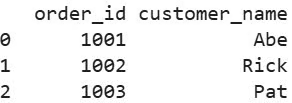
Polars:
# Polars
import polars as pl

orders_pl = pl.DataFrame({
    "ord_id": [1001, 1002, 1003],
    "cust_nm": ["Abe", "Rick", "Pat"]
})

orders_pl = orders_pl.rename({"ord_id": "order_id", "cust_nm": "customer_name"})
print(orders_pl)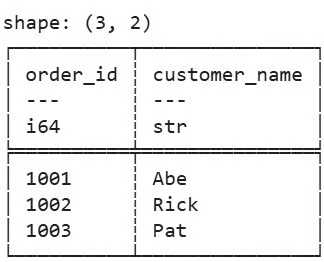
Duas diferenças sutis: o .rename() do Polars recebe o dicionário diretamente. Não há a palavra-chave columns= porque o Polars só renomeia colunas (não existe índice de linhas). E você precisa reatribuir o resultado. Não existe inplace=True no Polars. Toda operação retorna um novo DataFrame.
A saída do Polars também mostra dtypes inline (i64, str) e o shape no topo, que é um detalhe de qualidade de vida que muita gente passa a gostar depois da migração.
Para renomear durante uma transformação, o Polars usa .alias() dentro de .select() ou .with_columns():
# Polars
import polars as pl

orders_pl = pl.DataFrame({
    "ord_id": [1001, 1002, 1003],
    "cust_nm": ["Abe", "Rick", "Pat"]
})

# Seleciona e renomeia em uma expressão
renamed = orders_pl.select(
    pl.col("ord_id").alias("order_id"),
    pl.col("cust_nm").alias("customer_name")
)

print(renamed)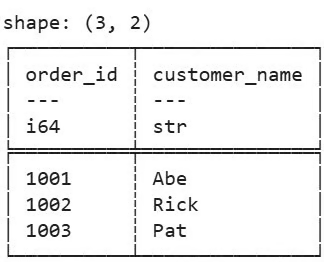
No pandas, o equivalente seria um .rename() depois de uma seleção de colunas. Nenhuma abordagem é melhor: elas refletem a filosofia de cada biblioteca.
Se você quer uma comparação mais profunda entre as duas, eu recomendo o tutorial de desempenho do pandas versus polars. E se quiser adicionar polars ao seu kit, recomendo fazer nosso curso Introduction to Polars.
Dois erros aparecem repetidamente ao renomear colunas no pandas. Veja como são, por que acontecem e como corrigi-los.
Por padrão, o .rename() ignora silenciosamente chaves que não correspondem a nenhuma coluna existente. Mas se você passar errors='raise' para capturar typos, vai receber um KeyError quando a chave não existir:
import pandas as pd

orders = pd.DataFrame({
    "order_id": [1001, 1002, 1003],
    "customer_name": ["Abe", "Rick", "Pat"]
})

# Isso lança um erro
orders.rename(columns={"Order_ID": "order_id"}, errors="raise")
A causa mais comum é uma diferença de caixa (Order_ID versus order_id) ou um espaço invisível no fim ("order_id " versus "order_id"). Quando topar com um KeyError, verifique três coisas nessa ordem:
Para verificar os nomes reais das colunas:
print(orders.columns.tolist())

# Use repr() como alternativa
print([repr(c) for c in orders.columns])
Depois de ver as strings exatas que o pandas está segurando, o erro normalmente fica óbvio. Corrija a grafia e rode de novo:
orders = orders.rename(columns={"order_id": "Order_ID"}, errors="raise")
print(orders.columns.tolist())
Agora, quando usar errors='raise' versus o padrão errors='ignore'?
O padrão é tolerante. É útil em scripts que processam DataFrames com esquemas variáveis, onde uma coluna ausente não deve derrubar nada.
Troque para errors='raise' quando quiser que typos apareçam alto e claro durante o desenvolvimento, especialmente em notebooks onde falhas silenciosas causam horas de depuração confusa depois.
Quando você atribui uma lista a df.columns ou usa .set_axis(), o tamanho da lista deve bater exatamente com o número de colunas. Se não bater, o pandas lança um ValueError:
import pandas as pd

products = pd.DataFrame({
    "sku": ["A100", "A101", "A102"],
    "name": ["Widget", "Gadget", "Gizmo"],
    "price": [9.99, 14.99, 19.99]
})

# Isso lança um erro
products.columns = ["product_sku", "product_name"]
O DataFrame tem três colunas, mas só foram fornecidos dois novos nomes. A correção é verificar a contagem de colunas antes de atribuir:
print(len(products.columns))
products.columns = ["product_sku", "product_name", "product_price"]
print(products.columns.tolist())
Se você trabalha com DataFrames em que a quantidade de colunas pode variar, é mais seguro usar .rename() com um dicionário. Ele só toca nas colunas que você nomear, então uma coluna faltando ou extra não vai quebrar seu código.
Renomear colunas no pandas se resume a escolher o método que combina com o escopo da sua tarefa. Qualquer que seja a abordagem, o maior ganho prático é definir uma convenção de nomes e aplicá-la como primeiro passo em toda análise. snake_case é o que a maior parte do código Python usa. Nomes de colunas limpos custam alguns segundos no início e te poupam de surpresas com KeyError pelo resto do projeto.
Use .rename() com um dicionário para mudanças pontuais. Quando todas as colunas precisam de nomes novos, atribuir a df.columns ou usar .set_axis() é mais rápido do que montar um dicionário com todos os mapeamentos antigo→novo. E se o renomeio segue uma regra — como tirar espaços, deixar tudo minúsculo, converter camelCase — então passar uma função ou usar o acessor .str permite expressar a regra uma única vez em vez de enumerar casos. O Polars resolve o mesmo trabalho com uma API semelhante, mas seu estilo imutável e centrado em encadeamento te guia a hábitos um pouco diferentes.
Para continuar evoluindo suas habilidades com DataFrame, eu recomendo o curso Data Manipulation with pandas como próximo passo. Se você quer um caminho estruturado, a trilha de carreira Data Analyst in Python cobre manipulação de DataFrame junto do restante do kit do analista.
Aprenda Python com a DataCamp!
Curso
Curso
Curso