Course
Introduction to Docker
4 hr
51.5K
You’ve ran the installer, clicked through the setup, and Docker says it's ready. But how can you really know? Every Docker guide online assumes you've already verified your setup, but nobody tells you how to do that verification step.
The good news is that Docker provides a built-in test image called hello-world that confirms everything is working. You only have to run one command to get instant feedback if Docker is configured properly.
In this article, I'll show you what the hello-world image does, how to run it, what the output means, and how to fix common problems when things go wrong.
After you run the Hello World example, you’re ready to learn the basics of Docker. Our Introduction to Docker course will get you up and running in one afternoon.
The hello-world image is Docker's official diagnostic tool for testing your installation.
Docker maintains this image as the smallest possible container that can prove Docker is working. It's a tiny executable that prints a confirmation message and exits. That's it.
Docker provides hello-world because new users need a quick way to verify three things:
Think of it like running python --version after installing Python. You're just confirming the tool is ready to use - not building anything yet.
Running the hello-world image takes one command.
docker run hello-worldWhen you run this command, Docker does two things:
Checks if the image exists locally. Docker looks in your local image cache to see if you've already downloaded hello-world. If the image is there, Docker skips the download and jumps straight to running it.
If the image isn't found locally, Docker pulls it from Docker Hub. Docker Hub is the default registry where Docker stores official images. The hello-world image is tiny - just a few kilobytes, so the download completes fast.
After Docker has the image, it creates and runs a container from that image. The container executes its built-in program, prints the confirmation message, and exits.
Here's the step-by-step flow when you run docker run hello-world.
First, Docker checks if the image exists locally. It searches your local image cache to see if you've already downloaded hello-world. If the image is there, Docker skips to the next step. If not, Docker connects to Docker Hub and pulls the image down.
Next, Docker creates a container from the image. The image is like a template - it contains the program and everything needed to run it. The container is the actual running instance of that template.
The container runs its program, which prints a confirmation message to your terminal. This message explains what Docker just did and confirms everything is working.
Finally, the container exits. The hello-world program isn't designed to keep running. Instead, it prints the message and stops immediately. The container still exists on your system, but it's in a stopped state.
This entire process happens automatically when you run the command; you don't need to manage any of these steps manually.
When hello-world runs successfully, you'll see a multi-line message that breaks down what just happened.
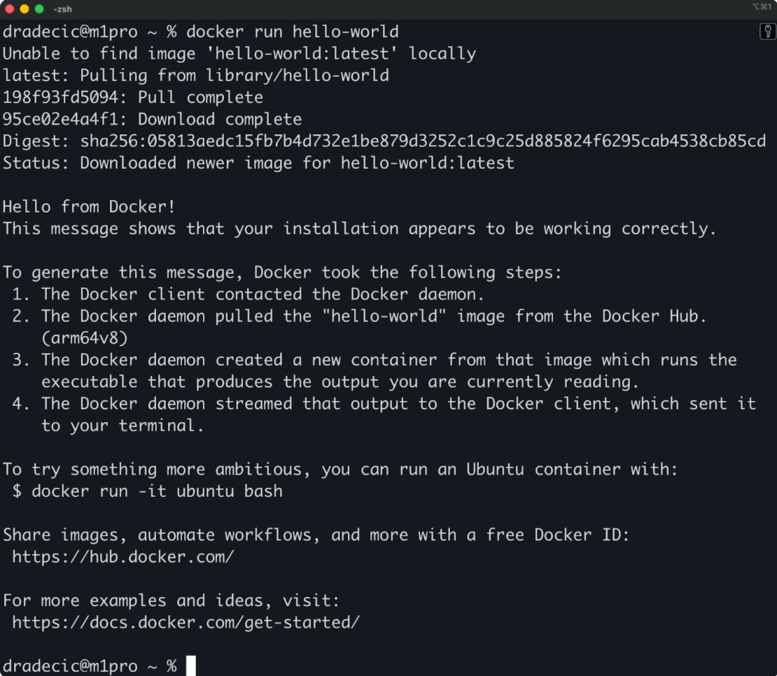
Docker run hello-world output
The output starts with a confirmation that Docker couldn't find the image locally, so it pulled it from Docker Hub. You'll see something like "Unable to find image 'hello-world:latest' locally" followed by download progress bars.
Next comes the main message that confirms Docker is working correctly. This message walks you through the exact steps Docker took. It explains that the Docker daemon pulled the image, created a container from it, ran the executable inside, and streamed the output to your terminal.
The message also includes the next steps you can try. It suggests running a more interactive container like Ubuntu, which stays running and lets you execute commands inside it. This helps you understand the difference between a one-off test container and real containers you'll use for development.
Finally, you'll see the container exit. The hello-world program is designed to print its message and stop immediately - it's not a long-running service or application. The container's job is done once it confirms Docker works.
If you see this full output without errors, your Docker installation is working correctly and you're ready to run real containers.
Even a simple test like hello-world can fail if Docker isn't set up correctly. Here are the most common problems and how to fix them.
If you see "docker: command not found" or "docker is not recognized," Docker isn't installed or isn't in your system's PATH.
On Linux, check if Docker is installed:
which docker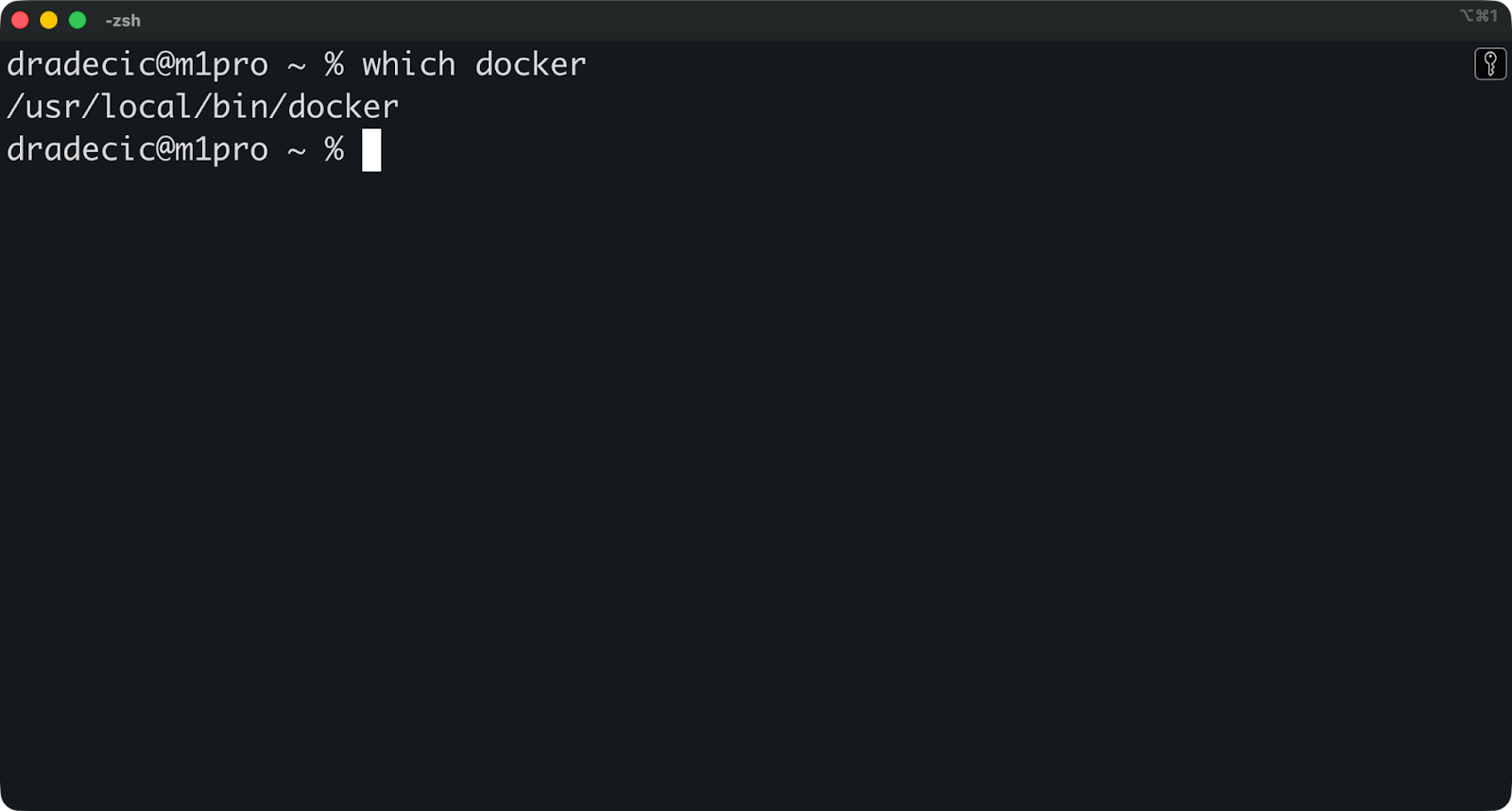
Docker location
If this returns nothing, you need to install Docker. On macOS and Windows, make sure Docker Desktop is installed and running.
You might see "permission denied while trying to connect to the Docker daemon socket."
This happens when your user account doesn't have permission to access Docker. On Linux, you need to either run Docker with sudo or add your user to the docker group:
sudo usermod -aG docker $USERLog out and back in for the change to take effect. On macOS and Windows with Docker Desktop, this isn't an issue.
If you get "Cannot connect to the Docker daemon," the Docker service isn't running.
On Linux, start the Docker service:
sudo systemctl start dockerOn macOS and Windows, open Docker Desktop. The daemon starts automatically when the application runs. You'll see a Docker icon in your system tray when it's ready.
Sometimes Docker can't download the hello-world image from Docker Hub. You'll see errors about failing to pull or connection timeouts.
Check your internet connection first. If you're behind a corporate firewall or proxy, you might need to configure Docker to use it. On Linux, this goes in /etc/systemd/system/docker.service.d/http-proxy.conf. On Docker Desktop, you can set the proxy in Settings.
If these fixes don't work, the error message usually points you in the right direction - read it carefully.
Now that you've confirmed Docker works, here's where to go next.
Run a real container with an interactive shell. Try pulling and running an Ubuntu container:
docker run -it ubuntu bash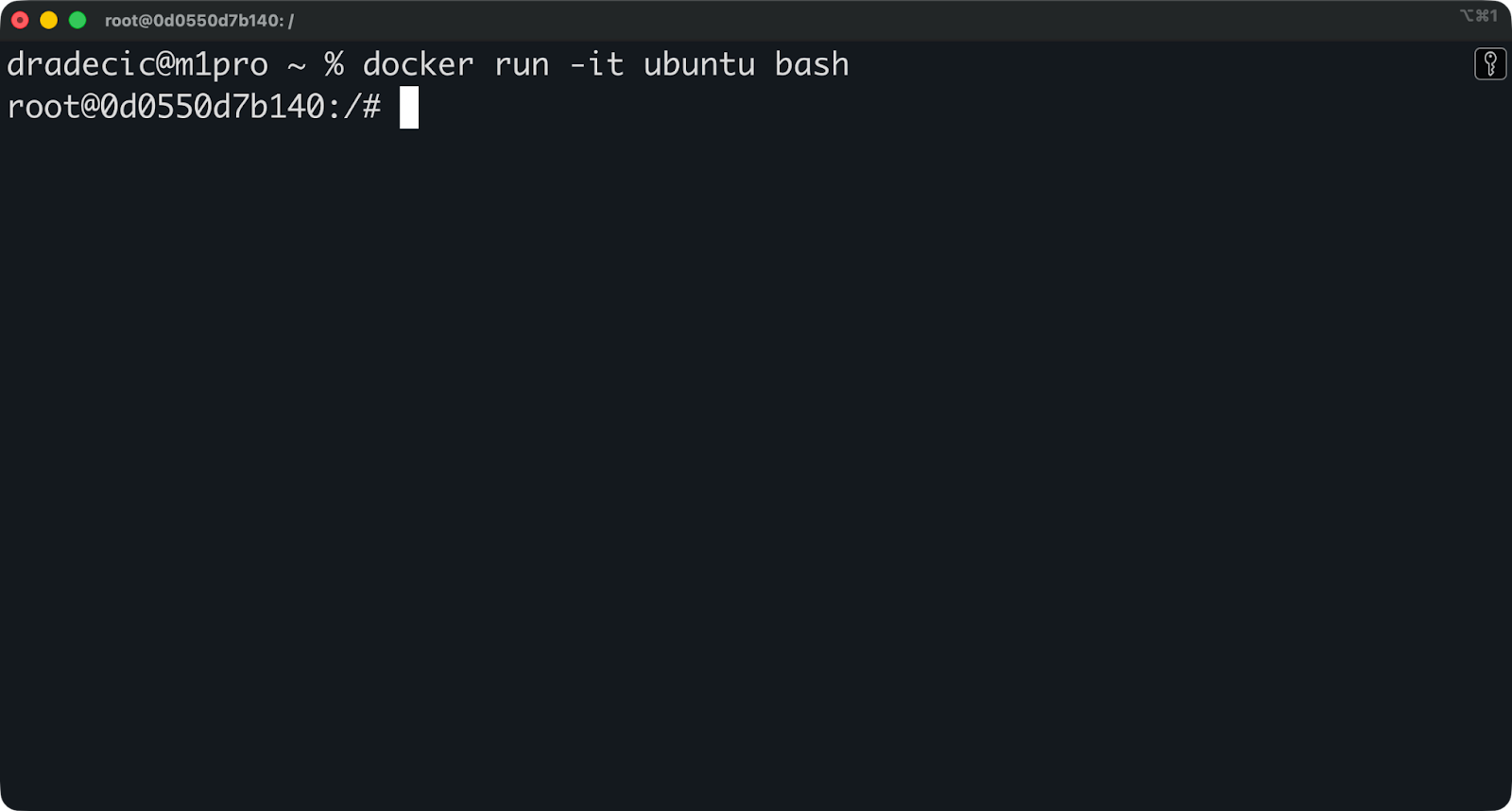
Ubuntu bash
The -it flags give you an interactive terminal inside the container. You can run commands, install packages, and explore how containers work. Type exit to leave the container.
Explore available images on Docker Hub. You'll find official images for databases like PostgreSQL and MySQL, programming languages like Python and Node.js, and tools like Redis and Nginx. Browse at hub.docker.com or search directly from the command line:
docker search python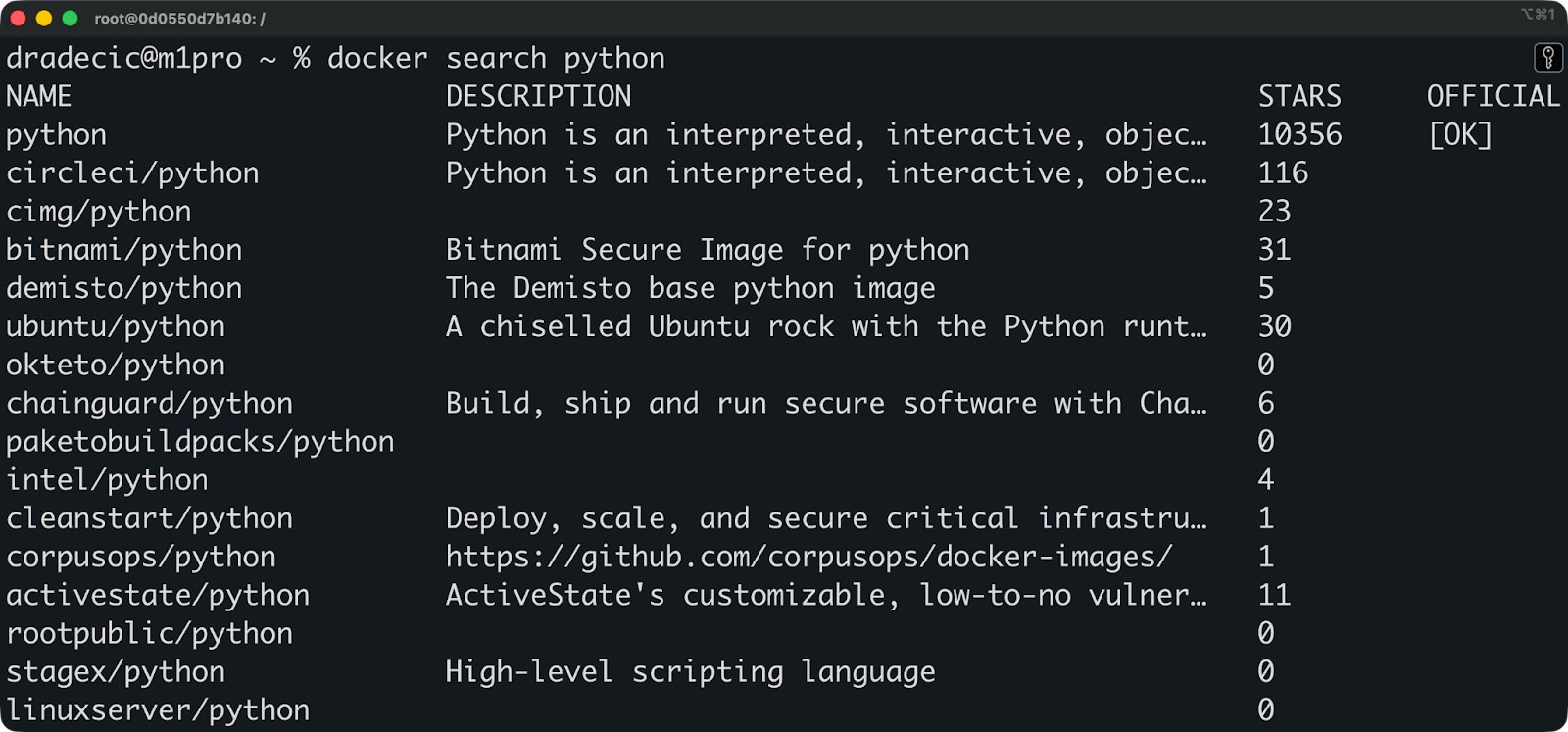
Available Python images.
Build your own image with a Dockerfile. Start simple: Create a file called Dockerfile that copies your application code into a container and defines how to run it. Even a basic Dockerfile with a couple of lines will teach you how images are built from instructions.
The docker run hello-world command does one thing well: It proves your Docker installation works.
It's not a real application. It won't teach you how to build containers or deploy production services. But it will give you peace of mind as you’ll know there’s nothing wrong with your Docker installation.
If hello-world ran without errors and printed its confirmation message, your Docker environment is set up correctly, and you're ready to work with real containers.
So, what’s next? Take our Introduction to Docker course. It will give you the foundational knowledge you’ll need to work in a team. After that, build something useful by following our 10 Docker Project Ideas article.
Learn Docker with DataCamp
Course
Track
Course
blog
Laiba Siddiqui
15 min
Tutorial
Srujana Maddula
9 min
Tutorial
Moez Ali
14 min
Tutorial
Dario Radečić
11 min
Tutorial
Khalid Abdelaty
5 min
Tutorial
Benito Martin
12 min