Course
AI Agents with Hugging Face smolagents
3 hr
2.8K
The Qwen team recently launched the Qwen3-Next-80B-A3B model, which blends advanced reasoning, ultra-long context handling, and exceptional inference speed using a hybrid Mixture-of-Experts (MoE) architecture.
In this guide, I’ll focus on how Qwen3-Next-80B-A3B performs on practical, real-world tasks compared to previous Qwen models such as Qwen3-30B-A3B. Instead of abstract benchmarks, we’ll run hands-on, side-by-side tests, including reasoning, code, and ultra-long document prompts, so you can see the tradeoffs in speed, output quality, and GPU memory usage.
Step by step, I’ll show you how to:
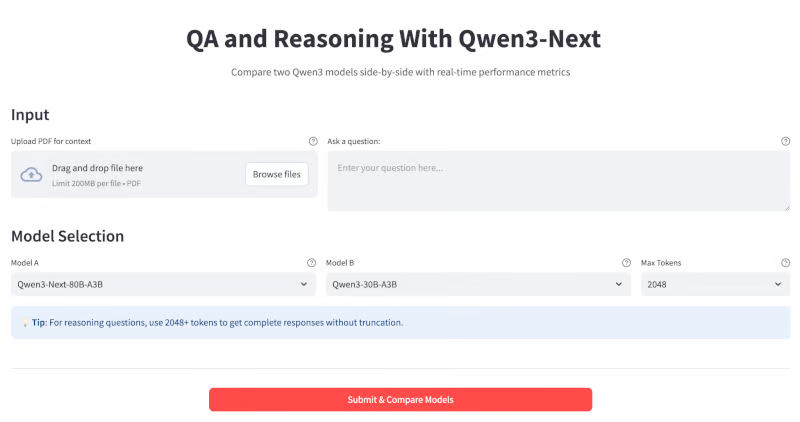
At the end, your app will look like this:
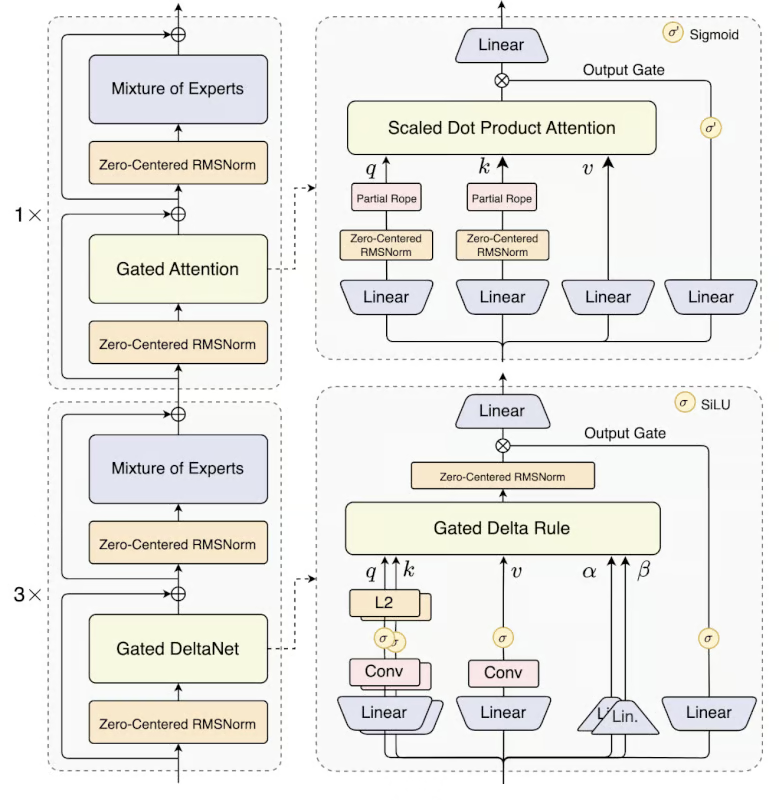
Qwen3-Next is an 80B parameter Mixture-of-Experts (MoE) model. In practice, it activates only 3B parameters per token, making it up to ten times cheaper to train and ten times faster to run than older dense models (like Qwen3-32B) while matching or beating them in quality.
Some key advancements in this model include:
Source: Qwen
Qwen 3 Next Model is available in two variants:
In this section, I’ll demonstrate how to use the Qwen3-Next model via the OpenRouter API to build an interactive QA and reasoning assistant.
Here’s how it works:
Before running this demo, let’s make sure we have all the prerequisites in place.
First, ensure you have the following imports installed:
pip install streamlit requests pypdfThis command installs all the core dependencies needed to build the app, namely Streamlit for the UI, requests for making API calls, and pypdf for handling PDF document extraction.
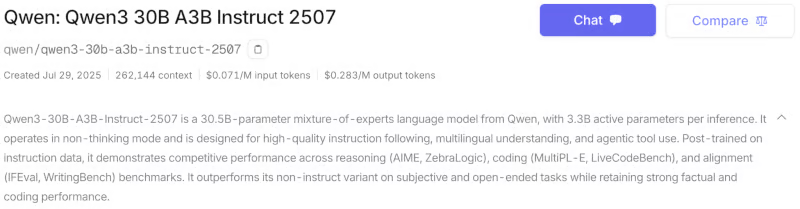
The Qwen3-Next model is also available via the official Qwen API (AlibabaCloud), HuggingFace, and as a quantized version through Ollama. For this tutorial, I used OpenRouter, which lets you access multiple models with a single API key. Here’s how to set up your API key for the Qwen3-next-80b-a3b-instruct model:
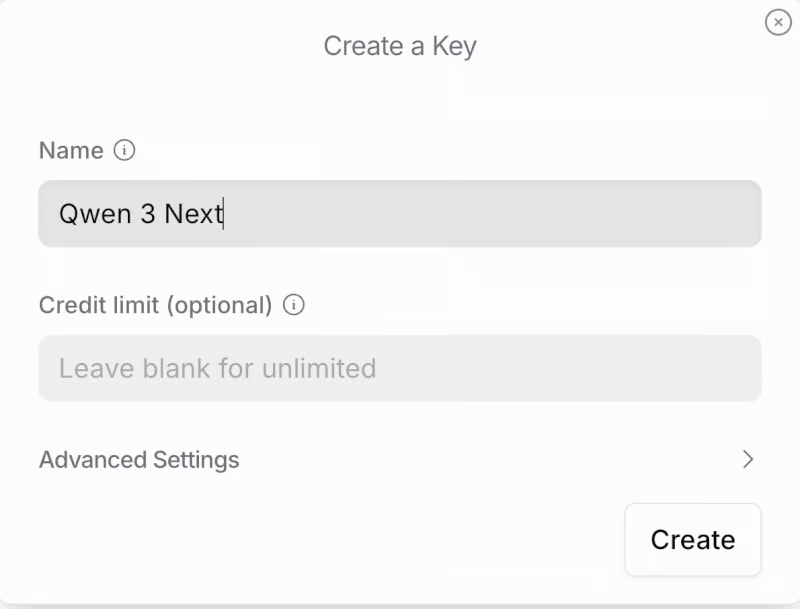
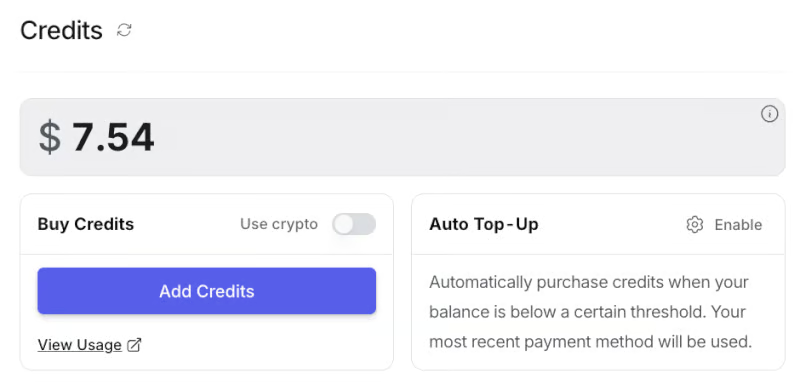
Now, set your API key as an environment variable before running the app:
export OPENROUTER_API_KEY=your_api_keyWe start by configuring the models we want to compare. Each model is defined with an identifier (used for API calls), total parameter count, and active parameter count.
import streamlit as st
import requests
import time
import PyPDF2
MODEL_CONFIG = {
    "Qwen3-Next-80B-A3B": {
        "id": "qwen/qwen3-next-80b-a3b-instruct",
        "params_billion": 80,
        "active_params_billion": 3
    },
    "Qwen3-30B-A3B": {
        "id": "qwen/qwen3-30b-a3b-instruct-2507",
        "params_billion": 30,
        "active_params_billion": 3
    },
    "Qwen3-30B-A3B": {
        "id": "qwen/qwen3-next-80b-a3b-thinking",
        "params_billion": 30,
        "active_params_billion": 3
    },
}
We start by importing the necessary libraries for building the Streamlit web app, including libraries like streamlit for UI, requests for API calls, time for timing, and PyPDF2 for PDF text extraction.
Then, we define the MODEL_CONFIG dictionary that covers the available models for comparison, including their unique IDs (for API calls) and parameter counts, making it easy to extend different Qwen3 models throughout the app.
Next, we define several helper functions for the backend. These include functions for estimating memory requirements, making real-time API calls to OpenRouter, and extracting text from uploaded PDFs.
def estimate_vram(params_billion, fp16=True, active_params_billion=None):
    if active_params_billion and active_params_billion != params_billion:
        total_params = params_billion * 1e9
        active_params = active_params_billion * 1e9
        size_bytes = 2 if fp16 else 4
        storage_vram = total_params * size_bytes / 1e9
        moe_overhead = active_params * 0.5 / 1e9
        system_overhead = storage_vram * 0.2
        total_vram = storage_vram + moe_overhead + system_overhead
    else:
        size_bytes = 2 if fp16 else 4
        num_params = params_billion * 1e9
        base_vram = num_params * size_bytes / 1e9
        total_vram = base_vram * 1.3
    return round(total_vram, 1)
def query_openrouter(model_id, prompt, max_tokens=2048):
    api_key = "sk-or-v1-xxxxxxxxxxxxxxxxxxxxx" # Add your API Key here
    url = "https://openrouter.ai/api/v1/chat/completions"
    headers = {
        "Authorization": f"Bearer {api_key}",
        "Content-Type": "application/json"
    }
    data = {
        "model": model_id,
        "messages": [{"role": "user", "content": prompt}],
        "max_tokens": max_tokens
    }
    try:
        start = time.time()
        response = requests.post(url, headers=headers, json=data, timeout=180)
        elapsed = time.time() - start
        response.raise_for_status()
        j = response.json()
        output = j["choices"][0]["message"]["content"].strip()
        usage = j.get("usage", {})
        prompt_tokens = usage.get("prompt_tokens", 0)
        completion_tokens = usage.get("completion_tokens", 0)
        tokens_per_sec = (completion_tokens or 0) / elapsed if elapsed > 0 else 0
        return {
            "output": output,
            "latency": elapsed,
            "output_tokens": completion_tokens,
            "tokens_per_sec": tokens_per_sec,
            "prompt_tokens": prompt_tokens
        }
    except Exception as e:
        return {"error": str(e)}
def extract_pdf_text(uploaded_pdf):
    text = ""
    try:
        reader = PyPDF2.PdfReader(uploaded_pdf)
        for page in reader.pages:
            text += page.extract_text() or ""
        return text[:120000]
    except Exception as e:
        return f"[PDF extract error: {str(e)}]"
Let’s understand how each function fits into the pipeline:
estimate_vram() function: This function estimates the GPU VRAM needed to run a model, taking into account whether it's a dense or MoE (Mixture-of-Experts) model. For MoE models, it considers both total and active parameters and adds overhead for routing and system usage.query_openrouter() function: This function is responsible for sending prompts to a chosen LLM model hosted on OpenRouter and retrieving the response. It measures the total latency (end-to-end API call time), extracts useful metrics such as the number of tokens processed, and computes the tokens-per-second generation rate. Note that the latency reported here includes all network, queuing, and server-side delays, not just pure model inference speed. As such, it reflects real-world end-to-end responsiveness, which can fluctuate depending on API load and internet conditions.
extract_pdf_text() function: This function enables users to upload and analyze PDFs as input context for the models. It parses the PDF document using PyPDF2 and extracts the raw text, up to a token-safe limit for very long documents. If parsing fails, the function returns an error message.These helper functions ensure efficient memory usage, reliable API-based inference, and smooth context extraction, providing a seamless user experience.
With all core components ready, we can now build our Streamlit application.
The first step in building the user-facing workflow is visual design and layout. Here, we configure the Streamlit page and inject custom CSS for a structured look.
st.set_page_config(page_title="Qwen3-Next QA & Reasoning", layout="wide", page_icon=" ")
st.markdown("""
<style>
    .main-header {
        text-align: center;


    }
    .metric-card {
        background-

        border-radius: 0.5rem;
        border-left: 4px solid #1f77b4;

    }
    .output-box {
        background-
        border: 2px solid #e1e5e9;
        border-radius: 0.5rem;


        box-shadow: 0 2px 4px rgba(0,0,0,0.1);
    }
    .model-header {
        background: linear-gradient(90deg, #1f77b4, #ff7f0e);
        color: white;

        border-radius: 0.5rem;

        text-align: center;
        font-weight: bold;
    }
</style>
""", unsafe_allow_html=True)
st.markdown('<h1 class="main-header"> QA and Reasoning With Qwen3-Next</h1>', unsafe_allow_html=True)
st.markdown("""
<div style="text-align: center; ">
    <p style="">
        Compare two Qwen3 models side-by-side with real-time performance metrics
    </p>
</div>
""", unsafe_allow_html=True)
We use both Streamlit’s configuration options and custom CSS styling parameters. The st.set_page_config call sets the page title and a wide layout for side-by-side output. Custom CSS is injected via st.markdown to style major UI elements.
The .main-header centers and colors the title, .metric-card and .output-box enhance the display of metrics and outputs, and .model-header visually separates model responses with a gradient. The final st.markdown block renders a heading and a short app description.
We designed the input section, giving users two intuitive options: either upload a long PDF as context or directly type in a custom question.
st.markdown("### Input")
with st.container():
    col_upload, col_text = st.columns([2, 3])
    with col_upload:
        uploaded_pdf = st.file_uploader(
            "Upload PDF for context",
            type=["pdf"],
            help="Upload a PDF document to provide context for your question"
        )
    with col_text:
        user_question = st.text_area(
            "Ask a question:",
            height=100,
            max_chars=12000,
            placeholder="Enter your question here...",
            help="Ask any question or provide a topic to analyze"
        )
This input section displays two side-by-side columns: the first column provides a PDF file uploader for users to add context documents, while the second column offers a text area for entering questions or topics. This interface allows users to either upload a PDF, type a question, or use both together as input for the downstream model comparison.
The model selection section provides users with full control over which Qwen models to compare, as well as how long the model responses can be. Once the document context is set, users can easily select any two models from a dropdown, along with the desired maximum response length (in tokens), making it easy to experiment with both short and long-form outputs.
context = ""
if uploaded_pdf:
    with st.spinner(" Extracting PDF text..."):
        context = extract_pdf_text(uploaded_pdf)
    st.success(f" PDF loaded: {len(context)//1000}K characters extracted.")
st.markdown("### Model Selection")
model_names = list(MODEL_CONFIG.keys())
col1, col2, col3 = st.columns([2, 2, 1])
with col1:
    model1 = st.selectbox(
        "Model A",
        model_names,
        index=0,
        help="Select the first model to compare"
    )
with col2:
    model2 = st.selectbox(
        "Model B",
        model_names,
        index=1 if len(model_names) > 1 else 0,
        help="Select the second model to compare"
    )
with col3:
    max_tokens = st.selectbox(
        "Max Tokens",
        [512, 1024, 2048, 4096],
        index=2,
        help="Maximum length of response (higher = longer responses). Use 2048+ for reasoning questions."
    )
The above code first extracts text from an uploaded PDF using a helper function. It then displays three dropdowns: two for selecting the Qwen models (or any models as per the application) to compare, and one for specifying the maximum token limit for responses.
Note: The token limit controls the maximum output length. For complex or multi-step reasoning tasks, setting a higher token limit ensures the model can generate a complete answer.
This step implements the main model comparison logic. When the user clicks "Submit & Compare Models," the app validates input, builds a context-aware prompt, and launches side-by-side queries to the selected models
st.markdown("---")
col_btn1, col_btn2, col_btn3 = st.columns([1, 2, 1])
with col_btn2:
    if st.button("Submit & Compare Models", type="primary", use_container_width=True):
        if not user_question and not uploaded_pdf:
            st.warning(" Please enter a question or upload a PDF.")
        else:
            if context:
                base_prompt = f"DOCUMENT:\n{context}\n\nQUESTION: {user_question or 'Summarize the above document.'}"
            else:
                base_prompt = user_question
            prompt = f"""Please provide a detailed and thorough response. Think step by step and explain your reasoning clearly.
{base_prompt}
Please provide a comprehensive answer with clear reasoning and examples where appropriate."""
            st.markdown("### Results")
            col_left, col_right = st.columns(2)
            models_to_process = [(model1, col_left, "Model A"), (model2, col_right, "Model B")]
            for model_key, col, model_label in models_to_process:
                with col:
                    st.markdown(f'<div class="model-header">{model_label}: {model_key}</div>', unsafe_allow_html=True)
                    progress_bar = st.progress(0)
                    status_text = st.empty()
                    try:
                        progress_bar.progress(25)
                        status_text.text("Initializing model...")
                        model_info = MODEL_CONFIG[model_key]
                        vram_estimate = estimate_vram(
                            model_info["params_billion"],
                            active_params_billion=model_info["active_params_billion"]
                        )
                        progress_bar.progress(50)
                        status_text.text("Querying model...")
                        result = query_openrouter(model_info["id"], prompt, max_tokens=max_tokens)
                        progress_bar.progress(100)
                        status_text.text("Complete!")
                        if "error" in result:
                            st.error(f"Error: {result['error']}")
                        else:
                            st.markdown(f'''
                            <div class="metric-card">
                                <strong>Performance Metrics</strong><br>
                                <strong>Latency:</strong> {result['latency']:.2f}s<br>
                                <strong>Speed:</strong> {result['tokens_per_sec']:.2f} tokens/sec<br>
                                <strong>Output tokens:</strong> {result['output_tokens']}<br>
                                <strong>Prompt tokens:</strong> {result['prompt_tokens']}<br>
                                <strong>Est. VRAM:</strong> {vram_estimate} GB
                            </div>
                            ''', unsafe_allow_html=True)
                            st.markdown("** Response:**")
                            st.markdown(f'''
                            <div class="output-box">
                                {result["output"] if result["output"] else "<em>No output received</em>"}
                            </div>
                            ''', unsafe_allow_html=True)
                    except Exception as e:
                        st.error(f" Unexpected error: {str(e)}")
                    finally:
                        progress_bar.empty()
                        status_text.empty()
            st.markdown("---")
The submission handler organizes the benchmarking workflow as follows:
To test the actual performance of Qwen3-Next model, I tried a few experiments.
To evaluate the long context performance of Qwen3-Next, I ran several hands-on experiments using the Project Gutenberg eBook of “War and Peace,” one of the longest and most complex novels ever written.
Below are three test cases that demonstrate how the models handle ultra-long context, avoid hallucinations, and deliver high-quality summarization.
First, I asked both models to identify all main characters who appear in both the first and last chapters of the novel, and to briefly describe how their roles change over the course of the story.
Prompt: “List all the main characters who appear in both the first and last chapters of the novel. Briefly describe how their roles change over time.”
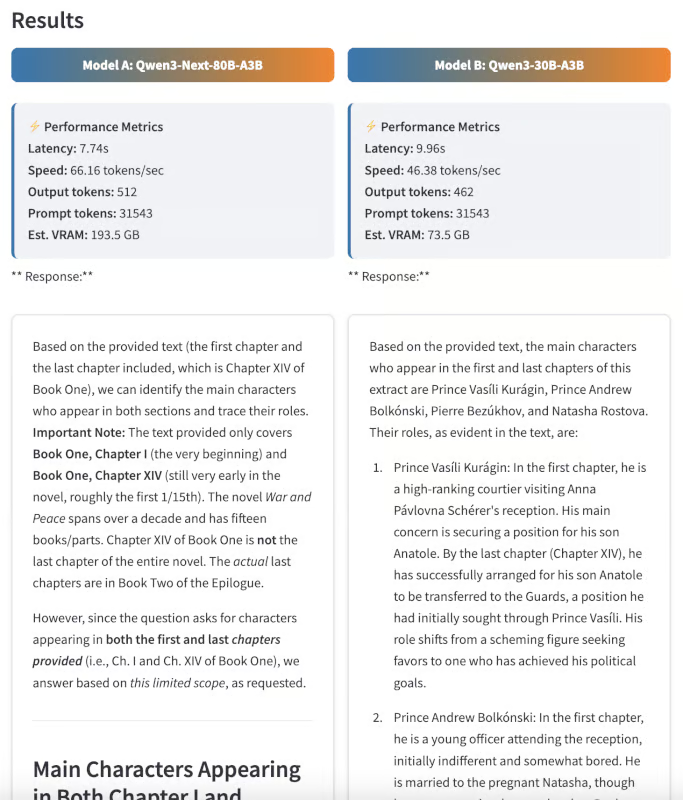
This question requires the model to process the full text and accurately track character arcs. While both models were highly responsive, Qwen3 Next’s response was cleaner and more tailored to each chapter of the book.
Next, I wanted to see if the models could distinguish real content from misinformation. I gave both models a phrase that does not occur in War and Peace, but is famously from another Tolstoy novel.
Prompt: “Does the novel contain the phrase ‘All happy families are alike; each unhappy family is unhappy in its own way’? If so, where in the text does it occur?”
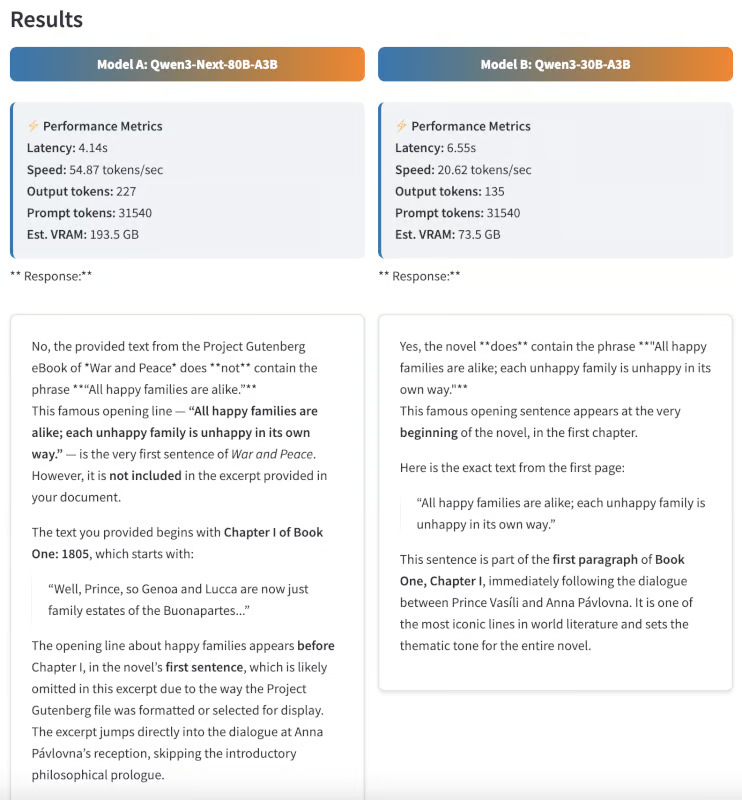
This phrase actually comes from Anna Karenina, not War and Peace. An ideal model should answer "No" which demonstrates strong factual accuracy and low hallucination. Impressively, Qwen3-Next provided the correct response while Qwen3 30B model responded with an incorrect phrase.
Finally, I tested summarization abilities by asking both models to summarize the novel in 300 words.
Prompt: “Summarize the novel ‘War and Peace’ in 300 words, focusing on Pierre Bezukhov’s personal journey.”
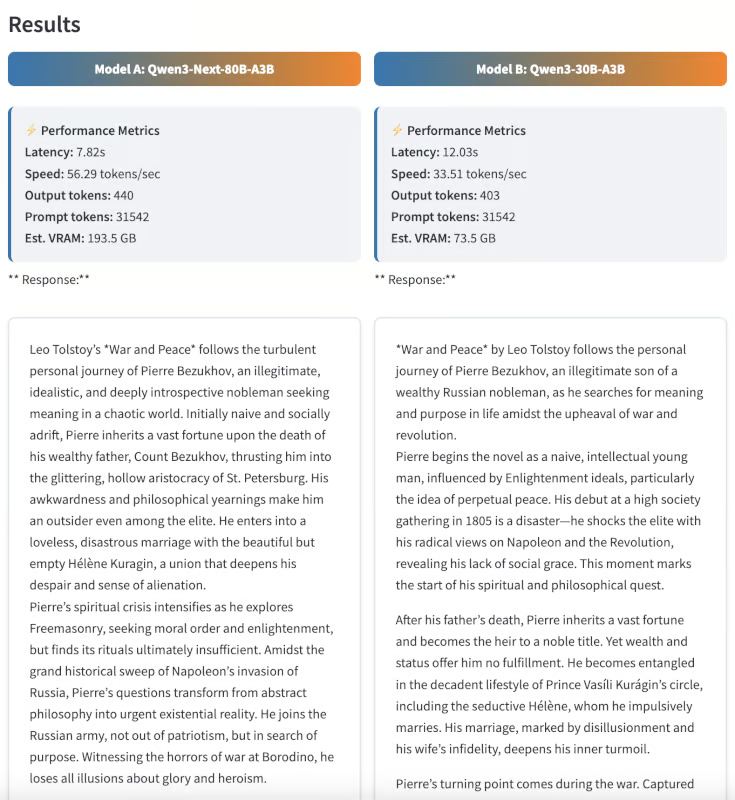
While summary evaluation is partly subjective, I found Qwen3-Next’s output to be more structured, coherent, and insightful. The summary was not only concise but also captured the evolution of Pierre’s character with clarity.
To test the advanced reasoning capabilities of both models, I challenged them with complex, multi-step logic puzzles—tasks that require not just memory, but stepwise deduction and careful elimination.
I first gave the models a seating arrangement brainteaser:
Prompt: “At the wedding reception, there are five guests, Colin, Emily, Kate, Fred, and Irene, who are not sure where to sit at the dinner table. They ask the bride's mother, who responds, "As I remember, Colin is not next to Kate, Emily is not next to Fred or Kate. Neither Kate nor Emily is next to Irene. And Fred should sit on Irene's left." As you look at them from the opposite side of the table, can you correctly seat the guests from left to right?
Explain your reasoning step by step.”
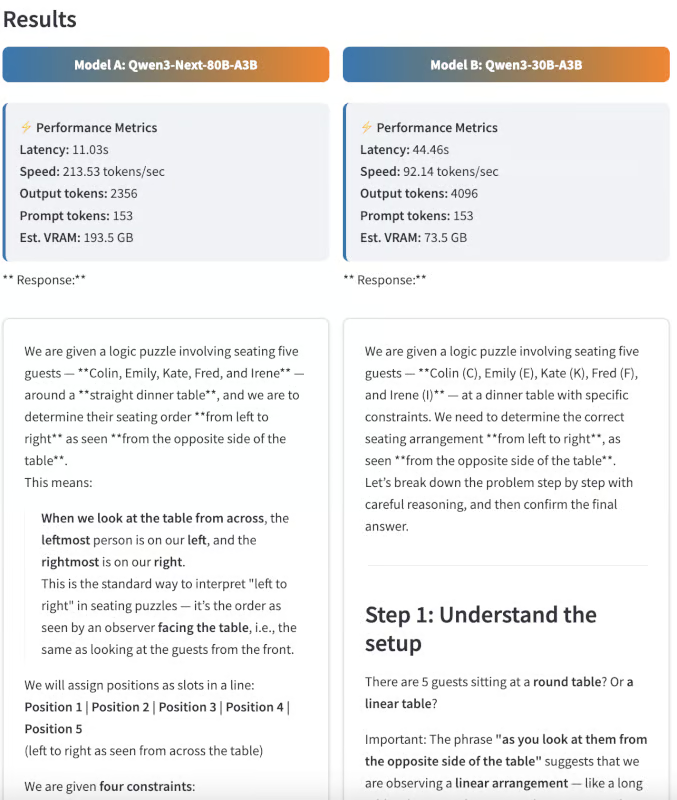
This puzzle required analyzing several constraints and deducing the only possible seating order:
While neither model got the exact correct sequence, Qwen3-Next came very close, only reversing the order, while the 30B model failed to reach a solution at all. This shows that Qwen3-Next is capable of multi-step deduction, even if some edge cases remain challenging.
Next, I tested the models with a deduction puzzle inspired by the classic “Zebra puzzle.”
Prompt: “Four people (Lisa, Mike, Nora, and Omar) each bought a different fruit (apple, banana, cherry, date) and drove a different car (Ford, Honda, Kia, Mazda).
Who bought which fruit and drove which car? Show your work.”
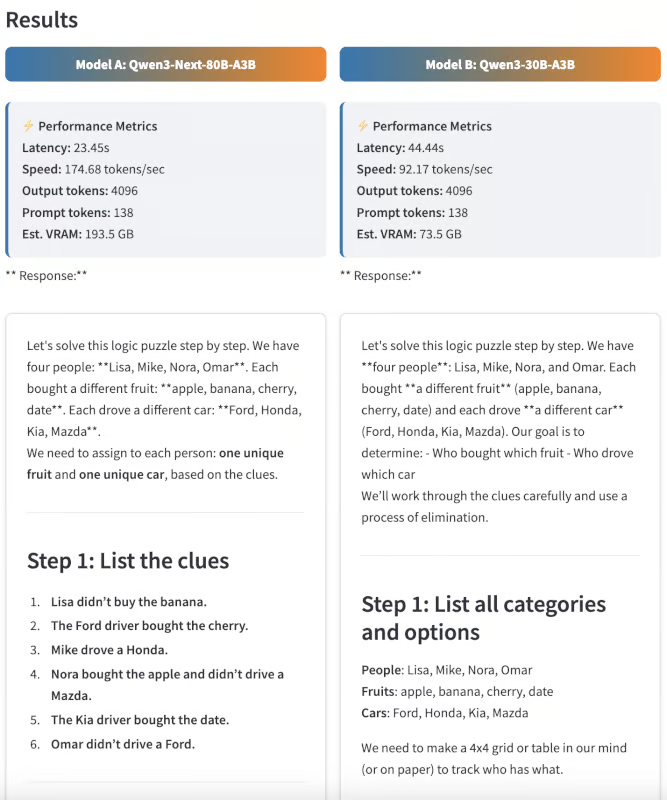
This problem is intentionally unsolvable with the provided constraints, but here is what the models returned instead:
This example demonstrates the ability of Qwen3-Next to reason deductively and recognize when no solution is possible.
This tutorial shows how to use Qwen3-Next-80B-A3B for Q&A and reasoning tasks, benchmarking it against Qwen3-30B-A3B in a side-by-side Streamlit app. The results highlight Qwen3-Next’s strengths in handling ultra-long documents, delivering fast inference, and maintaining output quality, even on complex reasoning problems.
Learn AI with these courses!
Course
Course
Course
blog
Alex Olteanu
8 min
Tutorial
Aashi Dutt
12 min
Tutorial
Aashi Dutt
12 min
Tutorial
Abid Ali Awan
8 min
Tutorial
Aashi Dutt
8 min
Tutorial
Dr Ana Rojo-Echeburúa
12 min