Kurs
Datenanalyse in Excel
3 Std.
151.2K
Leading zeros are zeros that appear at the beginning of a value, such as 00123. In Excel, they usually appear when a value is stored as text or when a specific cell format forces Excel to display them.
Sometimes Excel removes these zeros automatically when the value is treated as a number. In other cases, they remain in the cells and create confusion, especially after importing data from another system.
In this guide, we’ll explain the most reliable ways to remove leading zeros in Excel.
Leading zeros usually appear when Excel stores a value as text or when a custom format forces zeros to display.
Excel treats numbers and text differently. This behavior is the main reason leading zeros appear or disappear.
For example, if you type 00345 and press Enter, Excel reads it as a number. Since leading zeros do not change the value, Excel automatically removes them and shows 345.
If the same value is stored as text, Excel keeps 00345 exactly as it was entered.
Note: Leading zeros can also disappear when importing data or opening a file as a CSV. During import, Excel often converts values into numbers, which removes the zeros at the beginning.
There are three ways to remove leading zeros from numbers:
If a custom format such as 00000 is applied and you enter the number 4, Excel displays 00004. However, the formula bar still shows 4 because that is the actual value stored in the cell.
To remove the leading zeros:
Excel updates the display and removes the extra zeros.

Change the cell format to General to remove leading zeros. Image by Author.
This is the quickest method. It works when the value is already numeric, but appears with extra zeros because of formatting.
Sometimes numbers are stored as text. In this case, the leading zeros remain. You may also see a small green triangle in the top-left corner of the cell. This indicator shows that the value is stored as text.
You can convert these values into numbers using Paste Special. To do so:
Excel multiplies each value by 1. The value stays the same, but Excel converts the text into a number. The leading zeros are then removed.
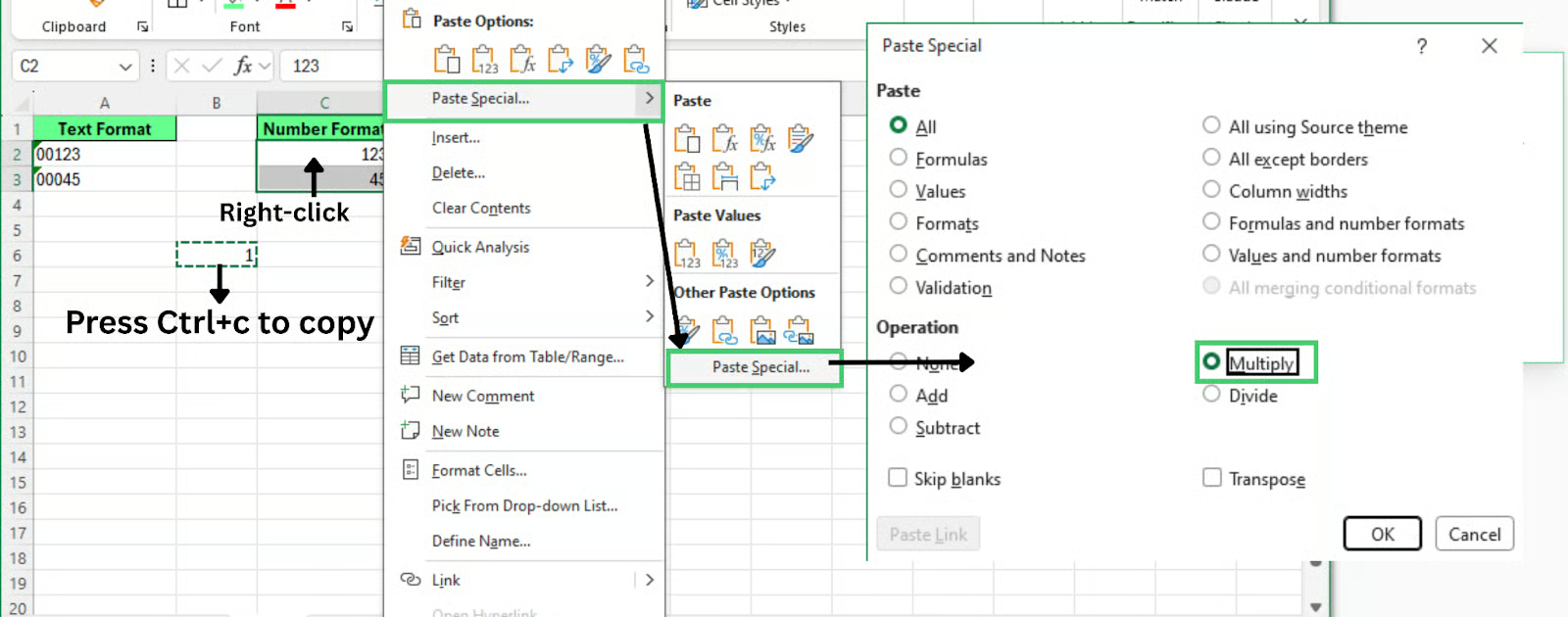
Remove the leading zeros using the Paste Special method. Image by Author.
If Excel shows the green triangle warning, there is an even faster option. To use that:
This way, Excel immediately converts the values to numbers and removes the leading zeros.
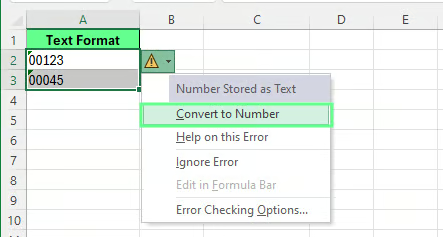
Convert text cells to numbers to remove the leading zeros. Image by Author.
You can also use the following formula to convert text values into numbers: =VALUE(A2)
Here, A2 is the cell that contains the value with leading zeros. To use this formula:
Excel converts the text into a numeric value, which removes the leading zeros.
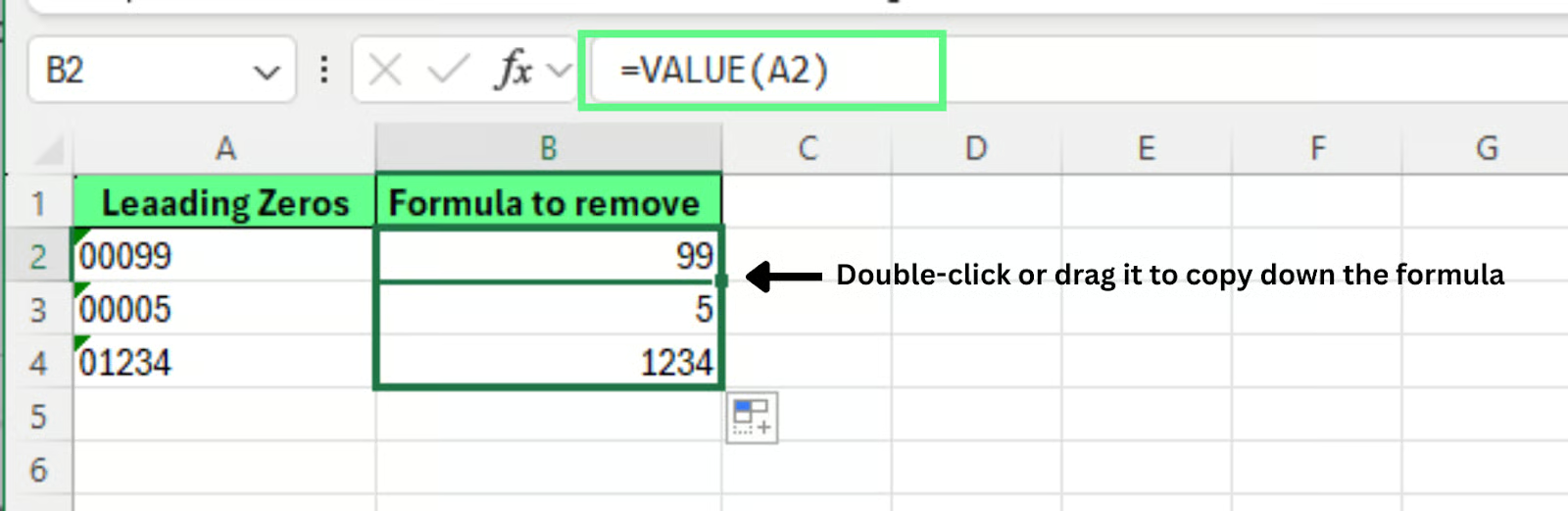
Remove the leading zeros using the formula. Image by Author.
This situation is different.
Here, the zeros are actual characters stored in the cell. They are not just part of formatting. Changing the cell format to General or Number will not remove them because Excel still treats the value as text.
In this case, you need a formula that removes the zeros from the beginning of the text.
Leading zeros often appear in IDs, reference numbers, tracking codes, or data exported from other systems. These values are usually stored as text.
Formatting will not remove the zeros. Even if you change the format to Number, Excel keeps the original text unchanged.
Before removing them, confirm that the zeros are not required. Some systems depend on those zeros for identification or matching.
If the value contains letters, converting it to a number will not work. You need a formula that removes zeros only from the beginning of the text. To do so, use the following formula:
=RIGHT(A2, LEN(A2) - MATCH(FALSE, MID(A2, ROW(INDIRECT("1:" & LEN(A2))), 1)="0", 0) + 1)This formula:
Enter this formula in a new column. Then drag or double-click the fill handle to apply it to the remaining rows. Excel will return the value without the leading zeros while keeping the text format.
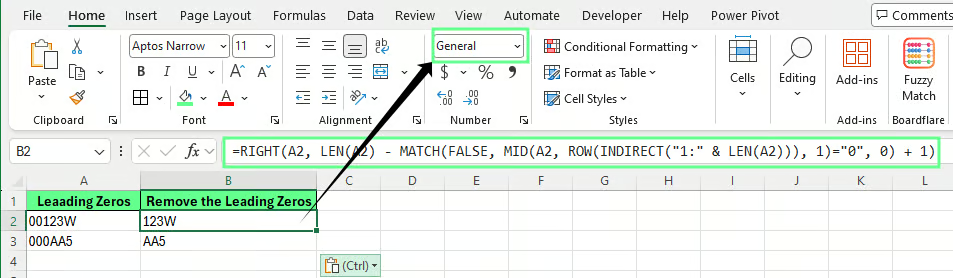
Remove the leading zeros without converting to number format. Image by Author.
Sometimes you follow the steps, but the zeros still create issues. Let’s look at some of the most common problems and how to fix them.
If leading zeros reappear when you enter a value, the cells may still have custom formatting applied.
To fix this: Select the cells and change the format to General. This removes any formatting that forces Excel to display extra zeros.
Sometimes the Convert to Number option does not appear. Excel may not detect a problem with the values.
This may happen when cells contain hidden spaces, special symbols, or other non-numeric characters.
To fix this: Clean the data first by removing extra spaces, or use a formula such as:
=VALUE(A2)
This converts the text into a numeric value and removes the leading zeros.
Some columns contain a mix of real numbers and numbers stored as text. This causes inconsistent results. Some cells remove zeros while others keep them.
To fix this: Convert the entire column using a single method, such as Paste Special or a formula. This makes the format consistent across the column.
When you open a CSV file directly, Excel often converts values automatically. Because of this, leading zeros may disappear before you even see the data.
To fix this: Import the file using Data > From Text or CSV. During the import process, set the column format to Text for fields that must keep leading zeros.
If the zeros are not required, convert the column to numbers after importing the data.
Before removing leading zeros, confirm they are not required. In some cases, those zeros are part of the data and should remain.
Leading zeros are often part of an identifier rather than a number, such as in:
If you remove the zeros, the identifier may change. This can cause problems in reports or when exporting data to other systems.
Some systems require values to match exactly.
For example, one system may store an ID as 00123 while another stores it as 123. These values may not match during comparisons.
This can break lookup formulas such as VLOOKUP() or XLOOKUP() and create issues when combining data from multiple files. So make sure to confirm how the data will be used before converting it.
Sometimes the zeros appear only because of formatting.
For example, a custom format like 00000 may display 00045, while the actual value stored in the cell is 45.
You can check this in the formula bar. If the formula bar shows 45, the zeros are only part of the display and the stored number is already correct.
We recommend following a few simple practices to avoid most leading-zero issues.
After removing leading zeros, take a moment to confirm that the column now has the correct data type. Numbers used in calculations should be stored as numeric values, while identifiers such as ZIP codes or product codes should remain as text. This small check prevents errors later in sorting, filtering, or lookup formulas.
If you are working with imported or messy datasets, leading zeros are often only one part of the cleanup process. You may also need to remove extra spaces, delete blank rows, or identify duplicate records before the data is ready for analysis.
For more practical Excel cleanup techniques, explore these other guides I've put together:
These resources can help you handle common data issues and keep your spreadsheets consistent and reliable.
Learn Excel with DataCamp
Kurs
Kurs
Kurs
Tutorial
Laiba Siddiqui
5 Min.
Tutorial
Laiba Siddiqui
15 Min.
Tutorial
Laiba Siddiqui
6 Min.
Tutorial
Allan Ouko
8 Min.
Tutorial
Jachimma Christian
12 Min.
Tutorial
Javier Canales Luna
7 Min.