
Kurs
Multi-Agent Systems mit LangGraph
2 Std. 45 Min.
8.4K
Aktuell surfen KI-Agenten durchs Web wie Tourist:innen vor einer fremdsprachigen Speisekarte: Sie blinzeln auf Pixel, raten, was Buttons tun, und hoffen, dass sich das Layout nicht im letzten Moment verschiebt. Google und Microsoft haben beschlossen, dieses Problem endlich sauber zu lösen.
Im Februar 2026 brachte Chrome 146 eine frühe Vorschau von WebMCP heraus – ein vorgeschlagener Webstandard, mit dem Websites Agenten genau sagen können, was sie dürfen und wie sie es tun sollen.
Schluss mit Screenscraping.
Schluss mit DOM-Reverse-Engineering.
In diesem Tutorial zeige ich dir, was WebMCP konkret ist, wie du deine Umgebung einrichtest und dann funktionierende Integrationen sowohl mit dem HTML- als auch dem JavaScript-Ansatz baust.
Außerdem gehe ich auf Sicherheitstipps beim Ausführen von Agenten ein und darauf, wie du alles mit den Debugging-Tools von Chrome testest.
WebMCP (Web Model Context Protocol) ist ein neuer Browserstandard, mit dem Websites ihre Fähigkeiten als strukturierte Tools deklarieren können, die KI-Agenten direkt aufrufen. Statt eine KI eine visuelle Oberfläche „lesen“ und durchklicken zu lassen, wird die Webseite selbst zu einer klaren Client-seitigen API.
Stellen wir uns vor, ein Agent versucht heute, auf einer Reise-Website einen Flug zu buchen. Er muss herausfinden, welches Feld die Abflugstadt erwartet, raten, ob das Datumsformat MM/TT oder JJJJ-MM-TT ist, den Suchen-Button finden und hoffen, dass sich das Layout nicht nach dem Klick ändert. Wenn die Site stattdessen ein Tool namens searchFlights mit typisierten Parametern für Abflug, Ziel, Daten und Passagierzahl bereitstellt, fällt dieses ganze Rätselraten weg.
WebMCP macht das möglich. Eine Site registriert Tools über die Browser-API navigator.modelContext, wobei jedes Tool einen Namen, eine Beschreibung in natürlicher Sprache und ein JSON-Schema für Ein- und Ausgaben erhält. Der Agent entdeckt diese Tools, sendet Parameter gemäß Schema und bekommt strukturierte Daten zurück.
Ingenieur:innen von Google und Microsoft haben die Spezifikation gemeinsam in der W3C Web Machine Learning Community Group erarbeitet. Die Architektur ist rein Client-seitig – und unterscheidet sich damit von typischen MCP-Deployments, bei denen ein separater Backend-Server die Toolausführung übernimmt. Während klassisches MCP Agenten über JSON-RPC mit Backend-Servern verbindet, bleibt bei WebMCP alles im Browsertab.
Tools laufen im JavaScript der Seite; sie teilen sich die bestehende Session der Nutzerin oder des Nutzers, und der Browser steuert, was der Agent darf. Wenn du bereits mit MCP-Servern gearbeitet hast (zum Beispiel in unserem MCP Model Context Protocol-Tutorial), werden dir die Konzepte zur Tool-Registrierung bekannt vorkommen – das Deployment-Modell ist jedoch deutlich anders.
Es gibt zwei APIs mit unterschiedlichen Einsatzszenarien:
toolname und tooldescription an einem <form>-Element, optional ergänzt um toolparamdescription an einzelnen Feldern. Der Browser erzeugt daraus ein JSON-Schema basierend auf der bestehenden Formularstruktur. Sites mit gut gebauten Formularen brauchen nur minimale Änderungen, um für Agenten zugänglich zu werden.navigator.modelContext.registerTool() auf und definierst Toolname, Beschreibung, Input-Schema und einen execute-Callback. Das ist der Weg für alles, was zu dynamisch für ein reines Formular ist: mehrstufige Workflows, API-Aufrufe, berechnete Ergebnisse und individuelle Validierungslogik.Beide APIs erlauben dynamische Registrierung – Tools können je nach Seitenzustand erscheinen und verschwinden. Vor dem Login zeigst du z. B. nur ein login-Tool. Nach der Authentifizierung werden kontospezifische Tools registriert.
:tool-form-active auf jedes Formular an, das ein Agent gerade ausfüllt, und :tool-submit-active auf dessen Submit-Button. So sieht die Person am Bildschirm genau, an welchem Formular der Agent arbeitet.Es gibt noch keinen eingebauten Discovery-Mechanismus. Ein Agent muss deine Seite besuchen, bevor er deine Tools kennenlernt. Das Chrome-Team hat die Idee einer .well-known/webmcp-Manifestdatei für Pre-Visit-Discovery diskutiert, aber dazu gibt es noch keine Spezifikation.
Da WebMCP noch in einer frühen Vorschau ist, solltest du mit Ecken und Kanten sowie laufenden Änderungen rechnen – zumal sich die Spezifikation bereits über Versionen hinweg entwickelt hat, inklusive der Entfernung der Methoden provideContext und clearContext im März 2026.
Die Auffindbarkeit von Tools ist auf bereits besuchte Seiten beschränkt, und Sicherheitsfragen wie Prompt-Injection und Datenabfluss durch Tool-Chaining sind in der Spezifikation zwar adressiert, aber noch nicht vollständig gelöst. Prüfe vor dem Start den Changelog in der Chrome-Dokumentation, da sich die API seit dem Schreiben dieses Tutorials geändert haben könnte.
Das Einrichten der Umgebung dauert nur ein paar Minuten – mit der falschen Chrome-Version verschwendest du allerdings deutlich mehr Zeit.
Erforderlich ist Chrome Canary ab Version 146.0.7672.0. Die stabilen, Beta- und Dev-Kanäle von Chrome enthalten das WebMCP-Flag nicht. In den Chrome-Foren berichten mehrere Entwickler:innen, dass sie die falsche Version installiert und sich dann über das fehlende Flag gewundert haben. Lade gezielt von der Canary-Seite herunter.
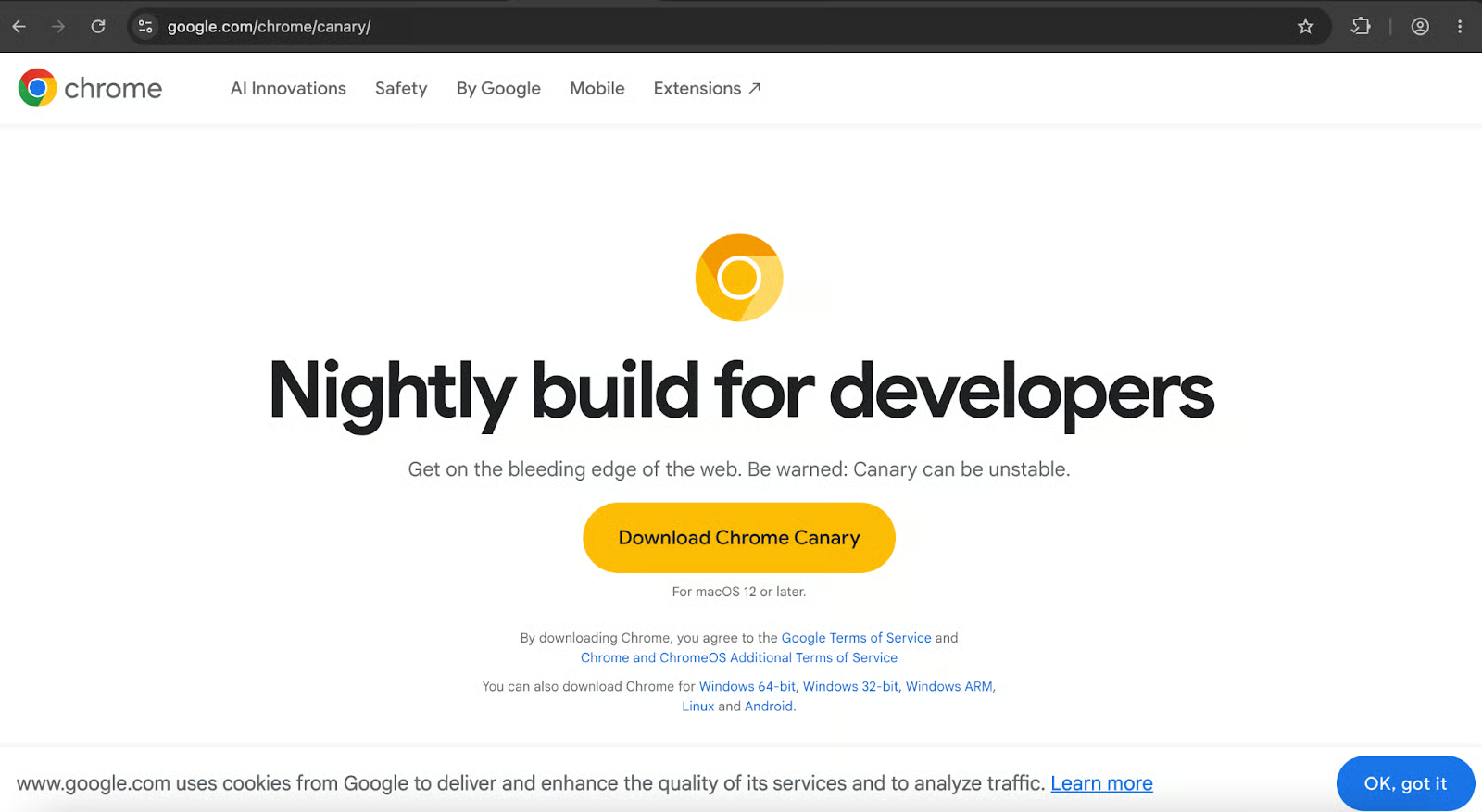
Abseits des Browsers brauchst du solide Kenntnisse zu HTML-Formularen und JavaScript-Event-Handling. Falls du auffrischen willst: DataCamps Introduction to JavaScript-Kurs deckt die Grundlagen ab.
Die Model Context Tool Inspector Extension ist nicht zwingend erforderlich, aber sehr hilfreich. Sie listet alle registrierten Tools der aktuellen Seite, ermöglicht manuelle Ausführung mit selbst eingegebenen Parametern und besitzt integrierte Gemini-API-Unterstützung, um Toolaufrufe mit natürlicher Sprache zu testen.
Mit installiertem Chrome Canary:
chrome://flags/#enable-webmcp-testing navigieren.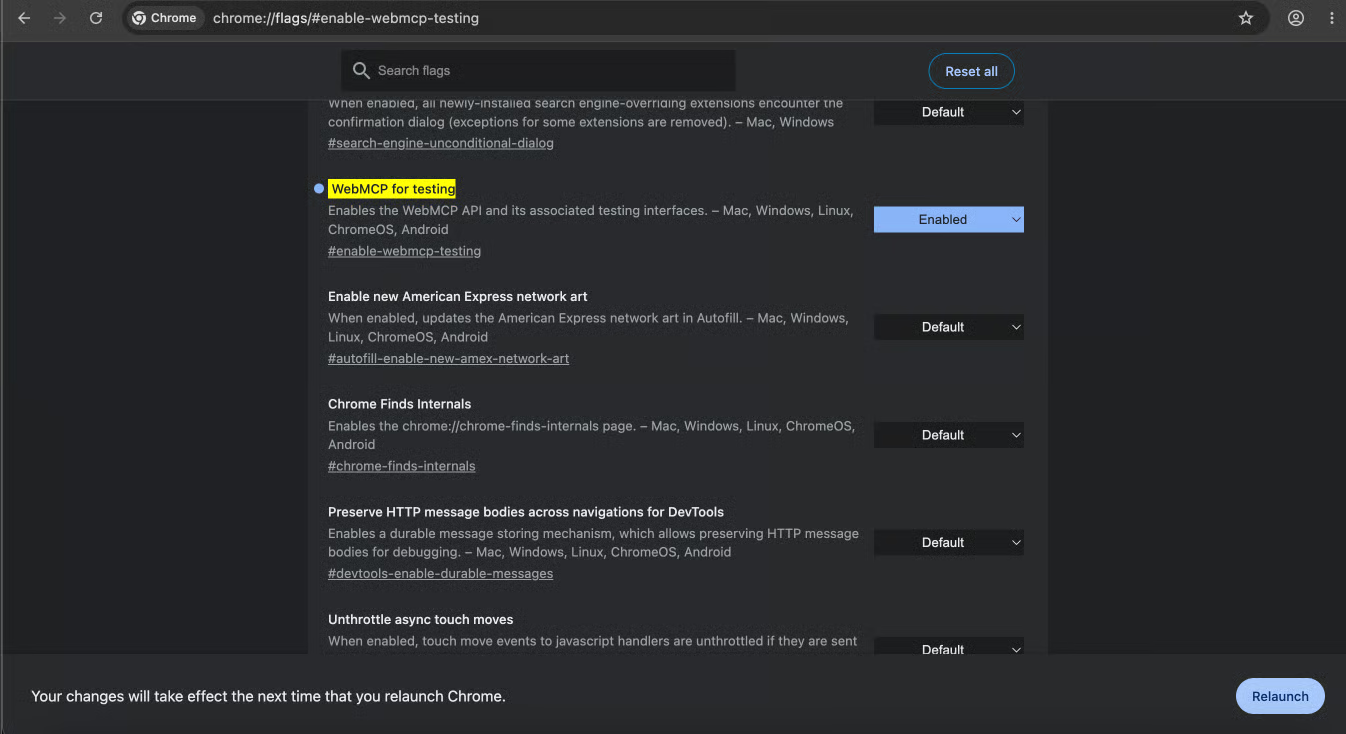
Die Seite chrome://flags mit hervorgehobenem WebMCP-Flag auf Enabled
Nach dem Neustart öffne die DevTools (F12), gehe zum Reiter Console und führe aus:
console.log(navigator.modelContext);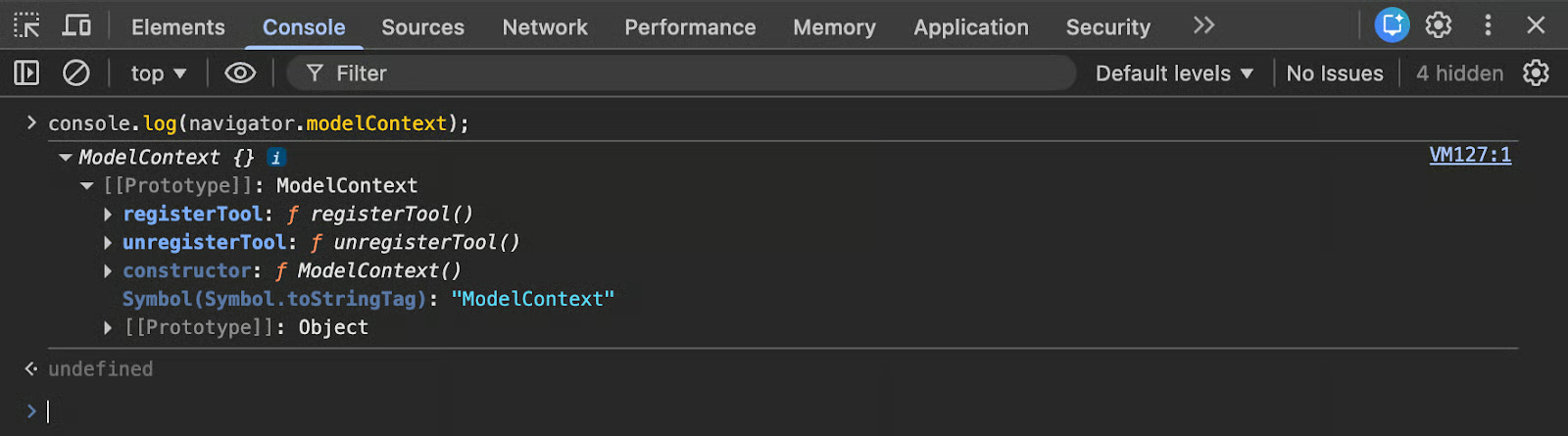
DevTools-Konsole mit dem Objekt navigator.modelContext.
Ein Objekt in der Ausgabe (statt undefined) bestätigt, dass die API verfügbar ist. Ab hier kannst du die Model Context Tool Inspector Extension installieren und Googles Travel-Demo öffnen, um Tool-Registrierung auf einer echten Seite zu sehen.
Dort startest du einfach die Extension – du solltest etwas in dieser Art sehen:
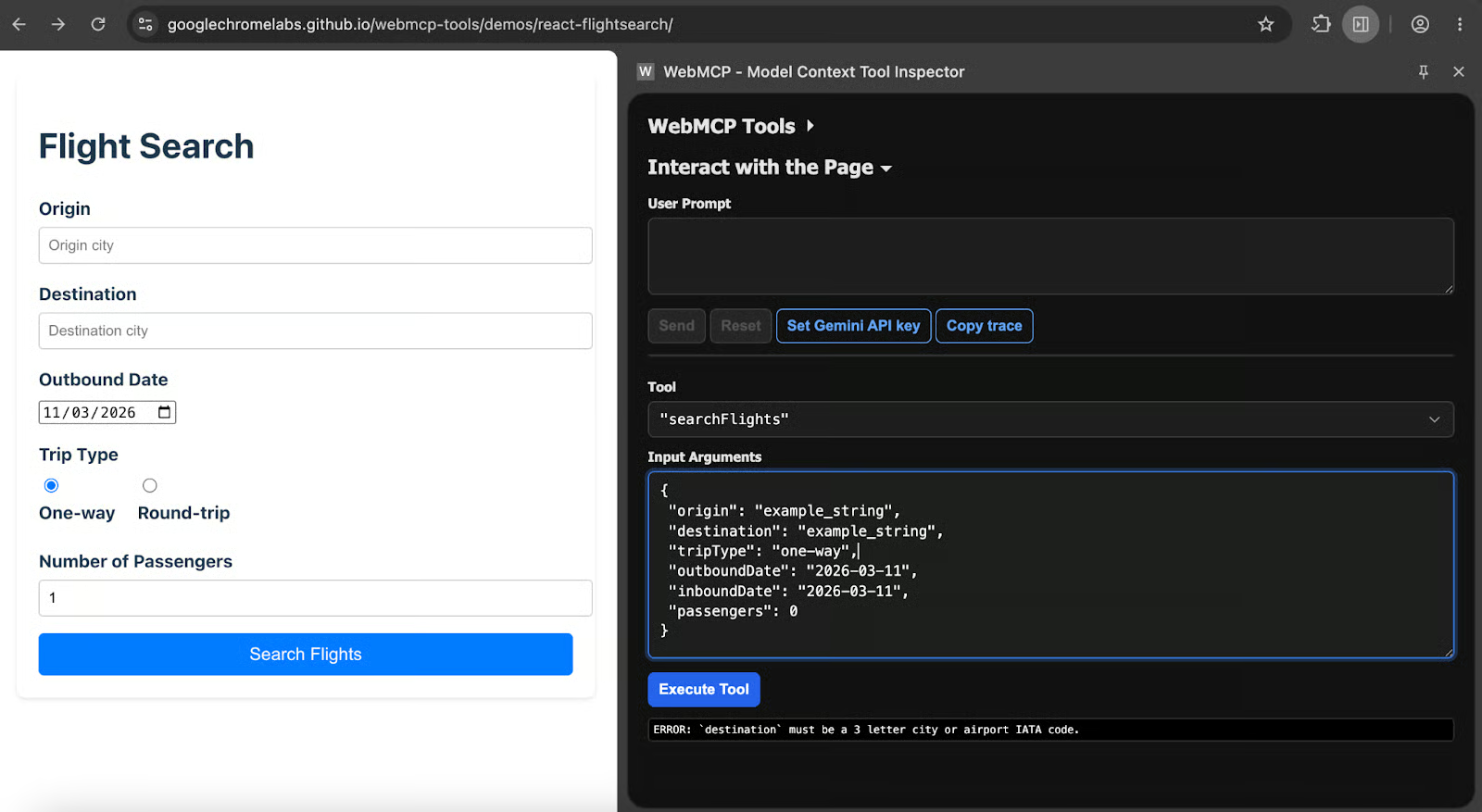
Überprüfung des searchFlights-Tools mit der Model Context Tool Inspector-Extension von Chrome mit der Flight-Search-Demo von Google.
Wie du siehst, erkennt der Model Context Tool Inspector das searchFlights-Tool und zeigt dessen Input-Schema an – so versteht das Modell viel klarer, wie es mit der Seite interagieren soll.
Es gibt zwei Wege für deine erste WebMCP-Integration – beide stellen wir im Folgenden vor:
Am einfachsten registrierst du ein WebMCP-Tool, indem du ein bestehendes Formular auf deiner Seite annotierst. Hier ist ein Standard-Produktsuchformular ohne WebMCP-Annotationen:
<form action="/search" method="GET">
  <label for="query">Search term</label>
  <input type="text" name="query" id="query" required>

  <label for="category">Category</label>
  <select name="category" id="category">
    <option value="all">All categories</option>
    <option value="electronics">Electronics</option>
    <option value="books">Books</option>
    <option value="clothing">Clothing</option>
  </select>

  <button type="submit">Search</button>
</form>
Vier Attribute machen daraus ein von Agenten aufrufbares Tool. toolname und tooldescription kommen auf das <form>-Tag. Auf einzelnen Feldern überschreiben toolparamtitle und toolparamdescription die Standardlabels, wenn diese nicht aussagekräftig genug sind, damit ein Agent sie versteht:
<form toolname="search_products"
      tooldescription="Search the product catalog by keyword and optional category filter"
      action="/search" method="GET">

  <label for="query">Search term</label>
  <input type="text" name="query" id="query" required
         toolparamdescription="The keyword or phrase to search for in product titles and descriptions">

  <label for="category">Category</label>
  <select name="category" id="category"
          toolparamtitle="Product Category"
          toolparamdescription="Filter results to a specific product category. Use 'all' for no filter.">
    <option value="all">All categories</option>
    <option value="electronics">Electronics</option>
    <option value="books">Books</option>
    <option value="clothing">Clothing</option>
  </select>

  <button type="submit">Search</button>
</form>
Der Browser erzeugt aus diesen Attributen intern ein JSON-Schema. Toolname, Parametertypen, Enum-Werte aus <select>-Optionen und Pflichtkennzeichnungen aus HTML werden ohne weitere Konfiguration übernommen.
Zum Testen erstellst du lokal eine einfache .html-Datei mit einem Texteditor, fügst den Code ein und öffnest sie in Chrome via file:///{your_document_path.html}. Damit die Extension mit der lokalen Datei funktioniert, öffne die Erweiterungseinstellungen, gehe zu Details und aktiviere den Zugriff auf Dateisystem-URLs, wie im Screenshot unten gezeigt.
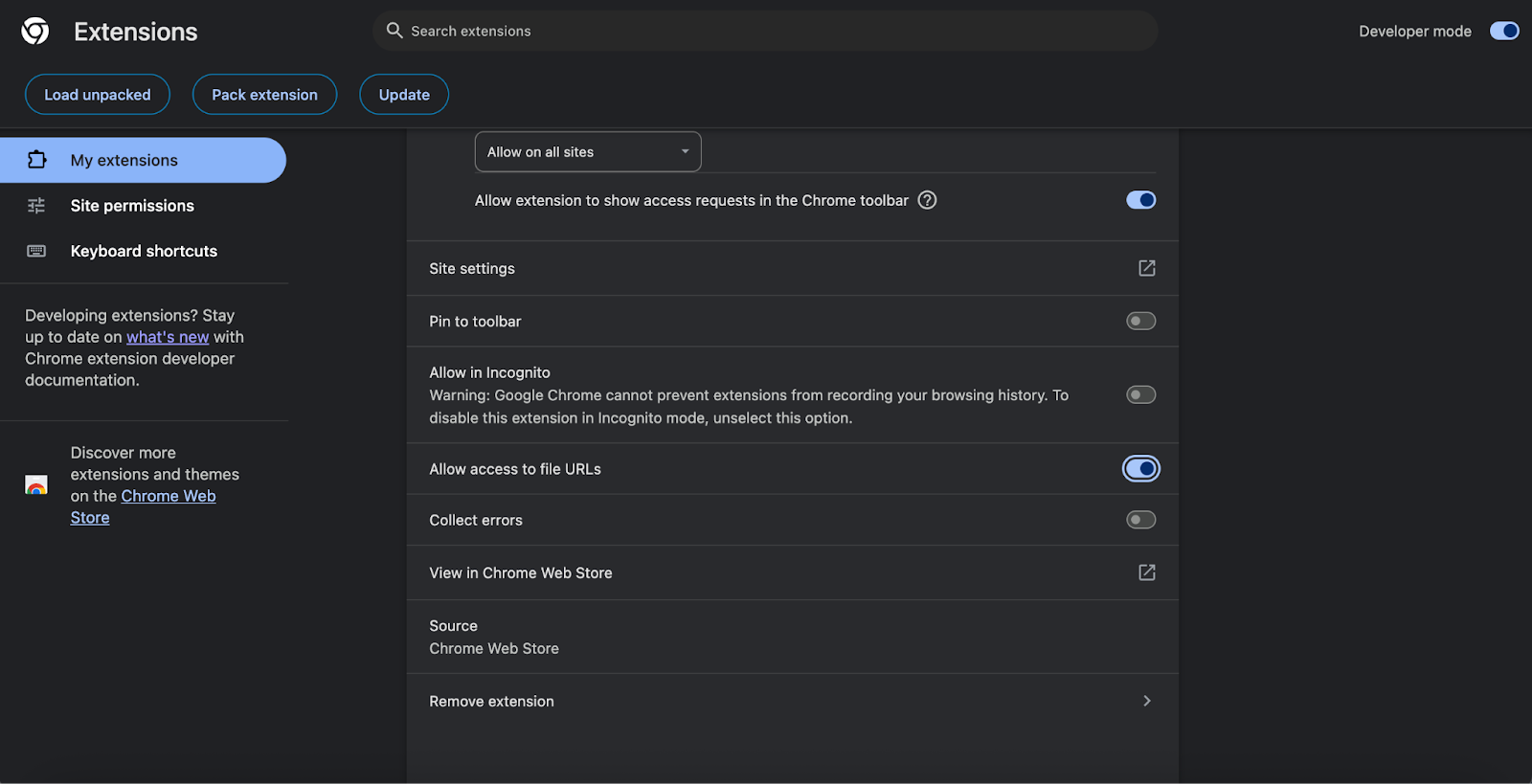
Der Erweiterung Zugriff auf lokale Dateien erlauben.
Andernfalls kann dein Browser nicht mit deiner lokalen HTML-Datei interagieren. Öffnest du die Datei anschließend in Chrome und prüfst die WebMCP-Extension, solltest du etwas wie im folgenden Screenshot sehen.
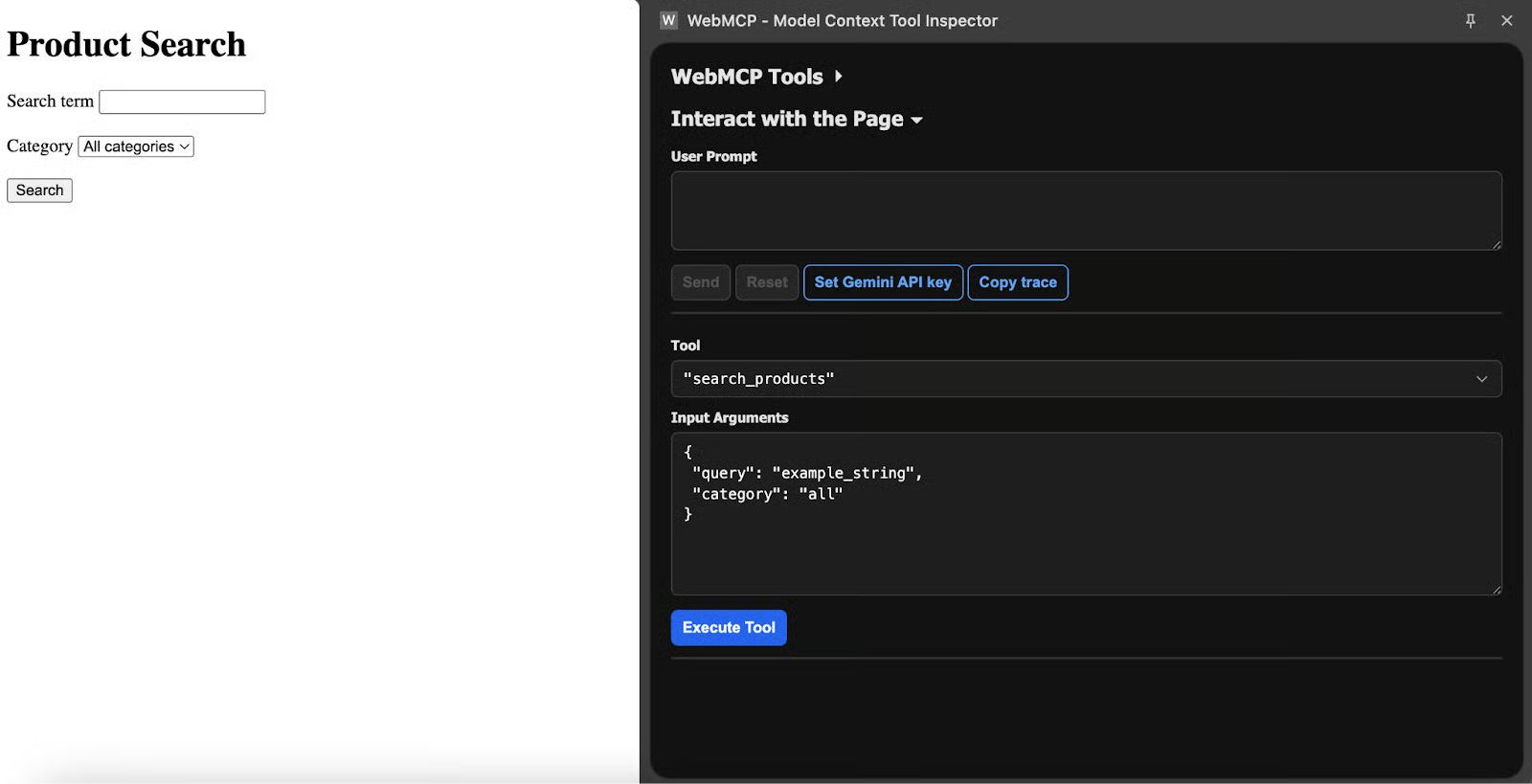
Die Extension zeigt das generierte Schema für das Tool search_products nach den Annotationen.
Was passiert eigentlich, wenn ein Agent dieses Tool aufruft?
Chrome fokussiert das Formular, füllt die Felder mit den vom Agenten gelieferten Werten – und stoppt dort. Die Person muss weiterhin auf Senden klicken. Dieser Standard ist bewusst so gewählt, damit der Mensch die Aktion bestätigt, bevor sie ausgeführt wird.
Das Attribut toolautosubmit auf dem Form-Tag entfernt diese Bestätigung. Das ist sinnvoll für Lese-Operationen wie Suchanfragen. Für alles, was Daten ändert, einen Kauf auslöst oder Kontoeinstellungen verändert, solltest du es weglassen.
Es gibt auch eine Möglichkeit, die Übermittlung abzufangen und dem Agenten ein strukturiertes Ergebnis zurückzugeben. Die Methode respondWith() auf dem Submit-Event nimmt ein Promise entgegen; dessen Auflösung wird zur Tool-Ausgabe:
<form toolname="search_products"
      tooldescription="Search the product catalog"
      toolautosubmit
      action="/search">
  <input type="text" name="query" required>
  <button type="submit">Search</button>
</form>

<script>
  document.querySelector("form").addEventListener("submit", (e) => {
    e.preventDefault();

    const query = new FormData(e.target).get("query");

    if (!query || query.trim().length === 0) {
      if (e.agentInvoked) {
        e.respondWith(Promise.resolve({
          error: "Search query cannot be empty. Please provide a keyword."
        }));
      }
      return;
    }

    const results = performSearch(query);

    if (e.agentInvoked) {
      e.respondWith(Promise.resolve({
        content: [{ type: "text", text: JSON.stringify(results) }]
      }));
    }
  });
</script>
Das Boolean-Flag agentInvoked auf dem Submit-Event ist true, wenn ein Agent die Übermittlung ausgelöst hat, und false bei einem normalen Klick. Du kannst damit zwischen agentenspezifischer Antwortformatierung und normaler Formularlogik verzweigen.
Wenn auf einem Feld keine toolparamdescription vorhanden ist, übernimmt der Browser die Beschreibung aus dem zugehörigen <label>-Element – oder ersatzweise aus dem aria-description-Attribut. Barrierefreies Markup liefert also bereits sinnvolle Parameterbeschreibungen ohne Zusatzaufwand.
Ein aktueller Sonderfall: Bei einer Gruppe von <input type="radio">-Elementen muss toolparamdescription auf dem ersten Radio-Button der Gruppe stehen und gilt für den gesamten Parameter.
Formulare decken viel ab, aber manche Tools müssen mit Anwendungszustand arbeiten, API-Aufrufe machen oder berechnete Ergebnisse zurückgeben, die nicht zu einer klassischen Formularübermittlung passen. Hier ein einfaches Tool, das Elemente zu einer To-do-Liste hinzufügt:
window.navigator.modelContext.registerTool({
  name: "addTodo",
  description: "Add a new item to the user's to-do list. Use when the user asks to create, add, or remember a task.",
  inputSchema: {
    type: "object",
    properties: {
      text: {
        type: "string",
        description: "The task description"
      },
      priority: {
        type: "string",
        enum: ["low", "medium", "high"],
        description: "Task priority level. Default to 'medium' if not specified by the user."
      }
    },
    required: ["text"]
  },
  execute: ({ text, priority = "medium" }) => {
    const newItem = { id: Date.now(), text, priority, done: false };
    todoApp.addItem(newItem);
    todoApp.renderList();

    return {
      content: [{
        type: "text",
        text: Added task: "${text}" with ${priority} priority. The to-do list now has ${todoApp.getCount()} items.
      }]
    };
  }
});
Der execute-Callback erhält die vom Agenten gesendeten Parameter (die dem inputSchema entsprechen sollten), führt deine Applogik aus und liefert ein content-Array zurück.
Ein wichtiger Punkt: Aktualisiere das UI, bevor du zurückgibst.
Agenten prüfen teils nach einem Toolaufruf den Seitenzustand, um den Erfolg zu verifizieren. Wenn das UI noch unverändert ist, könnte der Agent von einem Fehlschlag ausgehen. Du kannst Tools registrieren und deregistrieren, wenn sich der Seitenzustand ändert:
function onUserLogin(user) {
  navigator.modelContext.registerTool({
    name: "viewOrderHistory",
    description: "Show the user's past orders with dates and totals",
    inputSchema: {
      type: "object",
      properties: {
        limit: {
          type: "number",
          description: "Maximum number of orders to return. Defaults to 10."
        }
      }
    },
    execute: async ({ limit = 10 }) => {
      const orders = await fetchOrders(user.id, limit);
      return {
        content: [{ type: "text", text: JSON.stringify(orders) }]
      };
    }
  });
}

function onUserLogout() {
  navigator.modelContext.unregisterTool("viewOrderHistory");
}
Ein realistischeres Szenario: eine Restaurant-Reservierungsseite, die Tischverfügbarkeit prüft. Dieses Beispiel zeigt auch Validierung im Code – empfohlen in der Chrome-Dokumentation –, weil Schema-Constraints für Agenten zwar hilfreich sind, aber nicht von allen strikt durchgesetzt werden.
navigator.modelContext.registerTool({
  name: "checkAvailability",
  description: "Check table availability for a given date and party size at this restaurant. Returns available time slots.",
  inputSchema: {
    type: "object",
    properties: {
      date: {
        type: "string",
        description: "The desired reservation date in YYYY-MM-DD format"
      },
      partySize: {
        type: "number",
        description: "Number of guests, between 1 and 12"
      }
    },
    required: ["date", "partySize"]
  },
  execute: async ({ date, partySize }) => {
    if (partySize < 1 || partySize > 12) {
      return {
        content: [{
          type: "text",
          text: "Party size must be between 1 and 12. For larger groups, please call the restaurant directly at (555) 123-4567."
        }]
      };
    }

    const parsedDate = new Date(date);
    if (isNaN(parsedDate.getTime()) || parsedDate < new Date()) {
      return {
        content: [{
          type: "text",
          text: "Please provide a valid future date in YYYY-MM-DD format."
        }]
      };
    }

    const slots = await api.getAvailableSlots(date, partySize);
    renderAvailabilityCalendar(date, slots);

    return {
      content: [{
        type: "text",
        text: JSON.stringify({
          date,
          partySize,
          availableSlots: slots.map(s => s.time),
          message: slots.length > 0
            ? Found ${slots.length} available time slots.
            : "No availability for this date. Try a different date or smaller party."
        })
      }]
    };
  }
});
Einige Punkte aus der Chrome-Dokumentation sind hervorzuheben: Nimm wann immer möglich rohe Nutzereingaben an. Wenn jemand „11:00 bis 15:00“ schreibt, sollte dein Tool diese Strings direkt akzeptieren, statt eine Umrechnung in Minuten-seit-Mitternacht o. ä. zu erzwingen.
Validiere im Code – nicht nur im Schema –, denn die Schema-Durchsetzung variiert zwischen Agenten. Und gib erst zurück, nachdem das UI aktualisiert wurde, da Agenten die Seite zur Bestätigung ansehen könnten.
Für serverseitige MCP-Tools, die eine Client-seitige WebMCP-Implementierung ergänzen, findest du in unserem Guide Building MCP Servers with FastMCP die Details zum Setup.
Die WebMCP-Spezifikation geht davon aus, dass ein Mensch zusieht. Die Autor:innen bei Google und Microsoft haben sie für kooperative Workflows, nicht für autonome Operationen entworfen. Die folgenden Mechanismen spiegeln diese Philosophie wider.
Eine neue boolesche Eigenschaft namens agentInvoked erscheint auf dem Interface SubmitEvent. Wenn ein Agent eine Formularübermittlung auslöst, ist sie true. Klickt eine Person normal auf Senden, ist sie false.
document.querySelector("form").addEventListener("submit", (e) => {
  if (e.agentInvoked) {
    console.log("AI agent submitted the form");
    if (!isWithinAgentRateLimit()) {
      e.preventDefault();
      e.respondWith(Promise.resolve({
        error: "Too many requests. Please wait before trying again."
      }));
      return;
    }
  }
});
Neben Formularübermittlungen gibt es zwei Window-Events, die Agentenaktivität tracken. toolactivated feuert, nachdem ein Agent ein Tool aufruft und Chrome die zugehörigen Formularfelder vorausfüllt. toolcancel feuert, wenn die Person die Aktion abbricht oder das Formular zurücksetzt.
Keines der Events ist abbrechbar, aber beide enthalten die Eigenschaft toolName, damit du weißt, welches Tool betroffen war.
window.addEventListener("toolactivated", ({ toolName }) => {
  showAgentActivityBanner(toolName);
});

window.addEventListener("toolcancel", ({ toolName }) => {
  hideAgentActivityBanner();
});Bei deklarativen Tools ist der Standard, dass die Person nach dem Ausfüllen durch den Agenten auf Senden klicken muss. Für alles mit echten Konsequenzen sollte das so bleiben.
Das Attribut toolautosubmit entfernt diesen Schritt. Es gehört auf Lese- oder Niedrigrisiko-Tools: Suchanfragen, Verfügbarkeitsabfragen, Statuschecks.
Alles, was Daten erstellt, ändert oder löscht, sollte einen manuellen Klick erfordern.
Du kannst den Agenten-Interaktionszustand mit CSS-Pseudoklassen stylen:
form:tool-form-active {
  border: 2px solid #2563eb;
  background-color: #eff6ff;
  font-style:normal;font-variant:normal;text-decoration:none;vertical-align:baseline;white-space:pre;white-space:pre-wrap;">1rem;
  border-radius: 8px;
}

form:tool-form-active::before {
  content: "AI agent is filling this form";
  display: block;
  font-size: 0.875rem;
  color: #2563eb;
  font-weight: 600;
  font-style:normal;font-variant:normal;text-decoration:none;vertical-align:baseline;white-space:pre;white-space:pre-wrap;">0.5rem;
}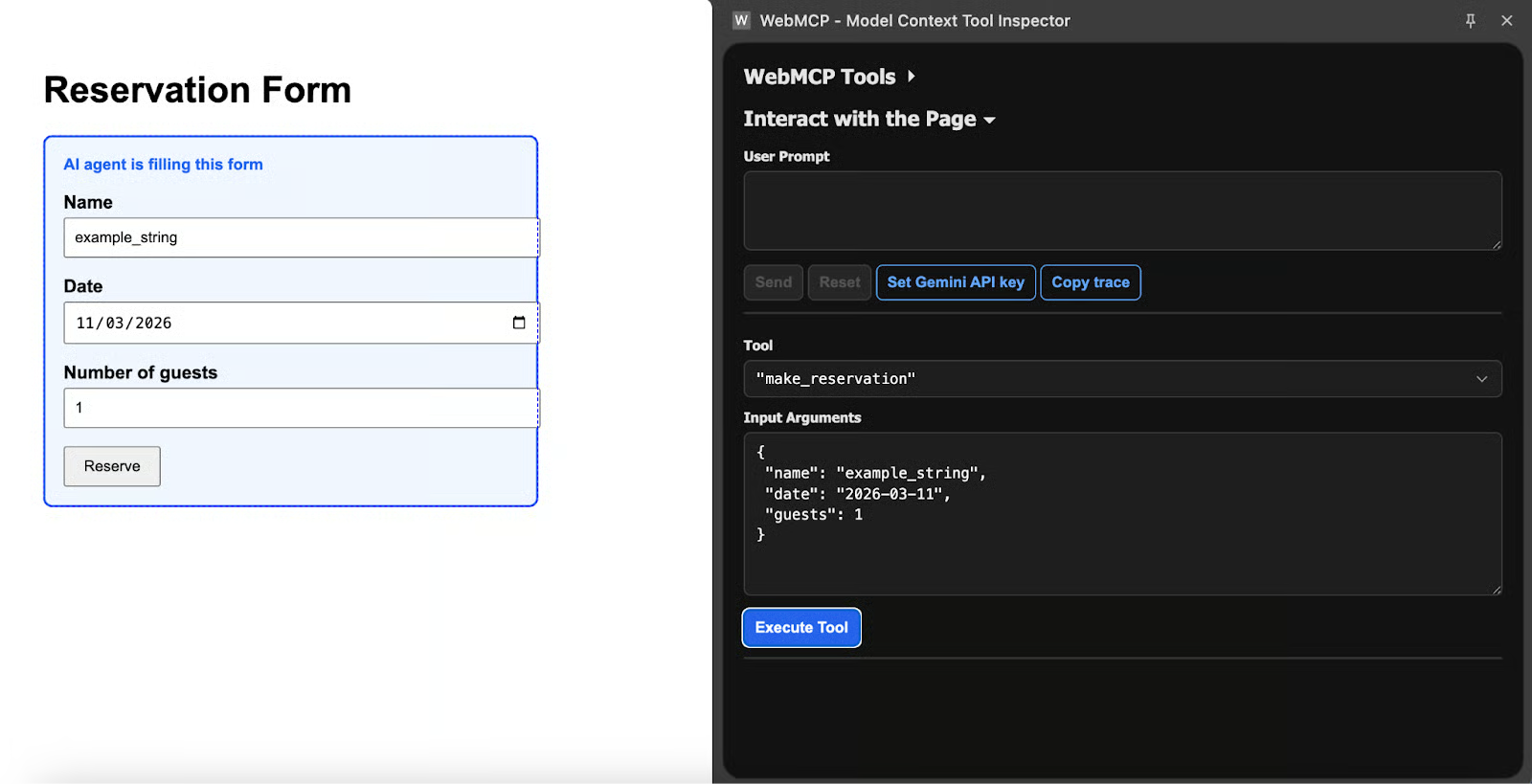
Ein Formular mit :tool-form-active-Styling, blauem Rahmen und dem Label "AI agent is filling this form".
Imperative Tools sind eine andere Herausforderung. Es gibt kein Formular und keinen Senden-Button; die Ausführung startet sofort, wenn der Agent das Tool aufruft.
Für Operationen, die nicht ohne menschliche Zustimmung passieren dürfen, baust du die Bestätigung direkt ins Tool ein:
navigator.modelContext.registerTool({
  name: "deleteAccount",
  description: "Permanently delete the user's account and all associated data. Cannot be undone.",
  inputSchema: {
    type: "object",
    properties: {
      confirmPhrase: {
        type: "string",
        description: "The user must type 'DELETE MY ACCOUNT' to confirm."
      }
    },
    required: ["confirmPhrase"]
  },
  execute: ({ confirmPhrase }) => {
    if (confirmPhrase !== "DELETE MY ACCOUNT") {
      return {
        content: [{
          type: "text",
          text: "Confirmation phrase does not match. Ask the user to confirm explicitly."
        }]
      };
    }

    return new Promise((resolve) => {
      showConfirmationModal("Are you sure?", {
        onConfirm: async () => {
          await api.deleteAccount();
          resolve({ content: [{ type: "text", text: "Account deleted." }] });
        },
        onCancel: () => {
          resolve({ content: [{ type: "text", text: "Deletion cancelled by user." }] });
        }
      });
    });
  }
});
Das Muster im gesamten MCP-Ökosystem ist konsistent: Der Agent äußert die Absicht, der Mensch bestätigt die Ausführung. Für einen breiteren Blick auf MCP-Implementierungen lies unsere Übersicht zu Top MCP Servers and Clients.
Sobald deine erste WebMCP-Integration läuft, geht es ans Testen.
Nach Installation der Model Context Tool Inspector Extension zeigt ein kleines Badge an ihrem Icon, wie viele Tools die aktuelle Seite registriert hat. Im Pop-up siehst du jedes Tool mit Namen, Beschreibung und Input-Schema. Fehlt hier ein von dir registriertes Tool, hat die Registrierung nicht geklappt.
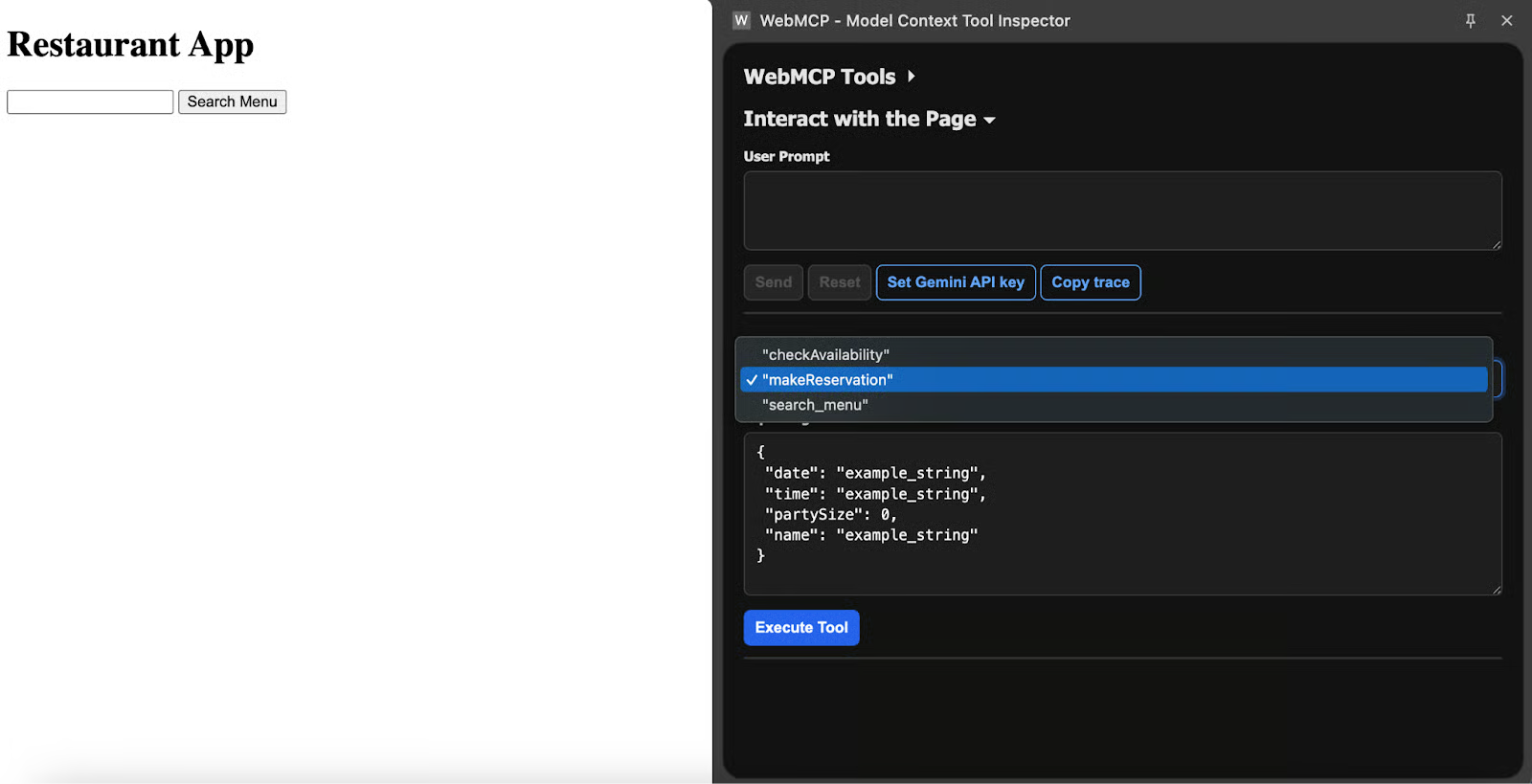
Das Extension-Panel mit einer Liste registrierter Tools und aufgeklappten Schemata.
Um den Agenten-Simulator auszuprobieren, gehen wir zurück zur Flight-Search-Demo von Google. Nun testen wir die Ausführung der App manuell oder per natürlicher Sprache.
Manuelle Ausführung eliminiert die Nichtdeterministik beim Agententesten. Wähle im Panel ein Tool aus, tippe ein JSON-Objekt in das Feld „Input Arguments“ und klicke „Execute Tool“. Die Extension ruft das Tool mit genau diesen Parametern auf.
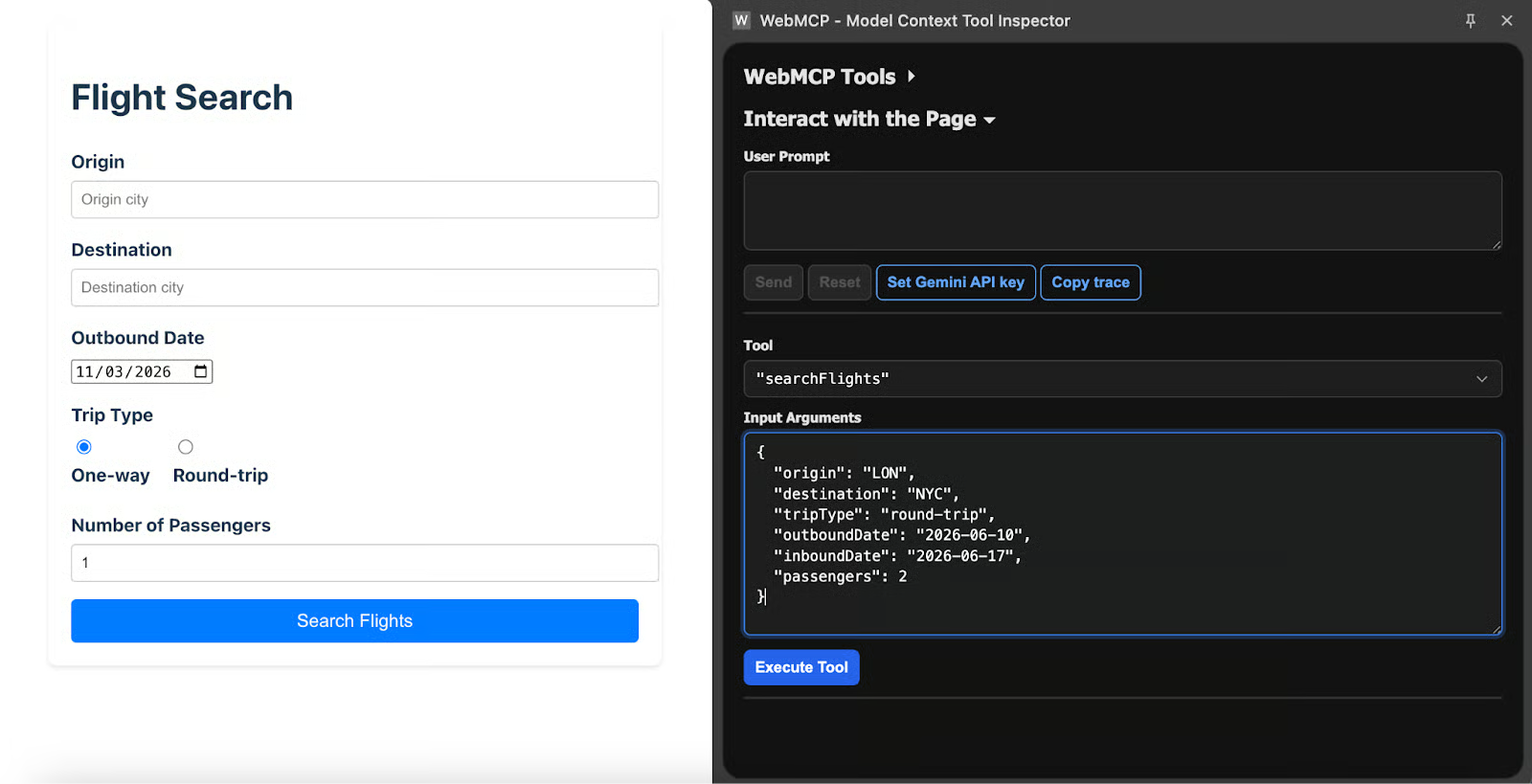
Die Extension mit ausgewähltem searchFlights-Tool, ausgefüllten JSON-Parametern und sichtbarem Execute-Tool-Button.
Das hilft bei der Fehlersuche. Wenn ein Tool mit von Hand gewählten Parametern korrekt funktioniert, aber beim Agentenaufruf scheitert, liegt das Problem in deiner Toolbeschreibung oder im Schema – nicht in der execute-Funktion. Beispiel mit Googles Travel-Demo:
{
  "origin": "LON",
  "destination": "NYC",
  "tripType": "round-trip",
  "outboundDate": "2026-06-10",
  "inboundDate": "2026-06-17",
  "passengers": 2
}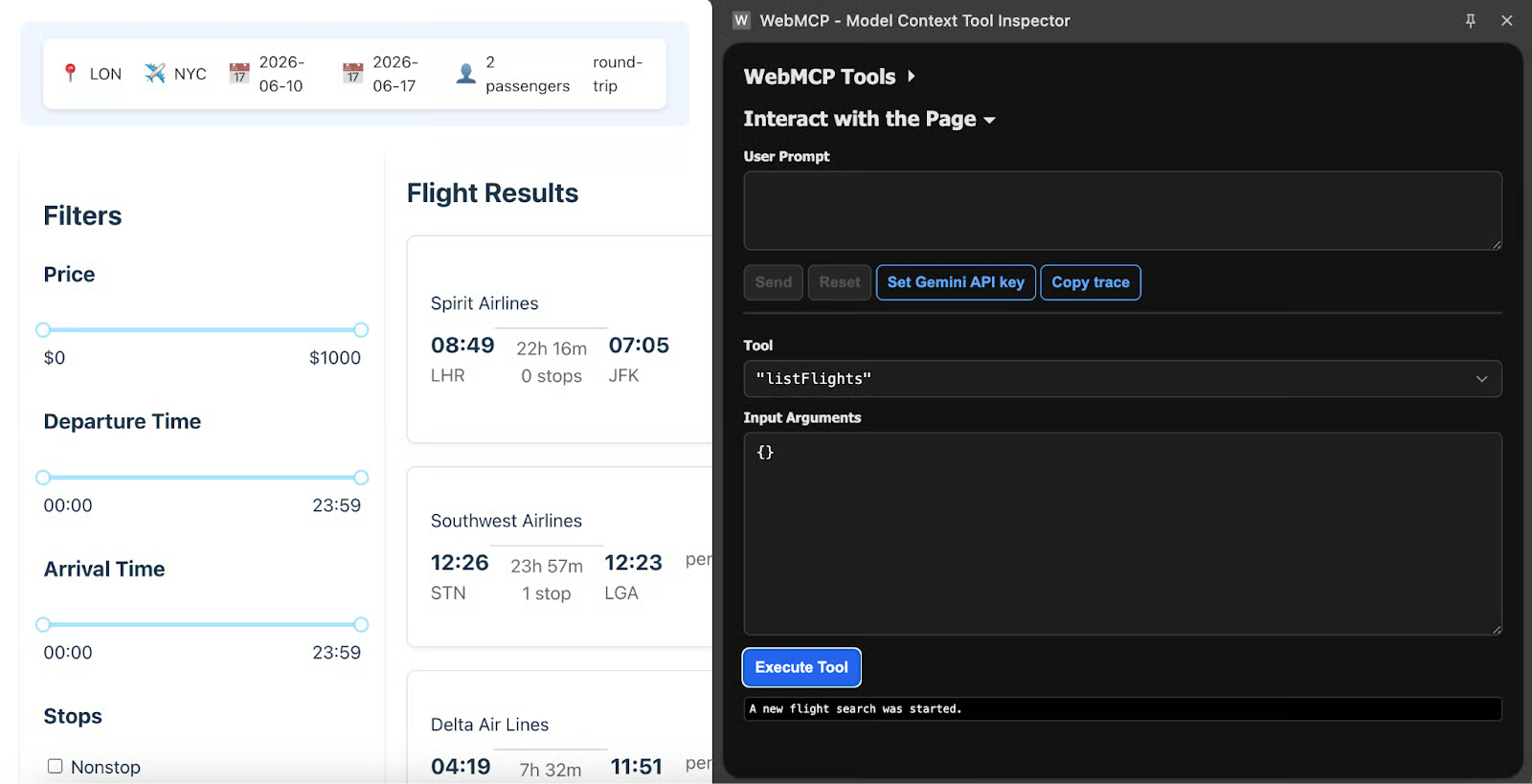
Die Travel-Demo-Seite mit Ergebnissen nach manueller Tool-Ausführung.
Test mit natürlicher Sprache nutzt die Gemini-API. Füge einen Key aus AI Studio in den Einstellungen der Extension ein und tippe etwa:
Search for round-trip flights from London to New York leaving June 10th, returning June 17th, for 2 passengers.Die Extension sendet diese Eingabe zusammen mit deinen Tooldefinitionen an Gemini 2.5 Flash, und das Modell entscheidet, welches Tool es mit welchen Parametern aufruft.
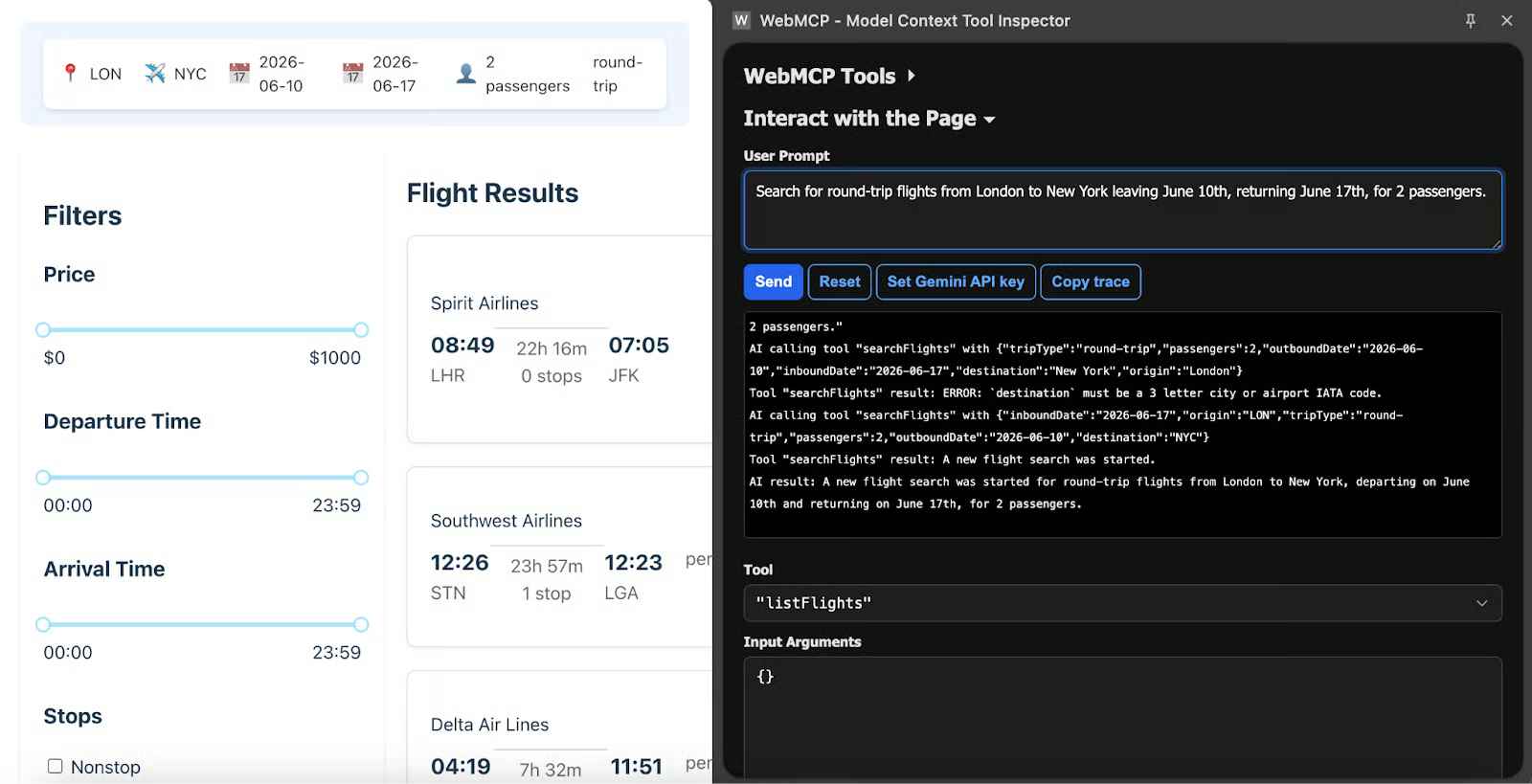
Das natürliche Spracheingabefeld der Extension mit einem Prompt und der Agentenantwort darunter.
Wählt der Agent das falsche Tool oder mappt Parameter falsch, müssen deine Toolbeschreibungen wahrscheinlich präziser werden. Gute Beschreibungen erläutern positiv, wofür das Tool eingesetzt werden soll („Nutze dies, um Flugverfügbarkeit zu prüfen“), nicht, wofür nicht.
Für Kontext zu MCP-Tools speziell im Google-Ökosystem bietet unser Google MCP Servers-Tutorial mehrere relevante Muster. Und für den Blick über Chrome hinaus sieh dir Top Remote MCP Servers an.
WebMCP gibt Websites einen direkten Kommunikationskanal zu KI-Agenten. Statt dass Agenten sich durch eine Seite „durchraten“, veröffentlicht die Site strukturierte Tooldefinitionen – und der Agent ruft sie mit typisierten Parametern auf. Die deklarative API macht aus bestehenden Formularen mit wenigen HTML-Attributen agentenfähige Tools. Die imperative API deckt alles Komplexere ab. Das Sicherheitsmodell hält den Menschen bei wichtigen Aktionen am Steuer.
Die Spez ist noch früh, nur in Chrome Canary hinter einem Flag verfügbar und nicht für die Produktion geeignet. Aber dass Google und Microsoft sie gemeinsam verfassen und das W3C die Governance übernimmt, deutet auf eine realistische Chance hin, ein stabiler Webstandard zu werden. Wer jetzt Zeit in die API investiert, versteht Tool-Designmuster und Sicherheitsmechanismen bereits, wenn die stabile Version kommt.
Wenn du jetzt starten willst, prüfe die Formulare auf deinen bestehenden Sites und identifiziere die größten Hebel für Agentenzugriff. Suchformulare und Verfügbarkeitsprüfungen sind risikoarme Einstiege. Wenn du damit und der deklarativen API vertraut bist, wechsle zu imperativen Tools für Workflows mit individueller Logik.
Zum Weiterlesen empfehle ich:
Top-DataCamp-Kurse
Kurs
Kurs
Kurs