
Lernpfad
AI Engineering with LangChain
21 Std.
Du hast sicherlich schon bemerkt, dass KI-Coding-Agenten enorm hilfreich sind, wenn komplexe Funktionen entstehen oder knifflige Fehler zu debuggen sind. Doch oft stoßen sie an Grenzen: Spätestens dann, wenn Informationen gebraucht werden, die nicht bereits in deinen Projektdateien liegen, wird es schwierig.
Stell dir nun vor, dein Coding-Agent könnte über seine Umgebung hinausgreifen, Live-Daten abrufen, aktuelle Dokumentation recherchieren oder eigenständig verschiedene Tools bedienen. Genau dann werden diese Agenten wirklich mächtig.
In diesem Tutorial zeige ich dir Schritt für Schritt, wie du das mit der Codex CLI und dem Model Context Protocol (MCP) erreichst. Wir behandeln die Grundlagen des Zusammenspiels von Codex CLI und MCP, bauen von Grund auf ein Finanz-Dashboard mit Live-Aktienkursen, gehen auf Multi-Agent-Muster ein und sprechen über Sicherheitsbest Practices.
Damit du maximal profitierst, empfehle ich dir, direkt mitzumachen. Lege ein neues Next.js-Projekt an, stell sicher, dass die Codex CLI installiert ist, und hol dir einen kostenlosen API-Schlüssel von Alpha Vantage – dann können wir loslegen.
Wenn du neu im Bereich agentischer KI bist, empfehle ich dir unseren AI Agent Fundamentals Lernpfad.
Bevor wir ins eigentliche Coden einsteigen, klären wir die Tools. Was genau ist MCP und wie nutzt die Codex CLI es?
MCP steht für das Model Context Protocol. Es ist ein offener Standard von Anthropic, der regelt, wie KI-Systeme an externe Tools und Datenquellen andocken. Technisch basiert er auf JSON-RPC 2.0 über STDIO (Standard Ein-/Ausgabe) oder HTTP.
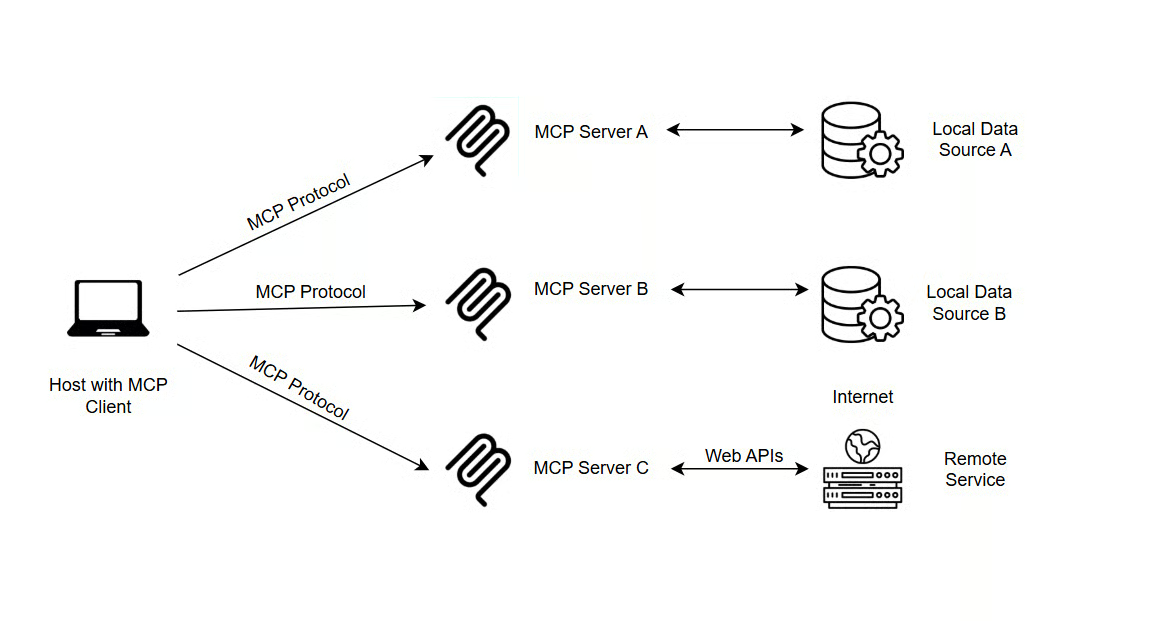
Quelle: truefoundry
Warum ist das relevant? Weil es ein großes Problem löst – nennen wir es das „Integrationschaos“: Früher musstest du für jedes LLM-Tool-Paar eigene Konnektoren bauen. Das war aufwendig, fehleranfällig und kaum skalierbar.
Mit MCP gibt es nun ein einheitliches Protokoll für alle LLM-Tool-Verbindungen. Statt Speziallösungen nutzt du eine Standard-Schnittstelle – deutlich einfacher.
Wenn du tiefer unter die Haube schauen willst, ist dieses Walkthrough zum Bau eines MCP-Servers und -Clients eine gute Ergänzung.
Die Codex CLI ist OpenAIs schlanker, terminalbasierter Coding-Agent. Ähnlich wie Claude Code oder Cursor ist sie darauf ausgelegt, dein gesamtes Projekt zu verstehen – nicht nur die aktuell geöffnete Datei.
Alles kommt in einer Text User Interface (TUI) zusammen: effizientes Code-Indexing, die Gesprächshistorie und echte Befehlsausführung. Fast das gesamte Verhalten steuerst du über eine config.toml – einfach zu verwalten.
Bei der MCP-Integration unterstützt Codex sowohl STDIO-Server als auch Streamable-HTTP-Server:
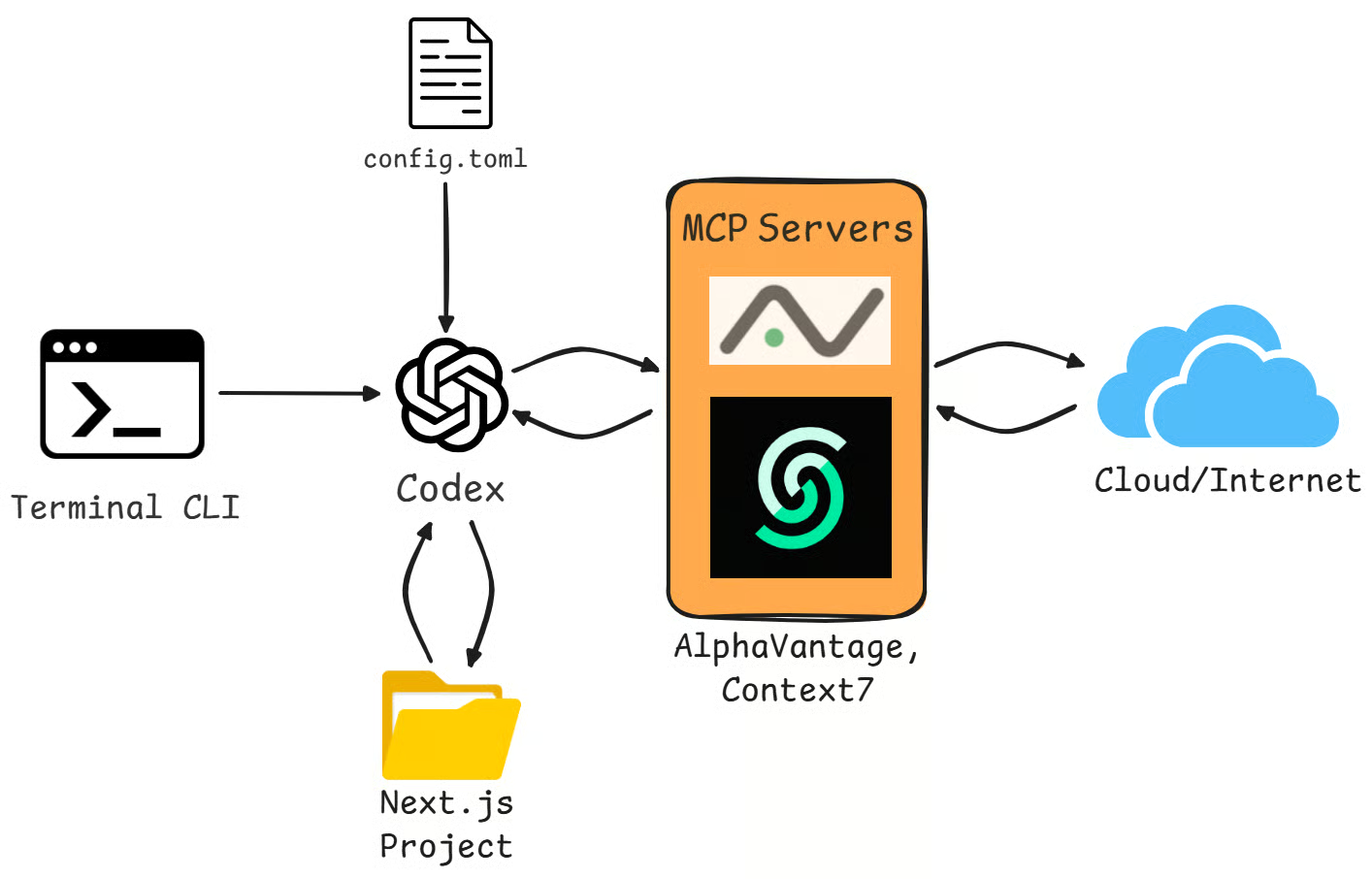
Praktisch: Die Codex CLI und die IDE-Erweiterung teilen sich dieselbe config.toml. So hast du identische MCP-Tools im Terminal und im Editor – ohne doppelte Konfiguration.
Codex kümmert sich auch ordentlich um Authentifizierung und unterstützt OAuth über den Befehl codex mcp login <server-name>. Zudem kannst du granular festlegen, was der Agent darf – mit enabled_tools oder disabled_tools in der Konfiguration.
Genug Theorie – jetzt wird eingerichtet. In diesem Abschnitt konfigurieren wir deine MCP-Server so, dass sie einsatzbereit sind.
Voraussetzungen
Bevor du Codex mit MCP und dem Agents SDK verbindest, stelle Folgendes sicher:
Die Codex CLI ist auf dieser Maschine installiert. Installiere global via npm install -g @openai/codex. Prüfe mit codex --version, ob alles läuft.
Codex ist auf dieser Maschine authentifiziert. Führe einmal codex login (oder codex login --device-auth in Headless-Umgebungen) aus und prüfe, ob Codex im Terminal normal funktioniert.
Für den Multi-Agent-Workflow brauchst du außerdem einen OpenAI API Key. Hole ihn in der OpenAI Console und setze ihn in deiner Shell mit export OPENAI_API_KEY="sk-...".
Umgebungsvariablen für externe Tools sind gesetzt. Alpha Vantage liest z. B. deinen Marktdaten-Schlüssel aus ALPHA_VANTAGE_KEY, den du vor den Beispielen entsprechend exportieren solltest.
So erhältst du einen AlphaVantage API Key:
Die Free-Tier erlaubt bis zu 25 API-Requests pro Tag. Für intensivere Nutzung bietet Alpha Vantage Premium-Pläne.
Als Nächstes fügen wir einen neuen Server über die Kommandozeile mit codex mcp add hinzu. So musst du nicht manuell in Konfigdateien eingreifen – Codex übernimmt das meiste.
Wenn du beispielsweise einen Server für Doku-Recherchen willst, kannst du den Context7 MCP-Server nutzen. Installiere ihn mit:
codex mcp add context7 -- npx -y @upstash/context7-mcp
CLI-Befehle sind super für den schnellen Start, aber manchmal brauchst du mehr Kontrolle oder willst genau sehen, was passiert. Dann bearbeitest du die Konfigurationsdatei direkt.
Wichtig: Es gibt zwei Speicherorte mit unterschiedlichem Geltungsbereich:
Globale Konfiguration unter ~/.codex/config.toml, gültig für all deine Projekte
Projektbezogene Konfiguration unter .codex/config.toml im jeweiligen Projektordner. Projekt-Settings überschreiben bei Konflikten in der Regel die globalen.
Nicht alle MCP-Server liefern einen eigenen CLI-Install-Befehl mit. In solchen Fällen konfigurierst du sie direkt in ~/.codex/config.toml, indem du den Befehl und die Argumente angibst, mit denen Codex den Serverprozess startet – lokal via STDIO oder remote via HTTP.
Der AlphaVantage MCP-Server gehört dazu. Öffne die config.toml und füge diesen Block hinzu:
[mcp_servers.alphavantage]
command = "uvx"
args = ["av-mcp", "<your-key>”]
Hinweis: Einen API-Schlüssel direkt in config.toml zu hinterlegen, ist für reale Projekte nicht empfehlenswert. Vermeide das in versionierten Repos (z. B. GitHub), geteilten Umgebungen oder Deployments, da jeder mit Dateizugriff den Schlüssel lesen könnte. Für dieses Tutorial ist es vertretbar, weil config.toml in deinem Home-Verzeichnis (~/.codex/) liegt und nur lokal genutzt wird.
Sinnvoll ist außerdem startup_timeout_sec=30, um das Default-Timeout von 10 Sekunden zu erhöhen und der Verbindung mehr Zeit zum Start zu geben.
Sobald einige Server eingerichtet sind, willst du sie managen. Codex bietet dafür mehrere Befehle.
Mit codex mcp list siehst du, was installiert ist. Details zu einem Server – etwa dem gerade hinzugefügten Alpha Vantage – zeigt codex mcp get alphavantage. Und falls du einen Server nicht mehr brauchst, etwa context7, entfernst du ihn mit codex mcp remove context7.
In einer aktiven Codex-Session kannst du prüfen, ob alles sauber läuft. Tippe /mcp in die Chat-Oberfläche – dort siehst du den Status der verbundenen Tools. alphavantage und context7 sollten jeweils Status: enabled anzeigen.
Am besten lernt man durch Bauen. Wir erstellen ein funktionales Risikodashboard für ein Aktienportfolio, ziehen Marktdaten in Echtzeit und berechnen Risikokennzahlen – alles mit Codex und MCP.
Für das Frontend nutzen wir TypeScript, eine JavaScript-basierte Sprache. Eine Auffrischung auf verschiedenen Levels findest du in unserem Guide TypeScript Interview Questions.
Folge diesen Schritten, um das Projekt aufzusetzen:
Projekt initialisieren: Führe im Terminal aus: npx create-next-app@latest portfolio-dashboard --typescript
Übernimm die Standard-Prompts für eine typische Konfiguration
Wechsle ins Projektverzeichnis: cd portfolio-dashboard
Erstelle die Komponenten-Struktur: mkdir components
Lege das Portfolio-Card-Element als .tsx in components an: components/PortfolioCard.tsx
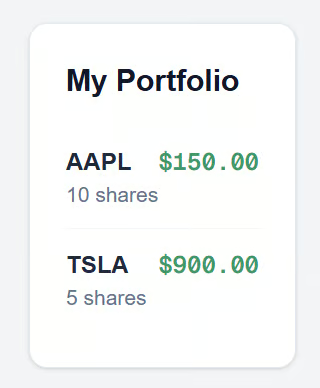
Die Komponente PortfolioCard rendert eine gestaltete Karte mit Mock-Positionen (AAPL und TSLA) und zeigt Symbol, Stückzahl und aktuellen Preis. Für Layout und Styles kommen Tailwind CSS-Klassen zum Einsatz – weißer Kartenhintergrund und smaragdgrüne Preisformatierung. So sollte es aussehen:
// components/PortfolioCard.tsx
import React from 'react';

type Position = {
  symbol: string;
  shares: number;
  price: number;
};

const mockPositions: Position[] = [
  { symbol: 'AAPL', shares: 10, price: 150.00 },
  { symbol: 'TSLA', shares: 5, price: 900.00 },
];

export const PortfolioCard = () => {
  return (
    // Added text-slate-900 to ensure visibility on the white background
    <div className="p-6 border border-slate-200 rounded-xl shadow-sm bg-white text-slate-900">
      <h2 className="text-xl font-bold mb-4">My Portfolio</h2>
      <ul className="divide-y divide-slate-100">
        {mockPositions.map((pos) => (
          <li key={pos.symbol} className="flex justify-between py-3">
            <div className="flex flex-col">
              <span className="font-bold text-slate-800">{pos.symbol}</span>
              <span className="text-sm text-slate-500">{pos.shares} shares</span>
            </div>
            <span className="font-mono font-semibold text-emerald-600">
              ${pos.price.toFixed(2)}
            </span>
          </li>
        ))}
      </ul>
    </div>
  );
};
Importiere und nutze danach <PortfolioCard/> in app/page.tsx, damit du die Karte im Browser siehst:
// app/page.tsx
import { PortfolioCard } from "../components/PortfolioCard";

export default function Page() {
  return (
    <main className="min-h-screen flex items-center justify-center bg-slate-50">
      <PortfolioCard />
    </main>
  );
}
Wenn du jetzt npm run dev ausführst, solltest du im Browser etwas in dieser Art sehen:
Bevor wir mit KI coden, müssen die Agenten laufen. Lass das Terminal mit npm run dev geöffnet. In einem neuen Terminalfenster:
Führe die MCP-Setup-Befehle aus, falls noch nicht geschehen
Exportiere deinen API Key mit ALPHA_VANTAGE_KEY=”<your-key>”
Starte den Codex-Agenten mit codex
Sharpe-Ratio-Funktion implementieren
Als erste Kennzahl berechnen wir die Sharpe Ratio – zentral für rendite-/risikobereinigte Bewertungen. Normalerweise ist das Rezept raussuchen und die passende Bibliothek finden etwas mühsam. Das übernimmt Codex.
Gib in deiner Codex-Session folgenden Prompt ein:
"Add Sharpe ratio calculation for each position to PortfolioCard.tsx. Use Context7 to check the function signature if needed."
Du siehst Codex loslegen. Zuerst nutzt es ggf. Context7, um die Doku zur passenden Technical-Analysis-Library (ta-lib oder JavaScript-Äquivalent) zu prüfen und die korrekten Inputs zu finden. Anschließend modifiziert es automatisch deine PortfolioCard.tsx.
Es erweitert wahrscheinlich die mockPositions und ergänzt eine Helper-Funktion zur Berechnung, etwa so:
function calculateSharpe(prices: number[]) {
  // Codex implements the logic here using standard deviation and mean returns
  // resulting in a return value like 1.23
}
Und aktualisiert dein JSX, um die Kennzahl anzuzeigen:
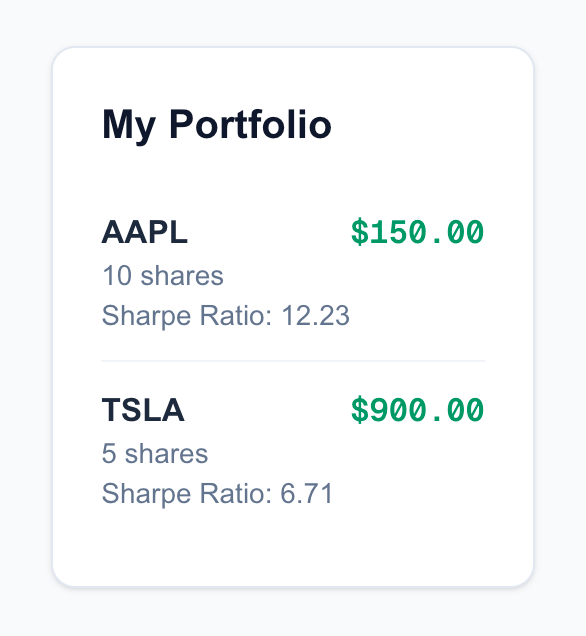
<PortfolioCard sharpe={calculateSharpe(prices)}/>Im Browser sollte nun eine Sharpe Ratio (z. B. 1,23) neben deinen Positionen erscheinen, etwa so:
Jetzt machen wir das Dashboard reaktiv und nutzen echte AlphaVantage-Daten. Wir wollen gewarnt werden, wenn eine Aktie zu volatil wird. „Hohe Volatilität“ definieren wir als 7-Tage-Volatilität über 3%.
Gib in Codex ein:
"Flag positions where 7-day volatility > 2% using Alpha Vantage data. Fetch the price history for the symbols in my list."
Hier glänzt MCP. Codex erkennt den Bedarf an externen Daten und ruft alphavantage.get_price_history("AAPL") sowie alphavantage.get_price_history("TSLA") auf, um reale Kursreihen zu laden.
Anschließend schreibt es die Logik zur Berechnung der Standardabweichung dieser Preise und passt das Styling an, um Risiken visuell zu markieren.
Dein PortfolioCard-Code wird um konditionelles Styling ergänzt. Die Logik könnte so aussehen:
<li className={volatility > 2 ? "text-red-500 font-bold" : "text-green-500"}>
  {pos.symbol}: {volatility}%
</li>
In der laufenden App siehst du ggf. AAPL in Grün (unauffällig) und TSLA in Rot (volatil) – basierend auf Live-Daten, die der Agent geholt hat.
Das finale Ergebnis könnte so aussehen:
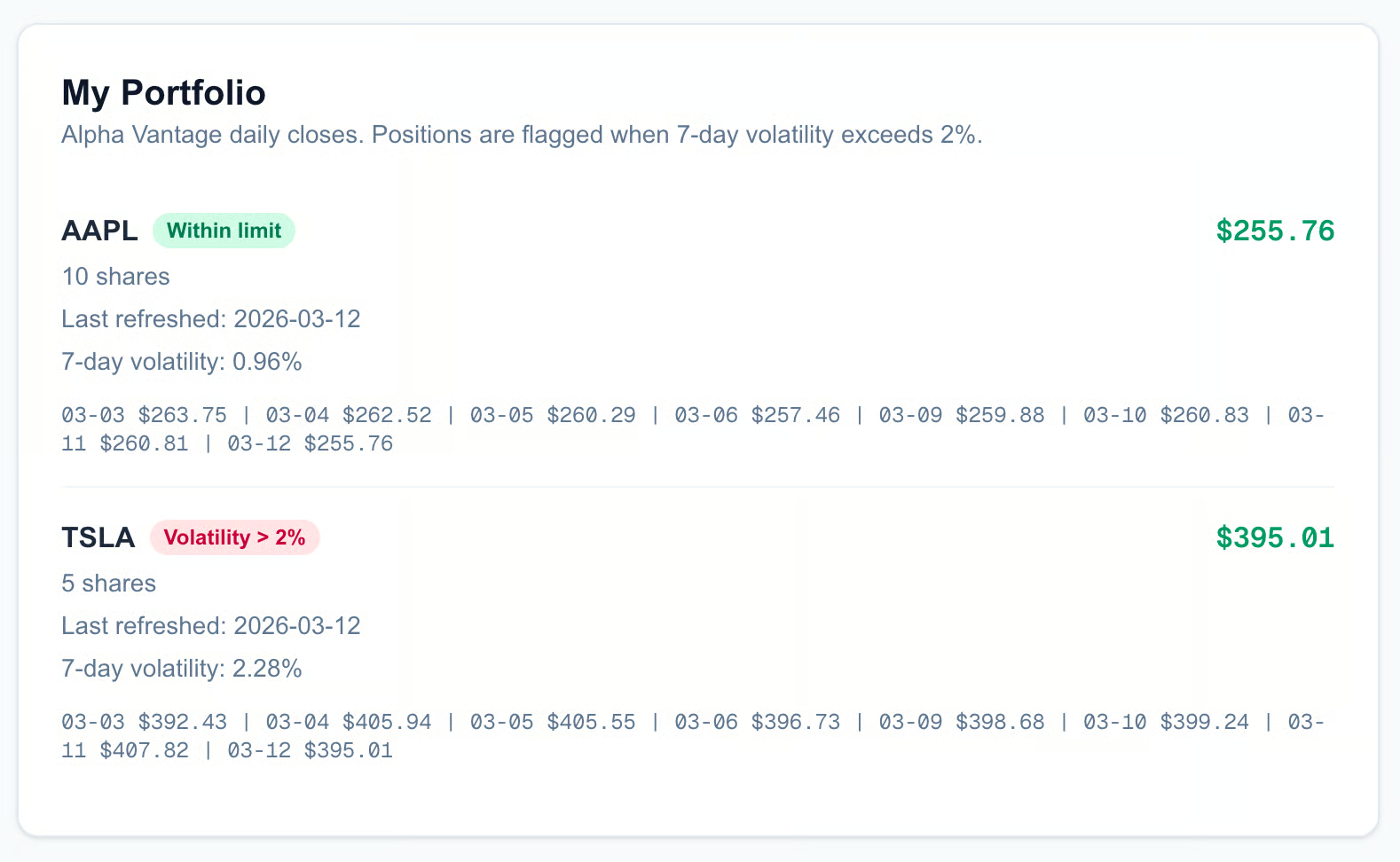
Deine finale UI kann vom Screenshot abweichen – je nachdem, wie Codex sie strukturiert. Du kannst im Prompt natürlich präziser werden und das Ziel-Layout genauer beschreiben.
Wenn du größere Systeme entwerfen willst – inklusive Handoffs, Tool-Abgrenzungen und Evaluierung –, empfehle ich unseren Kurs Building Scalable Agentic Systems.
Bisher haben wir Codex als Interface genutzt, das andere Tools aufruft. Jetzt wird’s spannend: Codex kann selbst als MCP-Server agieren.
So lassen sich die starken Fähigkeiten von Codex – Datei-Editing und Befehlsausführung – anderen MCP-Clients zur Verfügung stellen. Andere KI-Agenten können Codex also als Tool in ihren eigenen Workflows verwenden. Größter Vorteil: parallele Ausführung.
Du kannst z. B. einen Agenten Codex für das Frontend einsetzen, während ein anderer Agent eine separate Codex-Instanz für die Backend-API nutzt. Als getrennte Prozesse können sie gleichzeitig arbeiten – das spart massiv Zeit.
Wechsle mit codex mcp-server in den Servermodus.
Dann verhält sich Codex nicht mehr wie ein Chat, sondern lauscht auf Anweisungen anderer Programme und stellt seine Funktionen über STDIO bereit.
Bevor du es in komplexe Systeme integrierst, teste die Verbindung. Das MCP-Team stellt ein Inspector-Tool bereit. Starte es so:
npx @modelcontextprotocol/inspector codex mcp-server
Es öffnet sich ein Browserfenster, in dem du Codex manuell Kommandos schicken und die Antworten prüfen kannst – ideal fürs Debugging. Die UI sieht so aus:
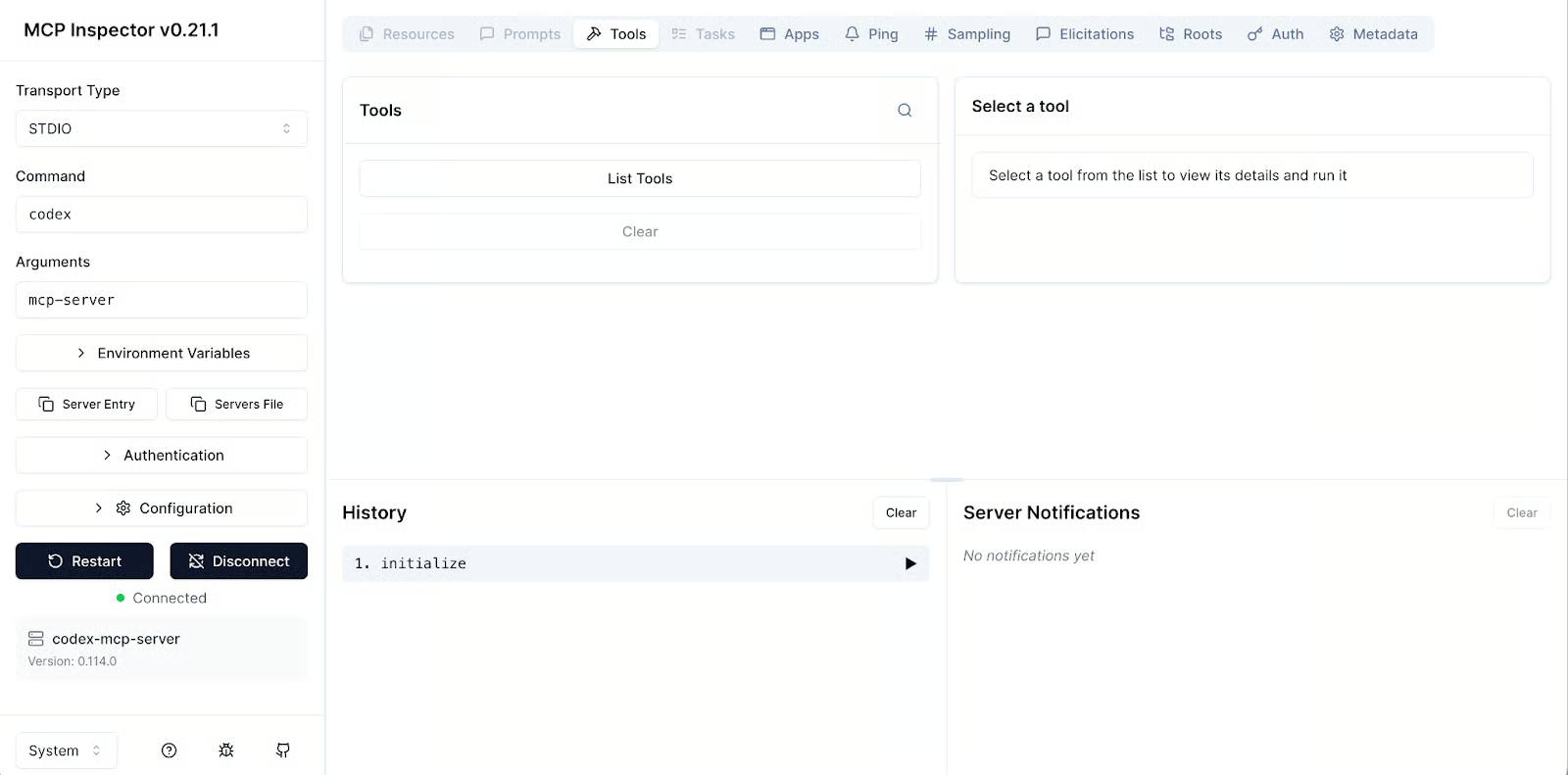
Wenn du Python nutzt, kannst du Codex mit dem OpenAI Agents SDK in eigenen Skripten orchestrieren. So „beauftragst“ du Codex mit gezielten Coding-Aufgaben.
Ein kurzes Setup-Beispiel. Mit MCPServerStdio startest du den Codex-Prozess:
Installiere im virtuellen Python-Umfeld das Paket openai-agents:
pip install openai-agents
Lege für den Codex-Prozess eine Datei orchestrator.py an:
from agents import Agent
from agents.mcp import MCPServerStdio

# initialize connection
codex_server = MCPServerStdio(
    name="Codex CLI",
    params={
        "command": "npx",
        "args": ["-y", "codex", "mcp-server"]
    },
    client_session_timeout_seconds=360000,
)
# create codex agent
agent = Agent(
    name="Lead Developer",
    mcp_servers=[codex_server]
)
In diesem Setup stellt der Codex MCP-Server zwei Haupt-Tools bereit: codex() und codex-reply(). Der Unterschied ist wichtig, um den Arbeitskontext zu bewahren.
codex() nutzt du, um eine neue Session oder Aufgabe zu starten. codex-reply() setzt eine bestehende Unterhaltung fort und benötigt eine conversationId, um korrekt zuzuordnen.Der Parameter client_session_timeout_sessions begrenzt, wie lange der Client eine Session mit dem jeweiligen MCP-STDIO-Server offen hält. Wir wählen großzügige 360.000 Sekunden (100 Stunden), damit langlaufende Workflows nicht an Idle-Timeouts scheitern.
Die Community liefert zusätzliche Wrapper, die das Ganze vereinfachen. Besonders erwähnenswert ist das codex-mcp-wrapper Repository auf GitHub – ideal, um Codex z. B. in Claude Code einzubinden.
Nun, da wir Codex als Server betreiben können, schauen wir uns ein Szenario aus der Praxis an. Wir orchestrieren eine Multi-Agent-Pipeline, in der mehrere KI-Agenten zusammenarbeiten und unser Finance-Dashboard deutlich schneller erweitern als ein einzelner Agent.
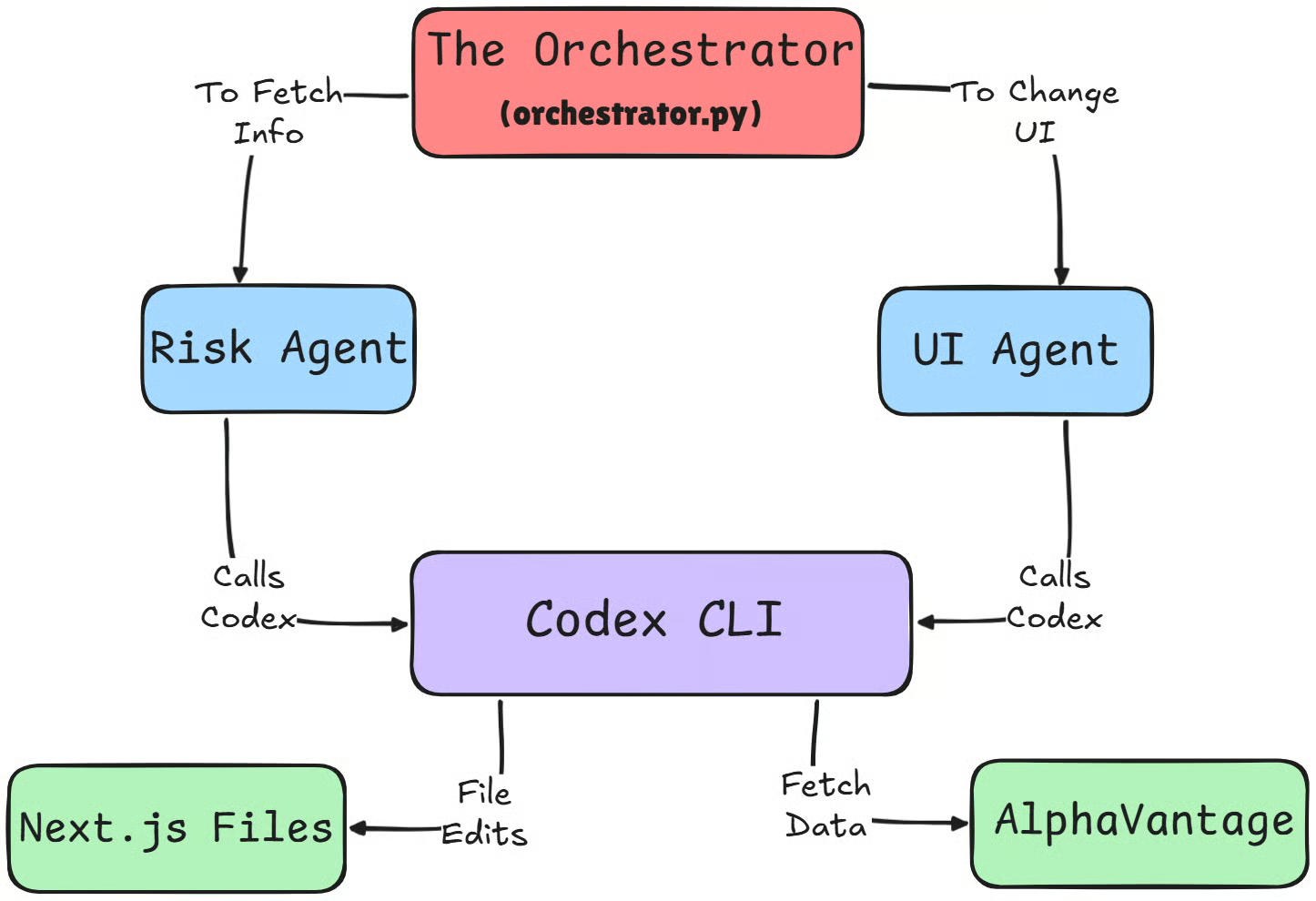
Falls dir Multi-Agent-Design noch abstrakt erscheint, hilft diese klare Einführung in gängige Agenten-Architekturen und typische Einsatzfälle.
Wir nutzen ein Python-Skript als Orchestrator. Statt einem Agenten alles aufzubürden, starten wir zwei spezialisierte:
Da wir Codex nun als Headless-MCP-Server aus dem Agents SDK betreiben, müssen sowohl das SDK als auch die Codex-Prozesse gegenüber OpenAI authentifiziert sein – nicht nur die interaktive CLI.
Setze daher OPENAI_API_KEY (optional auch CODEX_API_KEY) in deiner Umgebung, bevor du den Orchestrator startest, damit alle Teile mit den Modellen sprechen können. Führe aus:
export OPENAI_API_KEY=<your-key>Wir initialisieren zwei unabhängige Codex-MCP-Server in einem async with-Block für stabile, isolierte Verbindungen (ein Prozess pro Agent) – das ermöglicht echte Parallelität. Hier das Skript orchestrator.py:
import os
import asyncio
from dotenv import load_dotenv
from agents import Agent, Runner
from agents.mcp import MCPServerStdio


load_dotenv()


async def main():
    async with MCPServerStdio(
        name="Codex-Risk-Server",
        params={
            "command": "npx",
            "args": ["-y", "codex", "mcp-server"],
            # Codex itself uses your existing auth (codex login / OPENAI_API_KEY)
            "env": {
                # pass through any env you already rely on inside Codex
                "OPENAI_API_KEY": os.getenv("OPENAI_API_KEY", ""),
                "CODEX_API_KEY": os.getenv("CODEX_API_KEY", ""),
            },
        },
        client_session_timeout_seconds=360000,
    ) as codex_risk_server, MCPServerStdio(
        name="Codex-UI-Server",
        params={
            "command": "npx",
            "args": ["-y", "codex", "mcp-server"],
            "env": {
                "OPENAI_API_KEY": os.getenv("OPENAI_API_KEY", ""),
                "CODEX_API_KEY": os.getenv("CODEX_API_KEY", ""),
            },
        },
        client_session_timeout_seconds=360000,
    ) as codex_ui_server:

        # 1. Define specialized agents (both just use the 'codex' tool)
        risk_agent = Agent(
            name="Codex-Risk",
            instructions=(
                "You are a quant analyst. Use the 'codex' tool to compute VaR and "
                "Sharpe ratio for all positions in the portfolio-dashboard project. "
                "Assume Alpha Vantage integration and volatility logic are already implemented "
                "in the code; reuse and extend that code instead of re-calling external APIs."
            ),
            mcp_servers=[codex_risk_server],
        )

        ui_agent = Agent(
            name="Codex-UI",
            instructions=(
                "You are a frontend developer. Use the 'codex' tool to update the UI in "
                "the portfolio-dashboard project. Your job is to add a VaR (95%) column "
                "to the RiskTable / PortfolioCard views, with clear red/green conditional styling."
            ),
            mcp_servers=[codex_ui_server],
        )

        # 2. Run Risk + UI agents concurrently
        risk_task = Runner.run(
            risk_agent,
            "Compute portfolio VaR (95%) for all positions and write the results into the codebase "
            "in a way that the UI can easily consume (e.g., exported constants or helper functions).",
        )
        ui_task = Runner.run(
            ui_agent,
            "Prepare or update the RiskTable / PortfolioCard components to display a VaR (95%) "
            "column, assuming the risk logic already exists in the project.",
        )

        risk_result, ui_result = await asyncio.gather(risk_task, ui_task)

        print("=== Codex-Risk result ===")
        print(risk_result.final_output)
        print("\n=== Codex-UI result ===")
        print(ui_result.final_output)

        # 3. Optional second pass: let UI agent consume the exact risk output
        followup_ui_result = await Runner.run(
            ui_agent,
            (
                "Now update the UI to wire in the actual VaR values. "
                f"Context from the risk agent: {risk_result.final_output}"
            ),
        )

        print("\n=== Codex-UI follow-up ===")
        print(followup_ui_result.final_output)


if __name__ == "__main__":
    asyncio.run(main())
Im selben Terminalfenster, in dem du deinen OpenAI API Key gesetzt hast, führst du das Orchestrierungs-Skript aus:
python orchestrator.pyDie Agenten prüfen eigenständig die Alpha Vantage-Doku via MCP, holen historische Daten und schreiben die Python- oder TypeScript-Logik zur Berechnung des Value at Risk für dein Portfolio.
Nachdem beide Codex-Instanzen die nötigen Änderungen vorgenommen haben, kannst du sie mit npm run dev im Browser visualisieren. Das Ergebnis könnte so aussehen:
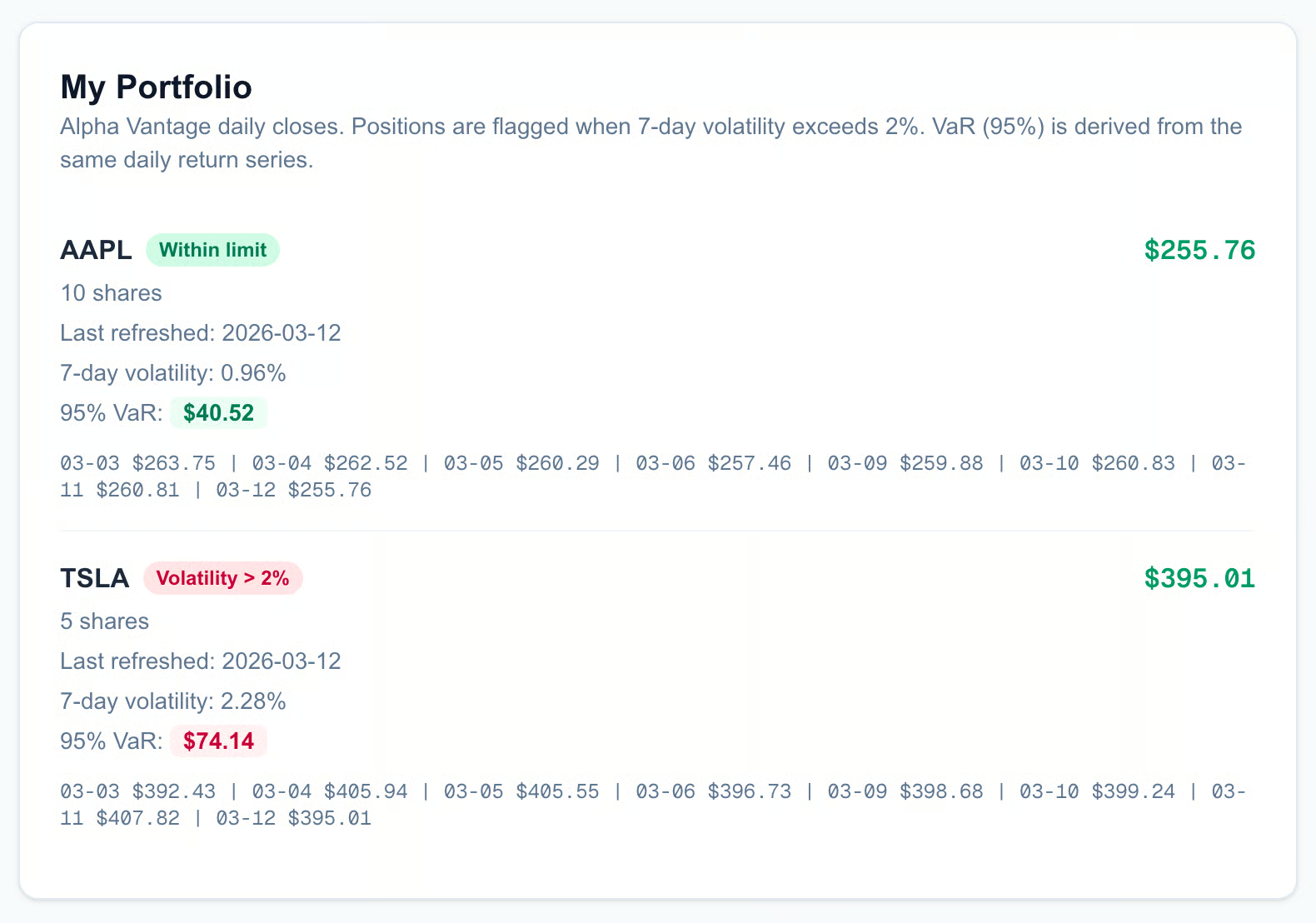
Durch die Aufgabenteilung verkürzen wir einen Prozess, der sonst 20 Minuten Hin und Her kosten würde, zu einer vollautomatisierten Pipeline. Der Risk-Agent übernimmt die Mathematik, der UI-Agent die Umsetzung – und das Dashboard ist in Sekunden aktualisiert.
Die Magie steckt im Ausführungsmodell. In klassischen Chat-Interfaces laufen Tool-Aufrufe sequentiell – erst Daten abrufen, dann das Diagramm aktualisieren.
Mit MCP und Multi-Agenten erreichen wir echte Gleichzeitigkeit. Während der Codex-Risk Agent auf die Alpha Vantage-API wartet, kann der Codex-UI Agent bereits Spalten anlegen und CSS-Klassen setzen.
So wird aus 15–20 Minuten Hin und Her ein schlanker Ablauf. Von Rohdaten über komplexe Risikoanalyse bis zur fertigen UI in rund 5 Minuten.
Wie bei jedem mächtigen Tool, das deinen Code mit der Außenwelt verbindet, gilt: Sicherheit beachten. Codex und MCP eröffnen enorme Möglichkeiten, aber auch neue Angriffsflächen und praktische Einschränkungen – wichtig, bevor du in Produktion gehst.
Der kritischste Punkt ist die Konfiguration selbst. In älteren Codex-CLI-Versionen gab es eine Schwachstelle, bei der via config.toml in Kombination mit einer .env, die CODEX_HOME auf ein lokales Verzeichnis setzte, schädliche Kommandos injiziert werden konnten. Das ist gepatcht – deshalb unbedingt Version v0.23.0 oder höher verwenden.
Trotzdem bleibt ein Restrisiko. Weil Codex projektbezogene Konfigurationen respektiert, kann ein geklontes Repo mit bösartiger .codex/config.toml und einer .env, die CODEX_HOME=./.codex setzt, beim Ausführen von codex im Ordner unerwartete Kommandos triggern.
Gewöhne dir daher an, die Konfiguration neuer Repos zu prüfen – mit größter Sorgfalt, bevor du etwas startest.
Praktisch gibt es noch Ecken und Kanten. Derzeit existiert kein eingebauter „Connectivity-Test“ beim Start der CLI. Codex meldet nicht automatisch, wenn ein MCP-Server down ist. Du musst das Modell ausdrücklich anweisen (z. B. „Check my tools“), um die Verbindung zu prüfen.
Und: So verlockend viele Tools sind – wähle selektiv. Zu viele MCP-Server verschlechtern die Modellleistung spürbar. Je mehr Tools, desto mehr Rauschen, was zu Verwirrung oder Halluzinationen führen kann. Hänge nur die Tools an, die du wirklich brauchst.
Zum Schluss ein schneller Vergleich mit Claude Code.
Für Automation und CI-Pipelines ist Codex CLI oft die bessere Wahl: leichtgewichtig, benutzerfreundlich, sehr gut skriptbar. Claude Code glänzt als interaktive Coding-Umgebung im Editor mit starker UX für Refactors, Testläufe und projektbezogene Assistenten.
Auch die Konfiguration unterscheidet sich: Codex setzt auf TOML – eine geteilte ~/.codex/config.toml für CLI und IDE-Extension plus optionale Projekt-Overrides via .codex/config.toml. Deine Umgebung ist damit standardmäßig geteilt, lässt sich aber pro Projekt anpassen.
Claude Code nutzt typischerweise JSON-basierte Settings – eine globale Konfig (z. B. ~/.claude.json) plus projektbezogene Dateien (wie .mcp.json oder Projekteinstellungen). Das erhöht die Isolation, kann aber etwas mehr Setup pro Repo bedeuten.
Beide Tools sind State of the Art bei KI-Coding-Agenten. Die Wahl hängt von deinem Workflow ab: Lebt der Agent primär im Terminal oder in CI-Jobs, passt Codex oft besser. Willst du vor allem einen Editor-first-Coding-Begleiter, fühlt sich Claude Code häufig natürlicher an.
|
Feature |
Codex CLI |
Claude Code |
|
Primärer Use Case |
CI/CD-Automatisierung, Headless-Skripte, Agent-Backends |
Editor-first, tiefe interaktive Coding-Sessions im IDE |
|
Konfigurationsformat |
TOML ( |
JSON-basierte Settings ( |
|
Konfigurations-Scope |
Geteiltes globales Profil mit Projekt-Overrides |
Globale Defaults plus starke Projektisolation |
|
Umgebung |
Terminal- und agentenzentriert, leicht integrierbar mit Agents SDK und CI |
IDE-zentriert, fokussiert auf In-Editor-UX, Refactors, Tests und MCP-Tools |
|
Automation |
Hochgradig skriptbar, headless via codex mcp-server ausführbar |
Unterstützt MCP im Projekt, primär für interaktive, UI-getriebene Workflows |
|
Setup-Aufwand |
Minimal, sobald |
Etwas mehr pro Projekt, dafür feingranulare, repo-lokale Konfig |
Für einen tieferen Vergleich lies unseren Codex vs Claude Code Guide.
Wir haben heute viel abgedeckt – von MCP-Grundlagen bis zum eigenen Codex-Agenten. Die wichtigste Erkenntnis ist die Stärke des Workflows an sich: MCP-Server konfigurieren, Codex starten und zusehen, wie Tools selbstständig die benötigten Daten finden – so baust du Features schneller, als es manuell möglich wäre.
Wenn du gerade erst startest, halte es simpel. Nimm Context7 für Doku-Recherchen und vielleicht einen API-basierten MCP wie Alpha Vantage, den wir heute genutzt haben. Werde mit diesem Flow vertraut, bevor du auf mehrere Agenten erweiterst.
Sobald du dich sicher fühlst, sind die Möglichkeiten riesig. Verbinde Figma, um UI-Code direkt aus Designs zu generieren, oder hänge Sentry an, damit Codex Produktionsbugs automatisch diagnostiziert und fixt. Experimentiere mit Codex-Subagenten und schau, wie viel Routinearbeit du abgeben kannst. Die Tools sind da, sie sind stark – nutze sie.
Wenn du KI-Anwendungen entwickeln willst, empfehle ich dir unseren Lernpfad AI Engineering with LangChain. Die Inhalte sind KI-native – du bekommst einen persönlichen Tutor, der dich von deinem Level aus gezielt zu professionellen KI-Workflows führt.
Agentic AI Courses
Lernpfad
Lernpfad
Kurs
Blog
Blog
Hesam Sheikh Hassani
15 Min.
Blog
Nathaniel Taylor-Leach
4 Min.
Tutorial
Kurtis Pykes
15 Min.
Tutorial
Matt Crabtree
5 Min.
Tutorial
Mark Pedigo
10 Min.