Course
Introduction to Claude Models
3 hr
14.4K
Enterprise AI adoption usually comes down to habit. Once a tool becomes part of how work gets done, it’s hard to replace.
That’s why, for many teams, Excel is still where forecasts, models, and decisions actually live. This makes it a strategic point for AI companies.
Whoever can make AI genuinely helpful inside spreadsheets gains real traction inside organizations.
Anthropic clearly saw that opportunity and introduced Claude in Excel. Claude’s models have shown strong performance on coding and reasoning benchmarks like HumanEval, and Excel behaves more like a structured programming system than people like to admit. So, cells, formulas, and dependencies reward tools that can trace logic and explain what’s happening, not just spit out answers.
However, for now, Claude in Excel is still a beta add-in. It runs in a sidebar, reads the workbook you have open, and explains formulas, traces dependencies, flags errors, and suggest fixes. It’s not magic. But for messy, real-world spreadsheets, it can make them much easier to understand.
Claude is an Excel add-in that works within Excel through a side-panel chat. In short, it can:
Imagine you open a workbook and one of the more important formulas that you’re using is returning the wrong result. You can ask Claude to explain that formula in plain language. It will walk you through each part of the logic, point out where the issue is, and suggest a fix. If you approve it, the change is applied directly to the sheet.
When Claude updates the formula, Excel highlights the affected cells. You can see exactly what changed and decide whether to keep it before moving on.
Working with Claude in Excel. Image by Author.
Let’s see how to use Claude in Excel on a daily basis.
In my view, before changing anything, you need to understand what the file is doing. Instead of learning about your workbook by moving around one cell at a time, ask direct questions. But remember to be specific in your prompts.
Here are some of the prompts I used in my own testing:
Claude reads the workbook and traces the logic for you. It follows formulas across sheets, explains how inputs flow into outputs, and surfaces the assumptions baked into the model.
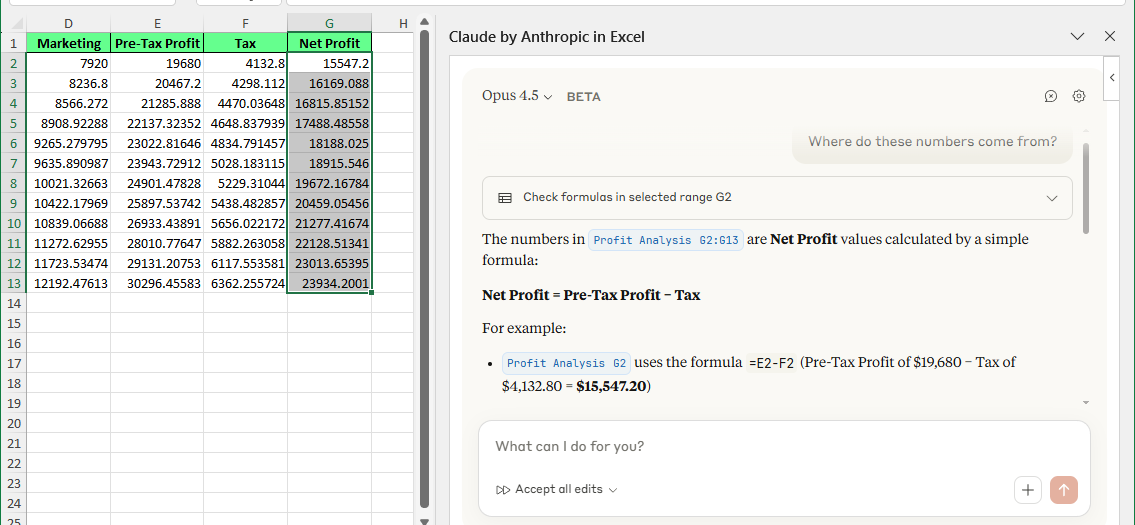
Ask questions with Excel Claude. Image by Author.
At this stage, you only use Claude to build a mental map of how the spreadsheet works.
Once the structure is clear, you can adjust inputs such as updating assumptions (rates, growth figures, or scenario variables) without editing the underlying formulas.
Here’s how:
That’s exactly what we did in the example below: we asked Claude to update an existing growth rate from 0.02 to 0.04, and it did change that.
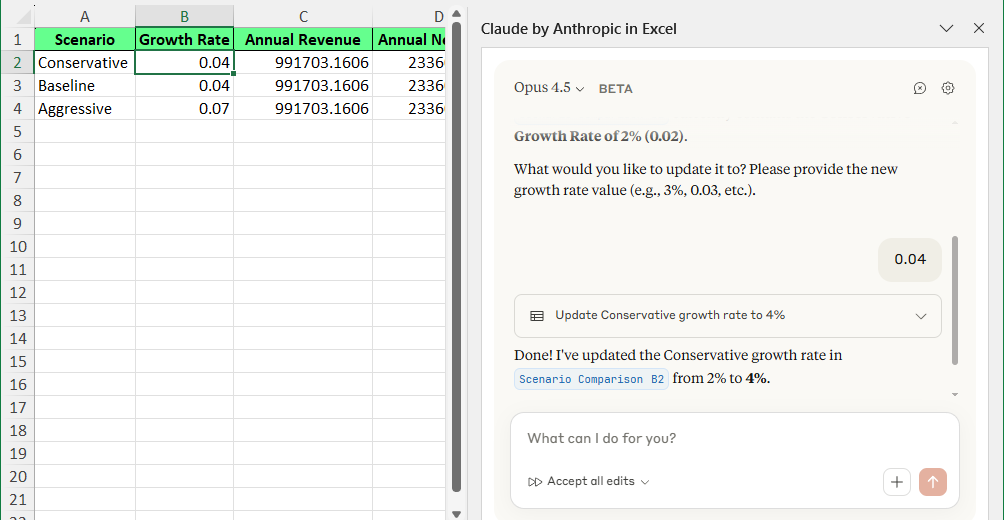
Claude made the changes directly. Image by Author.
If you get an error like #REF!, #VALUE!, or a circular reference, you don’t have to guess or patch over it.
Ask Claude why the error is happening. It would explain the cause, show how the logic broke, and propose fixes. If there’s more than one option, you can review them and choose the approach you want.
Once you approve a fix, the update is applied directly to the sheet. You understand what changed and why, instead of making the error disappear.
For example, we asked Claude to explain a #SPILL! error in a cell.
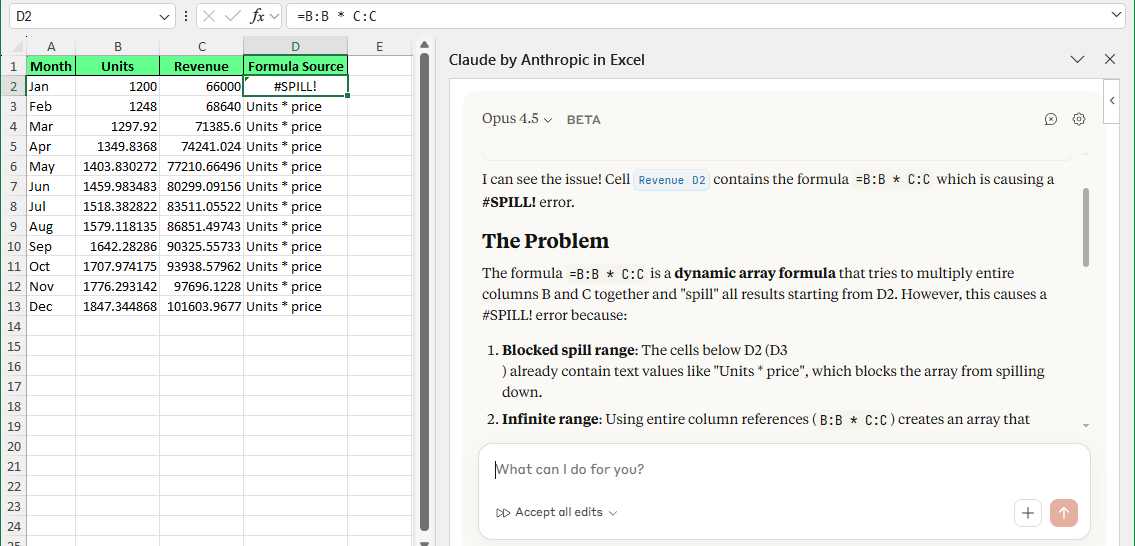
Debug the formula error directly. Image by Author.
After reviewing its explanation and suggested fixes, we asked it to apply the first option. And this is how it turned out:
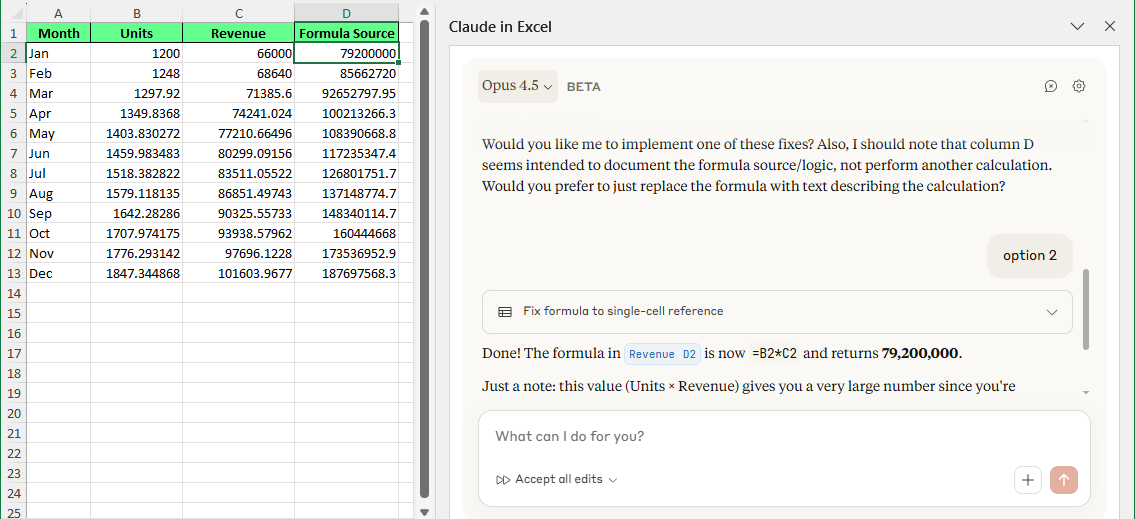
Claude fixed the bug without manual intervention. Image by Author.
After working with Claude on my Excel files, a few use cases consistently stood out. Here are the situations where it felt genuinely helpful:
When you’re staring at a nested formula and can’t tell what it’s doing, ask Claude to break it down. It explains the logic step by step and points to the exact cells involved.
Instead of jumping between sheets and chasing precedents, ask questions like: “Where does the value in G12 come from?” Claude traces the references across tabs and summarizes the flow in words.
When a workbook “works,” but it’s fragile or hard to maintain, Claude can help you clean up the logic. That might mean simplifying a formula, reducing duplication, or suggesting a clearer structure without forcing you to rewrite the whole file.
Inherited workbooks usually don’t have proper documentation, so you only make assumptions when trying to work with them. But Claude can surface what drives the outputs, so you can make changes with confidence instead of guessing.
Claude is helpful, but it has clear limits. So you should keep these in mind:
Claude can speed things up, but it doesn’t replace your understanding of formulas, logic, or spreadsheet design. It can suggest changes and explanations, but it can still be wrong. You’re responsible for knowing when something makes sense.
This isn’t a set-it-and-forget-it tool. You have to stay involved, review suggestions, approve changes, and decide which changes to apply.
Claude works with data and formulas. But it doesn’t read or modify macros, VBA code, or complex formatting rules. If your workbook depends heavily on those, it won’t cover that layer.
Claude reads the workbook you open. So, use it with files you trust and understand the data sensitivity of. Avoid running it on unknown files or spreadsheets containing information you shouldn’t expose.
In my opinion, Claude in Excel is most helpful when you are dealing with complex, confusing, or poorly documented spreadsheets.
Here are some common situations where it can save you time and reduce mistakes.
Suppose you get a workbook from a former employee. It has multiple sheets, long formulas, and hidden links, but no explanation of how anything works.
You open it and immediately hit the same questions:
Now select one output cell you care about and ask Claude to trace it.
For example, select the revenue forecast total and ask: “Explain how this revenue forecast is calculated.”
Claude traces the references across sheets and summarizes the chain in plain language—what the inputs are, what formulas transform them, and how the final value is produced.
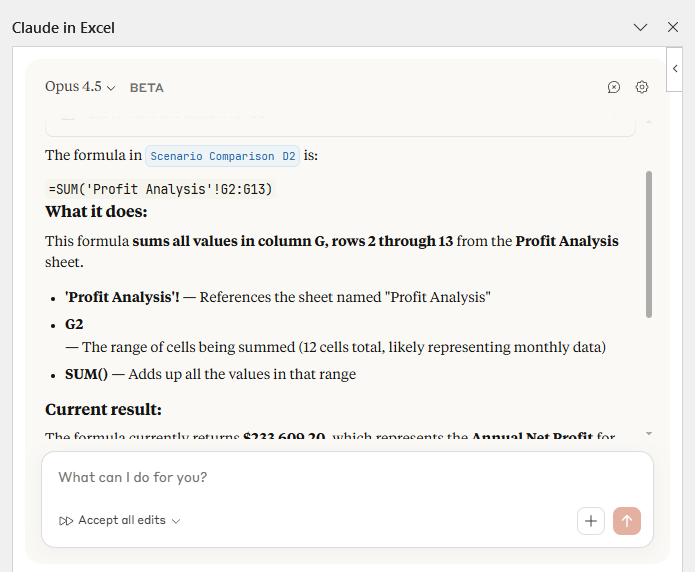
Or go even tighter: select a single formula cell and ask: “Explain what this formula does.” That way, it would give you a quick walkthrough on the logic so you can understand the model before you change anything.
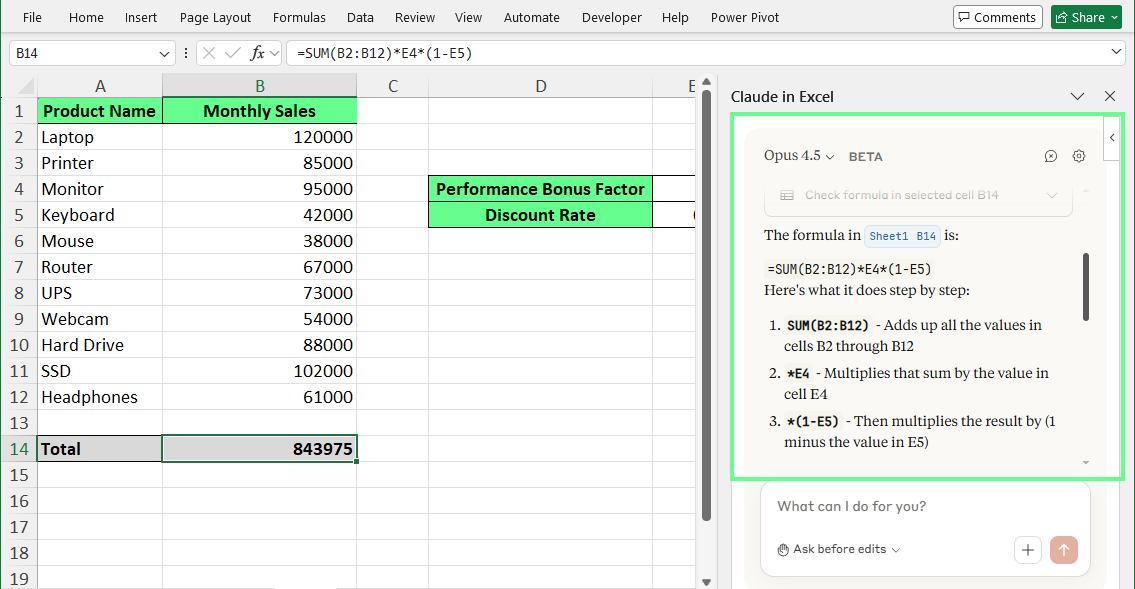
Claude in Excel explains the formula in a cell. Image by Author.
You open a spreadsheet and see an error in a key cell: #DIV/0!, #REF!, or #VALUE!. You know the result is wrong, but tracing the cause across sheets feels risky if the model feeds reports or forecasts.
In such a case, select the error cell and ask Claude why it’s happening.
For example, when a cell shows a #DIV/0! error, ask: “Why am I getting this error, and how do I fix it?”
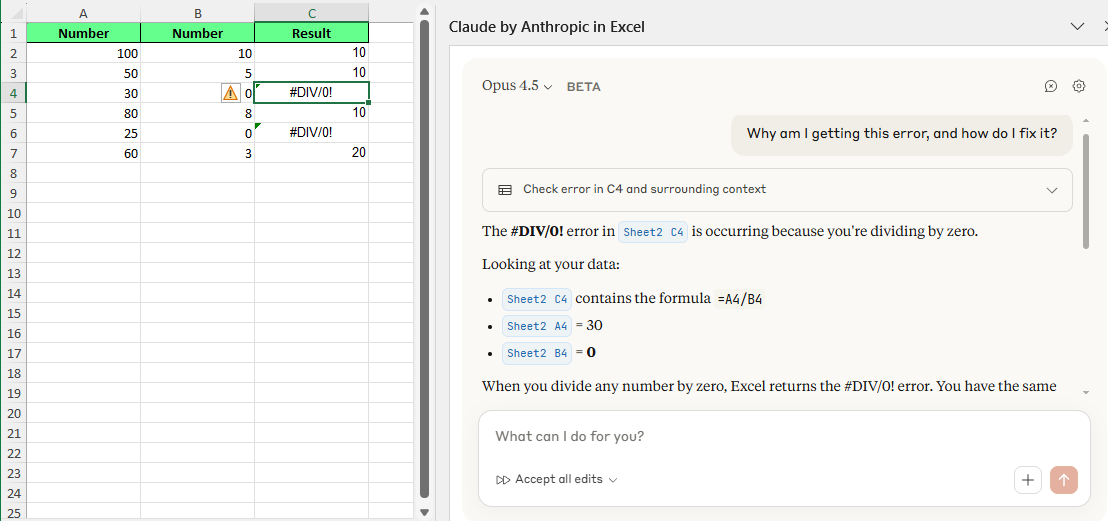
Ask Claude in Excel to fix the error. Image by Author.
Claude explains what caused the error, which referenced cells are involved, and where the logic breaks. It then suggests one or more fixes, such as checking for a zero value before division.
You review the options, choose one, and ask it to apply the fix directly in the sheet without guessing or patching over the problem.
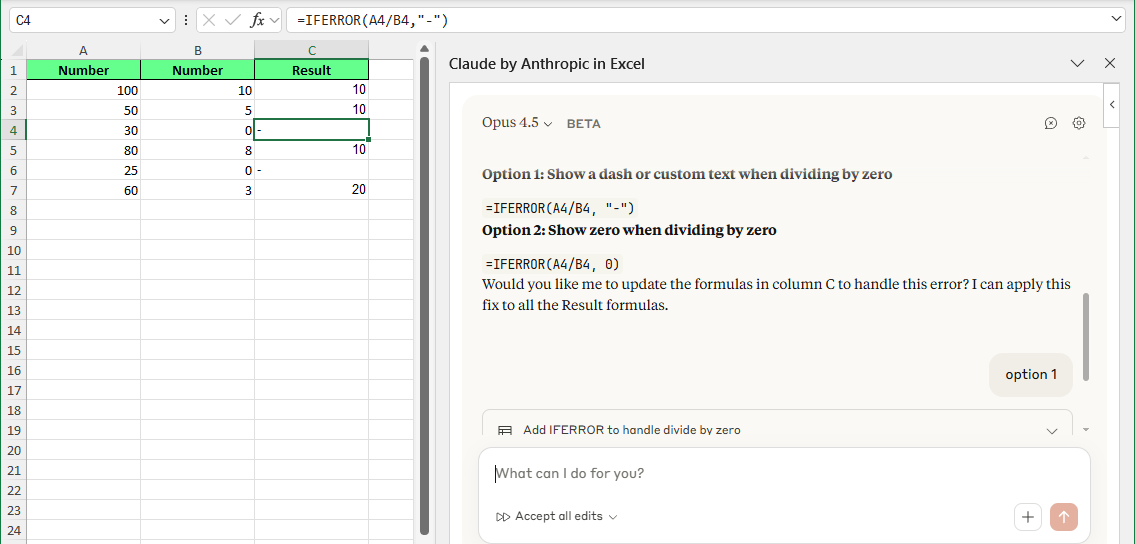
Claude fixes the error issues in a cell. Image by Author.
Suppose you’re asked to update an assumption, such as a tax rate or an exchange rate. You know the number is safe to change, but you don’t know how far the impact would go through the model.
Instead of editing the cell and hoping nothing disrupts, select the assumption and ask Claude what depends on it.
For example, if cell B2 contains the annual growth rate, you can ask: “What will change if I edit cell B2?”
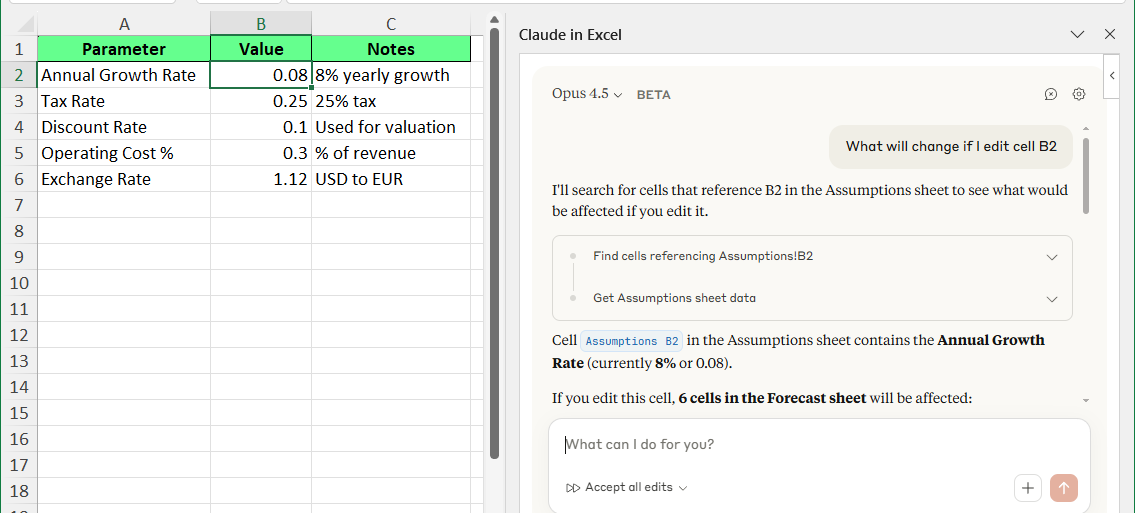
Change the assumption safely with Claude in Excel. Image by Author.
Claude traces the dependencies and shows which cells rely on that input, so you know the downstream impact before making the change.
With that context, you can update the assumption confidently without introducing hidden errors or breaking formulas you didn’t know existed.
If you have to hand a spreadsheet to a teammate, stakeholder, or client, it may be a bit difficult when there’s no documentation of how the model works. If someone else opens the file, they have to figure it out from scratch.
What you can do is ask Claude to summarize the sheet you’re working on.
For example, select a worksheet and ask: “Summarize what this sheet is used for.”
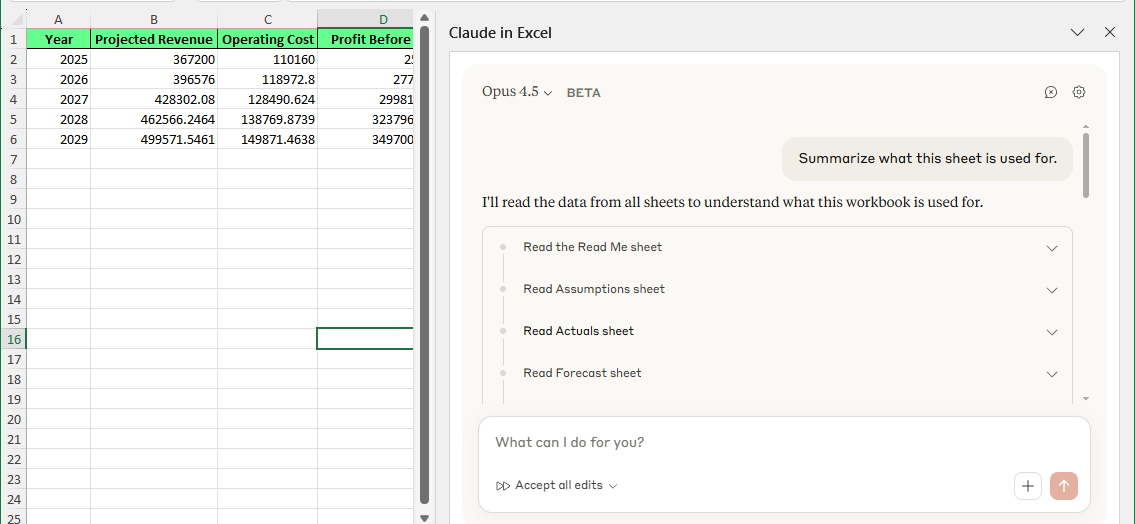
Claude summarizes the sheet. Image by Author.
Claude generates a plain-English explanation of the sheet’s purpose and logic. You can copy that summary into a notes section or create a “Read Me” tab for it.
That way, the next person and your future self doesn’t have to reverse-engineer the file to understand it.
Here’s how to set up and start using Claude in Excel:
To install and add Claude:
Once installed, Claude appears in the Excel ribbon.
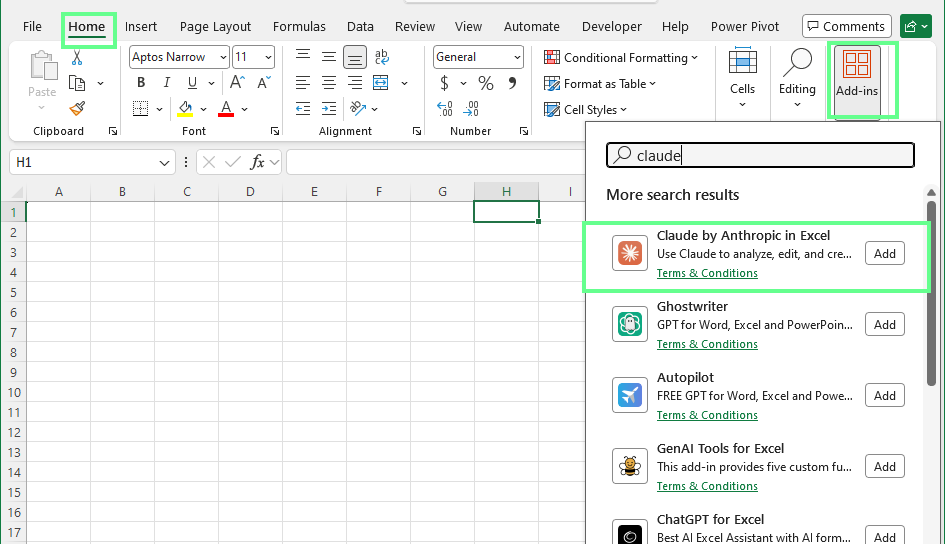
Enable the Claude add-in in Excel. Image by Author.
Note: If you don’t see Claude, confirm you’re using a supported Excel version and that add-ins are allowed by your organization’s IT settings. Or install from Microsoft Marketplace.
To sign in:
The sidebar opens with a chat input, ready to use.
Tip: If the sidebar closes, reopen it from Home > My Add-ins > Claude
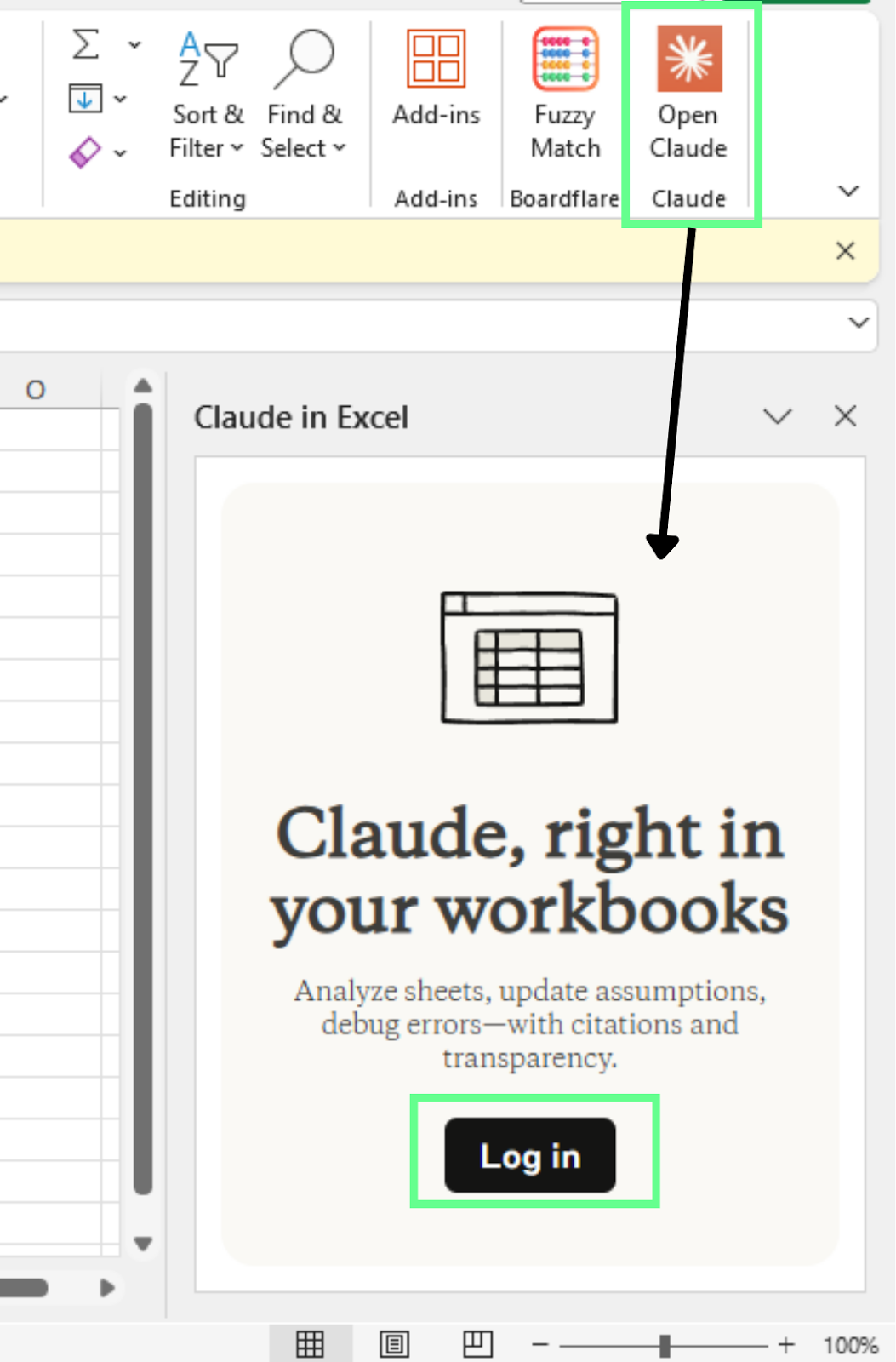
Log in to the Claude account. Image by Author.
When you first use Claude, don’t jump straight to changing formulas. First, understand the file. To do so, you can ask the following questions:
Once you’re comfortable with how the workbook works, you can make edits with more confidence.
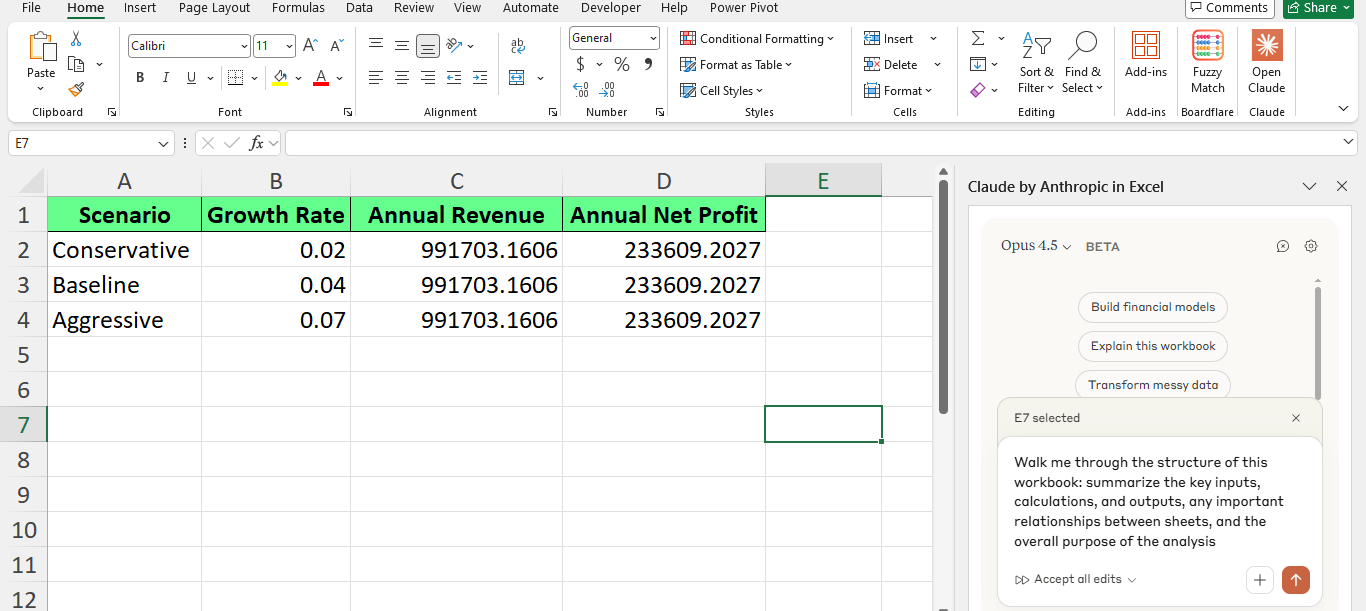
Side panel of Claude in Excel. Image by Author.
It’s reasonable to be cautious about using AI inside Excel. Your spreadsheets often contain sensitive data so you need visibility into every change and the ability to stop it if something doesn’t look right.
Let’s see how Claude addresses such concerns.
Claude doesn’t silently edit your file. When you ask it to fix a formula, clean data, or adjust logic, it shows you what it plans to change first.
For example, if you ask it to fix an error in cell F11, Claude explains the cause, proposes a fix, and shows the formula before and after. You review the change and decide whether to apply it.
This means although Claude supports analysis and suggestions, you remain in control. You review every proposed change and choose what gets applied.
Nothing updates without approval.
Prompt injection is when hidden text is used to influence how an AI behaves. In Excel, that can come from places you don’t immediately see, such as:
For example, a hidden cell could contain instructions meant to override normal behavior. This isn’t common in everyday business spreadsheets, but it can appear in files from unknown or external sources.
The safest approach is to use Claude with files you already trust, such as:
These files have known sources and established logic, which reduces risk.
Before using Claude on a workbook, ask:
If the answer is no, inspect the file first. Then decide whether to use Claude in Excel.
Both Claude and Copilot in Excel require human judgment—neither replaces Excel expertise.
These are not hard and fast rules, but some general thinking on how they differ:
|
Area |
Claude in Excel |
Microsoft Copilot |
|
Primary focus |
Explaining logic, tracing formulas, and understanding complex spreadsheets |
Inline assistance and quick automation inside Excel |
|
How it works |
Uses a sidebar to analyze cells, formulas, and multi-sheet models |
Works directly in the grid with context-aware suggestions |
|
Formula handling |
Explains formulas step by step and often offers multiple options |
Generates or edits formulas quickly for common tasks |
|
Best suited for |
Inherited workbooks, complex models, debugging, and documentation |
Fast edits, summaries, and everyday spreadsheet tasks |
|
User control |
Highlights changes and requires review before applying |
Requires review, but emphasizes speed and convenience |
|
Role of the user |
The user evaluates explanations and approves changes |
The user reviews and validates automated suggestions |
We recommend the following practices to help you get reliable results with Claude.
If you want to see whether Claude in Excel is helpful for your work, don’t start with a blank spreadsheet or a demo file. Start with a real one.
Open a workbook you didn’t build or one you haven’t touched in a while. Select a cell and ask a specific question, such as:
From there, move deliberately. Trace dependencies before changing assumptions. Ask why an error exists before fixing it. Generate a short summary of a sheet before handing the file to someone else.
That’s where Claude earns its place by helping you understand it well enough to make safer decisions. Treat it as a tool for maintenance and clarity, not speed alone, and you’ll get the most value out of it.
Learn with DataCamp
Course
Course
Course
blog
Abid Ali Awan
9 min
blog
Matt Crabtree
15 min
Tutorial
Bexruz (Bex) Tuychiev
9 min
Tutorial
Bexruz (Bex) Tuychiev
11 min
Tutorial
François Aubry
8 min
code-along
Aimée Gott