%22%3E%3Cpath%20d%3D%22m-369%200h408v79h-408z%22%20fill%3D%22%237933ff%22%2F%3E%3Cpath%20d%3D%22m-148%200h306v45h-306z%22%20fill%3D%22%23974dff%22%2F%3E%3C%2Fg%3E%3C%2Fsvg%3E)
%22%2F%3E%3C%2FclipPath%3E%3Cg%20clip-path%3D%22url(%23a)%22%3E%3Cpath%20d%3D%22m76%200h484v36h-484z%22%20fill%3D%22%23974dff%22%2F%3E%3Cpath%20d%3D%22m0%200h384v24h-384z%22%20fill%3D%22%2306bdfc%22%20transform%3D%22matrix(1%200%200%20-1%200%2060)%22%2F%3E%3C%2Fg%3E%3C%2Fsvg%3E)
What is Qwen 3.7 Max?
Qwen 3.7 Max is Alibaba’s new flagship model, released on May 20, 2026. It is built for agentic workflows. This means that, instead of being designed only for one-shot chat, it is optimized for tasks that require planning, tool use, coding, office automation, long-context reasoning, and multi-step execution.
The Qwen team describes it as a model for the “agent era,” with strengths across coding agents, productivity assistants, MCP-based workflows, and long-horizon autonomous tasks.
The interesting part for this model is not just raw benchmark performance, but its ability to stay consistent across a multi-turn task where each turn has a different purpose, including:
- planning
- evidence synthesis
- long-form writing
- self-critique
- Revision
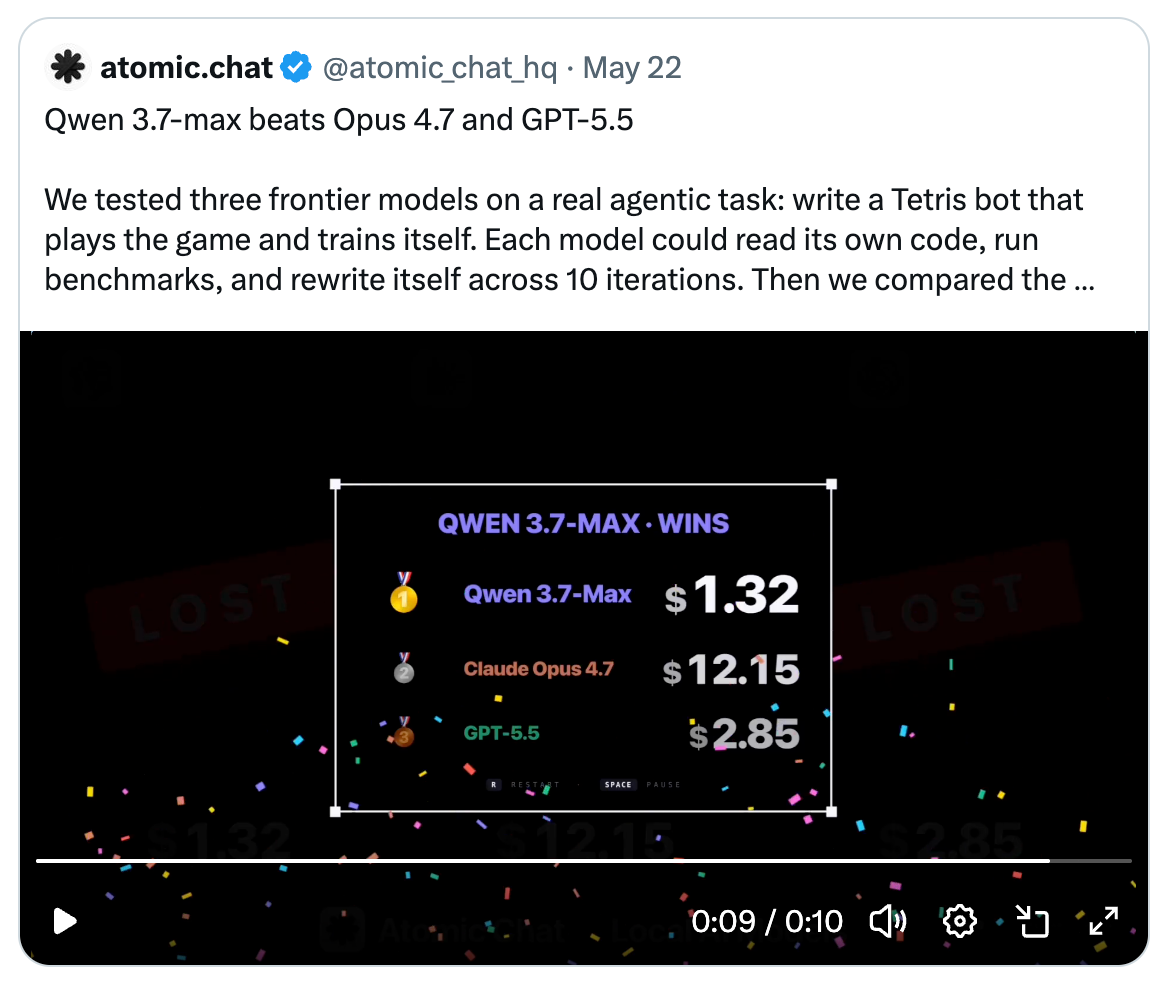
On X, users found that the model is on par with Opus 4.7 and GPT 5.5 for long-horizon coding tasks.
Qwen 3.7 Max strengths and benchmark performance
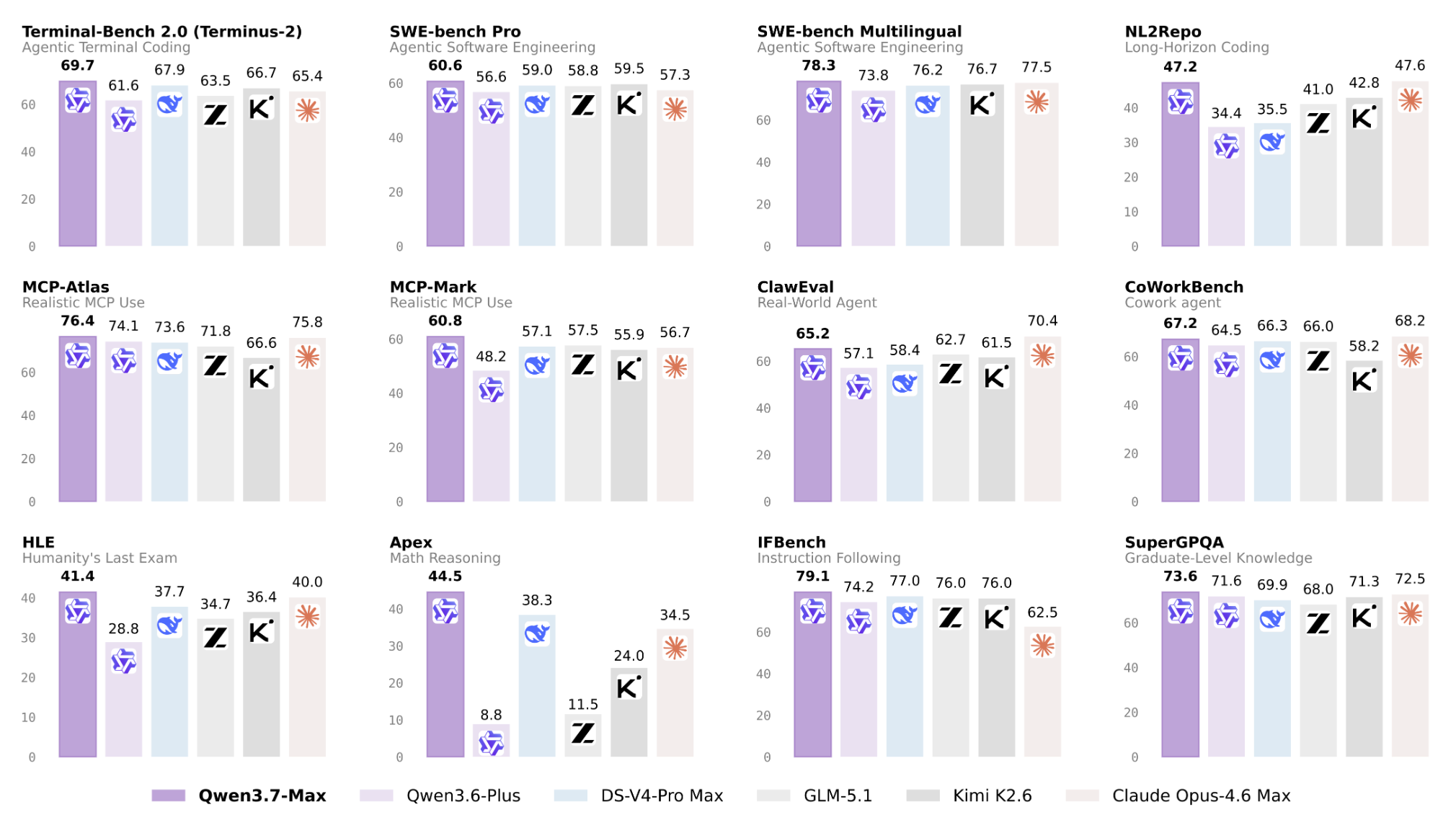
Qwen 3.7 Max performs strongly across agent and reasoning benchmarks. In coding-agent evaluations, it scores
- 69.7 on Terminal-Bench 2.0-Terminus
- 60.6 on SWE-bench Pro
- 78.3 on SWE-bench Multilingual
- 47.2 on NL2Repo
- 53.5 on SciCode
In general-agent benchmarks, it reaches
- 60.8 on MCP-Mark
- 76.4 on MCP-Atlas
- 67.2 on CoWorkBench
- 87.0 on SpreadSheetBench-v1
Source: Qwen developer blog
To give you an idea what that means: all of those results are ahead of DeepSeek V4 Pro’s scores; most of them slightly, but for long-horizon coding, there’s quite a significant gap between the two (47.2 vs 35.5 in NL2Repo).
Which brings us to one standout example from the release: Qwen 3.7 Max’s long-horizon kernel optimization run. Qwen 3.7 Max reportedly ran for around 35 hours, made 1,158 tool calls, completed 432 kernel evaluations, and produced a 10.0x geometric mean speedup over a Triton reference implementation.
This is important because it shows the model being evaluated on iterative tool-based improvement, not just static benchmark questions.
In short, Qwen 3.7 Max is a strong fit for this demo because it is built for workflows where the model needs to reason, use tools, preserve context, and improve an artifact over multiple turns.
Building a Thinking-Preserving Productivity Agent with Qwen 3.7 Max
In this project, we’ll demonstrate three practical ideas:
- A vague user request can be converted into a structured multi-step workflow.
- Tool outputs can be folded back into the reasoning process instead of being dumped into one long prompt.
- A model can re-read and improve its own output via chain-of-thought prompting before handing the final artifact to the user.
Project overview
We’ll build a simple application that has one input box and one button, and the user enters a vague request like:
I need to prepare a competitive analysis of the top 3 vector databases
for a team presentation next week. I have no idea where to start.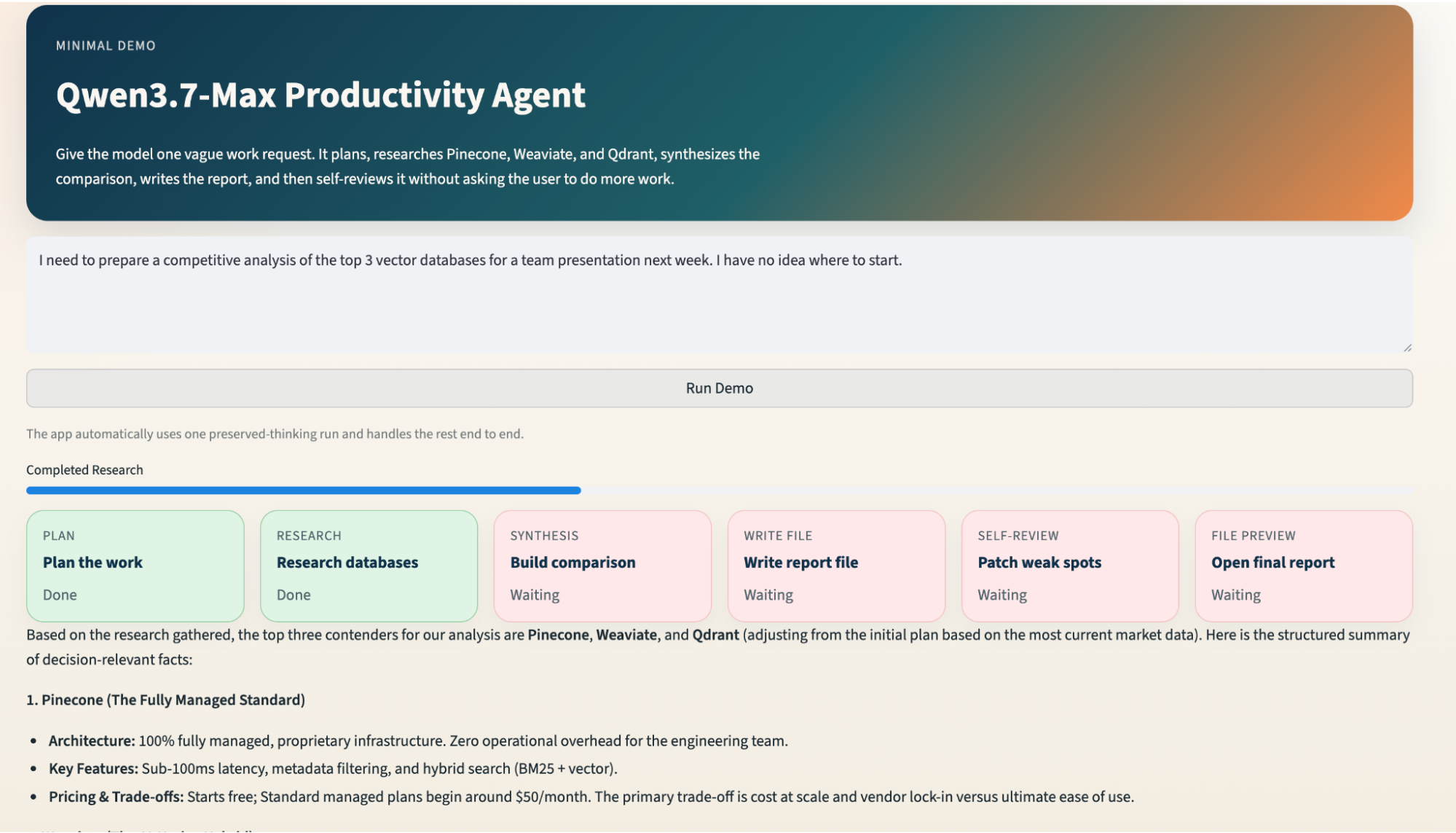
Then, the agent runs a fixed five-turn workflow:
User prompt
Turn 1: Plan the work
Parallel research for Pinecone, Weaviate, and Qdrant
Turn 2: Summarize research
Turn 3: Build comparison matrix
Turn 4: Write competitive_analysis.md
Turn 5: Self-review and patch the markdown file
Streamlit file previewThe UI shows each step as a progress card. As the workflow completes, the cards move from waiting to done. At the end, the user can inspect each stage: planning, research, synthesis, draft, self-review, and final file preview.
This makes the agent’s workflow visible instead of hiding everything behind a single chat response.
The repo is intentionally small. The main pieces are:
-
thinking_agent.py: It contains the backend agent logic, like model calls, prompts, thinking preservation, research, retries, file writing, and self-review. -
agent.py: This file contains the Streamlit interface, including page layout, prompt box, progress bar, step cards, result selector, markdown preview, and download button. -
requirements.txt: This contains runtime dependencies required for the demo
The backend centers on a ThinkingAgent class that runs a fixed five-turn sequence and returns structured turn records. The UI does not need to know how model calls, retries, or research fanout work. It only needs to render each turn as it arrives.
The complete code for this tutorial is available on GitHub.
Note: I used OpenRouter for accessing the Qwen 3.7 Max, but you can use the model via the official Qwen API Platform as well.
Step 1: Environment setup
Before building the Qwen 3.7 Max productivity agent, we need to set up a small Python environment with Streamlit, the OpenAI-compatible client, and httpx for lightweight web search.
In this tutorial, we will use OpenRouter as the model gateway, but the backend is written using the OpenAI-compatible API format. That means the same structure can be adapted later for Alibaba Cloud Model Studio or any other compatible provider.
In this step, we will:
-
Create a virtual environment
-
Install the required dependencies
-
Set the
OPENROUTER_API_KEYorQWEN_API_KEY -
Confirm that the app can be launched with Streamlit
Create and activate a virtual environment:
Install the project dependencies:
The requirements.txt file is intentionally small:
We use streamlit to build the interactive web interface, openai to call Qwen 3.7 Max via an OpenAI-compatible API, and httpx to fetch lightweight live search results for the research step.
Step 2: Configure the Qwen 3.7 Max client
The backend uses the OpenAI Python SDK because OpenRouter exposes an OpenAI-compatible endpoint. The thinking_agent.py file defines a few defaults:
from openai import OpenAI
DEFAULT_MODEL = "qwen/qwen3.7-max"
DEFAULT_BASE_URL = "https://openrouter.ai/api/v1"
DEFAULT_REFERER = "https://qwen.ai"
DEFAULT_TITLE = "Qwen3.7-Max Productivity Agent"Then we create a client:
def build_client(
   api_key: str | None = None,
   base_url: str | None = None,
   referer: str = DEFAULT_REFERER,
   title: str = DEFAULT_TITLE,
) -> OpenAI:
   return OpenAI(
       base_url=base_url or DEFAULT_BASE_URL,
       api_key=api_key,
       default_headers={
           "HTTP-Referer": referer,
           "X-Title": title,
       },
)The build_client() function centralizes all provider-specific configuration. The rest of the app does not need to know whether the request is going through OpenRouter, Alibaba Cloud Model Studio, or another compatible endpoint.
Once the client is configured, the backend can call Qwen 3.7 Max using the standard chat completions format.
Now, we’ll build the core ThinkingAgent workflow.
Step 3: Five-turn agent workflow
Now that the model client is configured, we can define the core backend workflow. Instead of asking Qwen 3.7 Max to generate a full report in one shot, we split the task into five controlled stages.
-
Planning: Turns the vague prompt into a structured task plan.
-
Research: Collects and summarizes evidence from external snippets.
-
Synthesis: Builds a comparison matrix from the research.
-
Draft: Writes the first
competitive_analysis.mdreport. -
Self-review: Reviews and patches the report before returning the final file.
class ThinkingAgent:
   def run(
       self,
       goal: str,
       preserve_thinking: bool = True,
       data_mode: str = "live",
       on_turn: Callable[[TurnRecord], None] | None = None,
   ) -> ThinkingRunResult:
       history = [{"role": "system", "content": SYSTEM_PROMPT}]
       turns = []
       backend = self._build_search_backend(data_mode)
       turn1 = self._run_turn(
           history=history,
           turn_index=1,
           phase="planning",
           user_prompt=_planning_prompt(goal),
           preserve_thinking=preserve_thinking,
       )
       search_results = self._run_research(backend)
       turn2 = self._run_turn(
           history=history,
           turn_index=2,
           phase="research",
           user_prompt=_research_prompt(goal, search_results),
           preserve_thinking=preserve_thinking,
       )


       turn3 = self._run_turn(
           history=history,
           turn_index=3,
           phase="synthesis",
           user_prompt=_synthesis_prompt(),
           preserve_thinking=preserve_thinking,
       )
       turn4 = self._run_turn(
           history=history,
           turn_index=4,
           phase="draft",
           user_prompt=_draft_prompt(goal),
           preserve_thinking=preserve_thinking,
       )
       turn5 = self._run_turn(
           history=history,
           turn_index=5,
           phase="self_review",
           user_prompt=_self_review_prompt(draft_markdown),
           preserve_thinking=preserve_thinking,
)The run() method is the main orchestration loop. It starts with a system prompt, creates a conversation history, builds a research backend, and then executes the five turns one by one.
Each call to _run_turn() has a specific phase. This makes the workflow easier to debug because each model call has one clear responsibility. The planning turns plans. The research turn interprets external snippets. The synthesis turn builds structure. The draft turn writes. The self-review turn improves the output.
The research step is placed between Turn 1 and Turn 2 because the model first needs to understand the task before external information is folded into the workflow.
In the next step, we’ll add the Qwen-specific thinking preservation logic that helps the model maintain continuity across these turns.
Step 4: Preserve thinking across turns
The main reason we use Qwen 3.7 Max in this demo is its support for thinking-preserving workflows. The agent does not treat each model call as an isolated prompt. Instead, it can preserve reasoning from earlier turns and pass that context into later turns.
In this step, we will:
- Enable model thinking.
- Preserve reasoning across turns.
- Append assistant outputs back into the shared history.
response = self.client.chat.completions.create(
   model=self.config.model,
   messages=request_messages,
   extra_body={
       "enable_thinking": True,
       "preserve_thinking": preserve_thinking,
   },
)The enable_thinking=True flag allows Qwen 3.7 Max to produce reasoning content during the response. While the preserve_thinking flag controls whether that reasoning content should be kept across later turns.
After the model responds, the backend extracts both the visible answer and the reasoning content:
message = response.choices[0].message
assistant_content = _normalize_text(getattr(message, "content", ""))
reasoning_content = _extract_reasoning_content(message)
The visible answer is what the app can show to the user. The reasoning content is used internally to help the next turn stay aligned with the earlier plan.
Then the backend appends the assistant message back into the conversation history:
```python
assistant_message = {
   "role": "assistant",
   "content": assistant_content,
}
if preserve_thinking and reasoning_content:
   assistant_message["reasoning_content"] = reasoning_content
history.append(assistant_message)If the planning turn decides that the final report should compare vector databases across deployment model, scalability, developer experience, hybrid search, and enterprise readiness, later turns can continue using those criteria. Without this, each turn may drift. The synthesis step might choose different criteria from the planning step, or the self-review step might evaluate the report against a different goal.
We’ll next add the research layer that gives the agent external context before it writes the report.
Step 5: Add parallel research with fallback data
Before the model writes a competitive analysis, it needs some external context. In this demo, we keep the research scope fixed by comparing three vector databases: Pinecone, Weaviate, and Qdrant.
In this step, we will:
- Define the target databases.
- Run research calls in parallel.
- Fall back to deterministic fixture data if live search fails.
The target list is fixed intentionally. This keeps the demo stable and easier to explain. Later, you can extend the project so the model chooses the comparison targets dynamically.
Next, the backend launches research calls in parallel:
from concurrent.futures import ThreadPoolExecutor, as_completed
with ThreadPoolExecutor(max_workers=3) as executor:
   future_map = {
       executor.submit(backend.search, database, query): database
       for database, query in queries.items()
   }
   for future in as_completed(future_map):
       database = future_map[future]
results[database] = future.result()The ThreadPoolExecutor starts one search per database. This is faster than running the searches sequentially because Pinecone, Weaviate, and Qdrant research can run in parallel.
try:
   results[database] = future.result()
except Exception as exc:
   fallback = FixtureSearchBackend().search(database, queries[database])
   fallback.warning = (
       f"Live search failed for {database} ({exc}). "
       "Fallback demo research was used."
   )
results[database] = fallbackIf live search works, the agent uses fresh snippets. If it fails, the app still completes the workflow using built-in deterministic research snippets. The important design principle is graceful degradation. The agent should not crash just because one external dependency fails.
In the next step, we’ll pass these research results into Qwen 3.7 Max so it can synthesize a comparison matrix.
Step 6: Generate the synthesis and comparison matrix
Once the agent has research snippets, the next job is synthesis. This step turns scattered information into a structured comparison that can support the final report.
In this step, we will:
- Send the research context back to Qwen 3.7 Max.
- Ask the model to create a structured comparison.
- Later render that output in the Streamlit interface.
turn3 = self._run_turn(
   history=history,
   turn_index=3,
   phase="synthesis",
   user_prompt=_synthesis_prompt(),
   preserve_thinking=preserve_thinking,
)By the time this code runs, the conversation history already contains the original user request, the planning output, the research summaries, and optionally the preserved thinking from earlier turns.
This means the synthesis prompt does not need to restate the entire task. It can focus on one job, i.e., converting the research into a decision-ready comparison matrix.
A good synthesis should compare the options across dimensions such as:
- Deployment model
- Scalability
- Developer experience
- Hybrid search support
- Enterprise readiness
- Best-fit use case
Further, we’ll use this synthesized structure to write the first Markdown report.
Step 7: Write the markdown report
After planning, research, and synthesis, the agent has enough context to write the first complete deliverable. In this demo, the deliverable is a markdown file called competitive_analysis.md.
In this step, we will:
- Ask Qwen 3.7 Max to write the first report draft.
- Strip unnecessary markdown code fences.
- Save the draft to disk.
- Record the file-write action as a tool event.
turn4 = self._run_turn(
   history=history,
   turn_index=4,
   phase="draft",
   user_prompt=_draft_prompt(goal),
   preserve_thinking=preserve_thinking,
)The draft turn uses all previous context, including the user’s original goal, the plan, the research, and the synthesis matrix.
The model response is then cleaned and written to disk:
draft_markdown = _strip_markdown_fences(turn4.assistant_content)
report_path = run_output_dir / "competitive_analysis.md"
report_path.write_text(draft_markdown)The _strip_markdown_fences() helper is useful because models often wrap markdown output inside triple backticks. That is fine in a chat response, but it is not ideal when writing directly to a .md file.
The backend also records the write action:
turn4.tool_events.append(
   ToolEvent(
       name="write_file",
       status="completed",
       input_payload={"path": str(report_path)},
       output_payload={
           "description": "Initial draft written to disk.",
       },
   )
)This tool event helps the UI show that the backend created a real file, not just another text response. At this stage, the app already has a usable report. But we add one more model turn to improve quality before showing the final artifact.
In the next step, we’ll ask Qwen 3.7 Max to review and patch its own draft.
Step 8: Self-review and patch the report
The final model turn is a self-review step. Instead of immediately handing the first draft to the user, the agent re-reads the report, checks it against the original goal, and writes an improved version.
In this step, we will:
- Send the draft markdown back to the model.
- Ask the model to identify weaknesses.
- Generate a revised version.
- Overwrite the report with the improved final version.
turn5 = self._run_turn(
   history=history,
   turn_index=5,
   phase="self_review",
   user_prompt=_self_review_prompt(draft_markdown),
   preserve_thinking=preserve_thinking,
)The self-review prompt asks the model to check for practical issues, such as whether the recommendation is clear, whether the comparison criteria are consistent, and whether the report is useful for a team presentation.
The revised output is written back to the same file:
final_markdown = _strip_markdown_fences(turn5.assistant_content)
report_path.write_text(final_markdown)The agent can also record the final write event:
turn5.tool_events.append(
   ToolEvent(
       name="write_file",
       status="completed",
       input_payload={"path": str(report_path)},
       output_payload={
           "description": "Self-reviewed final report written to disk.",
       },
   )
)This step turns the app from a simple generator into a small editorial workflow. The output the user sees is not the first draft; it is the reviewed and patched version.
Next, we’ll connect this backend workflow to the Streamlit app.
Step 9: Build the Streamlit progress interface
Now we move from backend logic to the user interface. The Streamlit app should let the user enter a prompt, run the workflow, and watch each stage complete.
Note: This code belongs in the agent.py file because it controls what the user sees and clicks.
In this step, we will:
-
Configure the Streamlit page.
-
Create the prompt input.
-
Add a run button.
-
Call
ThinkingAgent.run()function. -
Update the UI as turns complete.
def render_streamlit_app() -> None:
   st.set_page_config(
       page_title="Qwen3.7-Max Demo Agent",
       page_icon=":material/psychology:",
       layout="wide",
       initial_sidebar_state="collapsed",
)The app uses a wide layout because the UI includes step cards, progress indicators, and result panels.
The input area is simple:
goal = st.text_area(
   "Prompt",
   value=DEFAULT_GOAL,
   height=120,
   label_visibility="collapsed",
)

run_clicked = st.button("Run Demo", use_container_width=True)The user only needs to provide the task. The app does not ask them to configure temperature, search mode, model ID, or reasoning settings. Those details are handled by the backend.
When the user clicks the button, agent.py creates the backend agent and runs it:
agent = ThinkingAgent(config=config)

result = agent.run(
   goal=goal,
   preserve_thinking=True,
   data_mode="live",
   on_turn=on_turn,
)This is where the two files meet. The agent.py triggers the workflow, but thinking_agent.py owns the actual agent behavior. The UI callback updates the page after each turn:
def on_turn(turn: TurnRecord) -> None:
   partial_turns.append(turn)

   progress_placeholder.progress(
       len(partial_turns) / len(phase_order),
       text=f"Completed {_phase_label(turn.phase)}",
   )

   with steps_placeholder.container():
_render_step_cards(partial_turns, result_ready=False)The callback receives a completed TurnRecord and refreshes the progress bar and step cards. During execution, the cards act as status indicators. After completion, they become clickable result views.
Now, we’ll render the final markdown report and expose it as a downloadable file.
Step 10: Preview and download the final report
After the backend finishes, the UI needs to display the final report. The backend has already created the markdown file, so agent.py only needs to read it, render it, and expose a download button.
In this step, we will:
- Check whether the report file exists.
- Read the final markdown content.
- Show a download button.
- Render the markdown in the Streamlit app
def _render_file_preview(report_path: str) -> None:
   path = Path(report_path)

   if not path.exists():
       st.info("No file was written yet.")
       return
   content = path.read_text()
   st.caption(f"Created file: {path.name}")
   st.download_button(
       "Download competitive_analysis.md",
       data=content,
       file_name=path.name,
       use_container_width=True,
   )
st.markdown(content)The function starts by checking whether the file exists. This prevents the app from crashing if the backend failed before writing the report. Then it reads the markdown content and creates a download button. Finally, it renders the markdown directly in the Streamlit page.
This is a clean separation of responsibilities where:
-
thinking_agent.pywrites the report -
agent.pypreviews and downloads the report
In the next step, we’ll add basic error handling so the demo behaves better when provider routes fail or rate limits occur.
Step 11: Error and rate limits handling
Model providers can timeout, return temporary failures, or rate-limit requests. If we expose those raw errors directly to users, the app feels unfinished.
This step is split across both files. The retry logic belongs in thinking_agent.py because it is part of the backend model call. The error message belongs in agent.py because it controls what the user sees.
In this step, we will:
- Retry temporary provider failures in the backend.
- Detect rate-limit-like errors.
- Show a cleaner message in the Streamlit UI
delays = (1.0, 2.0)

for attempt_index in range(len(delays) + 1):
   try:
       return self.client.chat.completions.create(...)
   except Exception as exc:
       if not _is_retryable_provider_error(exc):
           raise

       if attempt_index >= len(delays):
           raise

time.sleep(delays[attempt_index])The backend attempts the model call, catches retryable failures, waits briefly, and tries again. The short delays are enough to smooth over temporary provider instability without making the user wait too long.
def _friendly_rate_limit_message(exc: Any) -> str:
   return (
       "Qwen 3.7 Max is temporarily rate-limited upstream. "
       "Please wait 30 to 60 seconds and try again."
)This keeps raw provider JSON or stack traces out of the UI. The user gets a clear explanation and a practical next step.
With this final step, we can now run the full app and test the end-to-end workflow.
Step 12: Run the demo
Now that the backend workflow and Streamlit interface are connected, we can run the complete app.
In this step, we will:
- Start the Streamlit app.
- Enter the default productivity prompt.
- Run the five-stage workflow.
- Preview and download the final markdown report
Start the app:
Use the default prompt:
I need to prepare a competitive analysis of the top 3 vector databases
for a team presentation next week. I have no idea where to start.When you click Run Demo, the app will move through the full workflow:
-
Planning: Creates a structured plan.
-
Research: Collects snippets for Pinecone, Weaviate, and Qdrant.
-
Synthesis: Builds a comparison matrix.
-
Draft: Writes the first markdown report.
-
Self-review: Patches the report.
-
Preview: Shows the final
competitive_analysis.mdfile.
The final report is saved under:
output/showcase_runs/<timestamp>/with_preserve/competitive_analysis.md
At the end, you should see the report preview and a download button in the Streamlit interface.
Conclusion
In this tutorial, we built a compact productivity agent with Qwen 3.7 Max that runs a fixed, interpretable workflow from planning, research, synthesis, writing, to self-review. Along the way, it demonstrates why preserving reasoning across turns can be useful for long-form agent tasks.
The current version uses only Streamlit, OpenAI-compatible model calls, a lightweight search layer, and Markdown output. That makes it easy to study, modify, and reuse in your own experiments.
There are plenty of natural extensions from here:
-
Let the model choose the comparison targets instead of using a fixed list
-
add side-by-side “with
preserve_thinking” vs “withoutpreserve_thinking” runs -
Expose token usage and cost estimates in the UI
-
generate a slide outline or chart alongside the markdown report
-
Replace DuckDuckGo scraping with a more robust search API
If you want to go beyond a fixed workflow and learn how to build production-grade AI applications from prompt engineering through RAG to agentic systems, our AI Engineering with LangChain skill track is a good next step.
Qwen 3.7 Max API Tutorial FAQs
When should I use preserve_thinking=True with Qwen 3.7 Max?
preserve_thinking=True helps later turns stay aligned with earlier decisions in multi-turn workflows. In our example, if the planning turn chooses specific comparison criteria, the synthesis and self-review turns can continue using that same reasoning instead of drifting.
Is Qwen 3.7 Max only for coding agents?
No. Coding is one of its major strengths, but the model is also positioned for productivity agents, office automation, MCP-based workflows, multilingual tasks, long-context reasoning, and long-horizon tool use.
Does the demo app use real web search?
Yes, the current default path attempts live DuckDuckGo scraping. If that fails, it falls back to built-in fixture research.
Is the model creating subagents in our demo app?
No. The app uses one model session. The “parallel” part happens in the research layer, where the backend launches three web searches concurrently and feeds the results back into the same model session.
Why do we separate agent.py and thinking_agent.py?
agent.py keeps the Streamlit UI readable. thinking_agent.py holds the backend workflow, prompt construction, retries, and research logic so that the agent behavior can be tested independently of the interface.

I am a Google Developers Expert in ML(Gen AI), a Kaggle 3x Expert, and a Women Techmakers Ambassador with 3+ years of experience in tech. I co-founded a health-tech startup in 2020 and am pursuing a master's in computer science at Georgia Tech, specializing in machine learning.
%22%3E%0A%20%20%20%20%20%20%20%20%3Crect%20fill%3D%22%23EFEBE4%22%20height%3D%22180%22%20width%3D%22336%22%20%2F%3E%0A%20%20%20%20%20%20%20%20%3Crect%0A%20%20%20%20%20%20%20%20%20%20fill%3D%22%23DD3400%22%0A%20%20%20%20%20%20%20%20%20%20height%3D%22106.6%22%0A%20%20%20%20%20%20%20%20%20%20transform%3D%22rotate(-30%20-208.588%20220.18)%22%0A%20%20%20%20%20%20%20%20%20%20width%3D%22456.125%22%0A%20%20%20%20%20%20%20%20%20%20x%3D%22-208.588%22%0A%20%20%20%20%20%20%20%20%20%20y%3D%22220.18%22%0A%20%20%20%20%20%20%20%20%2F%3E%0A%20%20%20%20%20%20%20%20%3Crect%0A%20%20%20%20%20%20%20%20%20%20fill%3D%22%23FFEC3C%22%0A%20%20%20%20%20%20%20%20%20%20height%3D%2235.875%22%0A%20%20%20%20%20%20%20%20%20%20transform%3D%22rotate(-30%20-208.588%20220.18)%22%0A%20%20%20%20%20%20%20%20%20%20width%3D%22347.576%22%0A%20%20%20%20%20%20%20%20%20%20x%3D%22-208.588%22%0A%20%20%20%20%20%20%20%20%20%20y%3D%22220.18%22%0A%20%20%20%20%20%20%20%20%2F%3E%0A%20%20%20%20%20%20%20%20%3Crect%0A%20%20%20%20%20%20%20%20%20%20fill%3D%22%23FF931E%22%0A%20%20%20%20%20%20%20%20%20%20height%3D%2235.875%22%0A%20%20%20%20%20%20%20%20%20%20transform%3D%22rotate(-30%20-226.525%20189.111)%22%0A%20%20%20%20%20%20%20%20%20%20width%3D%22347.576%22%0A%20%20%20%20%20%20%20%20%20%20x%3D%22-226.525%22%0A%20%20%20%20%20%20%20%20%20%20y%3D%22189.111%22%0A%20%20%20%20%20%20%20%20%2F%3E%0A%20%20%20%20%20%20%20%20%3Crect%0A%20%20%20%20%20%20%20%20%20%20fill%3D%22%23DD3400%22%0A%20%20%20%20%20%20%20%20%20%20height%3D%22106.6%22%0A%20%20%20%20%20%20%20%20%20%20transform%3D%22rotate(-30%2085.5879%20256.055)%22%0A%20%20%20%20%20%20%20%20%20%20width%3D%22456.125%22%0A%20%20%20%20%20%20%20%20%20%20x%3D%2285.5879%22%0A%20%20%20%20%20%20%20%20%20%20y%3D%22256.055%22%0A%20%20%20%20%20%20%20%20%2F%3E%0A%20%20%20%20%20%20%20%20%3Crect%0A%20%20%20%20%20%20%20%20%20%20fill%3D%22%23FFEC3C%22%0A%20%20%20%20%20%20%20%20%20%20height%3D%2235.875%22%0A%20%20%20%20%20%20%20%20%20%20transform%3D%22rotate(-30%2085.5879%20256.055)%22%0A%20%20%20%20%20%20%20%20%20%20width%3D%22184.5%22%0A%20%20%20%20%20%20%20%20%20%20x%3D%2285.5879%22%0A%20%20%20%20%20%20%20%20%20%20y%3D%22256.055%22%0A%20%20%20%20%20%20%20%20%2F%3E%0A%20%20%20%20%20%20%20%20%3Crect%0A%20%20%20%20%20%20%20%20%20%20fill%3D%22%23FF931E%22%0A%20%20%20%20%20%20%20%20%20%20height%3D%2235.875%22%0A%20%20%20%20%20%20%20%20%20%20transform%3D%22rotate(-30%20227.432%20132.736)%22%0A%20%20%20%20%20%20%20%20%20%20width%3D%22271.625%22%0A%20%20%20%20%20%20%20%20%20%20x%3D%22227.432%22%0A%20%20%20%20%20%20%20%20%20%20y%3D%22132.736%22%0A%20%20%20%20%20%20%20%20%2F%3E%0A%20%20%20%20%20%20%3C%2Fg%3E%0A%20%20%20%20%20%20%3Cdefs%3E%0A%20%20%20%20%20%20%20%20%3CclipPath%20id%3D%22clip%22%3E%0A%20%20%20%20%20%20%20%20%20%20%3Crect%20fill%3D%22white%22%20height%3D%22180%22%20width%3D%22336%22%20%2F%3E%0A%20%20%20%20%20%20%20%20%3C%2FclipPath%3E%0A%20%20%20%20%20%20%3C%2Fdefs%3E%0A%20%20%20%20%3C%2Fsvg%3E)

%22%3E%0A%20%20%20%20%20%20%20%20%3Crect%20fill%3D%22%23EFEBE4%22%20height%3D%22180%22%20width%3D%22336%22%20%2F%3E%0A%20%20%20%20%20%20%20%20%3Crect%0A%20%20%20%20%20%20%20%20%20%20fill%3D%22%23FF931E%22%0A%20%20%20%20%20%20%20%20%20%20height%3D%22106.6%22%0A%20%20%20%20%20%20%20%20%20%20transform%3D%22rotate(-30%20-208.588%20220.18)%22%0A%20%20%20%20%20%20%20%20%20%20width%3D%22456.125%22%0A%20%20%20%20%20%20%20%20%20%20x%3D%22-208.588%22%0A%20%20%20%20%20%20%20%20%20%20y%3D%22220.18%22%0A%20%20%20%20%20%20%20%20%2F%3E%0A%20%20%20%20%20%20%20%20%3Crect%0A%20%20%20%20%20%20%20%20%20%20fill%3D%22%23F7F3EB%22%0A%20%20%20%20%20%20%20%20%20%20height%3D%2235.875%22%0A%20%20%20%20%20%20%20%20%20%20transform%3D%22rotate(-30%20-208.588%20220.18)%22%0A%20%20%20%20%20%20%20%20%20%20width%3D%22347.576%22%0A%20%20%20%20%20%20%20%20%20%20x%3D%22-208.588%22%0A%20%20%20%20%20%20%20%20%20%20y%3D%22220.18%22%0A%20%20%20%20%20%20%20%20%2F%3E%0A%20%20%20%20%20%20%20%20%3Crect%0A%20%20%20%20%20%20%20%20%20%20fill%3D%22%23000820%22%0A%20%20%20%20%20%20%20%20%20%20height%3D%2235.875%22%0A%20%20%20%20%20%20%20%20%20%20transform%3D%22rotate(-30%20-226.525%20189.111)%22%0A%20%20%20%20%20%20%20%20%20%20width%3D%22347.576%22%0A%20%20%20%20%20%20%20%20%20%20x%3D%22-226.525%22%0A%20%20%20%20%20%20%20%20%20%20y%3D%22189.111%22%0A%20%20%20%20%20%20%20%20%2F%3E%0A%20%20%20%20%20%20%20%20%3Crect%0A%20%20%20%20%20%20%20%20%20%20fill%3D%22%23000820%22%0A%20%20%20%20%20%20%20%20%20%20height%3D%22106.6%22%0A%20%20%20%20%20%20%20%20%20%20transform%3D%22rotate(-30%2085.5879%20256.055)%22%0A%20%20%20%20%20%20%20%20%20%20width%3D%22456.125%22%0A%20%20%20%20%20%20%20%20%20%20x%3D%2285.5879%22%0A%20%20%20%20%20%20%20%20%20%20y%3D%22256.055%22%0A%20%20%20%20%20%20%20%20%2F%3E%0A%20%20%20%20%20%20%20%20%3Crect%0A%20%20%20%20%20%20%20%20%20%20fill%3D%22%23D87300%22%0A%20%20%20%20%20%20%20%20%20%20height%3D%2235.875%22%0A%20%20%20%20%20%20%20%20%20%20transform%3D%22rotate(-30%2085.5879%20256.055)%22%0A%20%20%20%20%20%20%20%20%20%20width%3D%22184.5%22%0A%20%20%20%20%20%20%20%20%20%20x%3D%2285.5879%22%0A%20%20%20%20%20%20%20%20%20%20y%3D%22256.055%22%0A%20%20%20%20%20%20%20%20%2F%3E%0A%20%20%20%20%20%20%20%20%3Crect%0A%20%20%20%20%20%20%20%20%20%20fill%3D%22%23FF931E%22%0A%20%20%20%20%20%20%20%20%20%20height%3D%2235.875%22%0A%20%20%20%20%20%20%20%20%20%20transform%3D%22rotate(-30%20227.432%20132.736)%22%0A%20%20%20%20%20%20%20%20%20%20width%3D%22271.625%22%0A%20%20%20%20%20%20%20%20%20%20x%3D%22227.432%22%0A%20%20%20%20%20%20%20%20%20%20y%3D%22132.736%22%0A%20%20%20%20%20%20%20%20%2F%3E%0A%20%20%20%20%20%20%3C%2Fg%3E%0A%20%20%20%20%20%20%3Cdefs%3E%0A%20%20%20%20%20%20%20%20%3CclipPath%20id%3D%22clip%22%3E%0A%20%20%20%20%20%20%20%20%20%20%3Crect%20fill%3D%22white%22%20height%3D%22180%22%20width%3D%22336%22%20%2F%3E%0A%20%20%20%20%20%20%20%20%3C%2FclipPath%3E%0A%20%20%20%20%20%20%3C%2Fdefs%3E%0A%20%20%20%20%3C%2Fsvg%3E)

%22%3E%0A%20%20%20%20%20%20%20%20%3Crect%20fill%3D%22%2305192D%22%20height%3D%22180%22%20width%3D%22336%22%20%2F%3E%0A%20%20%20%20%20%20%20%20%3Crect%0A%20%20%20%20%20%20%20%20%20%20fill%3D%22%23B08EFF%22%0A%20%20%20%20%20%20%20%20%20%20height%3D%22106.6%22%0A%20%20%20%20%20%20%20%20%20%20transform%3D%22rotate(-30%20-208.588%20220.18)%22%0A%20%20%20%20%20%20%20%20%20%20width%3D%22456.125%22%0A%20%20%20%20%20%20%20%20%20%20x%3D%22-208.588%22%0A%20%20%20%20%20%20%20%20%20%20y%3D%22220.18%22%0A%20%20%20%20%20%20%20%20%2F%3E%0A%20%20%20%20%20%20%20%20%3Crect%0A%20%20%20%20%20%20%20%20%20%20fill%3D%22%237933FF%22%0A%20%20%20%20%20%20%20%20%20%20height%3D%2235.875%22%0A%20%20%20%20%20%20%20%20%20%20transform%3D%22rotate(-30%20-208.588%20220.18)%22%0A%20%20%20%20%20%20%20%20%20%20width%3D%22347.576%22%0A%20%20%20%20%20%20%20%20%20%20x%3D%22-208.588%22%0A%20%20%20%20%20%20%20%20%20%20y%3D%22220.18%22%0A%20%20%20%20%20%20%20%20%2F%3E%0A%20%20%20%20%20%20%20%20%3Crect%0A%20%20%20%20%20%20%20%20%20%20fill%3D%22%2372E5FE%22%0A%20%20%20%20%20%20%20%20%20%20height%3D%2235.875%22%0A%20%20%20%20%20%20%20%20%20%20transform%3D%22rotate(-30%20-226.525%20189.111)%22%0A%20%20%20%20%20%20%20%20%20%20width%3D%22347.576%22%0A%20%20%20%20%20%20%20%20%20%20x%3D%22-226.525%22%0A%20%20%20%20%20%20%20%20%20%20y%3D%22189.111%22%0A%20%20%20%20%20%20%20%20%2F%3E%0A%20%20%20%20%20%20%20%20%3Crect%0A%20%20%20%20%20%20%20%20%20%20fill%3D%22%235EB1FF%22%0A%20%20%20%20%20%20%20%20%20%20height%3D%22106.6%22%0A%20%20%20%20%20%20%20%20%20%20transform%3D%22rotate(-30%2085.5879%20256.055)%22%0A%20%20%20%20%20%20%20%20%20%20width%3D%22456.125%22%0A%20%20%20%20%20%20%20%20%20%20x%3D%2285.5879%22%0A%20%20%20%20%20%20%20%20%20%20y%3D%22256.055%22%0A%20%20%20%20%20%20%20%20%2F%3E%0A%20%20%20%20%20%20%20%20%3Crect%0A%20%20%20%20%20%20%20%20%20%20fill%3D%22%23B08EFF%22%0A%20%20%20%20%20%20%20%20%20%20height%3D%2235.875%22%0A%20%20%20%20%20%20%20%20%20%20transform%3D%22rotate(-30%2085.5879%20256.055)%22%0A%20%20%20%20%20%20%20%20%20%20width%3D%22184.5%22%0A%20%20%20%20%20%20%20%20%20%20x%3D%2285.5879%22%0A%20%20%20%20%20%20%20%20%20%20y%3D%22256.055%22%0A%20%20%20%20%20%20%20%20%2F%3E%0A%20%20%20%20%20%20%20%20%3Crect%0A%20%20%20%20%20%20%20%20%20%20fill%3D%22%2372E5FE%22%0A%20%20%20%20%20%20%20%20%20%20height%3D%2235.875%22%0A%20%20%20%20%20%20%20%20%20%20transform%3D%22rotate(-30%20227.432%20132.736)%22%0A%20%20%20%20%20%20%20%20%20%20width%3D%22271.625%22%0A%20%20%20%20%20%20%20%20%20%20x%3D%22227.432%22%0A%20%20%20%20%20%20%20%20%20%20y%3D%22132.736%22%0A%20%20%20%20%20%20%20%20%2F%3E%0A%20%20%20%20%20%20%3C%2Fg%3E%0A%20%20%20%20%20%20%3Cdefs%3E%0A%20%20%20%20%20%20%20%20%3CclipPath%20id%3D%22clip%22%3E%0A%20%20%20%20%20%20%20%20%20%20%3Crect%20fill%3D%22white%22%20height%3D%22180%22%20width%3D%22336%22%20%2F%3E%0A%20%20%20%20%20%20%20%20%3C%2FclipPath%3E%0A%20%20%20%20%20%20%3C%2Fdefs%3E%0A%20%20%20%20%3C%2Fsvg%3E)


%22%3E%0A%20%20%20%20%20%20%20%20%3Crect%20fill%3D%22%2372E5FE%22%20height%3D%22180%22%20width%3D%22336%22%20%2F%3E%0A%20%20%20%20%20%20%20%20%3Crect%0A%20%20%20%20%20%20%20%20%20%20fill%3D%22%237933FF%22%0A%20%20%20%20%20%20%20%20%20%20height%3D%22106.6%22%0A%20%20%20%20%20%20%20%20%20%20transform%3D%22rotate(-30%20-208.588%20220.18)%22%0A%20%20%20%20%20%20%20%20%20%20width%3D%22456.125%22%0A%20%20%20%20%20%20%20%20%20%20x%3D%22-208.588%22%0A%20%20%20%20%20%20%20%20%20%20y%3D%22220.18%22%0A%20%20%20%20%20%20%20%20%2F%3E%0A%20%20%20%20%20%20%20%20%3Crect%0A%20%20%20%20%20%20%20%20%20%20fill%3D%22%235EB1FF%22%0A%20%20%20%20%20%20%20%20%20%20height%3D%2235.875%22%0A%20%20%20%20%20%20%20%20%20%20transform%3D%22rotate(-30%20-208.588%20220.18)%22%0A%20%20%20%20%20%20%20%20%20%20width%3D%22347.576%22%0A%20%20%20%20%20%20%20%20%20%20x%3D%22-208.588%22%0A%20%20%20%20%20%20%20%20%20%20y%3D%22220.18%22%0A%20%20%20%20%20%20%20%20%2F%3E%0A%20%20%20%20%20%20%20%20%3Crect%0A%20%20%20%20%20%20%20%20%20%20fill%3D%22%23000820%22%0A%20%20%20%20%20%20%20%20%20%20height%3D%2235.875%22%0A%20%20%20%20%20%20%20%20%20%20transform%3D%22rotate(-30%20-226.525%20189.111)%22%0A%20%20%20%20%20%20%20%20%20%20width%3D%22347.576%22%0A%20%20%20%20%20%20%20%20%20%20x%3D%22-226.525%22%0A%20%20%20%20%20%20%20%20%20%20y%3D%22189.111%22%0A%20%20%20%20%20%20%20%20%2F%3E%0A%20%20%20%20%20%20%20%20%3Crect%0A%20%20%20%20%20%20%20%20%20%20fill%3D%22%237933FF%22%0A%20%20%20%20%20%20%20%20%20%20height%3D%22106.6%22%0A%20%20%20%20%20%20%20%20%20%20transform%3D%22rotate(-30%2085.5879%20256.055)%22%0A%20%20%20%20%20%20%20%20%20%20width%3D%22456.125%22%0A%20%20%20%20%20%20%20%20%20%20x%3D%2285.5879%22%0A%20%20%20%20%20%20%20%20%20%20y%3D%22256.055%22%0A%20%20%20%20%20%20%20%20%2F%3E%0A%20%20%20%20%20%20%20%20%3Crect%0A%20%20%20%20%20%20%20%20%20%20fill%3D%22%235EB1FF%22%0A%20%20%20%20%20%20%20%20%20%20height%3D%2235.875%22%0A%20%20%20%20%20%20%20%20%20%20transform%3D%22rotate(-30%2085.5879%20256.055)%22%0A%20%20%20%20%20%20%20%20%20%20width%3D%22184.5%22%0A%20%20%20%20%20%20%20%20%20%20x%3D%2285.5879%22%0A%20%20%20%20%20%20%20%20%20%20y%3D%22256.055%22%0A%20%20%20%20%20%20%20%20%2F%3E%0A%20%20%20%20%20%20%20%20%3Crect%0A%20%20%20%20%20%20%20%20%20%20fill%3D%22%23000820%22%0A%20%20%20%20%20%20%20%20%20%20height%3D%2235.875%22%0A%20%20%20%20%20%20%20%20%20%20transform%3D%22rotate(-30%20227.432%20132.736)%22%0A%20%20%20%20%20%20%20%20%20%20width%3D%22271.625%22%0A%20%20%20%20%20%20%20%20%20%20x%3D%22227.432%22%0A%20%20%20%20%20%20%20%20%20%20y%3D%22132.736%22%0A%20%20%20%20%20%20%20%20%2F%3E%0A%20%20%20%20%20%20%3C%2Fg%3E%0A%20%20%20%20%20%20%3Cdefs%3E%0A%20%20%20%20%20%20%20%20%3CclipPath%20id%3D%22clip%22%3E%0A%20%20%20%20%20%20%20%20%20%20%3Crect%20fill%3D%22white%22%20height%3D%22180%22%20width%3D%22336%22%20%2F%3E%0A%20%20%20%20%20%20%20%20%3C%2FclipPath%3E%0A%20%20%20%20%20%20%3C%2Fdefs%3E%0A%20%20%20%20%3C%2Fsvg%3E)

%22%3E%0A%20%20%20%20%20%20%20%20%3Crect%20fill%3D%22%23EFEBE4%22%20height%3D%22180%22%20width%3D%22336%22%20%2F%3E%0A%20%20%20%20%20%20%20%20%3Crect%0A%20%20%20%20%20%20%20%20%20%20fill%3D%22%2372E5FE%22%0A%20%20%20%20%20%20%20%20%20%20height%3D%22106.6%22%0A%20%20%20%20%20%20%20%20%20%20transform%3D%22rotate(-30%20-208.588%20220.18)%22%0A%20%20%20%20%20%20%20%20%20%20width%3D%22456.125%22%0A%20%20%20%20%20%20%20%20%20%20x%3D%22-208.588%22%0A%20%20%20%20%20%20%20%20%20%20y%3D%22220.18%22%0A%20%20%20%20%20%20%20%20%2F%3E%0A%20%20%20%20%20%20%20%20%3Crect%0A%20%20%20%20%20%20%20%20%20%20fill%3D%22%23000820%22%0A%20%20%20%20%20%20%20%20%20%20height%3D%2235.875%22%0A%20%20%20%20%20%20%20%20%20%20transform%3D%22rotate(-30%20-208.588%20220.18)%22%0A%20%20%20%20%20%20%20%20%20%20width%3D%22347.576%22%0A%20%20%20%20%20%20%20%20%20%20x%3D%22-208.588%22%0A%20%20%20%20%20%20%20%20%20%20y%3D%22220.18%22%0A%20%20%20%20%20%20%20%20%2F%3E%0A%20%20%20%20%20%20%20%20%3Crect%0A%20%20%20%20%20%20%20%20%20%20fill%3D%22%235EB1FF%22%0A%20%20%20%20%20%20%20%20%20%20height%3D%2235.875%22%0A%20%20%20%20%20%20%20%20%20%20transform%3D%22rotate(-30%20-226.525%20189.111)%22%0A%20%20%20%20%20%20%20%20%20%20width%3D%22347.576%22%0A%20%20%20%20%20%20%20%20%20%20x%3D%22-226.525%22%0A%20%20%20%20%20%20%20%20%20%20y%3D%22189.111%22%0A%20%20%20%20%20%20%20%20%2F%3E%0A%20%20%20%20%20%20%20%20%3Crect%0A%20%20%20%20%20%20%20%20%20%20fill%3D%22%23000820%22%0A%20%20%20%20%20%20%20%20%20%20height%3D%22106.6%22%0A%20%20%20%20%20%20%20%20%20%20transform%3D%22rotate(-30%2085.5879%20256.055)%22%0A%20%20%20%20%20%20%20%20%20%20width%3D%22456.125%22%0A%20%20%20%20%20%20%20%20%20%20x%3D%2285.5879%22%0A%20%20%20%20%20%20%20%20%20%20y%3D%22256.055%22%0A%20%20%20%20%20%20%20%20%2F%3E%0A%20%20%20%20%20%20%20%20%3Crect%0A%20%20%20%20%20%20%20%20%20%20fill%3D%22%23D87300%22%0A%20%20%20%20%20%20%20%20%20%20height%3D%2235.875%22%0A%20%20%20%20%20%20%20%20%20%20transform%3D%22rotate(-30%2085.5879%20256.055)%22%0A%20%20%20%20%20%20%20%20%20%20width%3D%22184.5%22%0A%20%20%20%20%20%20%20%20%20%20x%3D%2285.5879%22%0A%20%20%20%20%20%20%20%20%20%20y%3D%22256.055%22%0A%20%20%20%20%20%20%20%20%2F%3E%0A%20%20%20%20%20%20%20%20%3Crect%0A%20%20%20%20%20%20%20%20%20%20fill%3D%22%235646A5%22%0A%20%20%20%20%20%20%20%20%20%20height%3D%2235.875%22%0A%20%20%20%20%20%20%20%20%20%20transform%3D%22rotate(-30%20227.432%20132.736)%22%0A%20%20%20%20%20%20%20%20%20%20width%3D%22271.625%22%0A%20%20%20%20%20%20%20%20%20%20x%3D%22227.432%22%0A%20%20%20%20%20%20%20%20%20%20y%3D%22132.736%22%0A%20%20%20%20%20%20%20%20%2F%3E%0A%20%20%20%20%20%20%3C%2Fg%3E%0A%20%20%20%20%20%20%3Cdefs%3E%0A%20%20%20%20%20%20%20%20%3CclipPath%20id%3D%22clip%22%3E%0A%20%20%20%20%20%20%20%20%20%20%3Crect%20fill%3D%22white%22%20height%3D%22180%22%20width%3D%22336%22%20%2F%3E%0A%20%20%20%20%20%20%20%20%3C%2FclipPath%3E%0A%20%20%20%20%20%20%3C%2Fdefs%3E%0A%20%20%20%20%3C%2Fsvg%3E)
Most AI demos still look like chatbots: you ask a question, the model answers, and the interaction ends. But real productivity work usually does not happen in one step. A useful assistant needs to break down a vague request, gather context, compare options, produce a usable artifact, and then check their own work before handing it back.
Qwen 3.7 Max is an agentic model by the Qwen team, designed for agent-centric workloads, including coding, office productivity tasks, and long-horizon execution. It is an agent-first model designed not just to answer one prompt well, but to stay coherent across a longer workflow involving planning, tool use, writing, and self-correction.
In this tutorial, we will build a compact productivity agent using Qwen 3.7 Max and Streamlit. The app takes a vague business request, such as preparing a competitive analysis of vector databases, and turns it into a polished
competitive_analysis.mdfile.By the end of this tutorial, you will understand how to:
Build a fixed five-turn agent workflow
Use
enable_thinking=Trueandpreserve_thinking=TrueAdd lightweight parallel research
Write and patch a markdown artifact
Create a simple Streamlit UI around the workflow
The complete code is available in the GitHub repository.
The project is intentionally small, with the main logic split across
agent.pyfor the Streamlit app andthinking_agent.pyfor the backend workflow.If you’re new to agentic AI, I recommend getting started with our AI Agent Fundamentals skill track.