Cours
Introduction aux agents d’IA
1 h 30 min
146.4K
S'entraîner et cursus vos progrès.
Continuer Avec GoogleLes workflows modernes traitent de plus en plus de données non structurées comme des sites web, des PDF, des e‑mails et des champs de texte libre. Ils exigent des capacités de raisonnement, de synthèse et de prise de décision. C’est là que Gumloop permet une automatisation dopée à l’IA, en ajoutant une nouvelle « couche cognitive » par‑dessus la logique traditionnelle.
Dans cet article, nous allons explorer Gumloop, un IDE visuel conçu spécifiquement pour créer des workflows et des agents propulsés par l’IA, et le comparer aux plateformes d’automatisation iPaaS (Integration Platform as a Service) comme n8n et Zapier. Nous vous guiderons également pas à pas pour créer un agent IA simple dans Gumloop.
Avant de commencer, nous vous recommandons d’ouvrir un nouvel onglet, de vous inscrire sur Gumloop et de suivre le tutoriel pour créer votre premier agent en 15 minutes.
À notre avis, notre cours Introduction to AI Agents offre une excellente entrée en matière sur les outils d’IA autonomes. N’hésitez pas à le consulter.
Gumloop est une plateforme d’automatisation native IA, sans code, pensée pour aider les entreprises à créer des workflows complexes et des agents LLM sans compétences techniques. Même s’il ressemble visuellement à d’autres outils en glisser‑déposer, son abstraction sous‑jacente s’apparente davantage à un moteur d’exécution pour la logique IA qu’à une simple couche d’intégration.
Son objectif principal est de dépasser l’automatisation traditionnelle en apportant interprétation et raisonnement. Le problème que Gumloop résout au cœur est l’écart entre :
Gumloop se situe entre les deux. Il permet de composer visuellement des workflows mêlant flux de contrôle traditionnels (conditions, boucles, transformations) et étapes de raisonnement IA.
Les atouts de Gumloop résident dans son interface en canvas, où l’on construit les workflows en connectant des nœuds.
Chaque nœud représente une unité de travail distincte : récupérer des données, appeler un modèle, appliquer une logique ou écrire des sorties. La disposition visuelle aide à se forger un modèle mental vivant du flux des données et des décisions dans le système.
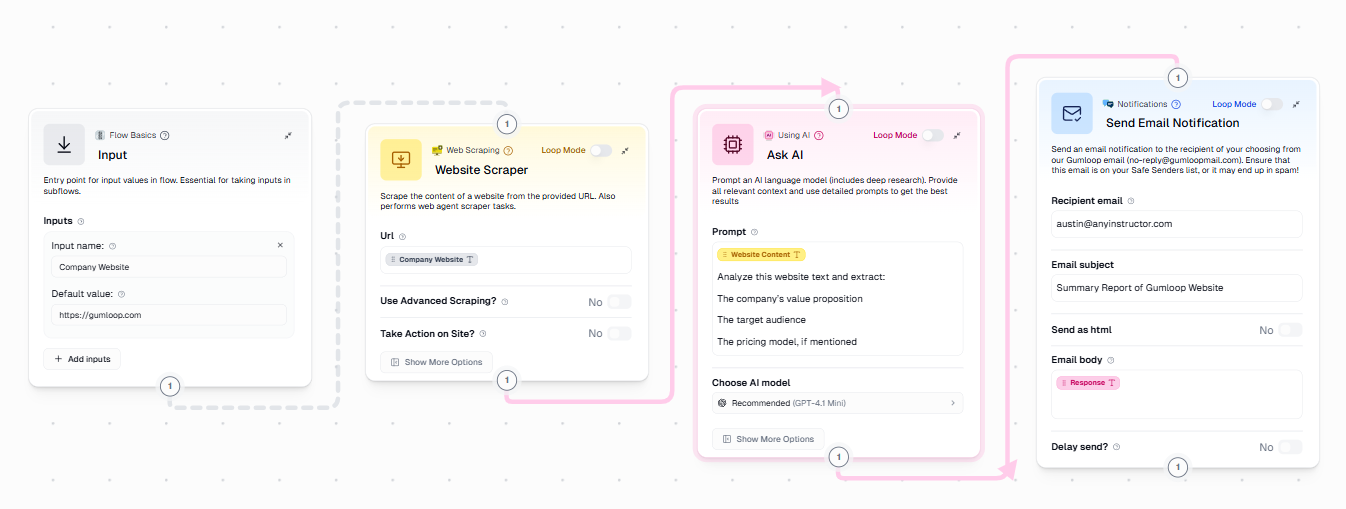
Les principales capacités de Gumloop incluent :
Ces fonctionnalités font de Gumloop un outil puissant, bien au‑delà d’un simple connecteur de workflows.
Gumloop s’adresse aux utilisateurs qui doivent aller vite sans sacrifier les capacités. Dans de nombreuses organisations, les projets d’automatisation stagnent, car les personnes qui comprennent le besoin métier ne peuvent pas facilement le traduire en code.
Gumloop abaisse cette barrière en permettant de composer visuellement la logique, les invites IA et les intégrations, tout en restant suffisamment expressif pour des workflows complexes.
Ses utilisateurs types incluent notamment :
Ce qui distingue Gumloop, c’est sa capacité à combiner, sur un même canvas, l’automatisation de navigateur (interaction avec le web réel) et le raisonnement LLM (interprétation et synthèse). La plupart des plateformes se spécialisent dans l’un ou l’autre.
Parmi les cas d’usage fréquents de Gumloop :
La prise en main de Gumloop est simple, et l’offre gratuite suffit pour suivre ce tutoriel.
L’onboarding est volontairement léger : vous pouvez vous inscrire et disposer d’un workflow opérationnel sans configurer d’infrastructure ni d’environnements.
Pour commencer :
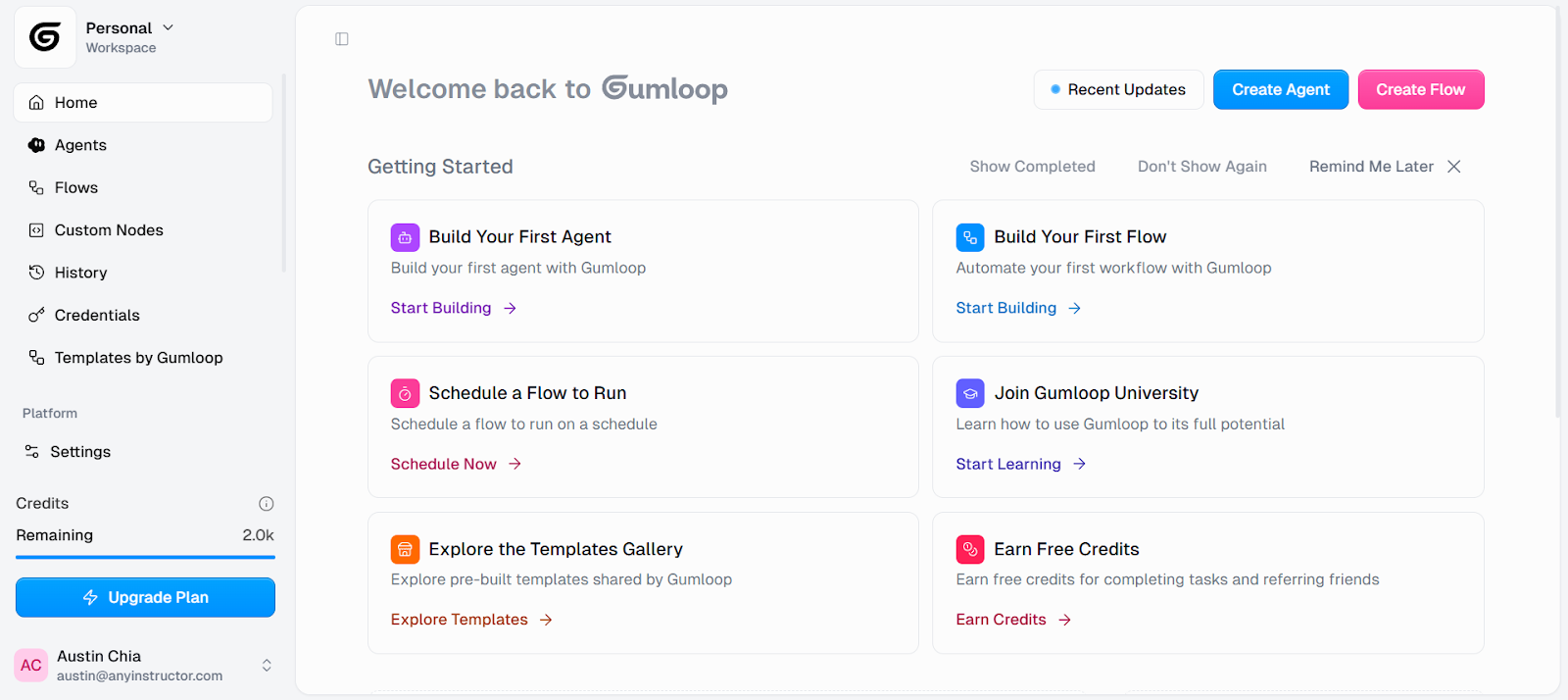
L’espace de travail sert de conteneur pour vos flows, identifiants et historiques d’exécution. Pour ce tutoriel, la configuration par défaut suffit.
Gumloop utilise un système de crédits qui reflète de près les coûts réels de calcul et d’exécution. Plutôt que de facturer par intégration ou par tâche, la plateforme mesure la charge de travail de votre flow, notamment lorsque des modèles IA ou l’automatisation de navigateur sont impliqués. Cela facilite l’estimation des coûts à mesure que les workflows gagnent en complexité.
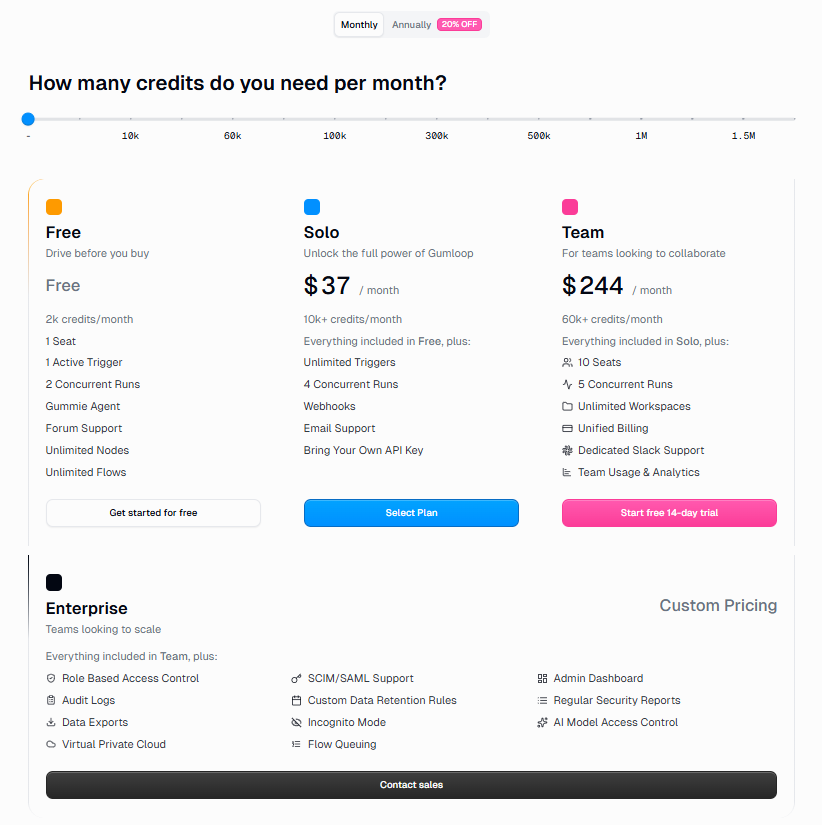
Idées clés à retenir :
Gumloop classe les modèles IA en trois niveaux distincts selon leurs capacités et leur coût en crédits :
Même si les modèles les plus récents comme le GPT‑5.2 d’OpenAI, le Gemini 3 de Google ou le Claude Opus 4.6 d’Anthropic ne sont pas encore disponibles sur la plateforme, la sélection actuelle de modèles du niveau Expert offre une puissance de raisonnement suffisante pour pratiquement tous les cas d’usage d’automatisation complexes.
Dans l’offre gratuite :
Ce modèle encourage l’expérimentation tout en gardant des coûts prévisibles.
Pour davantage de contrôle, Gumloop prend en charge le modèle BYOK (Bring Your Own Key). Vous pouvez renseigner vos identifiants personnels, comme vos clés API.
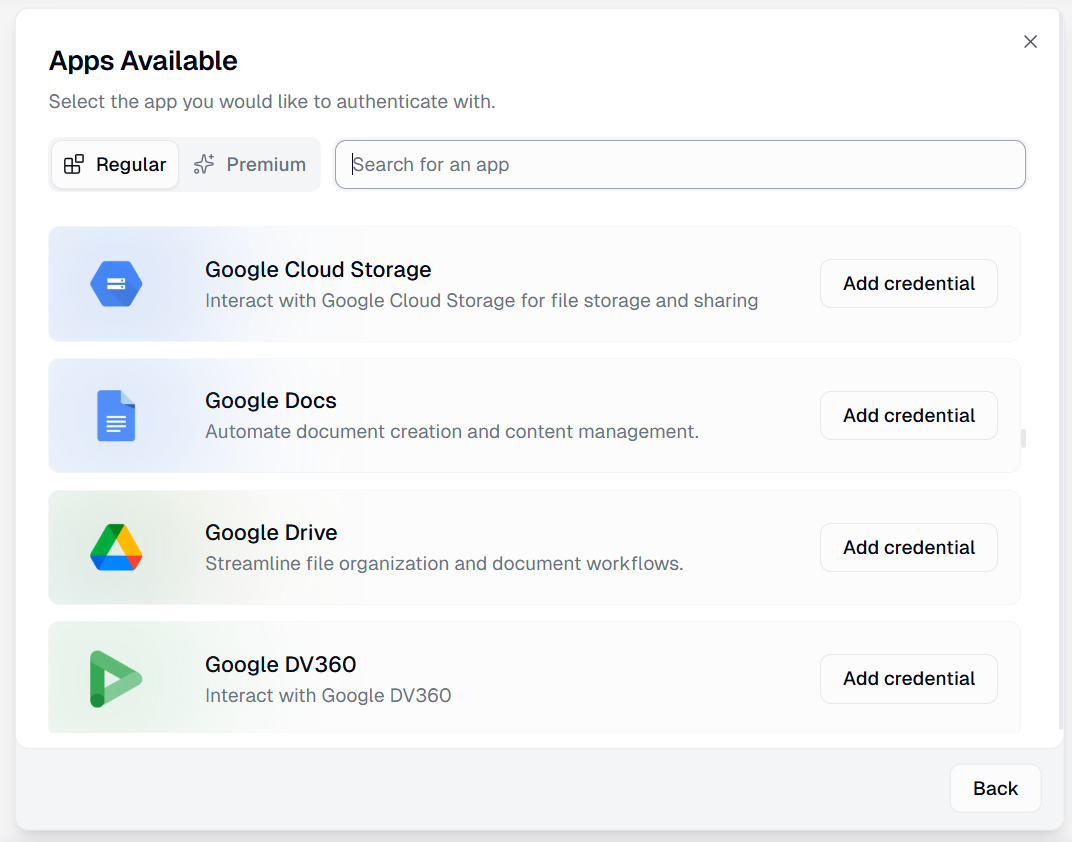
Avec BYOK :
Pour ce tutoriel, BYOK est optionnel. Toutefois, si vous disposez déjà de crédits modèles et prévoyez d’augmenter l’usage, il est pertinent de l’activer tôt.
Nous allons maintenant créer un workflow de bout en bout qui transforme le site web d’une entreprise en un rapport de recherche structuré. L’exemple se veut résolument pratique.
La recherche d’entreprise est une tâche courante en vente, investissement, partenariats ou recrutement. Ici, nous montrons comment Gumloop combine collecte de données, raisonnement et diffusion en un seul flow.
Chaque flow Gumloop débute par un déclencheur. Il définit comment et quand le workflow démarre. En production, cela peut être un webhook, une tâche planifiée ou un évènement externe. Pour l’apprentissage, un déclencheur manuel rend le flow simple et transparent.

Étapes :
Votre nœud d’entrée devrait ressembler à ceci :
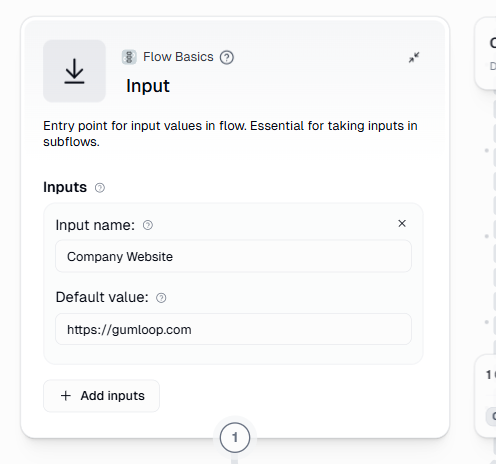
Ce déclencheur permet à un utilisateur de fournir manuellement l’URL du site à chaque exécution du flow.
Nous devons maintenant collecter des données brutes pour l’analyse par l’IA. Contrairement aux intégrations par API, le contenu des sites web est souvent désordonné, dynamique et incohérent. L’automatisation de navigateur de Gumloop masque une grande partie de cette complexité en gérant pour vous le chargement, le rendu et l’extraction du texte.
Étapes :
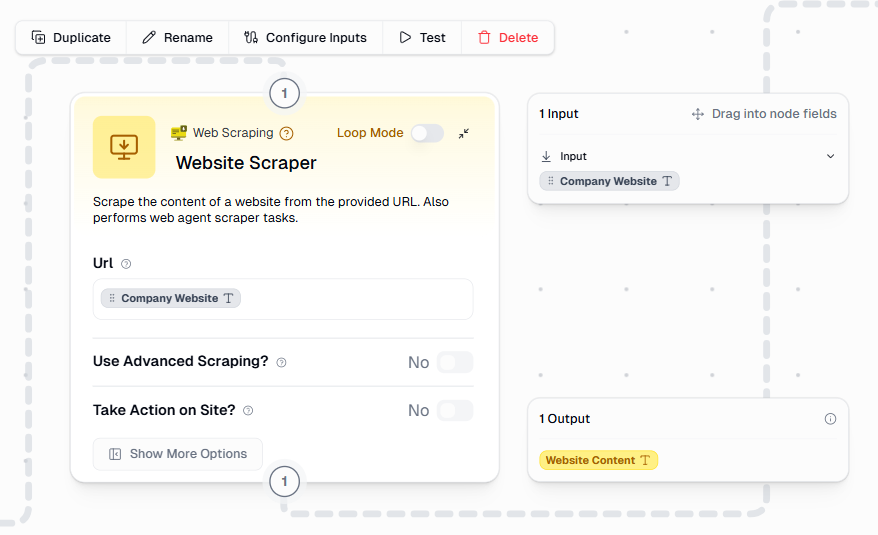
C’est ici que le workflow devient « intelligent ». Jusqu’à présent, le flow se comporte comme une automatisation classique. Le nœud IA introduit l’interprétation et la synthèse, permettant de répondre à des questions qui ne peuvent pas être résolues par de simples règles.
Étapes :
« Analysez ce texte de site web et extrayez la proposition de valeur de l’entreprise, sa cible, ainsi que son modèle tarifaire, s’il est mentionné. »
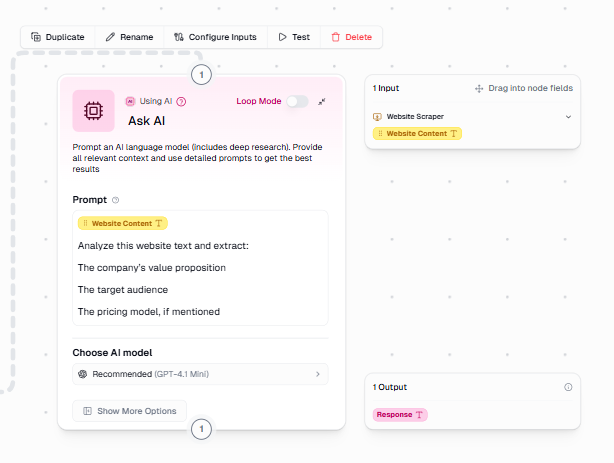
Dans les paramètres du nœud :
L’idée clé : le nœud IA transforme du texte non structuré en informations structurées.
Enfin, envoyons les résultats vers une destination utile. Les sorties sont l’endroit où les workflows IA créent une vraie valeur opérationnelle.
Parmi les options :
Étapes :
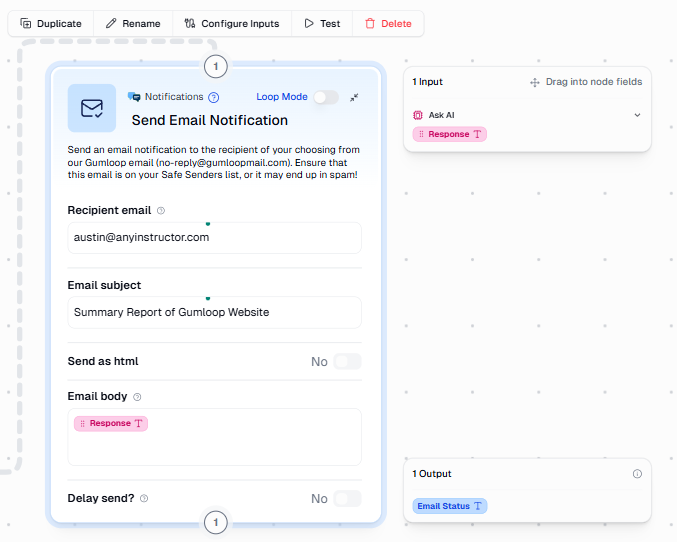
Une fois terminé, cliquez sur Run en haut à droite.
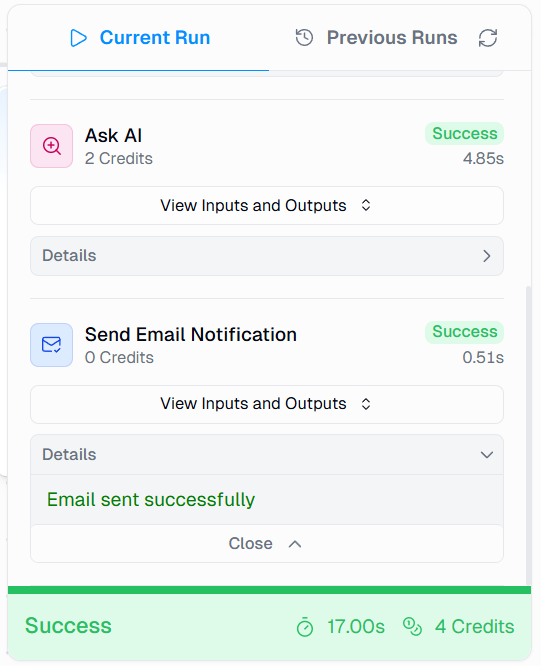
Pendant l’exécution, vous pouvez suivre des journaux en direct montrant chaque étape, du scraping à l’analyse jusqu’à la diffusion. Une fois l’exécution terminée, vous verrez l’écran suivant :
Rendez‑vous maintenant dans votre boîte mail pour vérifier si le flow vous a envoyé un e‑mail avec les informations pertinentes. Voici à quoi ressemble ma notification :
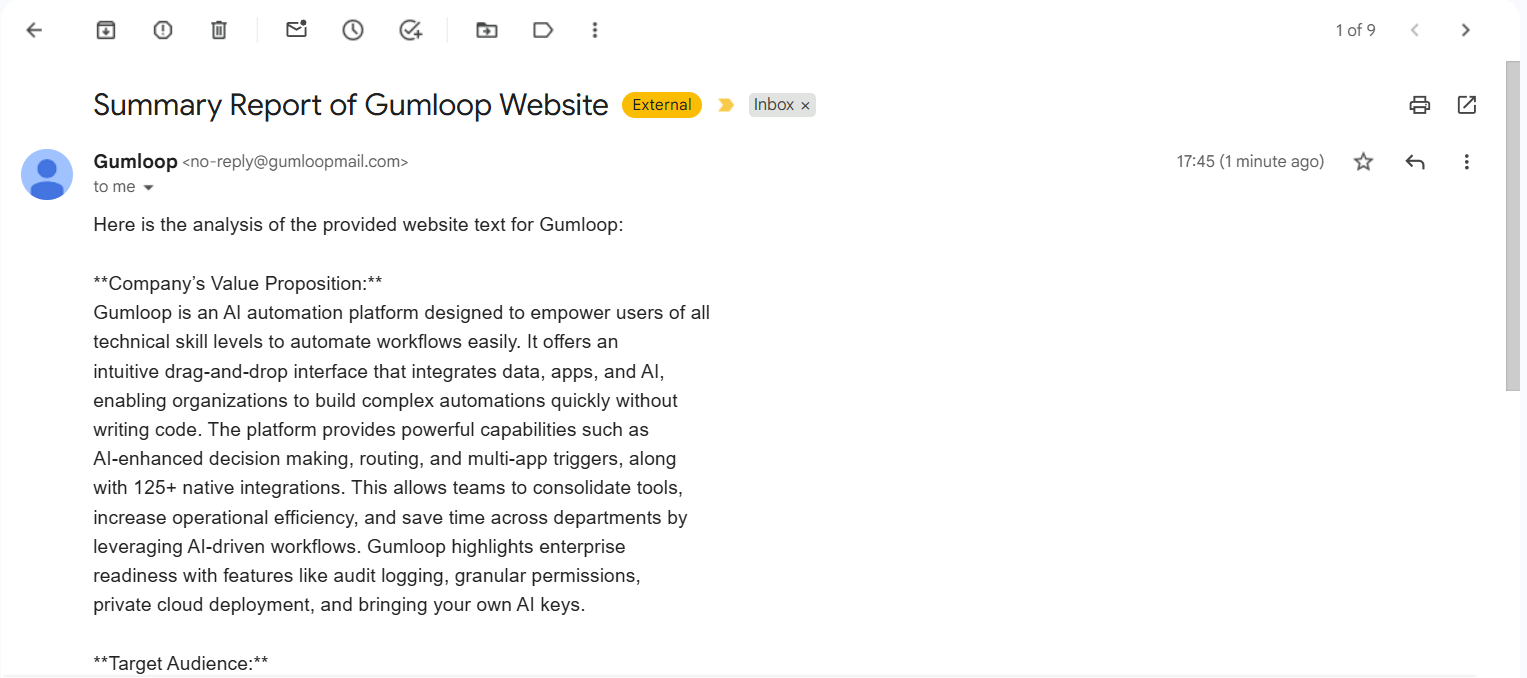
Comme vous pouvez le voir, le flow a produit exactement le résultat attendu, directement dans ma boîte de réception.
Une fois le workflow de base opérationnel, Gumloop fournit des outils pour le déboguer, l’étendre et passer à l’échelle. C’est souvent là que les outils no‑code montrent leurs limites, mais Gumloop investit fortement dans l’observabilité et le support à l’itération.
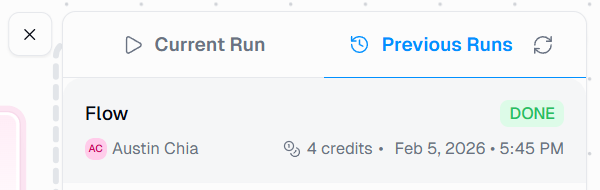
L’onglet Previous Runs est essentiel pour le diagnostic et l’affinage. Chaque exécution est enregistrée avec des sorties intermédiaires détaillées, ce qui permet de comprendre non seulement qu’un échec s’est produit, mais aussi pourquoi.
Vous pouvez :
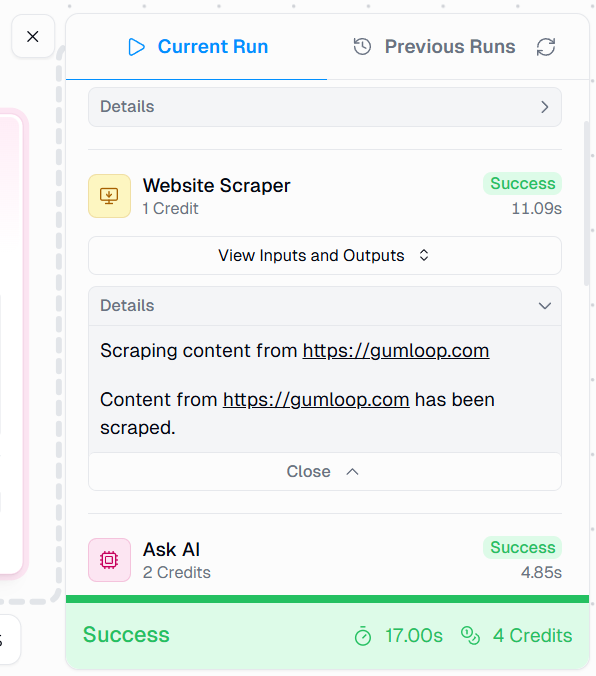
Cette visibilité est cruciale lorsqu’on manipule des sites externes et des sorties IA. Ce rapport détaillé est également disponible pour les exécutions en cours.
Les workflows réels traitent rarement une seule entrée. Dès qu’un workflow s’avère utile, la question suivante est presque toujours : comment le faire passer à l’échelle sans dupliquer les efforts ou la logique ?
Scénario d’exemple :
Gumloop gère cela avec le Loop Mode :
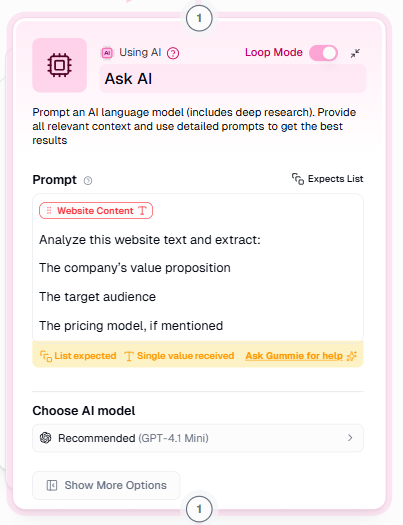
Un indicateur visuel en haut à droite du nœud montre lorsqu’il fonctionne en mode batch, ce qui rend le comportement facile à comprendre.
Gummie est l’assistant IA intégré de Gumloop, conçu pour réduire les frictions lors de la configuration initiale comme de l’optimisation. Plutôt que de remplacer l’utilisateur, Gummie joue le rôle de pair programmeur qui connaît les briques de Gumloop.
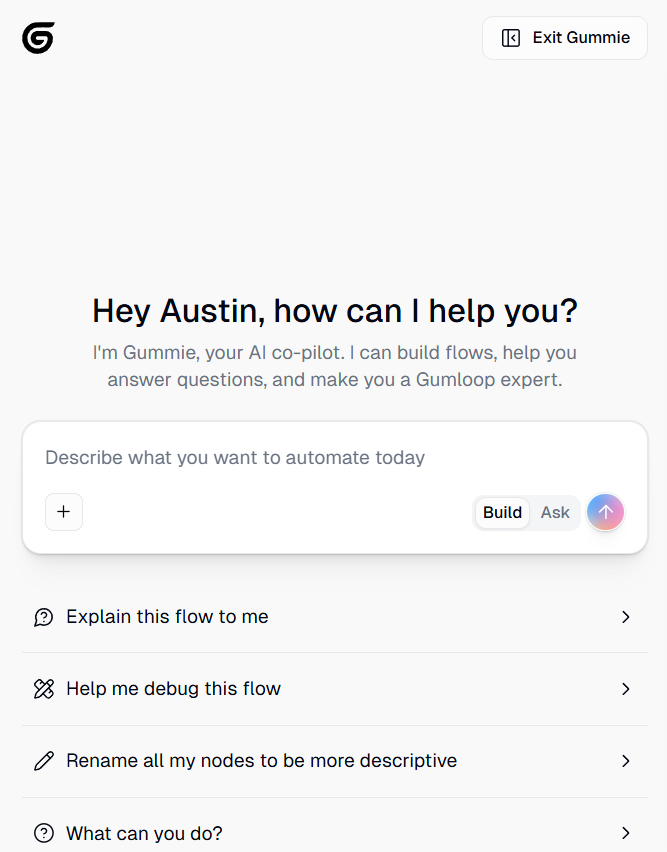
Vous pouvez utiliser Gummie pour :
Pour les non‑ingénieurs, Gummie réduit fortement les frictions lors de la création de flows plus complexes.
L’écosystème des outils d’automatisation IA s’élargit, et Gumloop n’est pas le seul acteur. Comparons quelques outils.
Zapier est centré sur les intégrations et l’exécution linéaire de tâches.
Principales différences :
Zapier reste excellent pour des automatisations simples et structurées via API. Gumloop excelle lorsqu’il faut du jugement et de l’interprétation.
n8n représente l’extrémité opposée du spectre.
Points de contraste :
En pratique, Gumloop offre un « time‑to‑agent » plus rapide pour les équipes ops, tandis que n8n convient aux configurations très techniques et lourdes en infrastructure.
|
Fonctionnalité |
Gumloop |
Zapier |
n8n |
|
Philosophie de base |
Native IA ; se concentre sur le calcul et le raisonnement. |
Intégration d’abord ; se concentre sur l’exécution linéaire des tâches. |
Open source ; privilégie le contrôle total et l’infrastructure. |
|
Cas d’usage idéal |
Opérations nécessitant jugement, interprétation et rapidité (« time‑to‑agent »). |
Automatisations simples et structurées via API. |
Configurations très techniques et lourdes en infrastructure. |
|
Gestion des données |
Excellent avec les données non structurées (texte, PDF). |
Excellent pour les données structurées. |
Gère des flows techniques complexes (HTTP/frameworks génériques). |
|
Hébergement et coût |
Entièrement hébergé et managé. |
Facturation à la tâche (coûteux pour grands volumes/boucles). |
Souvent auto‑hébergé ; attire les ingénieurs en quête de contrôle. |
|
Différenciateur clé |
Nœuds IA spécialisés et support MCP. |
Écosystème massif d’intégrations prêtes à l’emploi. |
Intégrations génériques permettant l’ingénierie sur mesure. |
Pour une comparaison entre ces deux concurrents de Gumloop, consultez notre article comparatif n8n versus Zapier.
Gumloop illustre une nouvelle façon de concevoir l’automatisation. Au lieu de traiter l’IA comme un ajout optionnel, il intègre le raisonnement directement dans le modèle d’exécution, permettant aux workflows de s’adapter à des données réelles et hétérogènes.
Dans cet article, nous avons construit de zéro un agent de recherche d’entreprises opérationnel avec Gumloop uniquement. Ce même schéma s’applique à d’autres applications : pipelines de recrutement, recherche commerciale, contrôles de conformité, création de contenu.
Pour étendre ce workflow, nous vous encourageons à expérimenter. Par exemple :
Si vous souhaitez voir une approche différente, davantage orientée code, nous vous recommandons vivement de suivre notre cours Developing LLM Applications with LangChain.
Cours sur les agents IA
Cours
Cours
S'entraîner et cursus vos progrès.
Continuer Avec Googleblog
blog
Kurtis Pykes
9 min
Tutoriel
Tutoriel
Satyabrata Pal
15 min
Tutoriel
Laiba Siddiqui
14 min
Tutoriel
Samuel Shaibu
9 min