
Cours
Analyse de données dans Excel
3 h
151K
Vous serez peut-être surpris d’apprendre qu’Excel stocke l’heure comme une fraction de journée. Concrètement, il ne stocke pas 8:30 AM comme vous le voyez, mais 0.35417, soit 8,5/24. On peut voir cela comme 35,4 % d’une journée complète.
Dans cet article, je couvre ces cas d’usage et d’autres scénarios clés :
Vous aurez forcément besoin un jour de calculer l’écart entre une heure de début et une heure de fin (heure de fin - heure de début). Que vous utilisiez le format 12 heures ou 24 heures, Excel les traite tous deux comme des décimales.
Qu’Excel renvoie un décimal n’est pas un problème en soi : le vrai enjeu est l’affichage, et c’est là que le formatage intervient.
Regardez cet exemple :
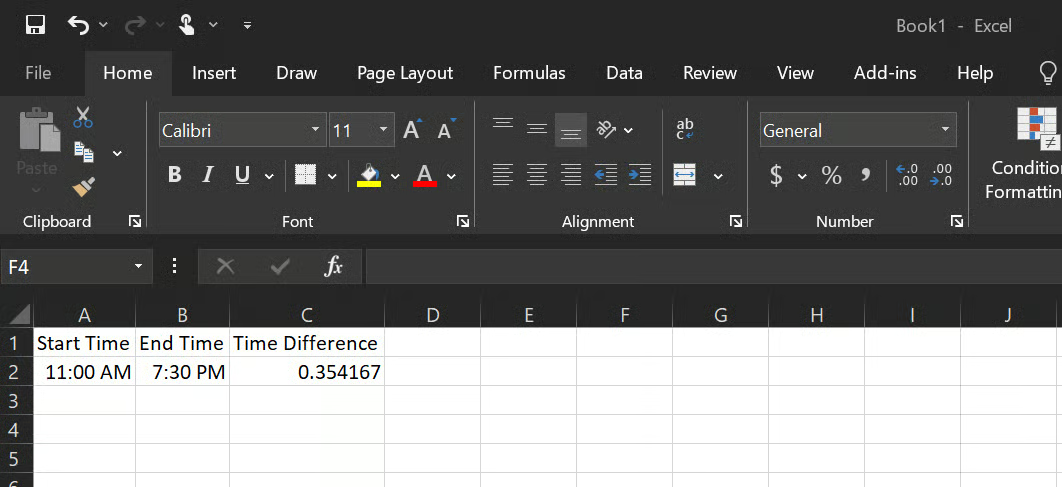
Ici, la cellule C2 affiche par défaut 0.354167 (8,5/24). Ce nombre est correct : il représente 8 heures et 30 minutes en fraction de journée. Pour le rendre lisible, appliquez le format personnalisé [h]:mm.
Procédez étape par étape pour appliquer le bon format :
Sélectionnez la cellule C2.
Appuyez sur Ctrl + 1 pour ouvrir la boîte de dialogue Format de cellule.
Cliquez sur Personnalisée.
Dans le champ Type, saisissez [h]:mm ou faites défiler les options et choisissez [h]:mm:ss puis cliquez sur OK.
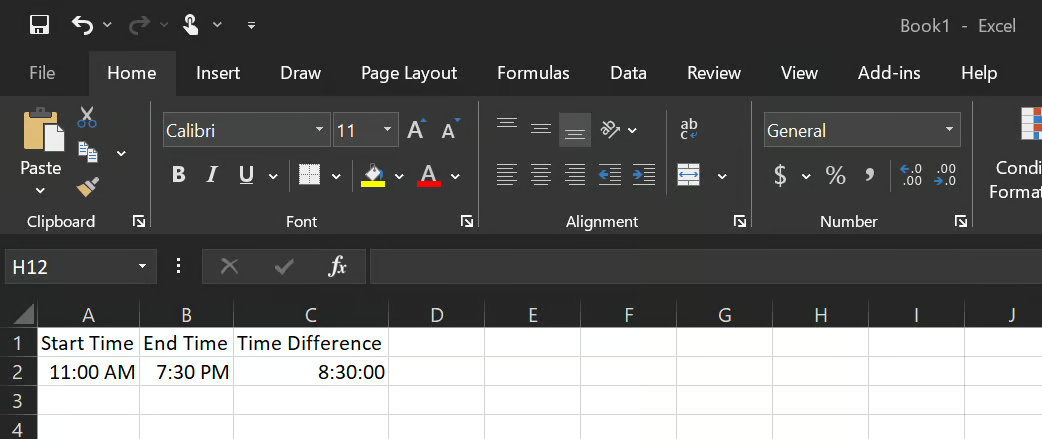
La cellule C2 affiche maintenant 8:30:00.
Notez l’usage de [h]:mm au lieu de h:mm : sans crochets, Excel reboucle l’affichage des heures à zéro après 24. Une durée de 26 heures s’affiche 2:00 au lieu de 26:00. Les crochets indiquent à Excel d’afficher le total d’heures, et non l’aiguille des heures d’une horloge.
Excel gère les formats 12 heures (AM/PM) et 24 heures. Une cellule affichant 9:00 AM équivaut à 09:00, et 9:00 PM équivaut à 21:00. L’essentiel est d’appliquer le format adapté pour que les calculs donnent les résultats attendus.
Le temps écoulé et la différence d’heure sont proches, mais distincts.
La différence d’heure, comme indiqué plus haut, calcule l’écart entre deux heures au sein d’une même journée, tandis que le temps écoulé s’étend sur plusieurs jours et nécessite des valeurs complètes de date et d’heure (horodatages) pour être précis.
La formule est la suivante :
= enddate_timestamp - startdate_timestampLes deux cellules doivent contenir une date et une heure complètes. Par exemple, 3/1/2026 14:00 and 3/3/2026 9:30.
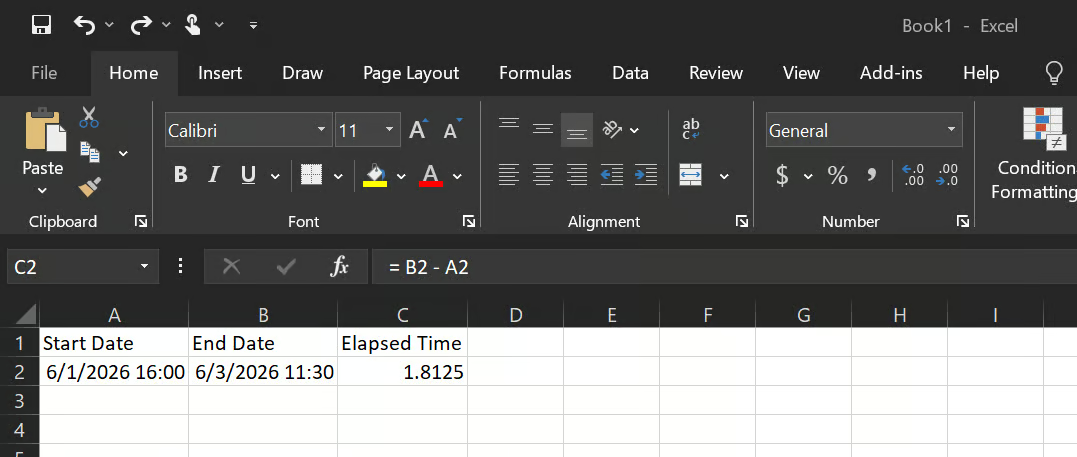
Quand vous appliquez le format [h]:mm à la cellule C2, le résultat devient 43:30, soit 43 heures et 30 minutes écoulées.
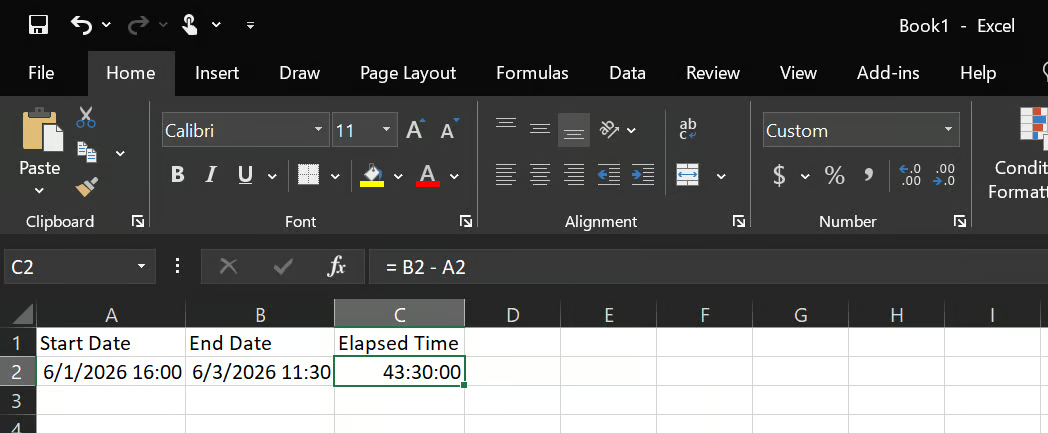
Au fil de ces calculs, vous pourrez rencontrer des erreurs, comme l’affichage ######## ou des valeurs négatives. Je vous explique plus loin comment les résoudre.
Pour les écarts entre dates, la logique diffère un peu des heures et minutes. Excel stocke les dates sous forme de numéros sériels (1 = 1er janvier 1900, 2 = 2 janvier 1900), ce qui permet de soustraire les dates directement pour obtenir l’écart.
Pour calculer le nombre de jours entre deux dates, soustrayez simplement la date de début à la date de fin (= end_date - start_date).
Voici un exemple :
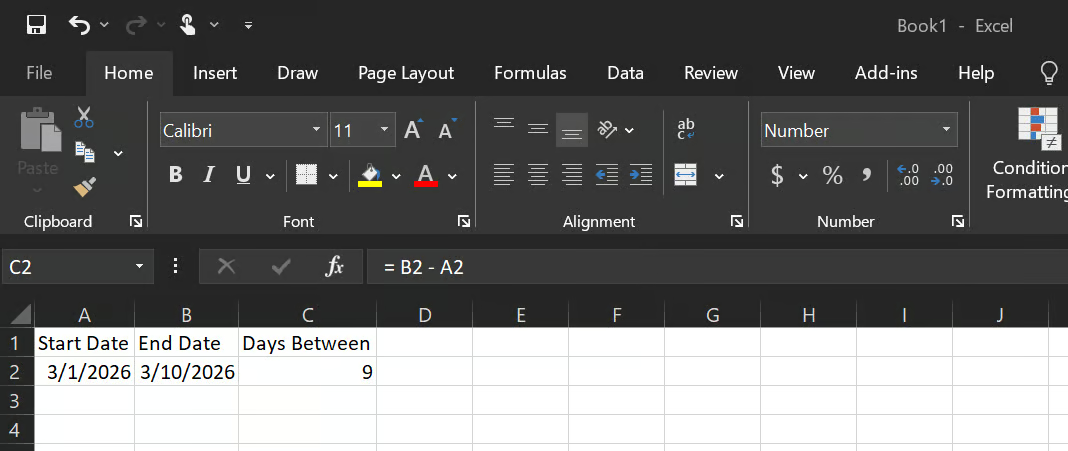
Le résultat est 9 jours, mais veillez à formater la cellule en nombre ; sinon, Excel l’affichera comme une date au lieu d’un décompte de jours.
Une fois le nombre de jours obtenu, convertissez-le facilement en heures et minutes par simple multiplication :
Heures entre deux dates = (End_Date - Start_Date) * 24
Minutes entre deux dates = (End_Date - Start_Date) * 24 * 60
Par exemple :
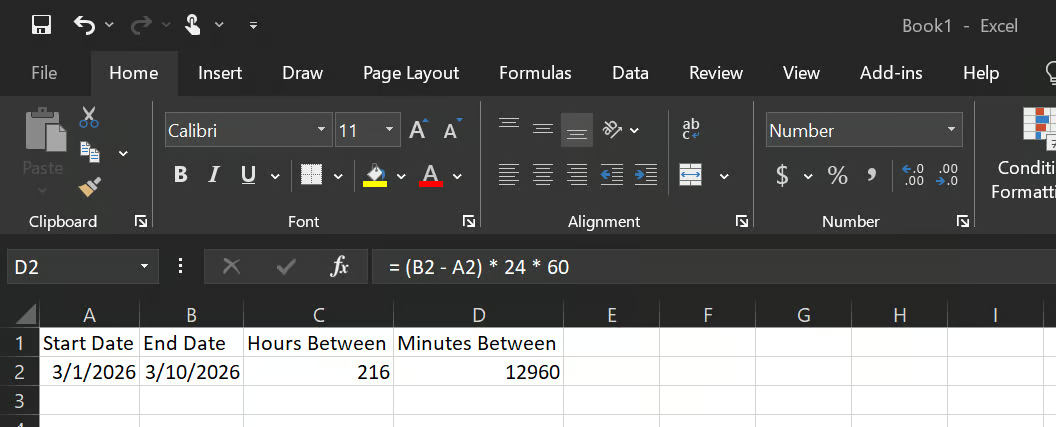
Heures entre deux dates (nombre d’heures entre les deux dates) = 216 heures
Minutes entre deux dates (nombre de minutes entre les deux dates) = 12 960
Excel propose une fonction qui calcule les écarts dans des unités spécifiques (jours, mois, années) : DATEDIF(). Pour effectuer ces calculs, suivez cette logique :
= DATEDIF(Start_Date, End_Date, "d") → Différence totale en jours= DATEDIF(Start_Date, End_Date, "m") → Différence totale en mois= DATEDIF(Start_Date, End_Date, "y") → Différence totale en annéesSi vous souhaitez revoir les bases d’Excel, nous vous recommandons notre parcours Excel Fundamentals.
Additionner une liste de durées dans Excel se fait comme pour n’importe quel autre type de données.
= SUM(C2:C15)Le problème apparaît quand la somme dépasse 24 heures : l’affichage repart à 0. La solution est la même que depuis le début de cet article : formatez la cellule de total en [h]:mm.
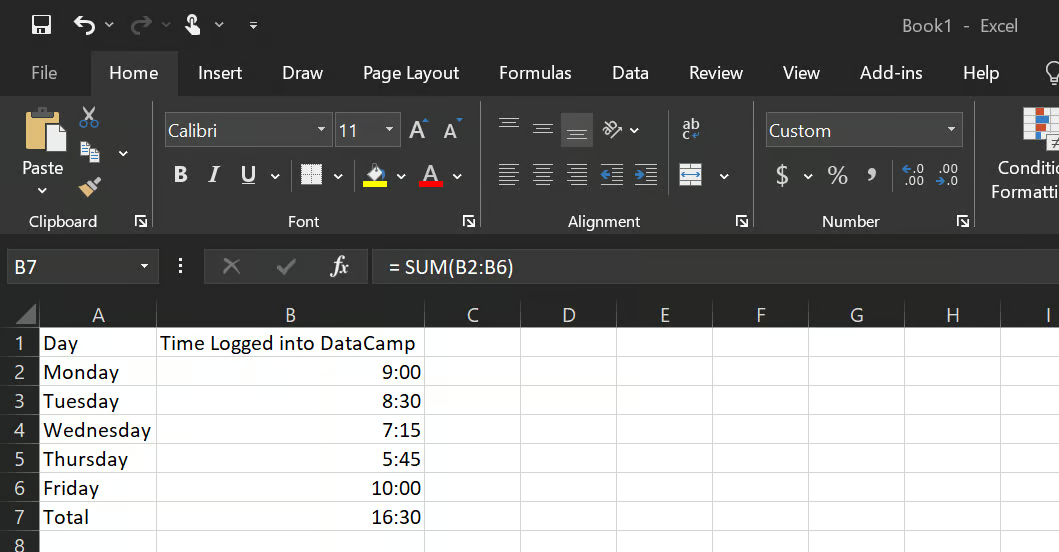
Sans formatage de la cellule de total (B7), le résultat serait 16:30, alors qu’avec le bon format il devient 40:30.
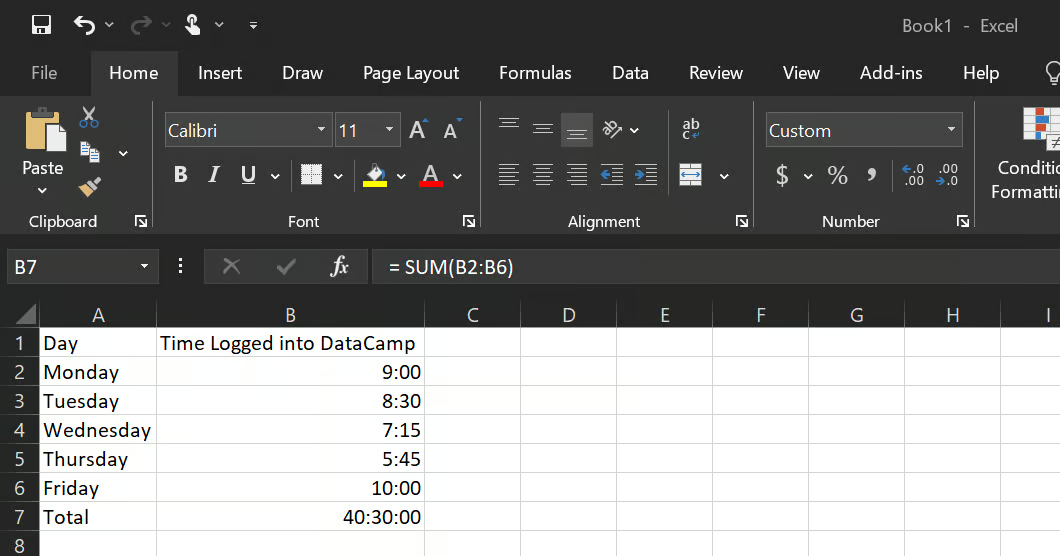
Pour gérer efficacement de grandes sommes de temps, le format [h]:mm s’adapte à tout total sans limite supérieure. Pour vos reportings, vous pouvez aussi convertir le total en heures décimales :
= SUM(B2:B6) * 24Cette formule renvoie 40,0 plutôt que 40:00 : un nombre simple, parfait pour des calculs ultérieurs (multiplication, division) ou des visuels.
Excel calcule une moyenne de durées comme pour les autres nombres avec la fonction AVERAGE() ; toutefois, un formatage inadéquat empêche souvent d’obtenir un affichage fidèle.
La logique à suivre est la suivante :
= AVERAGE(B2:B8)Si la cellule de résultat est en format "Standard", vous verrez quelque chose comme 0.354. Appliquez le format h:mm et l’affichage devient 8:30. Utilisez h:mm (sans crochets) pour les moyennes, qui dépassent rarement 24 heures.
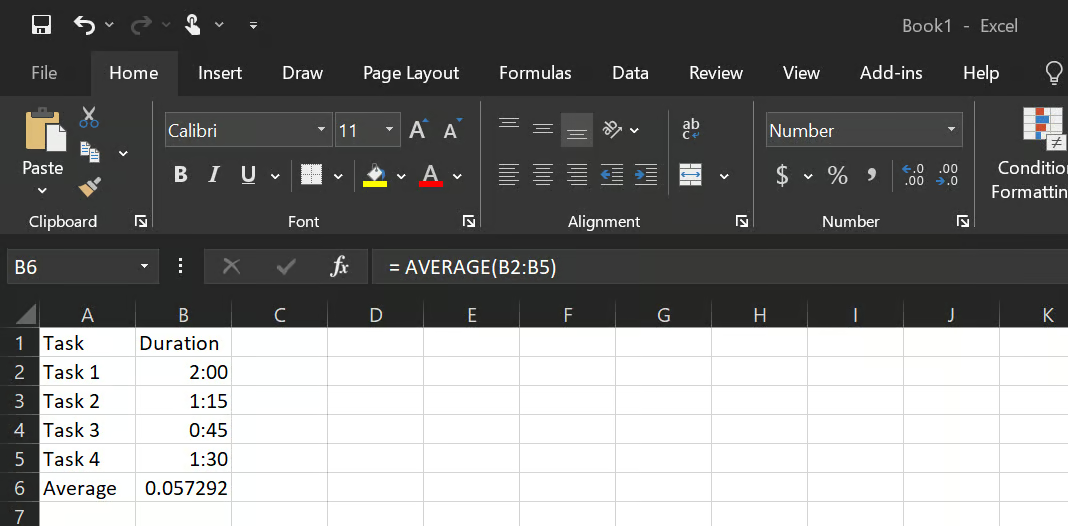
La cellule B6 peut d’abord afficher 0.057292, mais une fois formatée en h:mm, le résultat devient 1:22:30 (1 heure, 22 minutes et 30 secondes).
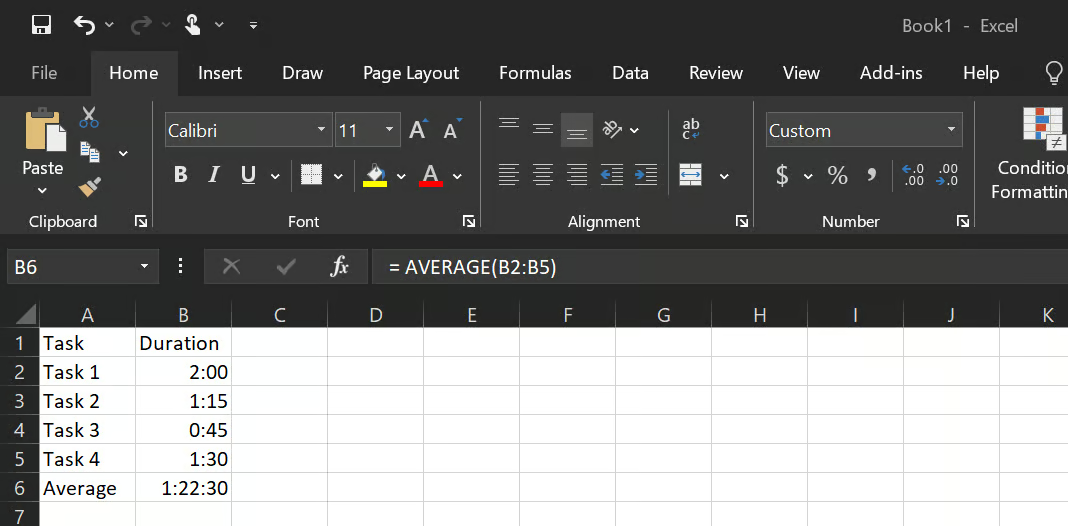
Comme indiqué dans la section sur le temps écoulé, le format [h]:mm s’applique aussi si nécessaire ici.
Vos jeux de données peuvent contenir des cellules vides : Excel les ignore automatiquement dans le calcul de la moyenne. Ainsi, avec sept lignes dont deux vides, Excel en considère cinq.
En revanche, si une cellule contient 0, Excel la compte, ce qui peut biaiser le résultat. Dans ce cas, utilisez la fonction AVERAGEIF(), utile aussi pour des moyennes conditionnelles (moyenne des lignes supérieures, inférieures ou égales à une valeur donnée).
= AVERAGEIF(A2:A10, “>0”)Voici quelques erreurs fréquentes que vous pouvez rencontrer en calculant des durées dans Excel, et comment les corriger :
######## signifie que la colonne est trop étroite pour afficher le résultat : élargissez-la pour régler le problème. Une valeur négative indique généralement que les cellules de début et de fin ont été inversées, ou que les dates manquent pour un calcul passant la nuit.
Corrigez ainsi :
= IF(B2 < A2, B2 + 1 - A2, B2 - A2)Fonctionnement : si l’heure de début est 6:00 PM et l’heure de fin 2:00 AM, B2 < A2 vérifie si l’heure de fin est inférieure à celle de début ; si oui, on ajoute une journée complète (1) ; sinon, on soustrait normalement.
Si votre total semble inférieur à ce que vous attendez ou peu fiable, appliquez le format adapté ([h]:mm) comme mentionné plus haut.
Si vous saisissez une heure en texte (souvent alignée à gauche, ou précédée d’une apostrophe), tout calcul échoue. Convertissez le texte en véritable valeur horaire avec : = TIMEVALUE(A2) puis formatez la cellule en h:mm.
Si une SUM() affiche un petit nombre, le souci vient du formatage, pas de la formule. Appliquez [h]:mm à la cellule de total pour corriger.
Voici quelques recommandations :
Vérifiez le format des cellules avant de remettre en cause la formule. La plupart des résultats incohérents proviennent d’un affichage inadapté, pas d’une erreur de calcul.
Utilisez [h]:mm pour toute cellule qui calcule une somme ou un total. Utilisez h:mm pour les saisies unitaires au sein d’une même journée.
Ne saisissez jamais des heures en texte. Tapez 8:30 et laissez Excel la reconnaître automatiquement. Évitez les apostrophes initiales ou les libellés texte mêlés aux données horaires.
Incluez les dates pour tout calcul qui passe minuit. Une valeur d’heure seule n’a pas conscience du jour suivant.
Convertissez en heures décimales avant d’utiliser des durées dans des formules financières ou de taux. Multipliez la valeur horaire par 24 pour obtenir un nombre simple, puis utilisez-le dans vos multiplications ou divisions.
Harmonisez les formats d’heure sur toute la feuille. Mélanger AM/PM et 24 heures dans une même colonne est une source de bugs à venir.
Calculer le temps dans Excel devient simple dès lors que vous comprenez qu’il s’agit d’une fraction de journée.
Les scénarios abordés — différence d’heure, temps écoulé, périodes multi-jours, totaux hebdomadaires, moyennes — se ramènent aux mêmes opérations : soustraction, addition et formatage. Le formatage est l’étape que la plupart des guides survolent, et la principale source de confusion.
Pour aller plus loin avec Excel, notre parcours Excel Fundamentals propose un chemin structuré couvrant les fonctions, les types de données et le travail sur des jeux de données dans Excel.
Apprenez Excel avec DataCamp
Cours
Cours
Cours
Tutoriel
DataCamp Team
3 min
Tutoriel
Mark Pedigo
10 min
Tutoriel
Aditya Sharma
7 min
Tutoriel
Tutoriel
Sejal Jaiswal
6 min
Tutoriel
Allan Ouko
11 min