
Corso
Programmazione assistita dall'AI per sviluppatori
1 ore 30 min
11.6K
Thinking Machines Lab è un'azienda di ricerca e prodotti di AI fondata da Mira Murati, ex Chief Technology Officer di OpenAI e per un breve periodo CEO ad interim. Dopo aver lasciato OpenAI a settembre 2024, Murati ha riunito un team di ricercatori AI esperti e ha raccolto circa 2 miliardi di dollari con una valutazione di 12 miliardi. La portata dei finanziamenti e del talento ha creato forti aspettative che Thinking Machines potesse diventare una seria concorrente dei laboratori AI affermati come OpenAI.
Inkling è il primo grande modello sviluppato in casa dall'azienda e il primo di una famiglia pianificata. È un modello multimodale a pesi aperti progettato per ragionamento, coding, uso di strumenti e personalizzazione, offrendo il primo sguardo chiaro su ciò che Murati e il suo team hanno costruito.
In questa guida ti mostrerò come eseguire Inkling in locale, iniziando dai test tramite il Tinker Playground gratuito. Poi ti farò vedere come scaricare una quantizzazione GGUF di Unsloth, compilare il branch sperimentale di llama.cpp, eseguire il modello su quattro GPU NVIDIA RTX PRO 6000 e interagirci tramite la Web UI integrata e l'API compatibile con OpenAI.
Inkling è un modello multimodale open-weights e general-purpose di Thinking Machines Lab.
Utilizza un'architettura Mixture-of-Experts con 975 miliardi di parametri totali e 41 miliardi di parametri attivi, supporta input di testo, immagine e audio e offre una finestra di contesto fino a un milione di token.
Il modello è progettato per ragionamento, coding, uso di strumenti, seguire istruzioni e fine-tuning in diversi domini.
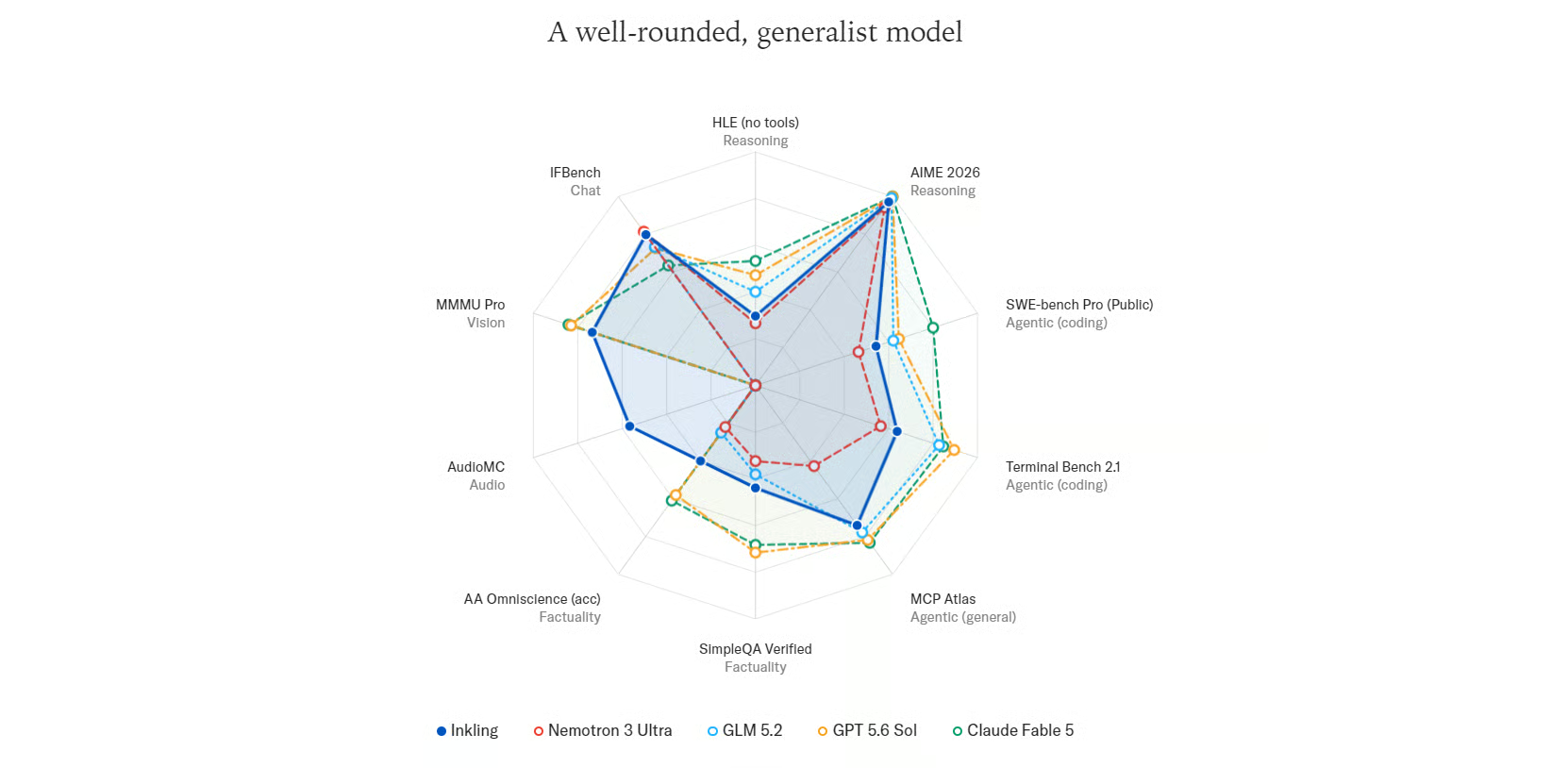
Fonte: Inkling - Thinking Machines Lab
Inkling è un modello generalista ben bilanciato, con prestazioni equilibrate su benchmark di ragionamento, coding agentico, factuality, visione e audio.
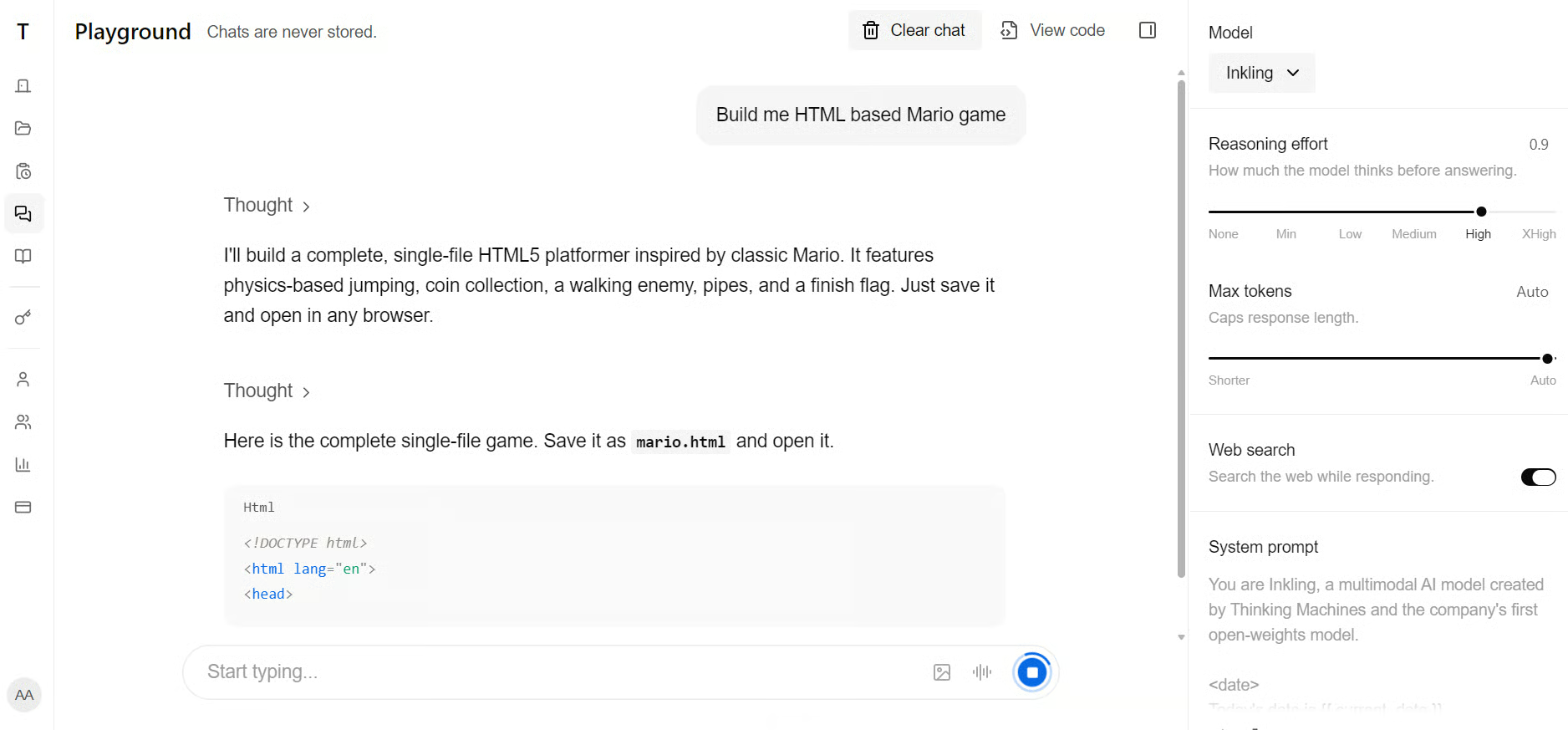
Prima di eseguire Inkling in locale, provalo tramite Inkling Playground per esplorare le sue risposte e capire come funziona il modello. L’accesso gratuito è attualmente disponibile per un periodo limitato.
Eseguire Inkling in locale richiede hardware di livello enterprise.
La quantizzazione UD-Q4_K_XL di Unsloth è di circa 587 GB, mentre il modello a piena precisione BF16 richiede circa 1,89 TB.
Questa memoria può provenire da RAM e VRAM combinate, memoria unificata o solo RAM, anche se l’inferenza solo su CPU sarà molto più lenta.
È necessaria anche memoria aggiuntiva per la finestra di contesto e l’overhead a runtime.
Per questa guida usiamo la quantizzazione più piccola UD-Q2_K_XL, che è di circa 317 GB, su un server RunPod configurato con:
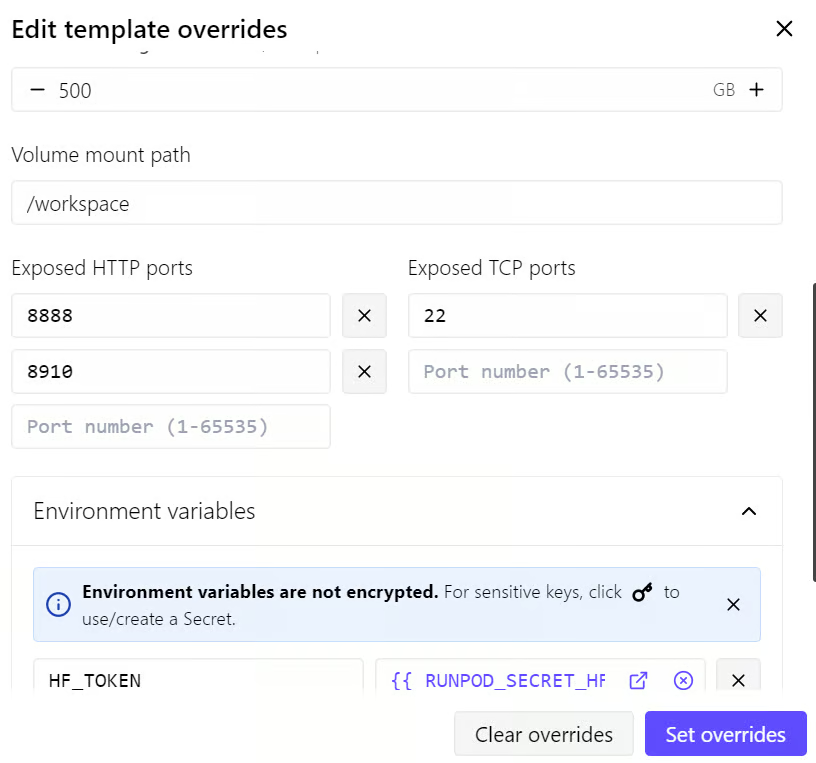
I file modello di grandi dimensioni e la cache di Hugging Face verranno archiviati sul disco volume da 500 GB in modo che restino disponibili se il Pod si riavvia.
Il disco del container da 100 GB sarà usato per pacchetti di sistema, dipendenze di build e altri requisiti runtime.
Configureremo anche un token di accesso Hugging Face prima di scaricare Inkling.
I download autenticati aiutano a evitare i limiti per utenti anonimi e possono offrire velocità di scaricamento più rapide e affidabili, importante quando si scarica un modello di queste dimensioni.
I binari standard di llama.cpp installati con il solito comando curl non funzioneranno con Inkling perché il supporto per la sua architettura non è ancora stato unito al branch principale.
Il supporto a Inkling è attualmente disponibile tramite la pull request sperimentale #25731, quindi llama.cpp deve essere compilato da quel branch.
Dopo aver distribuito il Pod su RunPod, apri la scheda Connect e clicca sul link Jupyter Notebook.
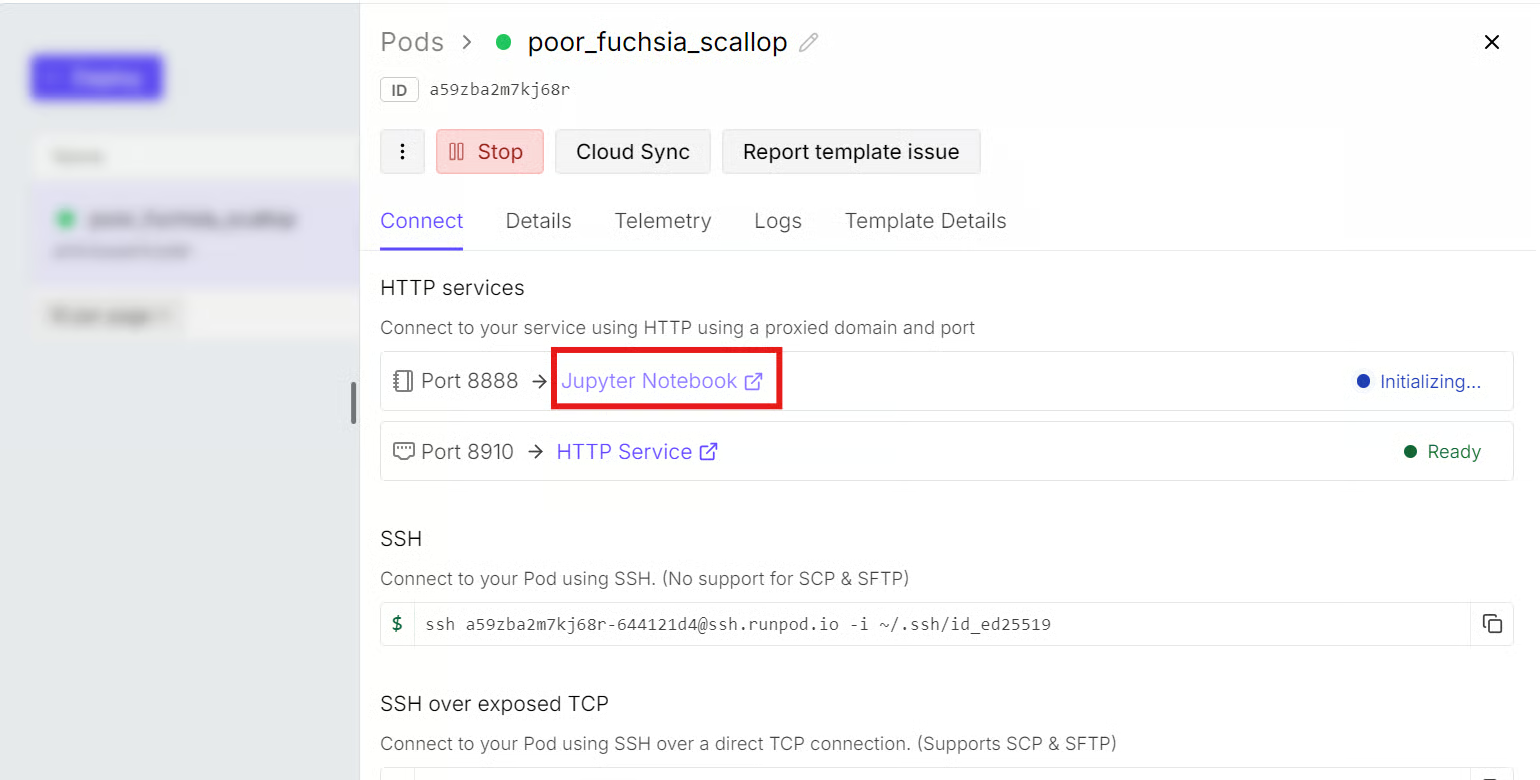
Da JupyterLab, avvia un nuovo terminale e installa i pacchetti di sistema richiesti:
apt-get update
apt-get install pciutils build-essential cmake curl libcurl4-openssl-dev -y
Poi clona llama.cpp nel volume /workspace e passa al branch che contiene il supporto per Inkling:
cd /workspace

git clone https://github.com/ggml-org/llama.cpp
cd llama.cpp
Il supporto a Inkling è attualmente disponibile tramite una pull request bozza sperimentale piuttosto che il branch principale di llama.cpp. Recupera e passa a quel branch:
git fetch origin pull/25731/head:inkling
git switch inkling
Compila llama.cpp con l'accelerazione CUDA abilitata:
cmake -S /workspace/llama.cpp \
  -B /workspace/llama.cpp/build \
  -DBUILD_SHARED_LIBS=OFF \
  -DGGML_CUDA=ON \
  -DCMAKE_BUILD_TYPE=Release
Compila l'interfaccia a riga di comando, l'interfaccia multimodale, il server e le utility GGUF:
cmake --build /workspace/llama.cpp/build \
  --config Release \
  --clean-first \
  --target llama-cli llama-mtmd-cli llama-server llama-gguf-split \
  -j "$(nproc)"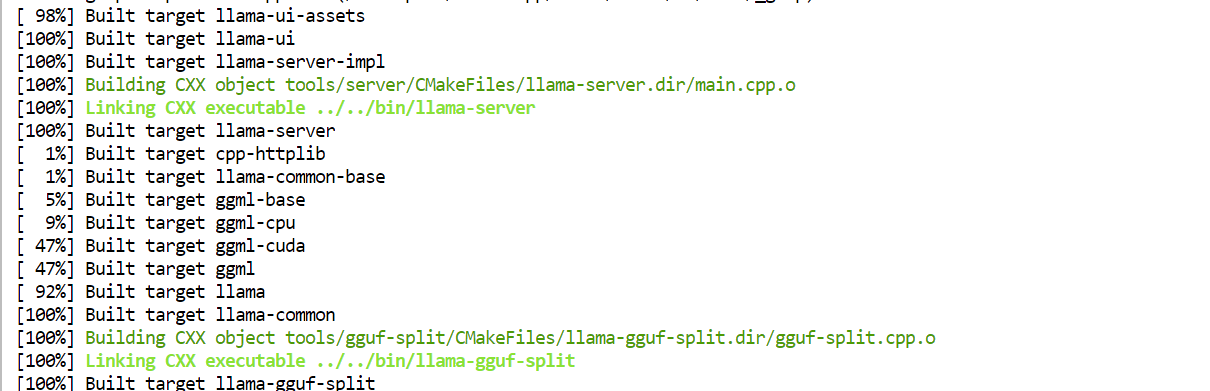
Infine, copia gli eseguibili compilati nella directory principale di llama.cpp per averli più a portata di mano:
cd /workspace
cp llama.cpp/build/bin/llama-* llama.cpp/Installa la CLI di Hugging Face e il supporto al download Xet:
pip install -U huggingface_hub hf_xetIl token di Hugging Face è già stato aggiunto alle variabili d'ambiente di RunPod quando il Pod è stato distribuito, quindi non è necessario un ulteriore login.
Crea le directory sul disco volume da 500 GB per la cache di Hugging Face e il modello Inkling:
mkdir -p /workspace/models/huggingface
mkdir -p /workspace/models/inkling-GGUF
Imposta la posizione della cache e abilita i download ad alte prestazioni:
export HF_HOME=/workspace/models/huggingface
export HF_XET_HIGH_PERFORMANCE=1
Scarica solo la quantizzazione UD-Q2_K_XL:
hf download unsloth/inkling-GGUF \
  --include "UD-Q2_K_XL/*" \
  --local-dir /workspace/models/inkling-GGUF
Il tempo di download dipenderà dalla tua connessione internet.
La mia velocità di download era limitata a circa 130 MB/s e il modello ha impiegato circa 42 minuti per scaricarsi.

Esegui il seguente comando per caricare Inkling su tutte e quattro le GPU e avviare un server di inferenza compatibile con OpenAI:
CUDA_VISIBLE_DEVICES=0,1,2,3 \
/workspace/llama.cpp/llama-server \
  -m /workspace/models/inkling-GGUF/UD-Q2_K_XL/inkling-UD-Q2_K_XL-00001-of-00008.gguf \
  --alias inkling-local \
  --host 0.0.0.0 \
  --port 8910 \
  --gpu-layers all \
  --split-mode layer \
  --tensor-split 1,1,1,1 \
  --ctx-size 8192 \
  --parallel 1 \
  --flash-attn on \
  --jinja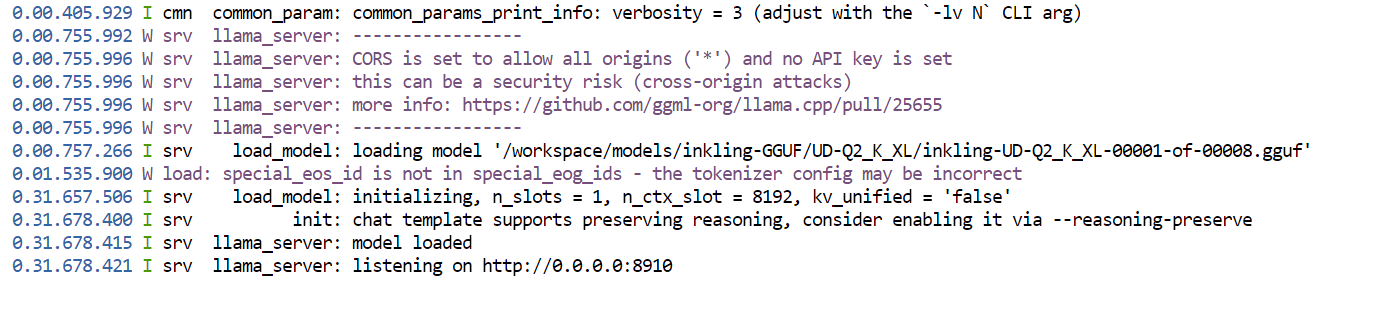
Il comando:
llama.cpp rileva e carica automaticamente gli altri sette shard.8910.Apri un altro terminale Jupyter e controlla l’uso della GPU:
nvidia-smi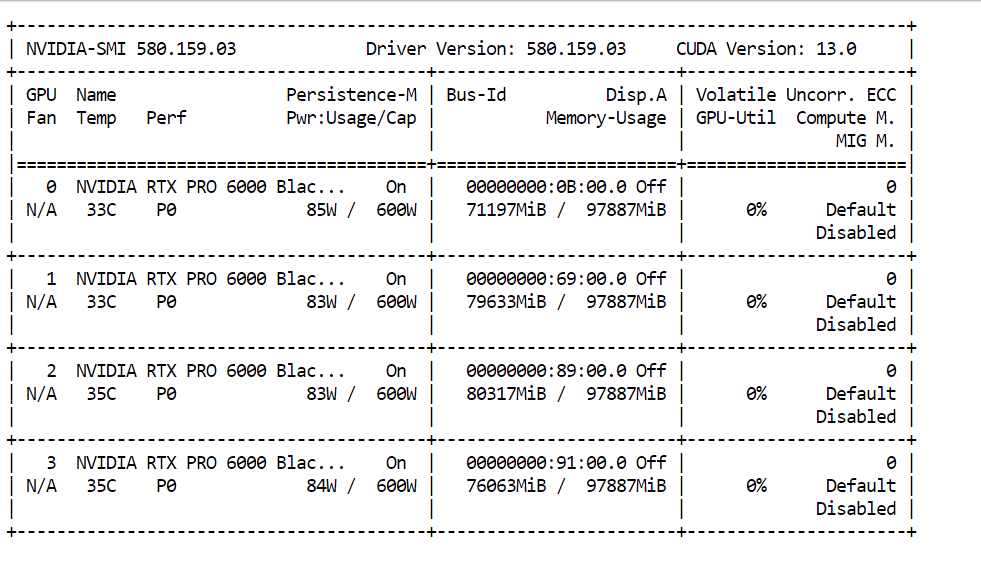
In questa configurazione, circa l’85% della memoria GPU disponibile è stata utilizzata dopo aver caricato il modello con una finestra di contesto da 8.192 token.
Finestra di contesto più ampie richiedono ulteriore memoria per la KV‑cache, quindi eseguire Inkling con un contesto ad esempio da 100.000 token richiederebbe molta più memoria disponibile.
L’API locale compatibile con OpenAI è disponibile all’indirizzo:
http://127.0.0.1:8910/v1Prima di testare Inkling tramite la Web UI, verifica innanzitutto che il server di inferenza sia in esecuzione e risponda. Apri un nuovo terminale e invia una richiesta di test all’API locale:
curl http://127.0.0.1:8910/v1/chat/completions \
  -H "Content-Type: application/json" \
  -d '{
    "model": "inkling-local",
    "messages": [
      {
        "role": "user",
        "content": "Write a Python function to calculate the Fibonacci sequence."
      }
    ],
    "max_tokens": 1024,
    "temperature": 0.2
  }'
L’API ha risposto correttamente, elaborando il prompt a 81,1 token al secondo e generando a 37,2 token al secondo.
Ha usato 25 token di prompt e 256 token di completamento, ma si è fermata perché ha raggiunto il limite di output prima di produrre la risposta finale. Aumentando max_tokens il modello può completare la risposta.
Torna alla dashboard di RunPod, apri la scheda Connect e clicca sul link elencato sotto HTTP Services per la porta 8910.
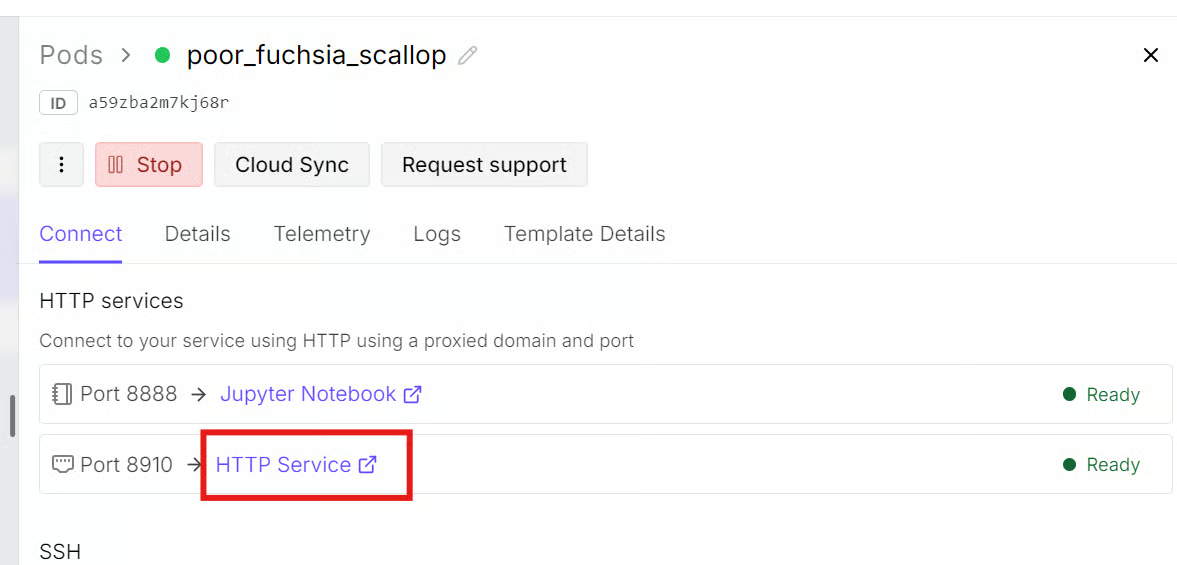
La Web UI integrata di llama.cpp offre un'interfaccia in stile ChatGPT per inviare prompt, regolare le impostazioni di generazione e visualizzare le risposte.
Lo stesso server espone anche un’API compatibile con OpenAI per collegare applicazioni e strumenti esterni.
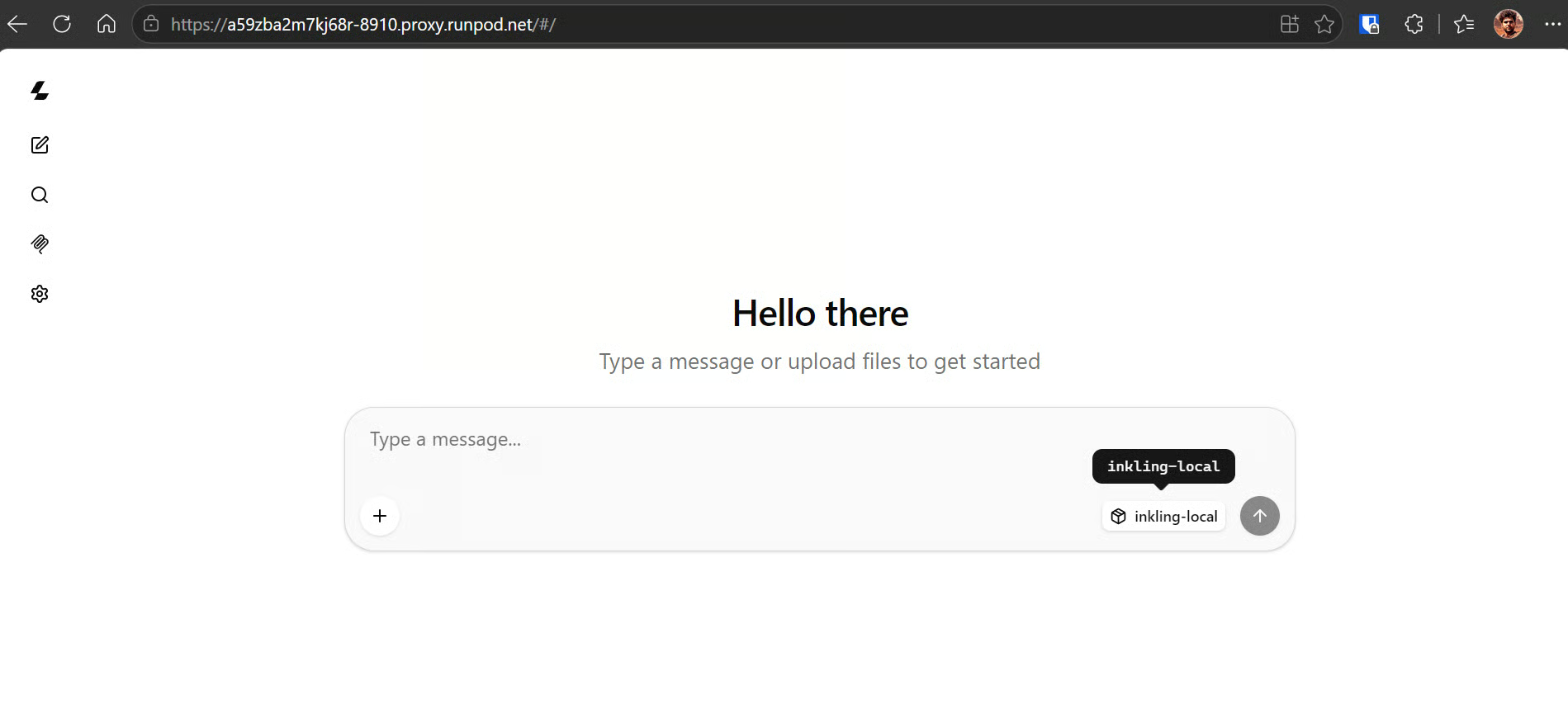
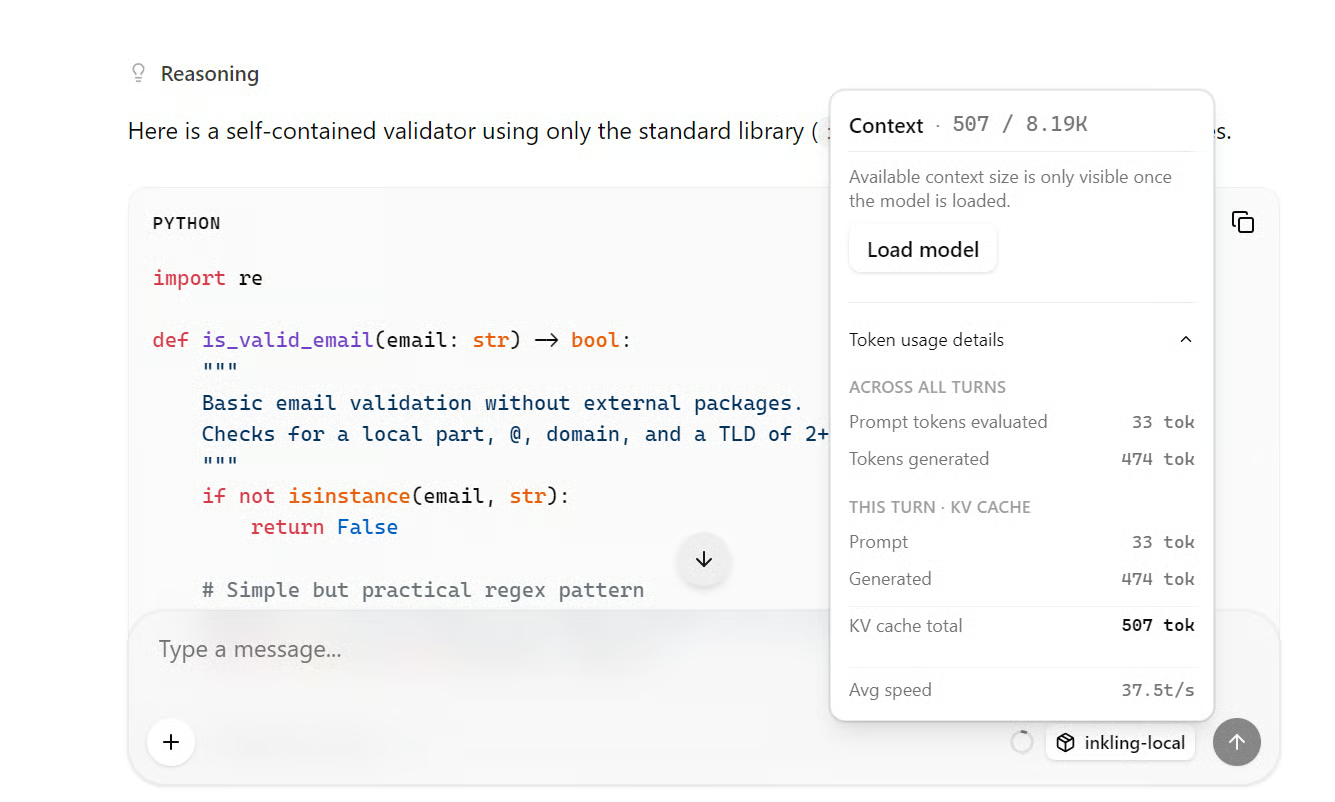
Inizia con un prompt di coding:
Write a Python function that validates an email address without external packages.
Include three pytest tests.
Inkling ha generato una spiegazione completa e codice funzionante a una velocità media di circa 37,5 token al secondo.
Successivamente, gli ho chiesto di creare un sito web personale. Nonostante l’uso di un modello fortemente quantizzato, Inkling ha prodotto un layout curato, un'interfaccia pulita e codice del sito funzionante.

Inkling non mi ha impressionato né nel setup locale né nel Playground online.
Le risposte erano utilizzabili ma nella media, e diversi modelli open source più piccoli hanno prodotto risultati migliori per compiti simili.
Tuttavia, Inkling non è progettato per dominare una singola categoria.
È un modello general-purpose bilanciato che combina capacità di coding, scrittura, ragionamento, multilingua, visione e audio. Si comporta bene su molti benchmark invece di primeggiare in un’area specifica.
Per attività dedicate di coding, ricerca o scrittura, esistono alternative open source e closed source più forti.
Il valore di Inkling sta nella sua flessibilità: è open‑weight, multimodale, personalizzabile, e può essere addestrato o messo a punto tramite Tinker, la piattaforma open source di Thinking Machines per l’addestramento e la personalizzazione dei modelli.
Questa release potrebbe aver ridimensionato parte dell'hype iniziale, ma ha anche chiarito la direzione dell'azienda.
Sembra che Thinking Machines non punti solo ai punteggi più alti nei benchmark. Piuttosto, sta costruendo un ecosistema più ampio attorno a modelli adattabili che le organizzazioni possono mettere a punto e usare in molti compiti diversi.
I migliori corsi DataCamp
Corso
Corso
Corso
blog
Abid Ali Awan
15 min
blog
Abid Ali Awan
10 min
blog
Tim Lu
12 min