
Our biggest-ever sale. 60% off AI & data skills
Buy Now
ChatGPT for Excel is a plugin designed to automate repetitive tasks in Excel. It forms part of ChatGPT for Work, a set of extensions for Microsoft Excel and Word, Google Sheets, and Docs that enable you to prompt ChatGPT and other generative AI models to power through repetitive tasks, such as writing, translating, categorizing, extracting, reformating, summarizing, drafting, and much more.
GPT for Excel provides two key features to improve efficiency:
ChatGPT for Excel comes with a free trial. After that, you need to buy a pack to add money to your balance. The pricing is proportional to your input and output tokens. A token is a small piece of text that can represent a word or subword, a punctuation sign, or a symbol. Models split all input and output into tokens for efficient processing. Read our separate article if you want to learn more about tokenization.
Installing ChatGPT for Excel is an easy, straightforward process. To get started, go to the GPT for Excel Word extension installation page and click on the “Open in Excel” button to launch the installation process. You will have to grant some permission to Microsoft to use the extension.
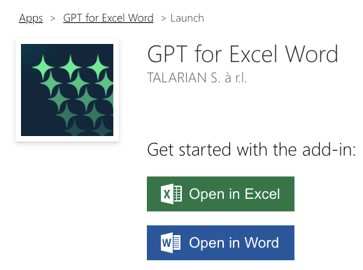
Installing GPT for Excel
Once you have installed the plugin on your Microsoft Account, you should access it from the Home tab on the desktop app and the Web version of Excel, as shown in the image below:
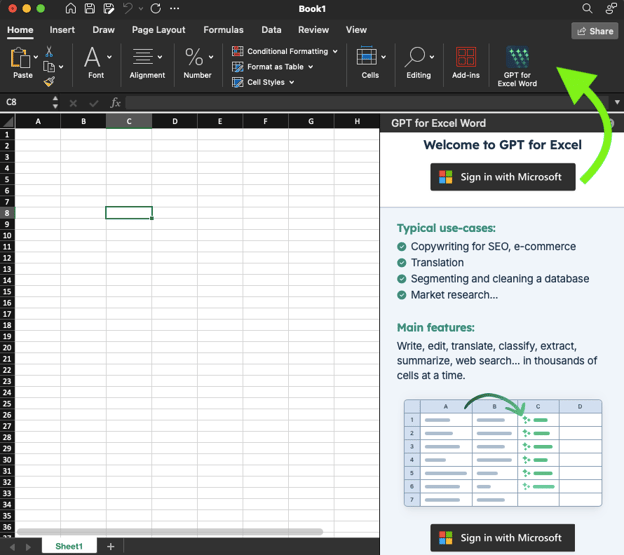
GPT for Excel button
Using ChatGPT for Excel couldn’t be easier. The first step is choosing your preferred AI model. ChatGPT for Excel supports integrations with some of the most advanced generative AI models, including GPT-4o, GPT-4o-mini, GPT-4 Turbo, and Claude-3.5 Sonnet.
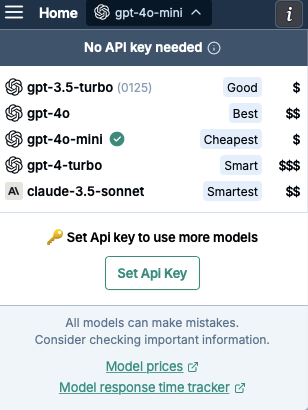
GPT for Excel models
Furthermore, you can use the plugin via an API key to access more models. In particular, You can use your OpenAI API keys to benefit from your own rate limits, and cost savings, or to use your fine-tuned models and Assistants. You can also set up Anthropic API keys to benefit from Claude's models. Read our separate article to learn more about Open AI API and how to obtain your personal API key.
ChatGPT comes with a series of functions that allow you to write ChatGPT’s prompts and insert the results right into your spreadsheets. ChatGPT for Excel formulas can help you with a wide range of tasks, including writing, editing, translating, classifying, extracting, summarizing, and much more.
The whole list can be found in the GPT for Excel add-in.
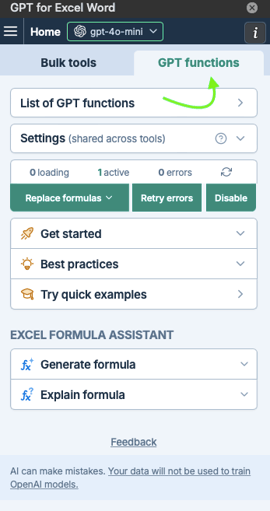
GPT functions
Let’s analyze how ChatGPT for Excel formulas work with some of its most notable functions:
It’s the simplest function to start using GPT in Excel. You just have to write your prompt as a parameter and Excel will output the result in a single cell.

Write a prompt in the function.
Like any other Excel formula, =GPT() is highly flexible. For example, you can use a cell as a parameter for your GPT() formula:

Use a cell as a prompt.
Equally, you can apply a prompt to many cells by dragging the formula down:
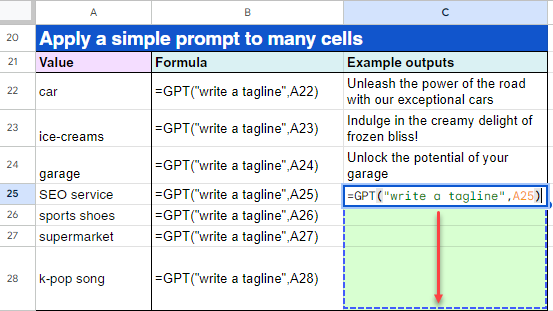
Apply a simple prompt to many cells
With GPT_TRANSLATE(), you can leverage large language models for your machine translation tasks with high performance and support for more than 80 languages. To start using the function, you just have to add the text to translate, the target language and the source language. You could also add additional instructions for the translation with the “instructions” parameter.
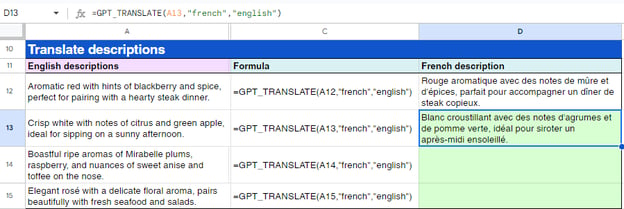
GPT_TRANSLATE() in action
GPT_SUMMARIZE() allows instant summaries of long texts, even in different languages. Interestingly, with the “format” parameter you can give instructions on the format of the summary.
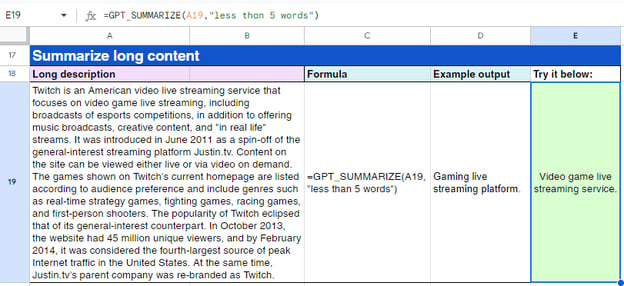
GPT_SUMMARIZE() in action
Excel is specifically designed to be accessible and easy to use. However, it can be complex and time-consuming to perform certain data-related tasks (that’s one of the reasons modern data practitioners have traditionally preferred other tools for data analysis, like Python and R).
ChatGPT for Excel will likely revolutionize how data analysts and data scientists use Excel, easing and speeding up daily data analysis processes. Let’s analyze some of the most compelling use cases:
With ChatGPT for Excel, you can free up your teams from time-consuming data preparation so they can focus on high-value data analysis tasks. Some common data preparation tasks are:
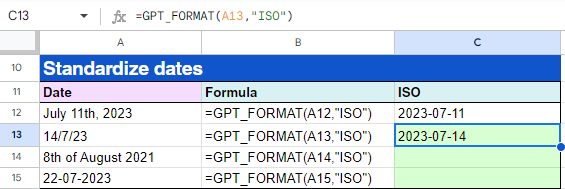
GPT_FORMAT() in action
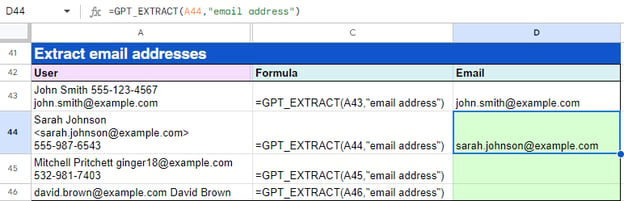
GPT_EXTRACT() in action
Once your data is clean, it’s time for analysis. Here, ChatGPT for Excel also has a lot to say. Here is a list of some data analysis tasks that can be potentially automated:
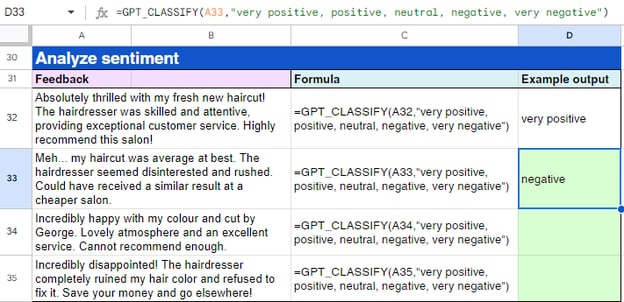
GPT_CLASSIFY() in action
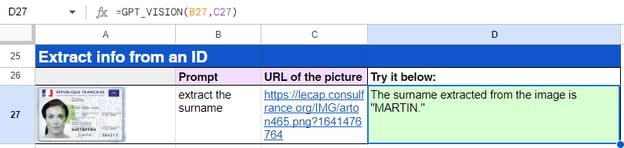
GPT_VISION() in action
Despite its simple, user-friendly interface, the ChatGPT for Excel is an incredibly powerful plugin. It has many functionalities besides the GPT functions that will allow you to leverage the full power of generative AI in your sheets.
In addition to the GPT functions, ChatGPT for Excel comes with a second powerful feature: the bulk prompt tool. This flexible, intuitive tool can handle large-volume runs of simple prompts. You can run any operation on a whole column at once, without writing any formula, saving you a significant amount of time.
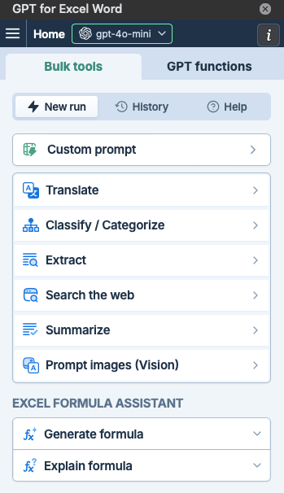
ChatGPT bulk prompt tool
ChatGPT for Excel comes with several bulk prompts, including the custom prompt functionality, which allows you to run a custom prompt for each row in your sheet, and domain-specific functionalities for bulk translation, classification, extraction, search, and much more.
Using the ChatGPT for Excel bulk prompt tool is fairly easy and requires no code, as shown in the image below, where we use the custom prompt tool to create SEO-optimized descriptions for bikes:
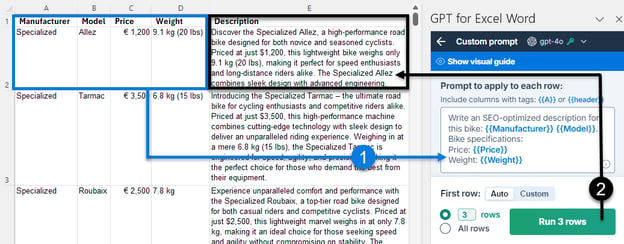
ChatGPT bulk prompt tool in action
It also includes an AI-powered Excel Formula Assistant that allows you to:
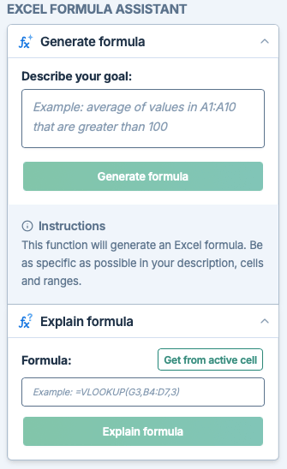
Excel Formula Assistant
As already mentioned, ChatGPT for Excel is not free. You will need to buy a pack to run prompts, and will be charged according to your use. Hence, applying the right formulas is mandatory if you don’t want to waste money.
In this vein, if you are to use the bulk prompt tool, test first with some rows before applying it to the entire column to save tokens:
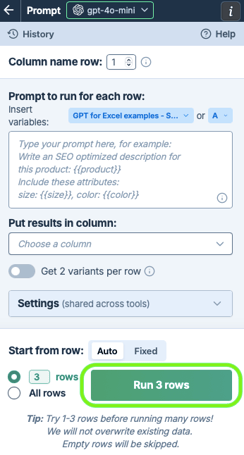
Replace GPT formulas
Equally, a good tip is converting GPT formulas to static values to prevent any further recalculation and save money. You can easily replace formulas with results manually or automatically, either on a selected number of cells or across an entire sheet. Check out the ChatGPt for Excel documentation to know more about replacing GPT formulas.
Another way to prevent automatic recalculation is to enable GPT for Excel cache in your workbook; GPT formulas do not reload. Instead, the results are retrieved from the cache, preventing any extra cost or loss of results.
ChatGPT for Excel comes with the same limitations you would expect in ChatGPT and other generative AI models. For example, ChatGPT can sometimes produce plausible-sounding but incorrect or nonsensical answers. It may also reflect biases present in its training data and lacks true understanding or reasoning capabilities.
Against this backdrop, prompt engineering is key to minimizing potential problems. Prompt engineering is the practice of designing and refining prompts (questions or instructions) to elicit specific responses from AI models. Think of it as the interface between human intent and machine output. In the context of Excel, this means being as specific as possible in your description, input data, cells, and ranges. Check out our separate article to know everything about prompt engineering.
After ChatGPT's release and before the launch of the ChatGPT for Excel add-in, many people started using ChatGPT to assist them with Excel-related tasks. Despite the ChatGPT extension being particularly well-suited for the job, it comes with an important drawback: it is not free.
Therefore, if you are not willing or are unable to pay to use the extension, using ChatGPT and copying its outputs into Excel may be a better choice for you. In the end, the results won’t differ much, for you will always be using the same tool: ChatGPT.
ChatGPT can help you with many Excel-related tasks, including formula generation, data analysis, and data visualization.
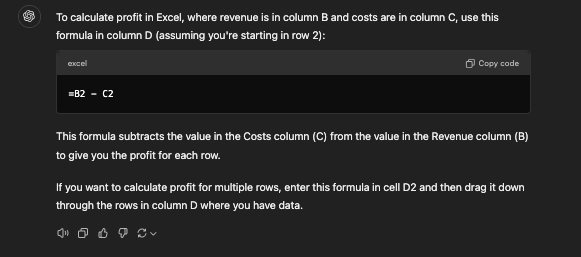
For example, below you can find some basic prompts that can be useful for simple tasks, like calculating a profit column based on the revenues and costs columns of the following spreadsheet.
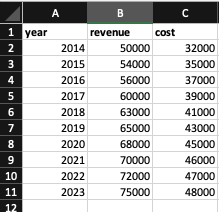
As you can see, ChatGPT outputs the formula with some explanation on how to implement it in Excel. You just have to click on the “Copy code” button and then paste the formula in the Excel cell.
Another basic example with the same data as asking ChatGPT to get the total cost in the time series:
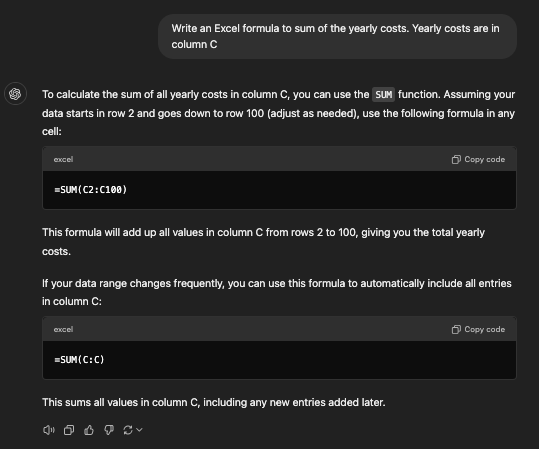
These are just a couple of simple prompts to illustrate how to use ChatGPT for Excel tasks, but there is much more you can do. Honestly, the sky's the limit. Yet, as you move towards more complex tasks, you must be more careful with your prompts so ChatGPT doesn't get confused.
Writing ChatGPT prompts is an art. Effective prompt engineering is essential for getting the most accurate and relevant responses from ChatGPT. By following a few key tips, you can enhance the quality and usefulness of the generated content. Here are the core high-level tips to keep in mind:
ChatGPT for Excel, both as a concept and a plugin, is revolutionizing the way data practitioners use Excel.
There are compelling reasons to implement ChatGPT in your Excel operations. To ensure a successful incorporation of ChatGPT in your data science toolkit, data literacy is key. Fortunately, DataCamp is here to help. We hope the following dedicated materials will help you learn and leverage the full power of ChatGPT and Excel:

I am a freelance data analyst, collaborating with companies and organisations worldwide in data science projects. I am also a data science instructor with 2+ experience. I regularly write data-science-related articles in English and Spanish, some of which have been published on established websites such as DataCamp, Towards Data Science and Analytics Vidhya As a data scientist with a background in political science and law, my goal is to work at the interplay of public policy, law and technology, leveraging the power of ideas to advance innovative solutions and narratives that can help us address urgent challenges, namely the climate crisis. I consider myself a self-taught person, a constant learner, and a firm supporter of multidisciplinary. It is never too late to learn new things.

блог
 Matt Crabtree• 13 мин

блог
 Vinod Chugani• 13 мин

шпаргалка
Top DataCamp Courses
Трек
Освойте основные навыки, необходимые для работы в Excel: от подготовки данных до написания формул и создания визуализаций. Предварительный опыт не требуется.
Трек
Освойте основы ИИ, научитесь эффективно применять его в работе и изучите модели ИИ, чтобы уверенно ориентироваться в стремительно меняющемся мире искусственного интеллекта.
Курс
Улучшите навыки Excel с помощью продвинутых ссылок, поиска и функций базы данных на практических упражнениях.


Microsoft Excel doesn’t need much of an introduction. A classic tool in data analysis, Excel combines powerful capabilities with a user-friendly interface, making it perfect for mature data analysts and less technical users. It’s also a great tool thanks to its smooth integration with the Microsoft BI stack, including PowerBI. Despite the popularization of other tools for data analysis, like Python and R, Excel is still a must-have tool for any data practitioner.
After ChatGPT's release, many people started using ChatGPT to assist them with Excel-related tasks. Yet, this was a tedious, time-consuming process, for users had to copy and paste results from ChatGPT to Excel spreadsheets. Luckily, this has been rapidly changing since the launch of ChatGPT for Excel.
In this tutorial, we will discuss ChatGPT for Excel, an extension that allows you to use ChatGPT directly in your spreadsheets. With ChatGPT for Excel, you can automate tasks, optimize Excel formulas, gain valuable insights, and save time and effort. We will cover how to install and set the extension, some illustrative use cases for data analysis, and tips and best practices for using the ChatGPT for Excel add-in. In the last section, we will also analyze how to use ChatGPT to get the best out of Excel without having to use the extension.
Interested in how AI is changing data quality? Check out our webinar to learn more.