How to Clear Excel Cache (Windows and Mac)

Learn how to clear Excel cache on Windows and Mac to solve common problems like lag and sync errors, and follow best practices to keep Excel running smoothly.
Jan 26, 2026  · 8 min read

Excel usually stores temporary and cached data in the background to speed things up. These files help with performance, recovery, and features like add-ins or recent file access. This helps in the short term. However, over time, this cached data can accumulate or become outdated, and what was helping you is now slowing you down.

In this guide, I will explain the most important Excel caches that actually affect performance and behavior, and show you how to clear them safely on both Windows and Mac.

If you are getting started in Excel, our Introduction to Excel course covers skills like navigating the interface, understanding data formats, and working with basic functions. Also, you can take our Advanced Excel Functions course if you have some experience to learn more about how functions improve efficiency in data analysis.

Advance Your Career with Excel

Gain the skills to maximize Excel—no experience required.

Start Today for Free

What Is Excel Cache (and When You Should Clear It)

In Excel, a cache is stored data that helps the app work faster. Instead of recalculating, reloading, or re-downloading everything every time, Excel saves certain information locally so it can reuse it later.

Excel uses cached files to help you:

  • Open files faster
  • Sync changes with OneDrive or SharePoint
  • Store PivotTable data for quick analysis
  • Recover work if Excel crashes

However, when cache files become outdated or corrupted, they can cause problems instead of improving performance. You may notice the following signs if your cache has issues:

  • Excel feels slow or freezes unexpectedly
  • Your Cloud files won’t sync
  • You see errors like “File is locked” or “File is in use.”
  • Your PivotTables are not updating

When you notice such problems, it’s important to clear your cache for the files to run normally, as I will show you later in the article.

The Most Common Excel Caches That Cause Issues

The following are the most common Excel caches that most users ever need to clear for optimal performance:

Office Document Cache (OneDrive / SharePoint)

The Office Document Cache stores local copies of cloud-based Excel files to speed up syncing and allow offline editing. It can cause problems if the cached versions conflict with the cloud copy.

The common symptoms of Office Document Cache include sync failures where files won’t upload or download properly. You may also see an error like “File is locked” or “Upload failed” errors, and changes not appearing for collaborators.

PivotTable cache

When you create a PivotTable, Excel takes a “snapshot” of your source data and stores it in an internal cache to make analysis faster. However, large datasets can significantly increase the snapshot file size, and cached data can become outdated or bloated.

Therefore, you should clear or refresh the cache when the file size is unusually large or when PivotTables show old or incorrect data. You should also clear the cache when you change the source data structure to improve accuracy and performance.

Temporary files

While you work in your file, Excel usually creates temporary files to support undo actions, autosave, and crash recovery. If the temporary files accumulate, they can cause Excel to crash or close unexpectedly. You will notice this if Excel takes longer to open or close, and if you get “Excel cannot open the file” errors.

How to Clear Excel Cache on Windows

Now that we’ve seen where Excel stores cached data, let me show you how to clear it in Windows.

Clear the Office Document Cache

The Office Document Cache is managed by Microsoft Office and handles syncing for cloud-based Excel files. The cache is controlled through the Upload Center or Office settings, but not directly inside Excel files.

Follow these steps to clear the Office Document Cache:

  • Close Excel and all other Office apps
  • Open the Start Menu and search for Upload Center. If unavailable, open OneDrive Settings instead.
  • Go to Settings
  • Choose Delete cached files
  • Confirm when prompted

After you clear the cached files, Excel removes local copies of cloud files, but no cloud data is deleted. The files will re-sync from OneDrive or SharePoint the next time you open them.

Clear Excel temporary files

Excel stores temporary files separately from your actual workbooks. To access these temporary files:

  • Press Windows + R

  • Type %temp% and press Enter

  • This opens the Windows temporary files folder
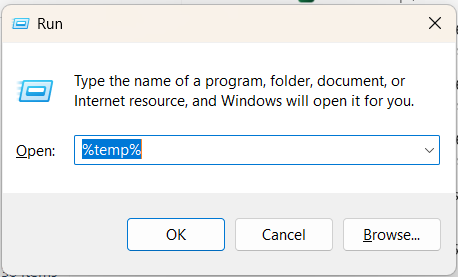
How to clear Excel temporary files

You can now safely delete files and folders with Excel closed. You should skip any files Windows says are “in use.”

Check out our Excel Shortcuts Cheat Sheet to learn how to improve productivity by learning the shortcuts for different Excel features.

Clear PivotTable cache (optional)

Although not common, you should clear the PivotTable cache when your Excel file is unusually large, when PivotTables show outdated or incorrect data, or if you changed the data source structure. Use the steps below to clear the PivotTable cache:

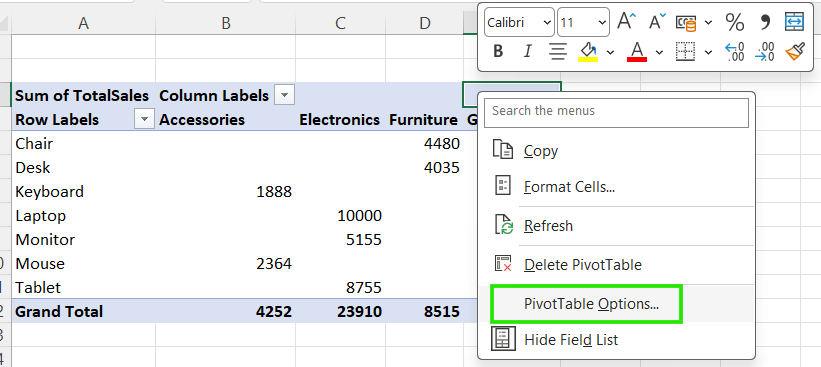
Right-click the PivotTablePivotTable Options.

PivotTable Options in Excel

Go to the Data tab.

Set the Number of items to retain per field to None.

Click OK, then right-click and select Refresh.
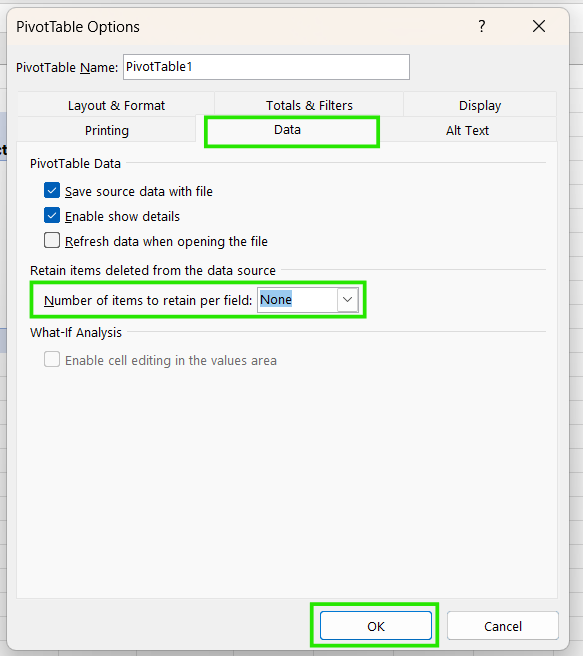
Clear PivotTable Cache in Excel

When you clear the PivotTable cache, it reduces the file size and ensures the dropdown menus only show current data.

How to Clear Excel Cache on Mac

macOS handles Excel cache files differently and requires a few steps to clear them.

Clear Excel and Office Cache Files

Excel cache files are stored inside your user Library folder in macOS. To remove them safely:

  • Close Excel and all Office apps

  • Open FinderGoGo to Folder

  • Paste the path ~/Library/Containers/

  • Locate folders related to Microsoft Excel and Office

  • Delete cache-related folders only (not documents)

This action removes temporary UI states and local cache, forcing Excel to rebuild them automatically when reopened.

Clear PivotTable cache on Mac

The process of clearing PivotTable cache on Mac is similar to Windows, but with fewer customization options. Refreshing PivotTables is usually sufficient, and the cache control is less visible than on Windows.

Common Problems After Clearing Excel Cache

After you clear the Excel cache, you may notice some unusual behavior, but it shouldn’t cause you to panic. These differences are usually normal and temporary, and include the following:

  • Temporary slower startup: The first time you open Excel or a cloud-based file, it will take longer as Excel rebuilds fresh cache files on first launch.
  • File re-syncing: If you cleared the Office Document Cache, you might see a "Syncing" status bar for a few minutes as cloud files may take a moment to download again.
  • PivotTables recalculating or refreshing: Large workbooks may trigger a full recalculation as the cached results were deleted, hence rebuilt from the source when you open it.
  • Recent files list: Sometimes clearing deep system caches can wipe your “Recent” files list. When this happens, you'll just need to open them manually from their folders once to bring them back to the list.

When You Should Not Clear Excel Cache

Clearing Excel cache is an important troubleshooting tool for slow workbooks, but you should be cautious when to apply it. You should be careful not to clear your cache when:

  • Files haven’t fully synced: If OneDrive or SharePoint is still uploading or downloading files, clearing the cache can interrupt the process and create version conflicts.
  • You’re working with unsaved changes: Cache clearing removes temporary local data. Always save and close files first to avoid losing recent edits.
  • You’re troubleshooting unrelated issues: Cache problems usually show up as sync errors, slowness, or outdated data. If the issue is formatting, formulas, permissions, or add-ins, clearing the cache won’t help.
  • The file is massive: If a file is slow simply because it has 500,000 rows and 50 PivotTables, clearing the cache is only a temporary fix. The "lag" is likely a hardware or file-design limitation.

Best Practices to Prevent Excel Cache Issues

To avoid most cache-related problems, follow these simple habits:

  • Close Excel properly: Avoid force-closing the app unless it’s completely unresponsive. Closing Excel normally allows it to delete its own temporary "scrap paper" files.
  • Don’t keep many large files open at once: If you keep large workbooks open at once, it forces Excel to juggle massive amounts of cached data. Always close an Excel file if you aren't using it.
  • Monitor PivotTable size: Since PivotTables store a copy of the source data inside the file, always try to refresh sources promptly to avoid embedded data buildup.
  • ​Let cloud files fully sync before shutting down: Before shutting down your laptop or closing a cloud-synced file, ensure the file says “Saved to Cloud” or shows the green checkmark icon for full sync.

Conclusion

Clearing Excel cache is a simple, practical fix for many common issues like slow performance, sync errors, and outdated data. In most cases, users only need to clear one or two specific caches, such as the Office Document Cache or temporary files, rather than resetting everything. When performed occasionally and at the right time, clearing the cache can quickly restore Excel’s performance and resolve frustrating cloud-sync problems without affecting your actual work.

If you want to advance your Excel skills, I recommend taking our Data Analysis in Excel course. This course will help you master advanced analytics and propel your career. I also recommend taking our Intermediate Power Query in Excel course to learn about data transformation and using the M language for creating dynamic functions.

Advance Your Career with Excel

Gain the skills to maximize Excel—no experience required.


Allan Ouko's photo
Author
Allan Ouko
LinkedIn
I create articles that simplify data science and analytics, making them easy to understand and accessible.

FAQs

How can I automate the process of clearing the Excel cache?

Excel does not provide a built-in or recommended way to automate cache clearing. Manual clearing is safer and ensures files are fully saved and synced first.

What are the common issues caused by a large Excel cache?

Large Excel cache files can cause slow startup, lagging performance, sync errors, outdated data, and unusually large workbook sizes.

How can I reduce the file size of my Excel workbook?

Refresh or rebuild PivotTable caches, remove unused PivotTables, clear excess formatting, and save the file after closing and reopening Excel.

How do I clear the cache for specific Excel add-ins?

Most add-ins rely on Excel’s general cache or their own internal settings. Clearing Excel’s temporary and Office Document cache usually resolves add-in issues.

What are the best practices for maintaining Excel performance?

Close Excel properly, avoid keeping many large files open, refresh PivotTables regularly, and ensure cloud files finish syncing before shutting down.

Topics

Learn Excel with DataCamp

Course

Data Analysis in Excel

3 hr
120.5K
Learn how to analyze data with PivotTables and intermediate logical functions before moving on to tools such as what-if analysis and forecasting.
See DetailsRight Arrow
Start Course
See MoreRight Arrow
Related

Tutorial

How to Clean Data in Excel: A Beginner's Guide

Learn essential data cleaning techniques in Excel, including removing duplicates, handling missing values, and maintaining consistent formatting.
Laiba Siddiqui's photo

Laiba Siddiqui

Tutorial

How to Freeze Multiple Rows in Excel

Learn how to freeze multiple rows in Excel with step-by-step instructions, tips, and troubleshooting to keep your headers visible while scrolling.
Allan Ouko's photo

Allan Ouko

Tutorial

How to Freeze Panes in Excel: A Guide to Lock Rows and Columns

Learn how to keep important rows and columns visible while you scroll in Excel. I’ve explained Freeze Panes step-by-step, with tips for solving everyday problems and improving your workflow.
Laiba Siddiqui's photo

Laiba Siddiqui

Tutorial

How to Move Columns in Excel: Simple Techniques and Pro Tips

Learn different methods to rearrange your spreadsheet by moving single or multiple columns in Excel. Discover practical shortcuts, hidden tricks, and expert tools to speed up your workflow.
Laiba Siddiqui's photo

Laiba Siddiqui

Tutorial

How to Move a Column in Excel: Tips and Best Practices

Learn how to move a column in Excel using drag-and-drop, cut-and-insert, and shortcuts. Discover tips to improve efficiency across all versions of Excel.
Allan Ouko's photo

Allan Ouko

Tutorial

How to Refresh Pivot Table: Excel and Google Sheets

Learn how to refresh your PivotTables manually, with keyboard shortcuts, or automatically in both Excel and Google Sheets.
Laiba Siddiqui's photo

Laiba Siddiqui

See MoreSee More