
Format Painter: How to Copy Formatting in Excel

Learn how to use Excel Format Painter to copy formatting quickly, apply it across cells and sheets, and avoid common mistakes.
Feb 6, 2026  · 6 min read

In this guide, I will show you how to use Format Painter in Excel so you can apply formatting quickly without breaking your workflow. It's a great tool, and once you use it you won't go back to copying formats by hand ever again.

If you are getting started in Excel, our Introduction to Excel course covers skills like navigating the interface, understanding data formats, and working with basic functions. Also, I find the Excel Formulas Cheat Sheet, which you can download, is a helpful reference because it has all the most common Excel functions.

What Is Format Painter in Excel?

Format Painter in Excel is a tool that allows you to copy formatting from one cell, range, or object and apply it to another. It copies visual and structural formatting such as font type and size, font color, fill color, borders, alignment, and number formats. 

However, the Excel Format Painter does not copy cell values, formulas, references, or underlying data. It will copy only the visual appearance of the data.

Where to Find Format Painter in Excel

On Excel for desktop, you will find Format Painter on the Home tab of the Excel ribbon, in the Clipboard group. The icon looks like a small paintbrush.
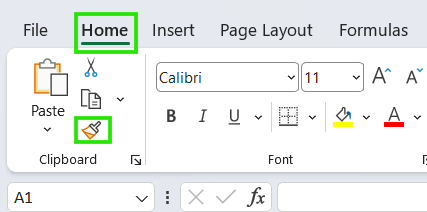
Excel Format Painter

If you are using Excel for the web, the tool is also on the Home tab but may be grouped or shown as an icon-only button, depending on screen size.
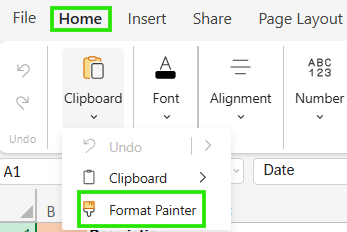
Format Painter in Excel for Web

How to Use Format Painter in Excel (Step-by-Step)

You can use the Format Painter in Excel to copy a format in one cell or multiple cells. I will show you both methods.

Copy formatting to one cell

To copy your cell format from one cell to another:

  • Select the source cell that already has the formatting you want. For example, click cell D2.

  • On the Home tab, click Format Painter.
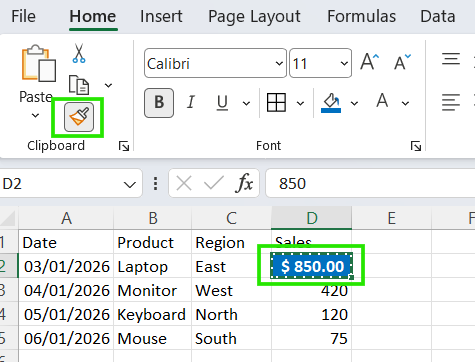
How to use Excel Format Painter

Then, click the target cell where you want to apply the formatting.

You will notice that your mouse pointer changes into a small paintbrush when you copy the formatting and turns off automatically after applying it.

Apply formatting to multiple cells

If you want to apply the same formatting to multiple cells, follow these steps:

  • Select the source cell with the desired formatting.
  • Double-click the Format Painter icon on the Home tab.
  • Click or drag across multiple target cells to apply the same formatting.

To exit Format Painter mode, press Esc, click the Format Painter icon again, or click another tool on the ribbon.

Format Painter Keyboard Shortcuts in Excel

The Format Painter doesn’t have a single dedicated shortcut. However, you can use the following sequence of standard copy and paste.

If using Windows:

  • Ctrl + C → copy the source cell
  • Ctrl + Alt + V, then T, Enter → paste formats only (Format Painter equivalent)

Using these keys Alt H F P → activates Format Painter so you can copy it to the required cell.

If you are on a Mac, use Cmd + C followed by Cmd + Ctrl + V to paste formatting only.

Shortcuts are always faster than the mouse when you’re working in large ranges, repeating the same formatting pattern.

Check out the Excel Shortcuts Cheat Sheet to learn how to improve productivity by learning the shortcuts for different Excel features.

What Formatting Does Format Painter Copy?

As I had stated earlier in the article, the Format Painter in Excel copies visible and structural formatting, including:

  • Font and text formatting: font type, size, color, bold, italics, underline
  • Cell fills and borders: background color, border styles, and thickness
  • Number formats: currency, percentages, dates, decimals
  • Alignment settings: horizontal/vertical alignment, text wrap, rotation

You may also notice some inconsistencies when copying between differently sized cells or merged ranges. The column width, row height, and conditional formatting are not always transferred as expected.

Using Format Painter Across Rows, Columns, and Sheets

The Format Painter in Excel is adaptive and works across rows and columns exactly the same as cells. You just select the formatted row or column, activate Format Painter, then click the target row or column header to apply.

You can also use Format Painter between worksheets in the same workbook. To do this, select the source cell, activate Format Painter, switch sheets, and apply the formatting.

Similarly, Format Painter works across different workbooks but only when both workbooks are open. However, some formatting, such as themes and fonts, may not transfer cleanly if the workbooks use different themes or styles.

Common Problems When Using Format Painter

Below are common issues I have run into when using Format Painter in Excel that you should be aware of:

  • Formatting not copying as expected: Some elements, like column width, row height, or conditional formatting, may not transfer to the target cells, especially between different ranges or sheets.
  • Format Painter overwriting unwanted styles: If you apply the Format Painter to a cell, it replaces all existing formatting, which can remove borders, fills, or number formats you wanted to keep.
  • Confusion between formatting vs values: Format Painter always copies appearance only. So, if numbers or formulas stay the same, that’s expected behavior, not an error.
  • Inconsistent results with merged cells: Merged ranges often produce uneven borders, alignment issues, or partial formatting when used as either the source or target.

I recommend checking out our Conditional Formatting in Google Sheets course to learn how to apply conditional formatting to validate data for getting quick insights.

When Not to Use Format Painter

While the Format Painter is convenient, below are scenarios when you should avoid using it:

  • When styles or templates are better: If you’re formatting Excel Tables, headers, or reports repeatedly, Excel styles provide consistency and are easier to update globally.
  • When pasting formats is more appropriate: Using Paste SpecialFormats gives more control, especially when working with large ranges or using the keyboard.
  • In large or structured spreadsheets: Using Format Painter heavily in tables, dashboards, or models can introduce inconsistent formatting that’s hard to trace or fix later.

Best Practices for Using Format Painter in Excel

Now that you have understood the don’ts of the Format Painter in Excel, here is a checklist to help you keep your workflow clean:

  • Finalize your work first: Apply Format Painter after finalizing your formatting, not while layouts are still changing, to avoid repetitive work.
  • Use double-click sparingly: While the “lock” feature is great, use this mode sparingly to avoid accidentally repainting unrelated cells.
  • Combine with existing styles: Combine Format Painter with cell styles to maintain long-term consistency.
  • Use “Undo” safety net: If the painter ruins your layout, hit Ctrl + Z immediately before continuing.

Conclusion

The Excel Format Painter is a fast and efficient way to copy formatting without recreating styles from scratch. It works best for small to medium formatting tasks, such as aligning the look of a few cells or ranges, rather than managing large-scale design changes. If you understand its limits, you’ll avoid frustration and keep your workflows smooth. Always think of the Format Painter as a precision tool for quick, consistent formatting, not a full styling system.

Now that you are ready to explore further, I recommend taking our Data Analysis in Excel course to advance your Excel skills. This course will help you master advanced analytics and propel your career. I also recommend taking our Intermediate Power Query in Excel course to learn about data transformation and using the M language for creating dynamic functions.

Advance Your Career with Excel

Gain the skills to maximize Excel—no experience required.

Start Today for Free

Allan Ouko's photo
Author
Allan Ouko
LinkedIn
Data Science Technical Writer with hands-on experience in data analytics, business intelligence, and data science. I write practical, industry-focused content on SQL, Python, Power BI, Databricks, and data engineering, grounded in real-world analytics work. My writing bridges technical depth and business impact, helping professionals turn data into confident decisions.

Format Painter FAQs

Does Format Painter copy formulas or values?

No. Format Painter only copies formatting. It does not copy values, formulas, references, or calculations.

What is the keyboard shortcut for Format Painter in Excel?

There’s no single dedicated shortcut for Format Painter in Excel, but you can use Ctrl + C Ctrl + Alt + V T Enter (Windows) to paste formats only, which works like Format Painter.

Can I use Format Painter on multiple cells at once?

Yes. Double-click the Format Painter icon to apply the same formatting to multiple cells, then press Esc to exit.

Does Format Painter work across worksheets?

Yes. You can copy formatting from one worksheet and apply it to another within the same workbook.

Why does Format Painter overwrite existing formatting?

Format Painter overwrites existing formatting because it replaces all formatting in the target cell. It doesn’t merge styles or preserve selected attributes.

Topics

Learn Excel with DataCamp

Course

Data Preparation in Excel

3 hr
73.8K
Understand how to prepare Excel data through logical functions, nested formulas, lookup functions, and PivotTables.
See DetailsRight Arrow
Start Course
See MoreRight Arrow
Related

Tutorial

Conditional Formatting in Excel: A Beginner’s Guide

Explore conditional formatting in Excel with simple to advanced examples and their best practices.
Joleen Bothma's photo

Joleen Bothma

Tutorial

How to Show Formulas in Excel (Instead of Results)

Learn how to show formulas for a full worksheet, check individual cells, prepare files for review or printing, and avoid common issues.
Laiba Siddiqui's photo

Laiba Siddiqui

Tutorial

Find and Replace in Excel: Save Time and Avoid Mistakes

Learn how to use Find and Replace in Excel to clean data, fix errors, and make bulk changes without breaking formulas or formatting.
Allan Ouko's photo

Allan Ouko

Tutorial

Fill Handle Excel: How to Speed Up Data Entry

Learn how to use the Fill Handle in Excel to copy formulas, extend data patterns, customize AutoFill options, and troubleshoot common issues with step-by-step guidance and examples.
Allan Ouko's photo

Allan Ouko

Tutorial

How to Move Columns in Excel: Simple Techniques and Pro Tips

Learn different methods to rearrange your spreadsheet by moving single or multiple columns in Excel. Discover practical shortcuts, hidden tricks, and expert tools to speed up your workflow.
Laiba Siddiqui's photo

Laiba Siddiqui

Tutorial

Excel Macros Tutorial: Automate Formatting, Reporting, and Data Entry

Learn how to automate repetitive Excel tasks with Excel macros. Create, use, and manage macros to boost productivity and transform your data workflows.

Rajesh Kumar

See MoreSee More