
Course
Data Analysis in Excel
3 hr
151K
In this tutorial, I will show you how to use Find and Replace effectively, understand its key options, and avoid common mistakes that can lead to unexpected results.
If you are getting started in Excel, our Introduction to Excel course covers skills like navigating the interface, understanding data formats, and working with basic functions. Also, I find the Excel Formulas Cheat Sheet, which you can download, is a helpful reference because it has all the most common Excel functions.
Find and Replace is an Excel feature that lets you search for specific values and optionally change them in one action. It works with text, numbers, symbols, and even formatting. This function has (as you migth guess) two parts:
Find and Replace is much faster than manual edits, especially in large datasets. Instead of scanning thousands of cells, Excel locates every match instantly and can update them all at once, saving time and reducing errors.
You can access Find and Replace through the interface or using keyboard shortcuts.
To open Find and Replace through the keyboard shortcuts:
Find: Ctrl + F on Windows and Command + F on Mac.
Replace: Ctrl + H on Windows and Command + Shift + H on Mac.
To open Find and Replace using the Excel ribbon:
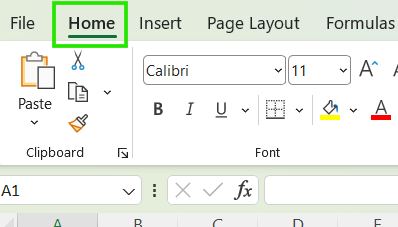
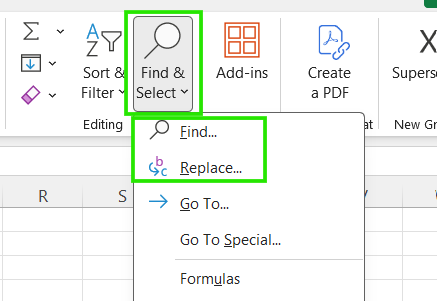
It is important to note that Find mode searches and highlights matching cells, while Replace mode searches and allows you to change values. You can always switch between the two tabs in the same dialog box to use what’s appropriate for your task.
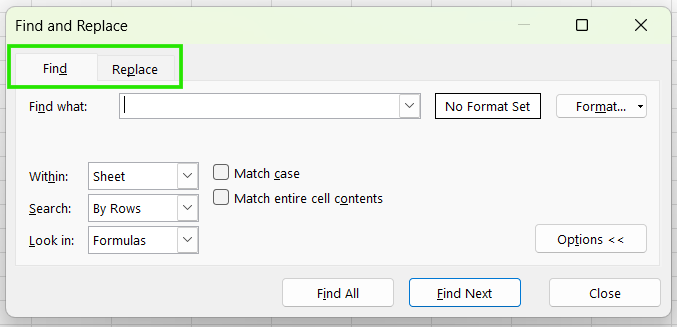
Check out the Excel Shortcuts Cheat Sheet to learn how to improve productivity by learning the shortcuts for different Excel features.
Looking up values is the first step when auditing or navigating a large workbook.
To search for text, numbers, or symbols:
Open Find using Ctrl + F on Windows or Command + F on Mac
Enter the value you want to search for
Click Find Next to move through matches one at a time
Click Find All to see every match at once
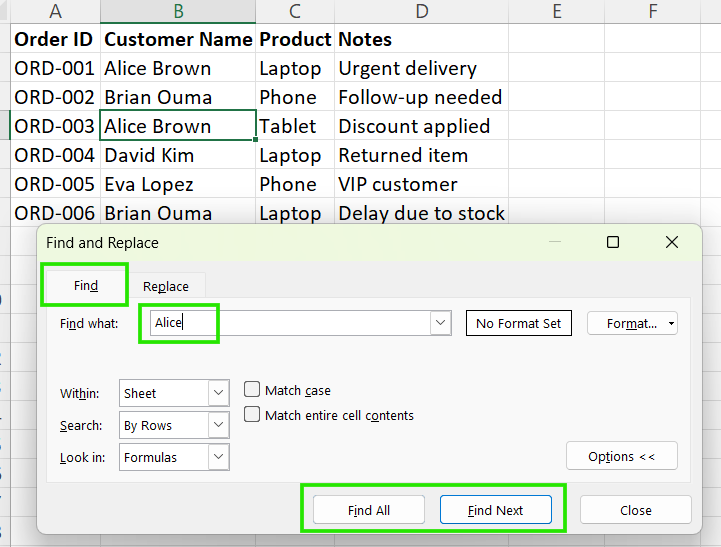
Using Find Next is best when you want to review results individually, and Find All is useful for auditing data or checking how often a value appears.
By default, Excel only looks for values in your current active sheet. However, you can expand your search to the whole workbook using these steps:
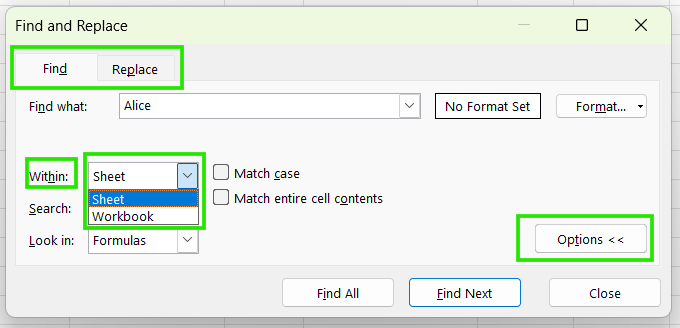
Finding values within a sheet is useful when working on a specific Excel table or tab, while searching within the workbook is helpful for tracking repeated values across multiple tabs.
The Replace feature lets you update values quickly by substituting searched values with new ones.
If you want more control over how you are substituting your data, use the steps below:
Open Replace (Ctrl + H on Windows, Command + Shift + H on Mac)
Enter the value to search for in Find what
Enter the new value in Replace with
Click Find Next
Click Replace to update just that match
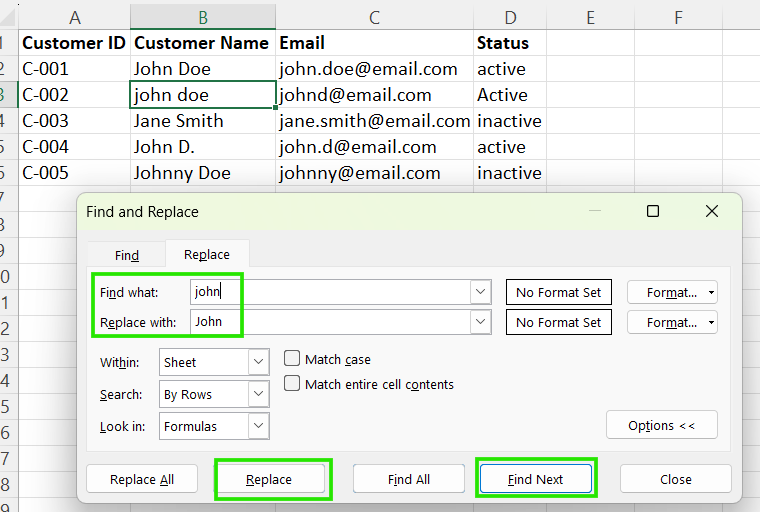
This method is safe for mixed and messy data since you can review each match before changing it. Therefore, you can avoid updating cells that look similar but shouldn’t be changed.
The Replace All feature updates every match in the selected range instantly. It is appropriate when the data is clean and consistent or when you’re standardizing values like changing “USA” to “United States.”
You should be careful when using Replace All since Excel does not ask for confirmation per change. Also, partial matches can be replaced unintentionally, and formatting or formulas can be affected by the replacement.
As a best practice, always test with Find Next or Replace first before using Replace All. You can also use Undo (Ctrl + Z) immediately if something looks wrong, or consider saving a copy of the file before large replacements.
Advanced options help you be precise with what you want in your sheets. To use the advanced features, first click Options << in the Find and Replace dialog box.
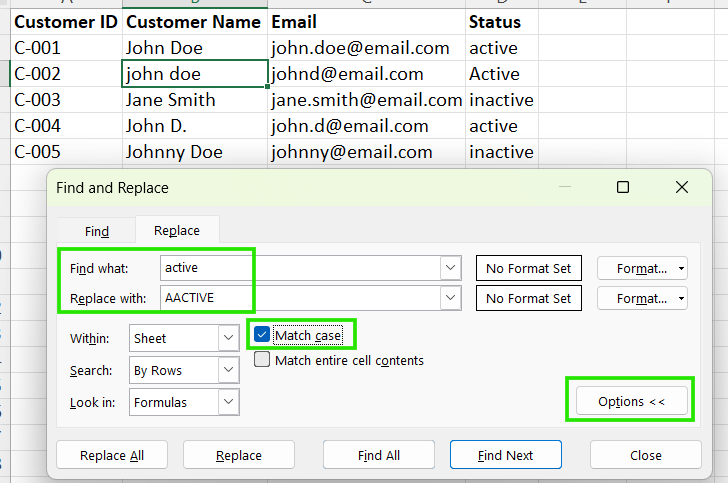
The Match case option replaces only values with the same capitalization and is useful when case matters.
In the example below, only the lowercase “active” changes.
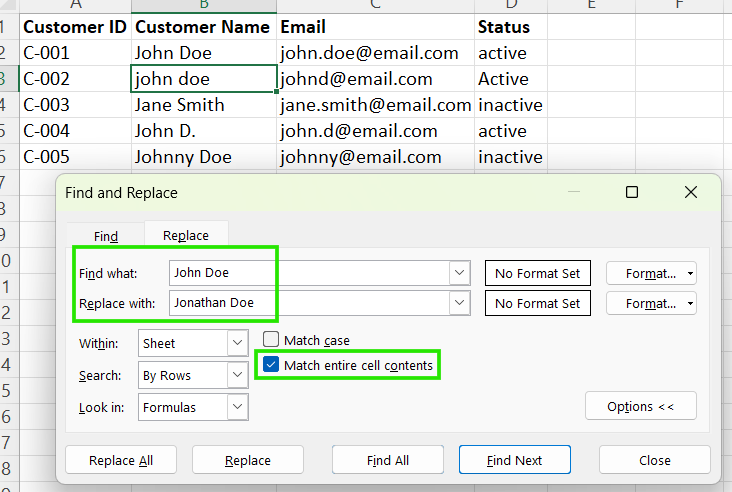
On the other hand, the Match entire cell contents option replaces only cells that exactly match the search value. This prevents partial replacements inside longer text.
In our example below, Match entire cell contents option prevents changing the “Johnny Doe” cell if any letters match.
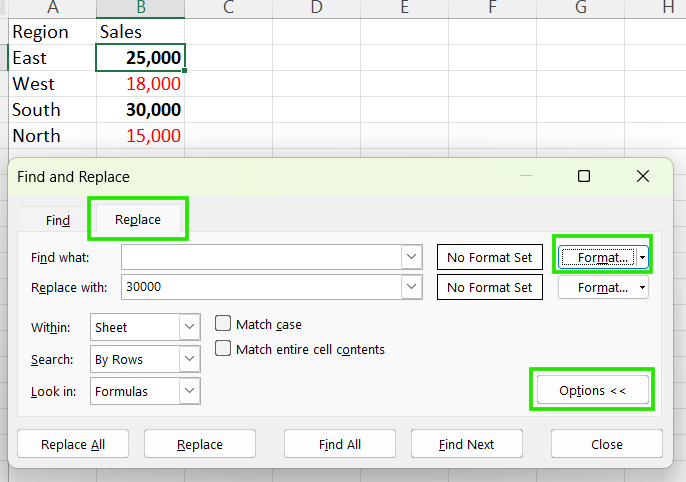
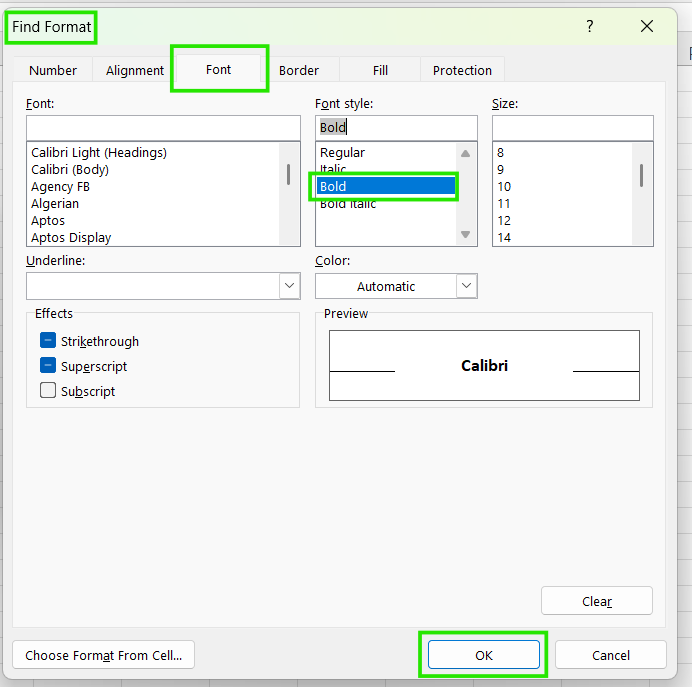
To replace text that has a certain format, such as bold:
Press Ctrl + H to open Find and Replace → Options <<.
Click Format… next to Find what.
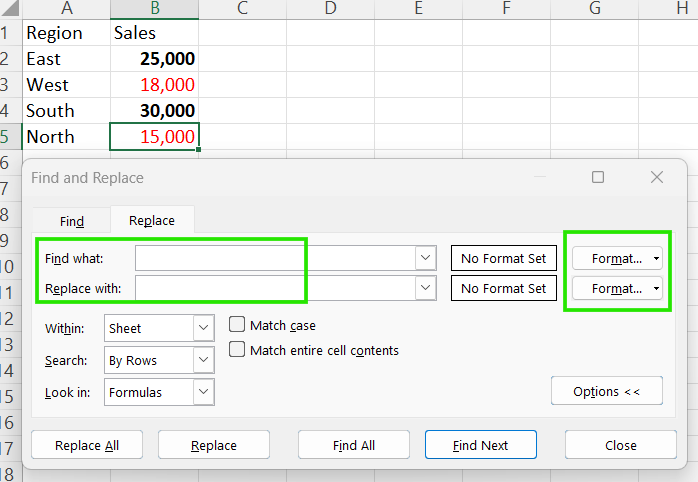
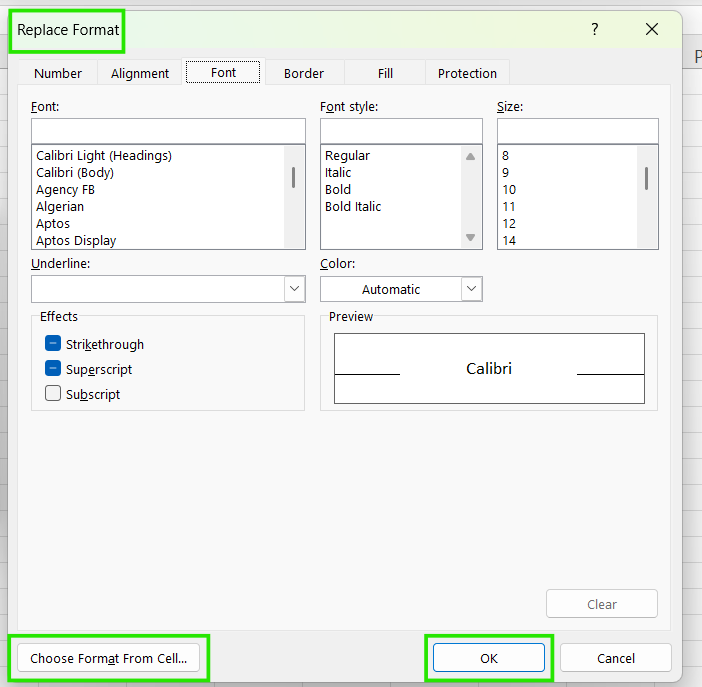
If you want to change only the formatting, but keep the text or numbers the same:
Press Ctrl + H to open Find and Replace → Options <<.
Leave Find what and Replace with empty.
Wildcards allow you to find and replace patterns instead of exact values. The common wildcard characters are:
*: Matches any number of characters
?: Matches a single character
In the example below, we have used ? to look for users whose ID matches C-_03.
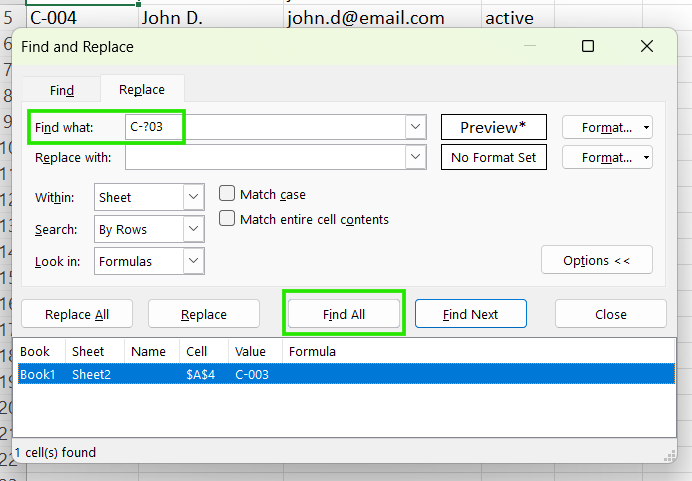
Wildcards are powerful when data isn’t uniform, but you should test it carefully with Find before using Replace.
Find and Replace also works inside formulas, but requires caution to avoid errors.
When you use Find and Replace inside formulas, Excel:
This method is helpful when changes affect many formulas across a sheet or workbook, and can save a lot of time. You can use it to:
In the example below, the Find and Replace method is used to update the ROUND() function to ROUNDUP() to adjust the calculation precision in the entire worksheet.
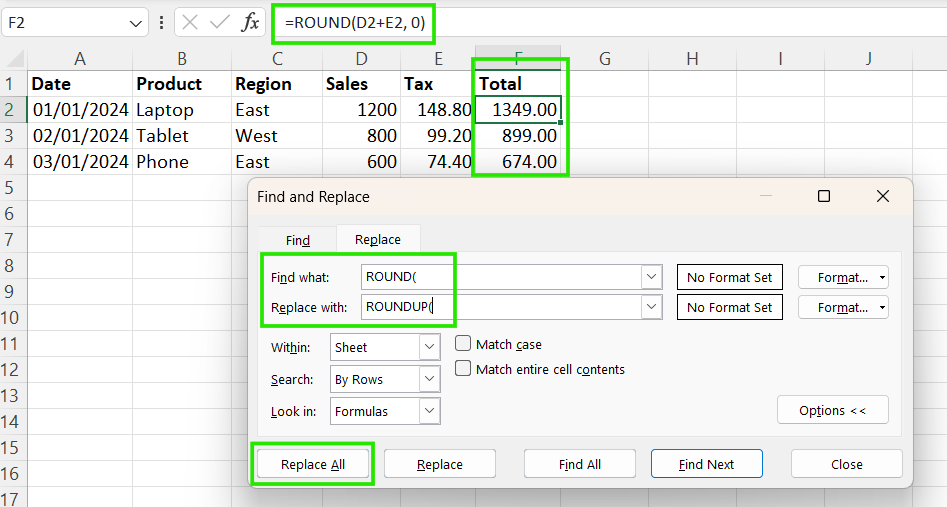
However, you should be aware that Find and Replace in formulas is risky since it can break formulas if partial matches are replaced and may affect formulas you didn’t intend to change. Also, Excel has no warning if logic becomes incorrect, and Replace All can silently modify hundreds of formulas at once.
As a best practice, always use Find first, review matches carefully, and test a few formulas before committing to large replacements. Whenever possible, test the logic on a backup copy of the file.
I recommend checking out our Data Manipulation cheat sheet to learn more about other Excel functions for organizing data.
Below are the common mistakes I have encountered when using Find and Replace in Excel, which will help you save time when auditing your workbook:
Although Find and Replace is useful for updating large datasets, below are scenarios when you should avoid using it:
When formulas or functions are safer: If you need to see original data that needs logic, conditions, or repeatable rules, use functions like the SUBSTITUTE(), IF(), or TEXT() functions. In this case, Find and Replace makes one-time edits and doesn’t adapt if data changes later.
When partial matches could corrupt data: Replacing parts of values, such as codes, IDs, or dates, can unintentionally alter valid data. This is especially risky when values share similar patterns like 101, 1010, and 1101.
When structured data tools are more appropriate: For large or structured datasets, tools like Power Query, filters, or pivot tables provide safer, more controlled transformations than bulk text replacement.
To ensure you use Find and Replace safely, use the following checklist to avoid common mistakes:
Find and Replace is one of Excel’s most powerful time-saving tools, but it’s also easy to misuse if applied carelessly. When used with the right scope, testing, and review, it can clean data and update values in seconds instead of hours. Treat it as a precision tool, not a blunt instrument, and you’ll get speed without sacrificing accuracy.
If you want to advance your Excel skills, I recommend taking our Data Analysis in Excel course. This course will help you master advanced analytics and propel your career. I also recommend taking our Intermediate Power Query in Excel course to learn about data transformation and using the M language for creating dynamic functions.
Gain the skills to maximize Excel—no experience required.
Learn Excel with DataCamp
Course
Course
Course
Tutorial
Jachimma Christian
6 min
Tutorial
Laiba Siddiqui
15 min
Tutorial
Rajesh Kumar
Tutorial
Allan Ouko
9 min
Tutorial
Josef Waples
6 min
Tutorial
Chloe Lubin
12 min