Course
Introduction to AI for Work
2 hr
124.7K
The scenario is one most operations and marketing teams recognize. It is quarter-end, the numbers exist somewhere, and leadership wants a review by the end of the week.
Here is what went into the folder and what came out of it:
That last line matters more than it looks. Two small rules are what turn a vague request into something I can actually check when the files come back.
The setup takes about two minutes, and most of that is deciding what Work is allowed to see.
In the desktop app, pick ChatGPT from the top-left menu, then switch the toggle at the top from Chat to Work. Chat and Work chats sit together in Recents, so you are not moving to a separate app.
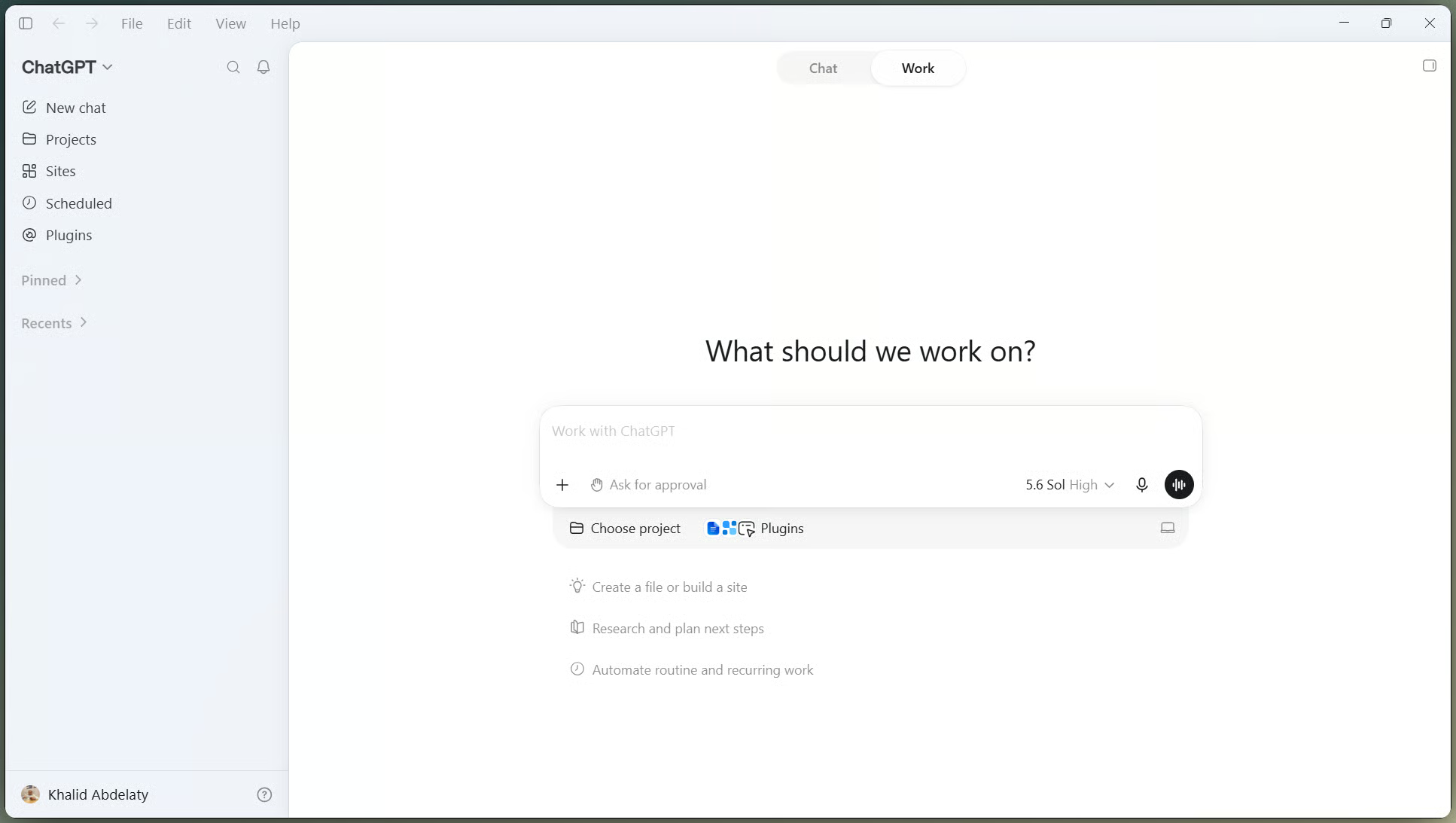
Switching from Chat mode to Work. Image by Author.
Instead of uploading files one by one, I pointed Work at a single local folder holding the four source files and nothing else. Desktop Work can read and write inside a folder you choose, while Work on web and mobile runs in the cloud and cannot open files on your computer.
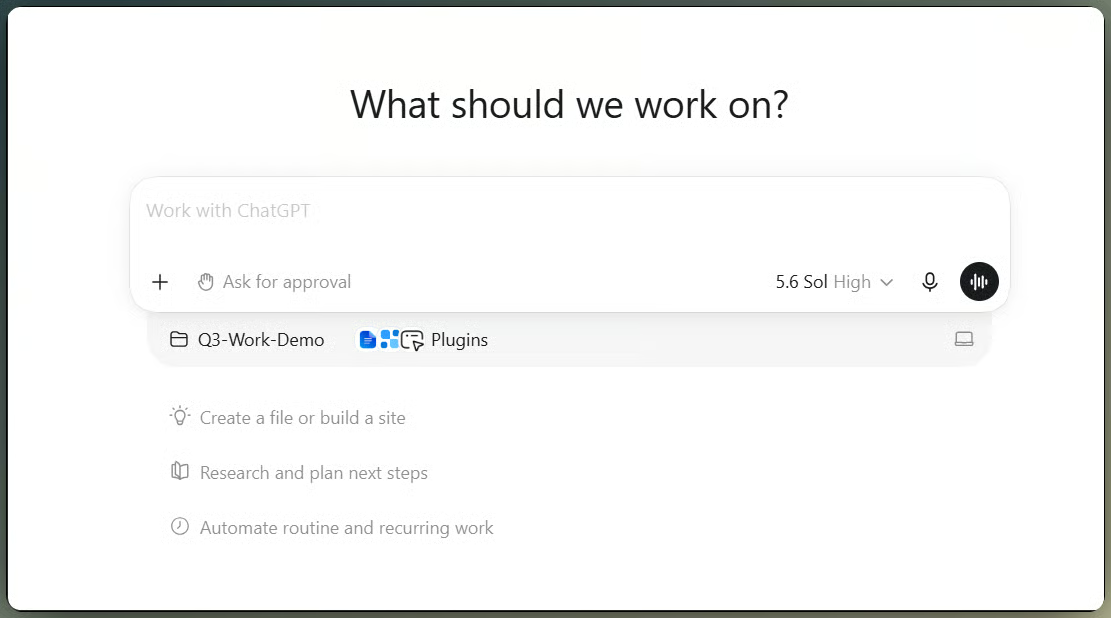
Granting Work access to a folder. Image by Author.
Keeping the folder narrow is partly about privacy and partly about review. When something looks wrong later, I want a short list of files to trace it back to.
Work does better with a described result than with a list of clicks. My first message named the analysis, the audience, the three files, the sources, and the two rules.
Analyze our Q3 competitive position and sales performance using the attached folder.
Produce three deliverables: an updated market and business review, a supporting spreadsheet, and an executive presentation, for our leadership team.
Use the notes, sales data, and prior research in this folder as your main sources, plus current information you find online where the notes are missing something.
Keep the approved revenue figures in the spreadsheet unchanged, and flag anything you can't verify instead of guessing.
Notice how much of that prompt is about review rather than production. Our ChatGPT prompt engineering guide goes deeper into prompt structure if you want the general version.
I ran it on Sol because the task mixed loose meeting notes with financial figures I did not want misread.
Choosing a GPT-5.6 model and effort. Video by Author.
With Plan mode on, Work read the folder and came back with questions before doing anything. It asked who the leadership team was, whether a competitor named in the notes was real, how to treat August and September, and what target sat behind the phrase "down versus plan."
I answered that the audience was the executive team, the competitor was fictional, July was actual, the next two months were forecasts, and no numeric target existed.
Then it proposed five steps, and I edited one: the plan said it would check the source spreadsheet for existing formulas, but the source is a CSV and cannot hold any. I moved that check to the workbook that I was about to build.
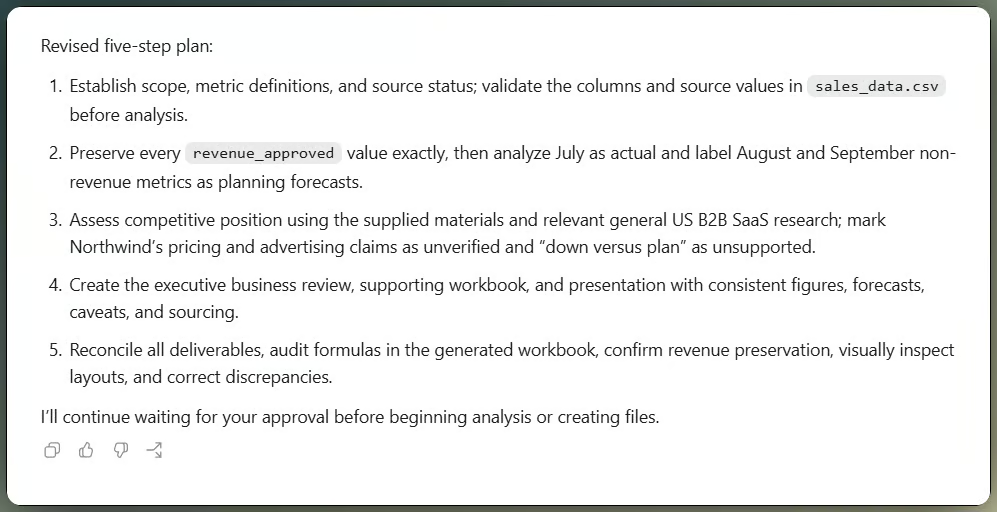
Work proposes a five-step plan. Image by Author.
That exchange took maybe three minutes and was the cheapest part of the whole run. Catching a wrong assumption in a plan costs a sentence. Catching it in three finished files costs a rebuild.
The notes mentioned a competitor price change with no detail attached, which is exactly the gap a quarterly review tends to have.
Because the competitor was fictional, Work did not map it to a real company or produce a source for it. It instead researched the broader US B2B SaaS pricing market, cited pages from Stripe and SBI, among others, and kept every claim about the fictional competitor marked as unverified.
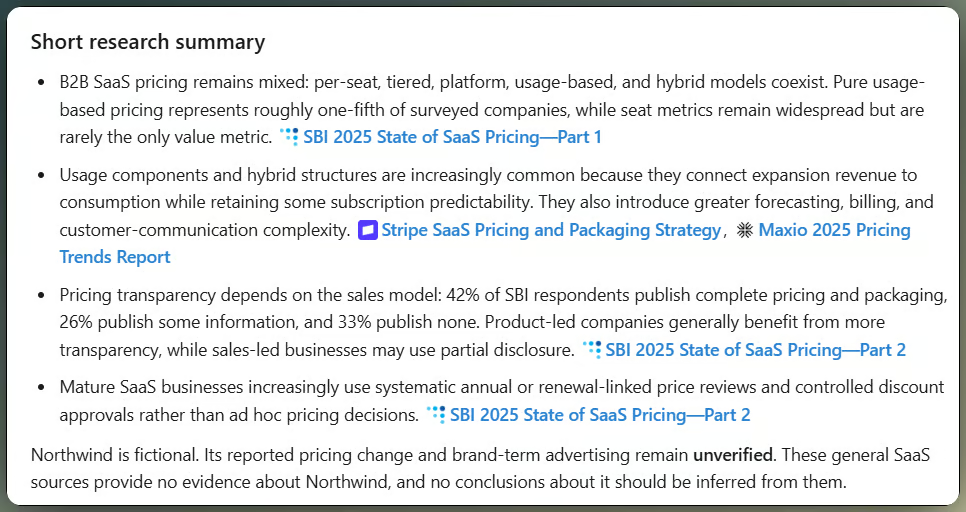
Work cites sources found during research. Image by Author.
I opened each link myself. A citation can point to a real page and still not support the sentence sitting next to it, and that gap is hard to spot once the claim is inside a deck.
Plugins are how Work reaches past the folder into the tools a team already uses. Type @ in the composer and pick one, or open the Plugins library from the sidebar.
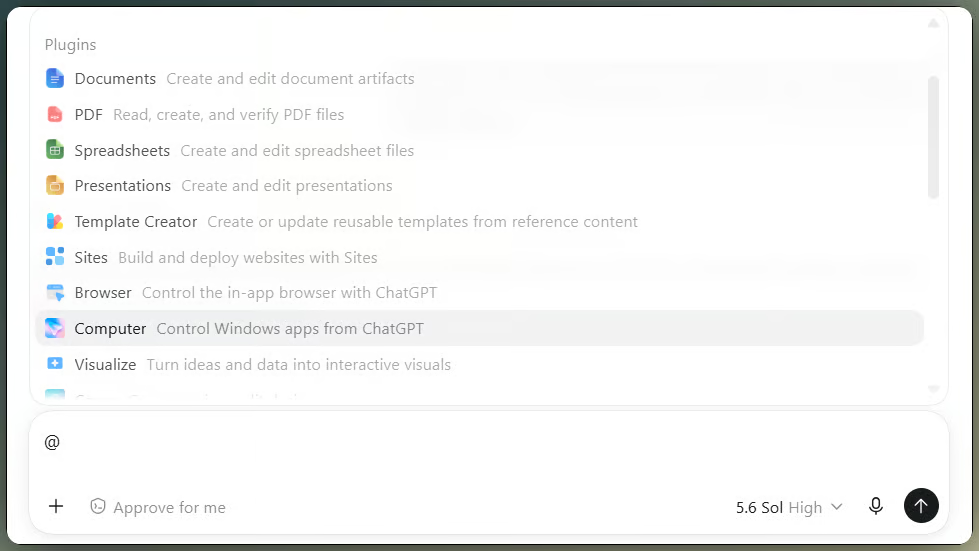
Mentioning an available plugin inside Work. Image by Author.
What appears depends on your plan and on what an admin has approved, and some actions ask for approval before they run. Our ChatGPT Apps guide covers how those app connections behave inside ChatGPT.
For this run, I did not need a connected app at all, just the browser built into the desktop app. It opens beside the chat with Ctrl+Shift+B, and it keeps its own browser state rather than borrowing your everyday Chrome profile, so you sign in there yourself when a page asks for an account.
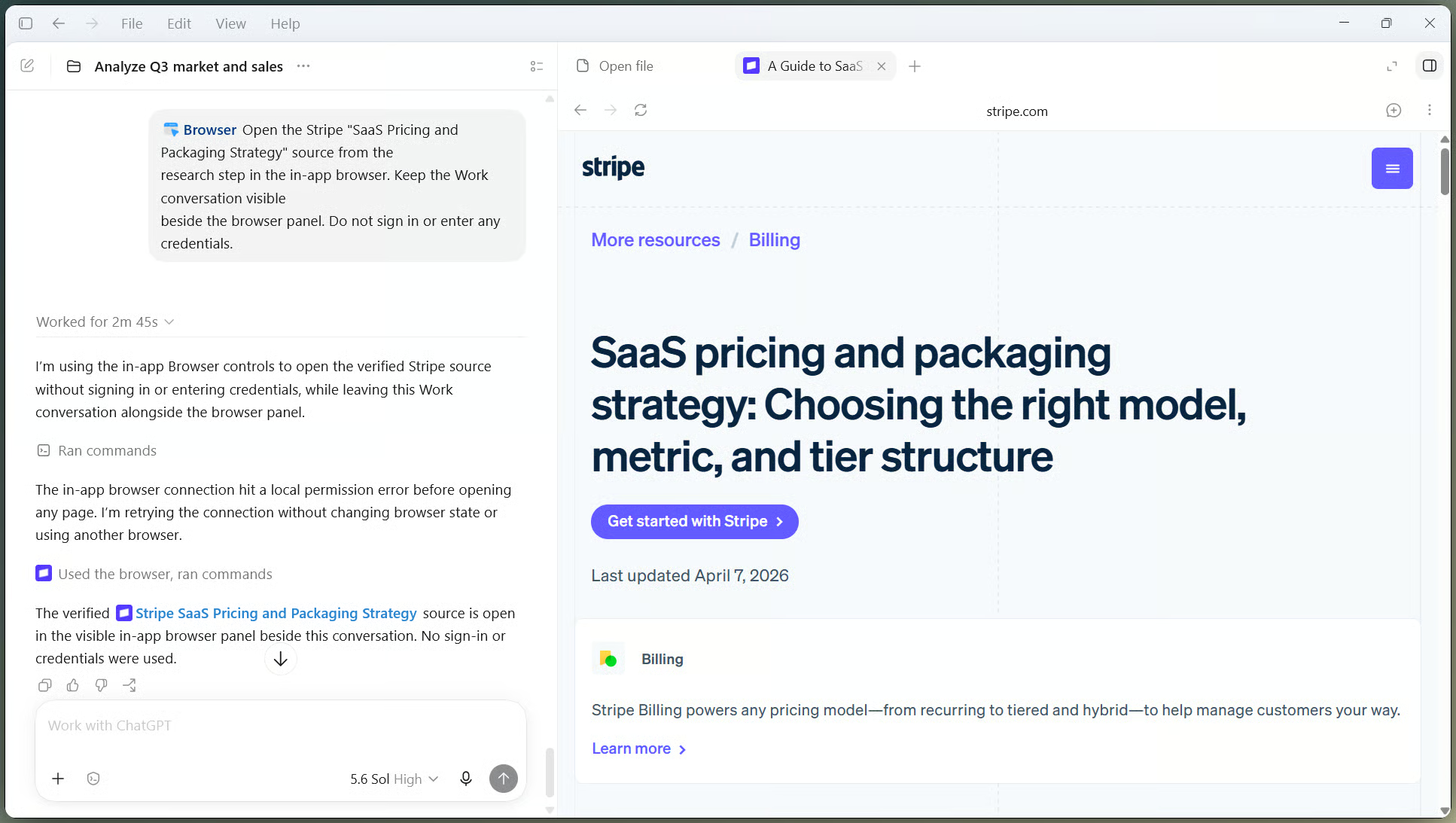
Work browsing the web inside ChatGPT. Image by Author.
Cloud Work uses a different one. Cloud Browser handles public, signed-out pages only, so it cannot take login details, use a password manager, or make a payment, and some sites block automated browsers or answer with a CAPTCHA. When a research step hits one of those walls, the task stops and hands the page back to you.
Once the research was settled, the three files came out of the same analysis rather than three separate requests. The report arrived first and read well, apart from an executive summary generic enough to fit any company, which I asked it to rewrite using the actual figures.
While Work was building the files, I sent one more instruction: show July as actual, label August and September as forecasts, keep the competitor warning visible in all three files, and leave every approved revenue value alone. Its final check reported those rules back to me, file by file.
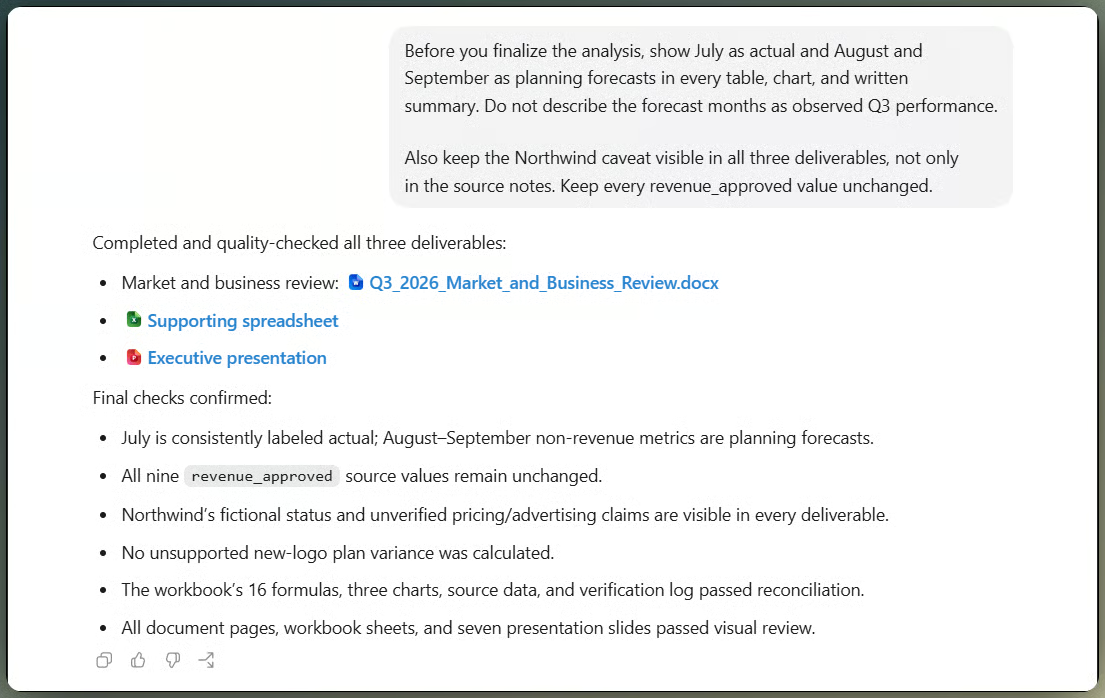
Work applies corrections across all deliverables. Image by Author.
Steering mid-run is worth the habit. I would rather correct a labeling rule once than find it repeated across a report, a workbook, and seven slides.
The workbook was the file I looked at hardest, because it is the one someone pastes into a board pack without reading closely.
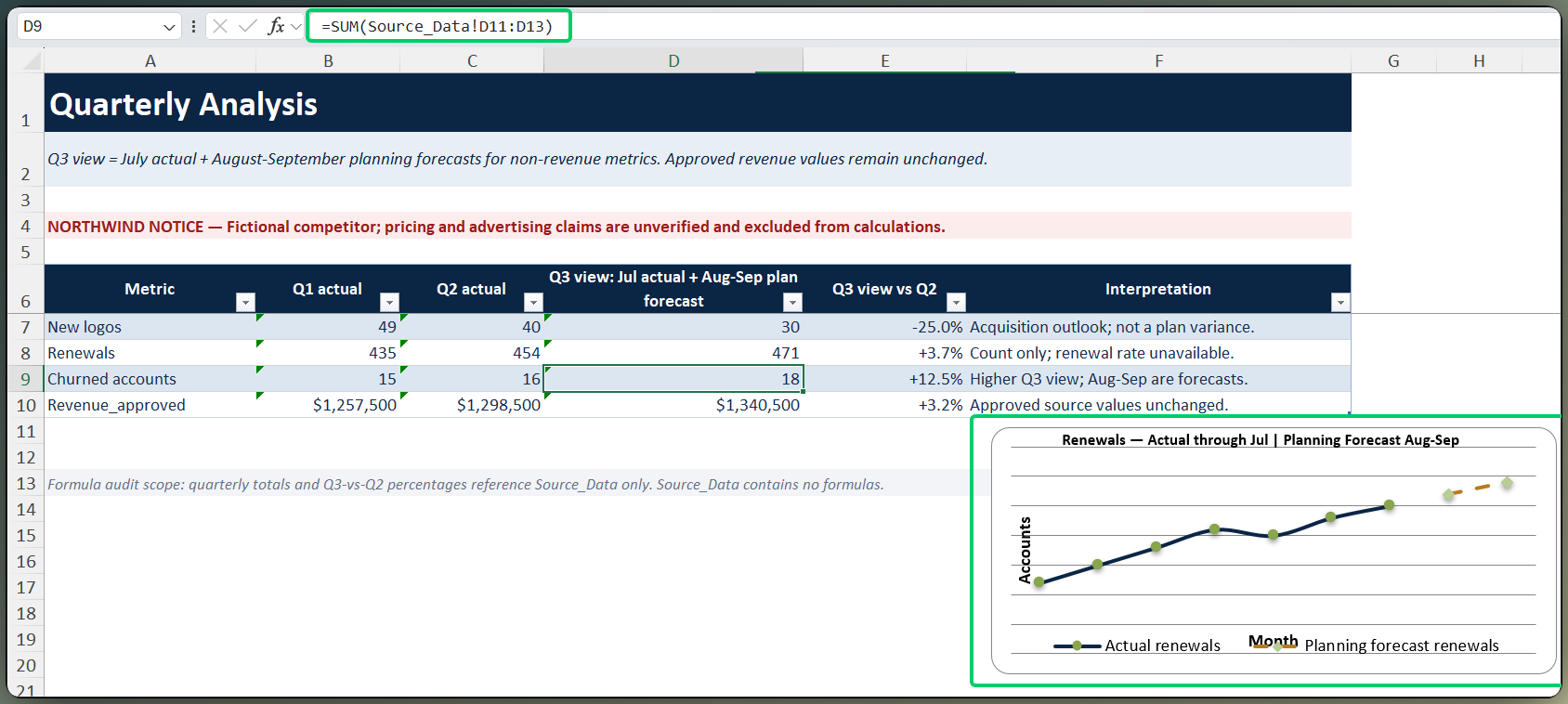
Generated spreadsheet with live working formulas. Image by Author.
Totals were formulas pointing back at the source sheet rather than pasted numbers, which is what makes an audit possible at all. The quarter chart separated the actual month from the two forecast months instead of drawing one confident line through all three.
For slides, I gave Work last quarter's deck as an example of layout, colors, and slide order. The first version pushed too much report text onto a single slide, so I asked for shorter statements on that slide only.
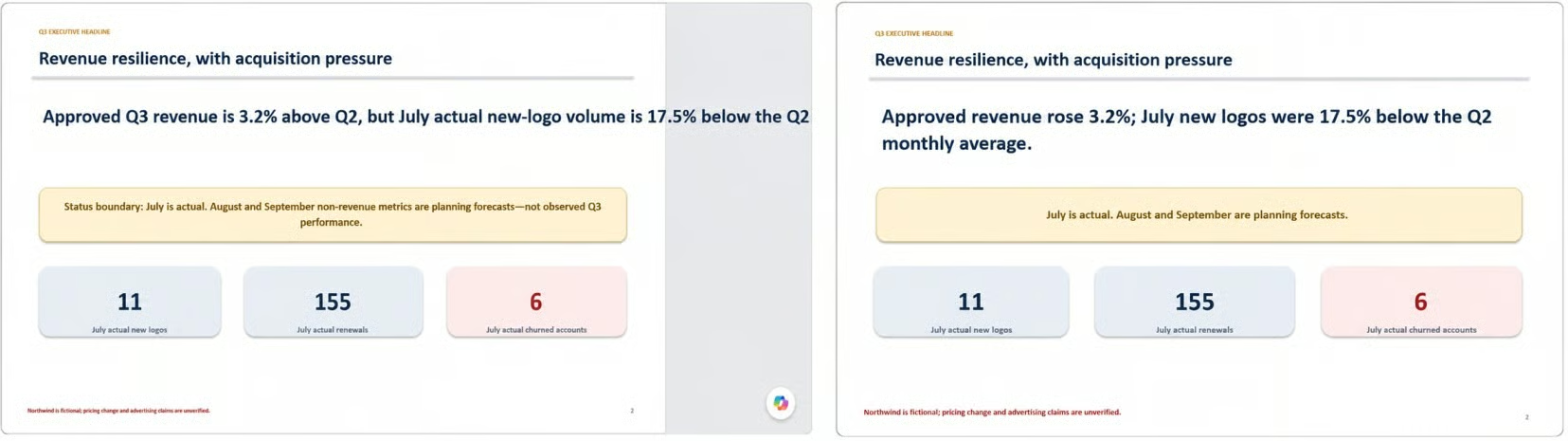
Executive deck before and after revision. Image by Author.
The second version kept the numbers and the warning but dropped the paragraph. First drafts from Work behave like first drafts from people, and one specific instruction beats a general complaint.
A reference file is an example for one job. A template pairs that example with instructions you plan to run again, which is the version that matters for anything quarterly. Either way, say what has to stay fixed: logo, colors, slide order, table structure, tone, formulas.
Where those files live depends on your tools. With the right Google Workspace app connected, Work can create or edit Google Docs, Sheets, and Slides, and an admin controls which apps and actions are allowed. OpenAI also moved connected Drive files into the Library in mid-August, so you can keep a Doc or Sheet open beside the chat, point Work at a folder, and let it update the source file where your workspace allows that. Shared Drives are not included yet.
If you do not use Microsoft Office, you can skip the rest of this section. Work can produce spreadsheet and presentation files, but reading and editing a workbook already open in Microsoft Excel runs through Codex in the desktop app with the ChatGPT for Excel add-in. PowerPoint is not part of that desktop setup at launch, so Work does not drive every Office app.
This is the section I would keep if I had to cut everything else. Work produced the files, but signing off on them was still my job, and the checks were specific rather than a general suspicion of AI.
Here is what I actually opened and compared:
Three of those checks changed a file. The revenue comparison, the formula audit, and the citations came back clean, which is why they were run rather than assumed either way.
None of this is unique to my folder. Any business file that carries approved numbers, forecast periods, or a competitor claim deserves the same pass before it reaches a room full of executives.
The report worked as a file, but it was awkward for anyone who only wanted one number. So I asked Work to rebuild the analysis as a ChatGPT Site with a metric selector above the chart.
Setting up a recurring monitoring task. Image by Author.
Two limits shaped how I set it up:
Active task counts vary by plan, and OpenAI currently lists 15 for Pro and Enterprise. Our ChatGPT Tasks guide walks through the setup screen and other scheduling patterns.
I deliberately did not let it update the Site on its own. A notification I read costs me a minute. A dashboard that quietly rewrites itself between meetings is a different kind of problem.
Not every task deserves this treatment. A single question, a short rewrite, or a quick explanation is faster in regular Chat, and anything centered on code belongs in Codex.
The jobs that fit Work look like the one above: several sources, several steps, files at the end, and a point where a human signs off. These habits made the difference across the run:
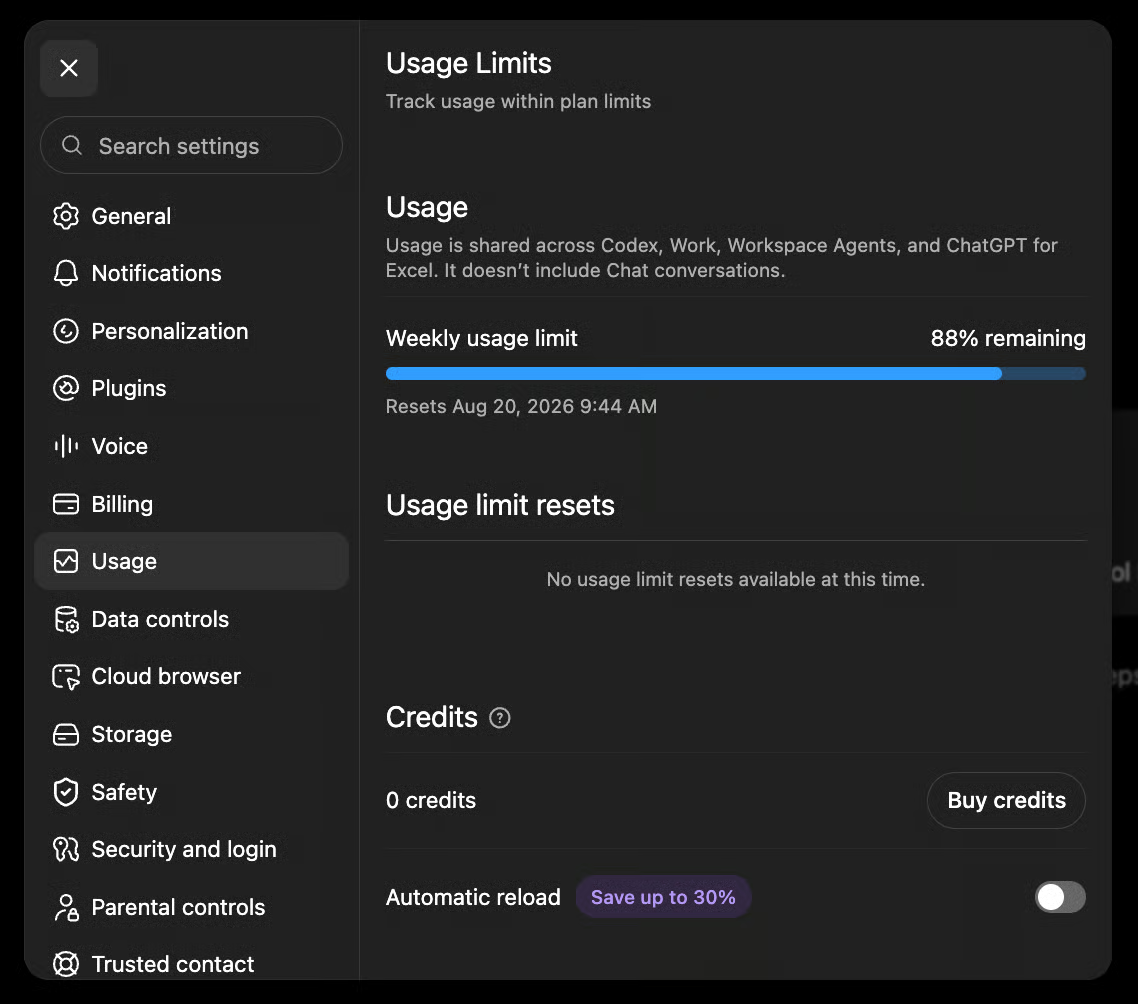
Cost follows the same logic. Work draws from the same usage pool as Codex, and consumption rises with the model, the amount of source material, the thinking setting, the tools, and how long the task runs. Attaching files a task does not need is a quiet way to spend more than you meant to.
Eligible personal and business accounts on the web now show remaining Work usage in the sidebar, which is worth a glance before you start something long.
The security side changes, too, once an agent can reach local files. Some best practices:
A file or a web page can carry a hidden instruction aimed at the agent rather than at you, which is why approvals on consequential actions are worth reading rather than clicking through.
If you want to compare how another desktop agent handles the same territory, our Claude Cowork tutorial covers Anthropic's version of local files and browser work.
ChatGPT Work fits a business job with a clear result and messy inputs. Everything on the output list at the top came back finished, and most of my time went into reviewing rather than assembling it.
The limits are not fine print. Cloud Browser cannot sign in, local folders do not follow you to the web, Sites has plan and region gaps, and generated files still need a real check. Separating actuals from forecasts, keeping an unsupported competitor claim out of the findings, and rewriting one slide were part of the job, not cleanup afterward.
Start with one folder, one result, and rules you can verify. Add sources and steps once the first run gives you something you can hold up to the original data. You can find more examples in our AI agent tutorials.
Learn AI With DataCamp!
Course
Track
Track
blog
François Aubry
6 min
blog
Matt Crabtree
13 min
blog
Vinod Chugani
13 min
podcast
Richie Cotton
48 min
Tutorial
Javier Canales Luna
11 min
Tutorial
Abid Ali Awan
9 min