
Course
Introduction to Docker
4 hr
51.6K
Are you tired of typing docker ps, docker logs, and docker stats fifty times a day just to check what your containers are doing?
So let’s say you're managing five containers and something breaks. Here’s your workflow: check running containers, grep for the right one, copy the ID, check logs, scroll through output, check CPU usage with another command. By the time you've figured out what's happening, you've run a dozen commands and lost a good chunk of time.
This happens because Docker's CLI wasn't built for the constant monitoring and quick actions that real development work demands.
Lazydocker gives you a terminal UI that shows everything at once - running containers, logs, stats, and service health in a single screen. You can start, stop, and restart containers with a keystroke, follow logs in real time, and spot resource hogs without memorizing commands.
In this article, I'll walk you through installing lazydocker, navigating its interface, and using it to speed up your daily Docker workflows.
If you’re new to Docker, start with the basics. Our Introduction to Docker course will help you master the fundamentals in just hours.
Lazydocker is a terminal user interface (TUI) that gives you a visual way to manage Docker containers without leaving your command line.
It sits on top of the Docker API, which means it's using the same commands you'd run manually - just wrapped in an interface that shows you everything at once. You get real-time updates on container status, logs, stats, and resource usage in a single window.
TUIs like lazydocker are popular for container management because they split the difference between GUI apps and pure CLI work. You keep the speed and keyboard control of the terminal but add visual organization that makes complex systems easier to parse. There’s no need for context switching to Docker Desktop, and no need for memorizing flags for every command.
The Docker CLI forces you to piece together information from multiple commands. Here are a few:
Want to see which containers are running? docker ps
Need logs? docker logs <container_id>
Check CPU usage? docker stats
Every piece of information requires a separate command, and you're constantly copying container IDs or grepping through output to find what you need.
Lazydocker solves this by putting everything in one place. You see all your containers, their logs, resource usage, and available actions in a single screen. You navigate through the interface with arrow keys. You start or stop a container with one keystroke instead of typing out a full command.
The interface also makes Docker safer for daily use. When you're about to remove a container or prune images, lazydocker shows you exactly what you're deleting before you confirm.
Before you can use lazydocker, you need to install it on your system.
The installation process is quick and works across macOS, Linux, and Windows. You have a couple of options depending on your setup and preferred package manager.
Here are the main ways to install lazydocker:
Homebrew (macOS and Linux):
brew install lazydockerThis is the package manager I’m using on macOS - here’s what the output looks like:
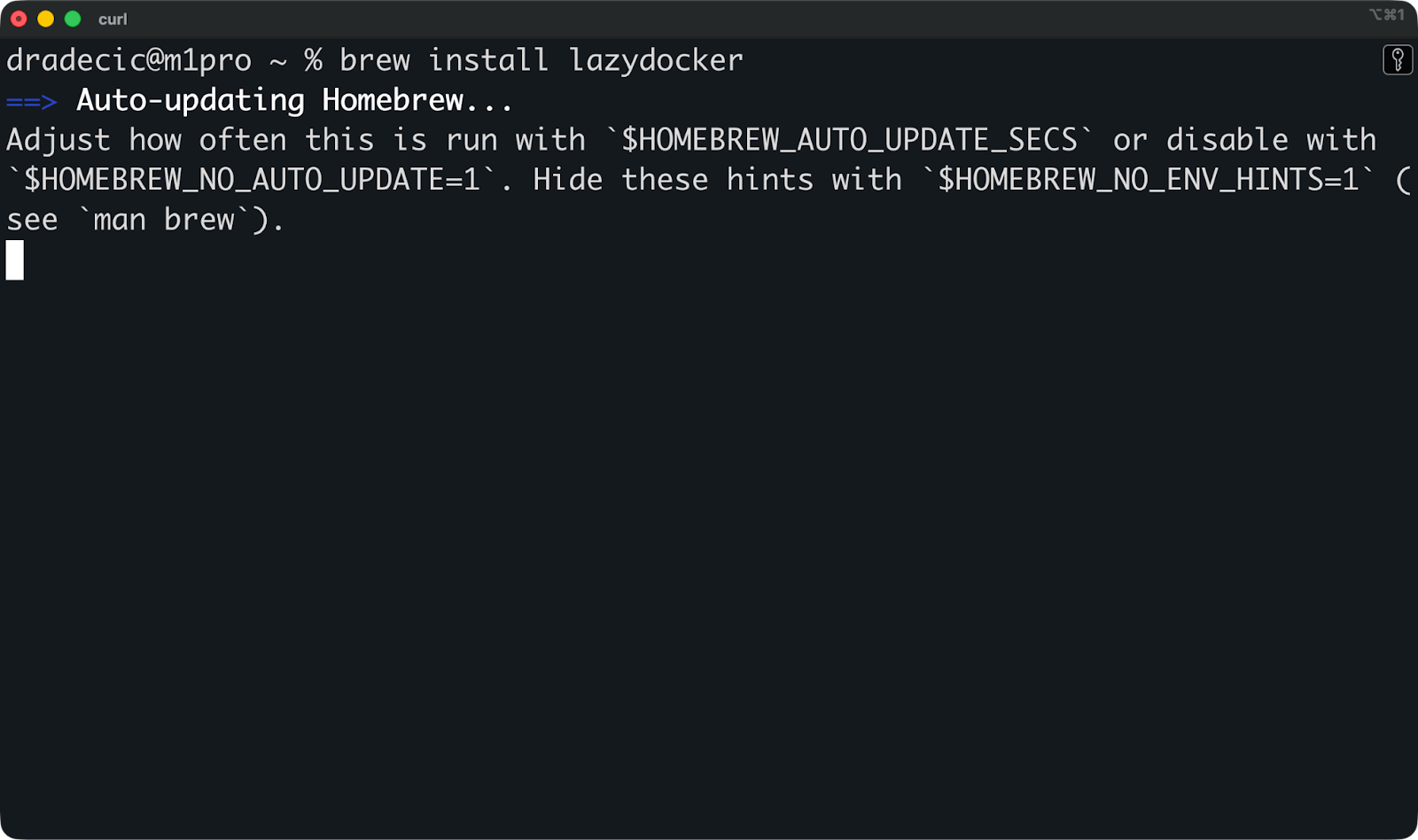
Installing Lazydocker on macOS
Scoop (Windows):
scoop install lazydockerChocolatey (Windows):
choco install lazydockerasdf-vm (cross-platform version manager):
asdf plugin add lazydocker
asdf install lazydocker latest
asdf global lazydocker latest
Go install (if you have Go installed):
go install github.com/jesseduffield/lazydocker@latestFor manual installation, you’ll want to download the latest release for your platform from the GitHub releases page, extract the archive, and move the binary to a directory in your PATH.
You need Docker installed and running before lazydocker will work. Lazydocker connects to the Docker daemon through the Docker socket, so if Docker isn't running, lazydocker can't start.
Once installed, verify it works by running lazydocker in your terminal - the interface should launch and connect to your Docker daemon.
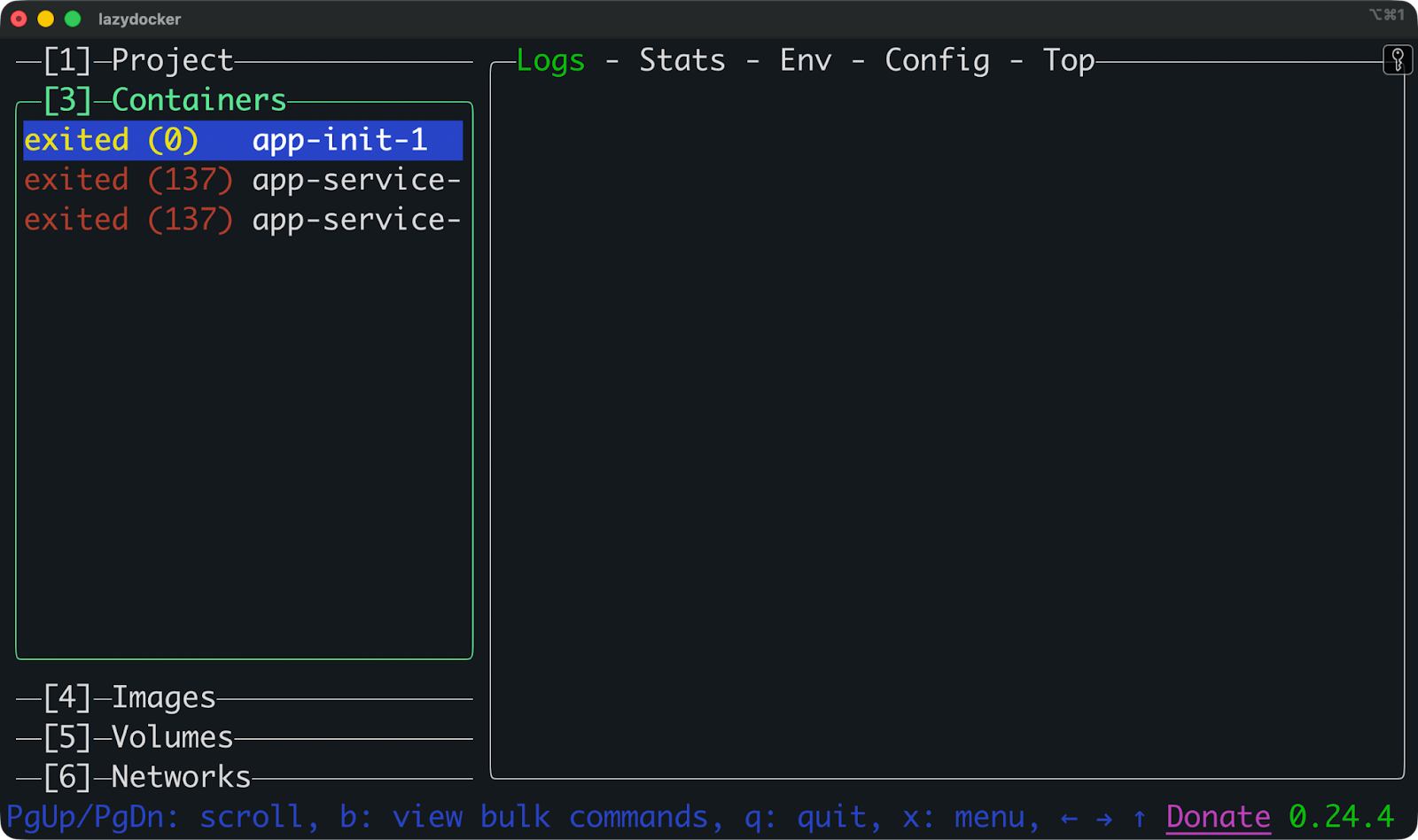
Starting Lazydocker
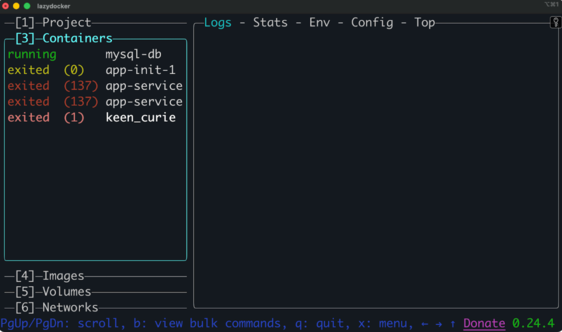
When you launch lazydocker, you see a split-screen interface that displays your Docker environment in real time.
The interface divides into two main areas: a left sidebar for navigation and a right panel that shows details about whatever you've selected. Everything updates automatically as your Docker environment changes - no manual refresh needed.
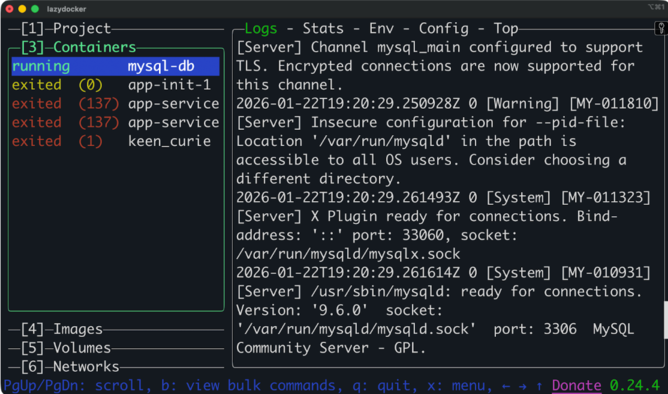
Lazydocker interface
The left sidebar lists five sections you can navigate through:
Running containers appear in green, exited ones in red or yellow, depending on the exit status. You see the container name and exit code for stopped containers.
The right panel changes based on what you select. When you select a container, you get tabs across the top:
Select a container in the left sidebar, and the right panel immediately switches to show all available information for that container. Switch to Images or Volumes in the left sidebar, and you get different relevant details for those resources.
You navigate lazydocker entirely with your keyboard.
Press keys (1 - 6) to switch between sections (Project, Containers, Images, etc.). Click on individual tabs to cycle through the tabs in the right panel.
Here are the core shortcuts you’ll want to remember:
x: Open the actions menu for the selected item
d: Remove the selected container or image
s: Start a stopped container
r: Restart a container
p: Pause/unpause a container
/: Search within logs
q: Quit lazydocker
?: Show all available shortcuts
The bottom of the screen shows key shortcuts for quick reference. You can press ? at any time to see the full list of keyboard shortcuts - the help screen shows different options depending on which section you're in.
The daily workflows is where lazydocker saves you the most time. Instead of memorizing commands and copying container IDs, you can navigate with arrow keys and trigger actions with single keystrokes.
The Logs tab opens automatically when you select a container from the sidebar.
The logs scroll in real time as new entries arrive. You don't need to run docker logs -f <container_id> - lazydocker follows the logs by default. Use either mouse or PgUp/PgDn to scroll through historical logs.
Switch to the Stats tab to see CPU and memory usage. The numbers update every few seconds, showing you current resource consumption as percentages and absolute values.
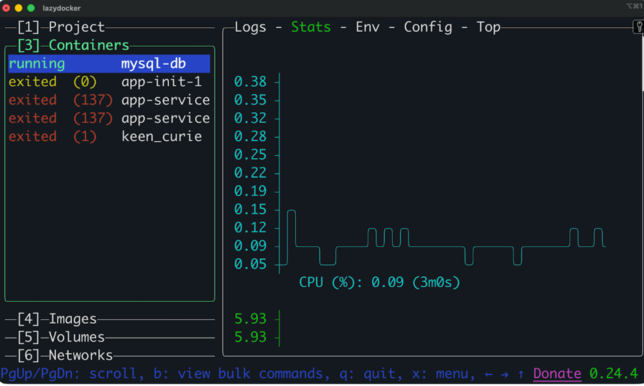
Docker container stats
This replaces three separate CLI commands:
docker ps to list containers
docker logs -f <container_id> to follow logs
docker stats <container_id> to monitor resources
With lazydocker, you see all three at once and switch between containers with arrow keys.
Press x on any container to open the actions menu.
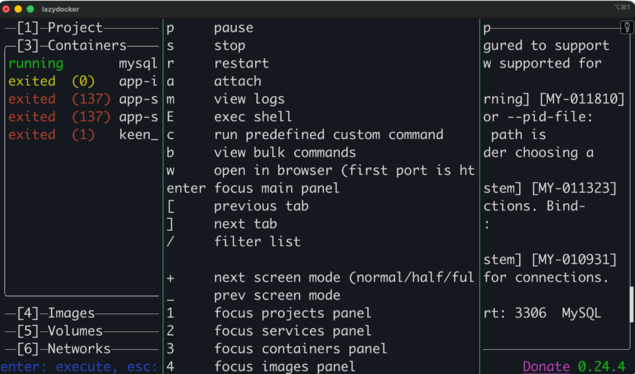
Lazydocker actions menu
The menu shows available operations: start, stop, restart, remove, pause, and more. Select an action with arrow keys and press Enter to execute it. For destructive operations like removing a container, lazydocker asks you to confirm before doing anything.
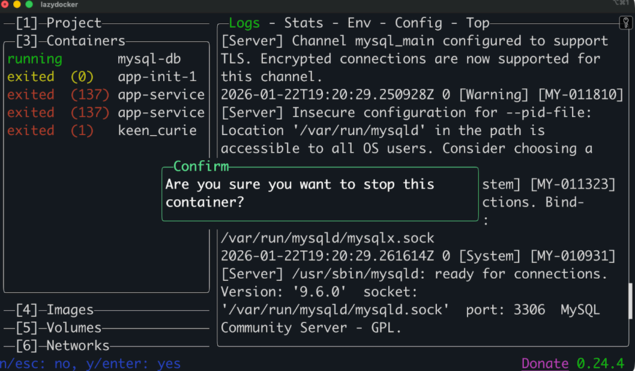
Confirmation dialog
You can also use direct keyboard shortcuts:
s - Start a stopped container
r - Restart a running container
p - Pause/unpause a container
d - Remove a container (with confirmation)
Navigate to the Images section in the sidebar to manage images. Press x to see image operations like removing unused images. Lazydocker shows you exactly which images will be deleted before you confirm, so you don't accidentally remove something you need.
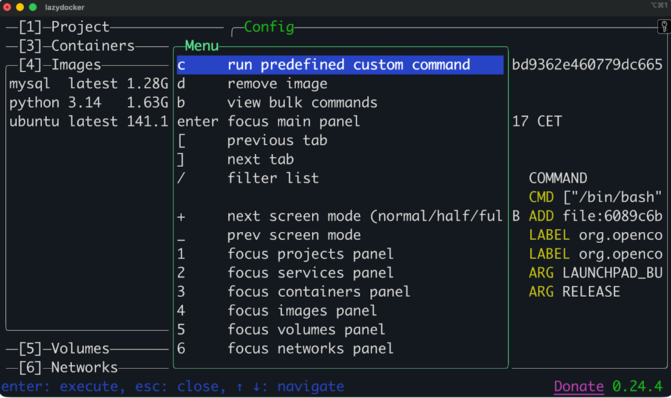
Actions on the Images tab
If you're using Docker Compose, each service appears as a separate container in the Containers section.
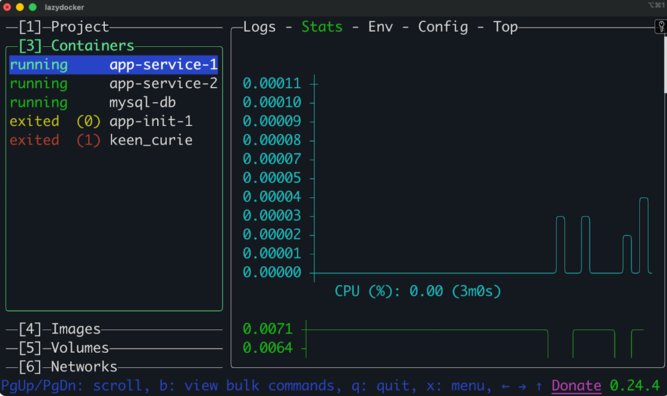
Docker compose example
Lazydocker doesn't group Compose services together or show stack-level controls. You manage each service the same way you'd manage any standalone container - start, stop, restart, view logs, and check stats individually.
Lazydocker provides a Project view that groups containers created via Docker Compose, but most actions are still performed at the individual container level rather than as a full stack.
Lazydocker works well out of the box, but customization will make it yours.
You can change colors, add custom commands, modify keyboard shortcuts, and tweak the interface layout. These changes are optional, so don’t think of them as something you must do.
The location of the configuration file depends on your operating system. The safest way to find and edit it is to open lazydocker, navigate to the Project panel, and press o on your keyboard. This will open an empty config.yml file.
For demonstration purposes, paste this inside:
gui:
  theme:
    activeBorderColor:
      - cyan
      - bold
    inactiveBorderColor:
      - white
    selectedLineBgColor:
      - black
    selectedLineFgColor:
      - yellow
    optionsTextColor:
      - blue
    searchingActiveBorderColor:
      - green
Here’s how lazydocker looks like after a restart:
Tweaking lazydocker styles
The changes are subtle, but you can notice the blue text color instead of green.
Users commonly customize:
The full list of config options lives in the lazydocker documentation on GitHub. There’s a lot you can tweak, but manage your expectations - this is still a TUI application.
You can add custom commands that appear in the actions menu when you press x.
To do so, define custom commands in your config file under the customCommands section. Here's an example that adds a command to exec into a container:
customCommands:
  containers:
    - name: 'bash'
      attach: true
      command: 'docker exec -it {{ .Container.ID }} /bin/bash'
      serviceNames: []
The {{ .Container.ID }} template gets replaced with the selected container's ID when you run the command. You can use other templates like {{ .Container.Name }} or {{ .Service.Name }} depending on what you need.
Reference the GitHub documentation page to get the full picture.
Custom commands are useful because they speed up repetitive workflows. If you regularly run database migrations, restart specific services with custom flags, or exec into containers to check logs, adding these as custom commands saves you from typing them manually every time.
Here are some workflows where lazydocker saves actual time and prevents mistakes during daily development work.
Launch lazydocker at the start of your work session and leave it running in a terminal tab.
When you start your development environment with docker-compose up, switch to lazydocker to monitor everything. You see which containers started successfully, which ones failed, and what errors appeared in the logs - all without running separate commands.
The productivity boost comes the lack of typing:
Need to restart a container after changing a config file? Press r instead of typing docker restart <container_id>
Want to check if your database is using too much memory? Switch to the Stats tab instead of running docker stats
Need to clear logs to see new output more clearly? Press x and select "Clear logs" instead of stopping and restarting the container
This workflow works best when you're working with multiple containers - a web server, API, database, cache, and maybe a message queue. Lazydocker shows you the health of your entire stack at once.
When something breaks in a multi-container app, lazydocker helps you trace the issue across services.
Imagine your API returns 500 errors. You check the API container logs in lazydocker and see database connection errors. Now switch to the database container - logs show it's restarting every 30 seconds. You can check the Stats tab and you see it's hitting memory limits. Now you know the problem: the database needs more resources.
This takes seconds in lazydocker. With the CLI, you'd run docker ps to find container IDs, docker logs for each service, docker stats to check resources, and piece together what's happening across multiple terminal windows.
The key is switching between containers fast. Use arrow keys to jump between services, and the logs update as you go. You can follow the flow of a request - from the web server receiving it, to the API processing it, to the database executing the query - by watching logs from each container in sequence.
Clean up regularly. Press x on the Images section and select "Remove image" to remove dangling images that pile up during development. Do the same for stopped containers you don't need anymore.
Customize lazydocker for your workflow. If you exec into containers frequently, add a custom command for it. If you always check the same containers first, adjust your config to highlight them. The time investment pays off when you're using lazydocker daily.
Learn the keyboard shortcuts for operations you repeat. Pressing r to restart is faster than opening the actions menu every time. Pressing / to search logs beats scrolling manually. The shortcuts feel awkward at first but become muscle memory after a week.
Keep lazydocker running in a dedicated terminal tab. Don't launch it, check something, and close it - that wastes the benefit of real-time monitoring. Treat it like you'd treat htop for system resources: always available when you need to check something.
Lazydocker doesn't solve every Docker workflow problem, and some limitations are worth knowing upfront.
Lazydocker needs access to the Docker socket to communicate with the Docker daemon.
On Linux, this usually means your user needs to be in the docker group. If you get "permission denied" errors when launching lazydocker, run sudo usermod -aG docker $USER and log out and back in. Without socket access, lazydocker can't start at all.
On macOS and Windows, Docker Desktop handles permissions for you.
But if you're running Docker in a VM or using a non-standard setup, you might need to point lazydocker to the right socket location using the DOCKER_HOST environment variable.
Cross-platform differences also matter. Some features work differently on Windows compared to Linux and macOS - particularly around file paths in bind mounts and how containers access the host filesystem. Lazydocker displays what Docker reports, so if Docker behaves differently on your platform, lazydocker will reflect that.
Lazydocker works with remote Docker hosts, but the experience isn't as smooth as local development.
If you're using Docker contexts to manage containers on remote servers, lazydocker can connect to them. But network latency makes the interface slower - logs take longer to load, stats update with delays, and navigation can at times feel sluggish. The tool was designed for local development where Docker responses are instant.
Remote Docker also means you can't easily exec into containers or run interactive commands. Lazydocker tries to open a shell, but the connection often times out or behaves unpredictably depending on your network setup and SSH configuration.
For managing production containers on remote hosts, stick with the CLI or dedicated orchestration tools like Kubernetes dashboards.
Lazydocker is a perfect fit for developers and small teams who work with Docker locally. If you're running multiple containers during development, debugging multi-service applications, or just don’t want to type the same Docker commands repeatedly, it’s a great tool to consider.
DevOps is high in demand in 2026. Go through our Complete Docker Certification (DCA) guide to land your first job.
Learn Docker with DataCamp
Course
Course
Course
blog
Laiba Siddiqui
15 min
Tutorial
Moez Ali
14 min
Tutorial
Dario Radečić
11 min
Tutorial
Arunn Thevapalan
15 min
Tutorial
Dario Radečić
12 min
Tutorial
Dario Radečić
11 min