Course
Introduction to Claude Models
3 hr
14.5K
Mistral Large 3 is a multimodal MoE model built to read, reason over, and structure information from complex visual documents. Instead of treating charts and PDFs as static images, it’s designed to extract tables, insights, and generate polished narratives from them.
In this tutorial, we’ll use the Mistral Large 3 (mistral-large-2512) model to build a Multimodal Intelligence Evaluation Hub in Streamlit. The flow looks like this:
All of this is done with a single model (mistral-large-2512), a single endpoint (/v1/chat/completions), and a strict JSON Schema to keep outputs structured and reliable.
I recommend reading our article on Mistral 3, which introduces the key features of the new models. You can also learn about fine-tuning Ministral 3 in a separate tutorial.
Mistral Large 3 is a sparse mixture-of-experts(MOE) architecture with 41B active parameters out of 675B total and a 2.5B parameter vision encoder for image understanding.
Here are a few key properties relevant to this model:
The model card and ecosystem docs also mention some important caveats:
In this section, we’ll build a Multimodal Intelligence Evaluation Hub using Mistral Large 3 wrapped in a Streamlit app. At a high level, here’s what the final app does:
mistral-large-2512, which uses response_format in JSON Schema mode to get back a structured JSON payload.This turns a static visual report into an interactive intelligence assistant powered entirely by Mistral Large 3.
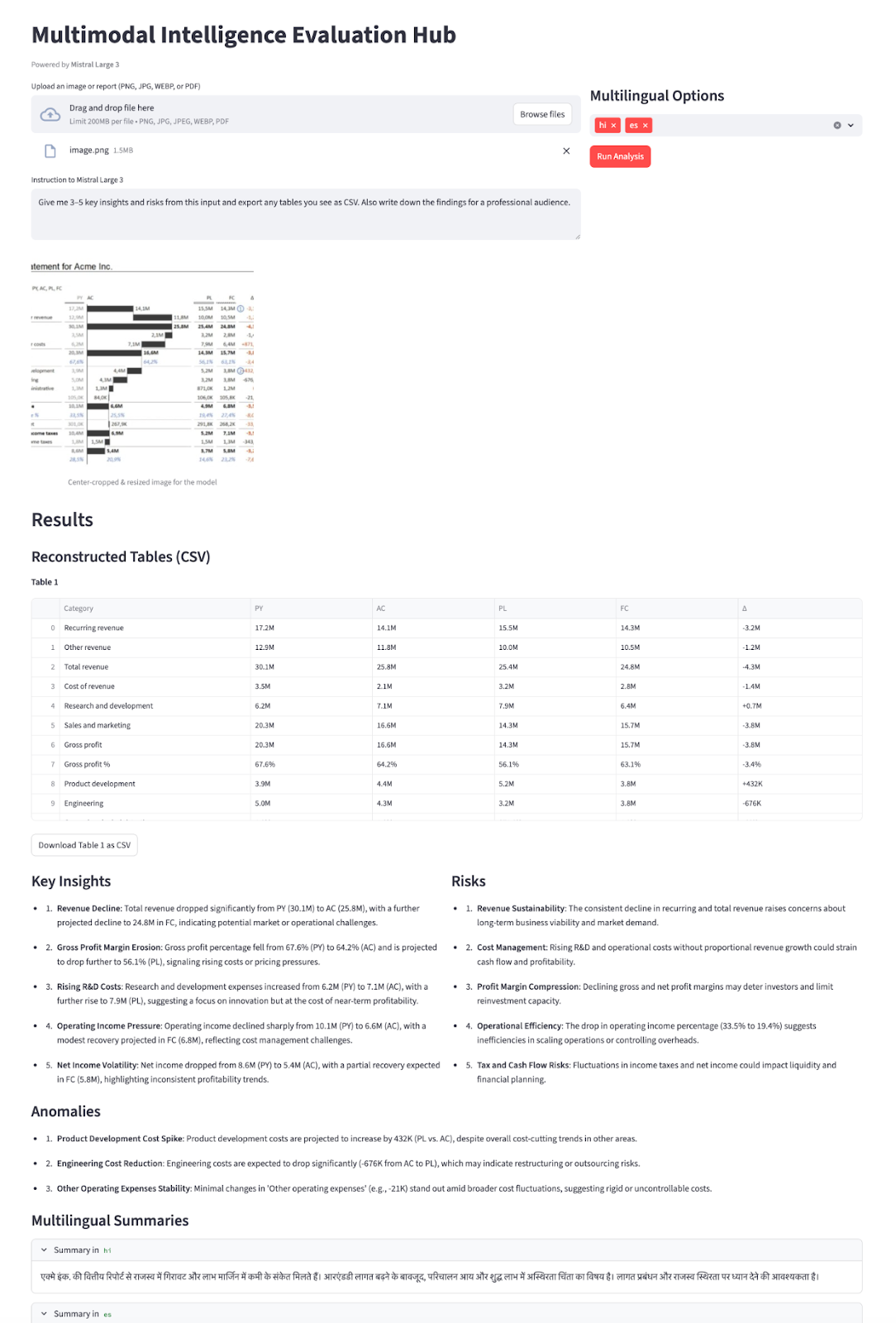
Let’s build it step by step.
Before we can build our Streamlit demo on top of Mistral Large 3, we need a basic local environment to talk to the model via the Mistral API. Start by installing a few helper libraries to handle the UI, documents, and configuration.
pip install streamlit mistralai pillow pdf2image pandas python-dotenvWe’ll use the above core libraries like streamlit for the interactive web app UI, mistralai to talk to the Mistral API, pillow and pdf2image to open and convert PDFs into images, pandas to handle any tabular data or logs, and python-dotenv to securely load environment variables like MISTRAL_API_KEY from a .env file.
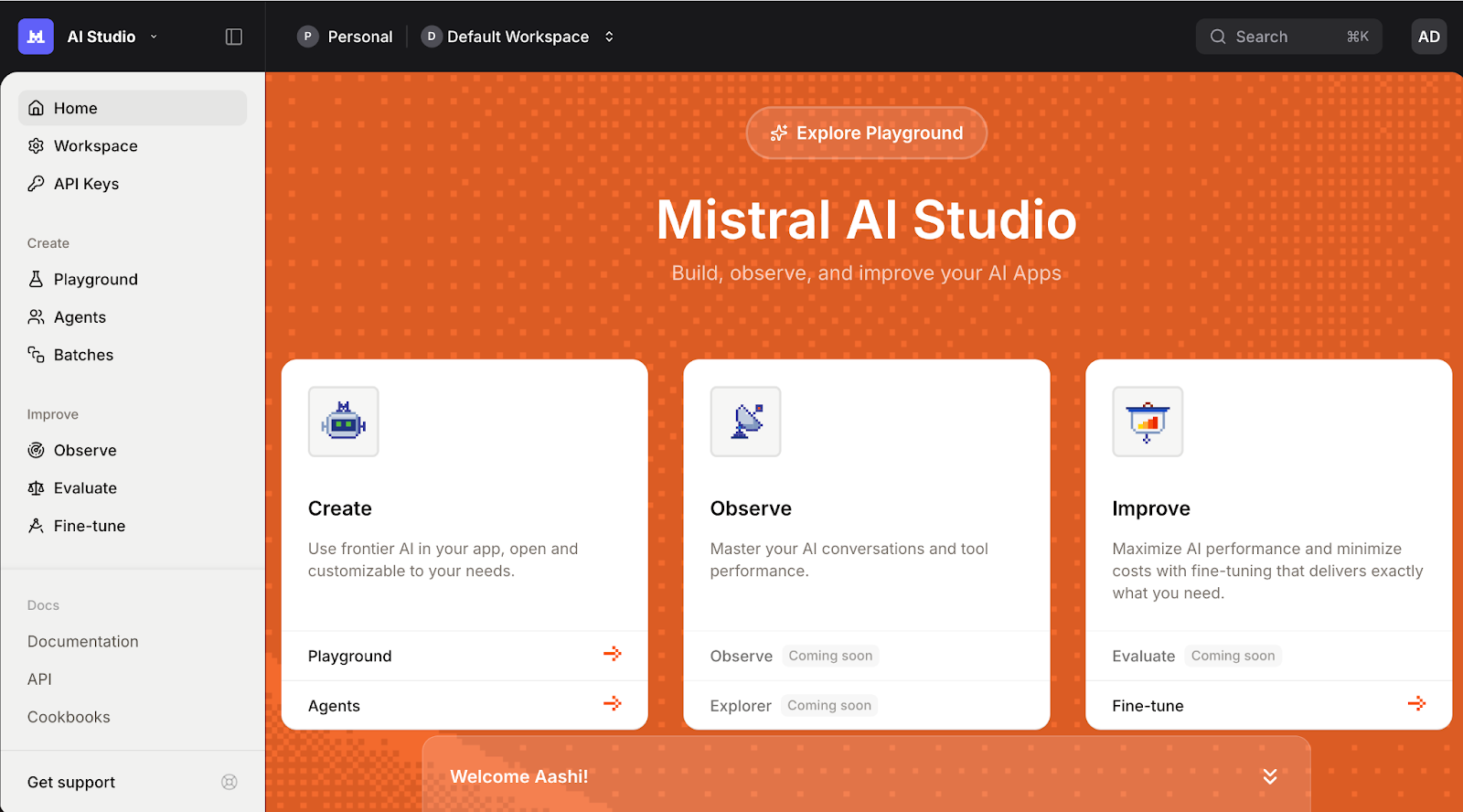
Next, log in to the Mistral AI Platform and go to the API Keys tab.
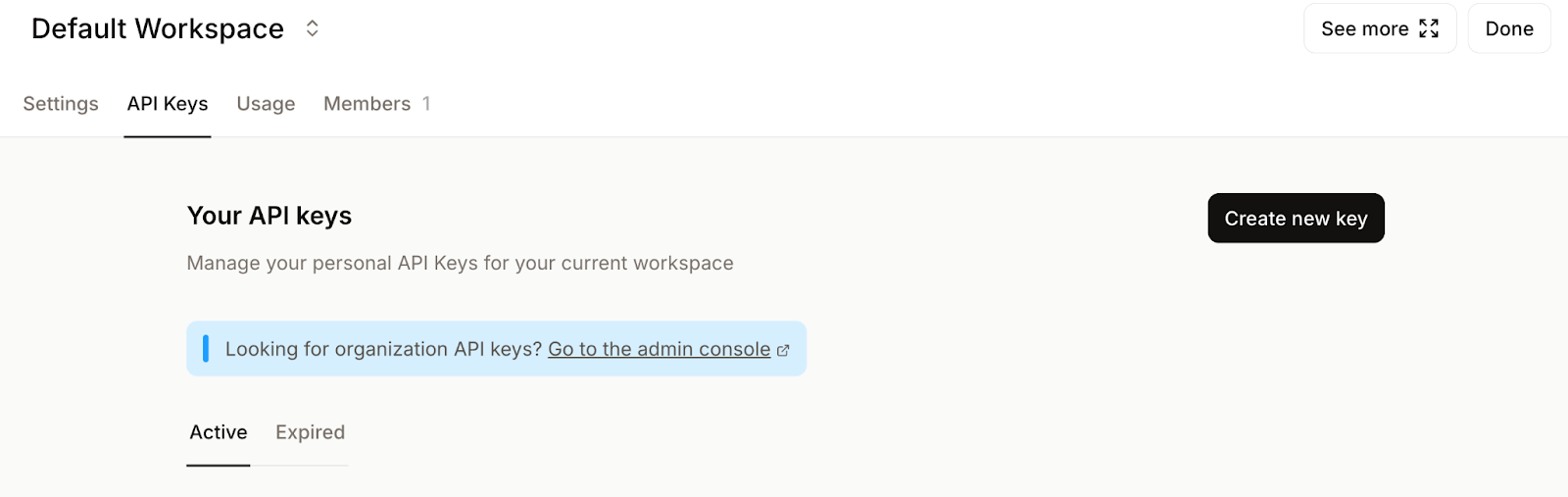
Set your default workspace (if prompted) and click Create new key.
Give your key a meaningful name and optionally set an expiry date.
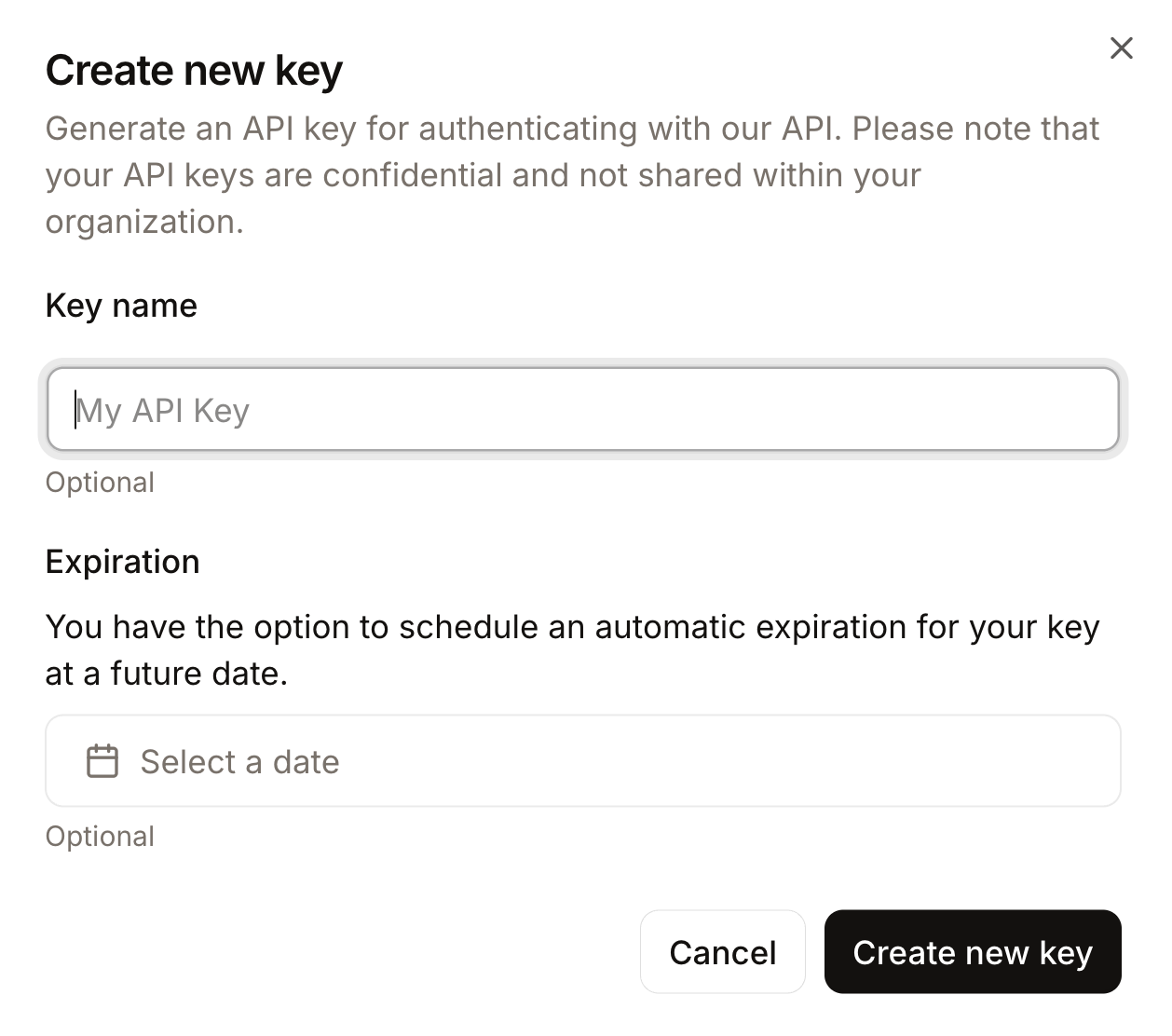
Finally, copy the generated key and export it as an environment variable as follows:
export MISTRAL_API_KEY="your_mistral_api_key_here"At this point, our environment is now ready to authenticate with the Mistral API.
With the environment configured and dependencies installed, the next step is to initialize the Mistral client that will handle all our calls to the Mistral Large 3 model. This gives us an entry point for sending prompts from our Streamlit app to Mistral Large 3.
MISTRAL_API_KEY = os.getenv("MISTRAL_API_KEY")
MODEL_ID = "mistral-large-2512"
if MISTRAL_API_KEY is None:
    raise RuntimeError("Please set the MISTRAL_API_KEY environment variable.")
client = MistralClient(api_key=MISTRAL_API_KEY)
The above code block does three things:
MISTRAL_API_KEY from our environment and stores the model name in MODEL_ID, allowing us to reuse it throughout the app.MistralClient instance using the official mistralai SDK, which we’ll use for every subsequent request to the model.With the client initialized, we will next build a few helper functions that send prompts and handle responses within the Streamlit UI.
Before we send any images or PDFs to Mistral Large 3, we need to make them “model-friendly.” The Vision API performs best when inputs are square, reasonably sized, and encoded in a consistent format.
We start by loading the uploaded image and converting it into a square crop.
def load_image_from_upload(uploaded_file) -> Image.Image:
    return Image.open(io.BytesIO(uploaded_file.read())).convert("RGB")
def center_crop_to_square(img: Image.Image) -> Image.Image:
    width, height = img.size
    if width == height:
        return img
    if width > height:
        offset = (width - height) // 2
        box = (offset, 0, offset + height, height)
    else:
        offset = (height - width) // 2
        box = (0, offset, width, offset + width)
    return img.crop(box)
The above code block ensures that charts or tables we upload get converted into a square crop before going to the model, aligning with Mistral’s vision guidance.
Next, we resize the image to a maximum size (1024×1024) to balance quality, latency, and token cost.
def resize_for_vlm(img: Image.Image, max_size: int = 1024) -> Image.Image:
    width, height = img.size
    scale = min(max_size / width, max_size / height, 1.0)
    if scale == 1.0:
        return img
    new_w = int(width * scale)
    new_h = int(height * scale)
    return img.resize((new_w, new_h), Image.LANCZOS)
Here, we compute a scale factor that keeps both dimensions below max_size while preserving the aspect ratio. If the image is already small enough, we return it as is. Otherwise, we compute the new dimensions and use LANCZOS resampling for high-quality downsizing.
This step ensures images don’t blow up your context window or slow down responses unnecessarily.
For PDFs, we often want to show the model on more than a single page. A simple trick is to render all pages and stack them vertically into one tall image.
def stack_images_vertically(images: List[Image.Image]) -> Image.Image:
    if not images:
        raise ValueError("No images to stack")
    target_width = images[0].size[0]
    resized_images = []
    for img in images:
        if img.size[0] != target_width:
            aspect_ratio = img.size[1] / img.size[0]
            new_height = int(target_width * aspect_ratio)
            img = img.resize((target_width, new_height), Image.LANCZOS)
        resized_images.append(img)
    total_height = sum(img.size[1] for img in resized_images)
    stacked = Image.new('RGB', (target_width, total_height))
    y_offset = 0
    for img in resized_images:
        stacked.paste(img, (0, y_offset))
        y_offset += img.size[1]
    return stacked
def uploaded_file_to_square_base64(uploaded_file) -> Tuple[str, str]:
    mime_type = uploaded_file.type
    raw_bytes = uploaded_file.getvalue()
    if mime_type == "application/pdf":
        pages = convert_from_bytes(raw_bytes)
        pages_rgb = [page.convert("RGB") for page in pages]
        img = stack_images_vertically(pages_rgb)
        img = resize_for_vlm(img, max_size=1024)
        mime_type = "image/png"
    else:
        img = Image.open(io.BytesIO(raw_bytes)).convert("RGB")
        img = center_crop_to_square(img)
        img = resize_for_vlm(img, max_size=1024)
    return mime_type, image_to_base64_data_url(img, mime_type=mime_type)
The stack_images_vertically() function takes a list of PIL images, normalizes them to a common width while preserving aspect ratio, computes the total height, and pastes them one under the other into a single RGB canvas. While the uploaded_file_to_square_base64() function then decides what to do based on the MIME type:
In both cases, it returns a normalized image together with a MIME type for the final encoding step.
Mistral’s Vision API accepts images as image_url objects, which can be either actual URLs or data: URLs.
def image_to_base64_data_url(img: Image.Image, mime_type: str = "image/png") -> str:
    buffer = io.BytesIO()
    if mime_type == "image/jpeg":
        img.save(buffer, format="JPEG", quality=90)
    else:
        img.save(buffer, format="PNG")
        mime_type = "image/png"
    b64 = base64.b64encode(buffer.getvalue()).decode("utf-8")
    return f"data:{mime_type};base64,{b64}"
We start by writing the image into an in-memory buffer and choosing an appropriate format (like a JPEG or PNG), before finally base64-encoding the bytes.
Finally, we wrap the encoded string into a data:{mime_type};base64 URL that can be passed directly to the Mistral Vision API as image_url.
By the end of this step, every uploaded file, whether it’s a single PNG, a wide dashboard, or a multi-page PDF, flows through the same pipeline of center-crop, resizing, PDF stacking, and base64 data URL conversion.
In this step, we wrap everything into a single helper function that sends a vision plus text request and forces the model to respond in a JSON format. We do this by combining:
response_format so the output is structured and easy to parse.def call_mistral_large_multimodal(
mime_type: str,
image_data_url: str,
user_instruction: str,
languages: List[str],
) -> Dict[str, Any]:
json_schema = {
"type": "object",
"properties": {
"csv_tables": {
"type": "array",
"items": {"type": "string"},
"description": "Each item is a CSV string representing one table found in the image."
},
"insights": {
"type": "array",
"items": {"type": "string"},
"description": "Up to 5 key insights about the content."
},
"risks": {
"type": "array",
"items": {"type": "string"},
"description": "Up to 5 key risks or red flags."
},
"anomalies": {
"type": "array",
"items": {"type": "string"},
"description": "Any anomalies, outliers, or surprising patterns you detect."
},
"translations": {
"type": "object",
"properties": {
lang: {"type": "string"} for lang in languages
},
"description": "Short high-level summaries in the selected languages."
},
},
"required": ["csv_tables", "insights", "risks"],
"additionalProperties": False,
}
system_prompt = (
"You are a Multimodal Intelligence Evaluator using Mistral Large 3.\n"
"You are given a single document-like image (e.g. chart + table, financial report page).\n\n"
"Your tasks:\n"
"1. Read all visible text and numbers directly from the image.\n"
"2. Reconstruct any clearly visible tables into valid CSV strings.\n"
" - Use the first row as headers when possible.\n"
" - Use commas as separators and newline per row.\n"
"3. Derive up to 5 concise INSIGHTS about trends, patterns, or takeaways.\n"
"4. Derive up to 5 concise RISKS or red flags (business, financial, operational, etc.).\n"
"5. Detect any anomalies or surprising patterns if present (else return an empty list).\n"
"6. Provide short summaries in the requested languages.\n\n"
"You MUST respond ONLY with a JSON object that matches the provided JSON schema.\n"
"Do not include any extra commentary outside of the JSON."
)
messages = [
{
"role": "system",
"content": [
{"type": "text", "text": system_prompt},
],
},
{
"role": "user",
"content": [
{
"type": "text",
"text": user_instruction or "Analyze this financial report page.",
},
{
"type": "image_url",
"image_url": image_data_url,
},
],
},
]
response = client.chat(
model=MODEL_ID,
messages=messages,
temperature=0.2,
max_tokens=2048,
response_format={
"type": "json_schema",
"json_schema": {
"name": "multimodal_intel_eval",
"schema": json_schema,
"strict": True,
},
},
)
content = response.choices[0].message.content
try:
parsed = json.loads(content)
except json.JSONDecodeError:
try:
start = content.index("{")
end = content.rindex("}") + 1
parsed = json.loads(content[start:end])
except Exception:
raise ValueError(f"Model did not return valid JSON. Raw content:\n{content}")
return parsedThe call_mistral_large_multimodal() function forms the core engine of the multimodal intelligence demo.
csv_tables, insights, risks, anomalies, and a translations object with keys derived from the languages list. call_mistral_large_multimodal() function then constructs the messages array in chat format by combining the system instructions with a user message that includes both text instructions and the image_url payload. It calls client.chat() with MODEL_ID while keeping the temperature low for deterministic output, and response_format={"type": "json_schema",}, so the response conforms to the schema. Finally, we attempt to parse it with json.loads.With this in place, you now have a robust entry point for turning a raw chart or report image into a structured narrative.
With the preprocessing pipeline and Mistral client in place, the final step is to wrap everything inside a Streamlit interface.
st.set_page_config(
    page_title="Multimodal Intelligence Evaluation Hub - Mistral Large 3",
    layout="wide",
)
st.title("Multimodal Intelligence Evaluation Hub")
st.caption("Powered by **Mistral Large 3**")
col_left, col_right = st.columns([2, 1])
with col_left:
    uploaded_file = st.file_uploader(
        "Upload an image or report (PNG, JPG, WEBP, or PDF)",
        type=["png", "jpg", "jpeg", "webp", "pdf"],
    )
    default_prompt = (
        "Give me 3–5 key insights and risks from this input and export any tables you see as CSV "
        "Also write down the findings for a professional audience."
    )
    user_instruction = st.text_area(
        "Instruction to Mistral Large 3",
        value=default_prompt,
        height=120,
    )
with col_right:
    st.subheader("Multilingual Options")
    languages = st.multiselect(
        "Additional summary languages",
        options=["fr", "de", "es", "hi", "zh", "ja"],
        default=["hi"],
        help="Mistral Large 3 supports dozens of languages; these will receive short summaries.",
        label_visibility="collapsed",
    )
    run_button = st.button("Run Analysis", type="primary")
if run_button:
    if uploaded_file is None:
        st.error("Please upload an image or PDF first.")
        st.stop()
    prep_msg = "Preparing PDF (combining all pages)..." if uploaded_file.type == "application/pdf" else "Preparing image..."
    with st.spinner(prep_msg):
        mime_type, data_url = uploaded_file_to_square_base64(uploaded_file)
    mime, b64_part = data_url.split(",", 1)
    img_bytes = base64.b64decode(b64_part)
    st.image(img_bytes, caption="Center-cropped & resized image for the model", width=400)
    with st.spinner("Processing..."):
        try:
            result = call_mistral_large_multimodal(
                mime_type=mime_type,
                image_data_url=data_url,
                user_instruction=user_instruction,
                languages=languages,
            )
        except Exception as e:
            st.error(f"Error calling Mistral Large 3: {e}")
            st.stop()
    st.header("Results")
    csv_tables = result.get("csv_tables", [])
    if csv_tables:
        st.subheader("Reconstructed Tables (CSV)")
        for i, csv_str in enumerate(csv_tables):
            st.markdown(f"**Table {i+1}**")
            try:
                df = pd.read_csv(io.StringIO(csv_str))
                st.dataframe(df, use_container_width=True)
            except Exception:
                st.text_area(f"Raw CSV for Table {i+1}", value=csv_str, height=150)
            st.download_button(
                label=f"Download Table {i+1} as CSV",
                data=csv_str,
                file_name=f"table_{i+1}.csv",
                mime="text/csv",
                key=f"csv_download_{i}",
            )
    else:
        st.info("No tables were detected or reconstructed.")
    insights = result.get("insights", [])
    risks = result.get("risks", [])
    anomalies = result.get("anomalies", [])
    col_ins, col_risk = st.columns(2)
    with col_ins:
        st.subheader("Key Insights")
        if insights:
            for bullet in insights:
                st.markdown(f"- {bullet}")
        else:
            st.write("_No explicit insights returned._")
    with col_risk:
        st.subheader("Risks")
        if risks:
            for bullet in risks:
                st.markdown(f"- {bullet}")
        else:
            st.write("_No explicit risks returned._")
    st.subheader("Anomalies")
    if anomalies:
        for bullet in anomalies:
            st.markdown(f"- {bullet}")
    else:
        st.write("_No anomalies reported._")
    translations = result.get("translations", {}) or {}
    if translations:
        st.subheader(" Multilingual Summaries")
        for lang_code, summary in translations.items():
            with st.expander(f"Summary in {lang_code}"):
                st.write(summary)
    else:
        st.info("No multilingual summaries were requested or returned.")
    # Raw JSON (debug)
    # with st.expander(" Raw JSON (debug)"):
    #     st.json(result)
The above StreamLit UI code does a few key things:
The st.set_page_config method splits the layout into two columns. The left side handles the core inputs (file uploader and an editable text area with default instructions). In contrast, the right side offers multilingual options via st.multiselect and a primary Run Analysis button. When the button is clicked, the app validates that a file is present, while converting images or PDFs into a base64 data URL, and displays the preview image.
Once a result comes back, the reconstructed CSV tables are rendered as dataframes, along with insights, risks, anomalies, and any multilingual summaries. Optionally, we can also debug views (commented out), which lets us inspect the raw JSON during development.
With this step complete, you can save everything as app.py and launch the full experience with:
streamlit run app.pyIn the video below, you can see an abridged version of the workflow in action with both image and PDF inputs:
Top DataCamp Courses
Course
Course
Course
blog
Oluseye Jeremiah
8 min
Tutorial
Abid Ali Awan
5 min
Tutorial
Josep Ferrer
12 min
Tutorial
Aashi Dutt
12 min
Tutorial
Aashi Dutt
8 min
Tutorial
Dr Ana Rojo-Echeburúa
12 min