Course
Introduction to Claude Models
3 hr
14.3K
GLM 4.7 Flash is quickly becoming a popular choice for local agentic coding. Many developers are using it with tools like llama.cpp and LM Studio. However, a lot of people still run into problems during setup, getting the model to run correctly, and making sure tool calling works as expected.
This tutorial focuses on the simplest and most reliable way to run GLM 4.7 Flash locally using Claude Code with Ollama. The goal is to remove friction and help you get a working setup without unnecessary complexity.
This guide works across all operating systems. It does not matter whether you are using Linux, Windows, or macOS. By the end, you will have GLM 4.7 Flash running locally and correctly integrated with Claude Code through Ollama.
Before starting, make sure your system meets the minimum hardware and software requirements below.
Hardware:
If you do not have a GPU, the model can run on a CPU, but performance will be significantly slower, and high RAM is required.
Software:
If the CUDA toolkit or NVIDIA drivers are missing or incompatible, Ollama will fall back to CPU mode, which is much slower.
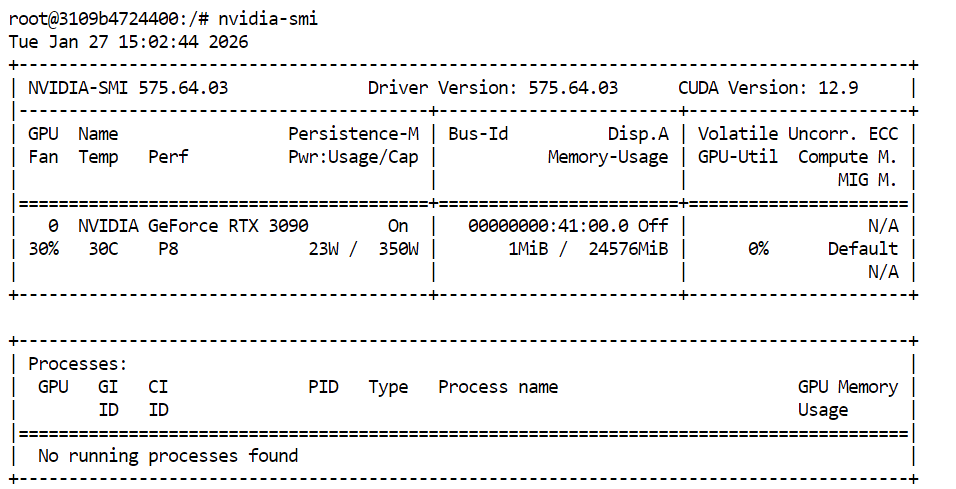
To verify that your GPU and CUDA drivers are installed correctly, run the following command in your terminal:
nvidia-smiIf everything is set up correctly, you should see your GPU listed along with the available VRAM and CUDA version.
Ollama is the runtime we will use to run GLM 4.7 Flash locally and expose it in a way that Claude Code can interact with reliably. Installation is straightforward on all supported platforms.
On Linux, you can install Ollama with one command:
curl -fsSL https://ollama.com/install.sh | shFor macOS and Windows, download the installer directly from the Ollama website and follow the on-screen instructions.
Source: Ollama
Ollama runs as a background service and will automatically check for updates. When an update is available, you can apply it by selecting “Restart to update” from the Ollama menu.
After installation, open a terminal and check that Ollama is installed correctly:
ollama -vYou should see output similar to:
ollama version is 0.15.2If you see an error when running ollama -v, it usually means the Ollama service is not running yet. Start the Ollama server manually:
ollama serveLeave this running, open a new terminal window, and then run:
ollama -vOnce the version command works, Ollama is ready to be used in the next steps of the tutorial.
Once Ollama is installed and running, the next step is to download the GLM 4.7 Flash model and verify that it works correctly. This step ensures the model runs locally before integrating it with Claude Code.
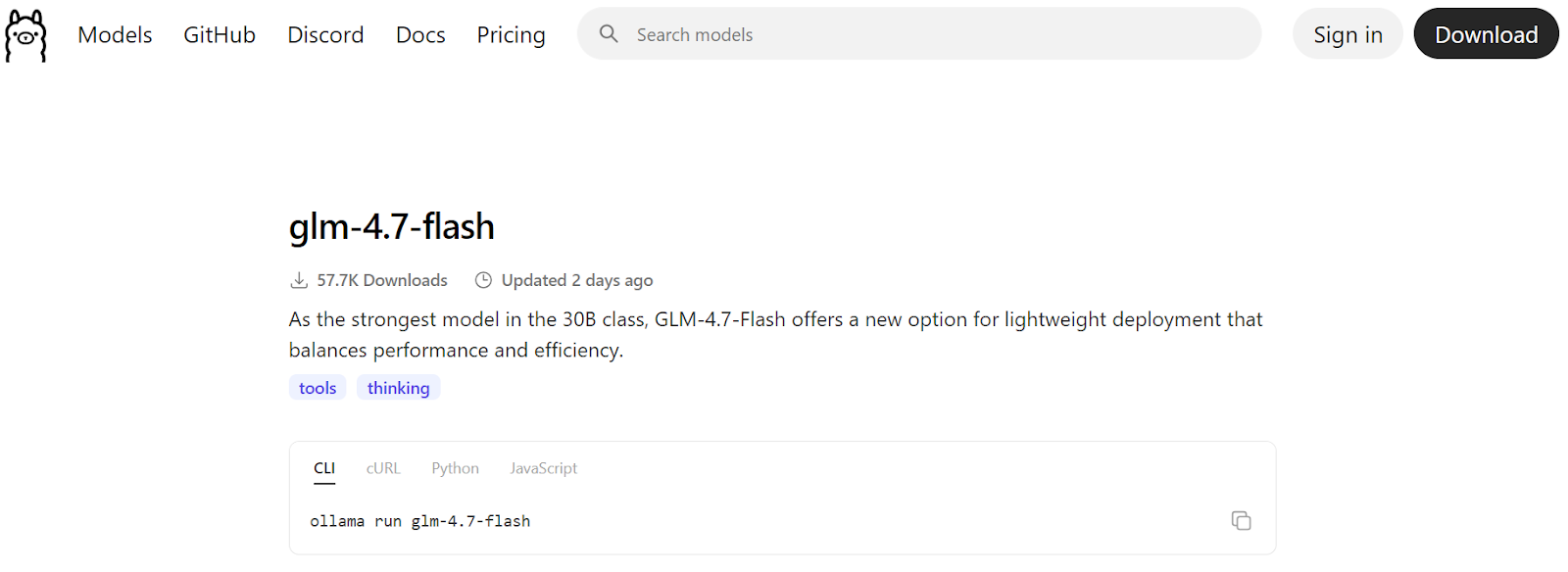
Source: glm-4.7-flash
Start by downloading the model from Ollama’s registry:
ollama pull glm-4.7-flashThis will download the model files and store them locally. Depending on your internet speed, this may take a few minutes.
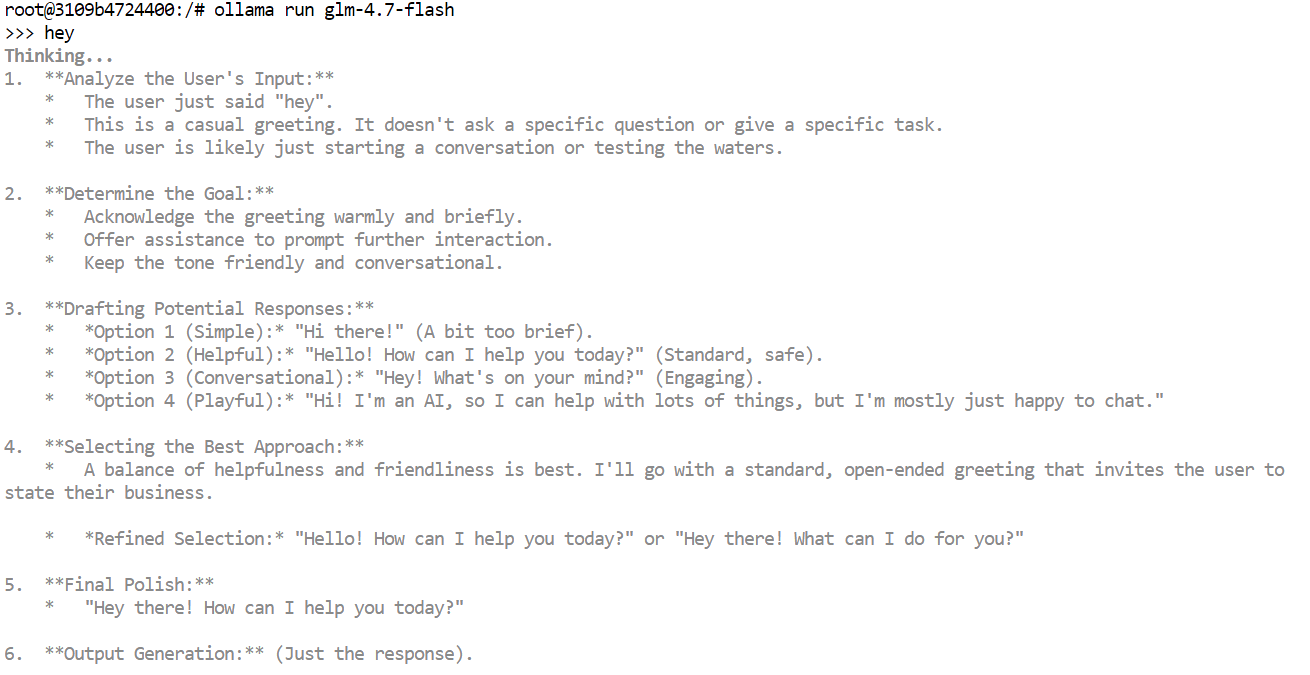
After the download completes, run the model in interactive chat mode as a quick sanity check:
ollama run glm-4.7-flashType a simple prompt, such as a greeting, and press enter. Within a few seconds, you should receive a response.
If you are running on a GPU, you will notice that responses are very fast, and the output may include internal thinking tokens or reasoning traces depending on the model configuration.
You can also test the model through Ollama’s local HTTP API. This is useful to confirm that external tools can communicate with the model.
Run the following command:
curl http://localhost:11434/api/chat -d '{
  "model": "glm-4.7-flash",
  "messages": [{"role":"user","content":"Hello!"}]
}'Claude Code and most agentic coding tools work best with large context windows, often up to 64k tokens. However, with GLM 4.7 Flash, choosing the right context length is important for both performance and stability.
Using very large context sizes can significantly slow down generation speed. In practice, token throughput can drop from over 100 tokens per second to as low as 2 tokens per second. In some cases, the model may also get stuck in long thinking loops if the context window is set too high.
We tested multiple context sizes and found that a 10k context was not sufficient for Claude Code workflows. A 20k context provided a good balance. It was large enough for coding tasks while still maintaining fast response times and reducing unnecessary thinking loops.
First, stop the running Ollama server. You can do this by pressing Ctrl + C in the terminal or by terminating the process.
Next, restart Ollama with a custom context length by setting the environment variable before launching the server:
OLLAMA_CONTEXT_LENGTH=20000 ollama serveThis tells Ollama to load models with a maximum context window of 20,000 tokens.
In a new terminal window, run:
ollama psThis confirms that GLM 4.7 Flash is running on the GPU and that the context length has been set correctly. At this point, the model is configured for stable and fast use with Claude Code.
NAME                    ID              SIZE     PROCESSOR    CONTEXT    UNTIL
glm-4.7-flash:latest d1a8a26252f1 21 GB 100% GPU 20000 About a minute from now Claude Code is Anthropic’s terminal-based coding agent that helps you write, edit, refactor, and understand code using natural language. It is built for agentic workflows and can handle multi-step coding tasks directly from your command line.
When combined with Ollama, Claude Code can be easily used with local models such as GLM 4.7 Flash, allowing you to run everything locally and keep your code on your machine.
On macOS, Linux, or Windows using WSL, install Claude Code using the official installer script:
curl -fsSL https://claude.ai/install.sh | bashThis command downloads and installs Claude Code along with the required dependencies. Once the installation completes, the claude command will be available in your terminal.
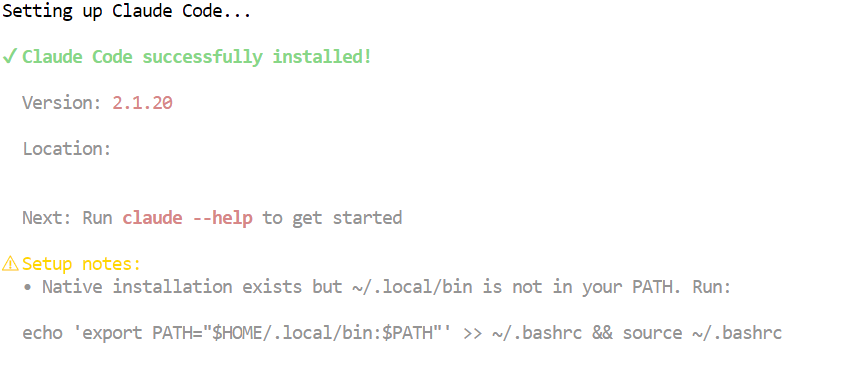
Now that both Ollama and Claude Code are installed, the next step is to connect Claude Code to your local Ollama server and configure it to use the GLM 4.7 Flash model.
Start by creating a working directory for your project. This is where Claude Code will operate and manage files:
mkdir <project-name>
cd <project-name>
Ollama now provides a built-in way to launch Claude Code that automatically configures it to talk to the local Ollama runtime. This is the recommended and most reliable approach.
To launch Claude Code interactively using Ollama:
ollama launch claudeTo directly start Claude Code using the GLM 4.7 Flash model, run:
ollama launch claude --model glm-4.7-flashThis ensures Claude Code uses your local GLM 4.7 Flash model instead of a remote or default model.
Once everything is set up, you will see the Claude Code interface directly in your terminal.
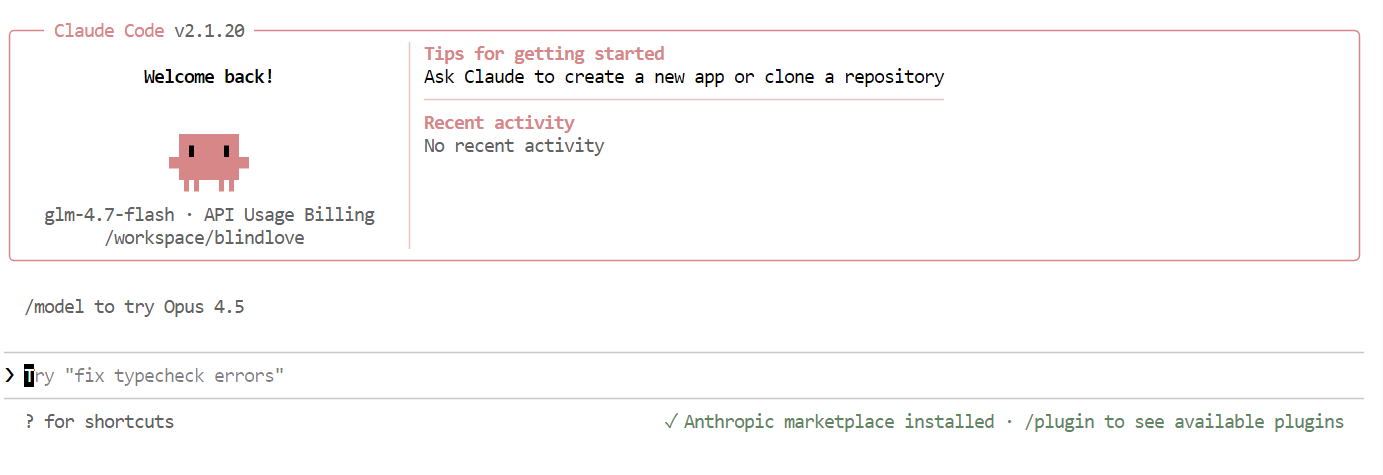
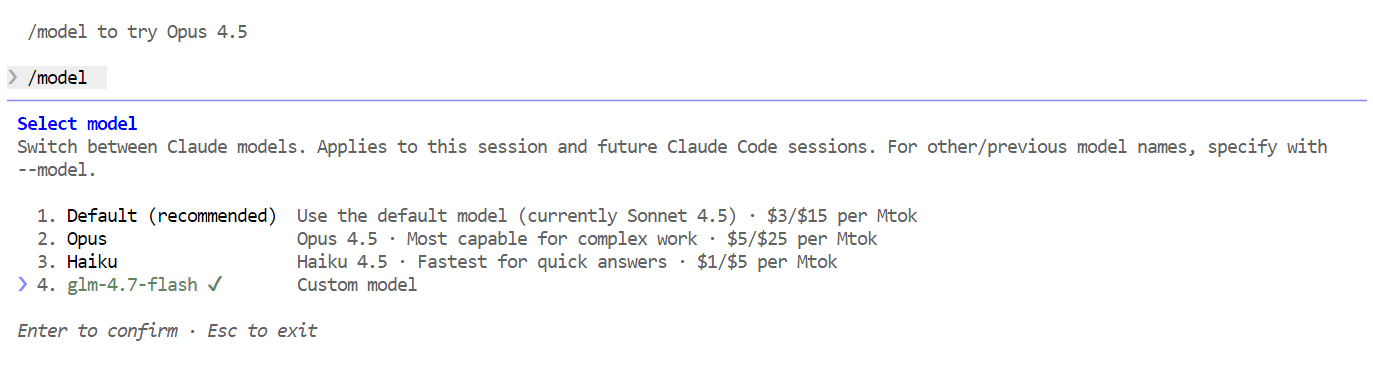
Inside Claude Code, use the following command to confirm that it is using your local model:
/modelIf the output shows glm-4.7-flash, your setup is complet,e and Claude Code is successfully running on your local Ollama model.
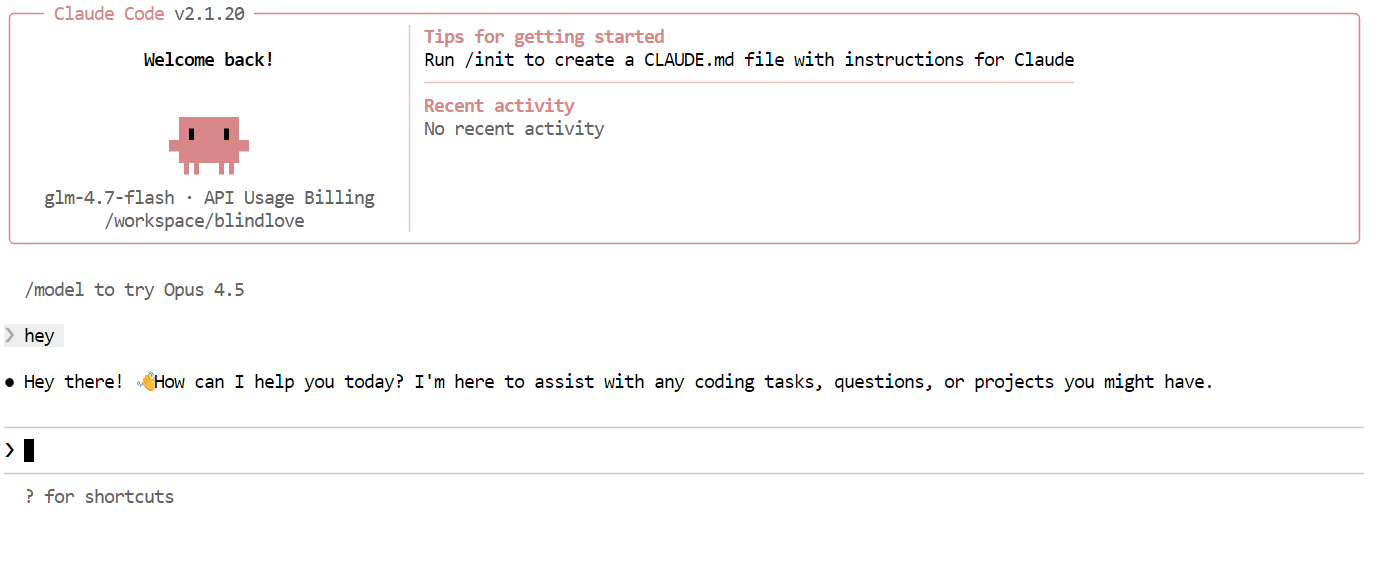
With everything set up, you can now start using Claude Code powered by your local GLM 4.7 Flash model. The first thing to try is a simple greeting. Within a second or two, you should receive a response. The speed is noticeably fast, especially when running on a GPU.
Next, try a more realistic coding task. Ask Claude Code to build a CLI Snake game in Python. Before generating code, switch to planning mode so the model outlines its approach first. You can toggle planning mode by pressing Shift + Tab twice.
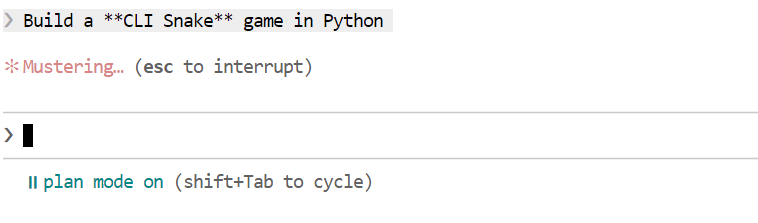 Once the plan is generated, review it. If the approach looks good, tell Claude Code to execute the plan.
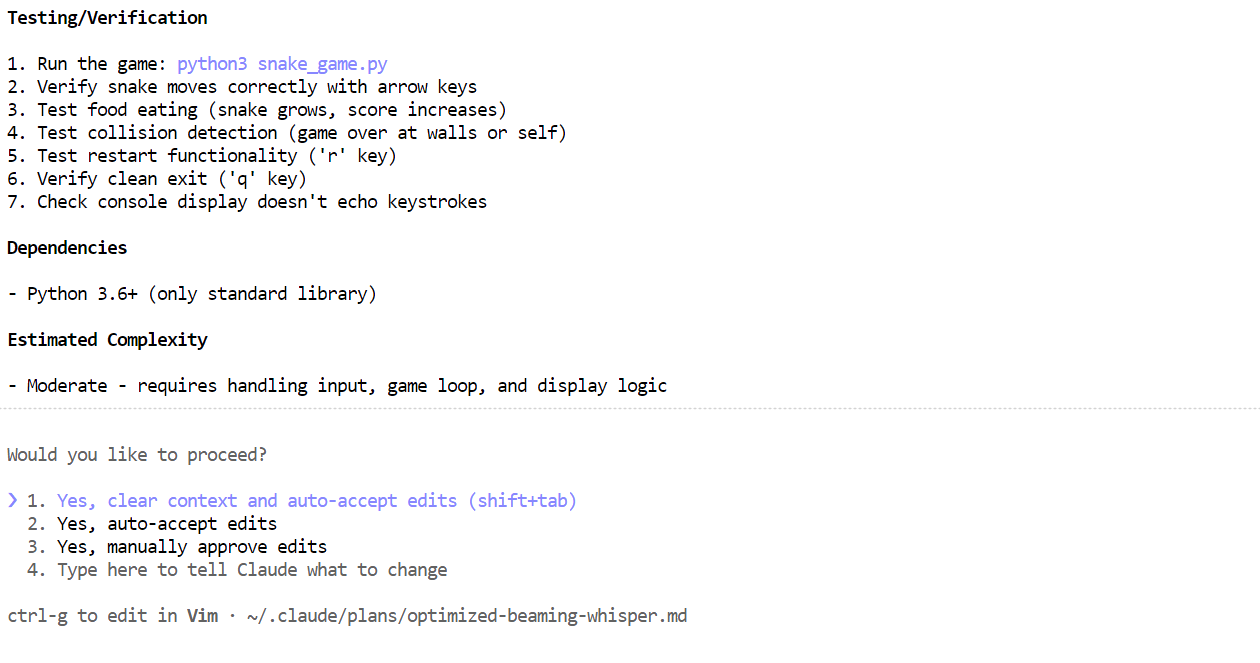 Within a few minutes, it has created the required files, explained what the Snake game does, and provided clear instructions on how to run it.
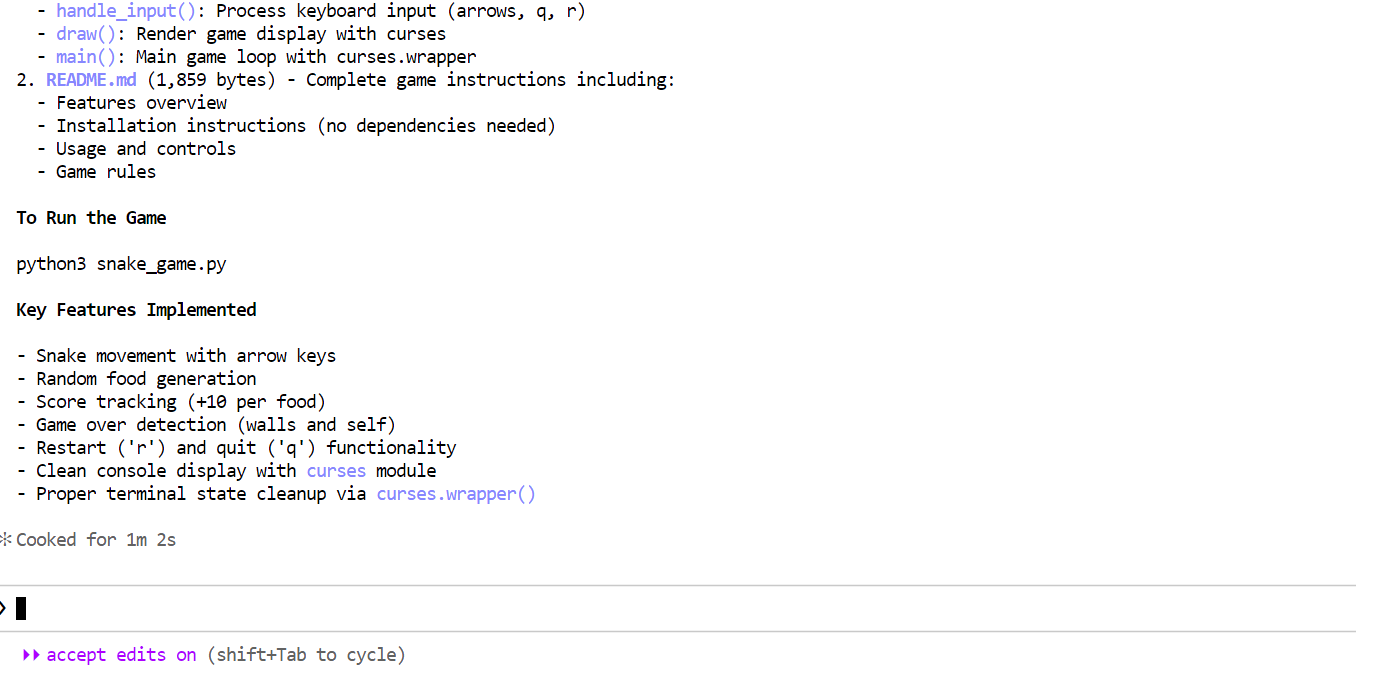 Open a new terminal window and make sure you are in the same project directory. Then start the game with:
python3 snake_game.pyThe game runs out of the box with no extra setup. It is a simple terminal-based Snake game, very similar to the classic Nokia 3310 version. Despite its simplicity, it is a great example of how fast and effective local agentic coding can be with Claude Code and Ollama.
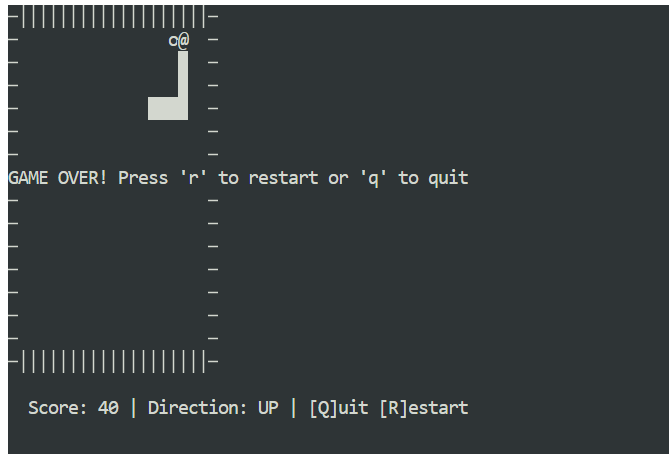
Running Claude Code with GLM 4.7 Flash on Ollama shows how far local agentic coding has come. You get fast responses, strong code generation, and full control over your data, all without relying on cloud-hosted models.
Once configured, the workflow feels smooth and reliable, even for multi-step coding tasks.
A key takeaway is that bigger context windows and more complex setups are not always better. With sensible defaults, the entire setup takes around five minutes, excluding the model download time, which depends on your internet connection.
If you already have the GGUF file for the model downloaded, the setup becomes even faster. In this case, you can skip the model download entirely and simply register the existing GGUF file with Ollama by creating a Modelfile.
This lets you define the generation parameters once and reuse the model consistently across runs and tools.
Create a file named Modelfile in the same directory as your GGUF file:
FROM ./glm-4.7-flash.gguf

PARAMETER temperature 0.8
PARAMETER top_p 0.95
PARAMETER repeat_penalty 1.0
You can adjust the parameters as needed:
Register the model with Ollama:
ollama create glm-4.7-flash-local -f ModelfileOnce the model is created, you can run it directly in chat mode:
ollama run glm-4.7-flash-localThe model can now be used like any other Ollama model and integrated seamlessly with Claude Code.
I had a lot of fun building apps and games using GLM 4.7 Flash inside Claude Code. It genuinely feels empowering to work in a remote place with no internet or unstable connectivity. Everything runs locally, nothing breaks, and you still have a powerful coding agent at your fingertips. That feeling of control and independence is hard to beat.
If you’re keen to learn more about the tools we’ve covered in this article, I recommend the following resources:
Top DataCamp Courses
Course
Course
Course
Tutorial
Abid Ali Awan
11 min
Tutorial
Abid Ali Awan
10 min
Tutorial
Abid Ali Awan
8 min
Tutorial
Abid Ali Awan
10 min
Tutorial
Abid Ali Awan
12 min
Tutorial
Abid Ali Awan
9 min