Kurs
Softwareentwicklung mit Cursor
1 Std. 30 Min.
4.2K
Qwen 3.5 ist eine multimodale Modellfamilie, die ein breites Spektrum an Einsatzszenarien abdeckt – von schlanken Edge-Modellen bis hin zu leistungsstarken Reasoning-Systemen.
Die offizielle Qwen-3.5-Reihe umfasst aktuell die Varianten 0.8B, 2B, 4B, 9B, 27B, 35B-A3B, 122B-A10B und 397B-A17B sowie Base- und quantisierte Checkpoints für einige Modelle.
Welches Small-Model passt, hängt vom gewünschten Workflow ab.
Für dieses Tutorial verwenden wir das qwen3.5:9b-Modell. Es bietet eine starke Balance aus Leistungsfähigkeit, lokaler Einsetzbarkeit und multimodalem Reasoning – ideal, um eine Video-Frames-zu-Browser-Game-Pipeline ohne externe APIs aufzubauen.
Du kannst auch unseren Leitfaden lesen, wie du Qwen3.5 lokal auf einer einzelnen GPU ausführst.
Ich habe diese Demo außerdem mit dem Modell qwen/qwen3.5-397b-a17b getestet. Obwohl dieses Modell deutlich größer und generell leistungsfähiger ist als die lokale 9B-Variante, erfordert es API-basierte Inferenz – das bringt externe Abhängigkeiten und potenzielle Latenz mit sich.
In der Praxis unterschied sich die Gesamtlaufzeit in meinen Tests, sofern die Runtime nicht strikt limitiert war, um grob ~3 Minuten zwischen den beiden Modellen. Das größere Modell lieferte etwas geschmeidigere Spiellogik und ein polierteres Preview-Erlebnis, aber der Sprung war nicht dramatisch.
Angesichts dessen, dass das 9B-Modell vollständig lokal läuft, sind die Ergebnisse überraschend konkurrenzfähig. Trotz der deutlich kleineren Größe erzeugt es spielbare Browser-Games – mit nur geringem Qualitätsabfall gegenüber dem wesentlich größeren 397B-Modell.
In unserem ausführlichen Leitfaden zum Fine-Tuning von Qwen3.5 Small erfährst du, wie du das Maximum aus der 0.8B-Variante herausholst.
In diesem Abschnitt bauen wir eine Streamlit-App, die:
qwen3.5:9b sendet,Dieses Setup zeigt Qwens multimodale Fähigkeiten, etwa Logik aus Gameplay-Aufnahmen rückzuschließen und in Code zu übersetzen.
Bevor wir die Anwendung bauen, richten wir eine lokale Umgebung mit den Bibliotheken für Videoprozessing, multimodale Inferenz und die interaktive Oberfläche ein.
pip install streamlit opencv-python ollama python-dotenv pydanticDie Demo nutzt einen kleinen Satz an Python-Bibliotheken:
Streamlit zum Aufbau der interaktiven Weboberfläche, in der Nutzer Gameplay-Videos hochladen und generierte Spiele ansehen.OpenCV zum Dekodieren des hochgeladenen Videos und zum Extrahieren repräsentativer Frames.Ollama zum Ausführen des lokalen Qwen-3.5-Modells für multimodales Reasoning und Codegenerierung.python-dotenv zum Verwalten von Umgebungsvariablen, falls benötigt.Pydantic, um vor der Codegenerierung ein strukturiertes Schema für die abgeleitete Spielspezifikation zu erzwingen.Als Nächstes müssen wir das Modell selbst herunterladen. Ollama macht das einfach, indem es das Modell direkt aus dem Model Registry zieht:
ollama run qwen3.5:9bBeim ersten Lauf wird das Modell heruntergeladen und lokal gespeichert. Das qwen3.5:9B ist etwa 6,6 GB groß, unterstützt Text- und Bildeingaben und bietet ein Kontextfenster von 256K Token – ideal für multimodale Workflows.
Nachdem die lokale Umgebung steht, importieren wir die Bibliotheken für die Anwendung und legen einen Ordner zum Speichern der generierten Artefakte an.
import json
import base64
import tempfile
from pathlib import Path
from typing import List
import cv2
import ollama
import streamlit as st
import streamlit.components.v1 as components
from pydantic import BaseModel, Field, ValidationError
OUTPUT_DIR = Path("outputs_local")
OUTPUT_DIR.mkdir(exist_ok=True)
Der obige Block bringt den Kern-Stack des Projekts zusammen. Wir nutzen json zur Formatierung der strukturierten Spielspezifikation, base64 zum Encodieren extrahierter Videoframes vor dem Senden an das Modell und tempfile zum sicheren Speichern hochgeladener Videos während einer Session. Path aus pathlib vereinfacht das Dateipfad-Handling, während List aus typing für Typ-Hinweise in den Schema-Definitionen genutzt wird.
Anschließend importieren wir die Hauptbibliotheken der Anwendung: cv2 aus OpenCV liest den hochgeladenen Gameplay-Clip und extrahiert repräsentative Frames, ollama ist die Schnittstelle zur Kommunikation mit dem lokal laufenden qwen3.5:9b-Modell. streamlit stellt das Web-UI bereit und streamlit.components.v1 ermöglicht es, das generierte HTML-Spiel direkt für Live-Preview und Interaktion einzubetten.
Zum Schluss importieren wir BaseModel, Field und ValidationError aus Pydantic. Diese dienen dazu, das strukturierte JSON-Schema zu definieren und zu validieren, das das abgeleitete Spieldesign repräsentiert. Anstatt dem Modell frei formatierten Text zu überlassen, zwingen wir es in ein vorhersehbares Schema, bevor dieses Ergebnis in den HTML-Game-Generator geht.
Die letzten zwei Zeilen erstellen bei Bedarf ein Verzeichnis outputs_local. Dort speichern wir generierte Artefakte wie die abgeleitete Spielspezifikation und die finale HTML-Game-Datei – praktisch zur Inspektion oder zum Download nach jedem Lauf.
Im nächsten Schritt definieren wir die Pydantic-Schema-Klassen, die die Spielspezifikation beschreiben, welche das Modell aus den extrahierten Gameplay-Frames erzeugen soll.
Nun definieren wir das strukturierte Schema, dem das Modell bei der Beschreibung der aus den Videoframes abgeleiteten Spielmechaniken folgen muss.
Anstatt das Modell direkt HTML-Code aus Bildern generieren zu lassen, fordern wir zunächst eine strukturierte Spielspezifikation. Diese Zwischenstufe macht die Pipeline deutlich einfacher zu debuggen, zu validieren und zu erweitern.
class Entity(BaseModel):
    name: str
    role: str
    behavior: str
class Physics(BaseModel):
    gravity: str = ""
    jump_or_impulse: str = ""
    collision_style: str = ""
    movement_style: str = ""
class VisualStyle(BaseModel):
    perspective: str = ""
    palette: str = ""
    background: str = ""
    ui_elements: List[str] = Field(default_factory=list)
class GameSpec(BaseModel):
    title: str
    genre: str
    objective: str
    player_controls: List[str]
    gameplay_loop: List[str]
    entities: List[Entity]
    scoring_rules: List[str]
    win_condition: str
    lose_condition: str
    physics: Physics
    visual_style: VisualStyle
    assumptions: List[str]
    confidence_notes: List[str]
Dieses Schema definiert die Kernstruktur der Spielspezifikation, die das Modell erzeugen soll.
Entity steht für beliebige Objekte im Spiel, etwa Spieler, Gegner, Hindernisse oder UI-Elemente. Jede Entität hat einen Namen, eine Rolle im Spiel und eine kurze Verhaltensbeschreibung.Physics beschreibt, wie sich Objekte in der Spielwelt bewegen und interagieren. Hier erfassen wir Basismechaniken wie Gravitation, Impuls-/Sprungverhalten, Kollisionen und Bewegungsmuster.VisualStyle erfasst die visuelle Präsentation des Spiels, darunter Kameraperspektive (z. B. Top-Down oder Side-Scroller), Farbpalette, Hintergrundstil und sichtbare UI-Elemente wie Punktestände oder Lebensanzeigen.GameSpec führt alles zusammen. Sie repräsentiert das vollständige Spieldesign, das aus den Videoframes abgeleitet wurde – inklusive Ziel, Steuerung, Gameplay-Loop, Entitäten, Scoring, Gewinn-/Verlustbedingungen sowie Annahmen des Modells bei der Interpretation der Frames.Durch die Validierung der Modellausgabe gegen dieses Schema stellen wir sicher, dass das abgeleitete Design stets einer vorhersehbaren Struktur folgt. So lässt es sich außerdem viel leichter in die nächste Pipeline-Stufe übergeben.
Mit dem Schema an Ort und Stelle definieren wir nun die Prompts, die das Modell durch die zwei Pipeline-Phasen führen.
Die erste Stufe fokussiert sich darauf, aus den extrahierten Frames die Spielmechaniken rückzuschließen und eine strukturierte Spielspezifikation zu erzeugen.
Die zweite Stufe nimmt diese Spezifikation und generiert daraus ein spielbares Browser-Game mit HTML, CSS und JavaScript.
Der erste Baustein unserer Prompting-Strategie sind die System-Prompts, die die Rolle definieren, die das Modell in jeder Pipeline-Phase übernehmen soll.
SPEC_SYSTEM_PROMPT = """
You are an expert arcade game designer and gameplay reverse-engineering analyst.
You observe a few frames from a gameplay video and infer the smallest possible playable browser-game clone.
The gameplay is likely a simple arcade game like Pong, Breakout, Snake, or Flappy Bird.
Prefer these mechanics if uncertain.
Rules:
- Only infer mechanics that are strongly supported by visual evidence.
- Prefer a minimal playable prototype over a complex clone.
- Do not invent advanced systems unless clearly visible.
- Keep the result suitable for plain HTML5 canvas and JavaScript.
- Return strict JSON only.
- No markdown.
- No code fences.
""".strip()
CODE_SYSTEM_PROMPT = """
You are a senior JavaScript game developer.
Generate a complete single-file HTML game.
Requirements:
- Return raw HTML only.
- No markdown.
- No code fences.
- Use plain HTML, CSS, and JavaScript only.
- Use HTML5 canvas unless there is a strong reason not to.
- Keep the game simple, playable, and self-contained.
- No external libraries, no CDNs, no external assets.
- Use simple shapes/colors instead of images.
- Include score.
- Include restart support.
- Include instructions on screen.
- Keep keyboard controls simple.
- Make the game playable inside an iframe preview.
- IMPORTANT: the canvas must have tabindex="0".
- IMPORTANT: keyboard input must work inside an embedded iframe.
- IMPORTANT: focus the canvas automatically on load, on canvas click, and after pressing Start/Restart buttons.
- IMPORTANT: prevent default browser behavior for arrow keys and spacebar.
""".strip()
Der erste System-Prompt weist das Modell an, sich wie ein Gameplay-Analyst zu verhalten. Er betont minimale Annahmen und fordert das Modell auf, nur Mechaniken abzuleiten, die durch die Frames gut belegt sind.
Da das Modell nur wenige, gesampelte Bilder sieht, lenkt der Prompt es bewusst auf einfache Arcade-Spiele, die sich mit leichter Browserlogik umsetzen lassen.
Der zweite System-Prompt wechselt die Rolle zum JavaScript-Entwickler. In dieser Phase erhält das Modell eine strukturierte Spielspezifikation und ist verantwortlich dafür, daraus ein vollständiges HTML-Spiel zu erzeugen.
Als Nächstes definieren wir eine Hilfsfunktion, die den User-Prompt für die erste Pipeline-Phase konstruiert. Dieser Prompt bittet das Modell, die extrahierten Frames zu analysieren und eine strukturierte Spielspezifikation zu erstellen.
def build_spec_user_prompt(game_hint: str, extra_constraints: str, max_frames: int) -> str:
    return f"""
You are given a few still frames extracted from a gameplay video.
From these frames, infer a minimal, playable browser game design.
Use very simple 2D arcade-style mechanics.
If you are unsure, bias toward Pong / Breakout / Snake / Flappy Bird style games.
Output valid JSON with exactly this schema:
{{
  "title": "string",
  "genre": "string",
  "objective": "string",
  "player_controls": ["string"],
  "gameplay_loop": ["string"],
  "entities": [
    {{
      "name": "string",
      "role": "player|enemy|obstacle|projectile|ui|environment",
      "behavior": "string"
    }}
  ],
  "scoring_rules": ["string"],
  "win_condition": "string",
  "lose_condition": "string",
  "physics": {{
    "gravity": "string",
    "jump_or_impulse": "string",
    "collision_style": "string",
    "movement_style": "string"
  }},
  "visual_style": {{
    "perspective": "string",
    "palette": "string",
    "background": "string",
    "ui_elements": ["string"]
  }},
  "assumptions": ["string"],
  "confidence_notes": ["string"]
}}
Important:
- Only infer the simplest mechanics needed for a playable clone.
- Prefer a very simple game that can be rebuilt in one HTML file.
- Avoid menus, accounts, audio, networking, cutscenes, or multi-level progression.
Optional game hint from user:
{game_hint or "None"}
Extra constraints:
{extra_constraints or "None"}
You are seeing at most {max_frames} frames from the video, so stay simple and conservative.
Return JSON only.
""".strip()
Diese Funktion baut den Prompt, der zusammen mit den extrahierten Videoframes an das Modell gesendet wird. Er enthält mehrere wichtige Elemente:
GameSpec-Modell passtDurch das direkte Einbetten des Schemas in den Prompt fördern wir Ausgaben, die sich im nächsten Pipeline-Schritt mit Pydantic validieren lassen.
Sobald die Spielspezifikation erzeugt und validiert ist, brauchen wir einen zweiten Prompt, der diese Spezifikation in ein tatsächlich spielbares Game übersetzt.
def build_code_user_prompt(game_spec: dict) -> str:
    spec_json = json.dumps(game_spec, indent=2)
    return f"""
Using the following game specification, generate a complete single-file HTML game.
Requirements:
- One self-contained HTML file.
- Inline CSS and inline JavaScript.
- Must be playable in a browser.
- Must render correctly in an iframe.
- Show score on screen.
- Show controls on screen.
- Add restart support using a button or key.
- Keep visuals simple and robust.
- Use requestAnimationFrame.
- Use canvas for gameplay rendering.
- No external assets.
- Make the game small but genuinely playable.
Game specification:
{spec_json}
Return raw HTML only.
""".strip()
Die Funktion build_code_user_prompt wandelt das GameSpec-Dictionary in formatiertes JSON und bettet es in den Prompt ein. Das Modell nutzt diese strukturierte Beschreibung als Briefing, um das finale HTML-Spiel zu generieren.
Da die Spezifikation Mechaniken, Entitäten, Steuerung und Ziele bereits definiert, wird die Aufgabe für das Modell deutlich einfacher. Es muss das Design nur noch in JavaScript-Gamelogik und einen Canvas-basierten Rendering-Loop übersetzen.
Im nächsten Schritt implementieren wir mit OpenCV die Frame-Extraktion, die das hochgeladene Gameplay-Video in eine kleine Auswahl repräsentativer Bilder überführt, die das Qwen-3.5-Modell analysieren kann.
Die lokalen Qwen-3.5-Modelle von Ollama akzeptieren Text und Bilder, aber kein Rohvideo. Statt den Clip direkt zu senden, extrahieren wir daher eine kleine Anzahl gleichmäßig verteilter Frames und übergeben diese an das Modell.
def save_uploaded_video(uploaded_file) -> Path:
    suffix = Path(uploaded_file.name).suffix or ".mp4"
    with tempfile.NamedTemporaryFile(delete=False, suffix=suffix) as tmp:
        tmp.write(uploaded_file.read())
        return Path(tmp.name)
def extract_frames(video_path: Path, max_frames: int = 6):
    cap = cv2.VideoCapture(str(video_path))
    total_frames = int(cap.get(cv2.CAP_PROP_FRAME_COUNT))
    interval = max(1, total_frames // max_frames) if total_frames > 0 else 1
    frames = []
    frame_id = 0
    while True:
        ret, frame = cap.read()
        if not ret:
            break
        if frame_id % interval == 0:
            _, buffer = cv2.imencode(".jpg", frame)
            frames.append(base64.b64encode(buffer).decode())
        frame_id += 1
        if len(frames) >= max_frames:
            break
    cap.release()
    return frames
def extract_json_block(text: str) -> str:
    start = text.find("{")
    end = text.rfind("}")
    if start == -1 or end == -1 or end <= start:
        raise ValueError("No valid JSON object found in model response.")
    return text[start : end + 1]
def cleanup_html_response(text: str) -> str:
    html = text.strip()
    if html.startswith("```"):
        lines = html.splitlines()
        if lines and lines[0].startswith("```"):
            lines = lines[1:]
        if lines and lines[-1].startswith("```"):
            lines = lines[:-1]
        html = "\n".join(lines).strip()
    return html
def patch_html_for_iframe_keyboard(html: str) -> str:
    if 'tabindex="0"' not in html and "<canvas" in html:
        html = html.replace("<canvas", '<canvas tabindex="0"', 1)
    focus_patch = """
<script>
(function() {
  const canvas = document.querySelector("canvas");
  if (!canvas) return;
  if (!canvas.hasAttribute("tabindex")) {
    canvas.setAttribute("tabindex", "0");
  }
  function focusGame() {
    try { canvas.focus(); } catch (e) {}
  }
  window.addEventListener("load", focusGame);
  canvas.addEventListener("click", focusGame);
  document.addEventListener("keydown", function(e) {
    if (["ArrowUp","ArrowDown","ArrowLeft","ArrowRight"," "].includes(e.key)) {
      e.preventDefault();
    }
  }, { passive: false });
  const buttons = document.querySelectorAll("button");
  buttons.forEach(btn => {
    btn.addEventListener("click", () => {
      setTimeout(focusGame, 50);
    });
  });
})();
</script>
"""
    if "</body>" in html:
        html = html.replace("</body>", focus_patch + "\n</body>")
    else:
        html += focus_patch
    return html
Die obigen Utilities definieren fünf zentrale Bausteine, um aus dem hochgeladenen Video repräsentative Frames zu gewinnen:
save_uploaded_video() speichert das hochgeladene Gameplay-Video als temporäre Datei auf der Festplatte. Da Streamlit Dateien im Speicher hochlädt, ermöglicht das Schreiben auf die Platte ein effizientes Einlesen mit OpenCV während der Frame-Extraktion und bewahrt die ursprüngliche Dateiendung.extract_frames() lädt das Video mit OpenCV und sampelt eine kleine Anzahl gleichmäßig verteilter Frames über die Laufzeit. Statt jeden Frame zu verarbeiten, berechnet die Funktion ein Sampling-Intervall und extrahiert repräsentative Frames, die das Gameplay abbilden. Jeder Frame wird als JPEG encodiert und in einen base64-String umgewandelt, um ihn direkt als Bildinput an das multimodale Qwen-Modell zu senden.extract_json_block() stellt sicher, dass die Modellausgabe korrekt geparst werden kann. Der extrahierte Inhalt lässt sich anschließend sicher gegen das GameSpec-Schema validieren.cleanup_html_response() entfernt Markdown-Formatierungen, die das Modell bei der Codegenerierung eventuell hinzufügt. Falls das Modell die HTML-Ausgabe in dreifache Backticks setzt, entfernt der Helper diese Markierungen, damit das HTML direkt im Streamlit-Preview gerendert werden kann.patch_html_for_iframe_keyboard() injiziert einen kleinen JavaScript-Patch in das generierte HTML, damit Tastatursteuerungen im Streamlit-iframe zuverlässig funktionieren. Sie fokussiert das Canvas-Element automatisch, vergibt bei Bedarf ein tabindex und verhindert, dass der Browser Pfeiltasten und Leertaste abfängt, sodass sie für die Spielsteuerung nutzbar sind.Zusammen bilden diese Utilities die Vorverarbeitung des Videos und die Response-Aufbereitung der Pipeline.
Mit den extrahierten Frames und den Prompt-Vorlagen können wir nun die erste Stufe der Reasoning-Pipeline implementieren, also die Umwandlung der Gameplay-Frames in eine strukturierte Spielspezifikation.
def infer_game_spec(video_path: Path, game_hint: str, extra_constraints: str, max_frames: int) -> dict:
    frames = extract_frames(video_path, max_frames=max_frames)
    prompt = build_spec_user_prompt(game_hint, extra_constraints, max_frames)
    response = ollama.chat(
        model="qwen3.5:9b",
        messages=[
            {
                "role": "system",
                "content": SPEC_SYSTEM_PROMPT,
            },
            {
                "role": "user",
                "content": prompt,
                "images": frames,
            },
        ],
        options={
            "temperature": 0.1,
            "num_ctx": 8192,
        },
    )
    text = response["message"]["content"]
    parsed = json.loads(extract_json_block(text))
    validated = GameSpec(**parsed)
    return validated.model_dump()
Die obige Funktion definiert vier Schlüsselschritte der Game-Spec-Inferenzpipeline:
extract_frames() sampelt eine kleine Menge repräsentativer Frames aus dem hochgeladenen Gameplay-Video. Diese Bilder dienen als visuelle Evidenz, anhand derer das Modell Spielmechaniken ableitet.build_spec_user_prompt() erstellt dynamisch den User-Prompt aus optionalem Hinweis, zusätzlichen Einschränkungen und der Maximalzahl extrahierter Frames. Der Prompt weist das Modell klar an, eine schema-konforme Spielspezifikation auszugeben.ollama.chat()-Anfrage sendet sowohl den Text-Prompt als auch die extrahierten Frames an das lokale qwen3.5:9b-Modell. Die Generierung nutzt eine niedrige temperature für deterministischere Ausgaben und num_ctx=8192 für ausreichend Kontextplatz.GameSpec. Abschließend wird die validierte Spezifikation als Python-Dictionary zurückgegeben.Damit liegt eine strukturierte Repräsentation des Spiels vor, die das Modell aus den gesampelten Videoframes abgeleitet hat. Im nächsten Schritt nutzen wir diese validierte Spezifikation als Input für die HTML-Game-Generierung.
An diesem Punkt muss das Modell keine Mechaniken mehr aus Bildern ableiten. Stattdessen bitten wir qwen3.5:9b darum, eine einzelne, in sich geschlossene HTML-Datei zu erzeugen, die Layout, Styles, Game-Loop, Steuerung und Rendering-Logik enthält.
def generate_game_html(game_spec: dict) -> str:
    response = ollama.chat(
        model="qwen3.5:9b",
        messages=[
            {
                "role": "system",
                "content": CODE_SYSTEM_PROMPT,
            },
            {
                "role": "user",
                "content": build_code_user_prompt(game_spec),
            },
        ],
        options={
            "temperature": 0.2,
            "num_ctx": 8192,
        },
    )
    text = response["message"]["content"]
    html = cleanup_html_response(text)
    if "<html" not in html.lower():
        raise ValueError("Model did not return HTML")
    return patch_html_for_iframe_keyboard(html)
Die Funktion führt vier Schritte aus, um das finale HTML-Spiel zu erzeugen und aufzubereiten:
game_spec wird an build_code_user_prompt() übergeben. Daraus entsteht ein detaillierter Implementierungs-Prompt, der das Modell anweist, ein vollständiges Single-File-HTML-Spiel zu generieren.ollama.chat() sendet den Code-Generierungs-Systemprompt und den User-Prompt an das lokale qwen3.5:9b-Modell. Da es nun um reine Codegenerierung statt multimodales Reasoning geht, erhält das Modell ausschließlich Text.cleanup_html_response() von Markdown oder zusätzlicher Formatierung befreit. Anschließend prüfen wir einfach, ob ein HTML-Dokument enthalten ist.patch_html_for_iframe_keyboard(), das einen kleinen JavaScript-Fix injiziert, damit das Spiel im eingebetteten Streamlit-iframe spielbar ist. Das ist wichtig, da Browsergames Pfeiltasten und Leertaste oft nur dann korrekt erfassen, wenn das Canvas explizit fokussierbar ist und automatisch Fokus erhält.Damit haben wir ein im Browser spielbares HTML-Spiel, das vollständig aus der abgeleiteten Spielspezifikation generiert wurde.
Zum Abschluss verpacken wir alles in eine einfache Streamlit-Oberfläche, sodass Nutzer das System ausprobieren können, ohne den Code anzufassen. Die Oberfläche bietet drei Hauptfunktionen:
st.set_page_config(page_title="Qwen 3.5 9B (Ollama) - Video to Game", layout="wide")
st.title("Qwen 3.5 9B: Gameplay Video to Playable HTML Game")
st.write(
    "This local demo uses Ollama with qwen3.5:9b to turn a short gameplay clip "
    "into a minimal browser game."
)
with st.sidebar:
    st.header("Local generation settings")
    game_hint = st.text_input("Optional game hint", value="Simple Pong-like arcade game")
    extra_constraints = st.text_area(
        "Extra constraints",
        value="Keep the game extremely simple and easy to play with arrow keys or space bar.",
        height=120,
    )
    max_frames = st.slider("Frames extracted from video", 3, 8, 5)
uploaded_video = st.file_uploader(
    "Upload gameplay video",
    type=["mp4", "mov", "avi", "mkv", "webm"],
)
if "local_game_spec" not in st.session_state:
    st.session_state.local_game_spec = None
if "local_game_html" not in st.session_state:
    st.session_state.local_game_html = None
if uploaded_video is not None:
    video_path = save_uploaded_video(uploaded_video)
    col1, col2 = st.columns([1, 1])
    with col1:
        st.subheader("Uploaded video")
        st.video(str(video_path))
    with col2:
        st.subheader("Run local pipeline")
        if st.button("Generate game", type="primary"):
            try:
                with st.spinner("Extracting frames and inferring game mechanics (local model)..."):
                    game_spec = infer_game_spec(
                        video_path=video_path,
                        game_hint=game_hint,
                        extra_constraints=extra_constraints,
                        max_frames=max_frames,
                    )
                    st.session_state.local_game_spec = game_spec
                with st.spinner("Generating HTML game code with qwen3.5:9b..."):
                    game_html = generate_game_html(game_spec)
                    st.session_state.local_game_html = game_html
                    (OUTPUT_DIR / "local_game_spec.json").write_text(
                        json.dumps(game_spec, indent=2),
                        encoding="utf-8",
                    )
                    (OUTPUT_DIR / "local_generated_game.html").write_text(
                        game_html,
                        encoding="utf-8",
                    )
                st.success("Local game generated.")
            except ValidationError as e:
                st.error(f"Schema validation failed: {e}")
            except Exception as e:
                st.error(f"Local generation failed: {e}")
if st.session_state.local_game_spec:
    st.subheader("Inferred game spec")
    st.json(st.session_state.local_game_spec)
if st.session_state.local_game_html:
    tab1, tab2, tab3 = st.tabs(["Preview", "HTML Code", "Downloads"])
    with tab1:
        st.subheader("Playable preview")
        st.caption(
            "Click START GAME, then click once inside the game canvas so it captures keyboard input."
        )
        components.html(
            st.session_state.local_game_html,
            height=760,
            scrolling=False,
        )
    with tab2:
        st.subheader("Generated HTML (local)")
        st.code(st.session_state.local_game_html, language="html")
    with tab3:
        st.subheader("Download files (local)")
        st.download_button(
            label="Download HTML game (local)",
            data=st.session_state.local_game_html,
            file_name="local_generated_game.html",
            mime="text/html",
        )
        st.download_button(
            label="Download JSON spec (local)",
            data=json.dumps(st.session_state.local_game_spec, indent=2),
            file_name="local_game_spec.json",
            mime="application/json",
        )
Der obige Code definiert, wie Nutzer einen Gameplay-Clip hochladen, optional einen Hinweis zum Spieltyp geben und steuern, wie viele Frames für die Analyse extrahiert werden sollen. Sobald ein Video hochgeladen ist, zeigt die App es an und bietet einen Button „Generate game“, der die gesamte Pipeline startet.
Wenn die Pipeline läuft, extrahiert die App zuerst Frames und leitet die Spielmechanik mit dem lokalen qwen3.5:9b-Modell ab – das Ergebnis ist eine strukturierte Spielspezifikation. In der zweiten Stufe erzeugt das Modell daraus ein vollständiges HTML-Spiel. Die Resultate werden im Streamlit-Session-State gespeichert und bleiben über UI-Updates erhalten.
Nach Abschluss zeigt die Oberfläche die abgeleitete Spielspezifikation, eine live spielbare Vorschau des generierten Spiels, den Roh-HTML-Quelltext sowie Download-Buttons für HTML-Game und JSON-Spezifikation.
Um es selbst auszuprobieren, speichere den Code als app.py und starte:
streamlit run app.py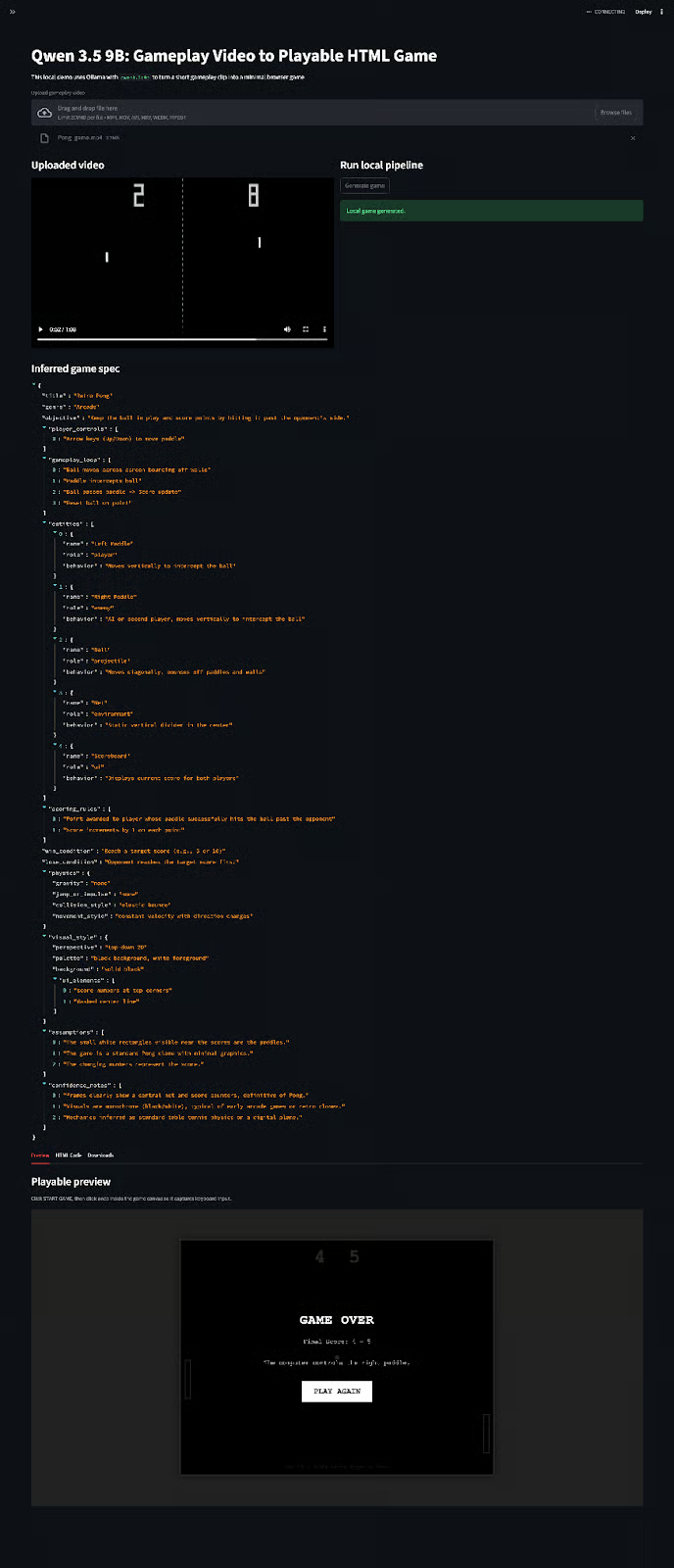
Qwen 3.5 ist derzeit eine der spannendsten multimodalen Modellfamilien. In diesem Tutorial haben wir qwen3.5:9b über Ollama genutzt, um einen vollständig lokalen Video-zu-Game-Generator zu bauen. Die App extrahiert Frames aus einem kurzen Clip, leitet ein strukturiertes Spieldesign ab, erzeugt ein Single-File-Browser-Game und zeigt es in Streamlit an.
Das gehostete Modell qwen/qwen3.5-397b-a17b ist für diese Aufgabe weiterhin die schnellere und stärkere Option, doch das lokale 9B-Ergebnis ist für sich genommen beeindruckend. Es zeigt, dass ein kleines multimodales Modell mittlerweile sinnvolles visuelles Reasoning und Codegenerierung auf Consumer-Hardware leisten kann.
Wenn du weitergehen willst, vergleiche 9B mit 4B- und 27B-Modellen, füge eine Verfeinerungsschleife hinzu oder forme die Ausgabe zu einer Mini-Game-Engine um, die mehrere Iterationen aus demselben Clip unterstützt.
Top DataCamp Courses
Kurs
Kurs
Kurs