
Effective Dashboard Design: Principles, Best Practices, and Examples

Master dashboard design principles and best practices with this step-by-step guide. Learn to select metrics, choose the right charts, and create data views for any audience.
Dec 5, 2025  · 15 min read

Dashboards sit between a question and a decision. When they work, teams answer “What changed?” in seconds and move. When they don’t, people hunt through tabs and make guesses about their data.

In this tutorial, I will cover the basics of dashboard design: what a dashboard is (and isn’t), how to arrange information so someone can scan it at a glance, which charts and labels carry the load, and where context belongs. We’ll also look at patterns by domain and a build process you can reuse.

If you're looking for some hands-on, practical learning, I recommend checking out the Dashboard Design Concepts course. You might also want to master either the Power BI Fundamentals or Tableau Fundamentals

What is a Dashboard? 

A dashboard is a single screen that brings together a small set of metrics, along with enough context to support a decision. It turns raw tables into ranked lists, small trends, and clear status, so people know where to look first and what to do next.

It gives a shared view of performance, so teams talk about the same facts. To put it simply, it shortens the time from “What’s going on?” to the next action, such as raising a ticket, calling a customer, rerouting inventory, or adjusting spend.

Most dashboards start from a recurring question (for example, “Are sign-ups on pace?”). They answer it once, keep the data fresh, and reuse it regularly.

The path from data to action is simple: 

collect → clean → model → transform → encode

The last step maps numbers to the right charts and labels so the intent is obvious, such as units, targets, comparisons, or time windows.

The narrative approach

Dashboards are more effective when they read like a short story. Give users a setup, a change, and a next step. 

Easy, right?

Stories work because people tend to remember sequences better. If the screen tells them what changed and why, they stop hunting through charts and start acting.

Dashboard design examples

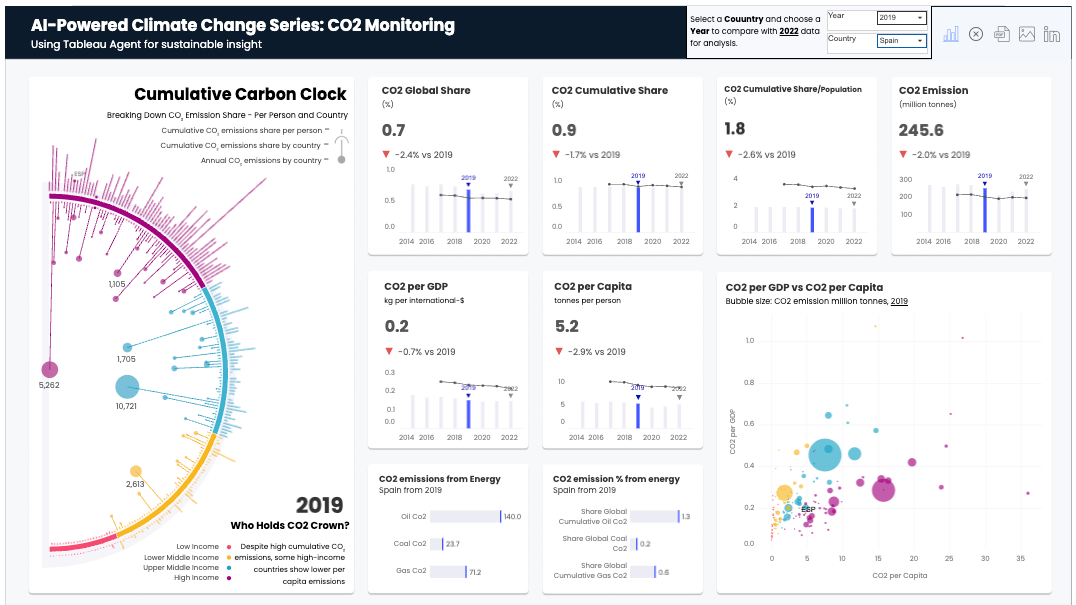
Let’s exemplify this approach with the following dashboards: 
Example Dashboard

Screenshot of Tableau Public. Dashboard by Harim Jung

This dashboard guides decisions by:
  1. Stating the headlines (Spain example): CO₂ per capita 5.2 t, down vs. 2019; CO₂ per GDP 0.2, also slightly down.
  2. Naming the drivers: The “Emissions from Energy” bars show oil as the largest slice; the bubble chart places Spain mid-pack on per-capita with moderate total emissions.
  3. Highlighting actions: Shift power mix by trimming oil use, fund gas-to-renewables swaps, and set a quarterly target tied to CO₂ per GDP; track results in the small multiples trend cards.

Example dashboard

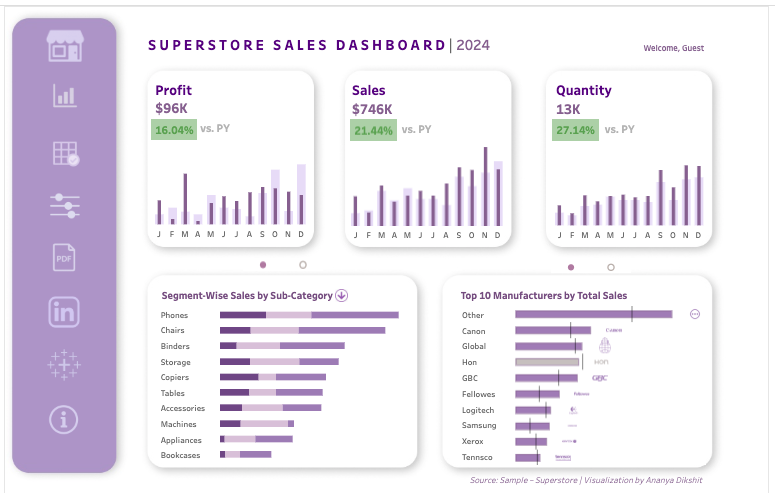
Screenshot of Tableau Public. Dashboard by Ananya D.

This dashboard helps users by:

  1. Highlighting key metrics: Sales $746K and Profit $96K, both up vs. PY; Quantity 13K, also up.
  2. Adding extra depth: Sub-category bars show Chairs and Phones carrying most growth; the “Top Manufacturers” chart shows Canon near the lead while Logitech/Xerox trail.
  3. Giving clear actions: Reorder fast movers in leading segments, ask supply to secure Canon capacity, and run a clearance/promotion on bookcases and underperforming brands next week.

Remember to keep the arc tight: What changed? → Why? → What do we do now?

For more inspiration, make sure to take a look at these Power BI dashboard examples.

Dashboard applications across industries

Dashboards appear in any place where routine choices depend on fresh data. For example:

  • Healthcare: Bed occupancy by ward, median emergency wait by shift, antimicrobial use rates.
  • Finance: Profits and losses versus plan, cash runway, fraud review queues.
  • Sales/CRM: Pipeline by stage, win rate by segment, forecast accuracy.
  • SaaS: Activation, cohort retention, feature adoption.
  • Public sector & logistics: Permit cycle time, on-time arrivals, inventory turns.

Each dashboard should give clear outcomes: reassigning the night shift, calling aged invoices, reordering stock for the morning flight, or shipping a small fix. Good design makes the next action obvious.

Core Dashboard Design Principles and Visual Hierarchy

Strong dashboards don’t start with charts but with structure. A few decisions about layout, color, and type determine whether people can scan the page and take action. For a one-page checklist that aligns with these principles, refer to the Dashboard Design Checklist.

Visual hierarchy

People tend to read what’s heavy, close, and high-contrast first. In left-to-right languages, they usually scan in a Z: top-left → top-right → bottom-left → bottom-right. Put the critical numbers on that path, especially at the start.
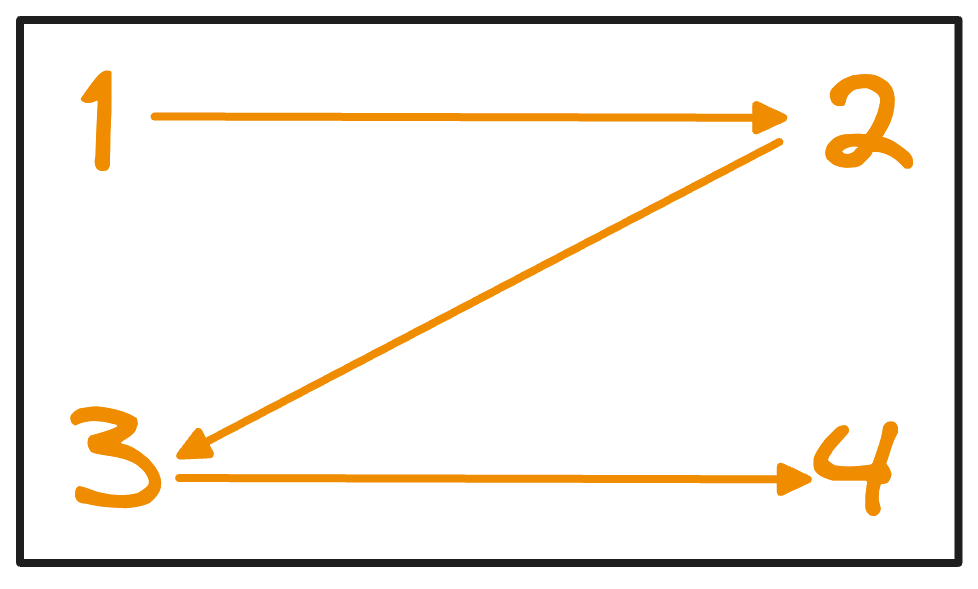
Visual hierarchy

Image by Author

Another important concept to keep in mind is the inverted pyramid model, which structures your dashboard into three distinct layers, based on urgency:

  • Top: Status and targets (the “are we good?” line).
  • Middle: Trends and comparisons that explain movement.
  • Bottom: Details, owners, and links that route follow-up work.

Layout

The layout refers to how you arrange your charts and data on the screen to make sure the most essential information is easy to find and understand. Use size and whitespace to signal priority, not as decoration. 

One basic yet important rule is to keep a simple grid with even gutters. Aligned cards read as orderly and trustworthy. If you break the grid, however, the page will feel noisy, which slows scanning the content and hides what matters.
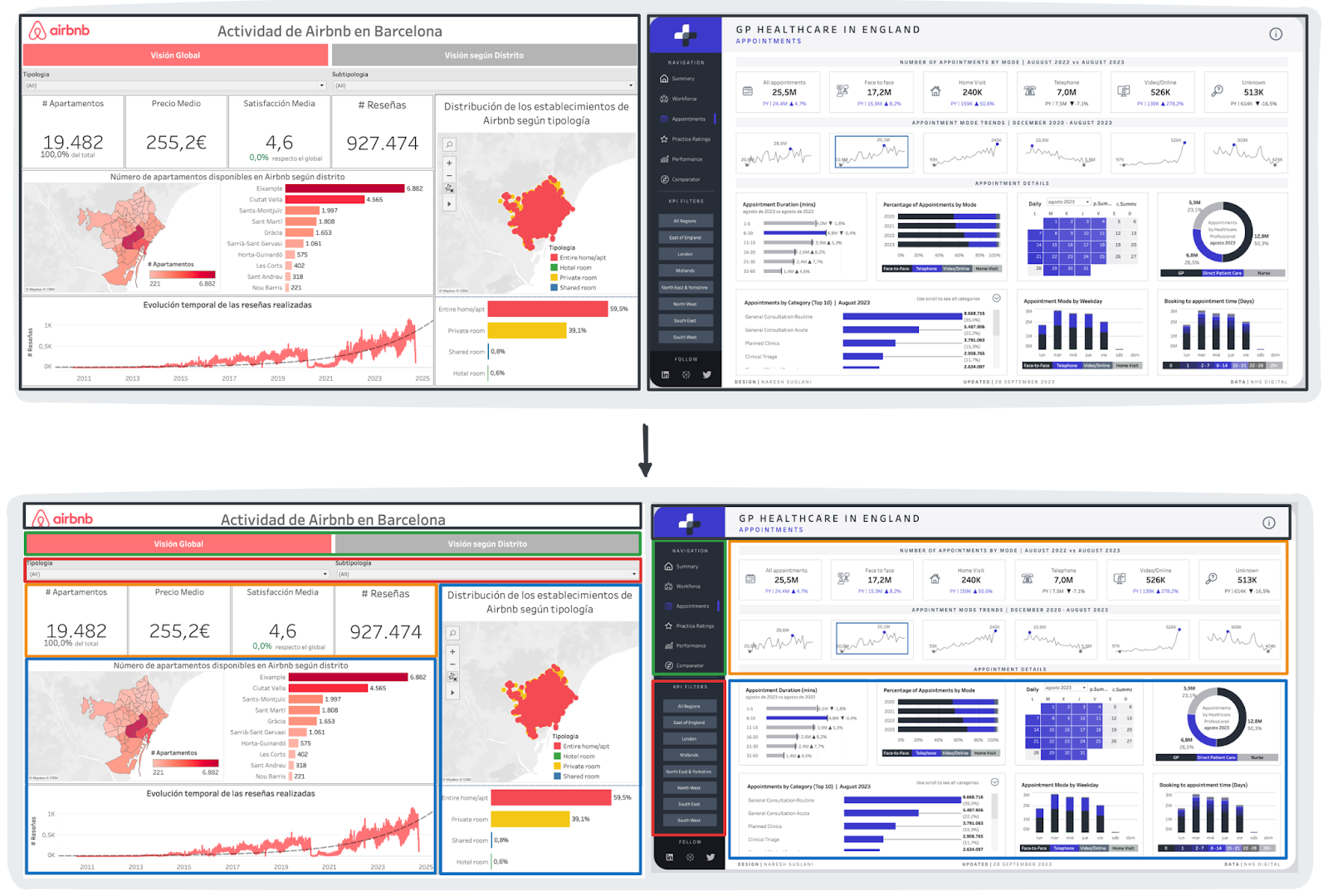
Dashboards without vs. with aligned grid

Image by Author

To reduce the mental effort required to interpret the data, grouping and UI hygiene are relevant. It is best practice to:

  • Group related items; separate unrelated ones with space, not lines.
  • Place filters above the content with short, plain labels.
  • Keep legends close to their charts.
  • If a table sorts, display the sorting column with a clearly visible arrow and ensure the click target is large enough.

Next, we will go through two common page patterns: top-rail and left-rail layouts.

Top-rail layout

The top-rail layout consolidates navigation, filters, and key performance indicators into a horizontal header, dedicating the expansive space below to your main charts and detailed visualizations. It is the best choice when the first question is “Are we on track?”
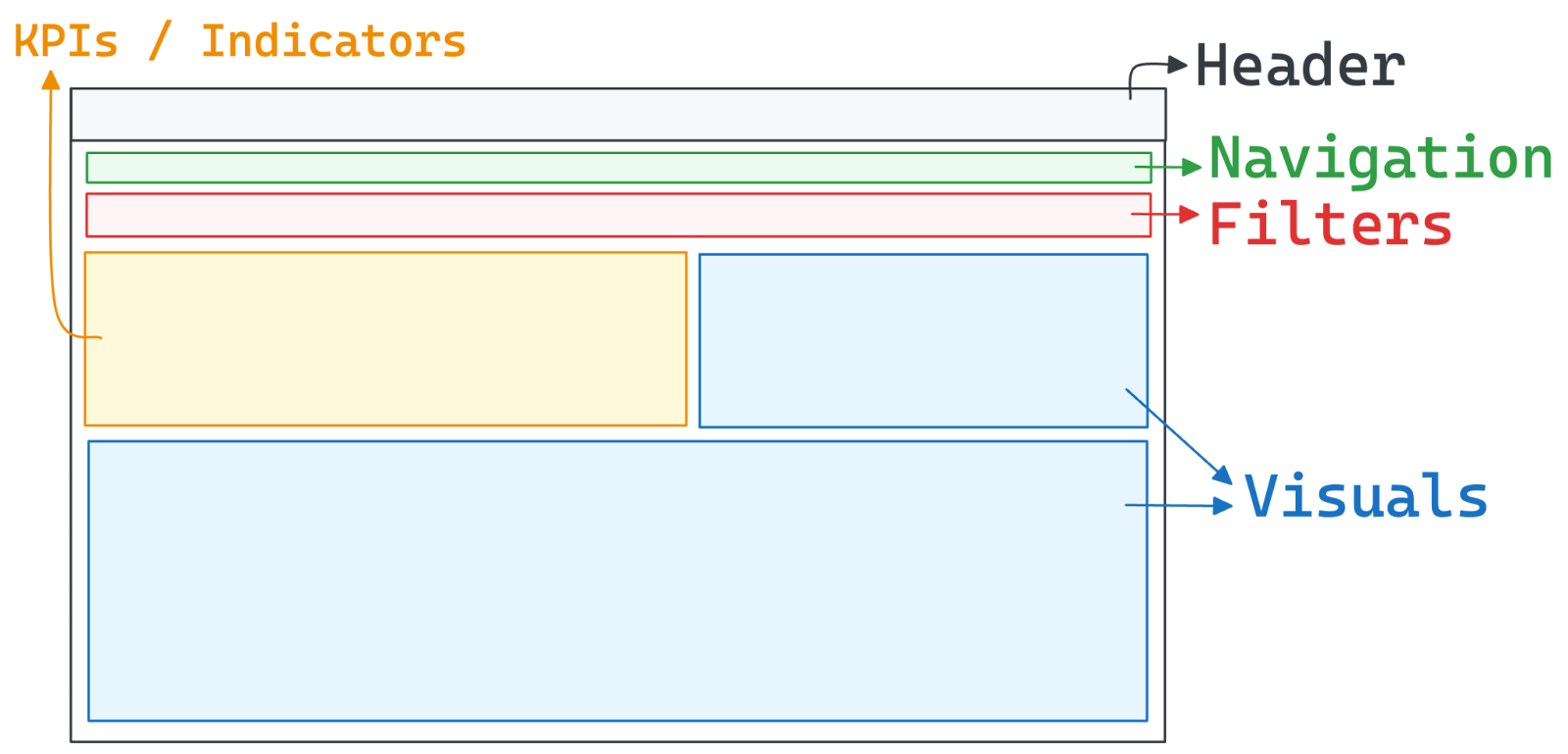
  • Pros: KPIs sit in the hot zone; filters are visible; works well on wide monitors.
  • Watch-outs: Can get tall on small laptops; too many filter pills create clutter.

Top-rail layout

Image by Author

Left-rail layout

The sidebar layout organizes navigation and filters into a vertical column on the left, preserving the full width of the remaining screen for deep data analysis and complex visualizations. It is especially useful when people frequently switch views or need many filters.
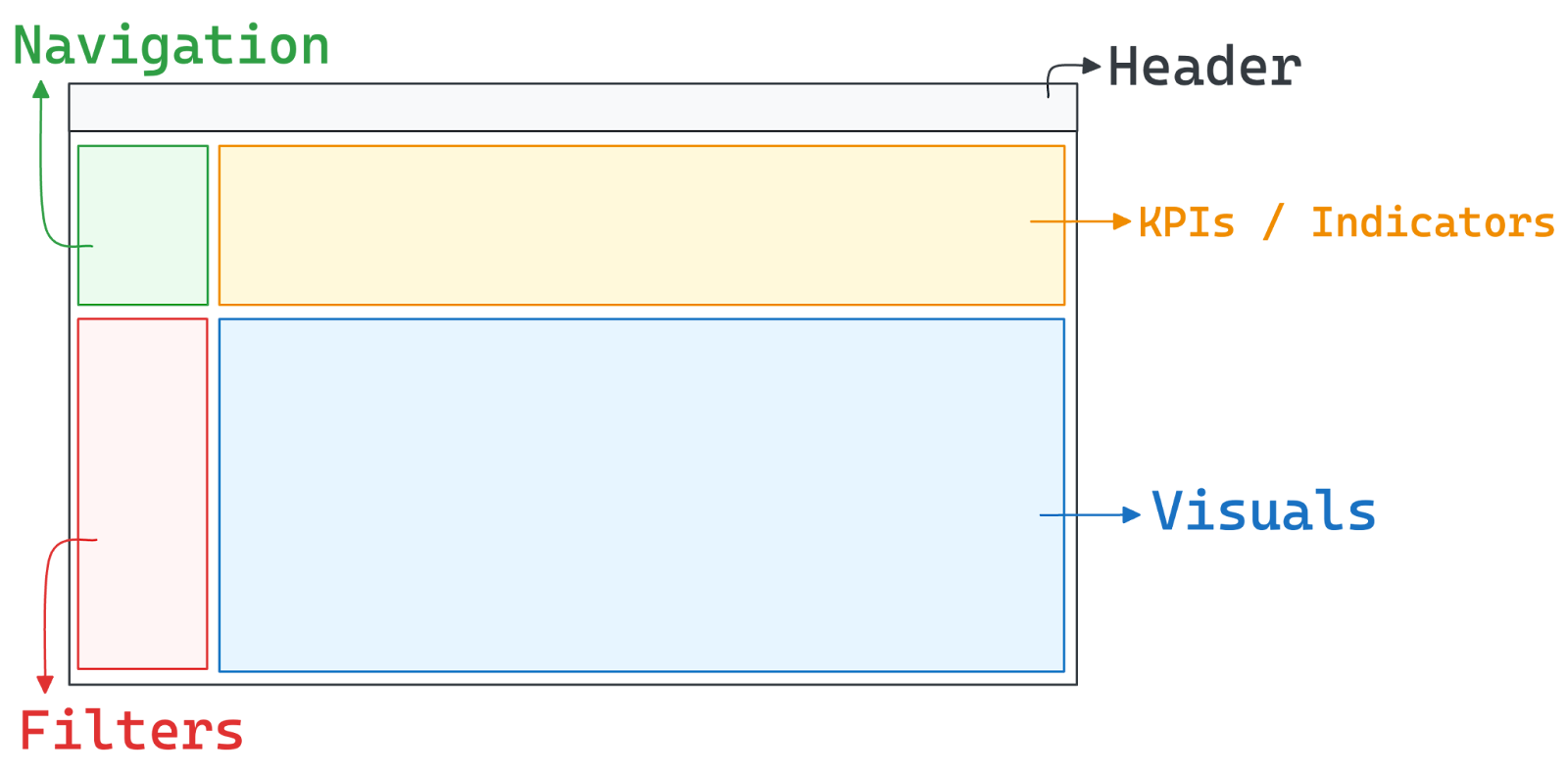
  • Pros: Stable navigation; more vertical room for charts.
  • Watch-outs: The sidebar consumes width; filters below the fold get ignored.

Left-rail layout

Image by Author

Colors

Use color as a signal, not as decoration.

  • Assign stable meanings: Brand neutrals for chrome, a single highlight color for “pay attention,” a reserved color for risk/alerts.
  • Restrict palette size: Encode categories with a small, repeatable palette. Eight to twelve distinct hues are plenty; avoid the rainbow.
  • Ensure accessibility: Back up color with a second cue (icons, patterns, or labels) so color-blind users aren’t blocked. I encourage you to check ColorBrewer to make sure the color palette is accessible for everyone. 

Aim for accessible contrast and test dark/light themes early. If a chip, tag, or button fails contrast, users might miss it under time pressure.

Consistency and cognitive load

Consistency lets people reuse what they learned on page one. Fix a grid, a spacing scale, and a component set. In an optimal dashboard, titles look the same everywhere, filters are located in the same spot, and legends behave the same way. Don’t surprise the user between tabs.

Make the rules explicit

  • One color system across the suite (status, segment, alert).
  • One or two typefaces with fixed roles (titles, labels, notes).
  • Stable interaction patterns for filtering, drill-downs, and view switches.

Trim mental effort

  • Remove non-data ink. Shorten labels. Round numbers to a useful precision.
  • Hide rarely used controls behind a clear “More” or “Advanced” link.
  • Keep navigation shallow and predictable.

Limit choices

  • Five precise filters beat fifteen vague ones.
  • Ship with safe defaults so the first view is useful without clicks.

Simplicity isn’t décor; it’s fewer decisions for the reader.

Know your audience and goals

Different audiences have different questions and needs, which is why you should always ask yourself: Who opens the page, when, and why?

Tie these goals to dashboard design. The user’s specific cadence dictates your technical constraints, such as refresh frequency, tolerance for data lag, and level of detail. Similarly, the decision type determines the context you must provide, whether that means comparing against a target, historical data, or a specific cohort. 

To validate your output, apply this simple test: if the dashboard can’t answer the team’s top two questions in ten seconds, it is too complex and should be rearranged.

Types of Dashboards and Their Applications

Different problems call for different pages. You should match the type to the decision horizon and the user’s workflow. Here's a handy comparison table for your reference: 


Dashboard Type

Purpose

User

Cadence

Design Priorities

Example

Analytical

Root cause analysis

Analysts

Ad-hoc / Deep dive

High interaction, filters, drill-downs

Sales deep-dive

Operational

Live monitoring

Shift Leads

Real-time

Low latency, big status, alerts

Support wallboard

Strategic

Long-term steering

Executives

Quarterly / Monthly

Comparisons, baselines, annotations

KPI summary

Tactical

Daily execution

Managers

Daily / Weekly

Actionability, progress vs. targets

Campaign tracker

Explanatory

Storytelling

General Audience

As-needed

Narrative, minimal controls

Broad overview

Let's look at an example of these principles with some examples. 

Analytical dashboards

Analytical dashboards are built for detailed exploration. This is why they extensively utilize interactive elements, such as filters, drill-downs, and range pickers. Due to their information density, using reset elements and keeping metric definitions one click away is advisable. 

A classic example is a sales analysis board, where an analyst can slice revenue data by region or channel to uncover the root cause of a quarterly dip.
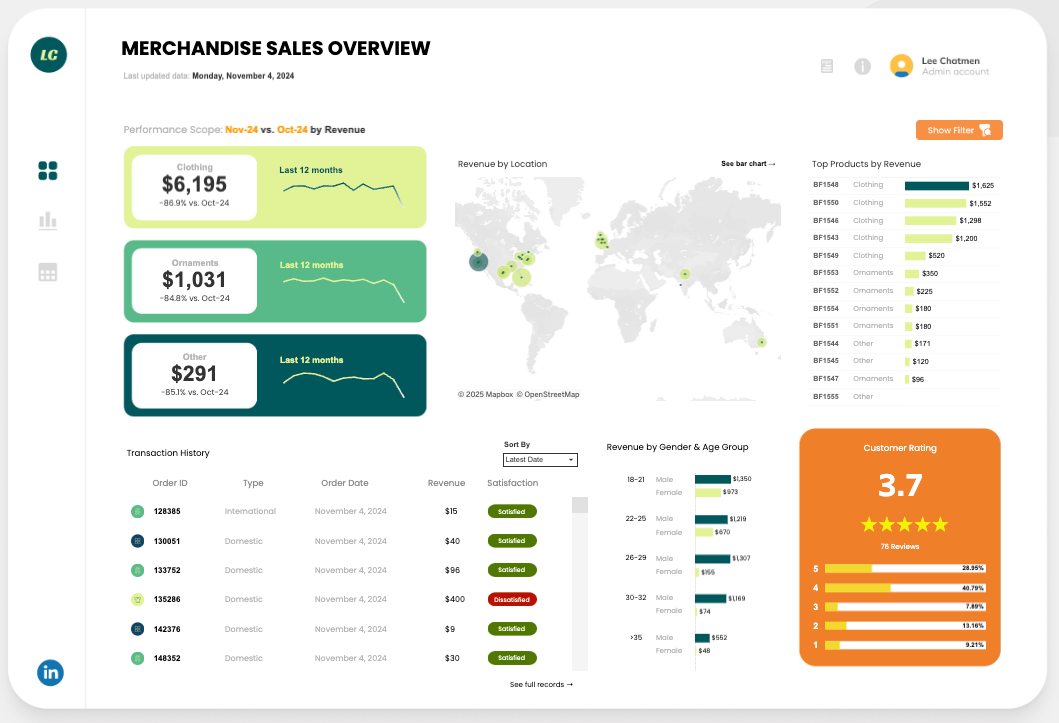
  • Purpose: Figure out why something moved and what to try next.
  • Typical users: Data/BI teams, product analysts.
  • Cadence: Ad-hoc, deep dives.

Analytical dashboard example

Screenshot of Tableau Public. Dashboard by ScatterPie Analytics

Operational dashboards

Operational dashboards are designed for monitoring live systems, requiring low latency and immediate clarity. The layout should prioritize big status indicators and clear ownership, often utilizing tiles or tables extended by sparklines to show rapid movement. To ensure instant action is triggered, alert rules must be explicit.

A typical use case is a customer support wallboard that displays open tickets, active agents, and breaches in red. This allows leads to spot issues and reassign work directly from the screen the moment a threshold is crossed.
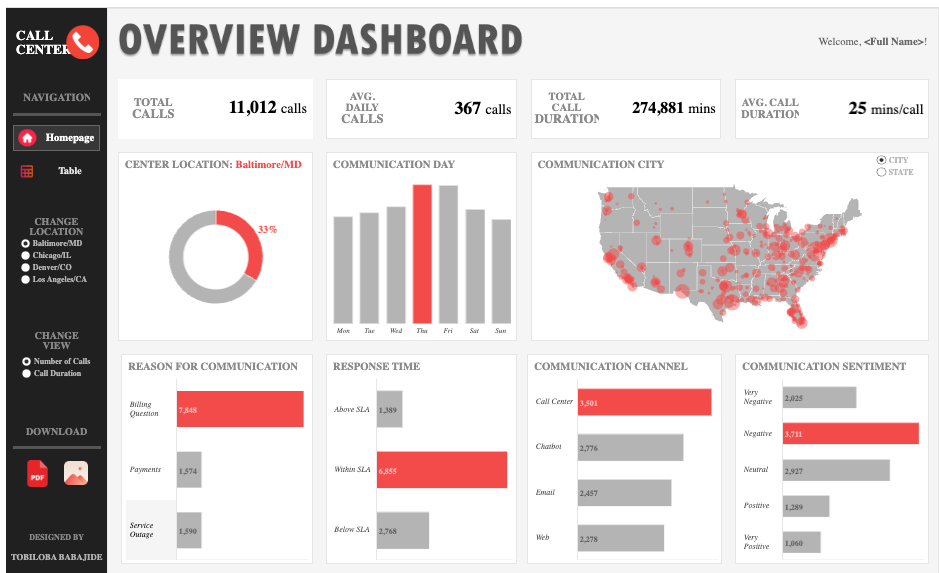
  • Purpose: Watch live systems and trigger action.
  • Typical users: Support leads, site reliability engineers, shift managers.
  • Cadence: Minute-to-minute.

Operational dashboard example

Screenshot of Tableau Public. Dashboard by Tobiloba Barbajide

Strategic dashboards

Strategic dashboards focus on tracking long-term outcomes to guide high-level decision-making, requiring a cleaner design with fewer, larger charts. Metrics should always be compared against baselines, such as the original plan, last year's performance, or current targets. It is also essential to annotate specific events, like product launches or outages, to help the viewer interpret sudden shifts in the data.

An example is a monthly executive summary showing KPI bands, such as sales profit and efficiency. By using top-level filters, executives can quickly flag misses against the plan and assign owners to address performance gaps.
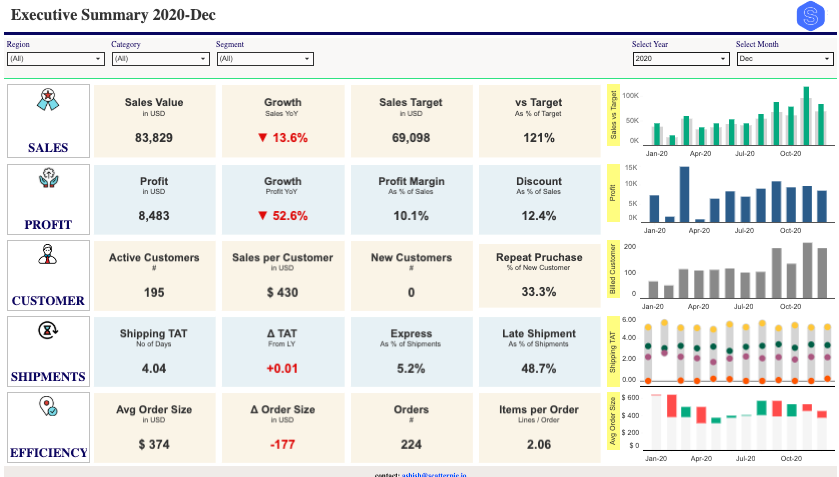
  • Purpose: Track long-term outcomes and guide investment.
  • Typical users: Executives, board reviewers.
  • Cadence: Monthly/quarterly.

Strategic dashboard example

Screenshot of Tableau Public. Dashboard by ScatterPie Analytics

Tactical dashboards

Tactical dashboards bridge the gap between high-level strategy and day-to-day execution, and are often utilized in daily or weekly workflows. Outcome metrics are displayed alongside work-in-progress, clearly showing targets, current progress, blockers, and owners. Because they are used frequently, the data needs to be refreshed often, and controls should be placed close to the data points.

A common example is a campaign tracker that monitors spend against caps alongside a table of creative performance. By visualizing a backlog of experiments with owners and due dates, the team can adjust bids or shift focus immediately during their daily stand-up.
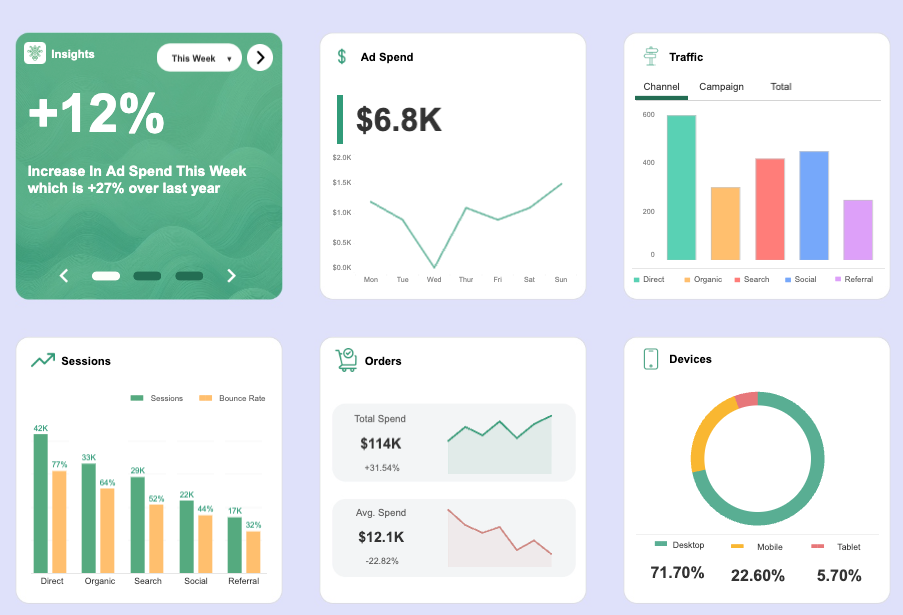
  • Purpose: Bridge strategy and day-to-day for teams running projects.
  • Typical users: Squad leads, sales managers, marketing ops.
  • Cadence: Daily or weekly.

Tactical dashboard example

Screenshot of Tableau Public. Dashboard by Hazem Elseify

Explanatory dashboards

Explanatory dashboards are distinct in that they communicate a clear, pre-defined story to a broad audience, rather than inviting open exploration. Since they follow the principle of "one question and one answer" per screen, interactive controls should be kept to a minimum.

Use annotations, step-through sections, and educational comparisons (like "before/after") to guide the viewer through the narrative.

For instance, a country overview might use an annotated map as the hero image, supported by small panels for key breakdowns, such as age or region. This layout enables non-specialists to scan the information and understand the core story in under a minute.
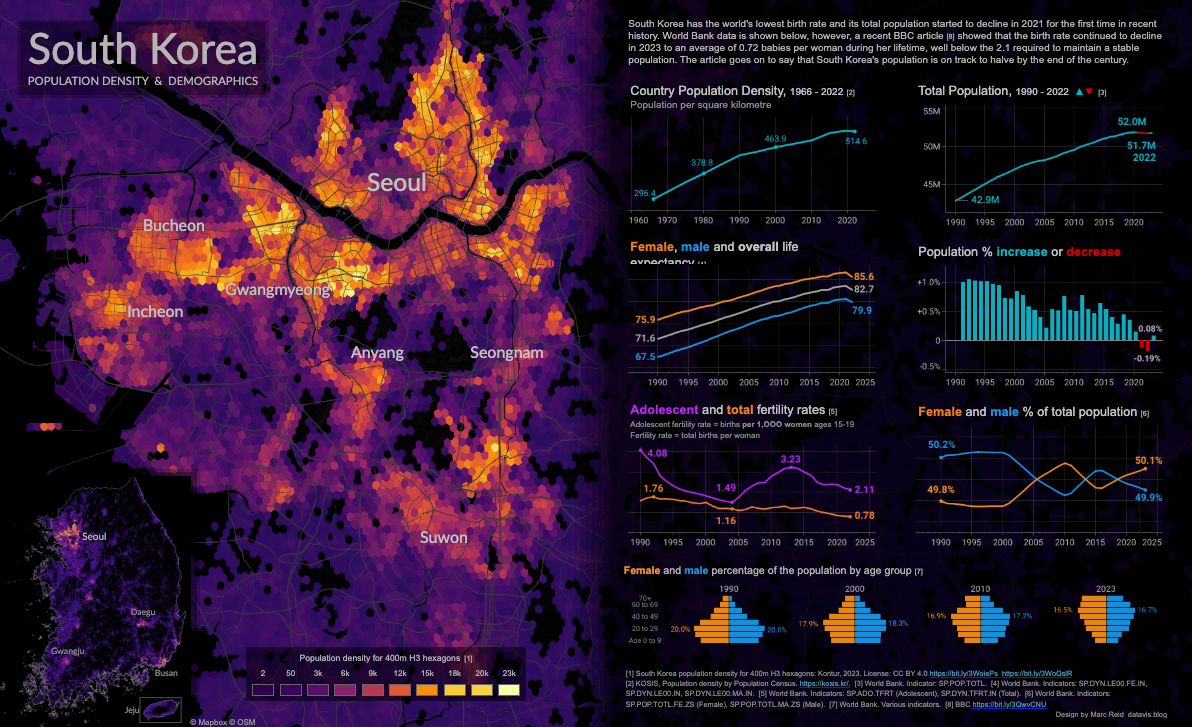
  • Purpose: Communicate a clear story to a broad audience; less interaction, more narrative.
  • Typical users: All-hands viewers, external stakeholders, non-specialists.
  • Cadence: As-needed for updates and reports.

Explanatory dashboard example

Screenshot of Tableau Public. Dashboard by Marc Reid

Step-by-Step Guide to Designing a Dashboard

Below, I've outlined some tips to help you ship a page that answers real questions and isn't just a gallery of charts. The advice focuses on a small scope, quick loops, and clear owners.

Step 1: Define objectives and audience

Every successful dashboard starts with a clear understanding of its purpose and the needs of its users. This is why you should always start with people. It means taking notes of the potential users of the dashboard and understanding their needs and requirements. 

To make it easy, follow these steps: 

  1. Define three questions the page must answer in plain language. Example: “Are sign-ups on pace for Q3?”, “How many vehicles were stolen?”, “What is the performance of our call center?”
  2. Tie each question to a specific business goal, for example, the budget. If a widget can’t be mapped to a goal, it doesn’t ship.
  3. Understand the audience, especially in terms of cadence needs (if they check in real-time, hourly, daily, or monthly) and what devices they use (phone or laptop).
  4. Finally, capture who’s who: quick personas with their roles, data fluency, and the decisions they make.

Step 2: Select the right metrics and data sources

Pick a small set of KPIs that predict future performance, supported by a few “helper” metrics. Avoid cluttering the dashboard with too many lagging indicators. For each metric you select, create a standardized definition entry to ensure trust and accuracy. This documentation should include:

  • Owner and source: Who manages the data? 
  • Technical specifications: Exact formulas, units, rounding rules, and data grain.
  • Context: Active filters, known caveats, and comparison logic (e.g., against a target or time period)

Next, structure the KPIs so they’re easy to read:

  1. Group related metrics into clear sections (e.g., “Campaign performance”).
  2. Use progressive disclosure: show the headline first; let users drill down for details.
  3. Put the primary KPIs at the top; park supporting stats below.

Additionally, remember the data hygiene. To keep trust in the data high, follow these best practices:

  • Pull from a single source of truth: Ensure all metrics pull from a centralized, governed dataset to prevent conflicting numbers across different teams. 
  • Validate data health: Automate checks for freshness and completeness (row counts, nulls, range checks) before the data hits the screen. 
  • Stamp the freshness: Always display an explicit “Last updated” timestamp, so users know if the data is up-to-date.

Step 3: Plan the dashboard layout

Planning the dashboard layout is all about making it scannable.

  • Simplicity: Use a simple grid and maintain consistent spacing.
  • Coherence: Group by question, each with the status at the top, the trend under it, and finally, details.
  • Filters: Place global filters together and always show what’s applied to avoid hidden states.

The top-left card answers “good or not?” Everything else explains “why”.

Step 4: Design visual elements

The goal of visual elements is to present information efficiently. Pick charts based on the data, not for variety.

To match your data to the right visual, you can refer to this table:


If you want to show...

Use this visual

Design Note

Change over Time

Line chart or Sparkline

Add a shaded "target band" to show expected range.

Ranking

Horizontal Bar chart

Sort by value (descending) to make the winner obvious. Easier to read labels than vertical columns.

Operational Detail

Table

Freeze key columns for scrolling. Add sparklines within rows to show trends.

Part-to-Whole

Stacked Bar chart

Caution: Use Donuts only if you have 2–3 slices max.

Spread / Distribution

Histogram or Box Plot

Great for spotting outliers.

Relationship

Scatter Plot

Add a trend line (fit) to make the correlation obvious.

Progress vs. Goal

Bullet Chart

Compactly displays actual value, target line, and qualitative bands (poor/good/great).

Geography

Choropleth or Dot Map

Use choropleths (shaded regions) for rates/ratios and dot maps for specific counts.

Keep legends immediately next to their corresponding charts to minimize eye movement, and rely on compact KPI cards to display your top-headline numbers. To ensure critical updates stand out, use visual badges or colored pills for status alerts rather than burying them in rows of text.

To see this flow being applied to one of the leading visualization tools, feel free to check out this blog on how to create a dashboard in Tableau and our code-along with dashboard design in Power BI.

Step 5: Highlight key facts

People tend to act faster when the headline numbers are obvious and self-explanatory. Give the few KPIs that matter the most in real estate, then make every label and comparison do a bit of work.

  1. Establish visual priority: Lead with the decision-driving KPIs using size and position to make them unmissable. If a metric is critical, do not bury it in a table row, but elevate it to the top.
  2. Optimize labels and precision: Phrase card titles as the answer to a question (e.g., “Weekly sign-ups vs. target”). Always include units in labels (€, %, hrs), and round numbers to a useful precision.
  3. Provide context and a frame of reference: Clearly display the date range, time zone, and a timestamp on every page. Add context, such as targets, baselines or benchmarks, where it aids decisions.

Another pro tip to keep the interface clean is to tuck definitions and formulas behind a consistent info icon.

Step 6: Review and iterate based on feedback

Ship the dashboard, watch real people use it, and tighten the parts that slow answers. Keep the loop short and visible. This iteration cycle is a good practice:

  • Run task-based tests: Ask users to perform specific actions (e.g., “Show me where we missed the target last week.”) 
  • Prioritize decision-blockers: Focus your fixes on issues that stop work, such as unclear labels, missing comparisons, or sluggish load times.
  • Prevent decay: Re-verify formulas immediately after business shifts (like pricing  or attribution changes) to ensure the math still matches the organizational reality.
  • Maintain visibility: Keep a tiny changelog and a public request board, so stakeholders understand previous changes and what is coming next.
  • Schedule lightweight reviews: Set up a monthly evaluation to identify the top three pain points, top three wins, and the next three fixes to keep the dashboard healthy.

Common Dashboard Design Mistakes to Avoid

Most broken dashboards fail for the same reasons: too much on the page, the wrong chart for the job, and numbers without context. Fix those first, so your dashboard is a tool rather than a distraction.

Overloading with data

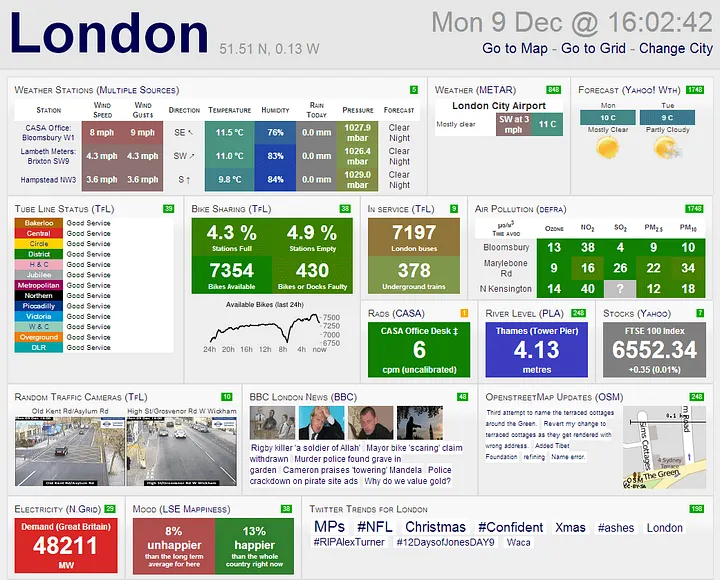
A crowded page slows reading and invites guesswork. Here’s an example of an overcrowded dashboard: 
Bad dashboard example

Image source

When users are bombarded with too many widgets, they struggle to distinguish signal from noise. To fix this, apply the concept of “data-ink ratio”: remove anything that isn’t essential to the message. Here’s how to reduce the noise:

  • Curate the view: Keep the core view within one laptop screen. Move finer details or secondary metrics to a separate “Details” tab or a drill-down view.
  • Avoid redundancy: Delete duplicate metrics (e.g., displaying both total sales and number of orders if they track perfectly together) and collapse low-signal widgets.
  • Trim ink: Remove gridlines, tick marks, and decorative icons. Consolidate filters into one single, consistent panel.

Poor choice of visualizations

Bad matches create bad reads. Avoid these common mistakes that distort data:

  • Many-slice pies: Pie charts with too many slices hide small categories and make comparison difficult. Use a sorted bar chart instead.
  • Dual-axis lines: These nudge people toward fake correlations and confuse the scale. It is better to split the data into two vertically aligned chart panes.
  • 3D and shadows: Aesthetic effects distort the actual values. Make sure to keep charts flat and clear.
  • Unsorted heatmaps: Without a logical order, heatmaps are just noise. Always sort rows and columns by a meaningful key to reveal patterns.

Lack of context

A single number answers nothing on its own. To make a metric actionable, frame it with the following four layers of context:

  • Comparison: Pair each KPI with a target, a prior period (e.g., Year-over-Year), or a benchmark.
  • Scope: Don’t forget to add units to labels (hrs, €, %, req/min) and clearly display the active date range.
  • Freshness: Stamp the page with an exact timestamp (e.g., “Updated 08:35 UTC”). Stale data should look stale.
  • Nuance: Add small notes for quirks, such as “Refunds excluded” or “VAT included”.

Inconsistent design elements

Inconsistency forces users to re-learn every card. Once a rule is established, you should make sure it is followed everywhere.

  • Reserve your colors: Reuse color mappings for recurring dimensions. If “North America” is blue on the “Overview” page, it cannot be green on the “Regional Details” page.
  • Keep card anatomy fixed: Every card should follow the same flow: Label → Value → Delta → Time frame.
  • Lock the layout: Keep legends and filters in the exact same spot on every page.

Ignoring end-user needs

Dashboards are tools. If they don’t fit the job, they gather dust.

  • Observe real tasks: Don’t just ask users what they want, but watch them work. Time how long it takes them to “find where we missed the target last week.” Note misclicks.
  • Ensure accessibility: Ship keyboard navigation, visible focus states, and a contrast ratio of at least 4.5:1for body text.
  • Enable portability: Offer quick exports (CSV, PNG, PDF) and a “copy-to-clipboard” function for values.
  • Close the loop: Keep a tiny public changelog and a request box.

Cut clutter, match the chart to the question, add context, stay consistent, and watch people use the page. That’s the work.

Accessibility and Inclusive Dashboard Design

Build dashboards that work whether used with a mouse, keyboard, and screen reader, and in different environments ranging from bright offices to dim laptops.

Always keep in mind to design for differences in vision, motor control, and memory: use plain language, predictable layouts, and big touch targets. 

One thing that needs to be ensured is that the data is visually clear. The dashboard needs to be readable for users with color blindness or low vision.

  • Don’t rely on color alone: Label directly on the visual elements.
  • Provide complete context: Always pair the measure, unit, and time window together (e.g., “Uptime 99.935, last 30 days”).
  • Check contrast and states: Maintain a minimum 4.5:1 contrast ratio for text. Ensure interactive elements have distinct visual states for different states (hover, focus, or pressed). 

The dashboard has to be keyboard-operable as well. To achieve it, pay attention to the following:

  • Logical flow: Maintain a logical tab order that follows the visual layout
  • Visible focus: Never hide the focus ring; users need to know where they are on the page.
  • Full control: All filters, date pickers, sliders, and tooltips must be operable using only the keyboard (Arrow keys + Enter/Escape).

Finally, ensure screen reader support using these best practices:

  • Semantic structure: Mark up tables properly with thead, tbody, and scoped headers so screen readers can navigate rows and columns.
  • ARIA and summaries: Give widgets clear ARIA (Accessible Rich Internet Applications) roles and names. For complex charts, provide a one-line text takeaway or a readable summary.
  • Polite updates: If data updates live, configure alerts to announce changes briefly without flooding the user with constant noise.

Conclusion

Good dashboard design shortens the gap between a question and the next action. In this article, I've introduced the basics (what a dashboard is), the craft (hierarchy, color, type, consistency), common traps, and patterns for different dashboard types.

The key takeaways are that it is essential to keep the user’s goal visible at all times, write for different abilities, and design for speed.

Tools will change, AI will continue to propose views, but the job stays the same: turn messy data into a clear decision on one screen.

To keep learning and put this into practice, I recommend these resources:

Dashboard Design FAQs

What is “visual hierarchy” in a dashboard, and how do you apply it?

Visual hierarchy refers to the intentional arrangement of elements to capture attention. Put critical KPIs first (top/left), group related metrics, use larger type for primaries, and apply restrained color to signal priority and categories.

When would you choose a line chart versus a bar chart?

Line charts for trends over time (continuous data); bar charts for comparing discrete categories at a point in time. Avoid lines for unordered categories and bars for dense time series.

How do operational, strategic, analytical, and tactical dashboards differ?

Each type of dashboard is useful for a particular group of use cases:

  • Operational: Real-time monitoring and alerts
  • Strategic: Long-term trends for executives
  • Analytical: Interactive, drill-down exploration
  • Tactical: Project/department tracking that bridges strategy and daily operations.

Name three ways to reduce cognitive load on a dashboard.

  1. Limit on-screen metrics to essentials.
  2. Keep consistent styles (colors, scales, components).
  3. Add context (targets, benchmarks, time frames) near each chart so users don’t hunt for meaning.

What are two must-do accessibility practices for dashboards?

Ensure sufficient color contrast and non-color cues (icons, patterns, labels), and support keyboard navigation/screen readers with clear headings, descriptive alt text, and properly labeled controls.


Josep Ferrer's photo
Author
Josep Ferrer
LinkedIn
Twitter

Josep is a freelance Data Scientist specializing in European projects, with expertise in data storage, processing, advanced analytics, and impactful data storytelling. 

As an educator, he teaches Big Data in the Master’s program at the University of Navarra and shares insights through articles on platforms like Medium, KDNuggets, and DataCamp. Josep also writes about Data and Tech in his newsletter Databites (databites.tech). 

He holds a BS in Engineering Physics from the Polytechnic University of Catalonia and an MS in Intelligent Interactive Systems from Pompeu Fabra University.

Topics

Dashboard Design Courses

Track

Design in Power BI

0 min
This short track will take your dashboarding and reporting skills to the next level.
See DetailsRight Arrow
Start Course
See MoreRight Arrow
Related

blog

Best Practices for Designing Dashboards

In this article, we'll share best practices for designing dashboards that are both aesthetic and functional, and share lists of tools to get you started with dashboarding today.
Anuj Syal's photo

Anuj Syal

13 min

blog

Tableau Dashboard Examples with Design Tips and Best Practices

This post offers in-depth Tableau dashboard examples from healthcare, retail, and more—plus practical design principles and advanced features to help you build better dashboards.
Flavio Matos's photo

Flavio Matos

14 min

blog

Top 9 Power BI Dashboard Examples

Master Power BI with these real-world dashboard examples. Create effective dashboards for finance, sales, and healthcare to measure KPIs in real-time.
Eugenia Anello's photo

Eugenia Anello

8 min

blog

[Infographic] Dashboard Design Checklist

Dashboards are one of the most useful tools when communicating data stories. Here is a handy checklist to keep in mind when designing your next dashboard.
DataCamp Team's photo

DataCamp Team

code-along

Dashboard Design in Power BI

Learn principles of dashboard design to apply to your own dashboards.
Iason Prassides's photo

Iason Prassides

code-along

Dashboard Design Best Practices in Tableau

In this live Tableau training, you'll leverage the right tools to design reports. Using a video game dataset, you will learn how to customize charts, use themes, and some best practices when working on data visualizations.
Carl Rosseel's photo

Carl Rosseel

See MoreSee More