Dependent Drop-Down List in Excel: Setup and Troubleshooting

Learn how to create dependent drop-down lists in Excel using named ranges and dynamic arrays, fix common problems, best practices, and build error-free lists.
Feb 4, 2026  · 7 min read

In this guide, I’ll walk you through how to create dependent drop-down lists in Excel, starting with a simple, widely supported setup and then moving toward more flexible, modern approaches that are easier to maintain as your data grows.

If you are getting started in Excel, our Introduction to Excel course covers skills like navigating the interface, understanding data formats, and working with basic functions. Also, I find the Excel Formulas Cheat Sheet, which you can download, is a helpful reference because it has all the most common Excel functions.

What Is a Dependent Drop-Down List in Excel?

In Excel terms, a dependent drop-down list is simply a second drop-down whose options are driven by the value selected in a first cell.

A common example is Country → City hierarchy. If you select Germany, it limits the next drop-down to cities like Berlin and Munich. Switching the country to Canada automatically updates the list to show Toronto and Vancouver instead.

Now, this is where standard drop-down lists fall short. On their own, they can only display a fixed list of values, which often means showing irrelevant or invalid options. Dependent drop-downs solve that problem by linking selections together, making Excel’s data validation more precise and far more useful in real-world spreadsheets.

From the above example, we can see that using a standard drop-down list isn’t enough on its own, as it can show irrelevant choices like every city regardless of country. In such a case, dependent drop-downs solve the problem by linking multiple selections together, making Excel data validation smarter and more user-friendly.

How to Create a Dependent Drop-Down List in Excel (Classic Method)

I will show you how to use the classic method, which is the most widely supported approach for creating a dependent drop-down list in Excel. It works in nearly all Excel versions and relies on structured source data and named ranges rather than advanced features.

Step 1: Create the primary drop-down list

Start by creating the first drop-down using the steps below:
  • Enter your main categories in a single column. For example: USA, UK, Australia.
  • Select the cell where you want the primary drop-down.
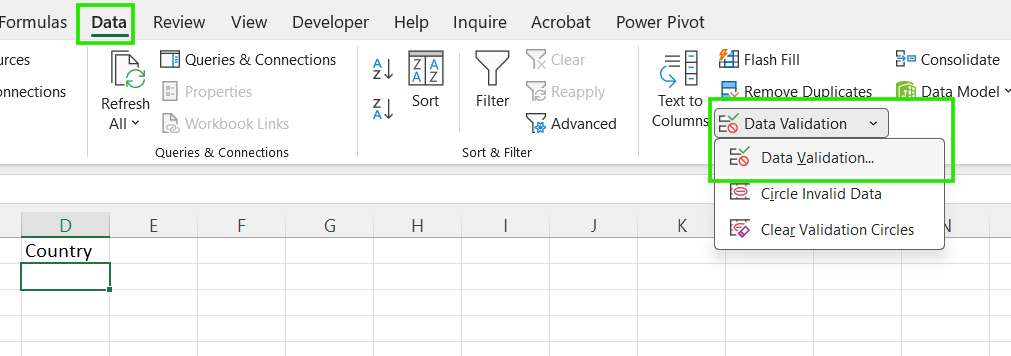
  • Go to Data Data Validation.

Data Validation in excel ribbon

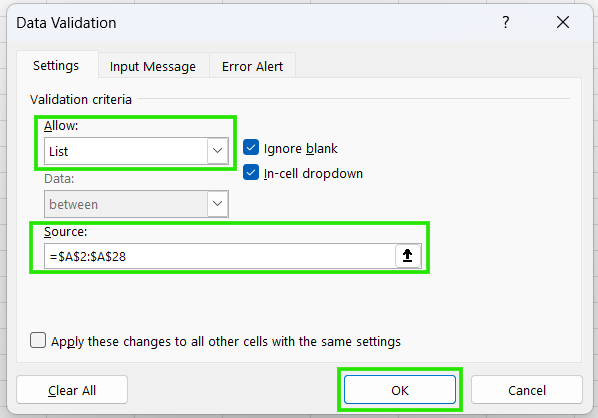
  • In the Allow box, select List.
  • In the Source box, highlight your primary categories. Click OK.

How to create primary drop-down list in Excel

Step 2: Prepare the dependent lists

Next, you organize the data that will appear in the second drop-down. Each dependent list must be named, and the name must exactly match the corresponding primary drop-down option.
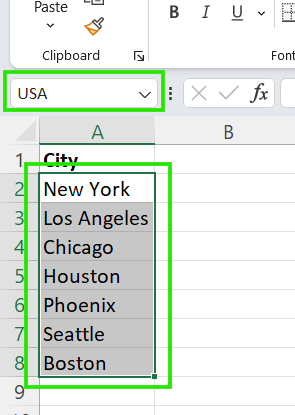
  • List your sub-items under headers that exactly match your primary categories.
  • Highlight the items in a group.
  • Go to the Name Box (top left, next to the formula bar) and type the name of the category. Press Enter.

Excel Name Box

  • Repeat this for every category.

Step 3: Create the dependent drop-down

Now link the second drop-down to the first using the steps below:
  • Select the cell where the dependent drop-down should appear.
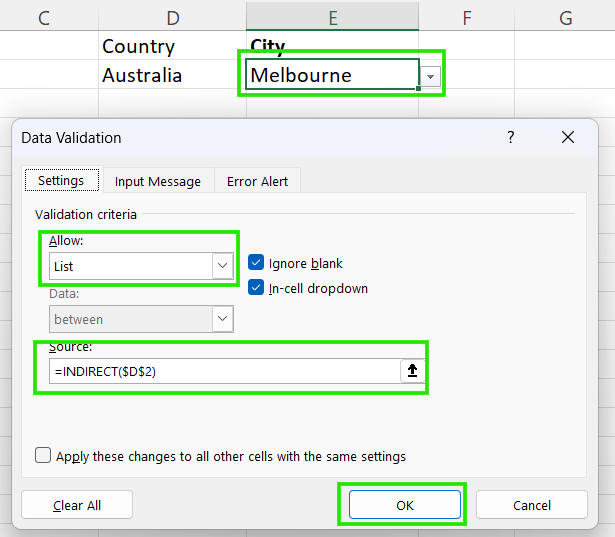
  • Open Data Validation and choose List.
  • Set the source so it dynamically points to the named range that matches the first selection.
  • Use the INDIRECT() function to point to the cell containing the first drop-down.

How to create dependent drop-down list in Excel

Using this logic, if D2 says “Australia,” the INDIRECT() function tells the second list: “Go find the range named Australia and show those items.”

Creating a Dependent Drop-Down List Using Dynamic Arrays (Modern Excel)

If you are using Excel 365 or Excel 2021+, dynamic arrays simplify dependent drop-down lists by removing the need for multiple named ranges. Instead of preparing separate lists for each option, Excel can generate the dependent list automatically based on the current selection.

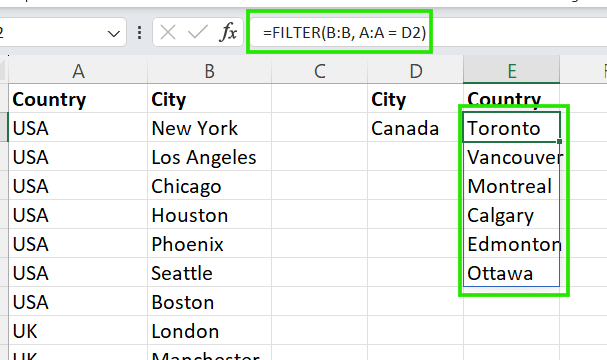
For example, let’s assume you have the data in columns A and B in your sheet. Use these steps to create a dynamic dependent drop-down list:

  • Create the primary drop-down list using the steps in the previous section.

  • For the second drop-down in the next cell, input =FILTER(B:B, A:A = D2) to return the matching items.
How to create a dependent drop-down list using dynamic arrays

In this case, the syntax of the FILTER() function is: 

=FILTER(items, categories=main_cell)

Where: 

  • items: The column with values for the dependent drop-down list.

  • categories: The column with values for the main drop-down list

  • main_cell: The cell with the selected item in the primary drop-down list.

This method has the following benefits over the classic named-range approach:

  • Automatic updates: When you add a new item to your source table, it appears in the drop-down immediately, removing the need for manual updates per category.
  • No name error: You avoid naming errors and spelling mismatches between names and selections.
  • No "Name Manager" maintenance: You don't need to create dozens of individual names for every category. The dependency is visible in one formula instead of being hidden inside Name Manager.

Dependent Drop Down Lists with Excel Tables

Using Excel Tables makes dependent drop-down lists more reliable when your data is expected to grow.

Suppose we stored the Country → City data in an Excel Table. Now, when you add a new city under an existing country, the table expands automatically. Any dependent drop-down built on top of that table continues to work without updating source ranges.

However, you should keep in mind the following issues when combining Excel Tables with data validation:

  • Data Validation does not always accept table references directly. Always point Data Validation to a helper spill range created by FILTER().
  • Blank rows in tables can cause empty drop-down values.
  • Blocked spill ranges stop the list from updating. If cells below your helper formula are not empty, the filtered list cannot expand, and the dependent drop-down will then appear incomplete or fail.

Common Problems with Dependent Drop-Down Lists

Below are common issues I have run into when creating dependent drop-down lists in Excel, and how you can avoid them:

  • Drop-down shows blank values: This problem usually happens when the source range includes empty cells or when a filtered result returns no matches for the current selection. Always ensure your data does not have unexpected blanks.
  • Dependent list doesn’t update: If the second drop-down doesn’t change after updating the first, Excel may not be recalculating as expected, or the dependency link may be broken. To solve this, check that the dependent list points to the primary drop-down list.
  • Spelling mismatches: Since dependent drop-downs rely on exact matches, a small difference in spelling between the primary selection and the source data will stop the list from working. To solve this, prioritize using dynamic drop-down lists.
  • Extra spaces in source data: Trailing or leading spaces make two values look identical to users but different to Excel, causing filters and name matching to fail. Use TRIM() to remove hidden spaces in your data before creating the dependent drop-down lists.
  • Data Validation not refreshing as expected: In some cases, Excel caches old validation rules. To resolve this, re-select the cell, reapply Data Validation, or recalculate the workbook.

Best Practices for Dependent Drop Downs in Excel

To ensure your dependent drop-down lists remain reliable, scalable, and easier to maintain, I recommend the checklist below:

  • Keep labels consistent: Dependent drop-downs rely on exact matches. Standardize naming, casing, and spacing across your source data to avoid silent failures.

  • Avoid hard-coding ranges: Don't point your Data Validation to fixed cells like $A$1:$A$10 as fixed ranges break as soon as data grows. Wherever possible, use dynamic arrays or Excel Tables so new values are picked up automatically.

  • Use tables or dynamic formulas when possible: Tables and dynamic arrays (FILTER()) reduce manual maintenance and make your workbook easier to update over time, especially for shared files.

  • Test edge cases early: Check what happens when the primary drop-down is blank, changed after selection, or points to a category with no matching values. This approach ensures your data behaves as expected with no surprises.

When Not to Use Dependent Drop-Down Lists

Although dependent drop-down lists are powerful, they aren’t always the right tool. Here are a few instances when you should avoid using them:

  • When dependencies become too complex: If selections depend on many conditions or multiple levels, the logic can quickly become hard to manage and prone to errors in Excel.
  • When forms or databases are better tools: For structured data entry, multi-user input, or validation-heavy workflows, dedicated forms or database-backed systems provide better control and reliability.
  • Performance considerations for very large lists: Large datasets can slow recalculation and make drop-downs feel unresponsive, especially when using dynamic formulas across thousands of rows.

Conclusion

Dependent drop-down lists help you keep data accurate and usable by enforcing logical relationships between selections rather than relying on manual checks. Whether you prefer the classic named-range approach or modern dynamic array methods, Excel gives you multiple ways to build them, so you can choose what fits your version and workflow. I’d recommend you start with the simplest method, then move to dynamic, table-based solutions as your data and models become more complex.

Now that you are ready to explore further, I recommend taking our Data Analysis in Excel course to advance your Excel skills. This course will help you master advanced analytics and propel your career. I also recommend taking our Intermediate Power Query in Excel course to learn about data transformation and using the M language for creating dynamic functions.

Advance Your Career with Excel

Gain the skills to maximize Excel—no experience required.

Start Today for Free

Allan Ouko's photo
Author
Allan Ouko
LinkedIn
Data Science Technical Writer with hands-on experience in data analytics, business intelligence, and data science. I write practical, industry-focused content on SQL, Python, Power BI, Databricks, and data engineering, grounded in real-world analytics work. My writing bridges technical depth and business impact, helping professionals turn data into confident decisions.

FAQs

What is the difference between a dependent and a cascading drop-down in Excel?

There is no difference. “Dependent” and “cascading” both describe drop-down lists where one selection controls the next.

Which Excel versions support dependent drop-down lists?

All modern desktop versions of Excel support classic dependent drop-downs, while dynamic array methods require Excel 365 or Excel 2021 and later.

Why is my dependent drop-down list showing blank values?

Blank values occur in the dependent list due to empty cells in the source data, unmatched values, or extra spaces in the lookup fields.

Can dependent drop-down lists work with Excel Tables?

Yes, dependent drop-down lists work with Excel Tables, but Data Validation may require helper ranges, and structured references must be handled carefully.

How many levels of dependent drop-downs can Excel handle?

Excel can handle multiple levels, but complexity increases quickly. Beyond two or three levels, maintenance becomes difficult.

Topics

Learn Excel with DataCamp

Course

Data Preparation in Excel

3 hr
73.4K
Understand how to prepare Excel data through logical functions, nested formulas, lookup functions, and PivotTables.
See DetailsRight Arrow
Start Course
See MoreRight Arrow
Related

Tutorial

Excel Drop Down List: Setup, Tips, and Troubleshooting

Master Excel drop-down lists with step-by-step tips for setup, troubleshooting, and advanced techniques like cascading and searchable lists.
Allan Ouko's photo

Allan Ouko

Tutorial

Excel INDIRECT(): How to Build Dynamic References in Your Formulas

Discover how Excel's INDIRECT() function transforms text into live references. Learn how to use it for dynamic worksheets, stable cell references, named ranges, and more.
Allan Ouko's photo

Allan Ouko

Tutorial

How to Clean Data in Excel: A Beginner's Guide

Learn essential data cleaning techniques in Excel, including removing duplicates, handling missing values, and maintaining consistent formatting.
Laiba Siddiqui's photo

Laiba Siddiqui

Tutorial

Hyperlink in Excel: A Complete Guide to Creating and Managing Links

Discover how to create hyperlinks in Excel using the toolbar, HYPERLINK() function, and macros. Understand dynamic link creation, formatting tips, and workarounds for common limitations.
Javier Canales Luna's photo

Javier Canales Luna

Tutorial

#SPILL! Error Excel: What It Means and How to Fix It

Understand why the #SPILL! error appears when using dynamic arrays in Excel. Learn how to fix it, prevent it, and make the most of Excel’s array formulas.
Allan Ouko's photo

Allan Ouko

Tutorial

How to Find Circular References in Excel

Learn what circular references are, why they cause problems, and how to fix them using simple and advanced techniques.
Laiba Siddiqui's photo

Laiba Siddiqui

See MoreSee More