Our overview article on GPT-Realtime-2 covered the launch, the benchmark claims, and why OpenAI split realtime voice into a small model family. This tutorial starts where that article stopped: connecting to the API, sending audio, and seeing what changes in code.
The split matters in practice. Test 1 uses gpt-realtime-whisper for transcription, Test 2 uses gpt-realtime-translate for live translation, and Test 3 uses gpt-realtime-2 for a voice assistant. The main model also works for simpler tasks like translation or transcription, but you’d pay for a level of reasoning and modes of responding that are not necessary, so it would be overkill.
Setting Up the GPT-Realtime-2 API in Python
Before the tests, it helps to separate transport, authentication, and audio format. Those details stay mostly the same across the examples. The model endpoints and event names are what change as the article moves from text output to translated speech and then to a full voice loop.
Choosing between WebRTC and WebSocket
The OpenAI docs give a plain rule: use WebRTC for browser and mobile clients, and use WebSockets for server-side applications. WebRTC handles jitter buffering and audio transport. WebSockets make sense when the backend already receives raw audio from a telephony provider or media pipeline.
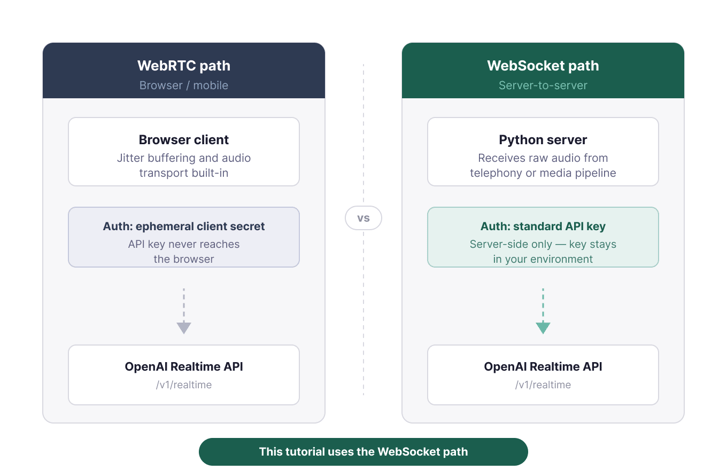
Two transport paths for the Realtime API. Image by Author.
For that reason, all three Python tests use WebSockets. That path shows the event names directly, so the model differences are visible in the code. For a browser build, use ephemeral client secrets so your API key never reaches the frontend.
Python environment and packages
Use Python 3.9 or newer. The full code for all four scripts is available at github.com/KhalidAbdelaty/gpt-realtime-api. Clone it first, then install the dependencies:
git clone https://github.com/KhalidAbdelaty/gpt-realtime-api.git
cd gpt-realtime-api
pip install websocket-client sounddevice numpy python-dotenv
websocket-client handles the socket. sounddevice captures microphone audio, numpy converts the buffer, and python-dotenv loads the API key. On macOS, you may need brew install portaudio before sounddevice works. On Linux, install portaudio19-dev.
Create a .env file at the root of your project:
Then load it in each script:
import os
from dotenv import load_dotenv

load_dotenv()
OPENAI_API_KEY = os.environ.get("OPENAI_API_KEY")
Authentication and the WebSocket URL
Server-side connections use an Authorization: Bearer header on the WebSocket handshake. Add OpenAI-Safety-Identifier if the app tracks individual users. These are the paths used later in the tests:
wss://api.openai.com/v1/realtime?model=gpt-realtime-2
wss://api.openai.com/v1/realtime/translations?model=gpt-realtime-translate
wss://api.openai.com/v1/realtime?intent=transcription
That translation path matters later in Test 2, because it is the one endpoint that does not use /v1/realtime directly.
Test 1: Real-Time Audio Transcription with GPT-Realtime-Whisper
Transcription is a common place to overbuild. If the output is only text, the transcription model is enough.
What we're testing
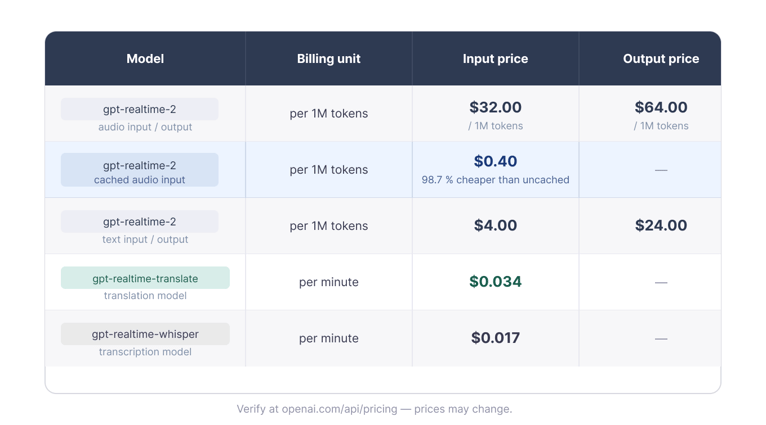
gpt-realtime-whisper takes audio in and emits transcript deltas. It does not reason, call tools, or speak back. That smaller job is why it is billed by audio duration rather than the same token model used by gpt-realtime-2. The cost section returns to those rates.
Code walkthrough
The key field is session.type: "transcription". That tells the API to skip assistant responses and emit transcript events only. The full script also handles microphone capture and threading. This is the part that changes the Realtime session behavior:
session_config = {
    "type": "session.update",
    "session": {
        "type": "transcription",
        "audio": {
            "input": {
                "format": {"type": "audio/pcm", "rate": 24000},
                "transcription": {
                    "model": "gpt-realtime-whisper",
                    "language": "en"
                },
                "turn_detection": None
            }
        }
    }
}

ws.send(json.dumps(session_config))
ws.send(json.dumps({
    "type": "input_audio_buffer.append",
    "audio": audio_b64
}))
ws.send(json.dumps({"type": "input_audio_buffer.commit"}))
Use 24 kHz PCM16 mono audio, encoded as base64. Unlike the voice agent session, the script commits the input buffer manually on a timer instead of using server_vad turn detection. Empty commits raise input_audio_buffer_commit_empty, which is why the full script only commits after real audio has been sent.
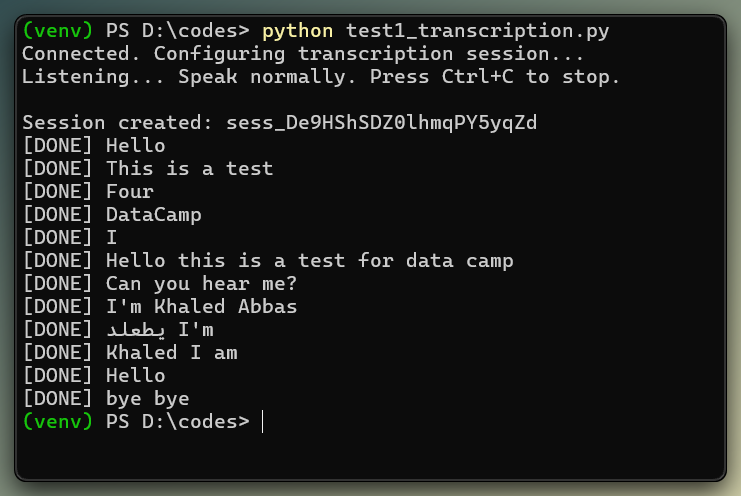
Transcript deltas arrive word by word in real time. Image by Author.
Observed behavior
In my local tests, transcript results appeared within the commit window, roughly 3 to 4 seconds after speech started. Because this setup relies on manual commits rather than VAD, latency is tied to the commit interval.
Also, watch ordering: completion events from overlapping turns can arrive out of order, so reconcile by item_id if you build a UI around the stream.
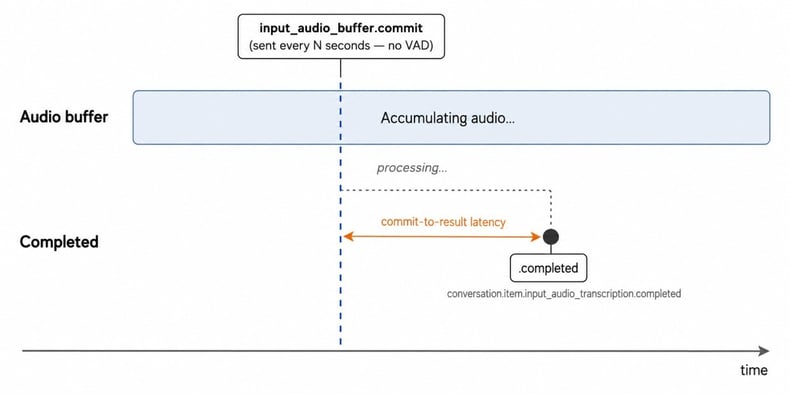
Transcription is triggered by a periodic manual commit, not by silence detection. Image by Author.
Verdict: Pass. For server-side live transcription, gpt-realtime-whisper did what this test needed. I would still test against real microphones, accents, and room noise before setting a latency target.
Test 2: Real-Time Translation with GPT-Realtime-Translate
Live speech translation looks similar to transcription at first, but the session lifecycle is different. The translation endpoint removes the assistant response loop, which makes the example shorter.
What we're testing
Translation sessions have no assistant turn loop and no response.create. The model works as a live interpreter, not a conversational agent. For Q&A, tools, or conversation state, the article switches to gpt-realtime-2 in Test 3.
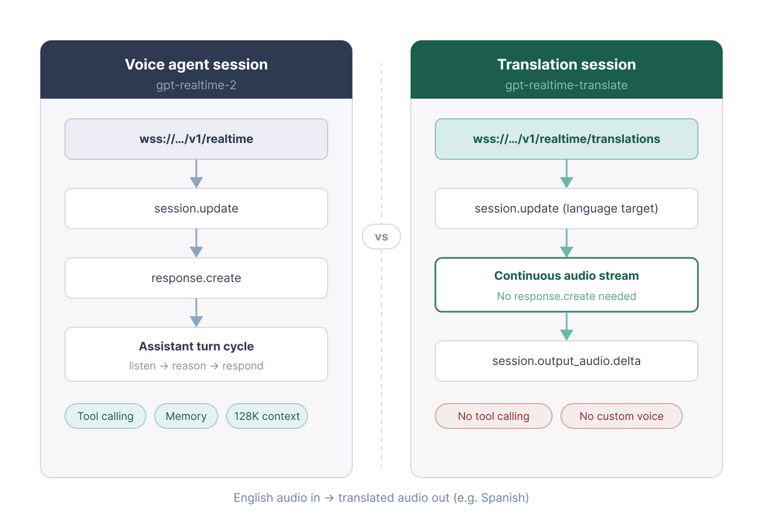
Translation sessions use a dedicated, separate endpoint. Image by Author.
The model supports more than 70 input languages and 13 output languages. You set the target with session.audio.output.language; source language detection is automatic. The limits are plain: no custom prompting, no voice selection, and no domain glossaries.
Code walkthrough
As mentioned earlier, translation uses the /translations WebSocket URL. Two other details also change: the session.audio.output.language target field and the session.input_audio_buffer.append event name. Notice the session. prefix. Translation sessions use it here.
url = "wss://api.openai.com/v1/realtime/translations?model=gpt-realtime-translate"

session_config = {
    "type": "session.update",
    "session": {
        "audio": {
            "output": {"language": "es"},
            "input": {
                "transcription": {"model": "gpt-realtime-whisper"},
                "noise_reduction": {"type": "near_field"}
            }
        }
    }
}

ws.send(json.dumps(session_config))
ws.send(json.dumps({
    "type": "session.input_audio_buffer.append",
    "audio": audio_b64
}))
Translated audio arrives on session.output_audio.delta, and the audio bytes are in event["delta"], not event["audio"]. The source and translated transcripts arrive separately:
if event_type == "session.output_audio.delta":
    audio_out_queue.put(base64.b64decode(event["delta"]))
elif event_type == "session.input_transcript.delta":
    print("[EN]", event.get("delta", ""), end="")
elif event_type == "session.output_transcript.delta":
    print("[ES]", event.get("delta", ""), end="")
One edge case: if the source audio is already in the target language, the model may produce silence rather than pass it through.
Observed behavior
For short English-to-Spanish phrases, translated audio began before the source utterance finished. The terminal showed interleaved [EN] and [ES] lines as deltas streamed in. More distant language pairs can wait longer for context. I could follow the translated voice without trouble, but custom voice selection is not available.
Verdict: Pass, with a caveat. gpt-realtime-translate worked for direct live translation. It is less useful when terminology control or voice branding matters.
Test 3: Building a Voice Assistant with Turn-Taking and Barge-In
This is the gpt-realtime-2 test: a voice agent that listens, speaks, keeps context, and can call tools. It is also the point where the client code starts to matter more, because playback and turn state can get out of sync.
What we're testing
gpt-realtime-2 is a speech-to-speech reasoning model. It avoids a separate STT-to-LLM-to-TTS pipeline, and its 128K context window gives long sessions more room. Reasoning is controlled with reasoning.effort; start at low unless the task needs more reasoning, because higher settings add latency.
Code walkthrough
The setup below uses semantic_vad, which looks at speech cues rather than silence alone. eagerness controls how quickly the model decides the user is done. The parts to notice are the model name, audio output settings, manual response.create, and the assistant audio event name:
session_config = {
    "type": "session.update",
    "session": {
        "type": "realtime",
        "model": "gpt-realtime-2",
        "output_modalities": ["audio"],
        "audio": {
            "input": {
                "format": {"type": "audio/pcm", "rate": 24000},
                "transcription": {"model": "gpt-realtime-whisper", "language": "en"},
                "turn_detection": {
                    "type": "semantic_vad",
                    "eagerness": "medium",
                    "create_response": False,
                    "interrupt_response": True
                }
            },
            "output": {
                "format": {"type": "audio/pcm", "rate": 24000},
                "voice": "marin"
            }
        },
        "instructions": "You are a helpful voice assistant. Keep answers short.",
        "reasoning": {"effort": "low"}
    }
}
When the user's transcript completes, the client creates the assistant response. Assistant audio then arrives as response.output_audio.delta, not response.audio.delta.
if event_type == "conversation.item.input_audio_transcription.completed":
    ws.send(json.dumps({"type": "response.create"}))

elif event_type == "response.output_audio.delta":
    audio_out_queue.put(base64.b64decode(event["delta"]))
Handling barge-in
The interruption sequence is easy to get wrong. When the user speaks over the assistant, the server sends input_audio_buffer.speech_started. The client stops playback, records how much audio it played, and sends conversation.item.truncate with audio_end_ms to keep track where it was cut off. Otherwise, the server keeps transcribing text the user never heard, and the next turn can feel off.
if current_response_item_id and playback_position_ms > 0:
    ws.send(json.dumps({
        "type": "conversation.item.truncate",
        "item_id": current_response_item_id,
        "content_index": 0,
        "audio_end_ms": playback_position_ms
    }))
One practical issue with laptop speakers: the microphone can pick up the assistant's audio output and send it back to the model. The sample script uses MUTE_MIC_DURING_ASSISTANT = True to silence the input stream while the assistant is speaking and for a short cooldown period after. Set it to False only if you are using headphones and want interruption support.
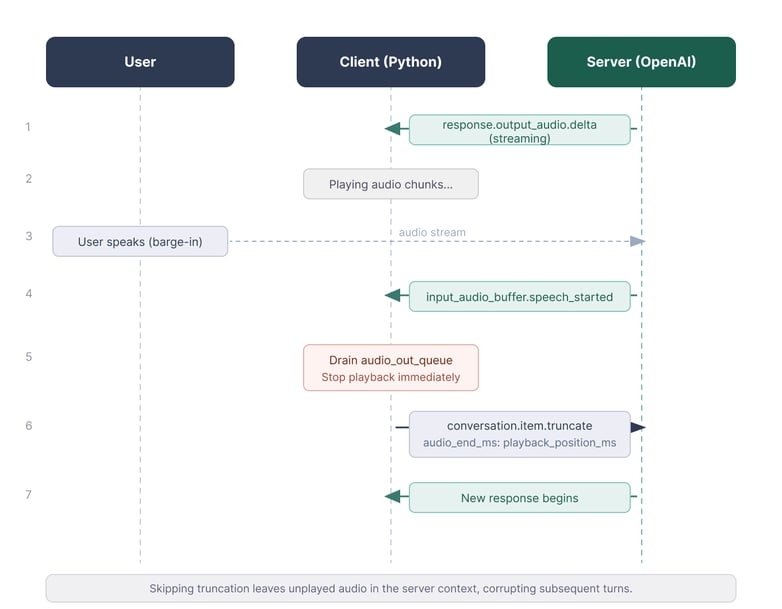
Truncation keeps the server and client in sync. Image by Author.
WebRTC and SIP handle more of this buffering. With the WebSocket path used in this tutorial, the client owns it. The counter in the sample script is enough for a demo; production code should track timestamps from the audio output stream.
Configuring preambles for reasoning latency
When reasoning.effort is above low, silence becomes noticeable. Short spoken preambles can be added in the system prompt:
# Preambles
Use a short spoken update before longer tasks.
Keep preambles under five seconds.
Skip preambles for short factual questions.
This behavior is documented for gpt-realtime-2.
Observed behavior
Turn-taking worked at the default settings in a quiet room. With laptop speakers, I needed mic muting; without it, the model heard its own output and started an echo loop.
In noisier rooms, VAD settings and microphone placement mattered more. Conversation memory stayed consistent across a ten-minute test, but I would not ship a longer app without a reconnect plan.
Verdict: Pass for the core voice loop. gpt-realtime-2 handled a low-reasoning-effort assistant in my test. The extra work is on the client: playback, interruption handling, reconnects, and tool calls if the app needs them.
Streamlit Demo: All Three Models in One Interface
The Streamlit app puts the tests behind a tab selector. It lets you record audio, pick a target language, and compare model paths without editing scripts. I kept this as a demo app rather than the main teaching path, since the terminal scripts show the events more directly.
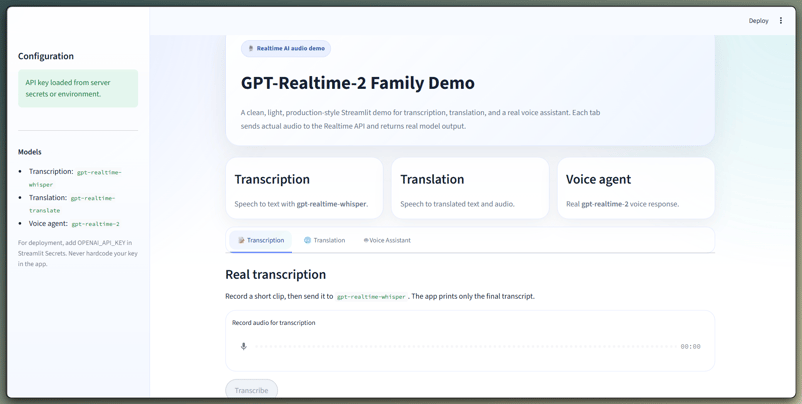
Three models in one tabbed interface. Image by Author.
The demo video below shows the tabs against a live API key. Each tab uses real Realtime WebSocket calls.












Our overview article on GPT-Realtime-2 covered the launch, the benchmark claims, and why OpenAI split realtime voice into a small model family. This tutorial starts where that article stopped: connecting to the API, sending audio, and seeing what changes in code.
The split matters in practice. Test 1 uses
gpt-realtime-whisperfor transcription, Test 2 usesgpt-realtime-translatefor live translation, and Test 3 usesgpt-realtime-2for a voice assistant. The main model also works for simpler tasks like translation or transcription, but you’d pay for a level of reasoning and modes of responding that are not necessary, so it would be overkill.Setting Up the GPT-Realtime-2 API in Python
Before the tests, it helps to separate transport, authentication, and audio format. Those details stay mostly the same across the examples. The model endpoints and event names are what change as the article moves from text output to translated speech and then to a full voice loop.
Choosing between WebRTC and WebSocket
The OpenAI docs give a plain rule: use WebRTC for browser and mobile clients, and use WebSockets for server-side applications. WebRTC handles jitter buffering and audio transport. WebSockets make sense when the backend already receives raw audio from a telephony provider or media pipeline.
Two transport paths for the Realtime API. Image by Author.
For that reason, all three Python tests use WebSockets. That path shows the event names directly, so the model differences are visible in the code. For a browser build, use ephemeral client secrets so your API key never reaches the frontend.
Python environment and packages
Use Python 3.9 or newer. The full code for all four scripts is available at github.com/KhalidAbdelaty/gpt-realtime-api. Clone it first, then install the dependencies:
websocket-clienthandles the socket.sounddevicecaptures microphone audio,numpyconverts the buffer, andpython-dotenvloads the API key. On macOS, you may needbrew install portaudiobeforesounddeviceworks. On Linux, installportaudio19-dev.Create a
.envfile at the root of your project:Then load it in each script:
Authentication and the WebSocket URL
Server-side connections use an
Authorization: Bearerheader on the WebSocket handshake. AddOpenAI-Safety-Identifierif the app tracks individual users. These are the paths used later in the tests:That translation path matters later in Test 2, because it is the one endpoint that does not use
/v1/realtimedirectly.Test 1: Real-Time Audio Transcription with GPT-Realtime-Whisper
Transcription is a common place to overbuild. If the output is only text, the transcription model is enough.
What we're testing
gpt-realtime-whispertakes audio in and emits transcript deltas. It does not reason, call tools, or speak back. That smaller job is why it is billed by audio duration rather than the same token model used bygpt-realtime-2. The cost section returns to those rates.Code walkthrough
The key field is
session.type: "transcription". That tells the API to skip assistant responses and emit transcript events only. The full script also handles microphone capture and threading. This is the part that changes the Realtime session behavior:Use 24 kHz PCM16 mono audio, encoded as base64. Unlike the voice agent session, the script commits the input buffer manually on a timer instead of using
server_vadturn detection. Empty commits raiseinput_audio_buffer_commit_empty, which is why the full script only commits after real audio has been sent.Transcript deltas arrive word by word in real time. Image by Author.
Observed behavior
In my local tests, transcript results appeared within the commit window, roughly 3 to 4 seconds after speech started. Because this setup relies on manual commits rather than VAD, latency is tied to the commit interval.
Also, watch ordering: completion events from overlapping turns can arrive out of order, so reconcile by
item_idif you build a UI around the stream.Transcription is triggered by a periodic manual commit, not by silence detection. Image by Author.
Verdict: Pass. For server-side live transcription,
gpt-realtime-whisperdid what this test needed. I would still test against real microphones, accents, and room noise before setting a latency target.Test 2: Real-Time Translation with GPT-Realtime-Translate
Live speech translation looks similar to transcription at first, but the session lifecycle is different. The translation endpoint removes the assistant response loop, which makes the example shorter.
What we're testing
Translation sessions have no assistant turn loop and no
response.create. The model works as a live interpreter, not a conversational agent. For Q&A, tools, or conversation state, the article switches togpt-realtime-2in Test 3.Translation sessions use a dedicated, separate endpoint. Image by Author.
The model supports more than 70 input languages and 13 output languages. You set the target with
session.audio.output.language; source language detection is automatic. The limits are plain: no custom prompting, no voice selection, and no domain glossaries.Code walkthrough
As mentioned earlier, translation uses the
/translationsWebSocket URL. Two other details also change: thesession.audio.output.languagetarget field and thesession.input_audio_buffer.appendevent name. Notice thesession.prefix. Translation sessions use it here.Translated audio arrives on
session.output_audio.delta, and the audio bytes are inevent["delta"], notevent["audio"]. The source and translated transcripts arrive separately:One edge case: if the source audio is already in the target language, the model may produce silence rather than pass it through.
Observed behavior
For short English-to-Spanish phrases, translated audio began before the source utterance finished. The terminal showed interleaved
[EN]and[ES]lines as deltas streamed in. More distant language pairs can wait longer for context. I could follow the translated voice without trouble, but custom voice selection is not available.Verdict: Pass, with a caveat.
gpt-realtime-translateworked for direct live translation. It is less useful when terminology control or voice branding matters.Test 3: Building a Voice Assistant with Turn-Taking and Barge-In
This is the
gpt-realtime-2test: a voice agent that listens, speaks, keeps context, and can call tools. It is also the point where the client code starts to matter more, because playback and turn state can get out of sync.What we're testing
gpt-realtime-2is a speech-to-speech reasoning model. It avoids a separate STT-to-LLM-to-TTS pipeline, and its 128K context window gives long sessions more room. Reasoning is controlled withreasoning.effort; start atlowunless the task needs more reasoning, because higher settings add latency.Code walkthrough
The setup below uses
semantic_vad, which looks at speech cues rather than silence alone.eagernesscontrols how quickly the model decides the user is done. The parts to notice are the model name, audio output settings, manualresponse.create, and the assistant audio event name:When the user's transcript completes, the client creates the assistant response. Assistant audio then arrives as
response.output_audio.delta, notresponse.audio.delta.Handling barge-in
The interruption sequence is easy to get wrong. When the user speaks over the assistant, the server sends
input_audio_buffer.speech_started. The client stops playback, records how much audio it played, and sendsconversation.item.truncatewithaudio_end_msto keep track where it was cut off. Otherwise, the server keeps transcribing text the user never heard, and the next turn can feel off.One practical issue with laptop speakers: the microphone can pick up the assistant's audio output and send it back to the model. The sample script uses
MUTE_MIC_DURING_ASSISTANT = Trueto silence the input stream while the assistant is speaking and for a short cooldown period after. Set it toFalseonly if you are using headphones and want interruption support.Truncation keeps the server and client in sync. Image by Author.
WebRTC and SIP handle more of this buffering. With the WebSocket path used in this tutorial, the client owns it. The counter in the sample script is enough for a demo; production code should track timestamps from the audio output stream.
Configuring preambles for reasoning latency
When
reasoning.effortis abovelow, silence becomes noticeable. Short spoken preambles can be added in the system prompt:This behavior is documented for
gpt-realtime-2.Observed behavior
Turn-taking worked at the default settings in a quiet room. With laptop speakers, I needed mic muting; without it, the model heard its own output and started an echo loop.
In noisier rooms, VAD settings and microphone placement mattered more. Conversation memory stayed consistent across a ten-minute test, but I would not ship a longer app without a reconnect plan.
Verdict: Pass for the core voice loop.
gpt-realtime-2handled a low-reasoning-effort assistant in my test. The extra work is on the client: playback, interruption handling, reconnects, and tool calls if the app needs them.Streamlit Demo: All Three Models in One Interface
The Streamlit app puts the tests behind a tab selector. It lets you record audio, pick a target language, and compare model paths without editing scripts. I kept this as a demo app rather than the main teaching path, since the terminal scripts show the events more directly.
Three models in one tabbed interface. Image by Author.
The demo video below shows the tabs against a live API key. Each tab uses real Realtime WebSocket calls.