The first time I opened a GPT-Live-1 browser session, I expected the usual voice loop: speak, wait, then hear an answer. Instead, the microphone stayed open while the assistant replied. The conversation felt less rigid, but the app still had to manage the work happening behind it.
OpenAI first introduced GPT-Live in ChatGPT in July, then brought GPT-Live-1 to the API earlier this week, just before I started this build. Our GPT-Realtime-2.1 tutorial covers the one-model approach, while our GPT Live Transcribe guide focuses on live captions. I also recommend checking out the competition in our Gemini 3.8 Live tutorial.
Here, you will build a voice learning assistant that searches real DataCamp resources and saves a plan only after confirmation. I call it the DataCamp Voice Learning Assistant. It is a tutorial prototype, not the production DataCamp AI Assistant. The project follows one learner from a spoken goal to a saved plan.
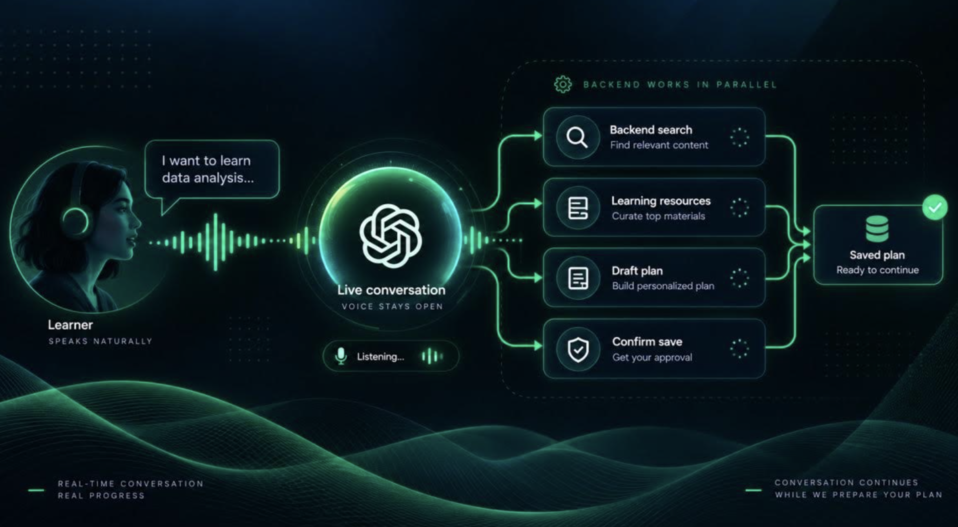
Specific Takeaways
GPT-Live-1 separates the spoken exchange from backend work. Four findings shape the learning assistant.
- WebRTC and backend work use different paths: media tracks carry speech, while Responses delegation handles search and tool calls.
- A spoken interruption does not cancel backend work: task versions protect app actions, but Responses delegation cannot keep every old result out of the next reply.
- Transcript deltas are not final conversation turns: network timing can vary, user and assistant intervals can overlap, and no transcript event marks an authoritative completed turn.
- A function call is not permission to save: the app waits for a second confirmation before writing the plan.
These findings apply to this learning-plan flow. A different prompt or network can change the behavior, and client delegation changes the control boundary.
What Is GPT-Live-1?
GPT-Live-1 is OpenAI's full-duplex voice model. It handles spoken turns and interruptions, including the pauses between them, then sends longer work such as search or tool calls to a backend.
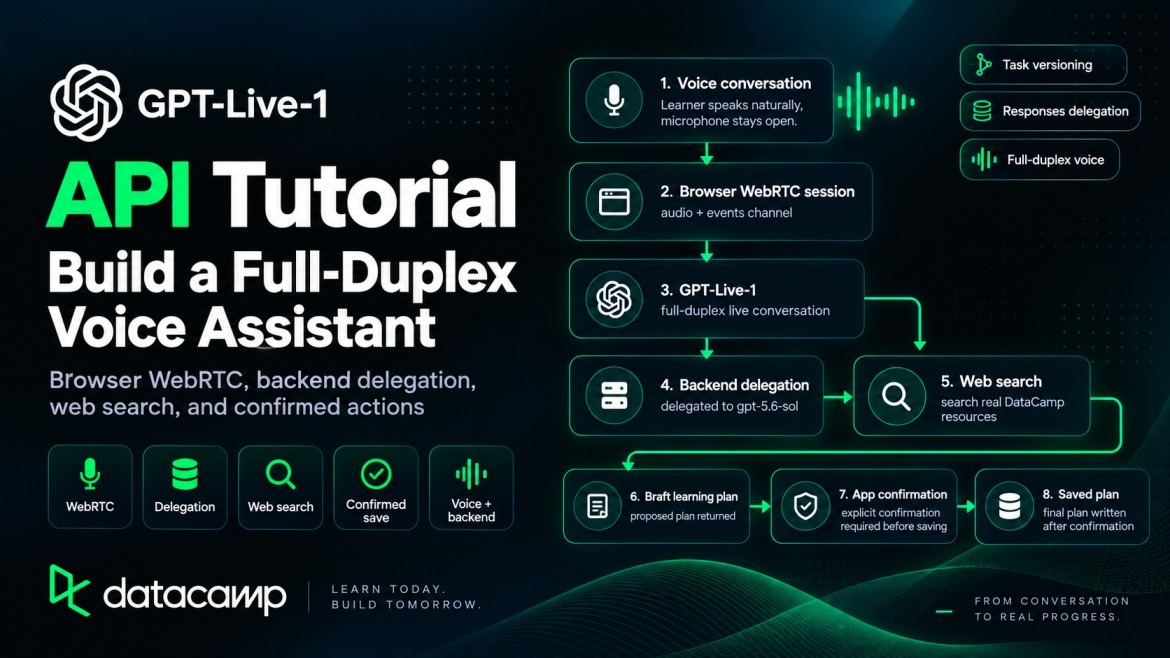
For the learner, the first visible difference is in those pauses.
How full-duplex conversation works
Full duplex changes turn-taking. You can pause to think or speak over the assistant, and it can stop to hear the correction. OpenAI's prompting guide shows prompt sections for short acknowledgments and interruptions.
This matters in a learning assistant. A person describing a career goal may pause, restart, or add a limit halfway through. A model that waits through "well, I guess, maybe five hours a week" lets the learner think out loud.
Splitting voice and backend work
Delegation moves a task to the backend, but it does not hand over application control. The app still decides who can act and whether a save is allowed. It also owns the stored task state.
GPT-Live-1 vs. GPT-Realtime-2.1
If you have used GPT-Realtime-2.1, you may wonder whether GPT-Live-1 replaces it. It does not.
GPT-Realtime-2.1 handles listening, reasoning, and tool selection in one model over v1/realtime, billed by audio and text tokens. GPT-Live-1 uses v1/live/sessions, bills the voice layer by the second, and sends reasoning to a separate backend.
Realtime-2.1 is not an older or lesser option. It uses a different design.
Building a GPT-Live-1 Voice Learning Assistant
The app takes a spoken goal and turns it into an ordered list of real DataCamp resources. The voice session stays open during backend work. When the request changes, the app updates its task version before executing a backend action.
Nothing is written until the learner confirms again in the app.
GPT-Live-1 application architecture
The browser page holds the WebRTC connection and microphone, while the server creates the GPT-Live-1 session and keeps the API key. A Responses backend (gpt-5.6-sol) uses web search and the save_learning_plan function. The current task version and confirmed plan remain in app state.
The task version decides which backend action the app accepts when a request changes during a search. Use the GitHub repository for the complete runnable app; the next sections focus on its GPT-Live path.
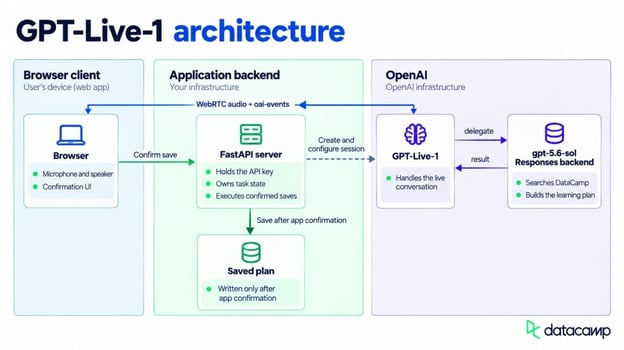
Browser, GPT-Live-1, and backend model connect. Image by Author.
How to Set Up GPT-Live-1 in Python
You need an OpenAI project with GPT-Live-1 access (the free tier does not support it), Python, and a browser running on HTTPS or localhost so the microphone prompt can appear. I used Python 3.11 and openai 3.13.0. The Live API needs at least openai 3.12.0; older versions do not have a .live attribute on the client.
Concurrent-session caps depend on your usage tier. Check the project limit before opening many browser tabs.
python -m venv .venv
.venv\Scripts\Activate.ps1
pip install openai fastapi uvicorn python-dotenv streamlit requests
On macOS or Linux, activate the environment with source .venv/bin/activate instead. Create a .env file at the project root and add this value.
python-dotenv loads that file automatically once the server imports it, so the key never needs to appear in code.
The OpenAI() client reads the same environment variable when you do not pass a key.
Keeping the API key on the server
The browser never sees your project key. It posts a WebRTC offer to your server, which uses the key to create the session. After the SDP exchange, the browser sends audio to OpenAI over WebRTC without receiving that key.
The GPT-Live call inside /api/session creates the session from the SDP offer. It passes the voice instructions, backend model, web search, and save function in the same request.
result = client.live.create(
    session={
        "model": "gpt-live-1",
        "instructions": LIVE_INSTRUCTIONS,
        "delegation": {
            "type": "responses",
            "responses": {
                "model": "gpt-5.6-sol",
                "instructions": BACKEND_INSTRUCTIONS,
                "tools": [
                    {
                        "type": "web_search",
                        "filters": {
                            "allowed_domains": ["datacamp.com", "www.datacamp.com"]
                        },
                    },
                    SAVE_LEARNING_PLAN_TOOL,
                ],
                "tool_choice": "auto",
            },
        },
    },
    transport={"type": "webrtc", "sdp": sdp},
)
That call sends a request to POST /v1/live/sessions and returns a session ID with an SDP answer. The HTTP request starts the session, so do not send a separate session.start event afterward.
The sample server accepts browser requests only from localhost:8501 and 127.0.0.1:8501. That rule is for local use.
If you deploy the app, replace those origins and authenticate both /api/session and /api/save-plan. Rate-limit session creation because each request can spend money and consume concurrency. A client can send confirmed: true itself, so a public server cannot treat that field as proof of who made the request.
How to Create a GPT-Live-1 Session With WebRTC
Following OpenAI's WebRTC guide, the browser asks for microphone access and opens an RTCPeerConnection. Use the documented oai-events data-channel label and create it before generating the SDP offer. That channel carries JSON events in both directions once the session starts.
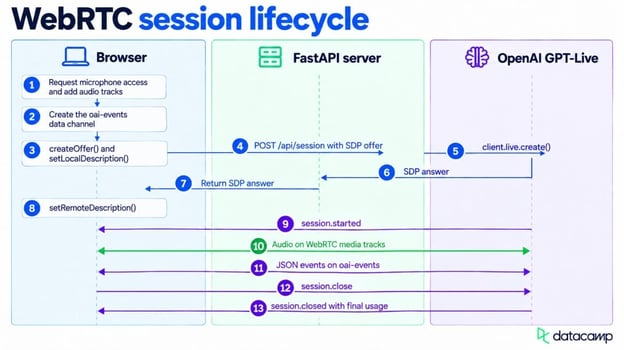
WebRTC starts, streams audio, then closes. Image by Author.
Connecting the microphone and audio output
The media setup itself is ordinary WebRTC. GPT-Live events use the data channel created in the last line.
const connection = new RTCPeerConnection();
connection.addEventListener("track", (event) => {
  audio.srcObject = new MediaStream([event.track]);
  audio.play();
});
const microphone = await navigator.mediaDevices.getUserMedia({ audio: true });
for (const track of microphone.getAudioTracks()) {
  connection.addTrack(track, microphone);
}
const events = connection.createDataChannel("oai-events");
After creating the offer, the browser calls setLocalDescription() and waits for ICE gathering to finish. It sends the local SDP to /api/session, then applies OpenAI's answer with setRemoteDescription(). Microphone audio and the assistant's speech travel on the media tracks, so separate speech-to-text and text-to-speech requests are not needed.
Audio does not belong on oai-events. Do not send session.input_audio.append or wait for session.output_audio.delta on a WebRTC data channel.
The data channel follows a different timing rule. Wait for session.started before sending an event through oai-events. On my first attempt, I sent one too early and the connection ignored it.
I got no useful error, which made a small ordering mistake annoying to trace.
Streaming GPT-Live transcript events
If you do not need visible captions, you can skip this subsection; the audio connection is already complete.
session.input_transcript.delta and session.output_transcript.delta return text fragments with millisecond offsets for live captions. OpenAI's docs caution that transcript fragments are not completed turns. Delivery can be uneven, and user and assistant transcript intervals can overlap.
Append transcript fragments to the screen as they arrive, but do not start backend work from them. The model decides when to delegate.
How to Prompt GPT-Live-1 for Natural Conversation
The Live model's instructions should be short. OpenAI's guide places detailed task steps in the backend prompt. I kept the task procedure there and left the Live prompt focused on speech.
This excerpt keeps the voice behavior separate from the learning-plan task. Speech rules stay above the conditions that trigger delegation.
You are Sage, a warm, encouraging voice learning coach for DataCamp learners.
Speak naturally at an unhurried pace. Be clear and direct, not overly cheerful.

Backchannel policy: Use moderate backchannels without competing with the response.
Interruption policy: Stop speaking when the learner interrupts, and listen.

Delegation policy:
Backend tools:
- learning_plan_research: search DataCamp resources and assemble a personalized learning plan.
- save_learning_plan: propose the current plan for app confirmation when the learner asks to save.

Delegate to the backend when:
- The learner states or changes a goal, skill level, or weekly time.
- A correction changes the plan already requested.
- The learner asks to save the plan.

Do not delegate for greetings, small clarifications, or a result already given.

Saving: a proposed save only asks the app to confirm. Do not say the plan is saved until the app reports a saved result.
After a save, keep the conversation open and ask what the learner wants next.
These rules leave greetings in the Live layer and send research or save requests to the backend. The confirmation still belongs to the app.
Handling pauses, acknowledgements, and interruptions
The backchannel and interruption lines tell the assistant how to respond around pauses. "Moderate backchannels" asks for occasional acknowledgements such as "mm-hmm" without filling every silence. I chose that level to leave the learner room to think; a lesson with longer pauses may need fewer acknowledgements.
Change that line if your app needs different behavior; adding "never speak while the user is speaking" also removes the backchannels.
Separating voice instructions from task instructions
The two prompts have different jobs. The Live prompt controls speech and handoff, while the backend prompt controls research and answer format. OpenAI's guide advises against placing detailed search steps in the voice instructions.
How to Add GPT-Live Backend Delegation
The split described earlier appears in the session's delegation field. When the learner states a goal, GPT-Live sends the task to a model that can search our course catalog and make the plan.
GPT-Live-1 offers Responses delegation and client delegation. Responses delegation lets OpenAI manage the backend call, while client delegation hands it to your code. I used Responses delegation because it avoids another backend loop in this app.
Configuring the backend model
I used gpt-5.6-sol. OpenAI's delegation guide uses gpt-5.6-terra as its starting example and lists gpt-5.6-luna for lower-cost tasks. With Sol, the backend returned the requested plan structure.
Keep tool_choice set to auto so the backend can choose web search or the save function. The delegation mode is fixed at startup; switch to client delegation by closing the current session and creating another.
Deciding when the assistant should delegate
The rule in the Live prompt is simple: greetings and short questions stay with the Live model, while a learning plan or a change to that plan goes to the backend. Nothing in the API enforces that boundary. Test it with the kinds of requests your app will receive because the model makes the choice itself.
How to Add Web Search for DataCamp Resources
Once delegated, the backend has one task: turn the learner's goal into a short list of DataCamp resources with links. I gave it the web_search tool with filters.allowed_domains set to datacamp.com and www.datacamp.com. Treat that filter as a search instruction, not proof that every link is correct.
The sample goal asks for a data engineering path with 5 hours per week, some Python knowledge, and no SQL experience. The response begins with How to Learn Data Engineering From Scratch in 2026 and the Associate Data Engineer in SQL track.
The remaining items mix a project, a Python database course, another track, and a final pipeline project. Every listed URL opens an existing DataCamp page.
Turning search results into a learning plan
The backend prompt asks for four to seven ordered items. Each item has a title, URL, short reason, and a type of course, project, track, or article. The mix follows the learner's stated format preference and weekly time.
I did not ask the model to guess a course duration when the page did not state one. An exact number in that case would claim more than the source supports.
How to Keep Talking While the Backend Works
GPT-Live can keep the voice session active while the Responses backend works. If the learner adds the hands-on constraint before the first plan returns, the original backend work is not canceled automatically.
Updating a request while it runs
A spoken correction does not automatically cancel or rewrite work that the backend already started. Interrupting the assistant's speech and changing the task are separate actions. The application decides what happens to the older result.
The server tracks a task_version counter and increments it whenever a new delegation starts. When a result arrives, the app checks its version before acting on it; its own handler logs an old result and does not execute it.
Responses delegation has a limit here: the Live model receives the backend result directly, so the version check cannot fully control its next spoken reply. Client delegation lets your code discard an old result before it reaches the model. The task version, therefore, protects app actions, not every word the assistant may say.
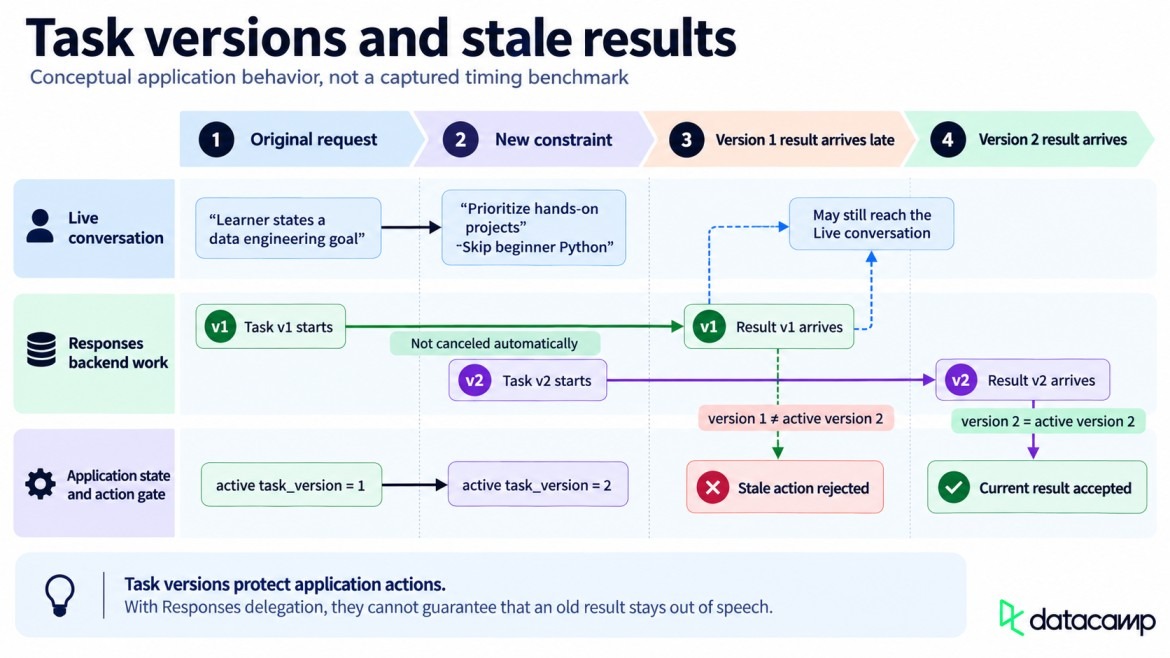
Task versions keep newer constraints active. Image by Author.
After the first backend response completed, I sent a follow-up asking for hands-on projects and no beginner Python. The revised seven-item plan started with Introduction to SQL, then mixed one track, two courses, and four projects, including Exploring London's Travel Network and Building a Retail Data Pipeline. That shows revision across completed turns; it says nothing about stopping an active response.
Sending backend updates to the voice model
During backend work, three append events can update the Live model. session.thinking.append adds context that should not be spoken, session.commentary.append adds text for the model to say in its own words, and session.instructions.append changes its instructions.
Each append carries a plain string of at most 500 tokens. These events update the Live model's context or behavior; they do not modify or cancel a backend Responses task that is already running. An instruction can redirect current Live behavior, while commentary supplies information the model should communicate aloud.
The dashboard records backend progress but does not send these append events. With Responses delegation, updates from your app can still be sent through oai-events, but they use delegation_id: null. Non-null delegation IDs are used for client-delegated tasks.
Keep task_id and task_version in application state rather than using delegation_id for either one.
How to Add Function Calling for a Confirmed Save
In this app, a model reply does not save anything by itself. The backend uses save_learning_plan to propose the pending action, while /api/save-plan owns the actual write.
Backend function calls arrive inside response.event. The handler waits for a nested response.output_item.done item, then reads its call_id, name, and arguments.
Waiting for the completed item matters because earlier events may contain only part of the call. The app parses the arguments but does not run the function yet.
SAVE_LEARNING_PLAN_TOOL = {
    "type": "function",
    "name": "save_learning_plan",
    "description": "Propose the current learning plan for confirmation when the learner asks to save.",
    "parameters": {
        "type": "object",
        "properties": {
            "goal": {"type": "string"},
            "weekly_hours": {"type": "number"},
            "items": {
                "type": "array",
                "items": {
                    "type": "object",
                    "properties": {
                        "title": {"type": "string"},
                        "url": {"type": "string"},
                        "reason": {"type": "string"},
                        "type": {
                            "type": "string",
                            "enum": ["course", "project", "track", "article"],
                        },
                    },
                    "required": ["title", "url", "reason", "type"],
                    "additionalProperties": False,
                },
            },
        },
        "required": ["goal", "weekly_hours", "items"],
        "additionalProperties": False,
    },
    "strict": True,
}
The schema gives the app a fixed set of fields to show before it asks the learner for confirmation. The type field keeps courses, projects, tracks, and articles explicit in the saved data.
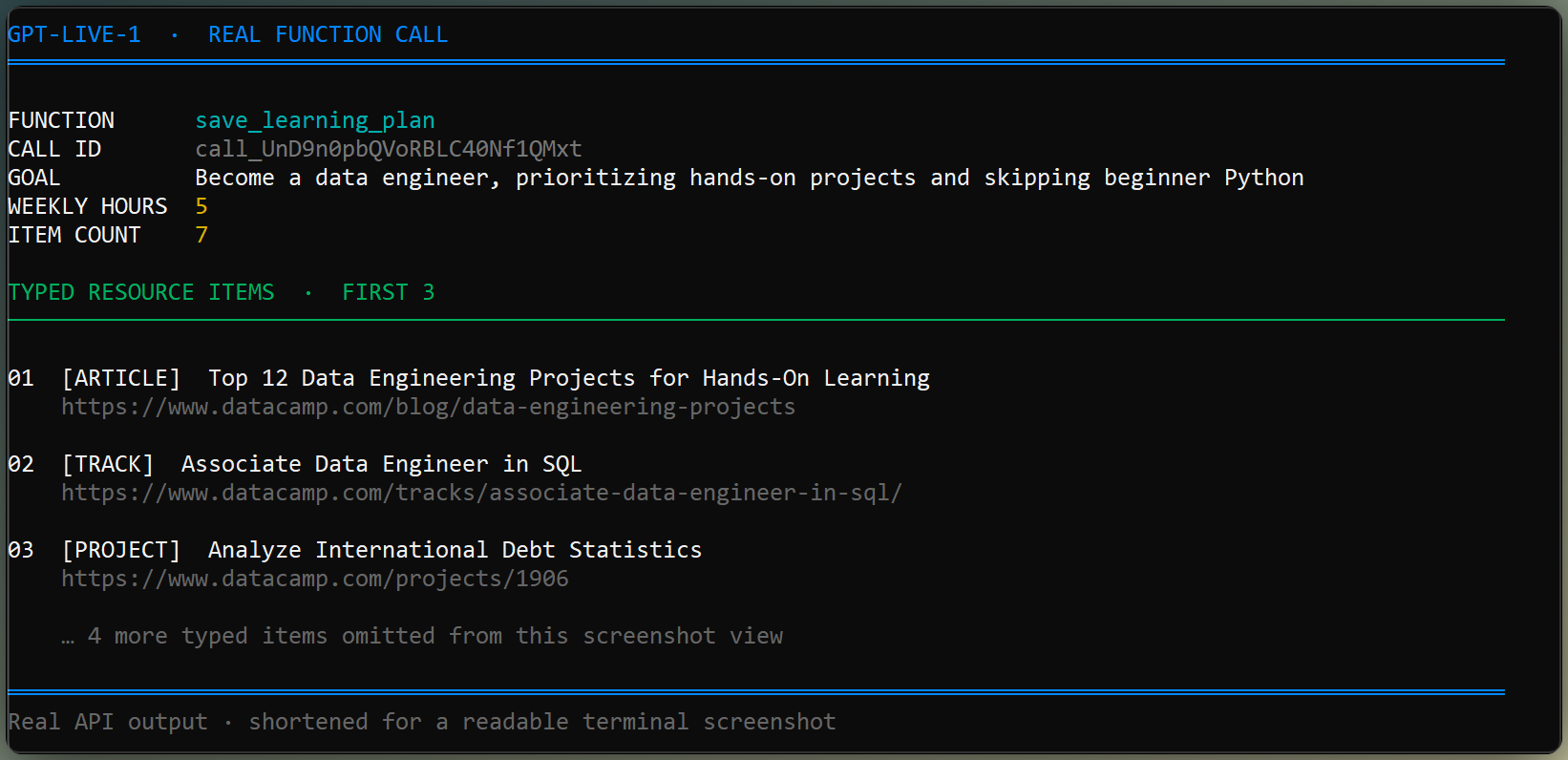
Terminal shows typed save function arguments. Image by Author.
Requiring confirmation before the action
When the learner asks to save, the backend calls save_learning_plan with the full plan. The widget stores those arguments and shows the confirmation box, but the call is still only a proposal.
Leaving that function call unanswered would block the delegated response and later backend turns. The widget immediately answers it with an awaiting-confirmation result, then sends response.create so the conversation can continue.
events.send(JSON.stringify({
  type: "response.item.create",
  item: {
    type: "function_call_output",
    call_id: callId,
    output: JSON.stringify({
      status: "awaiting_user_confirmation",
      saved: false,
    }),
  },
}));
events.send(JSON.stringify({ type: "response.create" }));
No file is written at this point. The assistant can direct the learner to the Confirm and save button without blocking later delegated work.
The /api/save-plan endpoint refuses to write unless confirmed is true. Since a transcript may be wrong or incomplete, the spoken request alone does not save the plan.
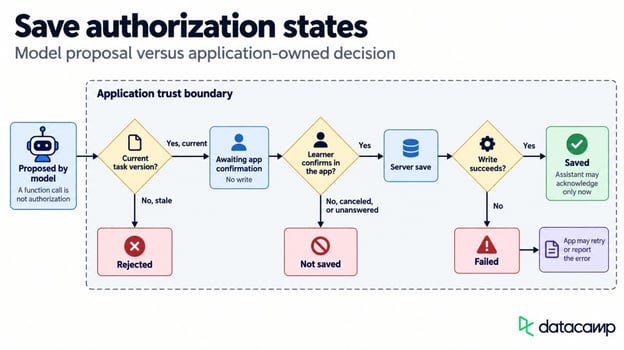
Confirmation separates requests from saved actions. Image by Author.
Returning the confirmed save to the conversation
The Confirm click sends /api/save-plan the pending plan and confirmed: true. After the server returns a plan ID, the widget sends session.commentary.append with delegation_id: null because the original function call was already answered.
const saveResponse = await fetch(${SERVER}/api/save-plan, {
  method: "POST",
  headers: { "Content-Type": "application/json" },
  body: JSON.stringify({
    confirmed: true,
    plan: pendingFunctionCall.args,
  }),
});
const saveResult = await saveResponse.json();

events.send(JSON.stringify({
  type: "session.commentary.append",
  delegation_id: null,
  content: The plan was saved as ${saveResult.plan_id}.,
}));
The commentary update tells the Live model about the completed write and lets it acknowledge the save aloud. The earlier function call stays closed, and the voice session remains available for the learner's next request.
How to Run the GPT-Live-1 Voice Assistant
The GitHub repository linked earlier contains the FastAPI server, Streamlit interface, and WebRTC widget inside app/. After cloning it, open two terminals in that folder. Run uvicorn server:app --host 127.0.0.1 --port 8000 in one and streamlit run streamlit_app.py in the other.
The Streamlit interface wraps the same server and widget used throughout the build. It places the live conversation beside the learning plan and backend activity, while the dashboard updates without resetting the call.
The video below follows the spoken goal, backend search, revised plan, and confirmed save. The call stays open after saving so the learner can continue.
If you're curious about competitor voice assistants, I recommend reading our article on Google's Gemini 3.8 Live.
%22%3E%3Cpath%20d%3D%22m-369%200h408v79h-408z%22%20fill%3D%22%237933ff%22%2F%3E%3Cpath%20d%3D%22m-148%200h306v45h-306z%22%20fill%3D%22%23974dff%22%2F%3E%3C%2Fg%3E%3C%2Fsvg%3E)
%22%2F%3E%3C%2FclipPath%3E%3Cg%20clip-path%3D%22url(%23a)%22%3E%3Cpath%20d%3D%22m76%200h484v36h-484z%22%20fill%3D%22%23974dff%22%2F%3E%3Cpath%20d%3D%22m0%200h384v24h-384z%22%20fill%3D%22%2306bdfc%22%20transform%3D%22matrix(1%200%200%20-1%200%2060)%22%2F%3E%3C%2Fg%3E%3C%2Fsvg%3E)

%22%3E%0A%20%20%20%20%20%20%20%20%3Crect%20fill%3D%22%23EFEBE4%22%20height%3D%22180%22%20width%3D%22336%22%20%2F%3E%0A%20%20%20%20%20%20%20%20%3Crect%0A%20%20%20%20%20%20%20%20%20%20fill%3D%22%23DD3400%22%0A%20%20%20%20%20%20%20%20%20%20height%3D%22106.6%22%0A%20%20%20%20%20%20%20%20%20%20transform%3D%22rotate(-30%20-208.588%20220.18)%22%0A%20%20%20%20%20%20%20%20%20%20width%3D%22456.125%22%0A%20%20%20%20%20%20%20%20%20%20x%3D%22-208.588%22%0A%20%20%20%20%20%20%20%20%20%20y%3D%22220.18%22%0A%20%20%20%20%20%20%20%20%2F%3E%0A%20%20%20%20%20%20%20%20%3Crect%0A%20%20%20%20%20%20%20%20%20%20fill%3D%22%23FFEC3C%22%0A%20%20%20%20%20%20%20%20%20%20height%3D%2235.875%22%0A%20%20%20%20%20%20%20%20%20%20transform%3D%22rotate(-30%20-208.588%20220.18)%22%0A%20%20%20%20%20%20%20%20%20%20width%3D%22347.576%22%0A%20%20%20%20%20%20%20%20%20%20x%3D%22-208.588%22%0A%20%20%20%20%20%20%20%20%20%20y%3D%22220.18%22%0A%20%20%20%20%20%20%20%20%2F%3E%0A%20%20%20%20%20%20%20%20%3Crect%0A%20%20%20%20%20%20%20%20%20%20fill%3D%22%23FF931E%22%0A%20%20%20%20%20%20%20%20%20%20height%3D%2235.875%22%0A%20%20%20%20%20%20%20%20%20%20transform%3D%22rotate(-30%20-226.525%20189.111)%22%0A%20%20%20%20%20%20%20%20%20%20width%3D%22347.576%22%0A%20%20%20%20%20%20%20%20%20%20x%3D%22-226.525%22%0A%20%20%20%20%20%20%20%20%20%20y%3D%22189.111%22%0A%20%20%20%20%20%20%20%20%2F%3E%0A%20%20%20%20%20%20%20%20%3Crect%0A%20%20%20%20%20%20%20%20%20%20fill%3D%22%23DD3400%22%0A%20%20%20%20%20%20%20%20%20%20height%3D%22106.6%22%0A%20%20%20%20%20%20%20%20%20%20transform%3D%22rotate(-30%2085.5879%20256.055)%22%0A%20%20%20%20%20%20%20%20%20%20width%3D%22456.125%22%0A%20%20%20%20%20%20%20%20%20%20x%3D%2285.5879%22%0A%20%20%20%20%20%20%20%20%20%20y%3D%22256.055%22%0A%20%20%20%20%20%20%20%20%2F%3E%0A%20%20%20%20%20%20%20%20%3Crect%0A%20%20%20%20%20%20%20%20%20%20fill%3D%22%23FFEC3C%22%0A%20%20%20%20%20%20%20%20%20%20height%3D%2235.875%22%0A%20%20%20%20%20%20%20%20%20%20transform%3D%22rotate(-30%2085.5879%20256.055)%22%0A%20%20%20%20%20%20%20%20%20%20width%3D%22184.5%22%0A%20%20%20%20%20%20%20%20%20%20x%3D%2285.5879%22%0A%20%20%20%20%20%20%20%20%20%20y%3D%22256.055%22%0A%20%20%20%20%20%20%20%20%2F%3E%0A%20%20%20%20%20%20%20%20%3Crect%0A%20%20%20%20%20%20%20%20%20%20fill%3D%22%23FF931E%22%0A%20%20%20%20%20%20%20%20%20%20height%3D%2235.875%22%0A%20%20%20%20%20%20%20%20%20%20transform%3D%22rotate(-30%20227.432%20132.736)%22%0A%20%20%20%20%20%20%20%20%20%20width%3D%22271.625%22%0A%20%20%20%20%20%20%20%20%20%20x%3D%22227.432%22%0A%20%20%20%20%20%20%20%20%20%20y%3D%22132.736%22%0A%20%20%20%20%20%20%20%20%2F%3E%0A%20%20%20%20%20%20%3C%2Fg%3E%0A%20%20%20%20%20%20%3Cdefs%3E%0A%20%20%20%20%20%20%20%20%3CclipPath%20id%3D%22clip%22%3E%0A%20%20%20%20%20%20%20%20%20%20%3Crect%20fill%3D%22white%22%20height%3D%22180%22%20width%3D%22336%22%20%2F%3E%0A%20%20%20%20%20%20%20%20%3C%2FclipPath%3E%0A%20%20%20%20%20%20%3C%2Fdefs%3E%0A%20%20%20%20%3C%2Fsvg%3E)

%22%3E%0A%20%20%20%20%20%20%20%20%3Crect%20fill%3D%22%23EFEBE4%22%20height%3D%22180%22%20width%3D%22336%22%20%2F%3E%0A%20%20%20%20%20%20%20%20%3Crect%0A%20%20%20%20%20%20%20%20%20%20fill%3D%22%23FF931E%22%0A%20%20%20%20%20%20%20%20%20%20height%3D%22106.6%22%0A%20%20%20%20%20%20%20%20%20%20transform%3D%22rotate(-30%20-208.588%20220.18)%22%0A%20%20%20%20%20%20%20%20%20%20width%3D%22456.125%22%0A%20%20%20%20%20%20%20%20%20%20x%3D%22-208.588%22%0A%20%20%20%20%20%20%20%20%20%20y%3D%22220.18%22%0A%20%20%20%20%20%20%20%20%2F%3E%0A%20%20%20%20%20%20%20%20%3Crect%0A%20%20%20%20%20%20%20%20%20%20fill%3D%22%23F7F3EB%22%0A%20%20%20%20%20%20%20%20%20%20height%3D%2235.875%22%0A%20%20%20%20%20%20%20%20%20%20transform%3D%22rotate(-30%20-208.588%20220.18)%22%0A%20%20%20%20%20%20%20%20%20%20width%3D%22347.576%22%0A%20%20%20%20%20%20%20%20%20%20x%3D%22-208.588%22%0A%20%20%20%20%20%20%20%20%20%20y%3D%22220.18%22%0A%20%20%20%20%20%20%20%20%2F%3E%0A%20%20%20%20%20%20%20%20%3Crect%0A%20%20%20%20%20%20%20%20%20%20fill%3D%22%23000820%22%0A%20%20%20%20%20%20%20%20%20%20height%3D%2235.875%22%0A%20%20%20%20%20%20%20%20%20%20transform%3D%22rotate(-30%20-226.525%20189.111)%22%0A%20%20%20%20%20%20%20%20%20%20width%3D%22347.576%22%0A%20%20%20%20%20%20%20%20%20%20x%3D%22-226.525%22%0A%20%20%20%20%20%20%20%20%20%20y%3D%22189.111%22%0A%20%20%20%20%20%20%20%20%2F%3E%0A%20%20%20%20%20%20%20%20%3Crect%0A%20%20%20%20%20%20%20%20%20%20fill%3D%22%23000820%22%0A%20%20%20%20%20%20%20%20%20%20height%3D%22106.6%22%0A%20%20%20%20%20%20%20%20%20%20transform%3D%22rotate(-30%2085.5879%20256.055)%22%0A%20%20%20%20%20%20%20%20%20%20width%3D%22456.125%22%0A%20%20%20%20%20%20%20%20%20%20x%3D%2285.5879%22%0A%20%20%20%20%20%20%20%20%20%20y%3D%22256.055%22%0A%20%20%20%20%20%20%20%20%2F%3E%0A%20%20%20%20%20%20%20%20%3Crect%0A%20%20%20%20%20%20%20%20%20%20fill%3D%22%23D87300%22%0A%20%20%20%20%20%20%20%20%20%20height%3D%2235.875%22%0A%20%20%20%20%20%20%20%20%20%20transform%3D%22rotate(-30%2085.5879%20256.055)%22%0A%20%20%20%20%20%20%20%20%20%20width%3D%22184.5%22%0A%20%20%20%20%20%20%20%20%20%20x%3D%2285.5879%22%0A%20%20%20%20%20%20%20%20%20%20y%3D%22256.055%22%0A%20%20%20%20%20%20%20%20%2F%3E%0A%20%20%20%20%20%20%20%20%3Crect%0A%20%20%20%20%20%20%20%20%20%20fill%3D%22%23FF931E%22%0A%20%20%20%20%20%20%20%20%20%20height%3D%2235.875%22%0A%20%20%20%20%20%20%20%20%20%20transform%3D%22rotate(-30%20227.432%20132.736)%22%0A%20%20%20%20%20%20%20%20%20%20width%3D%22271.625%22%0A%20%20%20%20%20%20%20%20%20%20x%3D%22227.432%22%0A%20%20%20%20%20%20%20%20%20%20y%3D%22132.736%22%0A%20%20%20%20%20%20%20%20%2F%3E%0A%20%20%20%20%20%20%3C%2Fg%3E%0A%20%20%20%20%20%20%3Cdefs%3E%0A%20%20%20%20%20%20%20%20%3CclipPath%20id%3D%22clip%22%3E%0A%20%20%20%20%20%20%20%20%20%20%3Crect%20fill%3D%22white%22%20height%3D%22180%22%20width%3D%22336%22%20%2F%3E%0A%20%20%20%20%20%20%20%20%3C%2FclipPath%3E%0A%20%20%20%20%20%20%3C%2Fdefs%3E%0A%20%20%20%20%3C%2Fsvg%3E)

%22%3E%0A%20%20%20%20%20%20%20%20%3Crect%20fill%3D%22%2305192D%22%20height%3D%22180%22%20width%3D%22336%22%20%2F%3E%0A%20%20%20%20%20%20%20%20%3Crect%0A%20%20%20%20%20%20%20%20%20%20fill%3D%22%23B08EFF%22%0A%20%20%20%20%20%20%20%20%20%20height%3D%22106.6%22%0A%20%20%20%20%20%20%20%20%20%20transform%3D%22rotate(-30%20-208.588%20220.18)%22%0A%20%20%20%20%20%20%20%20%20%20width%3D%22456.125%22%0A%20%20%20%20%20%20%20%20%20%20x%3D%22-208.588%22%0A%20%20%20%20%20%20%20%20%20%20y%3D%22220.18%22%0A%20%20%20%20%20%20%20%20%2F%3E%0A%20%20%20%20%20%20%20%20%3Crect%0A%20%20%20%20%20%20%20%20%20%20fill%3D%22%237933FF%22%0A%20%20%20%20%20%20%20%20%20%20height%3D%2235.875%22%0A%20%20%20%20%20%20%20%20%20%20transform%3D%22rotate(-30%20-208.588%20220.18)%22%0A%20%20%20%20%20%20%20%20%20%20width%3D%22347.576%22%0A%20%20%20%20%20%20%20%20%20%20x%3D%22-208.588%22%0A%20%20%20%20%20%20%20%20%20%20y%3D%22220.18%22%0A%20%20%20%20%20%20%20%20%2F%3E%0A%20%20%20%20%20%20%20%20%3Crect%0A%20%20%20%20%20%20%20%20%20%20fill%3D%22%2372E5FE%22%0A%20%20%20%20%20%20%20%20%20%20height%3D%2235.875%22%0A%20%20%20%20%20%20%20%20%20%20transform%3D%22rotate(-30%20-226.525%20189.111)%22%0A%20%20%20%20%20%20%20%20%20%20width%3D%22347.576%22%0A%20%20%20%20%20%20%20%20%20%20x%3D%22-226.525%22%0A%20%20%20%20%20%20%20%20%20%20y%3D%22189.111%22%0A%20%20%20%20%20%20%20%20%2F%3E%0A%20%20%20%20%20%20%20%20%3Crect%0A%20%20%20%20%20%20%20%20%20%20fill%3D%22%235EB1FF%22%0A%20%20%20%20%20%20%20%20%20%20height%3D%22106.6%22%0A%20%20%20%20%20%20%20%20%20%20transform%3D%22rotate(-30%2085.5879%20256.055)%22%0A%20%20%20%20%20%20%20%20%20%20width%3D%22456.125%22%0A%20%20%20%20%20%20%20%20%20%20x%3D%2285.5879%22%0A%20%20%20%20%20%20%20%20%20%20y%3D%22256.055%22%0A%20%20%20%20%20%20%20%20%2F%3E%0A%20%20%20%20%20%20%20%20%3Crect%0A%20%20%20%20%20%20%20%20%20%20fill%3D%22%23B08EFF%22%0A%20%20%20%20%20%20%20%20%20%20height%3D%2235.875%22%0A%20%20%20%20%20%20%20%20%20%20transform%3D%22rotate(-30%2085.5879%20256.055)%22%0A%20%20%20%20%20%20%20%20%20%20width%3D%22184.5%22%0A%20%20%20%20%20%20%20%20%20%20x%3D%2285.5879%22%0A%20%20%20%20%20%20%20%20%20%20y%3D%22256.055%22%0A%20%20%20%20%20%20%20%20%2F%3E%0A%20%20%20%20%20%20%20%20%3Crect%0A%20%20%20%20%20%20%20%20%20%20fill%3D%22%2372E5FE%22%0A%20%20%20%20%20%20%20%20%20%20height%3D%2235.875%22%0A%20%20%20%20%20%20%20%20%20%20transform%3D%22rotate(-30%20227.432%20132.736)%22%0A%20%20%20%20%20%20%20%20%20%20width%3D%22271.625%22%0A%20%20%20%20%20%20%20%20%20%20x%3D%22227.432%22%0A%20%20%20%20%20%20%20%20%20%20y%3D%22132.736%22%0A%20%20%20%20%20%20%20%20%2F%3E%0A%20%20%20%20%20%20%3C%2Fg%3E%0A%20%20%20%20%20%20%3Cdefs%3E%0A%20%20%20%20%20%20%20%20%3CclipPath%20id%3D%22clip%22%3E%0A%20%20%20%20%20%20%20%20%20%20%3Crect%20fill%3D%22white%22%20height%3D%22180%22%20width%3D%22336%22%20%2F%3E%0A%20%20%20%20%20%20%20%20%3C%2FclipPath%3E%0A%20%20%20%20%20%20%3C%2Fdefs%3E%0A%20%20%20%20%3C%2Fsvg%3E)

%22%3E%0A%20%20%20%20%20%20%20%20%3Crect%20fill%3D%22%23F7F3EB%22%20height%3D%22180%22%20width%3D%22336%22%20%2F%3E%0A%20%20%20%20%20%20%20%20%3Crect%0A%20%20%20%20%20%20%20%20%20%20fill%3D%22%23000820%22%0A%20%20%20%20%20%20%20%20%20%20height%3D%22106.6%22%0A%20%20%20%20%20%20%20%20%20%20transform%3D%22rotate(-30%20-208.588%20220.18)%22%0A%20%20%20%20%20%20%20%20%20%20width%3D%22456.125%22%0A%20%20%20%20%20%20%20%20%20%20x%3D%22-208.588%22%0A%20%20%20%20%20%20%20%20%20%20y%3D%22220.18%22%0A%20%20%20%20%20%20%20%20%2F%3E%0A%20%20%20%20%20%20%20%20%3Crect%0A%20%20%20%20%20%20%20%20%20%20fill%3D%22%2300C74E%22%0A%20%20%20%20%20%20%20%20%20%20height%3D%2235.875%22%0A%20%20%20%20%20%20%20%20%20%20transform%3D%22rotate(-30%20-208.588%20220.18)%22%0A%20%20%20%20%20%20%20%20%20%20width%3D%22347.576%22%0A%20%20%20%20%20%20%20%20%20%20x%3D%22-208.588%22%0A%20%20%20%20%20%20%20%20%20%20y%3D%22220.18%22%0A%20%20%20%20%20%20%20%20%2F%3E%0A%20%20%20%20%20%20%20%20%3Crect%0A%20%20%20%20%20%20%20%20%20%20fill%3D%22%23FF931E%22%0A%20%20%20%20%20%20%20%20%20%20height%3D%2235.875%22%0A%20%20%20%20%20%20%20%20%20%20transform%3D%22rotate(-30%20-226.525%20189.111)%22%0A%20%20%20%20%20%20%20%20%20%20width%3D%22347.576%22%0A%20%20%20%20%20%20%20%20%20%20x%3D%22-226.525%22%0A%20%20%20%20%20%20%20%20%20%20y%3D%22189.111%22%0A%20%20%20%20%20%20%20%20%2F%3E%0A%20%20%20%20%20%20%20%20%3Crect%0A%20%20%20%20%20%20%20%20%20%20fill%3D%22%23D87300%22%0A%20%20%20%20%20%20%20%20%20%20height%3D%22106.6%22%0A%20%20%20%20%20%20%20%20%20%20transform%3D%22rotate(-30%2085.5879%20256.055)%22%0A%20%20%20%20%20%20%20%20%20%20width%3D%22456.125%22%0A%20%20%20%20%20%20%20%20%20%20x%3D%2285.5879%22%0A%20%20%20%20%20%20%20%20%20%20y%3D%22256.055%22%0A%20%20%20%20%20%20%20%20%2F%3E%0A%20%20%20%20%20%20%20%20%3Crect%0A%20%20%20%20%20%20%20%20%20%20fill%3D%22%23000820%22%0A%20%20%20%20%20%20%20%20%20%20height%3D%2235.875%22%0A%20%20%20%20%20%20%20%20%20%20transform%3D%22rotate(-30%2085.5879%20256.055)%22%0A%20%20%20%20%20%20%20%20%20%20width%3D%22184.5%22%0A%20%20%20%20%20%20%20%20%20%20x%3D%2285.5879%22%0A%20%20%20%20%20%20%20%20%20%20y%3D%22256.055%22%0A%20%20%20%20%20%20%20%20%2F%3E%0A%20%20%20%20%20%20%20%20%3Crect%0A%20%20%20%20%20%20%20%20%20%20fill%3D%22%2300C74E%22%0A%20%20%20%20%20%20%20%20%20%20height%3D%2235.875%22%0A%20%20%20%20%20%20%20%20%20%20transform%3D%22rotate(-30%20227.432%20132.736)%22%0A%20%20%20%20%20%20%20%20%20%20width%3D%22271.625%22%0A%20%20%20%20%20%20%20%20%20%20x%3D%22227.432%22%0A%20%20%20%20%20%20%20%20%20%20y%3D%22132.736%22%0A%20%20%20%20%20%20%20%20%2F%3E%0A%20%20%20%20%20%20%3C%2Fg%3E%0A%20%20%20%20%20%20%3Cdefs%3E%0A%20%20%20%20%20%20%20%20%3CclipPath%20id%3D%22clip%22%3E%0A%20%20%20%20%20%20%20%20%20%20%3Crect%20fill%3D%22white%22%20height%3D%22180%22%20width%3D%22336%22%20%2F%3E%0A%20%20%20%20%20%20%20%20%3C%2FclipPath%3E%0A%20%20%20%20%20%20%3C%2Fdefs%3E%0A%20%20%20%20%3C%2Fsvg%3E)




The first time I opened a GPT-Live-1 browser session, I expected the usual voice loop: speak, wait, then hear an answer. Instead, the microphone stayed open while the assistant replied. The conversation felt less rigid, but the app still had to manage the work happening behind it.
OpenAI first introduced GPT-Live in ChatGPT in July, then brought GPT-Live-1 to the API earlier this week, just before I started this build. Our GPT-Realtime-2.1 tutorial covers the one-model approach, while our GPT Live Transcribe guide focuses on live captions. I also recommend checking out the competition in our Gemini 3.8 Live tutorial.
Here, you will build a voice learning assistant that searches real DataCamp resources and saves a plan only after confirmation. I call it the DataCamp Voice Learning Assistant. It is a tutorial prototype, not the production DataCamp AI Assistant. The project follows one learner from a spoken goal to a saved plan.
Specific Takeaways
GPT-Live-1 separates the spoken exchange from backend work. Four findings shape the learning assistant.
These findings apply to this learning-plan flow. A different prompt or network can change the behavior, and client delegation changes the control boundary.
What Is GPT-Live-1?
GPT-Live-1 is OpenAI's full-duplex voice model. It handles spoken turns and interruptions, including the pauses between them, then sends longer work such as search or tool calls to a backend.
For the learner, the first visible difference is in those pauses.
How full-duplex conversation works
Full duplex changes turn-taking. You can pause to think or speak over the assistant, and it can stop to hear the correction. OpenAI's prompting guide shows prompt sections for short acknowledgments and interruptions.
This matters in a learning assistant. A person describing a career goal may pause, restart, or add a limit halfway through. A model that waits through "well, I guess, maybe five hours a week" lets the learner think out loud.
Splitting voice and backend work
Delegation moves a task to the backend, but it does not hand over application control. The app still decides who can act and whether a save is allowed. It also owns the stored task state.
GPT-Live-1 vs. GPT-Realtime-2.1
If you have used GPT-Realtime-2.1, you may wonder whether GPT-Live-1 replaces it. It does not.
GPT-Realtime-2.1 handles listening, reasoning, and tool selection in one model over
v1/realtime, billed by audio and text tokens. GPT-Live-1 usesv1/live/sessions, bills the voice layer by the second, and sends reasoning to a separate backend.Realtime-2.1 is not an older or lesser option. It uses a different design.
Building a GPT-Live-1 Voice Learning Assistant
The app takes a spoken goal and turns it into an ordered list of real DataCamp resources. The voice session stays open during backend work. When the request changes, the app updates its task version before executing a backend action.
Nothing is written until the learner confirms again in the app.
GPT-Live-1 application architecture
The browser page holds the WebRTC connection and microphone, while the server creates the GPT-Live-1 session and keeps the API key. A Responses backend (
gpt-5.6-sol) uses web search and thesave_learning_planfunction. The current task version and confirmed plan remain in app state.The task version decides which backend action the app accepts when a request changes during a search. Use the GitHub repository for the complete runnable app; the next sections focus on its GPT-Live path.
Browser, GPT-Live-1, and backend model connect. Image by Author.
How to Set Up GPT-Live-1 in Python
You need an OpenAI project with GPT-Live-1 access (the free tier does not support it), Python, and a browser running on HTTPS or localhost so the microphone prompt can appear. I used Python 3.11 and
openai3.13.0. The Live API needs at leastopenai3.12.0; older versions do not have a.liveattribute on the client.Concurrent-session caps depend on your usage tier. Check the project limit before opening many browser tabs.
On macOS or Linux, activate the environment with
source .venv/bin/activateinstead. Create a.envfile at the project root and add this value.python-dotenvloads that file automatically once the server imports it, so the key never needs to appear in code.The
OpenAI()client reads the same environment variable when you do not pass a key.Keeping the API key on the server
The browser never sees your project key. It posts a WebRTC offer to your server, which uses the key to create the session. After the SDP exchange, the browser sends audio to OpenAI over WebRTC without receiving that key.
The GPT-Live call inside
/api/sessioncreates the session from the SDP offer. It passes the voice instructions, backend model, web search, and save function in the same request.That call sends a request to
POST /v1/live/sessionsand returns a session ID with an SDP answer. The HTTP request starts the session, so do not send a separatesession.startevent afterward.The sample server accepts browser requests only from
localhost:8501and127.0.0.1:8501. That rule is for local use.If you deploy the app, replace those origins and authenticate both
/api/sessionand/api/save-plan. Rate-limit session creation because each request can spend money and consume concurrency. A client can sendconfirmed: trueitself, so a public server cannot treat that field as proof of who made the request.How to Create a GPT-Live-1 Session With WebRTC
Following OpenAI's WebRTC guide, the browser asks for microphone access and opens an
RTCPeerConnection. Use the documentedoai-eventsdata-channel label and create it before generating the SDP offer. That channel carries JSON events in both directions once the session starts.WebRTC starts, streams audio, then closes. Image by Author.
Connecting the microphone and audio output
The media setup itself is ordinary WebRTC. GPT-Live events use the data channel created in the last line.
After creating the offer, the browser calls
setLocalDescription()and waits for ICE gathering to finish. It sends the local SDP to/api/session, then applies OpenAI's answer withsetRemoteDescription(). Microphone audio and the assistant's speech travel on the media tracks, so separate speech-to-text and text-to-speech requests are not needed.Audio does not belong on
oai-events. Do not sendsession.input_audio.appendor wait forsession.output_audio.deltaon a WebRTC data channel.The data channel follows a different timing rule. Wait for
session.startedbefore sending an event throughoai-events. On my first attempt, I sent one too early and the connection ignored it.I got no useful error, which made a small ordering mistake annoying to trace.
Streaming GPT-Live transcript events
If you do not need visible captions, you can skip this subsection; the audio connection is already complete.
session.input_transcript.deltaandsession.output_transcript.deltareturn text fragments with millisecond offsets for live captions. OpenAI's docs caution that transcript fragments are not completed turns. Delivery can be uneven, and user and assistant transcript intervals can overlap.Append transcript fragments to the screen as they arrive, but do not start backend work from them. The model decides when to delegate.
How to Prompt GPT-Live-1 for Natural Conversation
The Live model's instructions should be short. OpenAI's guide places detailed task steps in the backend prompt. I kept the task procedure there and left the Live prompt focused on speech.
This excerpt keeps the voice behavior separate from the learning-plan task. Speech rules stay above the conditions that trigger delegation.
These rules leave greetings in the Live layer and send research or save requests to the backend. The confirmation still belongs to the app.
Handling pauses, acknowledgements, and interruptions
The backchannel and interruption lines tell the assistant how to respond around pauses. "Moderate backchannels" asks for occasional acknowledgements such as "mm-hmm" without filling every silence. I chose that level to leave the learner room to think; a lesson with longer pauses may need fewer acknowledgements.
Change that line if your app needs different behavior; adding "never speak while the user is speaking" also removes the backchannels.
Separating voice instructions from task instructions
The two prompts have different jobs. The Live prompt controls speech and handoff, while the backend prompt controls research and answer format. OpenAI's guide advises against placing detailed search steps in the voice instructions.
How to Add GPT-Live Backend Delegation
The split described earlier appears in the session's
delegationfield. When the learner states a goal, GPT-Live sends the task to a model that can search our course catalog and make the plan.GPT-Live-1 offers Responses delegation and client delegation. Responses delegation lets OpenAI manage the backend call, while client delegation hands it to your code. I used Responses delegation because it avoids another backend loop in this app.
Configuring the backend model
I used
gpt-5.6-sol. OpenAI's delegation guide usesgpt-5.6-terraas its starting example and listsgpt-5.6-lunafor lower-cost tasks. With Sol, the backend returned the requested plan structure.Keep
tool_choiceset toautoso the backend can choose web search or the save function. The delegation mode is fixed at startup; switch to client delegation by closing the current session and creating another.Deciding when the assistant should delegate
The rule in the Live prompt is simple: greetings and short questions stay with the Live model, while a learning plan or a change to that plan goes to the backend. Nothing in the API enforces that boundary. Test it with the kinds of requests your app will receive because the model makes the choice itself.
How to Add Web Search for DataCamp Resources
Once delegated, the backend has one task: turn the learner's goal into a short list of DataCamp resources with links. I gave it the
web_searchtool withfilters.allowed_domainsset todatacamp.comandwww.datacamp.com. Treat that filter as a search instruction, not proof that every link is correct.The sample goal asks for a data engineering path with 5 hours per week, some Python knowledge, and no SQL experience. The response begins with How to Learn Data Engineering From Scratch in 2026 and the Associate Data Engineer in SQL track.
The remaining items mix a project, a Python database course, another track, and a final pipeline project. Every listed URL opens an existing DataCamp page.
Turning search results into a learning plan
The backend prompt asks for four to seven ordered items. Each item has a title, URL, short reason, and a type of
course,project,track, orarticle. The mix follows the learner's stated format preference and weekly time.I did not ask the model to guess a course duration when the page did not state one. An exact number in that case would claim more than the source supports.
How to Keep Talking While the Backend Works
GPT-Live can keep the voice session active while the Responses backend works. If the learner adds the hands-on constraint before the first plan returns, the original backend work is not canceled automatically.
Updating a request while it runs
A spoken correction does not automatically cancel or rewrite work that the backend already started. Interrupting the assistant's speech and changing the task are separate actions. The application decides what happens to the older result.
The server tracks a
task_versioncounter and increments it whenever a new delegation starts. When a result arrives, the app checks its version before acting on it; its own handler logs an old result and does not execute it.Responses delegation has a limit here: the Live model receives the backend result directly, so the version check cannot fully control its next spoken reply. Client delegation lets your code discard an old result before it reaches the model. The task version, therefore, protects app actions, not every word the assistant may say.
Task versions keep newer constraints active. Image by Author.
After the first backend response completed, I sent a follow-up asking for hands-on projects and no beginner Python. The revised seven-item plan started with Introduction to SQL, then mixed one track, two courses, and four projects, including Exploring London's Travel Network and Building a Retail Data Pipeline. That shows revision across completed turns; it says nothing about stopping an active response.
Sending backend updates to the voice model
During backend work, three append events can update the Live model.
session.thinking.appendadds context that should not be spoken,session.commentary.appendadds text for the model to say in its own words, andsession.instructions.appendchanges its instructions.Each append carries a plain string of at most 500 tokens. These events update the Live model's context or behavior; they do not modify or cancel a backend Responses task that is already running. An instruction can redirect current Live behavior, while commentary supplies information the model should communicate aloud.
The dashboard records backend progress but does not send these append events. With Responses delegation, updates from your app can still be sent through
oai-events, but they usedelegation_id: null. Non-null delegation IDs are used for client-delegated tasks.Keep
task_idandtask_versionin application state rather than usingdelegation_idfor either one.How to Add Function Calling for a Confirmed Save
In this app, a model reply does not save anything by itself. The backend uses
save_learning_planto propose the pending action, while/api/save-planowns the actual write.Backend function calls arrive inside
response.event. The handler waits for a nestedresponse.output_item.doneitem, then reads itscall_id,name, andarguments.Waiting for the completed item matters because earlier events may contain only part of the call. The app parses the arguments but does not run the function yet.
The schema gives the app a fixed set of fields to show before it asks the learner for confirmation. The
typefield keeps courses, projects, tracks, and articles explicit in the saved data.Terminal shows typed save function arguments. Image by Author.
Requiring confirmation before the action
When the learner asks to save, the backend calls
save_learning_planwith the full plan. The widget stores those arguments and shows the confirmation box, but the call is still only a proposal.Leaving that function call unanswered would block the delegated response and later backend turns. The widget immediately answers it with an awaiting-confirmation result, then sends
response.createso the conversation can continue.No file is written at this point. The assistant can direct the learner to the Confirm and save button without blocking later delegated work.
The
/api/save-planendpoint refuses to write unlessconfirmedistrue. Since a transcript may be wrong or incomplete, the spoken request alone does not save the plan.Confirmation separates requests from saved actions. Image by Author.
Returning the confirmed save to the conversation
The Confirm click sends
/api/save-planthe pending plan andconfirmed: true. After the server returns a plan ID, the widget sendssession.commentary.appendwithdelegation_id: nullbecause the original function call was already answered.The commentary update tells the Live model about the completed write and lets it acknowledge the save aloud. The earlier function call stays closed, and the voice session remains available for the learner's next request.
How to Run the GPT-Live-1 Voice Assistant
The GitHub repository linked earlier contains the FastAPI server, Streamlit interface, and WebRTC widget inside
app/. After cloning it, open two terminals in that folder. Runuvicorn server:app --host 127.0.0.1 --port 8000in one andstreamlit run streamlit_app.pyin the other.The Streamlit interface wraps the same server and widget used throughout the build. It places the live conversation beside the learning plan and backend activity, while the dashboard updates without resetting the call.
The video below follows the spoken goal, backend search, revised plan, and confirmed save. The call stays open after saving so the learner can continue.
If you're curious about competitor voice assistants, I recommend reading our article on Google's Gemini 3.8 Live.