
Curso
Sistemas Multimodais com a API da OpenAI
2 h
3.4K
Nosso artigo de visão geral sobre o GPT-Realtime-2 apresentou o lançamento, os benchmarks e por que a OpenAI dividiu a experiência de voz em uma família de modelos menores. Este tutorial começa de onde aquele artigo parou: conectando à API, enviando áudio e vendo o que muda no código.
Essa divisão faz diferença na prática. O Teste 1 usa gpt-realtime-whisper para transcrição, o Teste 2 usa gpt-realtime-translate para tradução em tempo real, e o Teste 3 usa gpt-realtime-2 para um assistente de voz. O modelo principal também funciona para tarefas simples como tradução ou transcrição, mas você pagaria por um nível de raciocínio e por modos de resposta que não são necessários — seria exagero.
Antes dos testes, vale separar transporte, autenticação e formato de áudio. Esses detalhes ficam quase iguais entre os exemplos. O que muda são os endpoints do modelo e os nomes dos eventos conforme avançamos de saída em texto para fala traduzida e, por fim, para um loop de voz completo.
A documentação da OpenAI traz uma regra simples: use WebRTC para clientes em navegador e mobile, e use WebSockets para aplicações no servidor. O WebRTC lida com jitter buffering e transporte de áudio. WebSockets fazem sentido quando o backend já recebe áudio bruto de um provedor de telefonia ou de um pipeline de mídia.
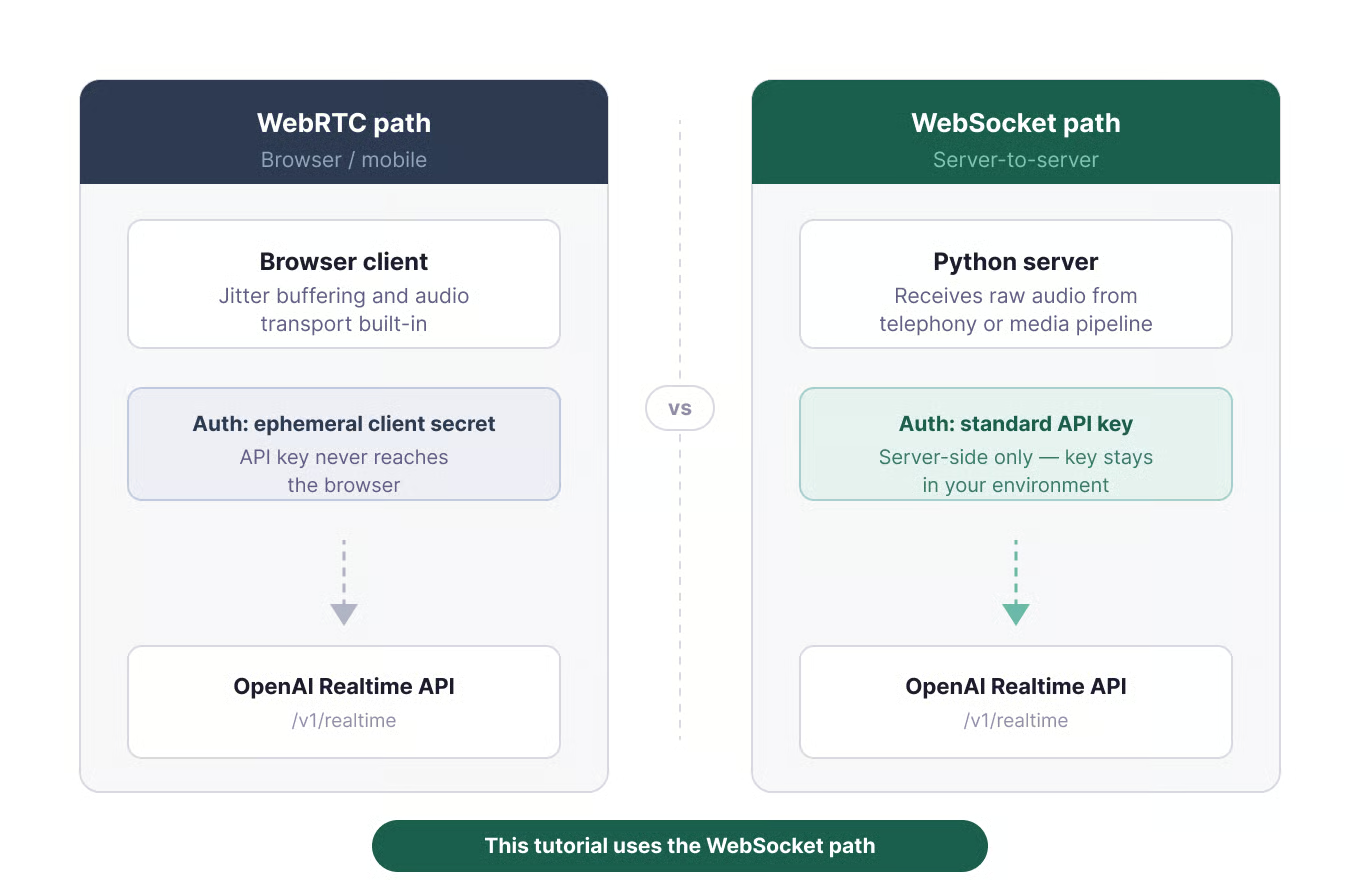
Dois caminhos de transporte para a Realtime API. Imagem do autor.
Por isso, os três testes em Python usam WebSockets. Esse caminho expõe diretamente os nomes dos eventos, então as diferenças entre modelos ficam visíveis no código. Para builds em navegador, use segredos efêmeros no cliente para sua chave de API nunca chegar ao frontend.
Use Python 3.9 ou mais recente. O código completo dos quatro scripts está disponível em github.com/KhalidAbdelaty/gpt-realtime-api. Faça o clone primeiro e depois instale as dependências:
git clone https://github.com/KhalidAbdelaty/gpt-realtime-api.git
cd gpt-realtime-api
pip install websocket-client sounddevice numpy python-dotenv
websocket-client gerencia o socket. sounddevice captura o áudio do microfone, numpy converte o buffer e python-dotenv carrega a chave de API. No macOS, talvez seja preciso brew install portaudio antes do sounddevice funcionar. No Linux, instale portaudio19-dev.
Crie um arquivo .env na raiz do projeto:
OPENAI_API_KEY=sk-...Depois, carregue em cada script:
import os
from dotenv import load_dotenv

load_dotenv()
OPENAI_API_KEY = os.environ.get("OPENAI_API_KEY")Conexões no servidor usam um cabeçalho Authorization: Bearer no handshake do WebSocket. Adicione OpenAI-Safety-Identifier se o app rastrear usuários individuais. Estes são os caminhos usados mais adiante nos testes:
# Agente de voz
wss://api.openai.com/v1/realtime?model=gpt-realtime-2

# Tradução
wss://api.openai.com/v1/realtime/translations?model=gpt-realtime-translate

# Transcrição
wss://api.openai.com/v1/realtime?intent=transcription
Esse caminho de tradução é importante no Teste 2, porque é o único endpoint que não usa /v1/realtime diretamente.
Transcrição é um caso comum de superengenharia. Se a saída é só texto, o modelo de transcrição dá conta.
gpt-realtime-whisper recebe áudio e emite deltas da transcrição. Ele não faz raciocínio, não chama ferramentas e não fala de volta. Esse trabalho menor é o motivo de a cobrança ser por duração de áudio, e não pelo mesmo modelo de tokens usado pelo gpt-realtime-2. A parte de custos volta a essas tarifas.
O campo-chave é session.type: \"transcription\". Ele informa à API para pular respostas do assistente e emitir apenas eventos de transcrição. O script completo também lida com captura do microfone e threading. Este é o trecho que altera o comportamento da sessão Realtime:
session_config = {
    "type": "session.update",
    "session": {
        "type": "transcription",
        "audio": {
            "input": {
                "format": {"type": "audio/pcm", "rate": 24000},
                "transcription": {
                    "model": "gpt-realtime-whisper",
                    "language": "en"
                },
                "turn_detection": None
            }
        }
    }
}

ws.send(json.dumps(session_config))
ws.send(json.dumps({
    "type": "input_audio_buffer.append",
    "audio": audio_b64
}))
ws.send(json.dumps({"type": "input_audio_buffer.commit"}))
Use áudio PCM16 mono a 24 kHz, codificado em base64. Diferente da sessão de agente de voz, o script confirma o buffer de entrada manualmente em um temporizador, em vez de usar a detecção de turnos server_vad. Confirmações vazias geram input_audio_buffer_commit_empty, por isso o script completo só confirma depois que áudio real foi enviado.
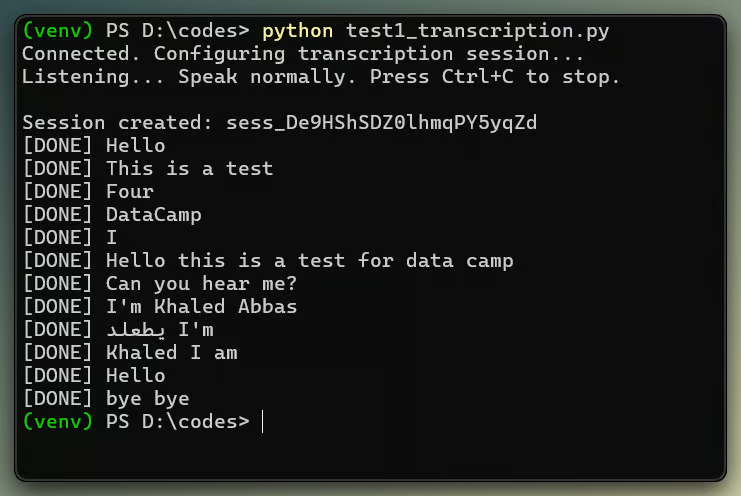
Os deltas da transcrição chegam palavra por palavra em tempo real. Imagem do autor.
Nos meus testes locais, os resultados apareceram dentro da janela de commit, algo entre 3 e 4 segundos após o início da fala. Como essa configuração depende de commits manuais e não de VAD, a latência segue o intervalo do commit.
Atenção também à ordem: eventos de conclusão de turnos sobrepostos podem chegar fora de ordem, então concilie pelo item_id se você construir uma interface em cima do stream.
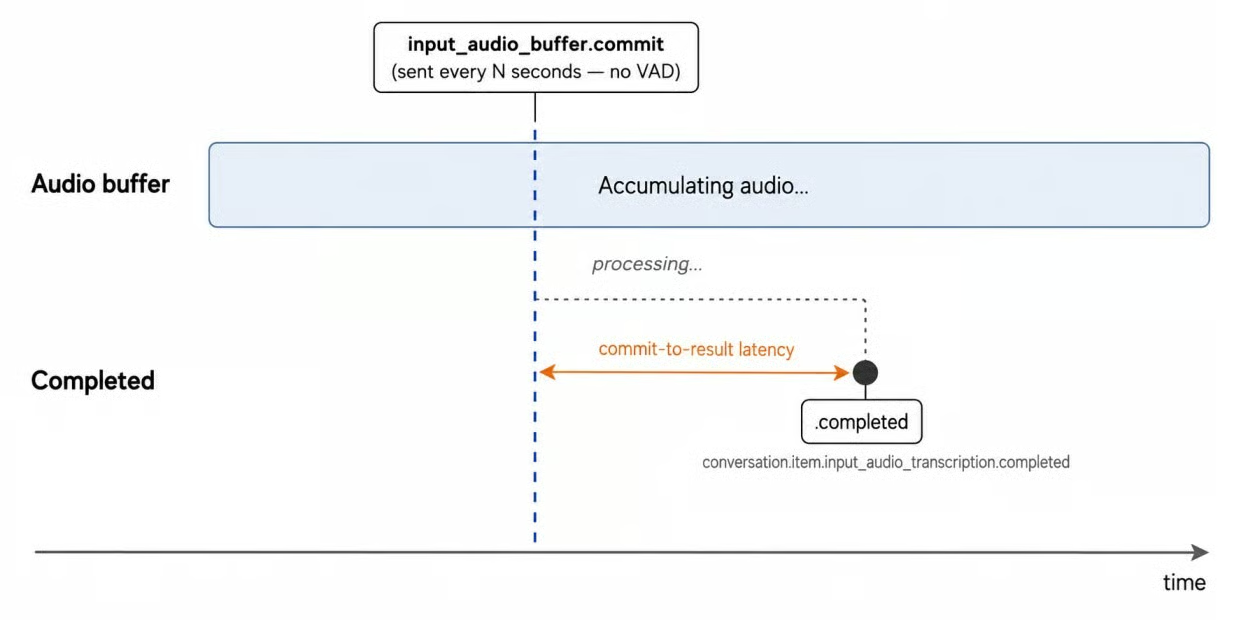
A transcrição é disparada por um commit manual periódico, não por detecção de silêncio. Imagem do autor.
Veredito: aprovado. Para transcrição ao vivo no servidor, o gpt-realtime-whisper entregou o que este teste precisava. Ainda assim, eu testaria com microfones reais, sotaques e ruído ambiente antes de definir uma meta de latência.
Tradução de fala ao vivo parece semelhante à transcrição no começo, mas o ciclo de vida da sessão é diferente. O endpoint de tradução remove o loop de respostas do assistente, o que encurta o exemplo.
Sessões de tradução não têm loop de turnos do assistente e não usam response.create. O modelo atua como um intérprete ao vivo, não como um agente conversacional. Para perguntas e respostas, ferramentas ou estado de conversa, o artigo troca para gpt-realtime-2 no Teste 3.
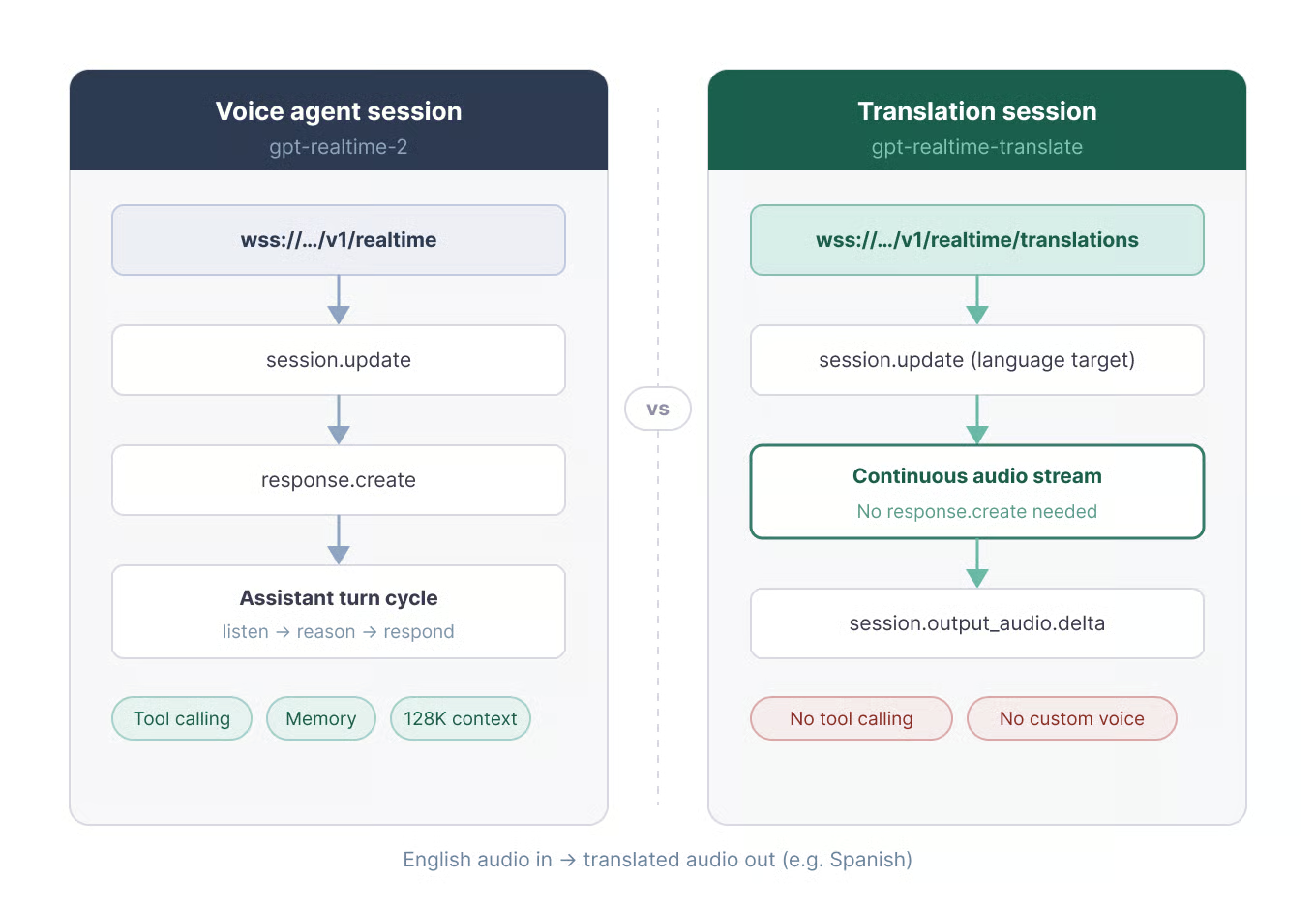
Sessões de tradução usam um endpoint dedicado e separado. Imagem do autor.
O modelo suporta mais de 70 idiomas de entrada e 13 de saída. Você define o alvo com session.audio.output.language; a detecção do idioma de origem é automática. As limitações são claras: sem prompt personalizado, sem seleção de voz e sem glossários de domínio.
Como mencionado, tradução usa a URL de WebSocket /translations. Outros dois detalhes mudam: o campo alvo session.audio.output.language e o nome do evento session.input_audio_buffer.append. Note o prefixo session.. Sessões de tradução usam esse prefixo aqui.
url = "wss://api.openai.com/v1/realtime/translations?model=gpt-realtime-translate"

session_config = {
    "type": "session.update",
    "session": {
        "audio": {
            "output": {"language": "es"},
            "input": {
                "transcription": {"model": "gpt-realtime-whisper"},
                "noise_reduction": {"type": "near_field"}
            }
        }
    }
}

ws.send(json.dumps(session_config))
ws.send(json.dumps({
    "type": "session.input_audio_buffer.append",
    "audio": audio_b64
}))
O áudio traduzido chega em session.output_audio.delta, e os bytes de áudio vêm em event[\"delta\"], não em event[\"audio\"]. As transcrições de origem e traduzida chegam separadamente:
if event_type == "session.output_audio.delta":
    audio_out_queue.put(base64.b64decode(event["delta"]))
elif event_type == "session.input_transcript.delta":
    print("[EN]", event.get("delta", ""), end="")
elif event_type == "session.output_transcript.delta":
    print("[ES]", event.get("delta", ""), end="")
Um caso de borda: se o áudio de origem já estiver no idioma alvo, o modelo pode produzir silêncio em vez de repassar.
Para frases curtas de inglês para espanhol, o áudio traduzido começou antes do fim do enunciado de origem. O terminal mostrou linhas intercaladas [EN] e [ES] conforme os deltas chegavam. Pares de idiomas mais distantes podem esperar mais por contexto. Consegui acompanhar a voz traduzida sem problemas, mas não há seleção de voz personalizada.
Veredito: aprovado, com ressalvas. O gpt-realtime-translate funcionou bem para tradução direta ao vivo. É menos útil quando controle de terminologia ou branding de voz são importantes.
Este é o teste do gpt-realtime-2: um agente de voz que escuta, fala, mantém contexto e pode chamar ferramentas. É também o ponto em que o código do cliente passa a importar mais, porque reprodução e estado de turnos podem sair de sincronia.
gpt-realtime-2 é um modelo de fala para fala com raciocínio. Ele evita um pipeline separado de STT-para-LLM-para-TTS, e sua janela de contexto de 128K dá mais fôlego a sessões longas. O raciocínio é controlado por reasoning.effort; comece em low a menos que a tarefa exija mais, pois ajustes mais altos adicionam latência.
A configuração abaixo usa semantic_vad, que observa pistas de fala e não só silêncio. eagerness controla a rapidez com que o modelo decide que o usuário terminou. Observe o nome do modelo, as configurações de saída de áudio, o response.create manual e o nome do evento de áudio do assistente:
session_config = {
    "type": "session.update",
    "session": {
        "type": "realtime",
        "model": "gpt-realtime-2",
        "output_modalities": ["audio"],
        "audio": {
            "input": {
                "format": {"type": "audio/pcm", "rate": 24000},
                "transcription": {"model": "gpt-realtime-whisper", "language": "en"},
                "turn_detection": {
                    "type": "semantic_vad",
                    "eagerness": "medium",
                    "create_response": False,
                    "interrupt_response": True
                }
            },
            "output": {
                "format": {"type": "audio/pcm", "rate": 24000},
                "voice": "marin"
            }
        },
        "instructions": "You are a helpful voice assistant. Keep answers short.",
        "reasoning": {"effort": "low"}
    }
}
Quando a transcrição do usuário é concluída, o cliente cria a resposta do assistente. O áudio do assistente chega como response.output_audio.delta, não response.audio.delta.
if event_type == "conversation.item.input_audio_transcription.completed":
    ws.send(json.dumps({"type": "response.create"}))

elif event_type == "response.output_audio.delta":
audio_out_queue.put(base64.b64decode(event["delta"]))A sequência de interrupção é fácil de errar. Quando o usuário fala por cima do assistente, o servidor envia input_audio_buffer.speech_started. O cliente para a reprodução, registra quanto áudio foi tocado e envia conversation.item.truncate com audio_end_ms para marcar onde o corte ocorreu. Caso contrário, o servidor continua transcrevendo texto que o usuário nunca ouviu, e o próximo turno pode ficar estranho.
if current_response_item_id and playback_position_ms > 0:
    ws.send(json.dumps({
        "type": "conversation.item.truncate",
        "item_id": current_response_item_id,
        "content_index": 0,
        "audio_end_ms": playback_position_ms
    }))
Um ponto prático com alto-falantes de notebook: o microfone pode captar a saída de áudio do assistente e enviá-la de volta ao modelo. O script de exemplo usa MUTE_MIC_DURING_ASSISTANT = True para silenciar a entrada enquanto o assistente fala e por um curto período depois. Coloque False apenas se você estiver usando fones e quiser suporte a interrupção.
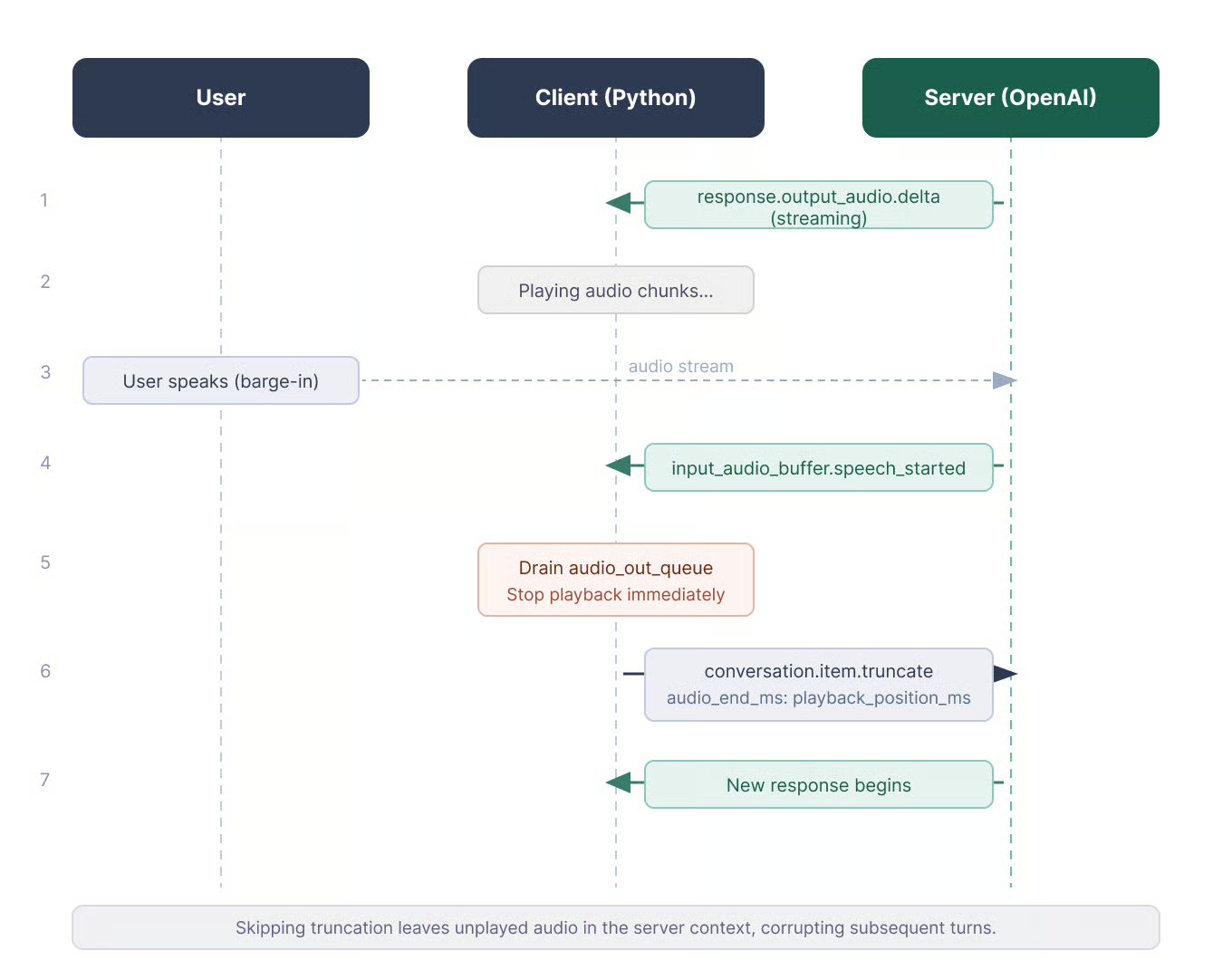
A truncagem mantém servidor e cliente em sincronia. Imagem do autor.
WebRTC e SIP cuidam de mais partes desse buffer. Com o caminho via WebSocket usado neste tutorial, o cliente é responsável. O contador do script de exemplo basta para uma demo; em produção, rastreie timestamps do fluxo de saída de áudio.
Quando reasoning.effort está acima de low, o silêncio fica perceptível. Dá para incluir preâmbulos curtos falados no prompt do sistema:
# Preambles
Use a short spoken update before longer tasks.
Keep preambles under five seconds.
Skip preambles for short factual questions.
Esse comportamento está documentado para o gpt-realtime-2.
A dinâmica de turnos funcionou com as configurações padrão em uma sala silenciosa. Com alto-falantes do notebook, precisei silenciar o microfone; sem isso, o modelo ouvia a própria saída e criava um loop de eco.
Em ambientes mais barulhentos, os ajustes de VAD e a posição do microfone fizeram mais diferença. A memória de conversa se manteve consistente em um teste de dez minutos, mas eu não lançaria um app mais longo sem um plano de reconexão.
Veredito: aprovado para o loop de voz principal. O gpt-realtime-2 deu conta de um assistente com baixo esforço de raciocínio no meu teste. O trabalho extra fica no cliente: reprodução, tratamento de interrupções, reconexões e chamadas de ferramentas, se o app precisar.
O app em Streamlit coloca os testes atrás de um seletor de abas. Dá para gravar áudio, escolher o idioma de destino e comparar caminhos dos modelos sem editar scripts. Mantive como app de demonstração em vez do caminho principal de ensino, já que os scripts no terminal mostram os eventos de forma mais direta.
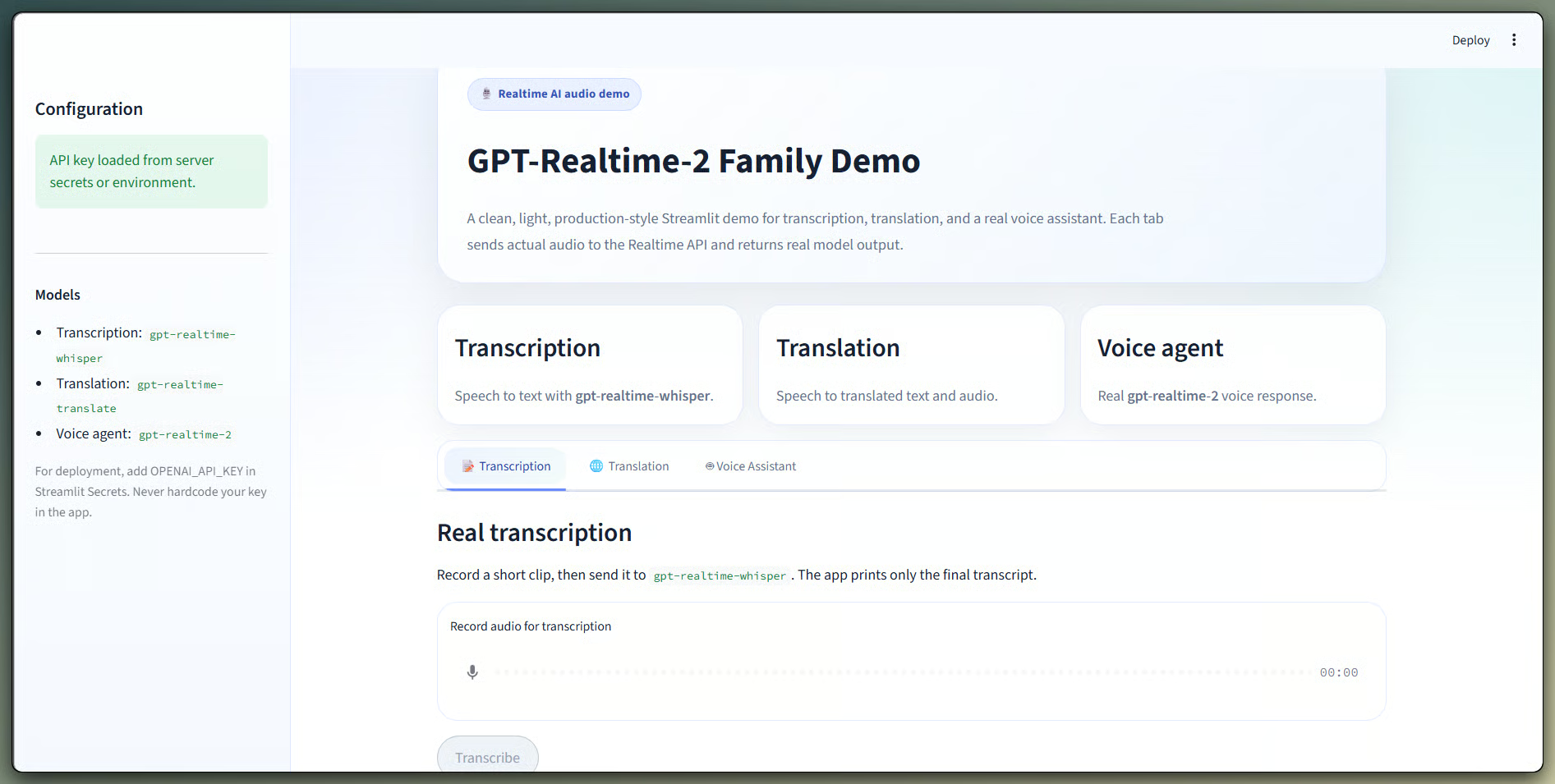
Três modelos em uma interface com abas. Imagem do autor.
O vídeo de demonstração abaixo mostra as abas com uma chave de API real. Cada aba usa chamadas reais da Realtime API via WebSocket.
Execute o app a partir da mesma pasta dos scripts:
streamlit run demo_app.pySua chave de API vai na barra lateral e não é armazenada em lugar nenhum. Para um app público, coloque-a no Streamlit Secrets.
Como mencionado no Teste 1, a precificação se divide em dois grupos: gpt-realtime-2 é cobrado por token, enquanto tradução e transcrição são cobradas por minuto.
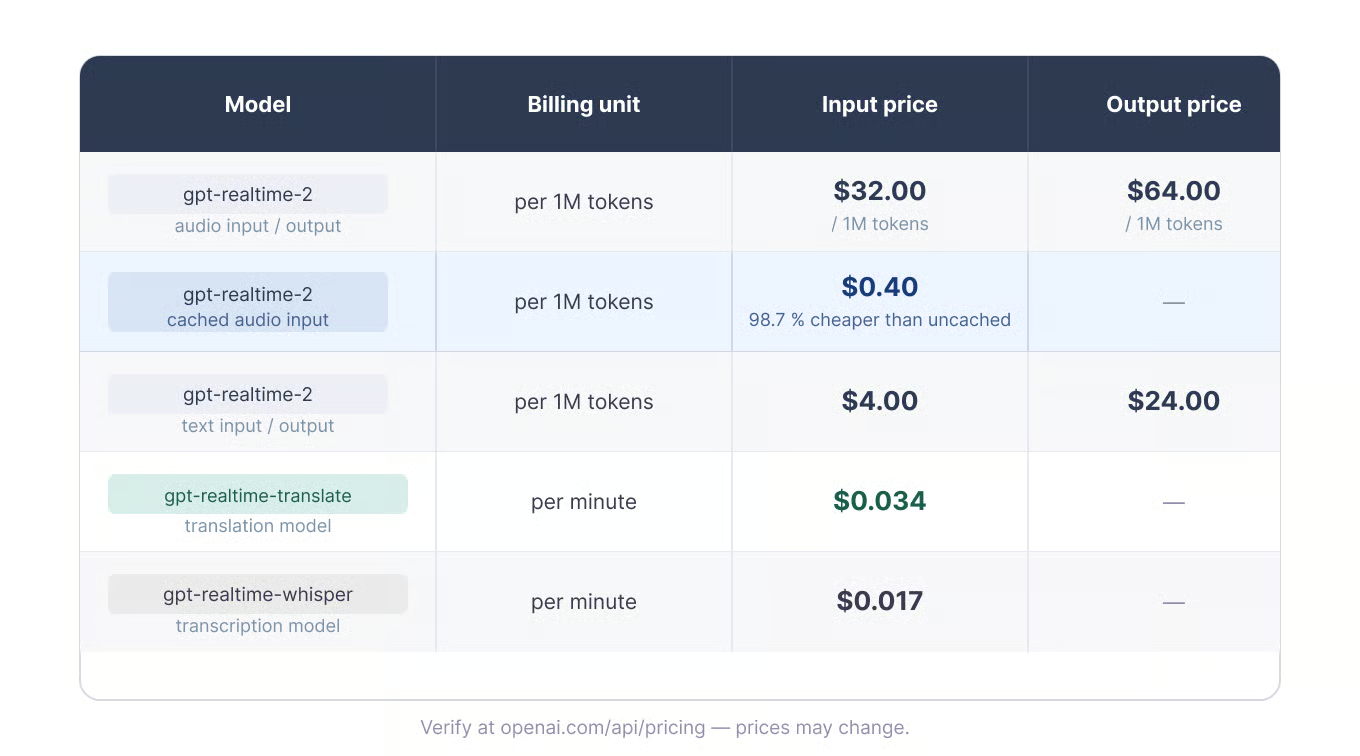
Cobrança por token e por minuto, por modelo. Imagem do autor.
Para transcrição e tradução, o custo escala com a duração. No momento da escrita, trinta minutos custam cerca de US$ 0,51 no gpt-realtime-whisper e cerca de US$ 1,02 no gpt-realtime-translate.
Agentes de voz são mais difíceis de estimar porque tokens de áudio se acumulam dos dois lados da conversa. Duração da sessão, proporção de fala, esforço de raciocínio e tamanho do contexto influenciam. Cache de prompt pode reduzir custo quando turnos anteriores permanecem estáveis.
Uma chamada REST de transcrição mais TTS é outra comparação, a menos que a interação ao vivo seja necessária. whisper-1 é mais barato para arquivos, mas não é o mesmo tipo de API.
Estes são os limites que afetaram meus primeiros testes. A maioria das falhas veio de formato de áudio ou erros no ciclo de vida da sessão, não do modelo em si.
Como observado no primeiro teste, o áudio via WebSocket deve ser PCM16, 24 kHz, mono e codificado em base64. Cada evento input_audio_buffer.append tem limite de 15 MB, então blocos de 50 milissegundos ficam bem abaixo disso. G.711 também é suportado para telefonia.
Sessões Realtime terminam após 60 minutos na OpenAI e 30 minutos no Azure OpenAI. Apps mais longos precisam de um plano de reconexão e de reconstrução de estado. A voz também deve ser escolhida antes da primeira saída de áudio; não dá para trocar no meio da sessão.
Os limites são por tier e específicos do projeto. O Tier 1 atualmente lista 200 requisições por minuto e 40.000 tokens por minuto para o gpt-realtime-2. O plano Free não é suportado.
Os erros que mais vi foram commits de buffer vazios e formatação de áudio incorreta. Para agentes de voz, fique de olho em loops de feedback em que o microfone ouve o áudio do assistente. Use fones, cancelamento de eco ou silencie o microfone.
Para sessões longas, reconecte por volta de 55 minutos em vez de esperar expirar. Um detalhe na documentação: a página do modelo gpt-realtime-2 tem uma linha genérica "Streaming: Not supported", enquanto os guias Realtime documentam o uso de /v1/realtime. Essa linha se refere ao streaming em Chat Completions, não ao comportamento da Realtime API.
O mesmo padrão aparece nos três testes: cada tarefa tem seu próprio modelo e endpoint. Essa separação impacta o que o modelo faz, como cobra e quanto código do cliente você precisa manter.
Como mostrado acima, gpt-realtime-whisper cobre texto ao vivo, gpt-realtime-translate cobre tradução direta de fala e gpt-realtime-2 cobre o comportamento de assistente com fala, raciocínio e contexto.
O código não mostra um modelo substituindo os outros. Mostra que apps de voz em tempo real dependem do desenho da sessão. Meu ponto de partida seria o menor modelo que atenda à tarefa, e o tempo de engenharia restante iria para qualidade do áudio, turnos, reconexões e estado do cliente.
Para mais contexto, nossos tutoriais cobrem tópicos relacionados de áudio e Realtime API:
Aprenda IA com a DataCamp!
Curso
Curso
Curso
blog
Abid Ali Awan
9 min
blog
Richie Cotton
7 min
blog
Josep Ferrer
8 min
blog
Javier Canales Luna
14 min
Tutorial
Moez Ali
11 min
Tutorial
Arunn Thevapalan
12 min