Course
Introduction to AI Agents
1 hr 30 min
143.4K
Grok Bot is SpaceXAI's agent app, available through Cursor, for creating named Bots that keep their role and conversation between tasks. It is separate from the Grok chat app and Grok Build, the coding CLI.
Grok Bot's loop works differently from that of most other AI assistants. You hand over an outcome, the bot works across whatever apps and websites the job touches, and it returns either finished work or a question that needs your judgment. It keeps stable preferences and role context between conversations, though anything that changes week to week belongs in a file the Bot reads rather than in its memory.
For more background information, I recommend reading our Grok Bot guide.
We need four terms for this Grok Bot tutorial. SpaceXAI's guide to Bots and cloud computers, and product guides define them as follows:
That order follows the official skills and routines guide, which puts testing before scheduling.
Yes. The Grok Bot FAQ says the computer belongs to your account, not to an individual Bot. Every Bot can see its browser cookies, saved logins, and files on that computer, although each Bot gets a separate screen for its own browser task.
We will keep the Scout workflow on public pages first. If we later sign in to DataCamp, Notion, or another service, every Bot can use that session. Deleting Scout does not guarantee that shared files or login state are removed, so we need to sign out and clean up anything we no longer want available to other Bots.
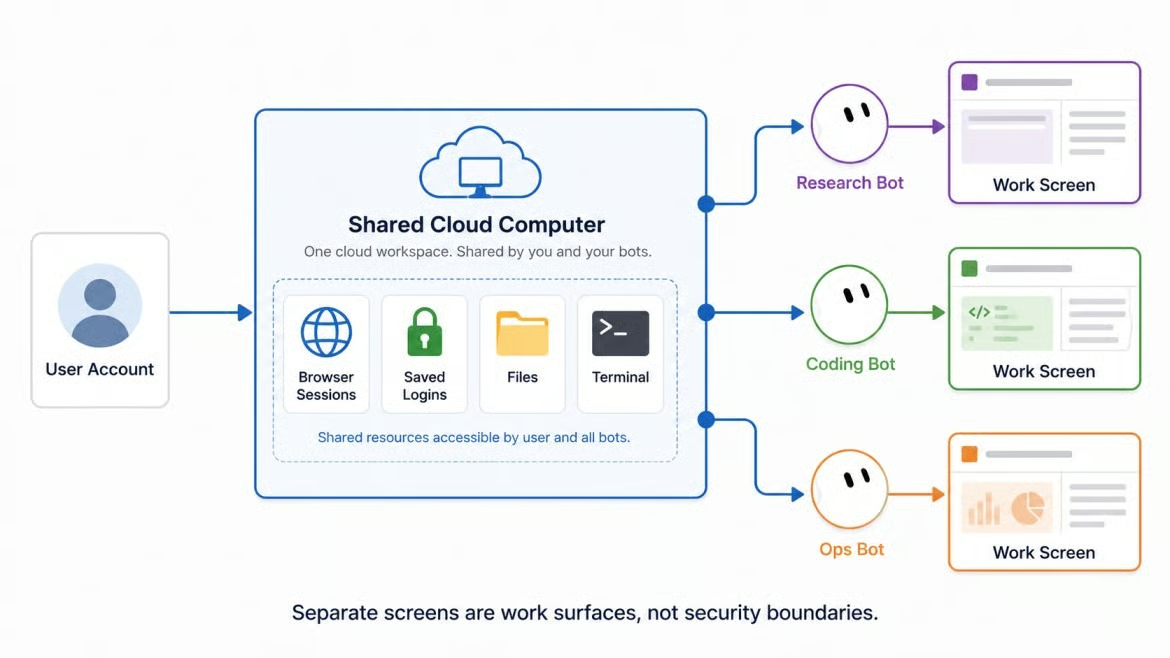
One account, one computer, many Bots. Image by Author.
The Scout reads a learner profile and time budget, then returns a short plan. Our learner knows Python and basic LLM concepts, is new to agent orchestration, and has four hours this week. Our AI Agent Fundamentals track is six hours, so the whole track does not fit.
The four-hour limit sets a cutoff; the output format indicates when the plan is finished.
For each resource, the Scout should return the following details from the course page:
It should finish with the total time and one weekly objective. If a page omits a duration, the answer is "not listed," not an estimate.
For our learner, three checked resources are enough. The Scout may return fewer if the available material does not fit the goal, level, or budget.
Each reason should refer to this learner. "Assumes the Python the learner already has, and builds on the concepts from the Basic course before it," explains the choice. "Covers AI agents" does not. The order also needs a reason, such as completing the basic course before a project that assumes the same ideas.
Search snippets can be stale or leave out the level and duration. The Scout may use them to find candidates, but it must read the DataCamp page before adding a resource to the plan.
We need to put this rule in the instructions. A site may still block the Bot, require a login, or display a CAPTCHA. The Bot should then ask us to take over.
Because of the collaboration between SpaceXAI and Cursor, there are two different ways to access Grok Bot
Grok Bot does not have a permanent free tier. Cursor currently offers a limited trial as a usage credit. Paid access comes through an eligible Cursor plan or SuperGrok subscription. Either way, sign in with Cursor.
The official Grok Bot account now says that all SuperGrok and Cursor Pro subscribers have access, and that weekly usage limits were reset for all users. Cursor's help page had not yet reflected every part of that announcement when we checked it, so confirm the current status on the plans page or inside the app when you read this.
|
Access path |
Status |
|---|---|
|
Cursor Pro, Pro+, and Ultra |
Included; Pro was added in the latest announcement |
|
Cursor Teams (self-serve) |
Included for every member; no Premium seat needed |
|
SuperGrok and SuperGrok+ subscribers |
Included; Basic SuperGrok was added in the latest announcement |
|
SuperGrok Team or Enterprise; Cursor Enterprise |
Not self-serve; contact your account team |
For accounts that link SuperGrok, Cursor Help still describes the link as a permanent usage grant that does not change the Cursor plan. Cursor counts agent steps and tokens, not messages, so check Usage and Billing before the research run and the Routine test.
Grok Bot requires cloud data storage. It will not start if your Cursor account uses Legacy Privacy Mode. Change that setting in the Cursor privacy dashboard.
Grok Bot supports macOS on Apple silicon or Intel, Windows on x64 or Arm64, and iPhone on iOS 18 or later. If you use Linux, Android, or iPad, check the current platform list when you read this because support may have changed.
Subscriptions include weekly usage, but Cursor does not publish one number that applies to every plan. A trial provides usage credit for a 7-day window, and a single large task can consume it.
We do not need API keys, a local coding environment, or a DataCamp login for the research itself. Starting the courses is separate and may require an account. Installation takes only a few steps, while the Bot description needs more attention than the installer.
Download the desktop app from the Grok Bot onboarding page, then select the build for your machine. Sign in through the browser with your Cursor account. If your organization uses single sign-on, follow its usual login screen.
The first launch ends at a "Meet a future teammate" screen while the cloud computer starts. If it gets stuck, fully quit Grok Bot and reopen it before trying anything else. If the problem remains, update the desktop app, fully quit and reopen it, then reopen Agent Computer and give it time to finish. Use Recover next and Reset only as a last resort, because Reset can discard work that has not synced.
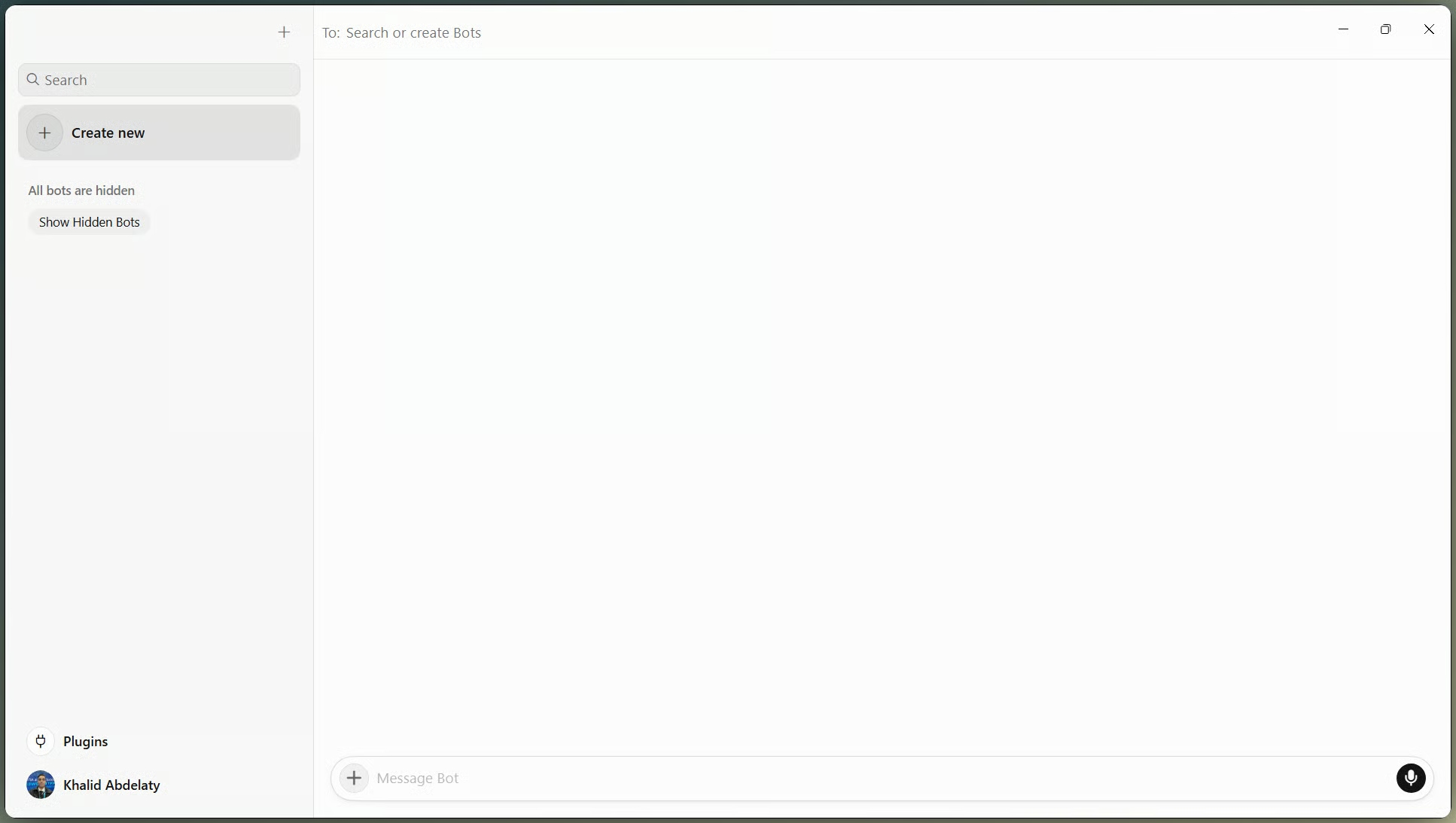
Grok Bot desktop app after sign-in. Image by Author.
Create the Bot with New or Cmd/Ctrl+N, choose Create new agent, then open Bot actions → Edit Profile. Name it Scout and give it the title DataCamp Learning Scout.
The description holds rules that apply every week. This week's topic belongs elsewhere. Add rules like these:
On our first setup attempt, Scout treated the profile as a live task and started an unrelated ETL plan. I stopped it, created a fresh Scout, and added the two waiting rules below:
The new Bot then waited for a separate task instead of starting work from its profile.
A dedicated Scout also keeps the weekly routine out of a long general chat, so each run carries only the context needed for learning plans.
It’s important to put limits in the profile so they also apply when a routine runs without us watching. Also, keep the profile short enough to review when the Scout's job changes. Step 2 handles the topic and time limit.
Scout profile holds durable research rules. Video by Author.
If you prefer not to start from an empty profile, you can add our Scout template with the same starting role and description. I created the profile manually here, so every rule is visible before Scout receives its first task. Whichever path you use, review the description before continuing.
We can give Scout a task in plain language, but the request still needs details. The docs suggest naming the result, sources, limits, output, and the point where the Bot must stop for review.
Profile and message answer different questions:
After that, the skill stores the steps, while each routine run reads the latest inputs.
The profile already covers page checks and source links. In the message, give the learner's level and this week's task, ask for a few resources within four hours, and stop the Bot for review.
We sent the first task as one message and added no constraints while Scout worked:
Build me a weekly DataCamp learning plan.

The learner is comfortable with Python, understands basic LLM concepts, is new to AI agent orchestration, and has 4 hours available this week.
They prefer practical, hands-on material over theory.

Search current DataCamp content on AI agents.
Open each candidate's resource page before you consider it.
Pick a small number of resources whose page-listed durations total 4 hours or less, and order them from foundations toward practical application.
For each resource, return the title, the content type, the level and duration exactly as printed on the page, the link, one sentence on why it fits this learner, and its position in the order.
Then give me the total time and one learning objective for the week.

Do not use search snippets as evidence.
If a page does not list a duration or a level, write "not listed" instead of estimating.
If the goal is too broad to plan against, ask me before you continue.

Stop after the plan.
Do not enroll me in anything.
Scout started the browser search and returned a plan for review. The first response used the wrong level for one course, which I corrected in Step 4.
Bot memory is not a reliable record of changing details. Create /workspace/learner-profile.md on the shared computer and use it as the source of truth for each weekly run.
# Learner profile

Current goal: AI agent orchestration
Weekly budget: 4 hours
Background: Comfortable with Python and basic LLM concepts
Preference: Practical, hands-on resources
Completed resources: None
Update this file when the goal, budget, or completed list changes. Scout should read it before every plan and stop if it is missing or out of date.
The conversation shows tools, files, questions, and approvals. Agent Computer shows clicks, typing, navigation, and status. Leaving either view does not stop the work.
Check that the Scout opens each course page instead of relying on a search snippet. Also note one resource it rejects and the reason it gives for rejecting it.
If it stalls, check the login, CAPTCHA, and approval issues mentioned earlier. Complete only the blocked step before handing control back. Do not paste passwords into the chat; use the secure secret request.
The computer view shows that a page was visited, but it does not prove the final answer is correct. Keep the conversation transcript because it shows which pages the Bot used and whether it changed course.
This browser-first approach fits our DataCamp workflow because the page itself is the evidence. For services with a supported connector, use the connector for structured data and open the browser only when the page needs visual checking.
In our run, Agent Computer opened the canonical Introduction to AI Agents page. Its header showed Basic and 1 hr 30 min. The duration matched Scout's answer, but the level did not.
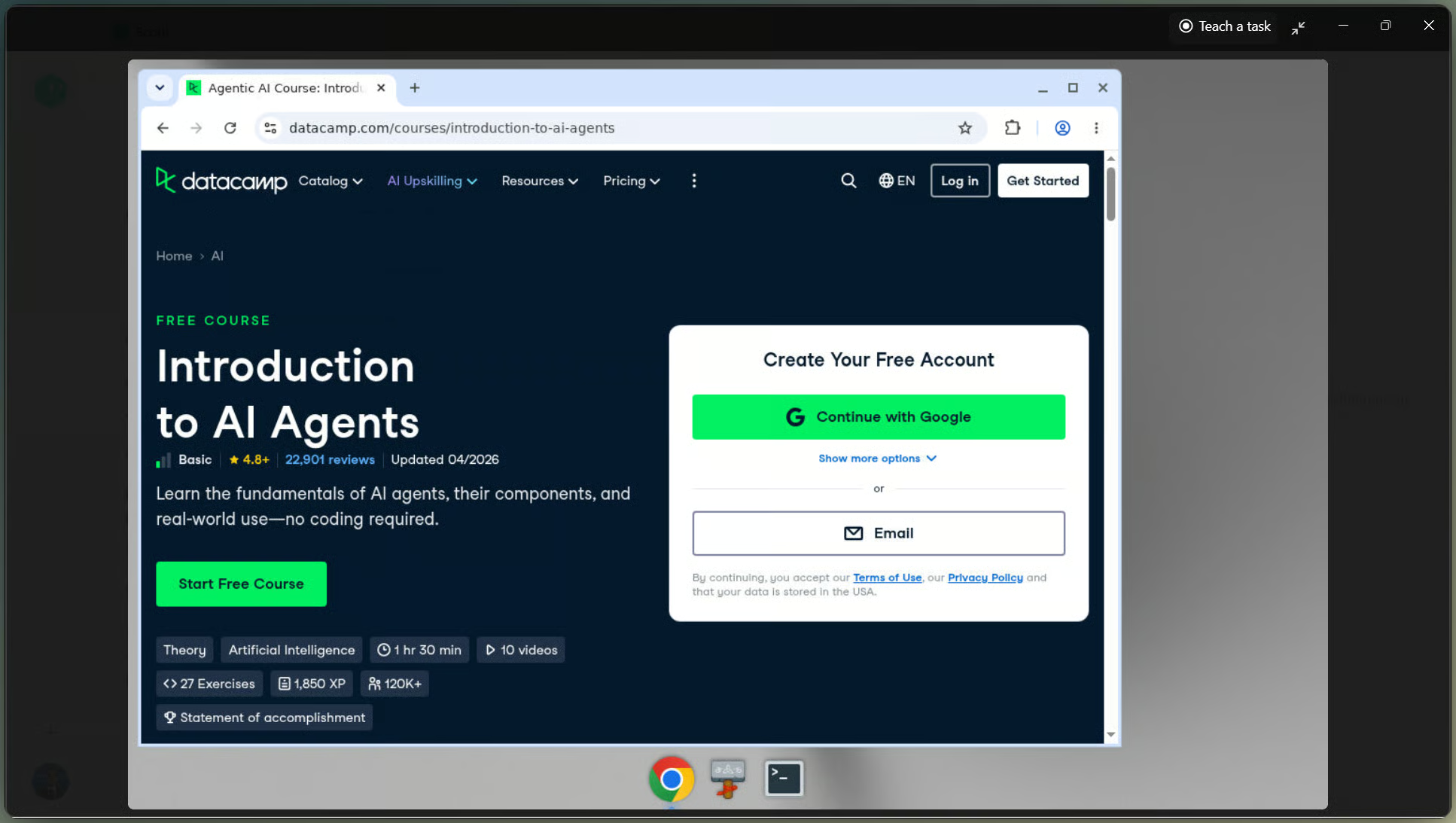
Agent Computer open on a DataCamp page. Image by Author.
This is where we slow down. We put the plan beside the DataCamp pages before accepting it.
Read the plan line by line. A clean layout can still hide an incorrect level, a broken link, or an incorrect total. Check the following:
We should add the page durations rather than trust the total in the plan. If the result exceeds 4 hours, we ask Scout to remove the least relevant item and recalculate.
Scout's first plan contained Introduction to AI Agents, Building AI Agents with CrewAI, and Building AI Agents with Google ADK. The printed durations came to 3 hours 30 minutes, so the plan fit the budget and left 30 minutes unused.
The problem was the first course's level. Scout wrote Beginner, while the canonical page printed Basic. We sent one correction:
Please revise the plan using the exact level labels shown on each course page.

The Introduction to AI Agents page lists its level as Basic, not Beginner. Reopen all three pages and verify each title, level, duration, and canonical URL.

Return the same plan with only the verified corrections. Keep the total at or below 4 hours.
Scout reopened all three pages, changed only the first level, and kept the 3-hour-30-minute total. The correction was small, but it confirmed that a valid link and a plausible label are not enough.
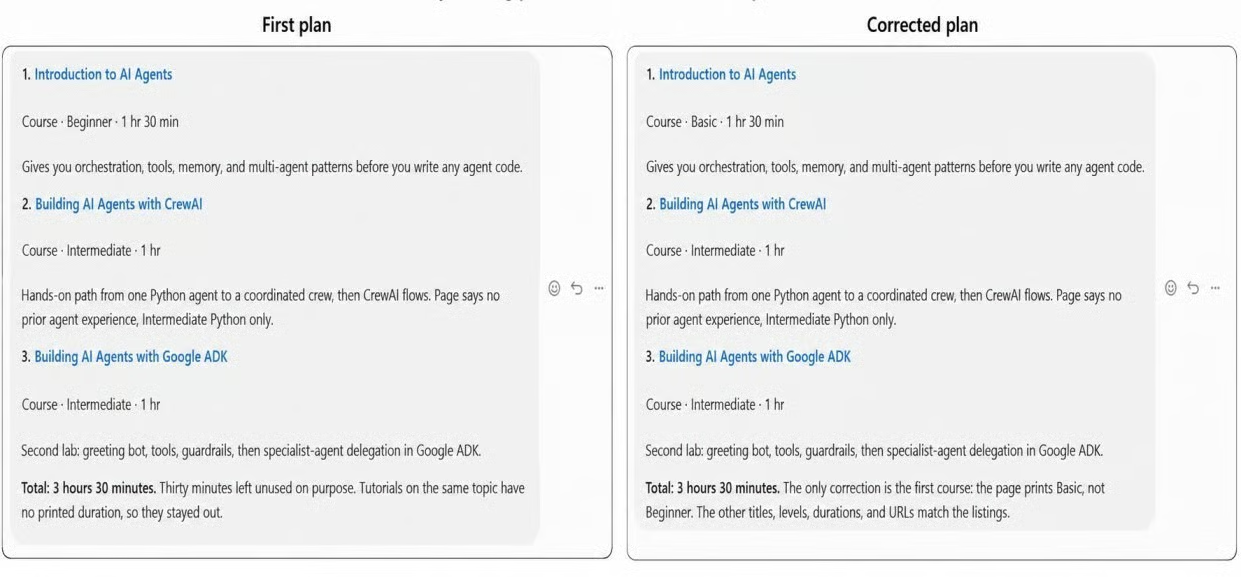
First plan beside the corrected plan. Image by Author.
We should not turn XP, videos, or exercises into hours. If duration fields disagree, we preserve each printed value, name its field, and use the highest upper bound only for the budget check.
After correcting our plan, I added only the rule that should apply every week to the Bot description. A one-off topic or time limit stays in our weekly input file.
Two best practices for saving workflows as skills:
Ask the Scout to save a Skill called Weekly DataCamp Learning Plan. It should read /workspace/learner-profile.md, check each prerequisite against the learner's background and completed resources, add the page durations, return the agreed fields, and stop before any action that needs approval.
Once saved, reference it with / in the composer. If it does not appear, turn it on under Settings → Plugins → Yours.
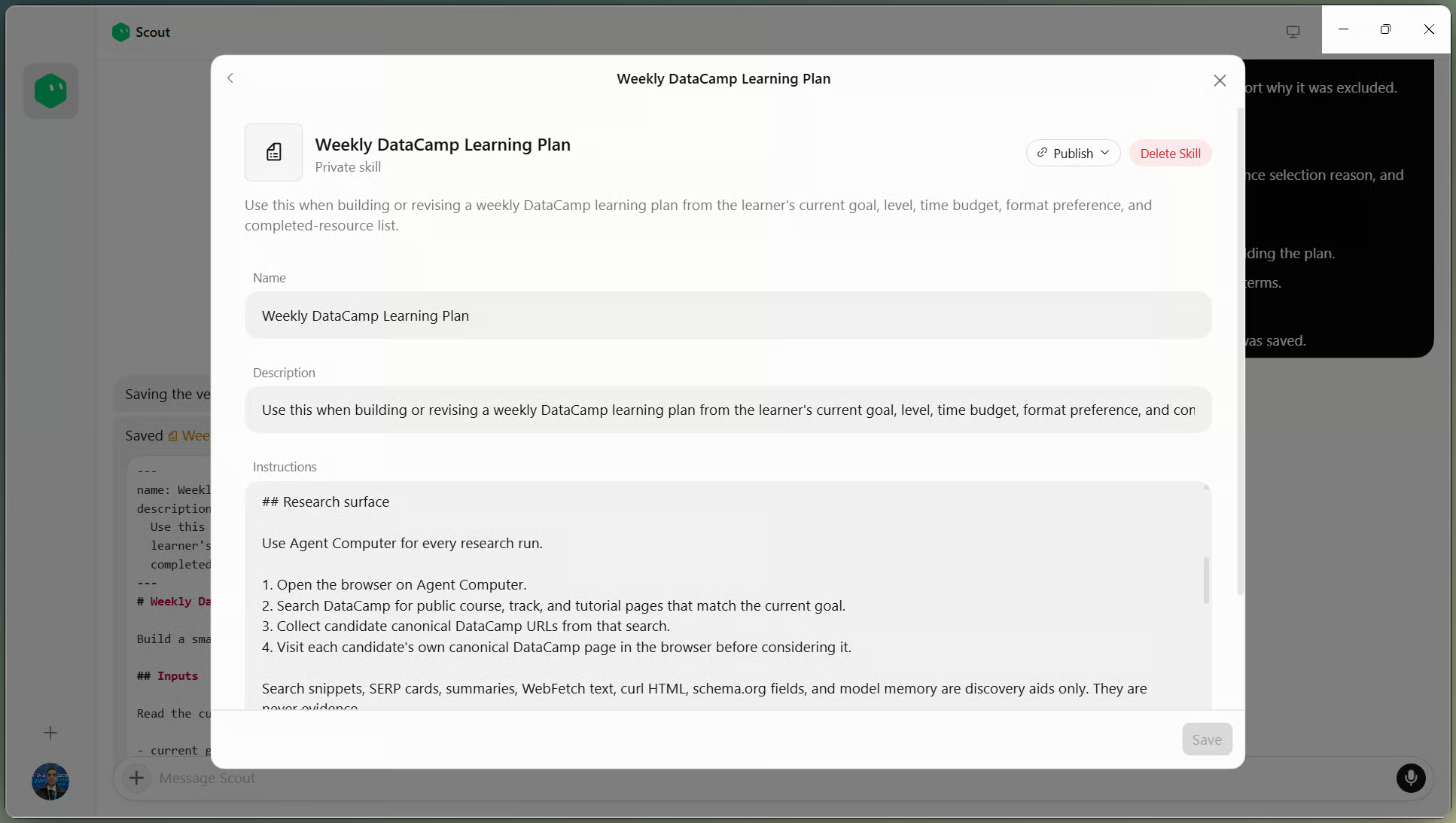
Saved Skill with inputs and validation. Image by Author.
I changed the learner's goal to LLM evaluation, reduced the budget to 3 hours, and invoked the saved Skill with a single short request: "Build this week's plan using the current learner profile."
Scout used Agent Computer and returned one course, LLM Application Evaluation with LangSmith, without carrying over any recommendations from the AI agents' plan. It also excluded off-topic pages and tutorials without a printed duration.
The canonical course page exposed two duration formats: a 2 hr estimate in its summary and a 1 hr - 3 hr duration chip. Scout copied the chip but treated its upper end as a fixed three-hour total. We asked it to name the field it used, preserve both printed values, and use the upper bound only for the budget check.
A later prerequisite check found a more important problem: the course requires LLM Application Fundamentals with LangChain, which our learner had not completed. Opening the canonical page was necessary, but the skill also needed to compare prerequisites with the learner profile before recommending a course.
I updated the skill to compare every prerequisite with the learner profile and to report every conflicting duration field before choosing resources.
Because the cloud computer continues to run as described earlier, a routine can run while the laptop is closed. We test it before relying on Monday's schedule.
A weekly schedule is deliberate here. Running the same research every few minutes would consume usage even when the learner details and DataCamp pages have not changed.
We set our time zone under Settings → General → Agent, then created the Routine with five details:
If /workspace/learner-profile.md is missing, or Scout cannot make further progress, the routine should report the problem and stop instead of retrying in a loop. It inherits Scout's blocked actions, while approval applies only if we later add another external action. Manage Routines from View conversation details → Routines.
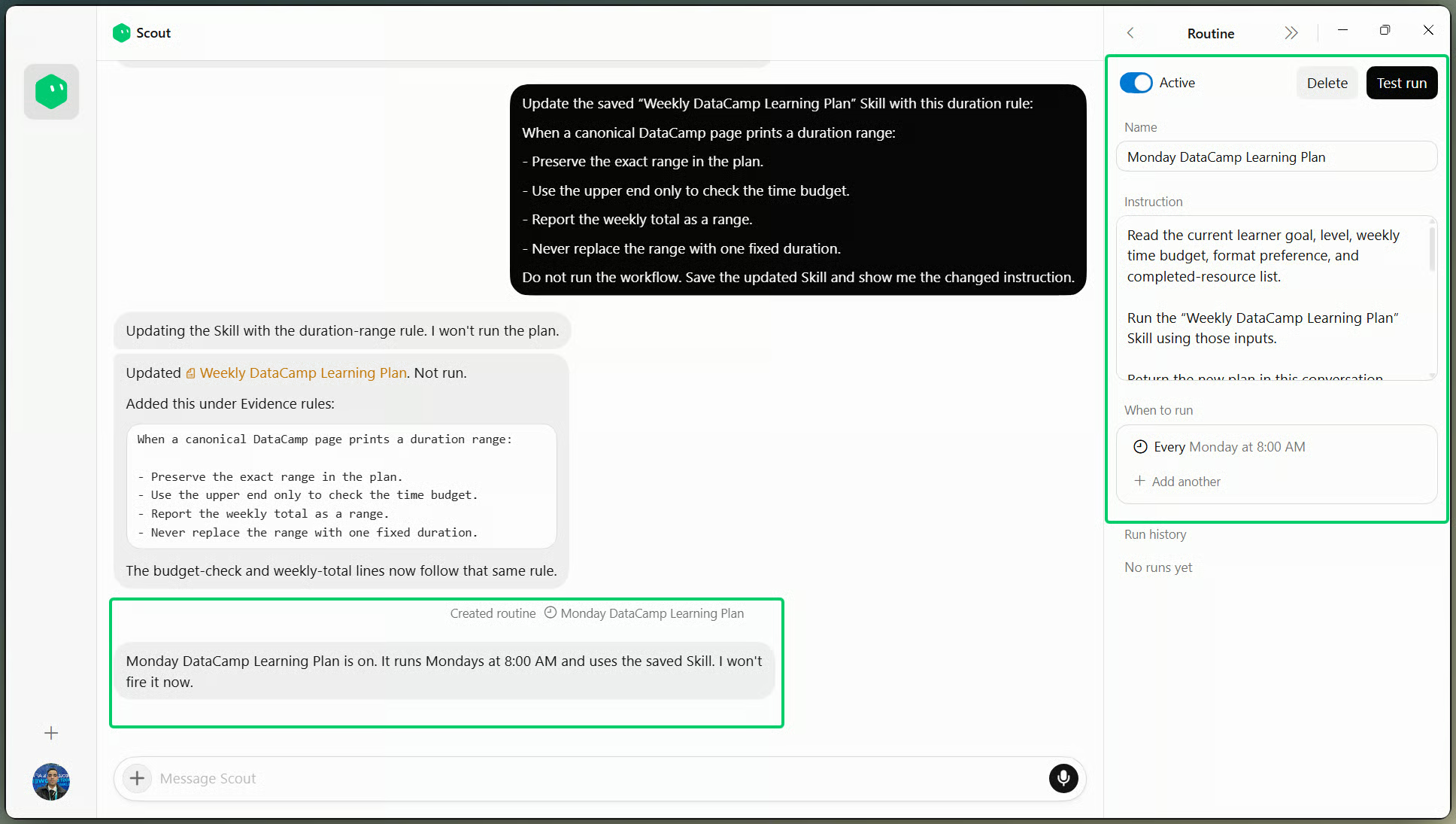
Monday Routine showing schedule and timezone. Image by Author.
Instead of waiting for Monday, I started a test run with the updated skill and the same LLM evaluation profile. The Routine opened the candidate pages, reported all of LangSmith's duration fields, and marked its LangChain prerequisite as not met.
If it does not start, check whether it is on, then check its details (schedule, time zone, Bot, learner source, browser session), and finally, the remaining usage. Missing learner details or an expired session can stop the run.
The routine left LangSmith out of the plan, excluded the other candidates because they were off-topic, had unmet prerequisites, or lacked a listed course duration, and returned Total: 0. Padding the week would have broken the validation rules.
The run appeared in the Run history with a completion check, and the result remained in the Scout conversation. This final test confirmed that the schedule, saved Skill, duration policy, and prerequisite check worked together.
Learn AI With DataCamp!
Course
Track
Track
blog
Khalid Abdelaty
13 min
Tutorial
Abid Ali Awan
9 min
Tutorial
François Aubry
14 min
Tutorial
Tom Farnschläder
12 min
Tutorial
Khalid Abdelaty
11 min
Tutorial
Khalid Abdelaty
15 min