
Course
Working with the OpenAI API
3 hr
172.6K
Mistral’s latest OCR model, Mistral OCR 3, is capable of extracting text and embedded images from a wide range of documents with exceptional fidelity.
In this article, I’ll teach you how to make the most of Mistral OCR 3 using both their AI Studio and their API with Python. We'll build a small application that turns a photo of a menu into an interactive website.
If you’re keen to learn more about working with APIs to build AI-powered tools, I recommend checking out the Working with the OpenAI API course.
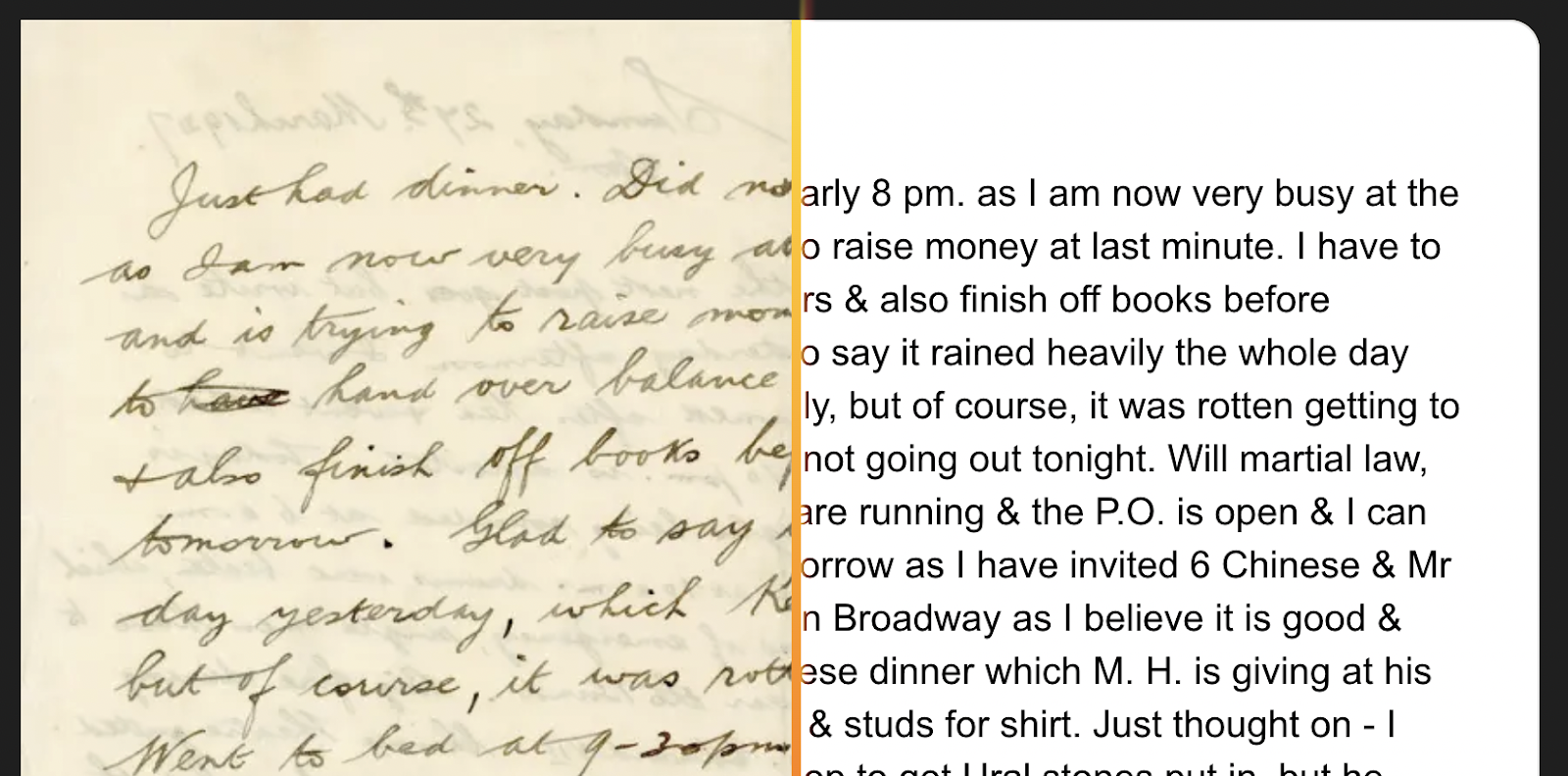
OCR stands for Optical Character Recognition and aims at converting documents into text. For example, it can convert a photo of a handwritten note into text or a table in a PDF into an actual text table that can be searched and edited.
Mistral OCR 3 is Mistral AI’s latest document understanding model, delivering state-of-the-art accuracy and efficiency for real-world documents. It extracts text and embedded images with high fidelity and preserves structure via markdown output with HTML-based table reconstruction, with optional structured JSON.
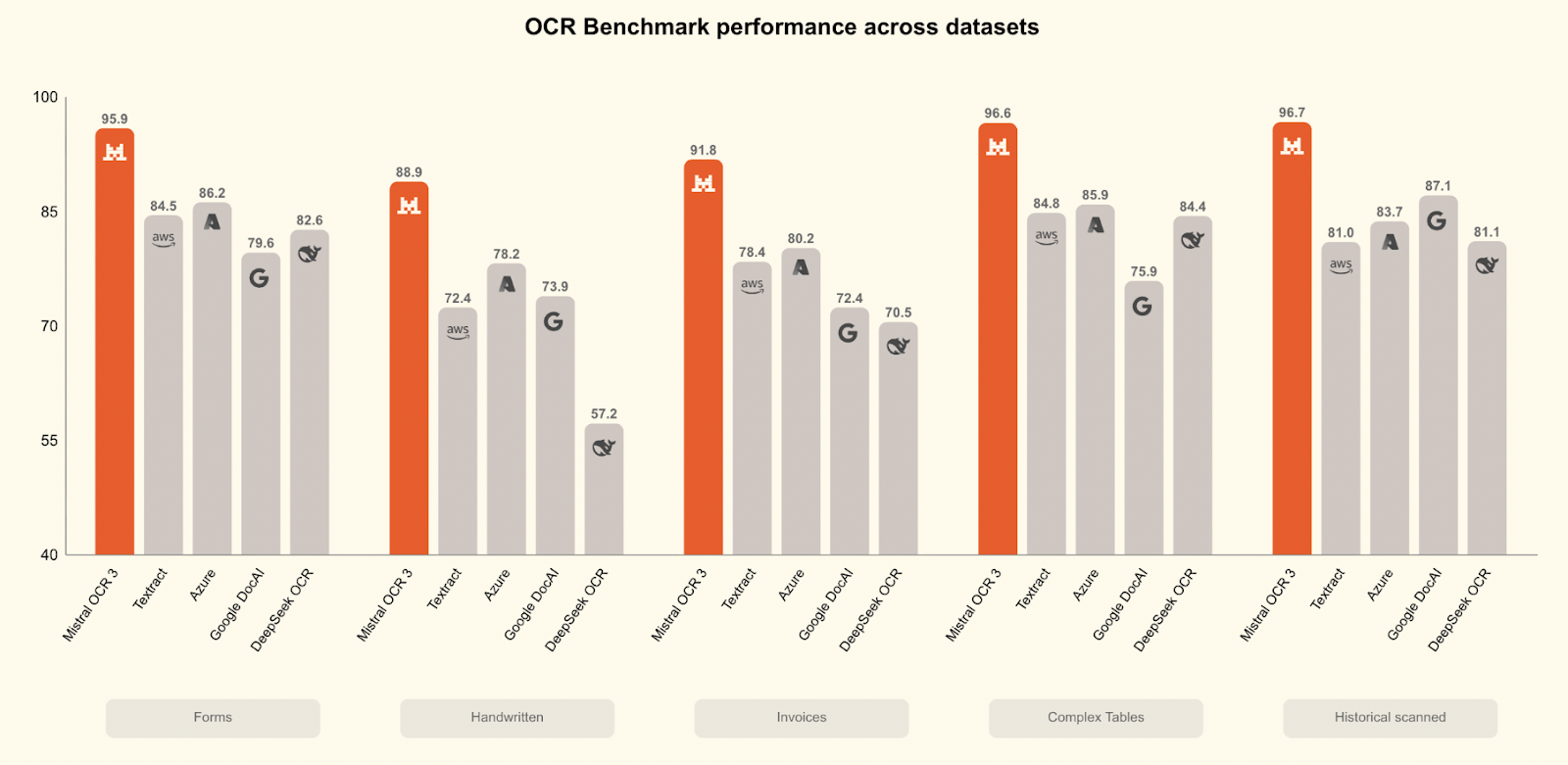
Mistral OCR 3 outperforms all competitors in a wide range of benchmarks:
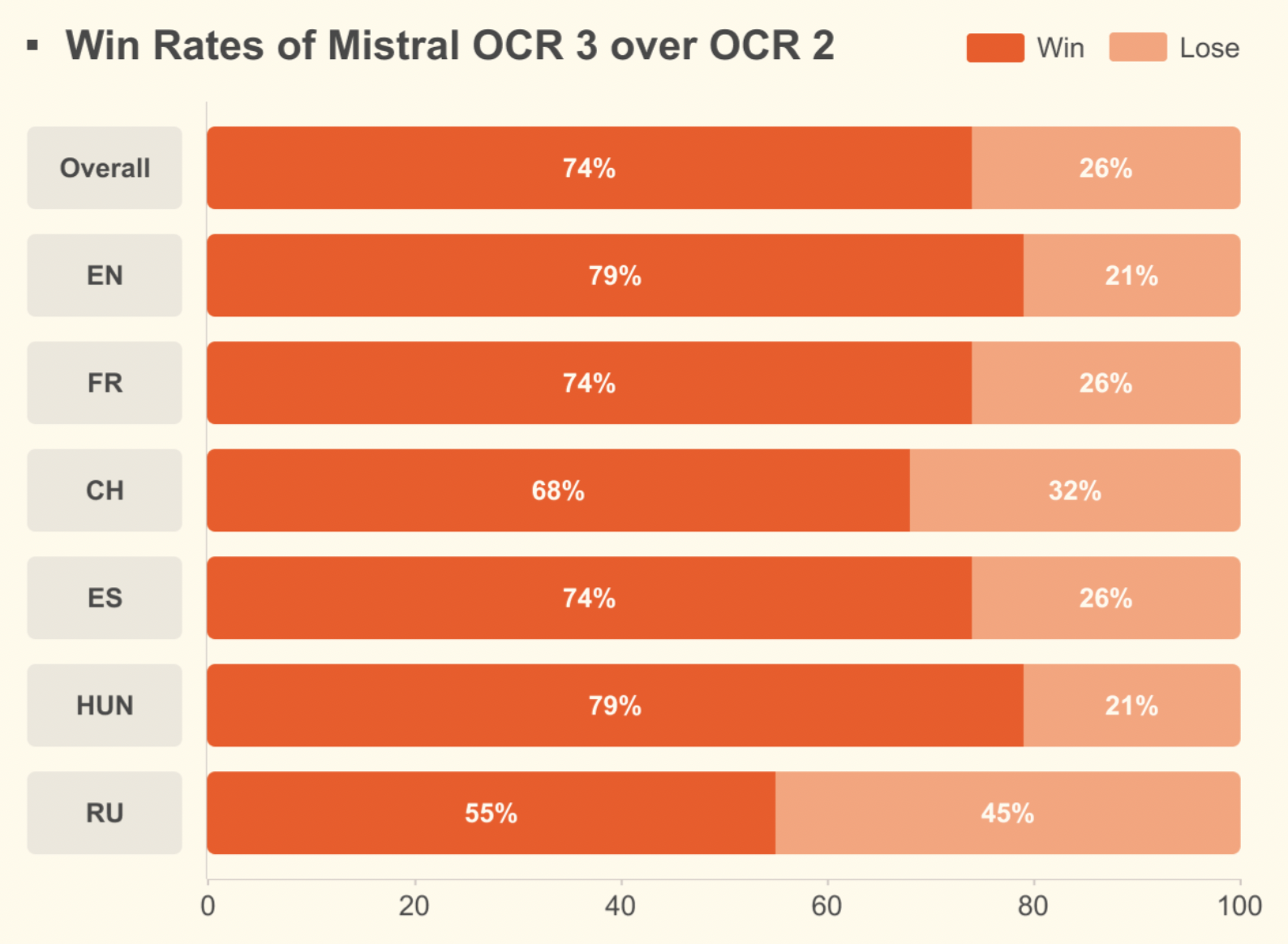
Compared to Mistral OCR 2, it achieves a 74% overall win rate on forms, scanned documents, complex tables, and handwriting, with major gains on low-quality scans and dense layouts.
To learn more about OCR and Mistral's previous model, check this article: Mistral OCR: A Guide With Practical Examples.
Let’s explore how to get set up to use Mistral OCR 3 with AI Studio.
Mistral OCR 3 is available to use on their AI studio. This is the easiest way to try it because it provides a user-friendly interface.
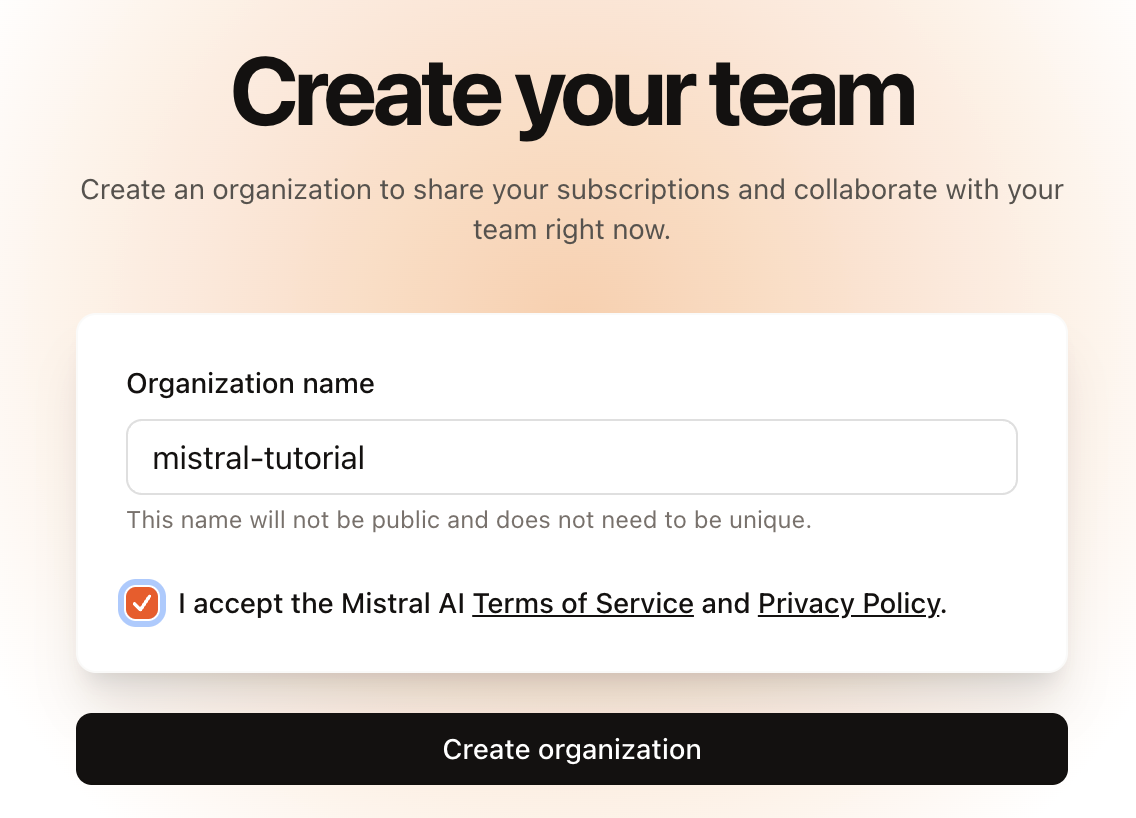
When we sign up, we're first prompted to create an organization:
Initially, Mistral OCR 3 will be locked, and we need to select a plan to unlock it:

It is possible to select a free plan, which allows using Mistral OCR 3 by permitting them to collect usage data to improve their services. Alternatively, we can input credit card details and be charged per usage.
There's no subscription fee, but we're charged $2 or $1 per 1,000 pages, depending on whether or not we use batch requests.
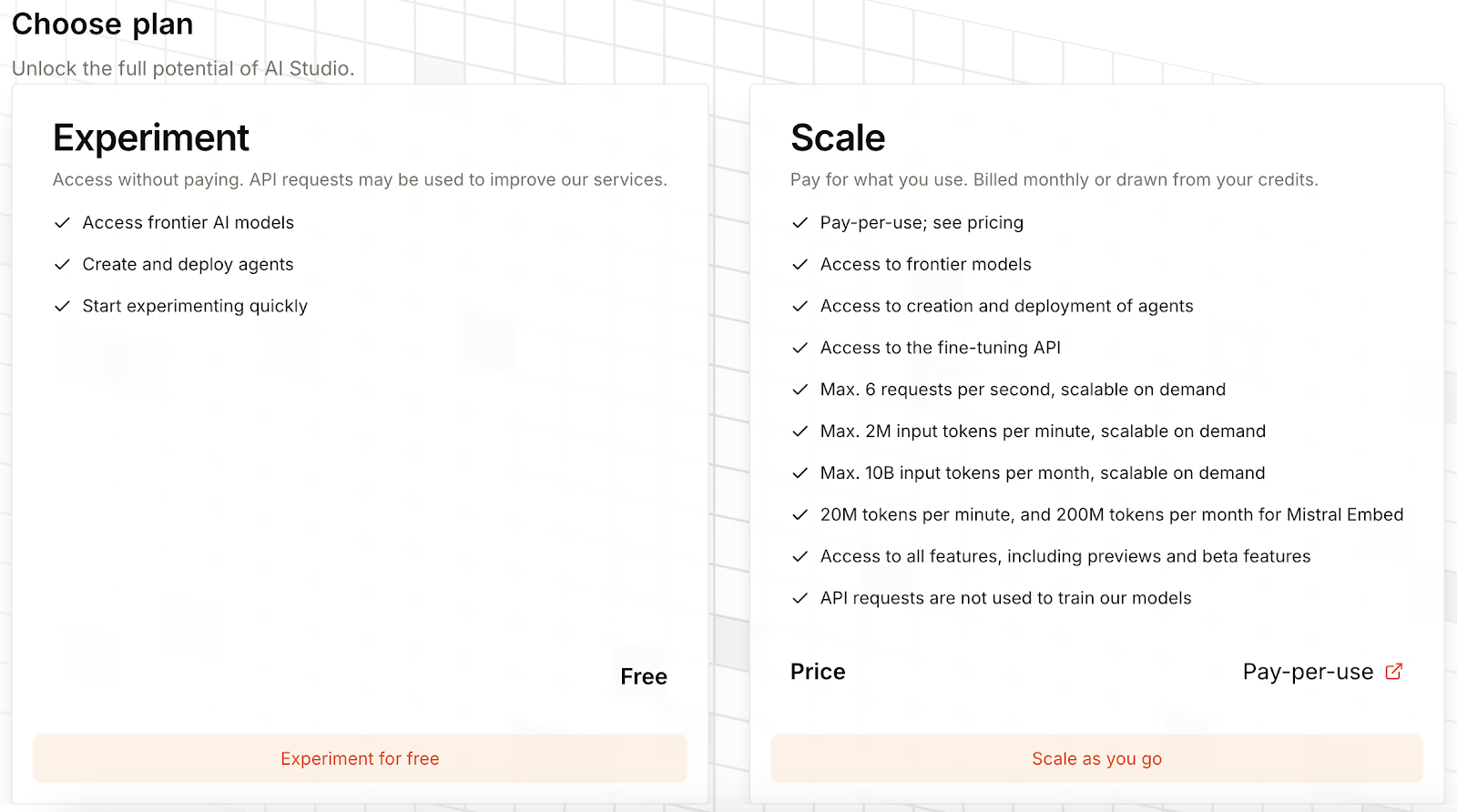
Once the account is set up, we can experiment with Mistral OCR 3 by accessing the "Document AI" tab on the AI Studio.
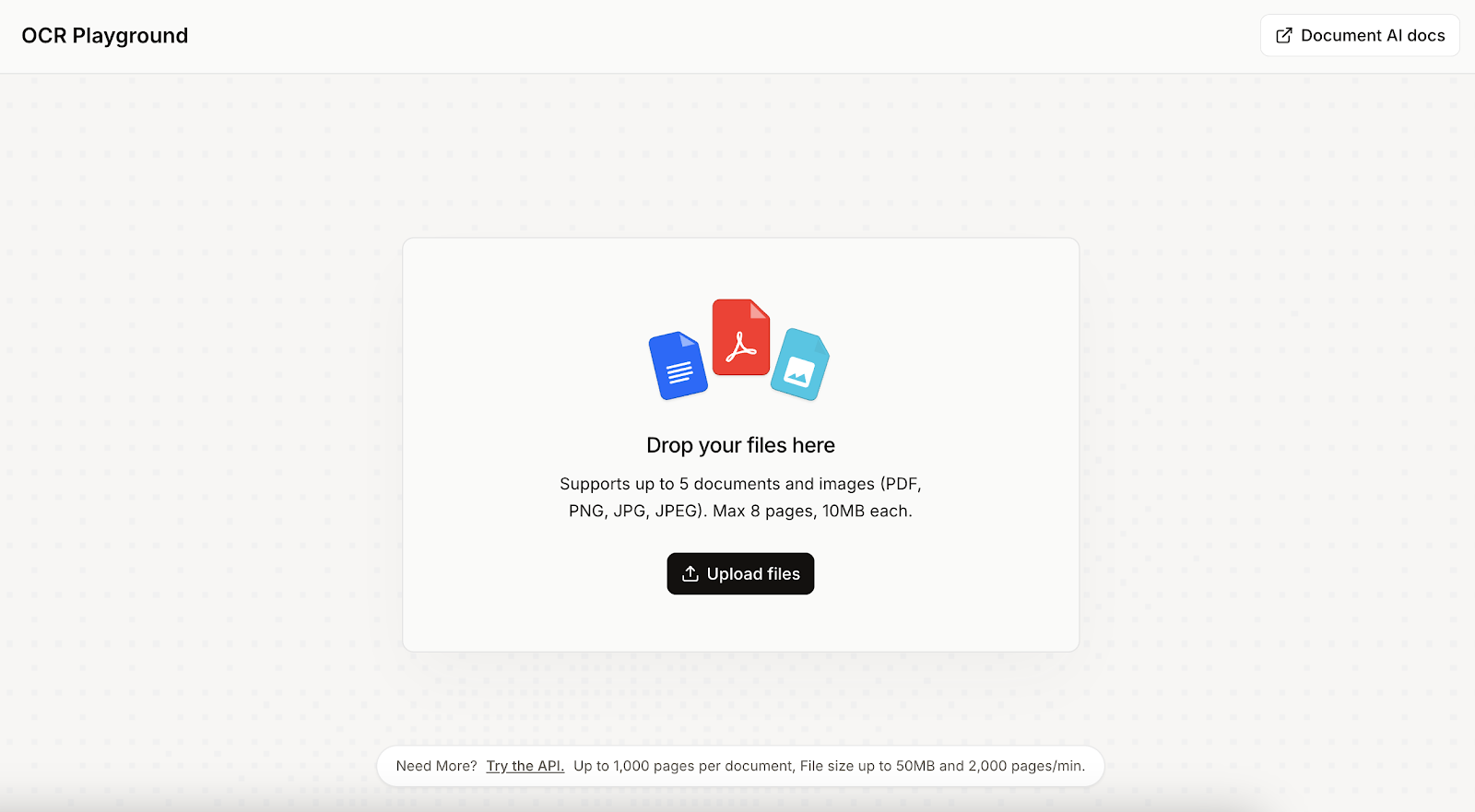
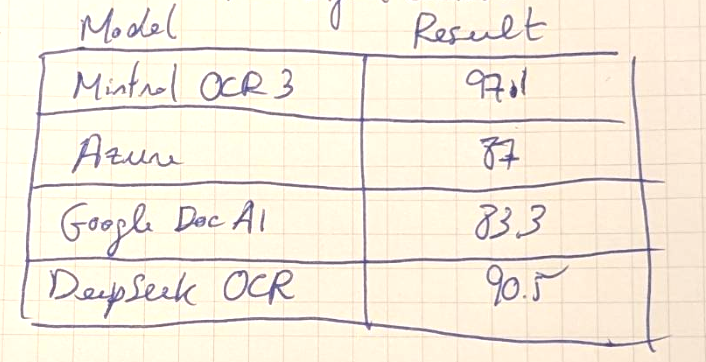
To get started, we upload the document or image we want to perform OCR on. In my case, I wrote some text and a table on a piece of paper and uploaded it. My handwriting is quite bad, so I was curious to see if Mistral OCR 3 could understand it.

When the file is selected, we are presented with options on how the file should be processed. In this first example, I left the default options and simply clicked the "Run" button in the top right corner.
Here's the result:

The result is quite good, but it's not perfect:
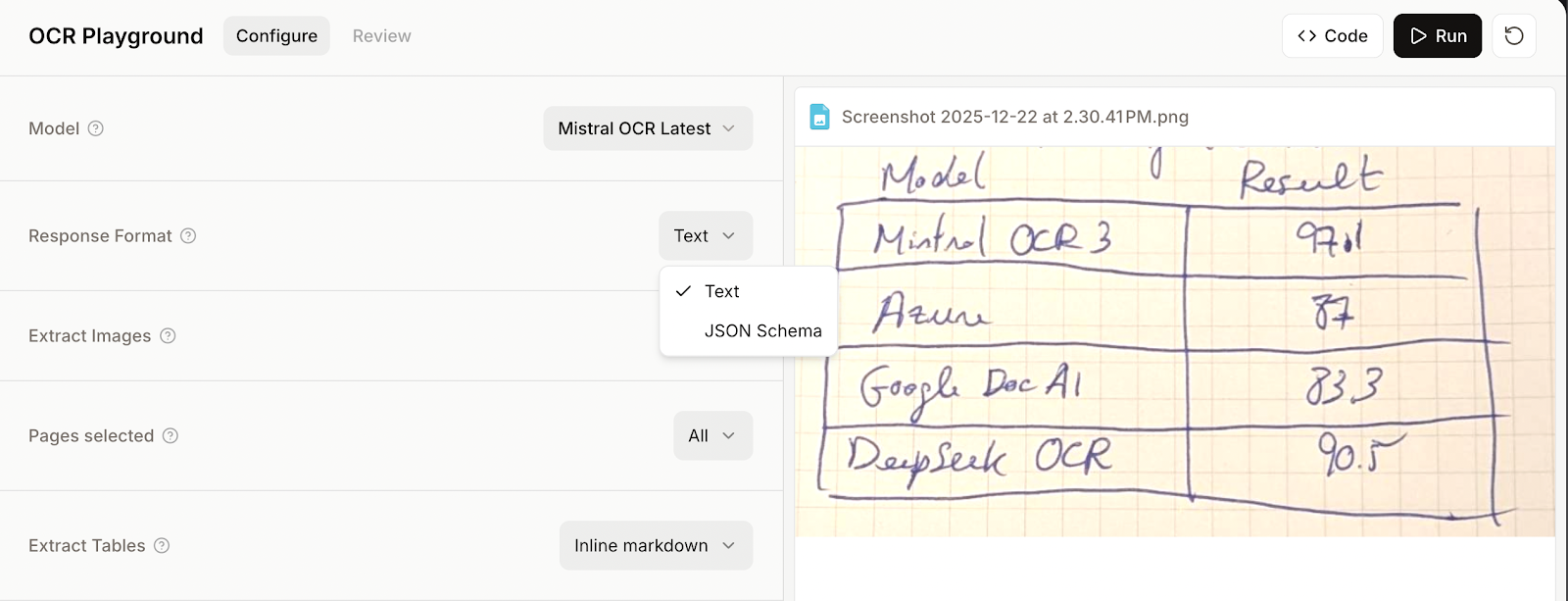
One of the nice features of Mistral OCR 3 is the ability to specify a JSON structure for parsing the data. This is especially useful for parsing tables by allowing us to specify the column names and their data types so that we obtain the rows as a JSON dictionary.
Let's try parsing the table from the previous example again by specifying a JSON schema.
To provide a JSON schema, we need to select JSON schema instead of text mode before running the OCR.
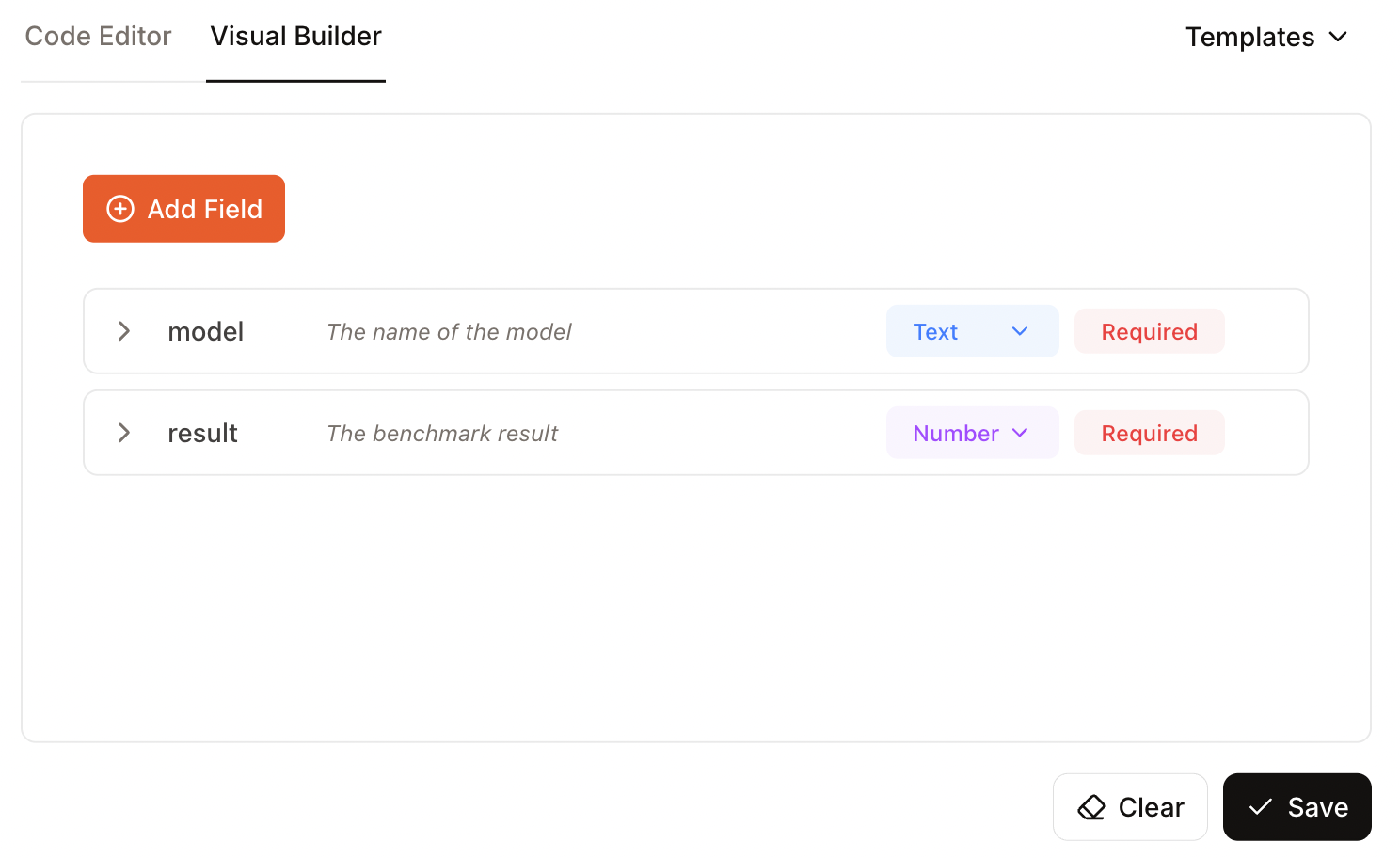
Then we provide a schema either with code or by using the "Visual Builder" user interface. I recommend the second option, as it is simpler when we are already using the model manually.
When adding a field, we specify:
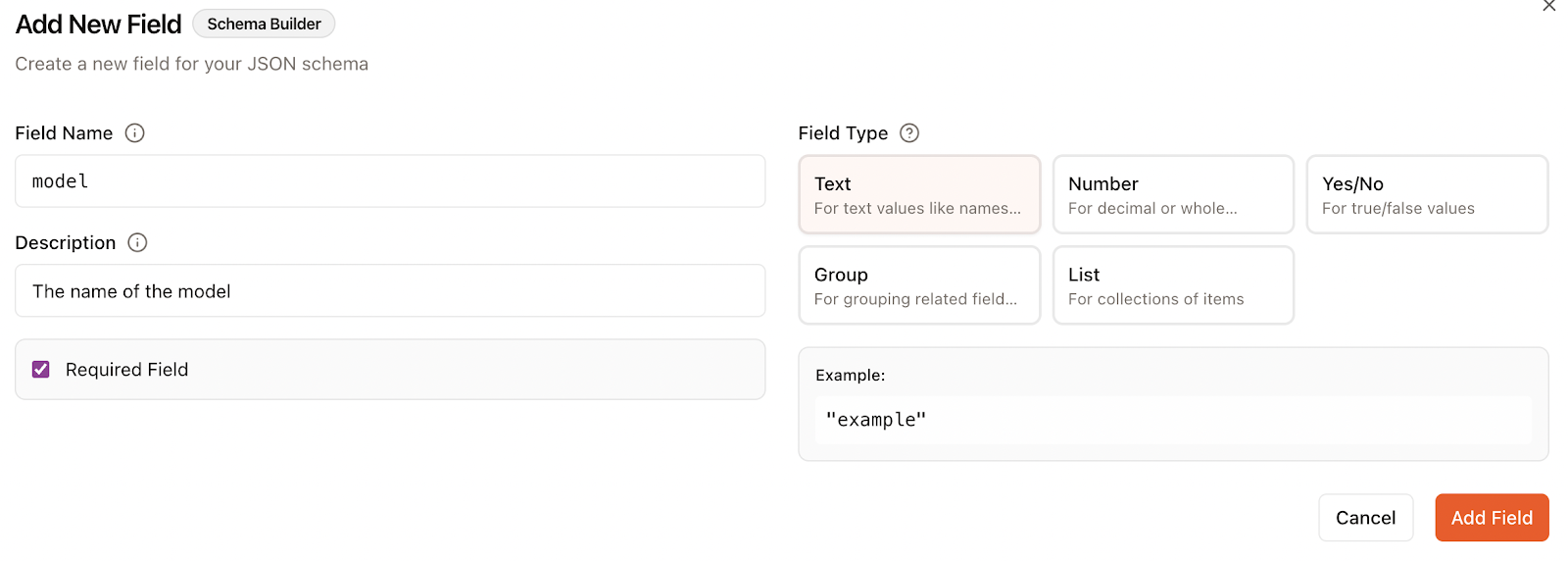
In this case, I specified two fields, one for the name of the model and another for the benchmark result:
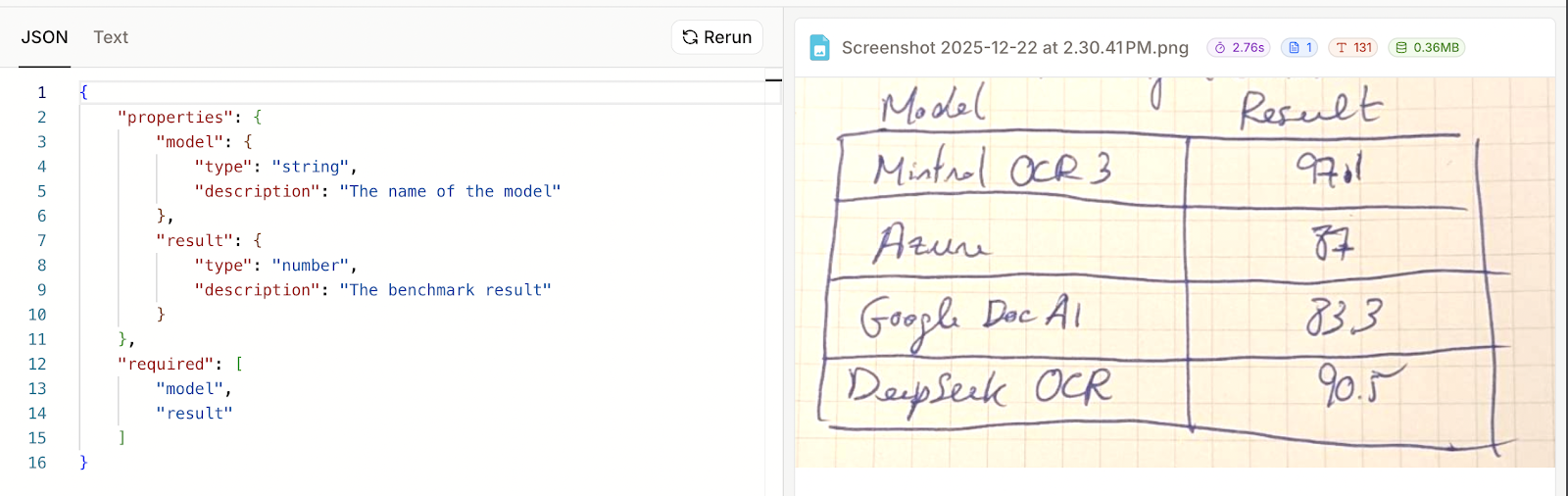
Now we can click "Run" and see the results. Unfortunately, this example didn't work. In the results, the only thing that was provided was the schema I provided, not the actual data.
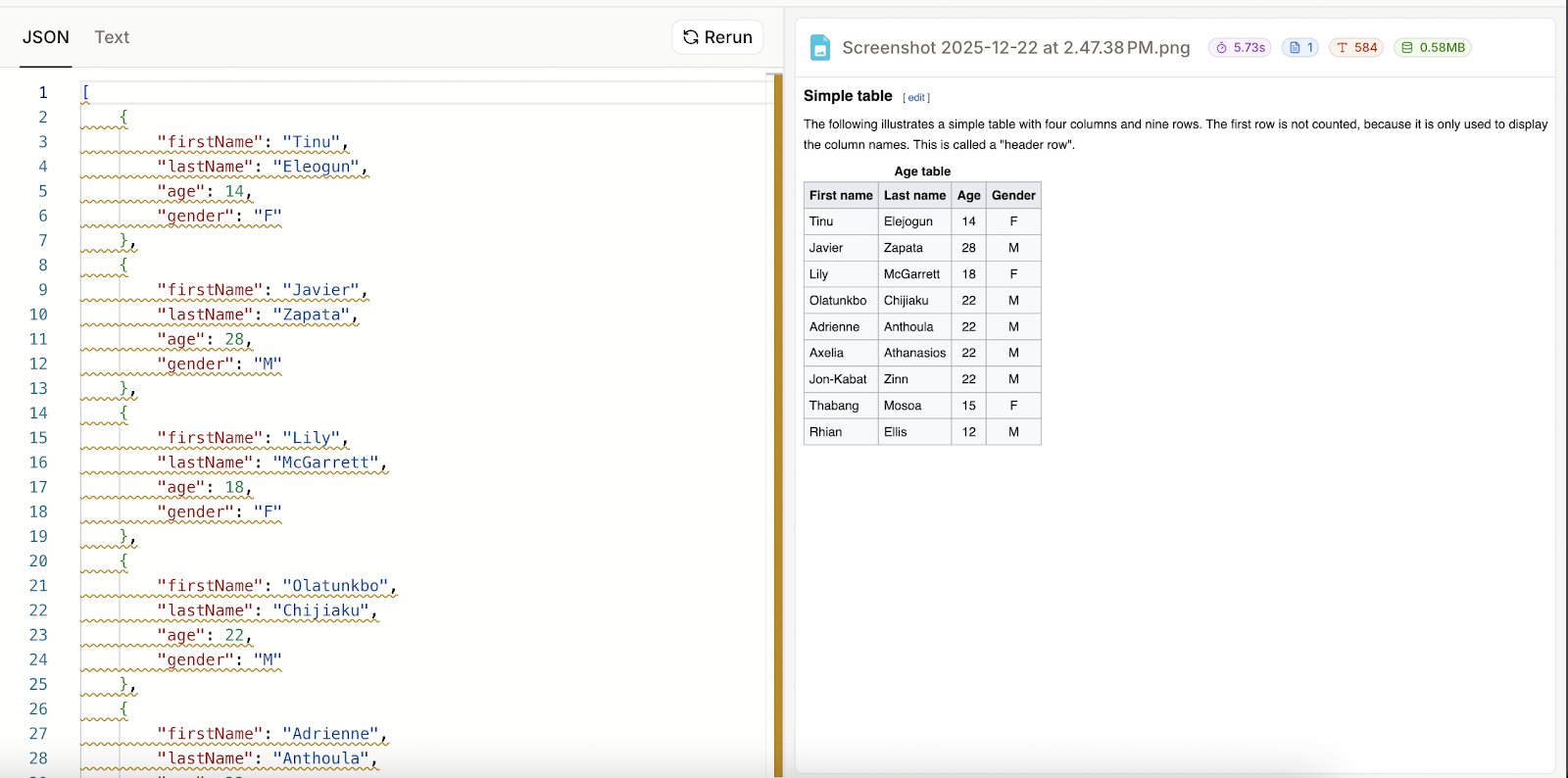
I thought that maybe I had used it incorrectly, so to make sure, I took a screenshot of a sample table from Wikipedia) and tried again.

I specified four columns, leaving the last one as optional:

This time it worked well. It seems that when parsing fails, the JSON result is simply the schema that was provided. This also means that Mistral OCR 3 failed to parse my handwritten table as JSON despite the fact that it could render it as text.
In this section, we’ll explore how to use Python to interact with the Mistral OCR 3 API. This provides much more flexibility, as we can, for example, combine the output with other AI models to process the extracted data.
When we upload a file to the AI Studio, there's a "Code" button next to the "Run" button. By clicking on this, we can see what code would be required to perform this operation using the API instead.
Here's an example:
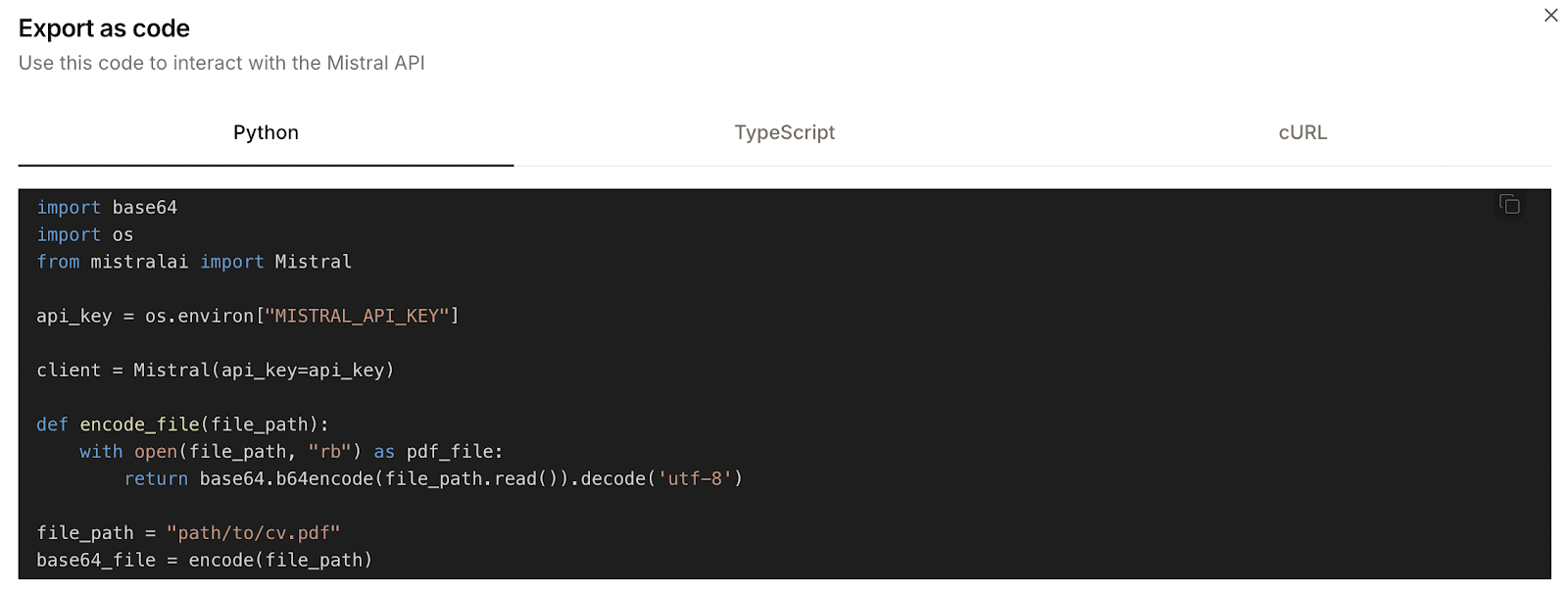
However, the provided Python code isn't fully accurate. For example, it defines a function named encode_file but then calls a function named encode. These are minor inconsistencies, but they make it so that the code doesn't work straight out of the box.
But worry not, we'll explain in detail how to use the API. To learn more about the API, we recommend checking the official documentation.
The first thing we need to do is create an API key in the "API Keys" tab and copy that key into a new file named .env located in the same folder as the Python script.
Next, we install the required dependencies:
pip install mistralai python-dotenvHere's a Python script that loads a local JPEG image, performs OCR on it, and saves the result in a markdown file:
import sys
import base64
import os
from mistralai import Mistral
from dotenv import load_dotenv

# Load the API key from the .env file
load_dotenv()

# Initialize the Mistral client
api_key = os.environ["MISTRAL_API_KEY"]
client = Mistral(api_key=api_key)

# Load a file as base 64
def encode_file(file_path):
    with open(file_path, "rb") as pdf_file:
        return base64.b64encode(pdf_file.read()).decode('utf-8')

# Perform OCR on and image
def process_image_ocr(file_path):
    base64_file = encode_file(file_path)
    ocr_response = client.ocr.process(
        model="mistral-ocr-latest",
        document={
            "type": "image_url",
            "image_url": f"data:image/jpeg;base64,{base64_file}"
        },
        include_image_base64=True
    )
    for index, page in enumerate(ocr_response.pages):
        with open(f"page{index}.md", "wt") as f:
            f.write(page.markdown)

if __name__ == "__main__":
    # Load the input file from the arguments
    file_path = sys.argv[1]
process_image_ocr(file_path)When the input is a PDF instead of an image, the only thing that changes is the value provided in the document field. For a JPEG image, we used:
document={
  "type": "image_url",
   "image_url": f"data:image/jpeg;base64,{base64_file}"
},
For a PDF, we instead use:
document={
  "type": "document_url",
  "document_url": f"data:application/pdf;base64,{base64_file}"
},
Here's a full function we can use to process a PDF:
def process_pdf_ocr(file_path):
    base64_file = encode_file(file_path)
    ocr_response = client.ocr.process(
        model="mistral-ocr-latest",
        document={
            "type": "document_url",
            "document_url": f"data:application/pdf;base64,{base64_file}"
        },
        include_image_base64=True
    )
process_pages(ocr_response)Having two distinct functions to process PDF and JPEG files is a bit cumbersome and also not the best practice, as there is a lot of shared code between the two.
To avoid this, we wrote a new, improved function that uses the mimetypes package to try to identify the type of the file provided and build the API request accordingly. We also updated the code to save images identified in the document.
Here's the final version:
import sys
import os
import base64
import mimetypes
import datauri
from mistralai import Mistral
from dotenv import load_dotenv
# Load the API key from the .env file
load_dotenv()
# Initialize the Mistral client
client = Mistral(api_key=os.environ["MISTRAL_API_KEY"])
# List the supported image types
SUPPORTED_IMAGE_TYPES = {
    "image/jpeg",
    "image/png",
    "image/webp",
    "image/tiff",
}
PDF_MIME = "application/pdf"
# Load a file as base 64
def encode_file(file_path: str) -> str:
    with open(file_path, "rb") as f:
        return base64.b64encode(f.read()).decode("utf-8")
# Build the document payload depending on the type of data contained in the file
def build_document_payload(file_path: str) -> dict:
    mime_type, _ = mimetypes.guess_type(file_path)
    if not mime_type:
        raise ValueError(f"Could not determine MIME type for {file_path}")
base64_file = encode_file(file_path)
if mime_type == PDF_MIME:
        return {
            "type": "document_url",
            "document_url": f"data:{mime_type};base64,{base64_file}",
        }
if mime_type in SUPPORTED_IMAGE_TYPES:
        return {
            "type": "image_url",
            "image_url": f"data:{mime_type};base64,{base64_file}",
        }
raise ValueError(f"Unsupported file type: {mime_type}")
# Generic function to process OCR on a file
def process_ocr(file_path: str, output_filename: str = "output.md"):
    document = build_document_payload(file_path)
    ocr_response = client.ocr.process(
        model="mistral-ocr-latest",
        document=document,
        include_image_base64=True,
    )
    process_pages(ocr_response, output_filename)
# Save an image to a local file
def save_image(image):
    parsed = datauri.parse(image.image_base64)
    with open(image.id, "wb") as f:
        f.write(parsed.data)
# Process all pages from the OCR response
def process_pages(ocr_response, output_filename: str):
    with open(output_filename, "wt") as f:
        for page in ocr_response.pages:
            f.write(page.markdown)
            for image in page.images:
                save_image(image)
if __name__ == "__main__":
    if len(sys.argv) < 2:
        print("Usage: python ocr.py <file>")
        sys.exit(1)
process_ocr(sys.argv[1])
Using this version requires the datauri package to save the image identified by Mistral OCR 3, which can be installed using:
pip install datauriWe learned above that Mistral OCR 3 allows us to provide a JSON schema to parse the data. This feature is also available when using it via the API.
To do so, we need to provide the JSON schema in the document_annotation_format parameter when making the request. Below is an example of a JSON schema for the two columns model and result, corresponding to the handwritten example table.

document_annotation_format={
    "name": "response_schema",
    "schemaDefinition": {
        "properties": {
            "model": {
                "type": "string",
	         "description": "The name of the model"
             },
             "result": {
	         "type": "number",
	         "description": "The benchmark result"
	     }
         },
         "required": [
             "model"
         ]
    }
}
The structure is always the same. We need to add one entry for each column in the properties field, including information about the data type and a description to help the model identify the data.
Then we list all the required fields under the required field.
To use it together with the code, the easiest way is to store the schema in a JSON file and load it using the json package.
One of the main advantages of using Mistral OCR 3 with the API is the ability to build on top of it. In this section, we present a few project ideas for you to build on top of it.
We've learned how to perform OCR on an image. We can use this to build an app that takes a photo of a shopping receipt, then uses Mistral OCR 3 to process the data in the image and extract a JSON dictionary listing the items on the receipt and their prices.
These expenditures can then be automatically categorized and added to a database, allowing the user to keep track of their spending.
We can combine Mistral OCR 3 with a text-to-speech AI to create a document audio reader. The user can select a text PDF and send it to Mistral OCR 3 for processing. Then the resulting text is sent to a text-to-speech AI model such as OpenAI Audio API or Eleven Labs.
Since Mistral OCR 3 also works with images, it can be used with photos, allowing users to take a photo of a document and listen to it on the go.
To learn more about text-to-speech, I recommend one of the following:
Mistral OCR 3 is a capable, practical tool for turning real-world documents into usable text and structured data, whether you’re experimenting in the AI Studio or integrating via Python.
It shines on scanned pages, forms, and tables, preserves layout with markdown and images, and supports JSON schema when you need structure. Though, as we saw, messy handwriting and ambiguous headers can still trip it up, and failed schema parses simply return the schema.
The API is straightforward once you resolve minor inconsistencies, and a generic file handler, along with image saving, makes it easy to integrate into small apps or pipelines. If you’re just trying it out, the Studio is the quickest path. For production use, consider the cost model, batch where possible, and add validation for edge cases.
From there, you can iterate; tune schemas, combine outputs with other models, and build focused utilities like receipt parsers or audio readers, letting the model do the heavy lifting while you handle reliability and UX.
Top DataCamp Courses
Course
Course
Course
blog
Oluseye Jeremiah
8 min
Tutorial
François Aubry
12 min
Tutorial
Aashi Dutt
9 min
Tutorial
Abid Ali Awan
5 min
Tutorial
Hesam Sheikh Hassani
8 min
Tutorial
François Aubry
8 min