
Course
Building Scalable Agentic Systems
1 hr 30 min
22.2K
AI is moving beyond chatbots. With OpenAI's Dots, Meta's Muse, and Grok Bot, we are starting to see a new way of using AI at work and in our everyday lives.
Instead of switching between different tools and managing everything ourselves, we can give an AI assistant a task, let it work across our apps, and step in when it needs our approval.
But what if we could take this a step further and create an entire company of AI agents?
That is exactly what Paperclip is designed for. It is an open-source platform where you can create an organization, hire AI agents for different roles, assign goals, and manage their work from a single dashboard.
In this guide, I will show you how to set up Paperclip on Windows using Claude Code with MiMo-V2.6-Pro instead of an Anthropic subscription. I will also share how I used it to create a small AI team with one simple goal: build a trading bot.
Paperclip is an open-source orchestration platform for AI agents. Think of it as running a small company where your employees are AI agents, each with their own roles, responsibilities, and tasks.
It acts as a central control plane, managing your agents, projects, task assignments, budgets, and approvals. The actual work is handled by agent runtimes such as Claude Code, Codex, Cursor, and Gemini CLI.
You start by creating an organization, defining its goal, and setting up your first agent.
From there, agents can create project plans, break them into smaller tasks, and delegate work according to their reporting hierarchy.
Behind the scenes, Paperclip uses agent adapters to connect to different AI tools and a heartbeat system to run agents automatically.
When an agent is assigned a task or its scheduled heartbeat fires, it wakes up, checks its assignments through Paperclip's API, performs the work, posts updates, and stops until its next run.
For example, my trading bot project had three agents:
Instead of managing three separate coding sessions, I can monitor the entire team from one dashboard.
Paperclip tracks agent activity, execution logs, and costs, while approval controls let me review important decisions before the agents proceed.
Here are some of the features that make Paperclip interesting:
We will start by installing Node.js and Claude Code on Windows, configure Claude Code to use MiMo-V2.6-Pro, and then install Paperclip to create our first AI-powered organization.
First, download the LTS version of Node.js for Windows from the official website. Paperclip requires Node.js 24.11.0 or newer.
Run the installer and keep the default options. Once installation is complete, open a new PowerShell window and run:
node -v
npm -v
npx -v
If all three commands return version numbers and Node.js is at least v24.11.0, we are ready to install Claude Code.
Next, we need to install Claude Code and connect it to MiMo-V2.6-Pro. Claude Code will act as our agent harness, while MiMo will handle the actual AI processing.
First, install Git for Windows if you haven't already. It is recommended for Claude Code's Bash-based tools.
Open PowerShell and install Claude Code using the official Windows installer:
irm https://claude.ai/install.ps1 | iexCheck that everything is working:
claude --versionNormally, Claude Code connects to Anthropic's models.
In my case, I already had a MiMo Token Plan, so I wanted to use MiMo-V2.6-Pro instead, without purchasing a Claude subscription.
First, create the Claude Code configuration directory:
New-Item -ItemType Directory -Force "$HOME\.claude"Open the settings file:
notepad "$HOME\.claude\settings.json"Add the following configuration:
{
  "env": {
    "ANTHROPIC_BASE_URL": "YOUR_TOKEN_PLAN_BASE_URL",
    "ANTHROPIC_AUTH_TOKEN": "YOUR_MIMO_API_KEY",
    "ANTHROPIC_MODEL": "mimo-v2.6-pro",
    "ANTHROPIC_DEFAULT_SONNET_MODEL": "mimo-v2.6-pro",
    "ANTHROPIC_DEFAULT_OPUS_MODEL": "mimo-v2.6-pro",
    "ANTHROPIC_DEFAULT_HAIKU_MODEL": "mimo-v2.6-pro"
  }
}
Replace YOUR_TOKEN_PLAN_BASE_URL and YOUR_MIMO_API_KEY with the endpoint and API key from your MiMo Token Plan dashboard.
If you already have a settings file, merge these values into its existing configuration instead of overwriting everything.
Next, open the Claude Code onboarding configuration:
notepad "$HOME\.claude.json"If the file is new, add:
{
  "hasCompletedOnboarding": true
}
If it already exists, add or update this property without deleting your other settings. This allows us to skip the standard Claude Code onboarding process when using MiMo.
Save both files, then close and reopen PowerShell.
Run a simple prompt to check whether Claude Code is using MiMo:
claude -p "Hey! Introduce yourself in one sentence."If everything is configured correctly, you should receive a response. You can also launch claude interactively and run /status to check your model configuration.
We now have Claude Code running with MiMo-V2.6-Pro and can move on to Paperclip.
Installing Paperclip is fairly straightforward. Since we already have Node.js installed, we can use npx to download and start Paperclip without installing it globally.
Open a regular PowerShell window, not an Administrator window, and run:
npx paperclipai onboard --yesThis command downloads Paperclip, creates the local configuration, initializes an embedded PostgreSQL database, and starts the server.
Once it is running, open the following address in your browser if the onboarding page does not open automatically:
http://localhost:3100We are now ready to create our first organization, connect Claude Code as the agent harness, and start building our AI team.
To launch Paperclip again later, use:
npx paperclipai runKeep the terminal open while using this local setup.
Now that Paperclip is running, we can create our first AI organization, set up its CEO, and connect it to MiMo-V2.6-Pro.
The first screen asks you to name your organization. For my test, I used DataCamp.
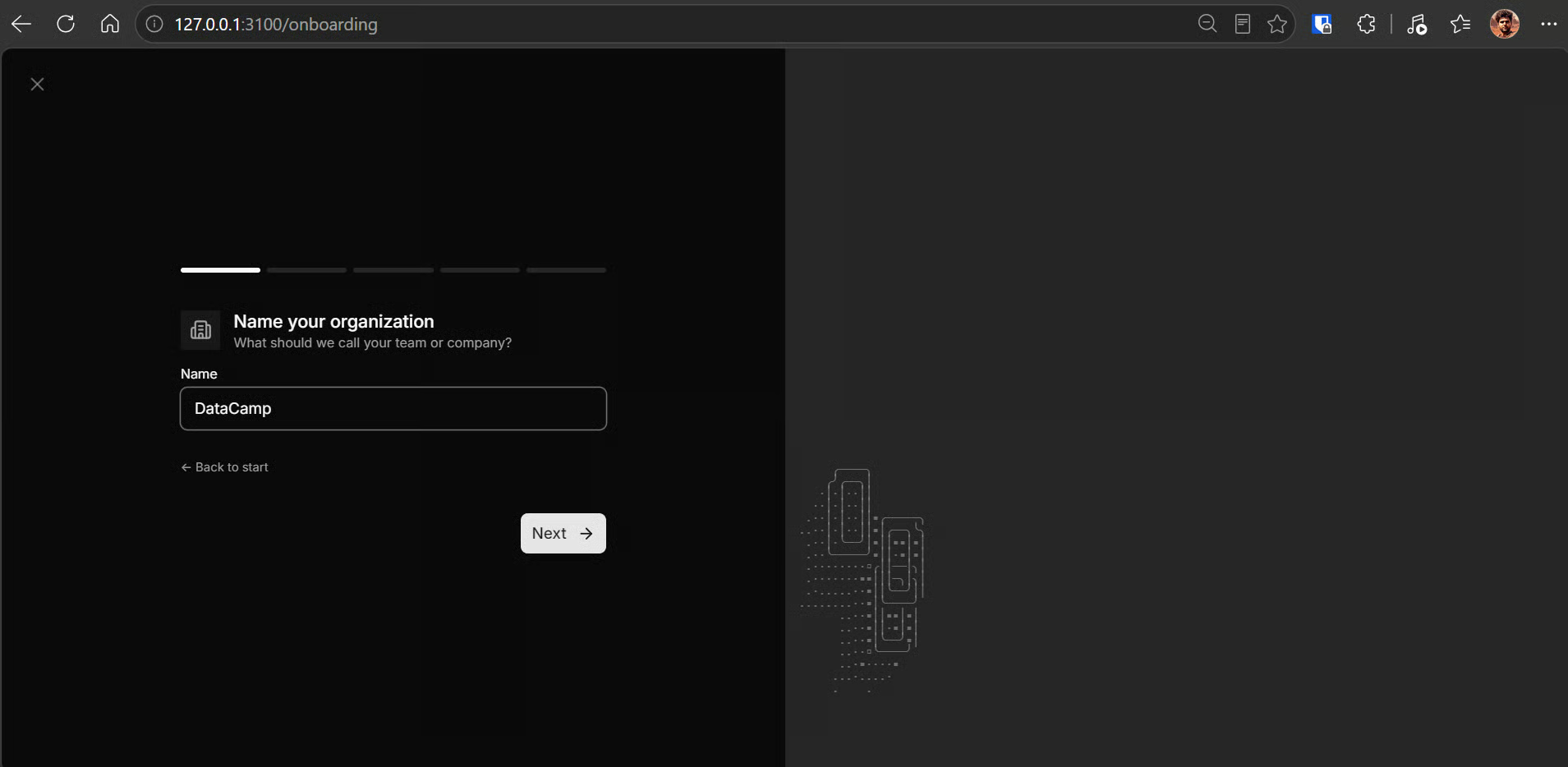
Click Continue. Paperclip will then ask you to name your first agent. This will be your CEO, responsible for planning projects, creating tasks, and delegating work to other agents.
Next, choose an agent adapter. Paperclip supports several options, including Claude Code, Codex, Cursor, Gemini CLI, and OpenCode.
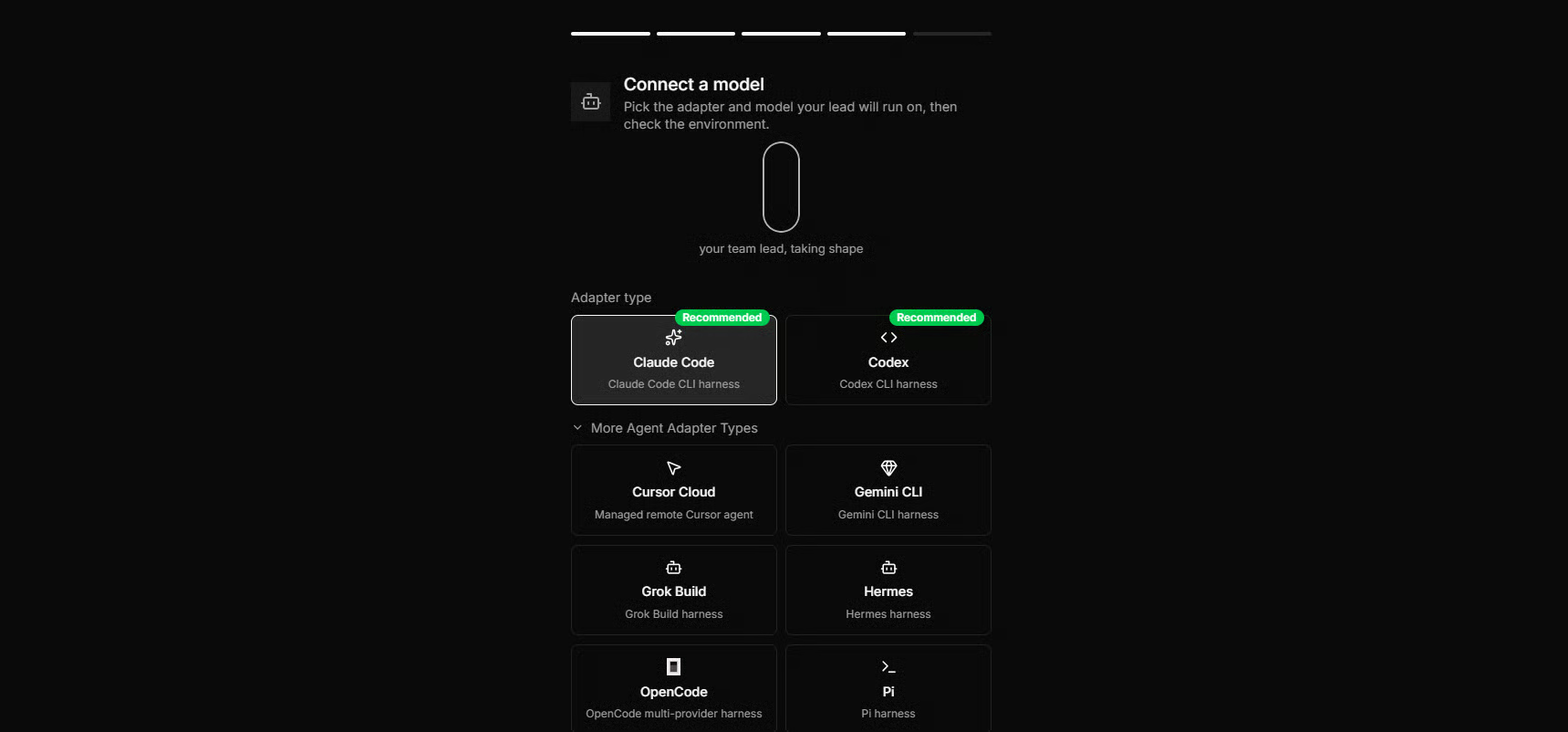
For this guide, select Claude Code.
Since we already configured Claude Code to use MiMo, our setup looks like this:
Paperclip -> Claude Code -> MiMo-V2.6-Pro
During onboarding, Paperclip also asks what you want your organization to work on. For my first project, I simply entered:
“Build the trading bot”
Once onboarding was complete, Paperclip took me directly into my trading bot project.
My Chief of Staff started by asking questions about what I wanted to build, rather than jumping straight into writing code.
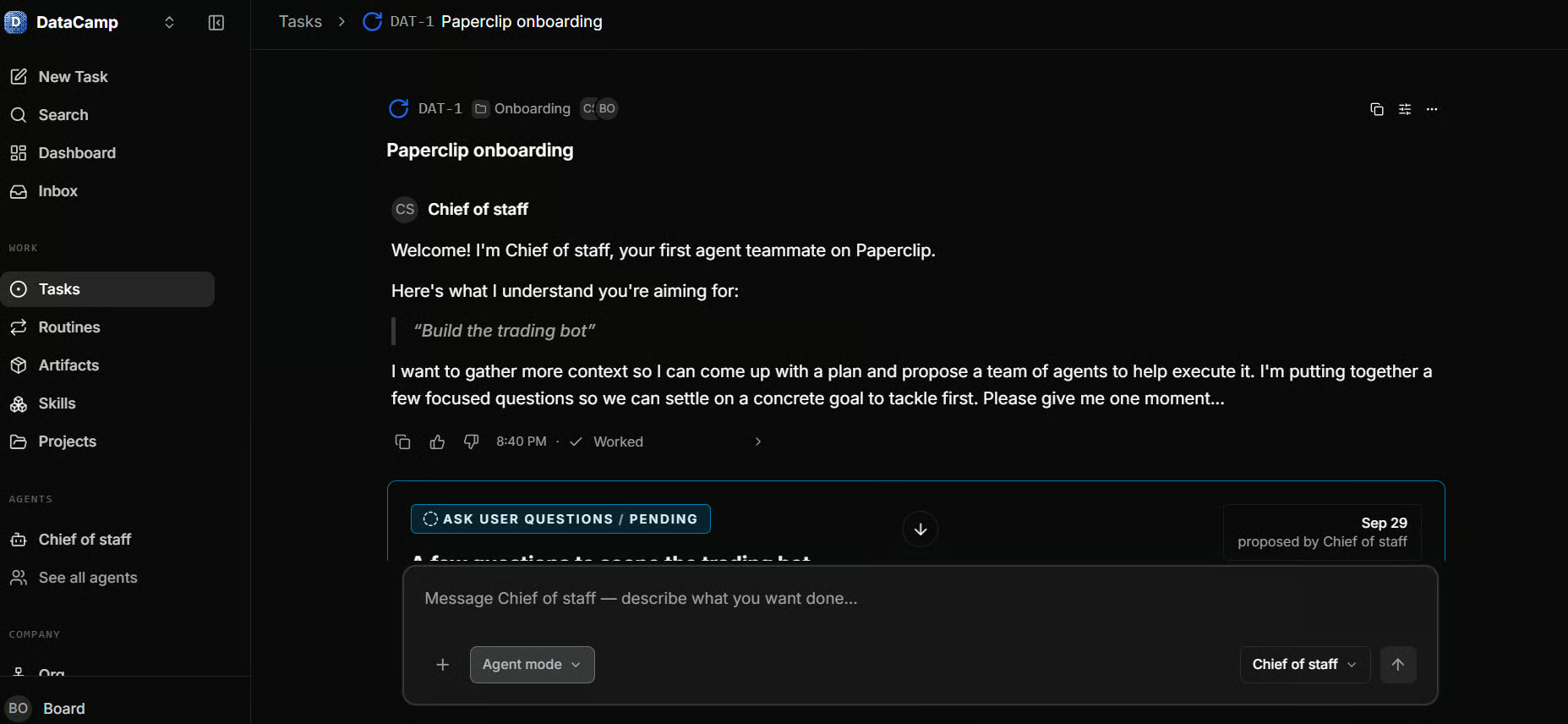
After I answered those questions, it put together a project plan and proposed hiring two additional agents: an ML Quant Researcher and a Trading Systems Engineer.
It also broke the project down into smaller tasks:
Before moving forward, Paperclip presented the plan and gave me three options: Approve, Request Revision, or Reject. This is an important part of the platform because you still have control over what your agents are allowed to do.
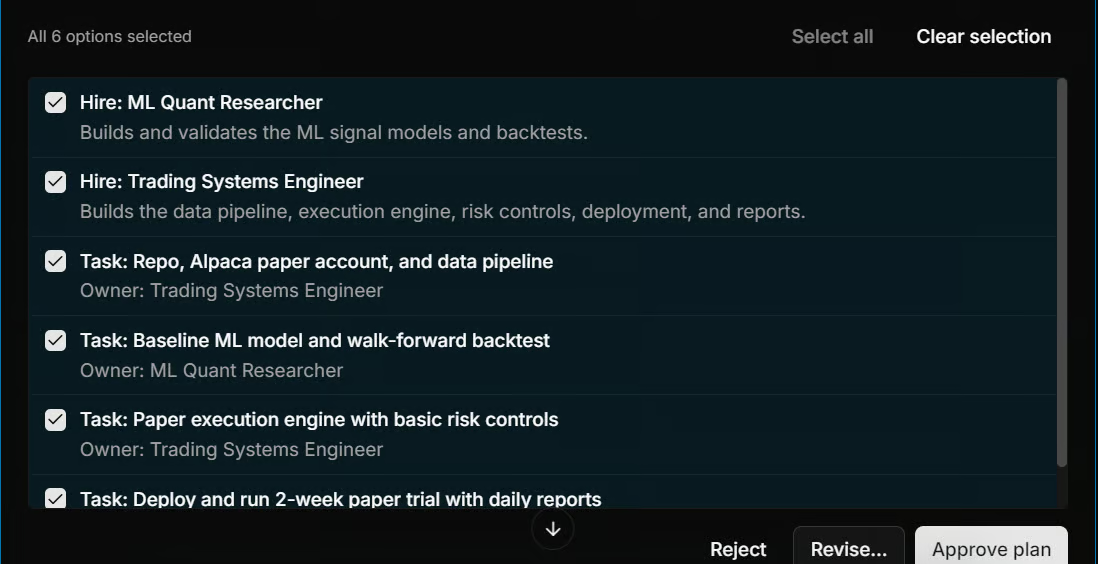
I approved the plan, and Paperclip started putting everything into action. It created the additional agents and began assigning tasks based on their roles.
What I liked most was that I didn't have to create every agent, write individual prompts, or manually distribute the work.
I simply explained what I wanted to build, answered a few questions, and approved the proposed plan. Paperclip handled the project coordination from there.
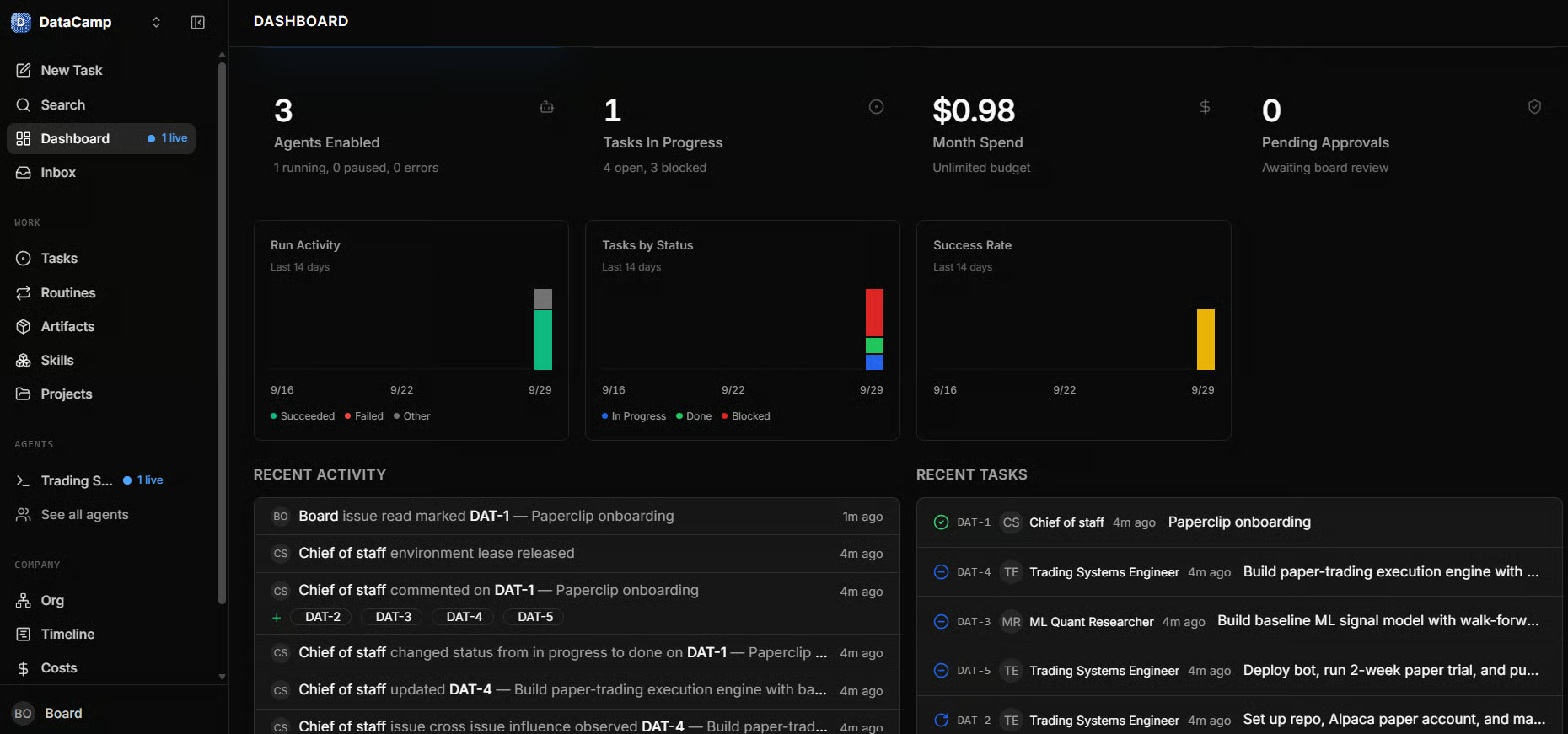
Once my trading bot project was running, I opened the Paperclip dashboard to see how everything was progressing. This is where you can monitor your agents, track tasks, review recent activity, and keep an eye on costs.
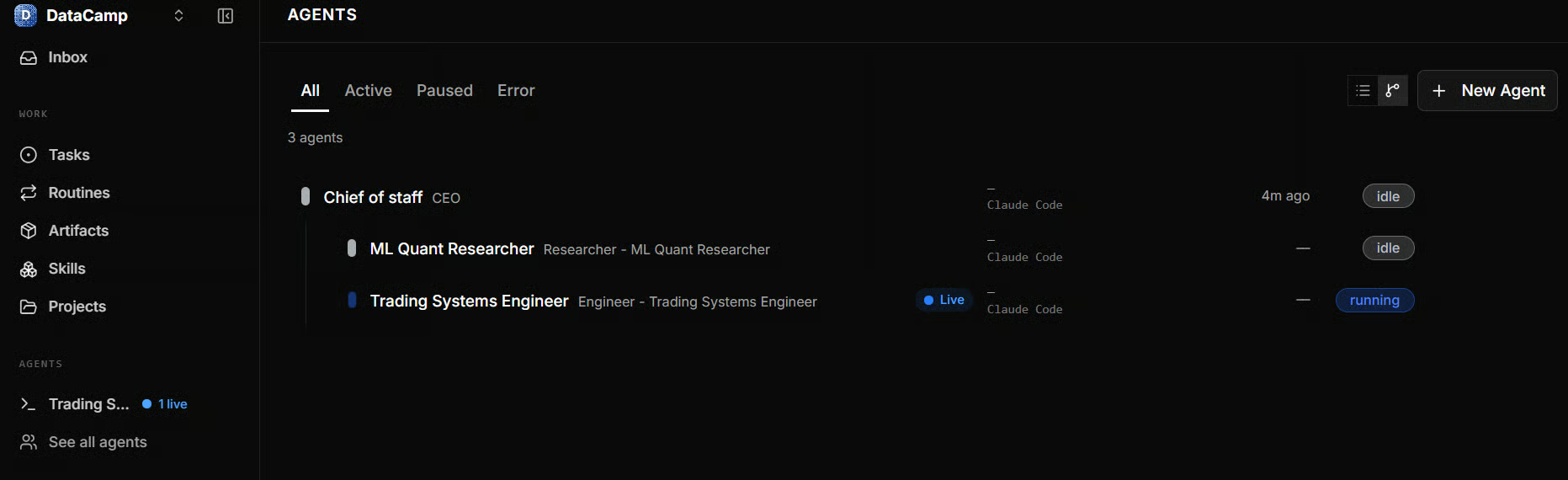
I could also open the Agents page to see my entire AI team and what each agent was doing.
My Chief of Staff and ML Quant Researcher were idle, while the Trading Systems Engineer was actively working on the project.
The Agents page also shows the reporting structure, which agent harness each agent uses, and whether an agent is running, idle, paused, or has encountered an error.
This is probably the part I found most useful. Instead of keeping several terminals open and constantly checking what each agent is doing, I can manage everything from one place.
I can see which tasks are progressing, which ones are blocked, how much I've spent, and whether anything needs my approval.
It feels more like managing a small team than running individual AI agents. I give the team a goal, check its progress, and step in when needed.
People are using Paperclip for much more than coding.
From running small businesses to managing entire AI teams, here are five interesting examples I found on Reddit and developer blogs.
One founder uses 16 AI agents for lead generation, cold emails, CRM updates, SEO, and blog publishing while working a full-time job.
A retired trader built an AI-powered publishing company with agents handling research, writing, and SEO. His biggest challenges were controlling costs and checking the accuracy of AI-generated articles.
One developer connected Paperclip with Hermes to manage a nine-agent startup through Telegram. The agents handle product design, cost estimates, grant applications, and daily progress reports.
Another developer created an AI team for a financial startup with a CEO, CTO, engineers, and marketing agents working on data pipelines, sentiment analysis, and outreach.
Developer Felipe Fontoura built a 13-agent organization for SEO, content creation, video scripts, and sales funnels. The system worked, but reviewing and publishing everything still required his attention.
People are moving beyond running multiple Claude Code instances that work independently.
With Paperclip, they are building teams of 10 or more agents that communicate, follow a clear hierarchy, delegate tasks, and even review each other's work.
Instead of managing every agent yourself, you can give the team a goal and let it coordinate the work, while you oversee progress and approve important decisions.
In this guide, we have barely scratched the surface of what Paperclip can do.
I only built a small team of three agents, but you can go much further by creating entire departments, scheduling tasks, setting budgets, and adding agents that review each other's work.
Paperclip isn't a brand-new experiment either. It has been around for a while and has a growing open-source community.
With the recent wave of AI agents, managing multiple teams from a single dashboard is becoming much more interesting.
I think this is where AI is heading.
Instead of opening ten different Claude Code sessions and managing every task ourselves, we will increasingly have one central place to coordinate hundreds, potentially thousands, of tasks across specialized agents.
We give the team a goal, agents delegate work, communicate with each other, and report back when they need our attention.
Of course, managing agents at that scale still comes with challenges, especially around costs, reliability, and human oversight.
But Paperclip gives us a practical way to start experimenting with this new way of working today.
Top DataCamp Couress
Course
Course
Course
Tutorial
Abid Ali Awan
10 min
Tutorial
Laiba Siddiqui
10 min
Tutorial
Aashi Dutt
8 min
Tutorial
Laiba Siddiqui
12 min
Tutorial
Josep Ferrer
14 min
Tutorial
Khalid Abdelaty
12 min