Cursus
Concepten van Large Language Models (LLMs)
2 uur
113.6K
Veel datavoorwerk eindigt nog steeds in Excel. De forecast, de regionale verkooptabel, het scenario dat iemand tegen vrijdag aangepast wil hebben: dáár staan de cijfers die mensen echt gebruiken. Het is dus niet verrassend dat AI-bedrijven assistenten in het rekenblad zelf proberen te stoppen, niet in een apart chatvenster.
In de zomer van 2026 bracht SpaceXAI (voorheen xAI) Grok-add-ins uit voor diverse Office- en Workspace-apps. Grok voor Excel verscheen op 20 juli 2026. Het draait als een zijbalk naast de werkmap, leest het bereik dat je selecteert en kan formules schrijven, grafieken bouwen en cellen ter plekke bewerken. De bewerkingen verschijnen als normale Excel-inhoud: formules in de formuletabel, grafieken op het werkblad. Je kopieert geen antwoorden uit een browsertab.
Het is een nieuwe add-in, nog geen ingesleten gewoonte. Ik controleer iedere formule en elke bewerking nog met de hand. Hieronder behandel ik zes workflows, plus prijs, wat de add-in kan zien en waar die controles het meest tellen. Ken je de prijzen al, ga dan door naar de zes voorbeelden.
Grok voor Excel is de Microsoft 365-add-in die ik hierboven beschreef: een chatpaneel naast het werkblad. Je selecteert een cel, tabel of bereik, typt in gewoon Engels en het antwoord verschijnt in de zijbalk of wordt in het blad geschreven wanneer je dat vraagt. De productpagina van SpaceXAI zegt ook dat het de cellen citeert achter een antwoord, wat handig is als je wilt zien waar een getal vandaan komt.
Eén kanttekening bij "leest alleen wat je selecteert": de Marketplace-vermelding van Microsoft geeft de add-in bredere machtigingen dan die zin suggereert. Zoals ik later in de privacysectie behandel: lees die toestemmingstekst voordat je dit op een gevoelig bestand loslaat.
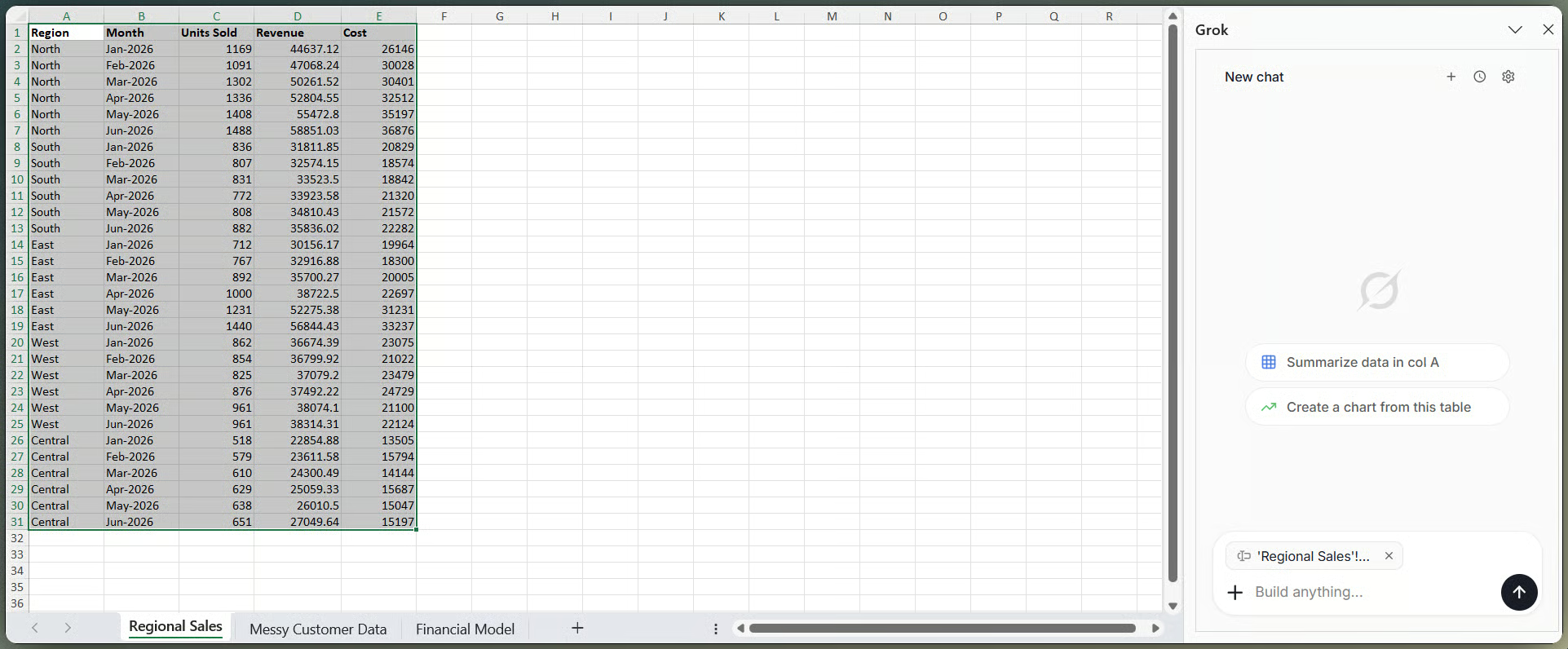
Grok-zijbalk vastgemaakt naast Excel-werkmap. Afbeelding door auteur.
De Marketplace-vermelding en productpagina van SpaceXAI noemen deze taken vanuit de zijbalk. Ik zet hier hun claims op een rij, niet de resultaten van mijn eigen volledige testset:
Ik loop elk van die punten langs in de voorbeelden hieronder. Het product is nieuw, dus ik zou zaken als "gemarkeerde gewijzigde cellen" en draaitabellen in het blad nog wel even zelf bevestigen in je eigen bestand.
De ontwikkelaarsdocs van SpaceXAI melden dat Grok 4.5 het standaardmodel is voor de add-ins voor Word, PowerPoint en Excel. De specs vermelden een contextvenster van 500.000 tokens, een knowledge cutoff van 1 februari 2026 en een reasoning_effort-instelling (low, medium of high) die standaard op high staat. Als je later het financiële model probeert in Voorbeeld 5, is het contextvenster het getal waar ik meer om geef dan welke ranglijst dan ook: het bepaalt hoeveel van de werkmap Grok in beeld kan houden. Het standaardmodel kan veranderen. SpaceXAI brengt vaak nieuwe versies uit.
Voor je tijd in installatie steekt, is het handig te weten wat het gebruik van de add-in daadwerkelijk kost.
Grok voor Excel installeren via Microsoft Marketplace is gratis. Het echt gebruiken niet. De vermelding zegt dat de add-in "momenteel beschikbaar is voor SuperGrok-, Heavy-, Business- en Enterprise-abonnementen" en dat gebruikslimieten gelden. The Register liep snel tegen die limieten aan zonder geschikt abonnement. "Gratis add-in" is waar. "Gratis gebruiken" niet.
SuperGrok staat rond de $30 per maand voor individuen. Business wordt per seat gefactureerd tegen een vergelijkbaar tarief. Enterprise gaat via SpaceXAI sales. Heavy zit boven SuperGrok; publieke prijzen daarvan schommelen, dus check x.ai/pricing zelf.
Het gebruik komt uit een gedeelde wekelijkse pool over Grok-producten heen (chat, beeldgeneratie, voice, coding en de Office-add-ins). Dat shared-poolmodel werd in juni 2026 uitgerold. Er is geen aparte gepubliceerde quota enkel voor Excel. Als je de limiet raakt, wacht je op de wekelijkse reset, koop je extra credits of upgrade je. Bedrijfsbeheerders kunnen Microsoft 365-add-ins ook toestaan, beperken of blokkeren voor de hele tenant. Verschijnt Grok niet in de Marketplace-zoekresultaten op werk, begin dan daar.
De installatie zelf gaat snel. De abonnementsvereiste uit de prijzensectie is meestal wat mensen halverwege doet afhaken.
Je hebt een Microsoft 365-account nodig dat add-ins kan installeren, een versie van Excel die ze ondersteunt (desktop, web of Mac), en een geschikt Grok-abonnement uit de lijst hierboven. Houd een kleine testwerkmap bij de hand zodat je dit op dag één niet op iets belangrijks richt.
Open in Excel Invoegen (of Start) > Invoegtoepassingen > Invoegtoepassingen ophalen, zoek dan op "Grok" of "Grok by SpaceXAI for Excel." Controleer de naam van de uitgever. Imitatievermeldingen kunnen in dezelfde zoekopdracht opduiken. Klik op Toevoegen en lees vervolgens de machtigingen die Microsoft toont voordat je accepteert. Zoals ik later behandel, is dat toestemmingsscherm helderder dan de producttekst van SpaceXAI over wat de add-in met je bestand kan doen.
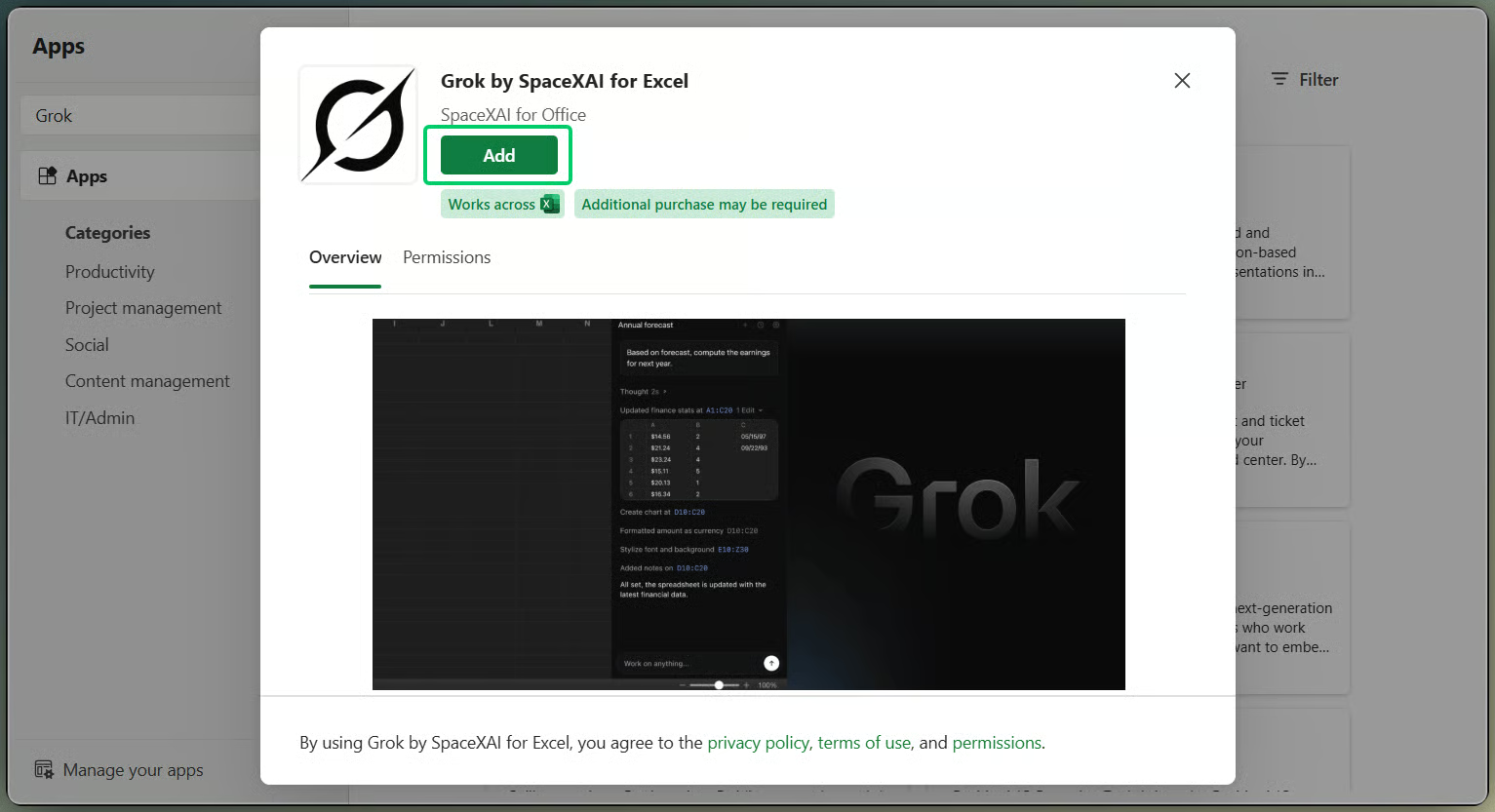
Overzicht van Grok-add-in vóór installatie. Afbeelding door auteur.
Als de knop Toevoegen op werk ontbreekt, komt dat doorgaans overeen met de admin-blokkade die ik onder prijzen noemde. Een beheerder moet de add-in goedkeuren of uitrollen.
Na installatie verschijnt Grok onder het tabblad Start of in Mijn invoegtoepassingen. Open de zijbalk en log in met een geschikt Grok-account. In principe hoef je maar één keer in te loggen. De tekst van SpaceXAI bij de add-in zegt: "één keer inloggen en het is klaar wanneer je het nodig hebt."
Selecteer eerst een cel, tabel of bereik (zelfde regel als in de intro). Grok beperkt antwoorden tot wat je hebt gemarkeerd. Een lege of vage selectie levert je een vaag antwoord op. Typ een duidelijke instructie, lees het antwoord en controleer of formules, waarden of grafieken zijn neergezet als normale Excel-inhoud die je zelf kunt bewerken.
Deze zes workflows volgen de featurelijst hierboven. Ik maakte een kleine oefenwerkmap met drie bladen zodat ik de prompts kon proberen zonder risico voor een echt bestand: regionale sales, een rommelige klantenlijst en een maandelijks financieel model. Zie de prompts als vertrekpunt. Controleer elke output.
Begin met een kleine tabel en duidelijke koppen. De mijne heeft vijf regio’s en zes maanden aan omzet, kosten en verkochte stuks. Selecteer de hele tabel en vraag iets concreets: welke regio groeide het snelst, wat veranderde er tussen twee maanden, of valt er een waarde uit de toon.
SpaceXAI zegt dat Grok de cellen citeert die het gebruikte, dezelfde claim die ik onder "Wat is Grok voor Excel?" noemde. Dat helpt je de bron te vinden. Het bewijst de som niet. Ik controleer nog steeds steekproefsgewijs minstens één getal voordat ik een samenvatting doorstuur.
Hier worden vaak twee aparte features door elkaar gehaald. De eerste is webzoekopdracht vanuit de zijbalk: vraag Grok om een publieke parameter die belangrijk is voor je model (een rente, een grondstofprijs, de gerapporteerde omzet van een concurrent) en sla vervolgens de bron, publicatiedatum en de datum waarop jij hem ophaalde op.
De tweede is connectors, ingesteld op grok.com/connectors, niet binnen de Excel-installatie. SharePoint en Google Drive zitten in die connectorset uit de featurelijst. Google Drive is beschikbaar op een brede set abonnementen. SharePoint en OneDrive zijn Business- en Enterprise-functies, en voor SharePoint moet een Microsoft 365-beheerder mogelijk tenant-brede toestemming geven. Verwacht op een persoonlijk SuperGrok niet dat SharePoint met één schakelaar werkt.
Zet een extern getal niet in dezelfde kolom als je eigen geverifieerde actuals zonder label. Zo wordt een verouderde waarde maanden later "het getal".
|
Functiegebied |
Grok voor Excel |
Microsoft Copilot |
Claude voor Excel |
|
Status |
Live sinds juli 2026 |
Algemeen beschikbaar |
Beta |
|
Onderliggend model |
Grok 4.5 |
||
|
Werkmapbewerking |
Formules, grafieken, draaitabellen, scenario’s |
Formules, grafieken, draaitabellen, Python-uitvoering |
Formules, grafieken, draaitabellen, voorwaardelijke opmaak |
|
Onderzoek & connectors |
Web/X-zoekopdracht, SharePoint & Google Drive |
Microsoft Graph, werkmapimport, financiële connectors |
MCP-connectors naar aanbieders van financiële data |
|
Toegang |
Betaald Grok-abonnement vereist |
Gebundeld met M365 Copilot-licenties |
Inbegrepen in betaalde Claude-abonnementen (~$20/maand) |
Ik rangschik deze niet. Kies op basis van wat je al gebruikt en waarvoor je betaalt.
Zoals ik onder "Wat is Grok voor Excel?" aanstipte, zeggen de productpagina van SpaceXAI en de installatiemelding van Microsoft niet hetzelfde over gegevenstoegang. Dit is de sectie waarin dat verschil concreet wordt.
De pagina van SpaceXAI herhaalt de lijn "leest alleen de bereiken die je kiest" die ik eerder noemde. Op plekken staat ook "data verlaat de werkmap nooit." Letterlijk gelezen klinkt die tweede zin alsof de data op je machine blijft. De Marketplace-vermelding zegt in plaats daarvan dat de add-in "je document kan lezen en wijzigen" en "data via internet kan verzenden." Dat is Microsofts eigen machtigingstekst. Ik zie dat als de helderder uitspraak over wat de add-in mag doen. Zie "verlaat de werkmap nooit" als productformulering over de workflow, niet als claim dat je selectie het apparaat nooit verlaat.
Cloud Office-add-ins vragen vaak om lees-, schrijf- en internettoegang. Grok past in dat patroon. Het toestemmingsscherm dat je tijdens installatie ziet (dat ik bij Stap 1 noemde) is de tekst om aan te houden. Als je dit voor een team uitrolt, stuur datzelfde scherm dan naar wie add-ins beoordeelt voordat ze voor de tenant worden goedgekeurd.
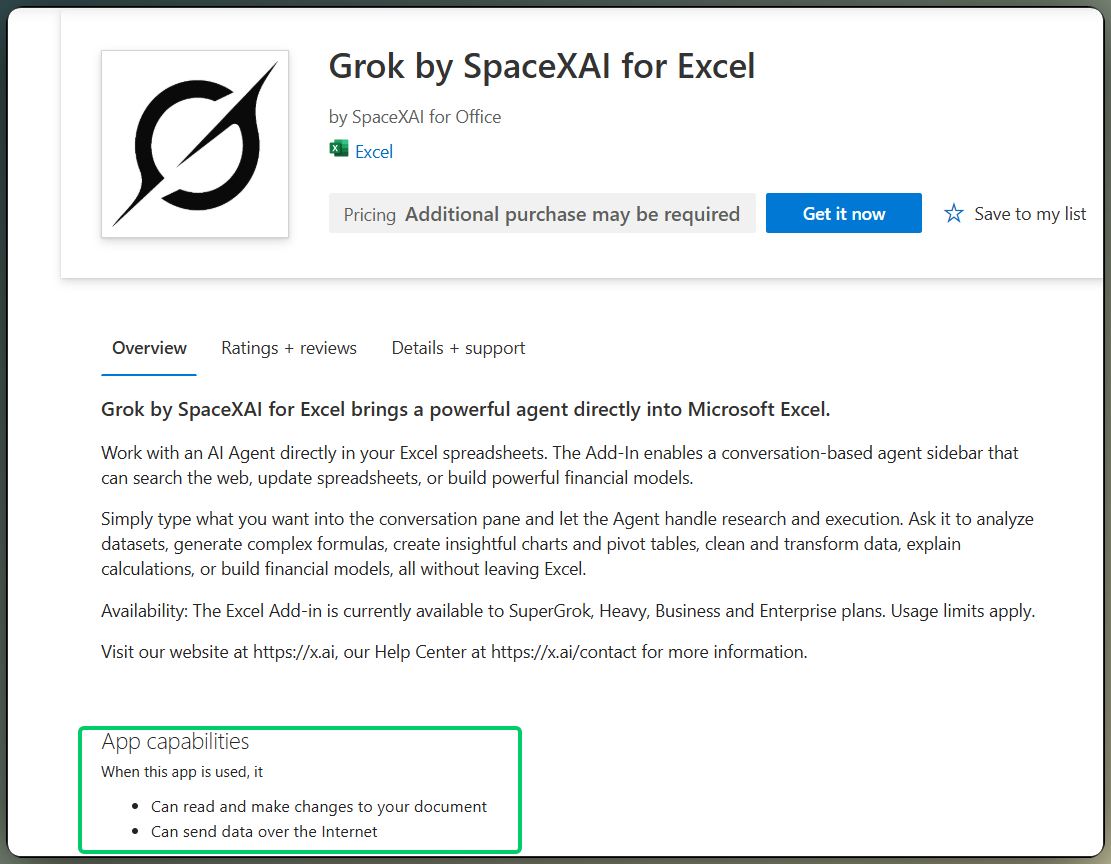
Marketplace toont Grok-datamachtigingen. Afbeelding door auteur.
Trainingsregels verschillen per abonnement. Business- en Enterprise-materiaal zegt dat SpaceXAI niet traint op de data van dat account. De documentatie van de Google Drive- en SharePoint-connectoren, dezelfde connectors die ik in Voorbeeld 6 besprak, zegt hetzelfde voor data die via die koppelingen wordt opgehaald. Consumentenprivacytaal is breder en staat toe dat persoonlijke informatie wordt gebruikt om de dienst te ontwikkelen en te verbeteren. Ik vond geen Excel-add-in-specifieke tekst die vastlegt hoe dat van toepassing is op werkmapdata op persoonlijk SuperGrok. Vraag SpaceXAI-support als dat belangrijk is voor je bestand.
Sla vertrouwelijke werkmappen over tenzij het beleid van je organisatie AI-add-ins toestaat die data via internet verzenden. Test op een kopie. Kijk vóór een brede opschoon- of analyseprompt naar verborgen bladen, opmerkingen en externe koppelingen. Grok kan content verwerken die je niet bedoelde mee te nemen. Als je bestanden via een connector ophaalt, let dan op promptinjectie: tekst in een gedeeld document kan proberen het model te sturen, en deze add-in kan terugschrijven in de werkmap. Bekijk elke wijziging voordat je opslaat of deelt.
Een paar beperkingen zijn het waard om in het vizier te houden voordat je een gewoonte rond de add-in opbouwt.
Gebruikslimieten volgen je abonnement en komen uit de gedeelde wekelijkse pool die onder prijzen is genoemd. Een lange dag scenarios draaien gebruikt dezelfde toelage als chat en coding. Citaties van cellen, zoals Voorbeeld 1 liet zien, betekenen niet dat het antwoord klopt alleen omdat de toon zeker klinkt. Vage prompts op onbenoemde bereiken zijn hoe je een antwoord krijgt dat er prima uitziet en toch de kern mist.
VBA, macro’s, Power Query en Power Pivot-ondersteuning zijn niet helder gedocumenteerd, geen van beide kanten. Test ze als je ze nodig hebt. Grote werkmappen met meerdere bladen idem: publieke materialen zeggen niet hoe de add-in zich gedraagt wanneer het bestand groot wordt. Controleer dat zelf voordat je er een proces omheen bouwt.
Ik kom steeds terug op hetzelfde korte lijstje na het doorlopen van de bovenstaande voorbeelden. Niets hiervan is ingewikkeld. Het voorkomt gewoon herstelwerk wanneer de add-in het blad voor je bewerkt.
Als je wilt zien of Grok voor Excel je werk helpt, begin dan niet met een leeg blad of een gepolijste demo. Begin met een kopie van een echte werkmap, of het oefenbestand uit de voorbeelden hierboven.
Open eerst de zijbalk en selecteer een bereik. Vraag dan iets specifieks, zoals:
#DIV/0! in de eerste maand van elke regio.Ga vanaf daar in kleine stappen. Vraag Grok om het blad uit te leggen voordat het iets bewerkt. Lees elke formule in de formuletabel voordat je omlaag vult. Houd extern onderzoek gelabeld zodat het niet opgaat in je eigen cijfers.
Zie Grok als een helper die in de werkmap kan schrijven, niet als de eindcontrole. Jij blijft verantwoordelijk voor wat er in de cellen komt. Wil je de onderliggende Excel-vaardigheden aanscherpen, dan dekken ons Excel Fundamentals skill track en de cursus Data Analysis in Excel die kant.
Leren met DataCamp
Cursus
Cursus
Leerpad
blog
Adel Nehme
15 min