Course
Introduction to Claude Models
3 hr
14.6K
More and more developers use AI technologies to help them with coding jobs, including debugging, writing documentation, refactoring, and making new code. Many AI tools are built as online interfaces or IDE plugins, but some developers prefer terminal-first workflows because they make automation, scripting, and tool integration easier.
Claude Code CLI lets developers work with Anthropic's Claude models right from the command line. This lets them do things like automated code analysis, multi-file reasoning, and AI-assisted development activities without having to leave the terminal.
In this tutorial, you’ll learn what Claude Code CLI is, how to install and configure it, and how developers use it in real-world workflows such as code audits, refactoring, and automated test generation.
Claude Code CLI is a command-line interface for interacting with Claude’s AI coding capabilities directly from your local development environment. Built by Anthropic, Claude excels at tasks involving language, reasoning, analysis, coding, and more.
Instead of opening a browser or IDE plugin, developers can run commands like:
claude code analyze ./projectThe CLI sends project context to Claude, which can then perform tasks such as:
The best thing about Claude is that it can reason across numerous files at once. This is useful for real-world software projects because logic typically spans across modules and directories.
Claude Code CLI is essentially an AI-powered coding assistant that lives in your terminal.
Terminal-based workflows are preferred by developers because they work well with tools like Git, package managers, and CI/CD pipelines.
This ecosystem is a good fit for Claude Code CLI.
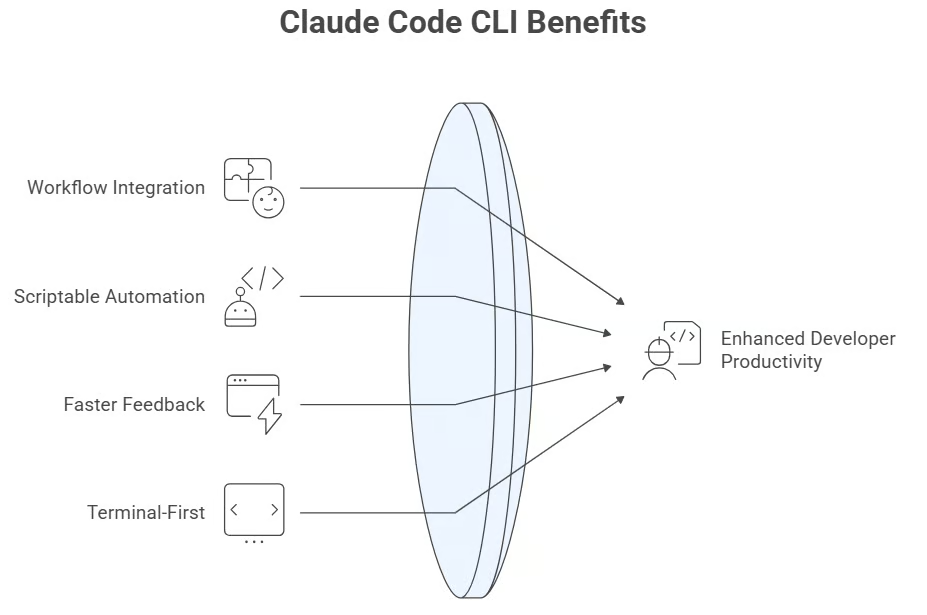
Advantages of Claude Code CLI. Source of Image: Napkin AI
Because it runs from the command line, Claude Code CLI integrates easily with:
Developers can include Claude commands inside automation scripts:
./audit_codebase.shor CI pipelines.
Developer work is below optimized when they have to switch between their IDE, browser, and documentation. CLI tools let you get AI help quickly without leaving the console.
Many engineers already use:
Claude Code CLI fits naturally into these workflows.
Developers often use Claude Code CLI for:
Running automated analysis on an entire repository.
Example tasks:
Automatically generating README files or inline documentation.
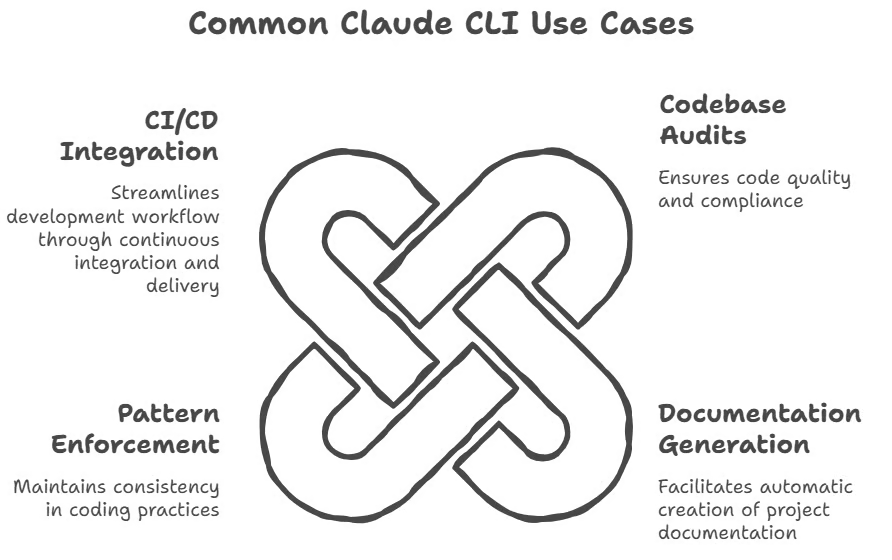
Common Use Cases of Claude CLI. Source: Napkin AI
Ensuring coding standards such as:
Running automated AI audits during build pipelines.
Before installing Claude Code CLI, you need a few basic tools installed on your system.
Typical requirements include:
The CLI is typically installed using npm.
npm install -g @anthropic-ai/claude-codeThis installs the tool globally so it can be used from any directory.
Create a folder, named (for example) project, then add a simple python file called hello.py, which has the following two lines of code. Please note that you can give any name you want to the folder and the Python file.
name = "Alice"
print("Hello, "+name)
You can also install with Homebrew
brew install --cask claude-codeExpected output: The exact Homebrew output varies by your machine and Homebrew version.
The recommended method is the native installation method which can be easily done with the following commands.
For macOS, Linux, WSL:
curl -fsSL https://claude.ai/install.sh | bashWindows PowerShell:
irm https://claude.ai/install.ps1 | iexWindows CMD:
curl -fsSL https://claude.ai/install.cmd -o install.cmd && install.cmd && del install.cmdLet’s first create a folder, named project ; and add a simple python file called hello.py, which has the following two lines of code. Please note you can give any name you want to the folder and the python file.
name = “Alice”
print(“Hello, “+name)
Now, you can navigate in the project folder you created above, open a terminal and start Claude Code:
claude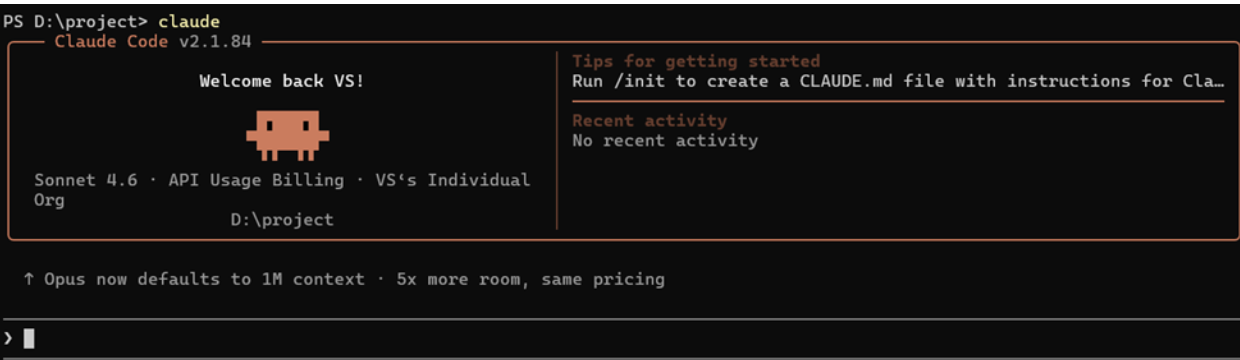
Output from the claude command. Source: Image by Author
This verifies the installation and you are ready to experiment with the Claude CLI commands.
When you install Claude Code and type claude in your terminal, a set of built-in slash commands are available immediately. These are called core commands. You do not need to create any files or do any setup — they just work.
Below are some of the most common ones.
Starts an interactive session with the initial prompt and sends your first message.
claude "explain this project"
Output of the above code. Source: Image by Author
This command reads the file content and answers your query. This is useful when you want Claude to analyse a specific file without pointing it at your whole project. The example below refactors the python code, hello.py.
claude -p "refactor hello.py" 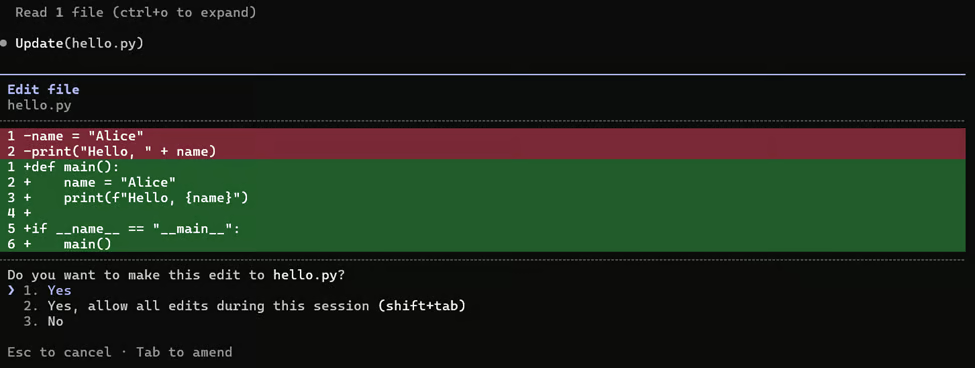
Terminal interface asking for confirmation to apply edits. Source: Image by Author
If you enter on 1. Yes, the following output is generated:
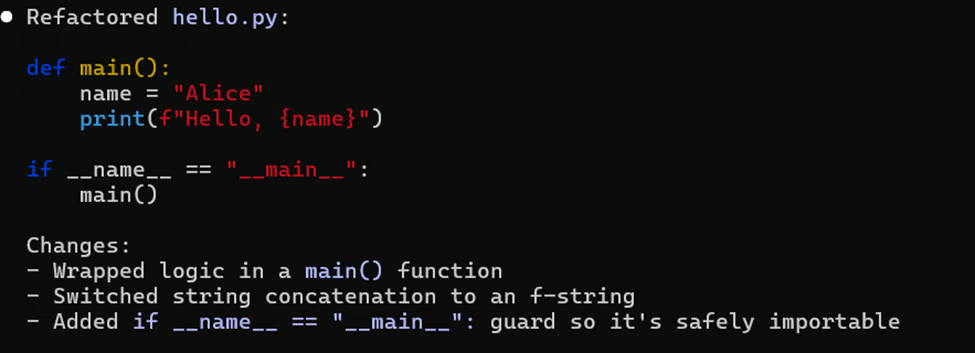
Terminal screen showing refactored Python code. Source: Image by Author
This command combines -c and -p, which basically resumes the most recent session and immediately sends a new prompt, then exits.
claude -c -p "now check for type errors"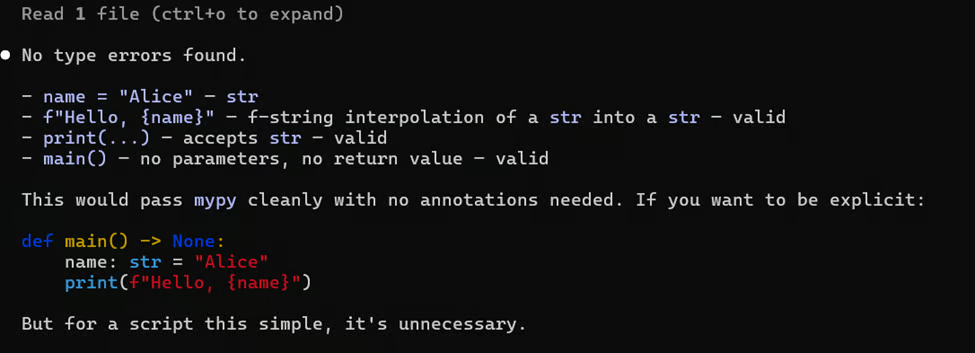
Terminal screen showing Python code validation with no type errors. Source: Author
This core command will update claude to the latest available version. It’s advisable to run this periodically to make sure you have the newest features and bug fixes.
claude update 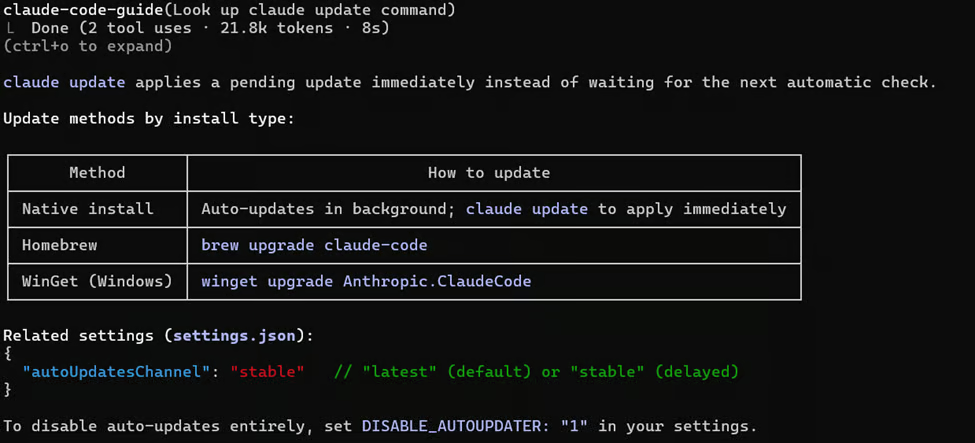
Terminal output explaining the claude update command. Source: Author
This command will list down all configured subagents, grouped by source. Subagents are specialized AI assistants that handle specific types of tasks.
claude agents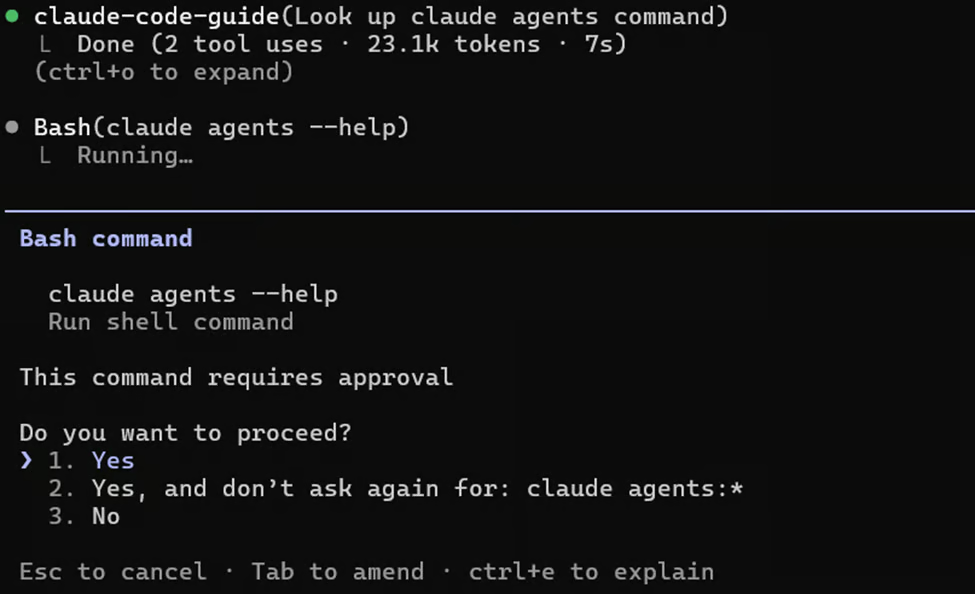
Terminal interface showing a command awaiting user approval. Source: Author
Click on 1. Yes.
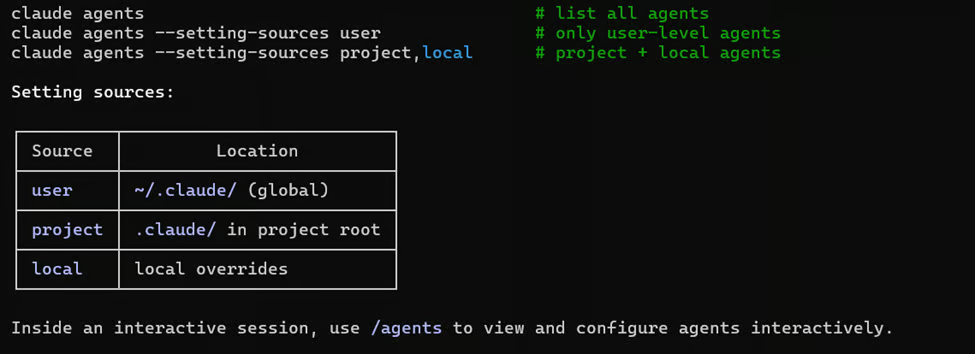
Terminal output showing claude agents commands. Source: Author
You can look at the list with /agents
/agents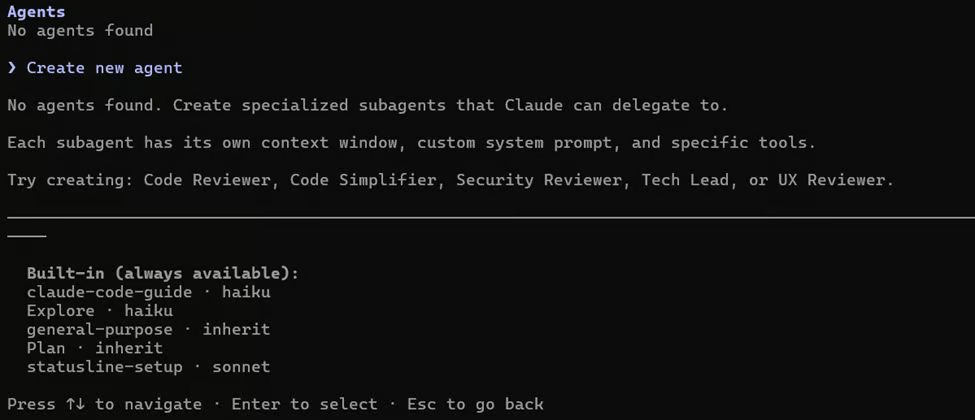
Terminal interface showing the output of the above code. Source: Author
CLI flags are added to the claude command to change how it behaves. They go between claude and your prompt. You can combine multiple flags in one command. Let’s explore the usage of some of these CLI flags.
This command sets the Claude model to be used for the session. You can use a short alias (sonnet or opus) or the full model name. Different models have different speeds and costs.
claude --model sonnet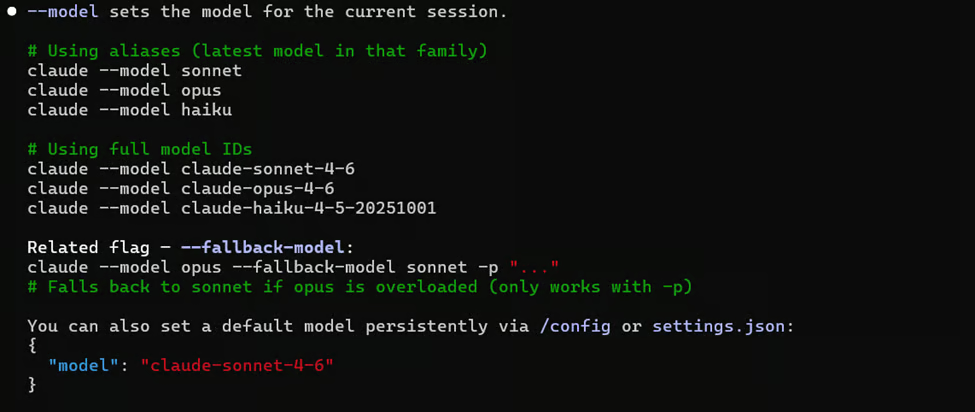
Terminal output showing how to set Claude models. Source: Author
This command sends the prompt, prints the response, and exits.
claude --print "explain hello.py"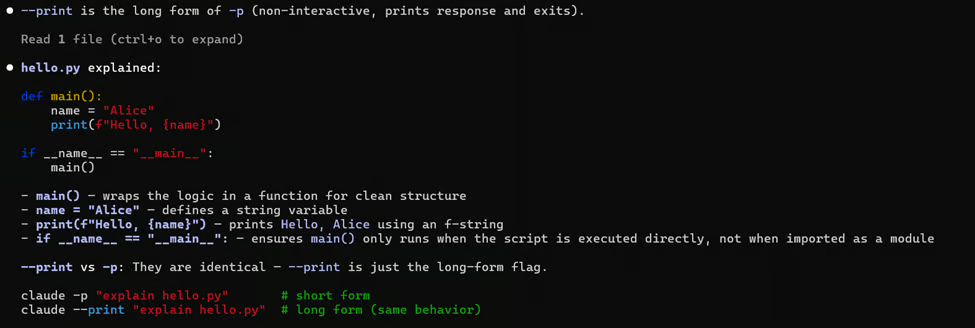
Terminal output explaining a Python script. Source: Author
The command controls the output format. The default output format is plain text.
claude -p "review hello.py" --output-format text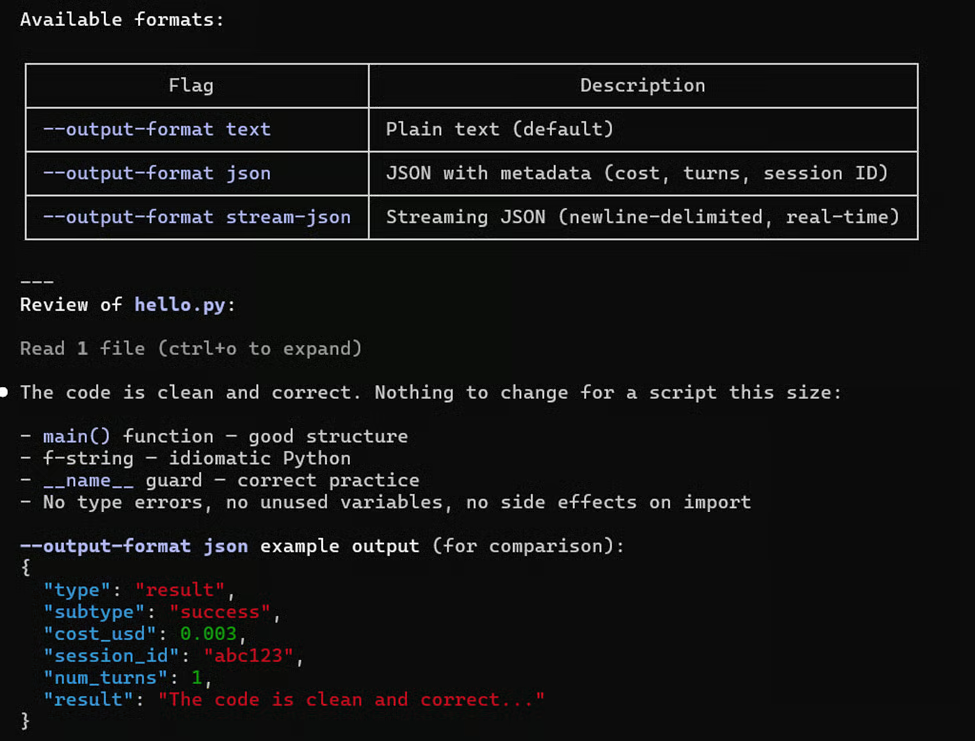
Output showing the code review by claude in text format. Source: Author
This is not a CLI flag, but a core command. This command will log you out from your Anthropic account.
claude auth logout 
Terminal output showing logout from an Anthropic account. Source: Author
Developers often want to know if CLI tools can take the role of web or IDE interfaces. The reality is that each approach offers some strengths.
CLI tools are best for automating, scripting, CI/CD pipelines, batch processes, and terminal-based workflows. They allow developers to add tasks directly to existing pipelines, run commands that can be repeated quickly, and not have to move between multiple tools all the time.
On the other hand, online or IDE-based tools are excellent for interactive debugging, exploratory conversations, visual code editing, and faster testing. They make it easier to understand code, experiment faster, and work through challenges in a sequential manner.
The practical rule many developers follow is that they use CLI for automation and UI tools for exploration. Many developers combine both approaches.
As AI tools interact with external APIs, it becomes important for developers to consider security implications.
Before analyzing a project:
remove API keys
redact credentials
exclude .env files
Never automatically commit AI-generated code without review.
Always inspect changes carefully.
Each CLI command sends data to the API.
Developers should review:
Refer to the Anthropic security documentation for more details here.
Claude Code CLI is very helpful for developers who prefer to work in the terminal first. It works great for things like automatic code analysis, CI/CD integration, refactoring across the whole project, and generating unit tests.
If you're interested in AI-assisted programming, try out Claude Code CLI on a tiny project first. Once you know how it works, it can become a powerful addition to your developer toolkit.
For deeper details on Claude Code CLI features, installation steps, and advanced configuration, refer to the resources provided below:
Learn AI with DataCamp
Course
Course
Course
blog
Khalid Abdelaty
15 min
blog
Khalid Abdelaty
10 min
Tutorial
Aashi Dutt
10 min
Tutorial
Khalid Abdelaty
13 min
Tutorial
Tim Lu
15 min
Tutorial
Bexruz (Bex) Tuychiev
15 min