Course
Data Analysis in Excel
3 hr
151.1K
You can alternate row colors in Excel by using table styles or conditional formatting. These methods apply banded rows (rows formatted with alternating background colors) that make your data easier to read and scan.
When you work with large datasets, rows can blend. This slows you down and increases the chance of reading the wrong values. Alternating row colors creates visual separation between rows, which improves clarity and accuracy.
In this guide, you will learn step by step how to apply alternating row colors using Excel tables and conditional formatting. You will also see when to use each method based on your data and formatting needs.
To alternate row colors using Excel tables, follow this step by step approach:
To convert the range into a table:
Click anywhere inside your data range
Press Ctrl + T on Windows or Command + T on Mac. You can also go to the Insert tab and click Table
The Create Table dialog box will appear. Excel selects your data automatically. Confirm that the range is correct
Select My table has headers if your first row contains column names
Click OK
Excel converts your range into a table and applies alternating row colors by default. Now the default table style includes:
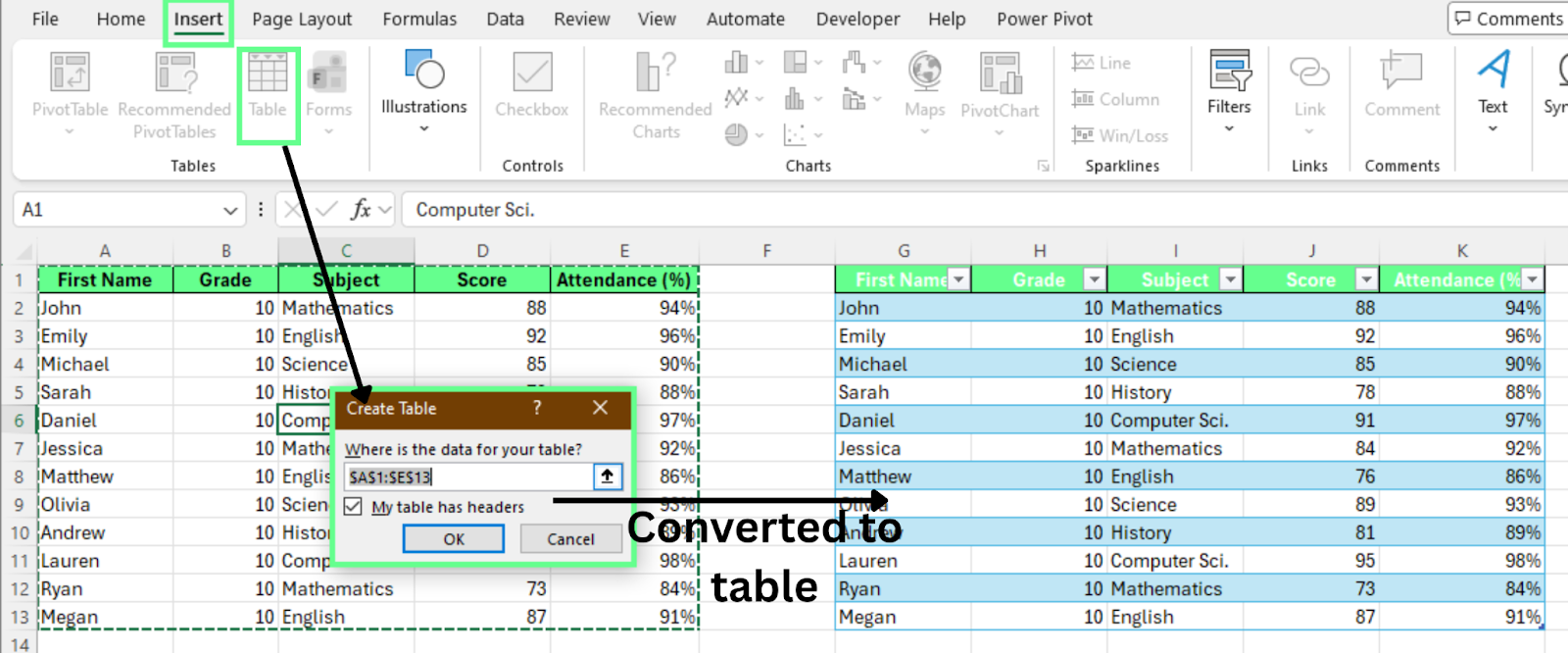
Convert the range into an Excel table. Image by Author.
To change the default colors:
Excel updates the alternating row colors instantly. Each style uses a different color pattern.
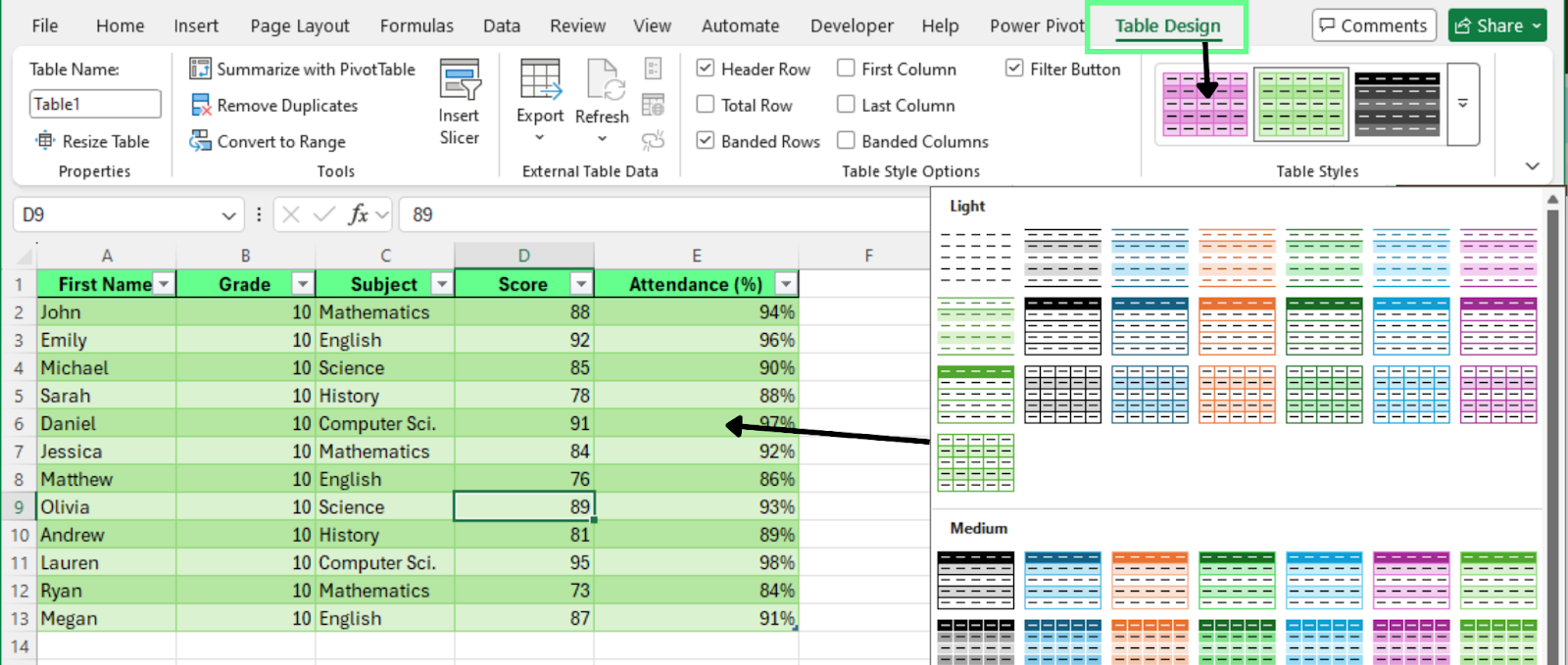
Choose a different alternate style color for your table. Image by Author.
To control the banded effect:
When you enable Banded Rows, Excel displays alternating colors. When you clear it, Excel applies one background color to all rows.
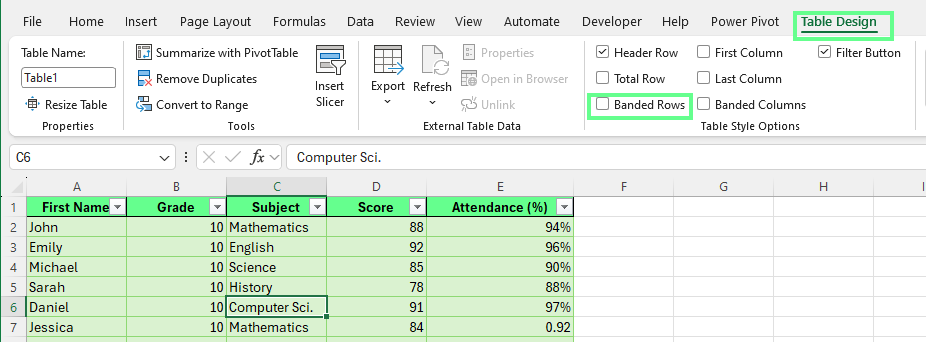
Disabling Banded Rows to apply the same background color. Image by Author.
Tables maintain the alternating pattern automatically. To see this:
Excel adds a new row and applies the correct alternating color. The pattern updates instantly when you delete rows as well. This keeps your spreadsheet consistent.
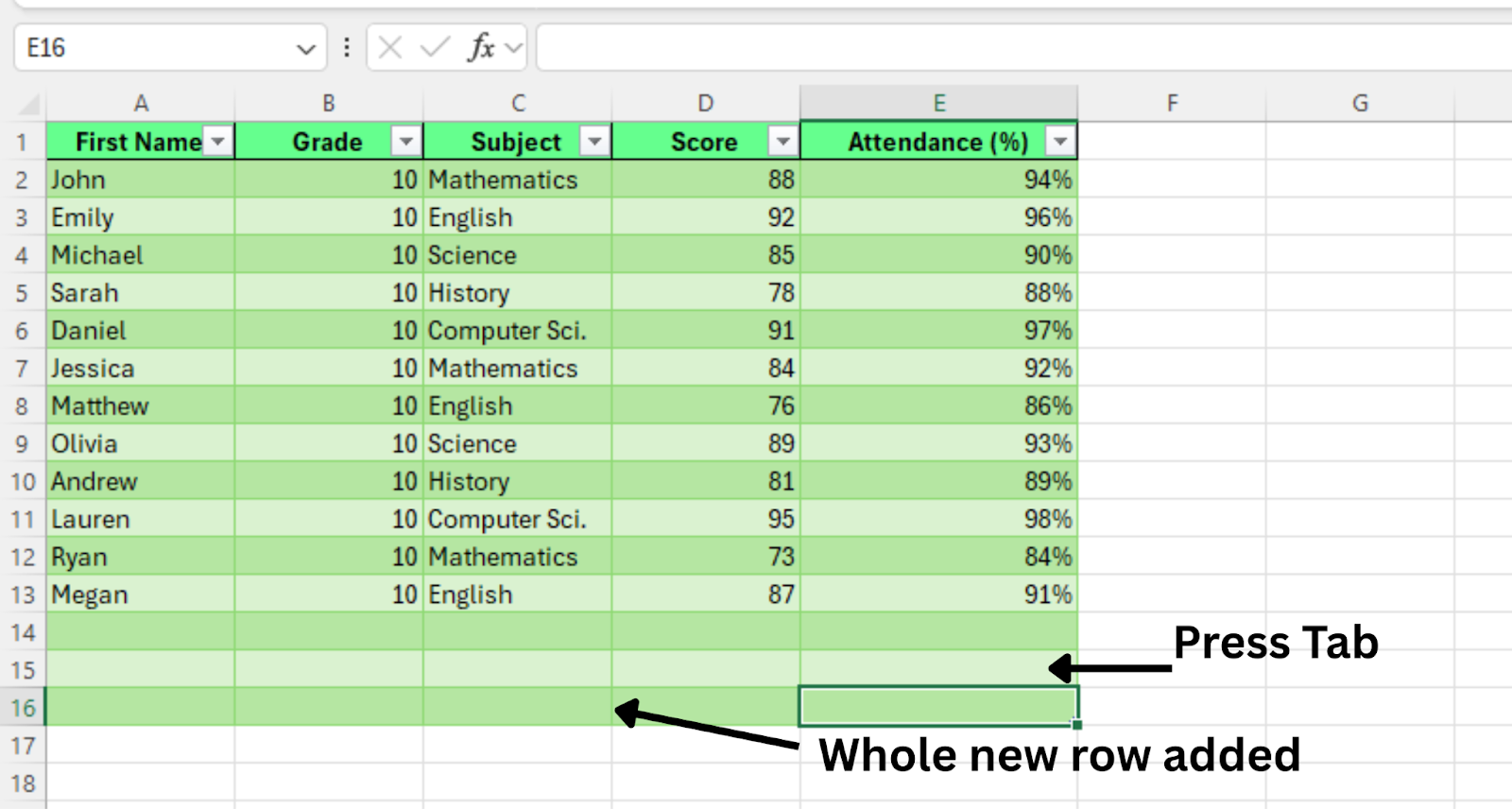
New row added. Image by Author.
If you want to convert the table back to a normal range while keeping the banded colors:
Excel removes the table structure. The Table Design tab disappears from the ribbon. The alternating row colors remain in place.
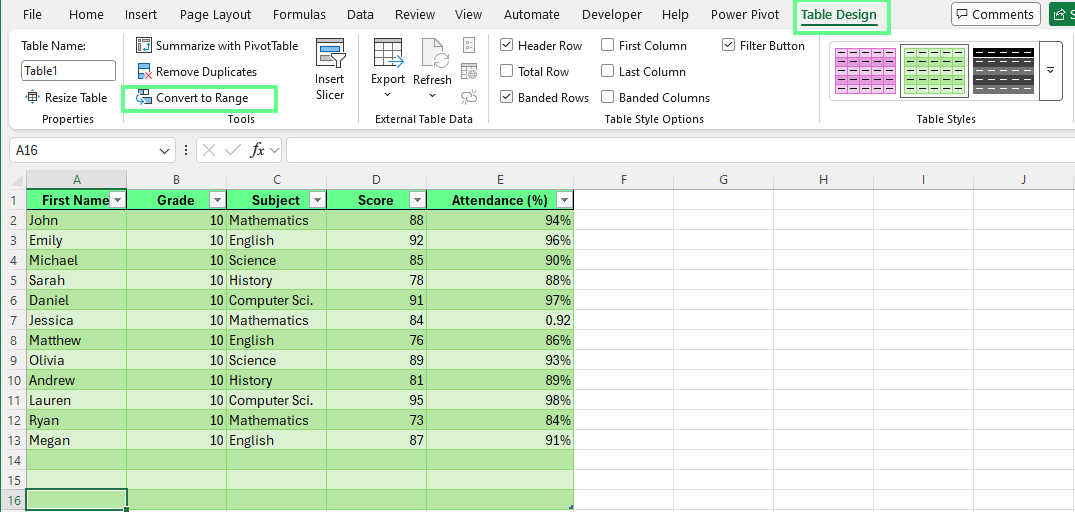
Convert the table to the normal range. Image by Author.
Converting your data into an Excel table is the fastest and most reliable way to apply alternating row colors.
Excel tables automatically apply banded rows (alternating background colors such as white and light gray). The formatting also updates when you add or remove data. This makes tables ideal for beginners and for datasets that change often.
To alternate row colors using conditional formatting:
Select the data range where you want alternating colors. Leave out the header row
Go to the Home tab
Click Conditional Formatting > New Rule
Select Use a formula to determine which cells to format
Enter this formula: =MOD(ROW(),2)=0
Here is how the formula works:
ROW() returns the current row number
MOD(number,2) divides the row number by 2 and returns the remainder
=0 applies formatting to even-numbered rows
Use =1 if you want to format odd-numbered rows instead
Next:
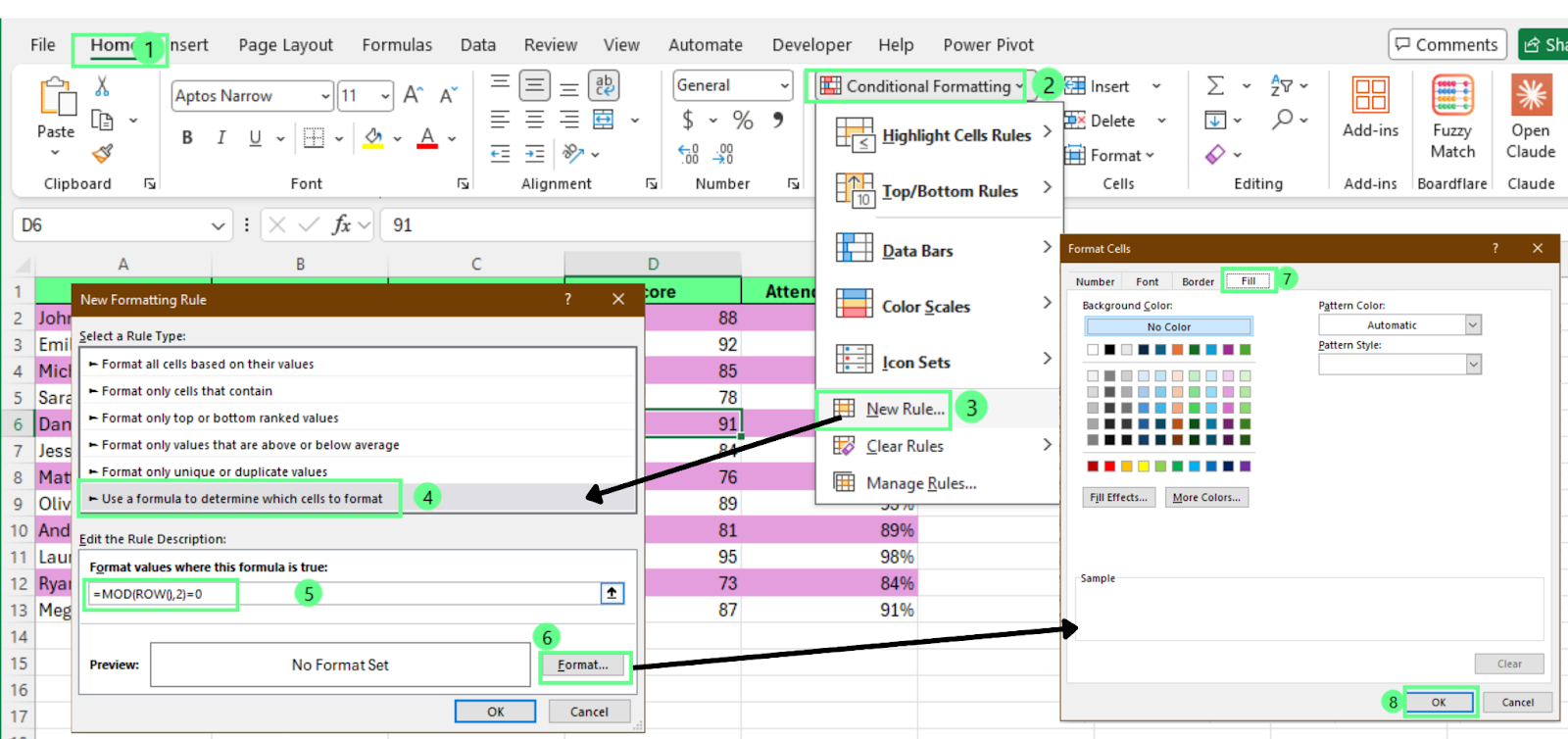
Apply Conditional Formatting to color the alternative row. Image by Author.
You can now see Excel applies the selected color to every second row within the chosen range.
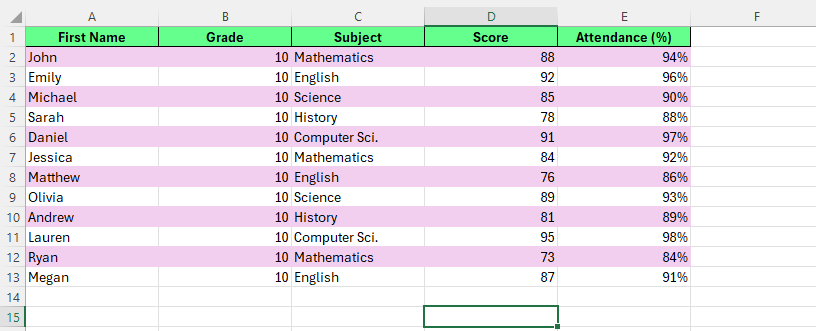
Color alternate rows using Conditional Formatting. Image by Author.
Use conditional formatting when you want full control over which rows Excel colors and how the pattern appears. This method works well when your data is in a normal range instead of a table, or when you want a custom rule for alternating rows.
Note: Conditional formatting applies only to the selected range. New rows added outside the range will not inherit the formatting automatically.
To alternate row colors in Excel starting from a specific row, follow the same steps you used for conditional formatting. Only change the formula.
Use this formula:
=MOD(ROW()-1,2)=0
Here is how it works:
ROW() returns the current row number
Subtracting 1 shifts the alternating pattern down by one row
MOD(number,2) checks whether the row number is even or odd
=0 applies the color to even rows. Use =1 to color odd rows instead
Change the number you subtract based on where your data starts.
For example:
If your data starts on row 2, subtract 1
If your data starts on row 3, subtract 2
If your data starts on row 5, subtract 4
Match the subtraction value to one row above your first data row. This keeps the alternating pattern aligned with your dataset.
To alternate colors in Excel using VBA, follow these steps:
Before you start, save your workbook as an .xlsm file:
To open VBA editor:
Select the data range you want to shade
Press Alt + F11 to open the VBA editor
Click Insert > Module
Paste this code into the Module window:
Sub BandRows()
   Dim rng As Range
   Dim r As Long

   If TypeName(Selection) <> "Range" Then Exit Sub
   Set rng = Selection

   'Clear existing fills in the selection
   rng.Interior.Pattern = xlNone

   'Start at row 2 of the selection to skip headers
   For r = 2 To rng.Rows.Count
       If (r Mod 2) = 0 Then
           rng.Rows(r).Interior.Color = RGB(255, 182, 193)
       End If
   Next r
End SubYou can run the macro in two ways:
Click the green Run button in the VBA editor
Or close the editor, press Alt + F8, select BandRows, and click Run
Excel colors every second row in the selected range. The macro skips the first row of the selection, which works well when the first row contains headers.
If you want to color the first data row instead, change this line:
If (r Mod 2) = 0 Thento
If (r Mod 2) = 1 Then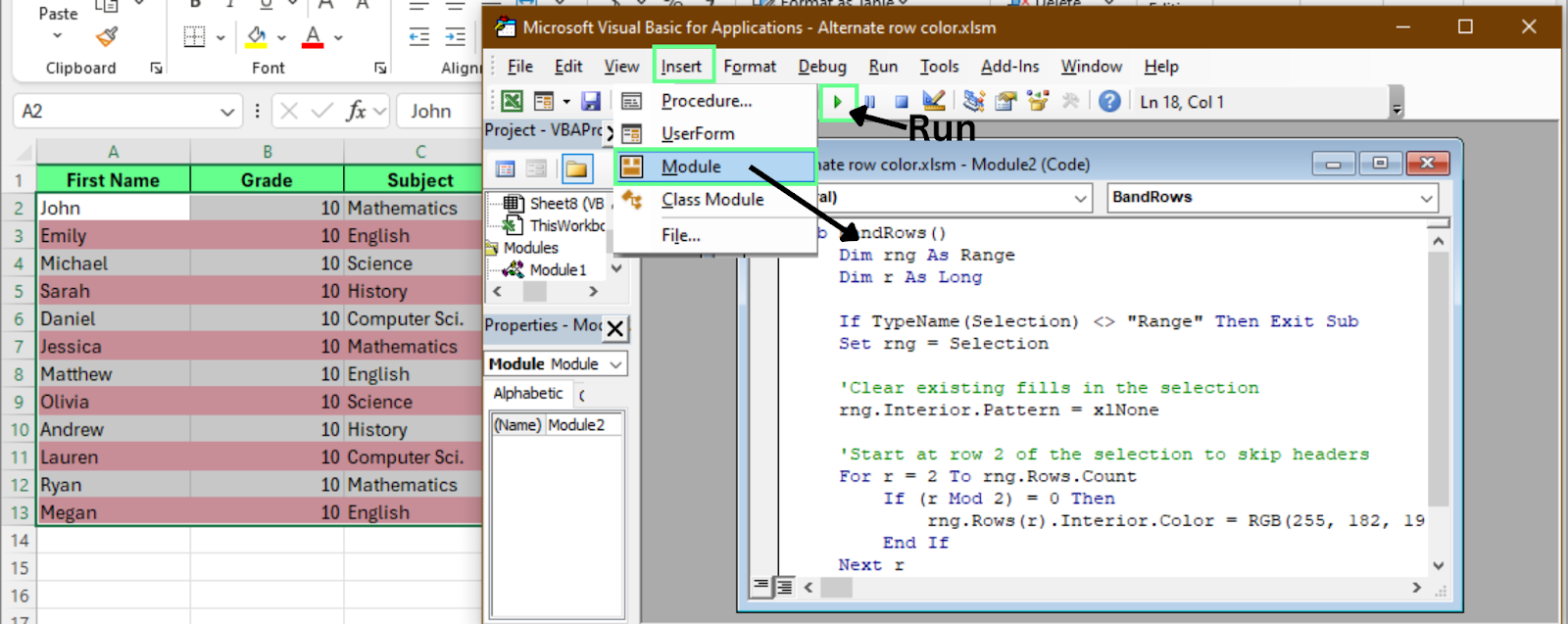
Color the alternate rows using the VBA editor. Image by Author.
This method applies colors once and keeps them static. Unlike tables or conditional formatting that work better for datasets that grow over time, it works well for final reports or files you plan to share.
So, use VBA when:
When your data changes, you can use either tables or conditional formatting to alternate row colors:
When you convert a range into a table, Excel manages the banded rows automatically.
Here is what happens:
Since tables handle frequent updates smoothly, they are the best option for dynamic datasets.
Conditional formatting recalculates the formula whenever your data changes.
When you add, delete, or sort rows, Excel reevaluates the rule and reapplies the colors.
However, certain actions can affect the visual sequence:
Conditional formatting works well for custom layouts and moderate edits. For ongoing data entry and frequent updates, tables offer a more consistent experience.
To alternate column colors, you can either use table, conditional formatting, or VBA:
Excel tables include a built-in option for alternating columns. To enable it:
Excel applies alternating colors to columns instantly. But you can clear Banded Rows if you want only column shading.
The column pattern updates automatically when you add or remove columns.
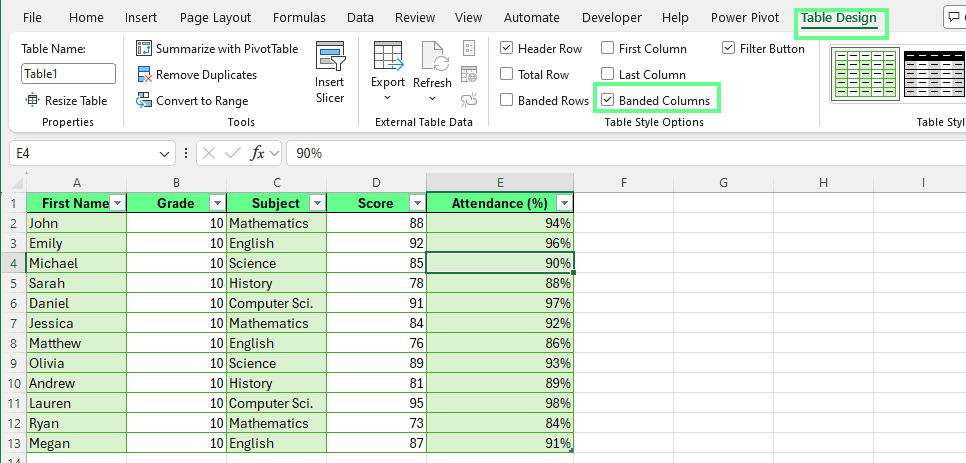
Alternate column color using the Banded Columns option. Image by Author.
To apply alternating column colors using conditional formatting:
Select the data range where you want alternating column colors
Go to Home > Conditional Formatting > New Rule
Select Use a formula to determine which cells to format
Enter this formula: =MOD(COLUMN(),2)=0
Here is how it works:
COLUMN() returns the current column number
MOD(number,2) checks whether the column number is even or odd
=0 applies formatting to even columns
Use =1 to format odd columns instead
Next:
Excel applies the selected color to every second column in the chosen range.
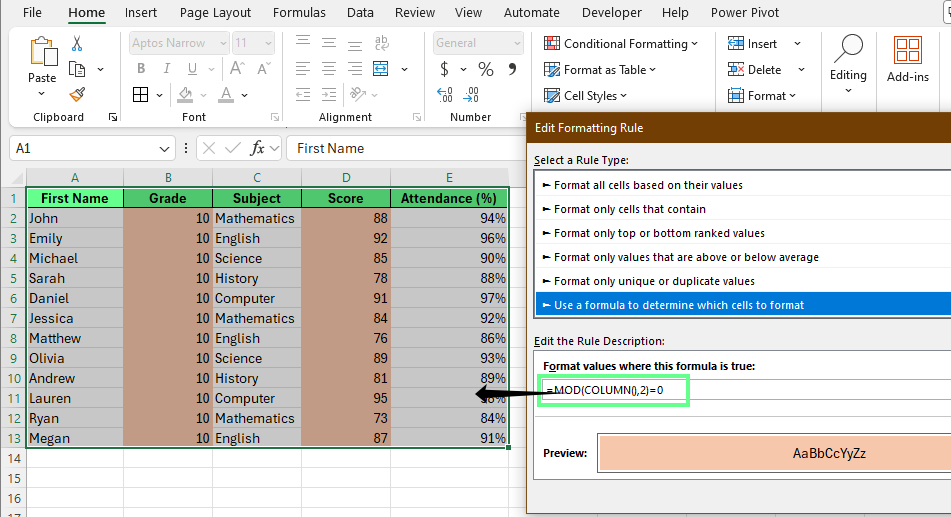
Color alternate columns using conditional formatting. Image by Author.
To apply column banding one time using VBA, open the VBA editor and paste this code into a new module:
Sub BandColumns()
   Dim rng As Range
   Dim c As Long

   If TypeName(Selection) <> "Range" Then Exit Sub
   Set rng = Selection

   'Clear existing fills
   rng.Interior.Pattern = xlNone

   'Start from column 2 to skip first column
   For c = 2 To rng.Columns.Count
       If (c Mod 2) = 0 Then
           rng.Columns(c).Interior.Color = RGB(255, 182, 193)
       End If
   Next c
End Sub
Run the macro to color every second column in the selected range. The code skips the first column, which works well when it contains labels.
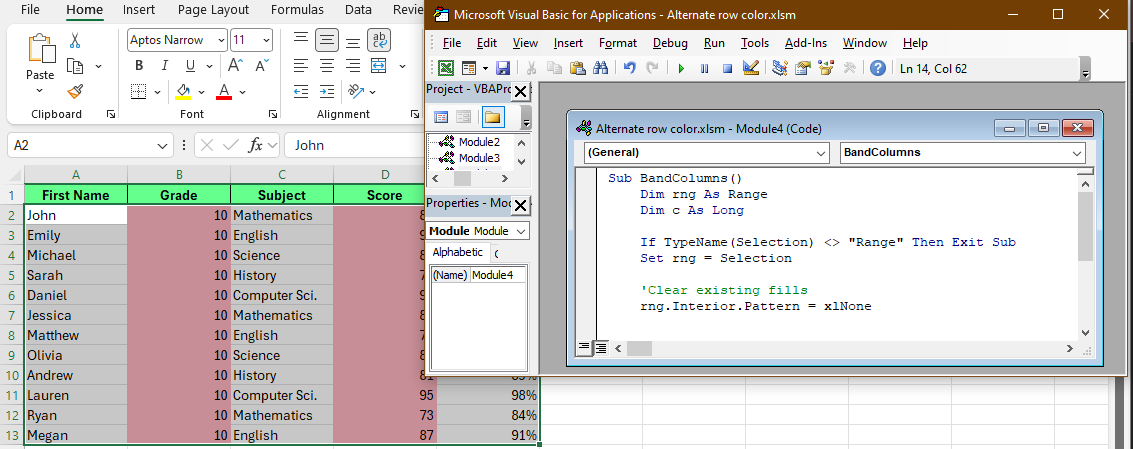
Color alternate columns using the VBA editor. Image by Author.
To remove alternating row colors, you can use table settings, conditional formatting rules, or format clearing for VBA based shading — depending on your needs.
To use table for removing colors:
You can also clear the checkboxes for Banded Rows and Banded Columns under Table Style Options. As a result, Excel removes the alternating colors and keeps the table structure intact.
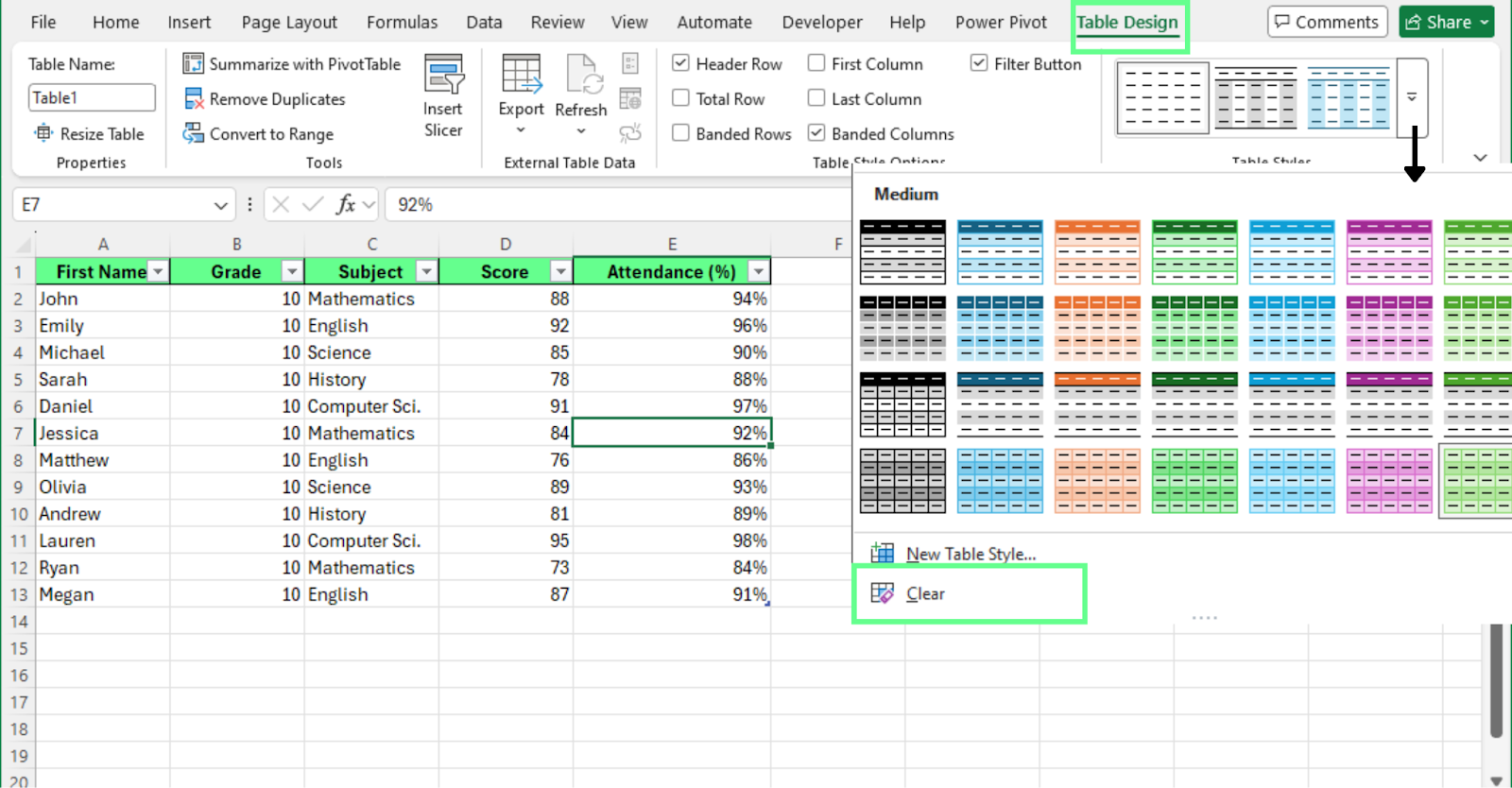
Clear the alternate color using table design option. Image by Author.
If you applied alternating colors using conditional formatting, follow these steps to remove it:
Excel removes the color pattern from the selected range.
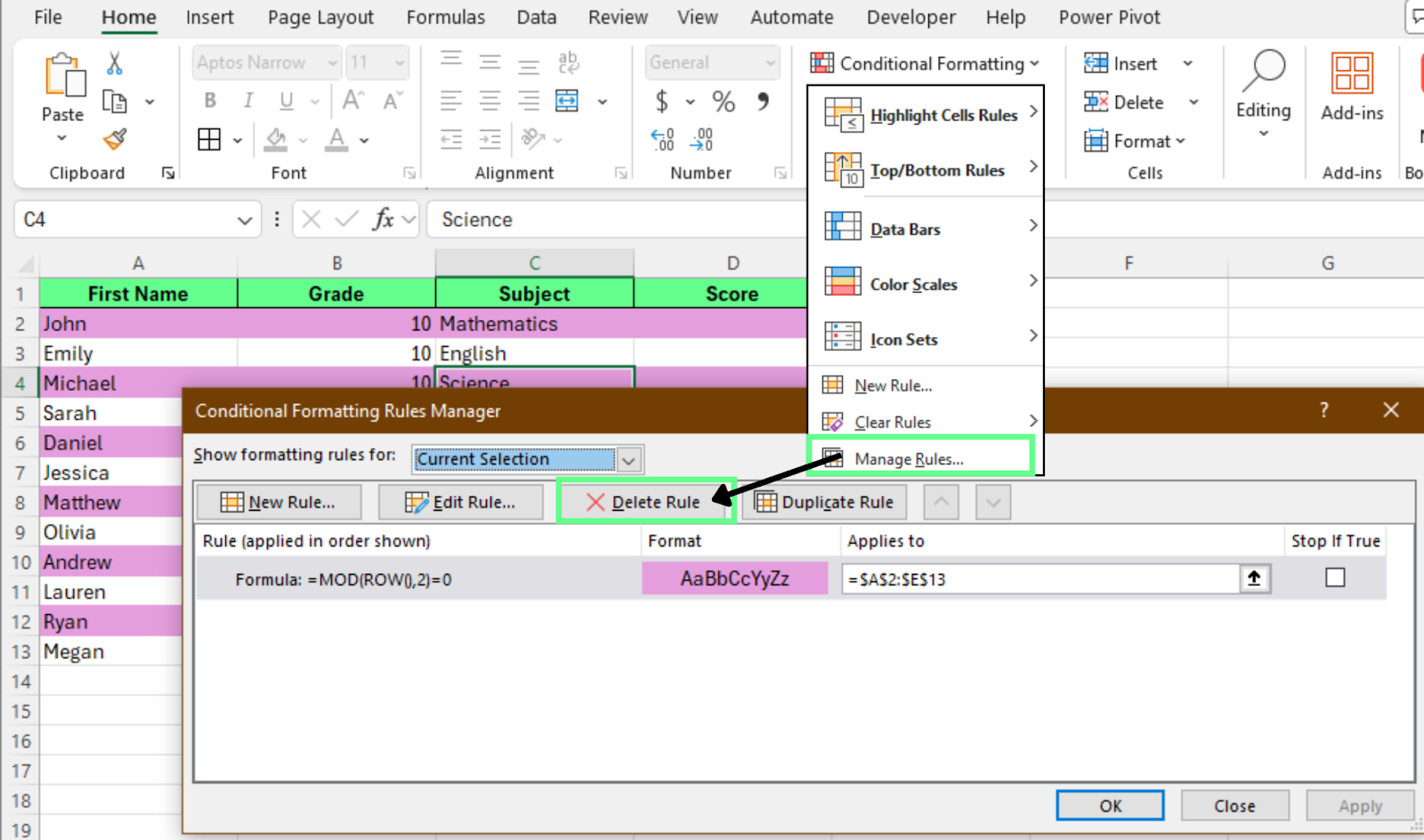
Clear conditional formatting alternate color. Image by Author.
To remove colors that you applied using a macro:
Excel removes all formatting from the selected cells, including background colors. This action clears every format applied to those cells.
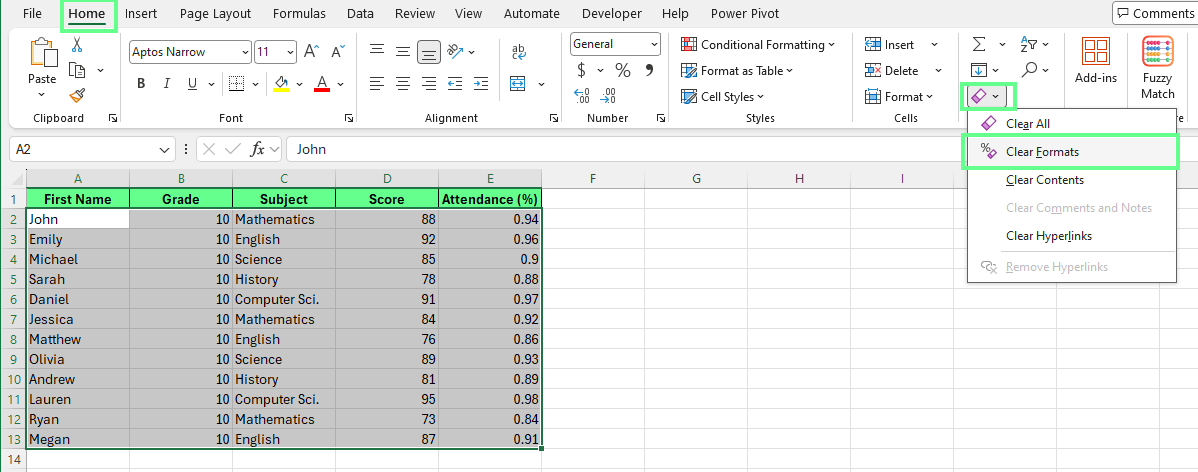
Remove the alternate color using the Clear Formats button. Image by Author.
Review your worksheet after removing alternating colors. Check that:
Clean formatting keeps your data readable, even without color banding.
Alternating row colors improve readability, but the way you apply them is important. In our experience, a few simple habits keep your worksheet clean, consistent, and easy to maintain.
We recommend the following best practices:
Now that you know how to alternate row colors in Excel, apply the method that fits your workflow:
As a next step, strengthen your worksheet structure. Clean your data, remove blank rows, and organize columns before applying visual styling. You can also explore DataCamp’s guide on Highlight duplicates in Excel to add another layer of clarity to your analysis and make your spreadsheets easier to review.
Learn Excel with DataCamp
Course
Course
Course
Tutorial
Allan Ouko
6 min
Tutorial
Laiba Siddiqui
11 min
Tutorial
Allan Ouko
5 min
Tutorial
Laiba Siddiqui
7 min
Tutorial
Joleen Bothma
7 min
Tutorial
Allan Ouko
8 min