
Kurs
Datenanalyse in Excel
3 Std.
151.1K
Du kannst in Excel abwechselnde Zeilenfarben mit Tabellenstilen oder über bedingte Formatierung anwenden. Beide Methoden erzeugen sogenannte „banded rows“ (Zeilen mit alternierenden Hintergrundfarben), die deine Daten leichter lesbar und schneller erfassbar machen.
Bei großen Datensätzen verschwimmen Zeilen leicht. Das kostet Zeit und erhöht das Risiko, Werte falsch abzulesen. Abwechselnde Zeilenfarben schaffen optische Trennung und steigern so Übersicht und Genauigkeit.
In diesem Leitfaden lernst du Schritt für Schritt, wie du abwechselnde Zeilenfarben mit Excel-Tabellen und bedingter Formatierung einsetzt. Außerdem erfährst du, wann welche Methode für deine Daten und Formatierungsziele sinnvoll ist.
So wechselst du Zeilenfarben mithilfe von Excel-Tabellen vor:
So wandelst du den Bereich in eine Tabelle um:
Klicke irgendwo in deinen Datenbereich
Drücke Strg + T unter Windows oder Command + T auf dem Mac. Alternativ: Registerkarte Einfügen > Tabelle
Das Dialogfeld Tabelle erstellen erscheint. Excel wählt deinen Datenbereich automatisch aus. Bestätige, dass der Bereich stimmt
Aktiviere Tabelle hat Überschriften, wenn die erste Zeile Spaltennamen enthält
Klicke auf OK
Excel wandelt den Bereich in eine Tabelle um und wendet automatisch abwechselnde Zeilenfarben an. Der Standard-Tabellenstil umfasst:
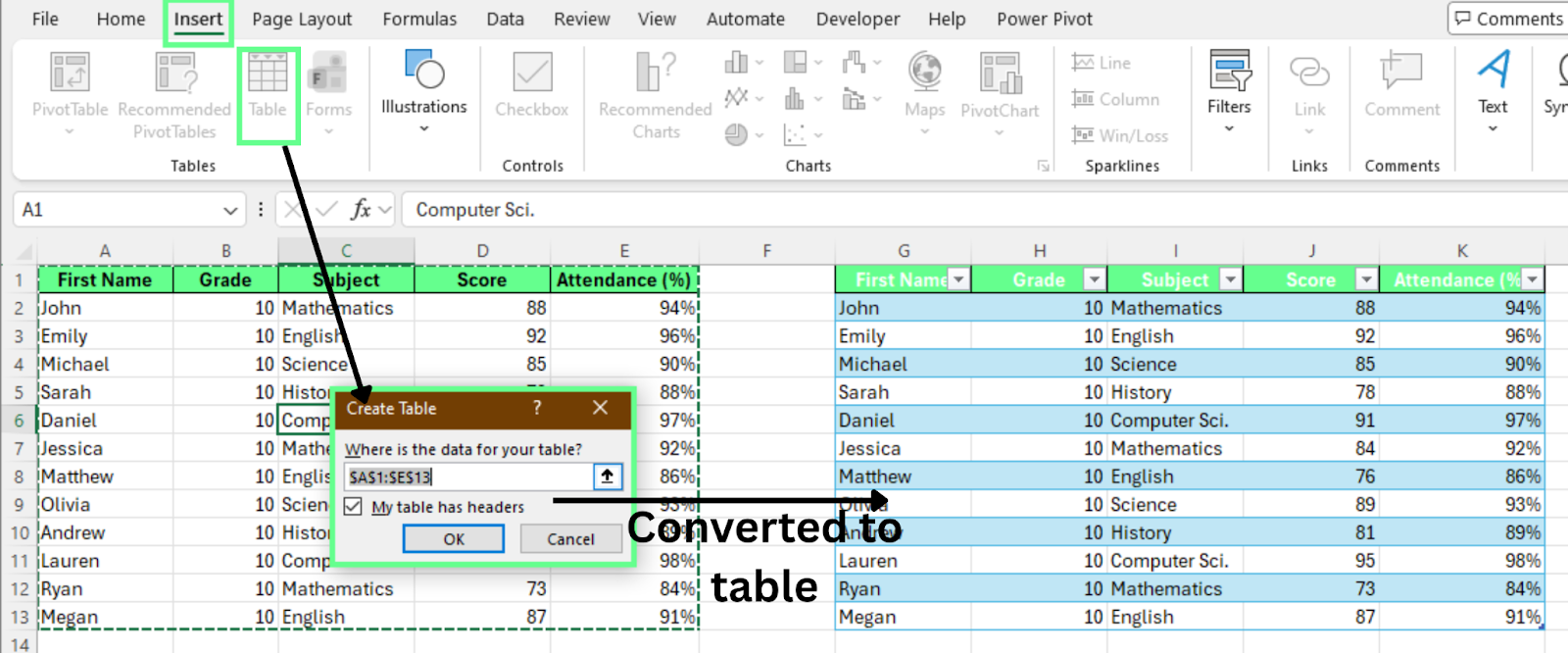
Bereich in eine Excel-Tabelle umwandeln. Bild: Autor.
So änderst du die Standardfarben:
Excel aktualisiert die abwechselnden Zeilenfarben sofort. Jeder Stil nutzt ein anderes Farbschema.
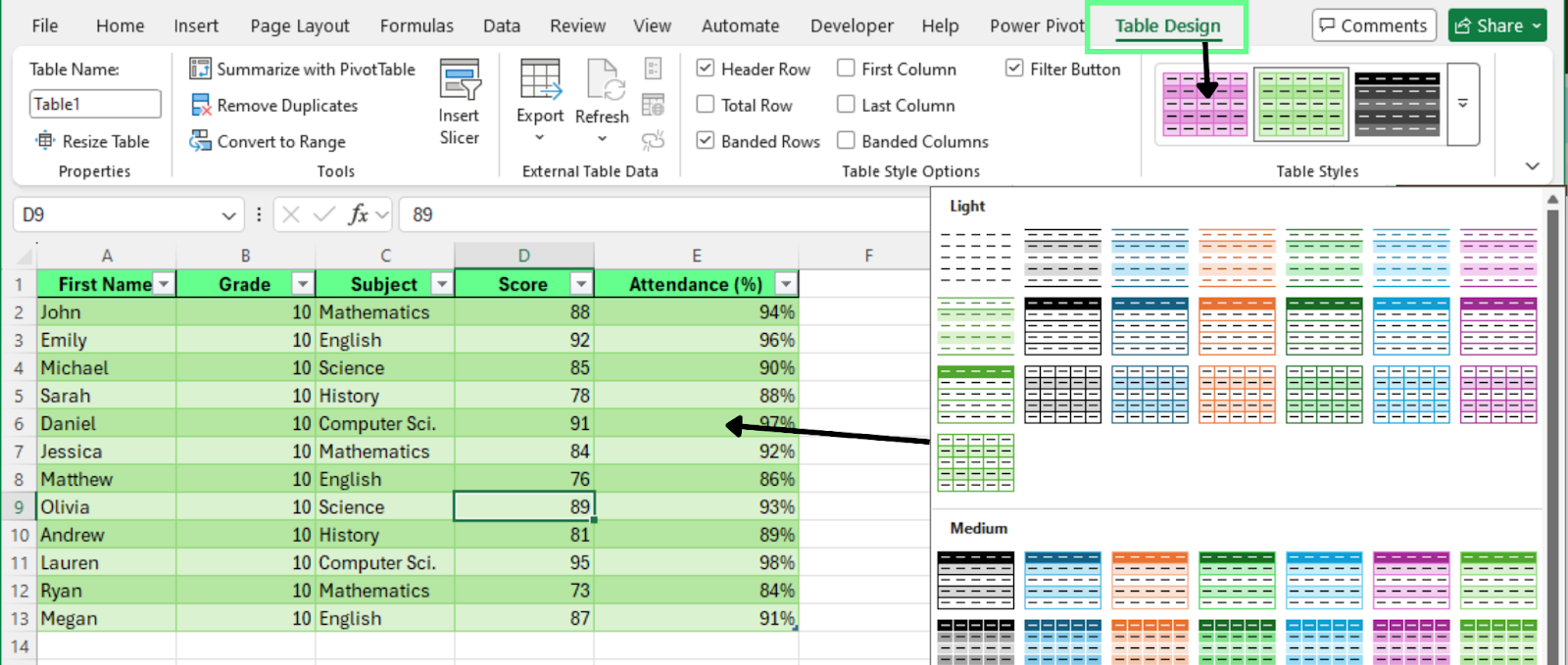
Wähle eine andere Farbvariante für deine Tabelle. Bild: Autor.
So steuerst du den Banding-Effekt:
Wenn Gegliederte Zeilen aktiviert ist, zeigt Excel abwechselnde Farben. Wenn du die Option deaktivierst, haben alle Zeilen dieselbe Hintergrundfarbe.
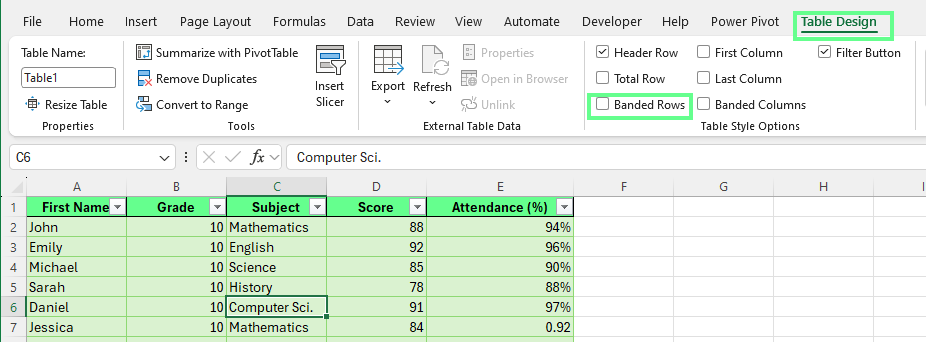
Gegliederte Zeilen deaktivieren, um eine einheitliche Farbe zu nutzen. Bild: Autor.
Tabellen halten das abwechselnde Muster automatisch aufrecht. So siehst du es:
Excel fügt eine neue Zeile ein und weist sofort die richtige abwechselnde Farbe zu. Das Muster passt sich auch beim Löschen von Zeilen direkt an. So bleibt deine Tabelle konsistent.
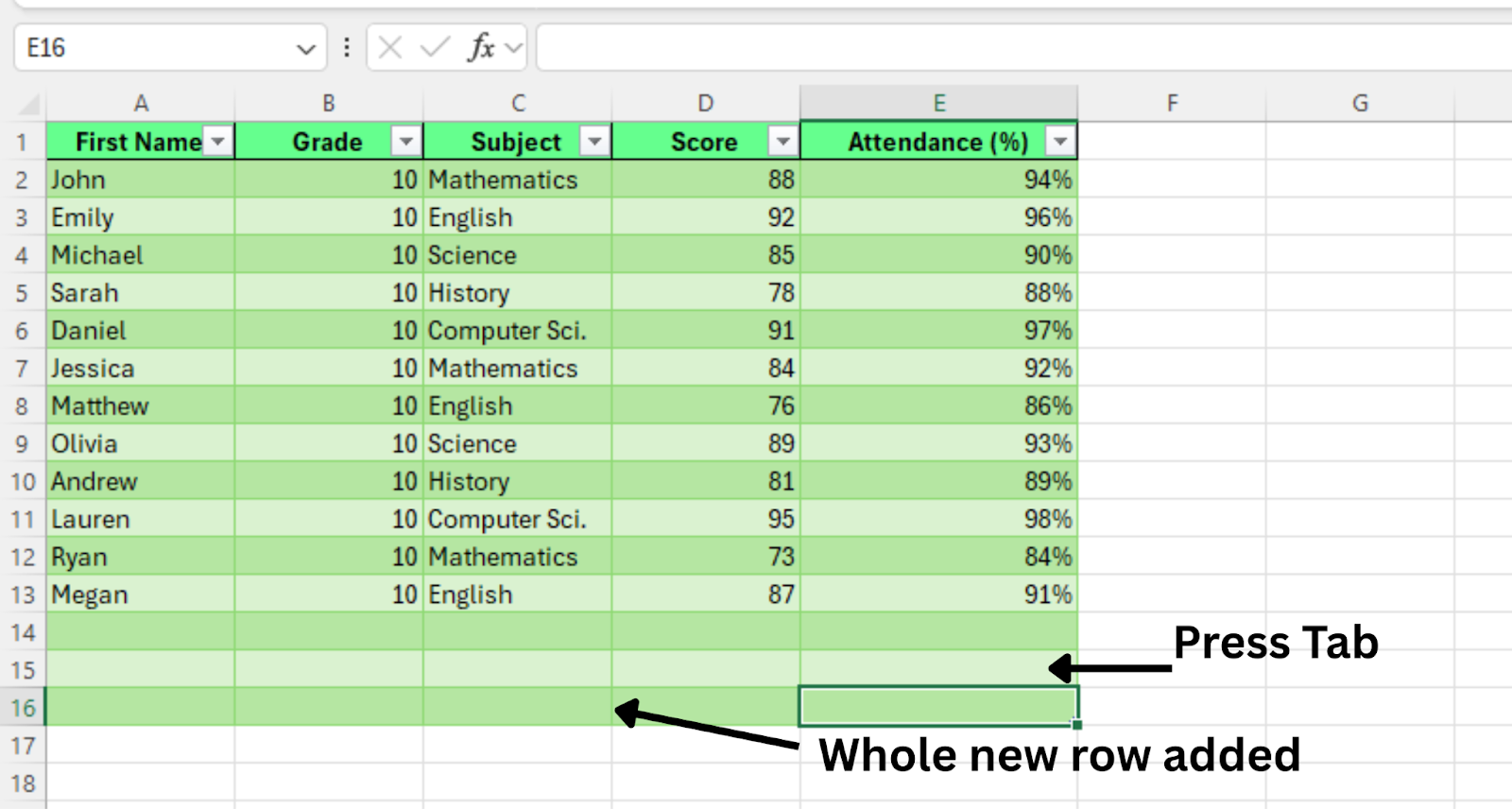
Neue Zeile hinzugefügt. Bild: Autor.
Wenn du die Tabelle wieder in einen normalen Bereich umwandeln und die Streifenfarben behalten willst:
Excel entfernt die Tabellenstruktur. Die Registerkarte Tabellenentwurf verschwindet aus dem Menüband. Die abwechselnden Zeilenfarben bleiben erhalten.
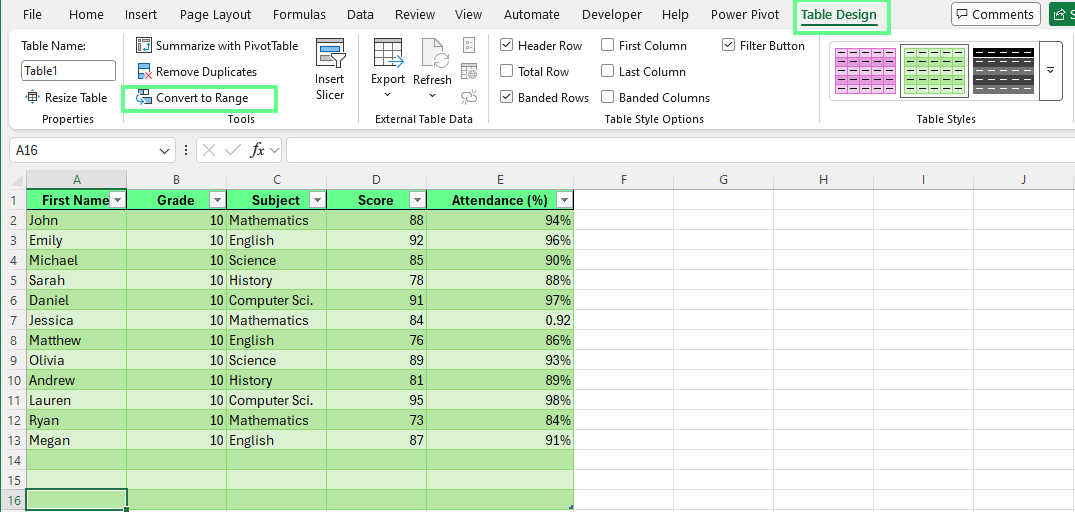
Tabelle in normalen Bereich umwandeln. Bild: Autor.
Deine Daten in eine Excel-Tabelle zu konvertieren, ist der schnellste und zuverlässigste Weg zu abwechselnden Zeilenfarben.
Excel-Tabellen wenden automatisch gegliederte Zeilen an (wechselnde Hintergründe wie weiß und hellgrau). Die Formatierung passt sich bei Einfügen oder Entfernen von Daten an. Ideal für Einsteiger und für Datensätze, die sich häufig ändern.
So nutzt du bedingte Formatierung für abwechselnde Zeilenfarben:
Markiere den Datenbereich, in dem die Farben wechseln sollen. Lass die Kopfzeile weg
Gehe zur Registerkarte Start
Klicke auf Bedingte Formatierung > Neue Regel
Wähle Formel zur Ermittlung der zu formatierenden Zellen verwenden
Gib diese Formel ein: =MOD(ROW(),2)=0
So funktioniert die Formel:
ROW() gibt die aktuelle Zeilennummer zurück
MOD(Zahl,2) teilt die Zeilennummer durch 2 und gibt den Rest zurück
=0 formatiert gerade Zeilen
Nutze =1, wenn du stattdessen ungerade Zeilen formatieren willst
Als nächstes:
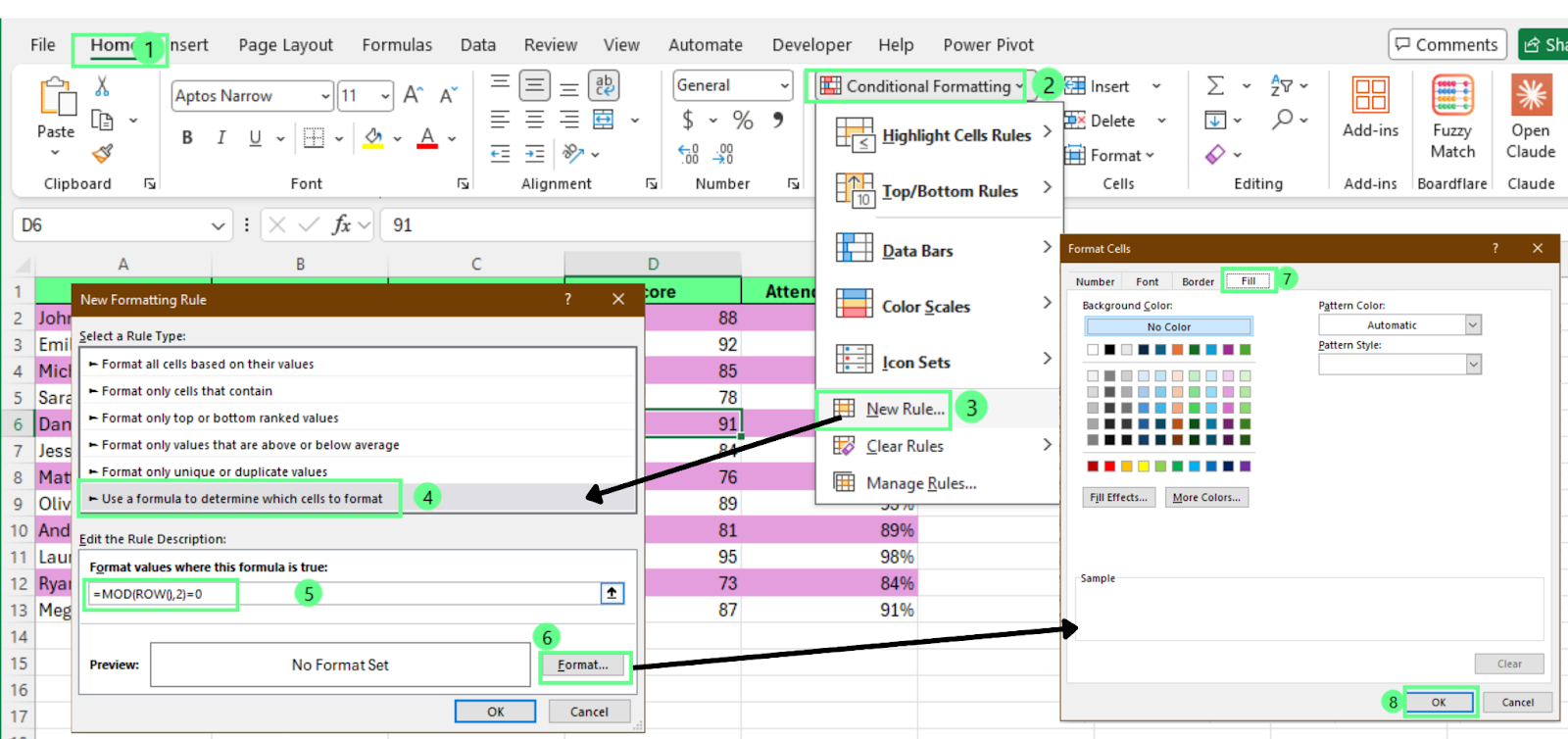
Bedingte Formatierung anwenden, um jede zweite Zeile zu färben. Bild: Autor.
Excel färbt nun jede zweite Zeile im gewählten Bereich in der ausgewählten Farbe.
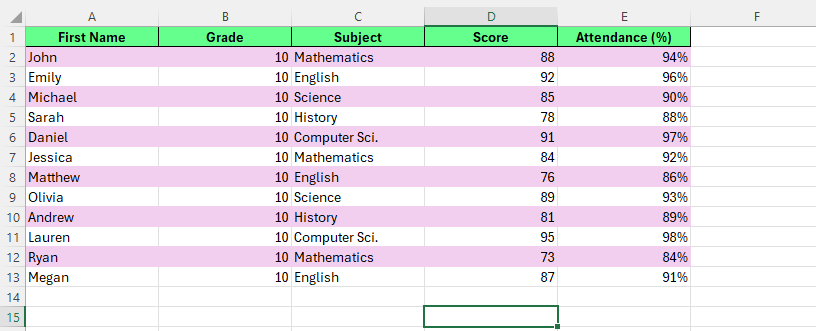
Abwechselnde Zeilen mit bedingter Formatierung färben. Bild: Autor.
Nutze bedingte Formatierung, wenn du vollständig steuern willst, welche Zeilen Excel färbt und wie das Muster aussieht. Diese Methode eignet sich, wenn deine Daten ein normaler Bereich sind statt einer Tabelle, oder wenn du eine individuelle Regel für abwechselnde Zeilen brauchst.
Hinweis: Die bedingte Formatierung gilt nur für den gewählten Bereich. Neue Zeilen außerhalb des Bereichs übernehmen die Formatierung nicht automatisch.
Um ab einer bestimmten Zeile mit abwechselnden Farben zu beginnen, nutzt du dieselben Schritte der bedingten Formatierung – nur die Formel ändert sich.
Verwende diese Formel:
=MOD(ROW()-1,2)=0
So funktioniert sie:
ROW() gibt die aktuelle Zeilennummer zurück
Durch das Subtrahieren von 1 wird das Muster um eine Zeile nach unten verschoben
MOD(Zahl,2) prüft, ob die Zeile gerade oder ungerade ist
=0 färbt gerade Zeilen. Nutze =1, um ungerade Zeilen zu färben
Passe die subtrahierte Zahl daran an, wo deine Daten beginnen.
Beispiele:
Beginnen deine Daten in Zeile 2, subtrahiere 1
Beginnen deine Daten in Zeile 3, subtrahiere 2
Beginnen deine Daten in Zeile 5, subtrahiere 4
Wähle als Subtraktionswert immer die Zeile über deiner ersten Datenzeile. So bleibt das Muster mit deinem Datensatz synchron.
So setzt du abwechselnde Farben per VBA um:
Speichere die Arbeitsmappe vorab als .xlsm-Datei:
So öffnest du den VBA-Editor:
Markiere den Datenbereich, den du einfärben willst
Drücke Alt + F11, um den VBA-Editor zu öffnen
Klicke auf Einfügen > Modul
Füge diesen Code in das Modulfenster ein:
Sub BandRows()
   Dim rng As Range
   Dim r As Long

   If TypeName(Selection) <> "Range" Then Exit Sub
   Set rng = Selection

   'Clear existing fills in the selection
   rng.Interior.Pattern = xlNone

   'Start at row 2 of the selection to skip headers
   For r = 2 To rng.Rows.Count
       If (r Mod 2) = 0 Then
           rng.Rows(r).Interior.Color = RGB(255, 182, 193)
       End If
   Next r
End SubDu kannst das Makro auf zwei Arten ausführen:
Klicke im VBA-Editor auf den grünen Ausführen-Button
Oder schließe den Editor, drücke Alt + F8, wähle BandRows und klicke auf Ausführen
Excel färbt jede zweite Zeile im markierten Bereich. Das Makro überspringt die erste Zeile der Auswahl – praktisch, wenn sie Überschriften enthält.
Wenn du stattdessen mit der ersten Datenzeile beginnen willst, ändere diese Zeile:
If (r Mod 2) = 0 Thenin
If (r Mod 2) = 1 Then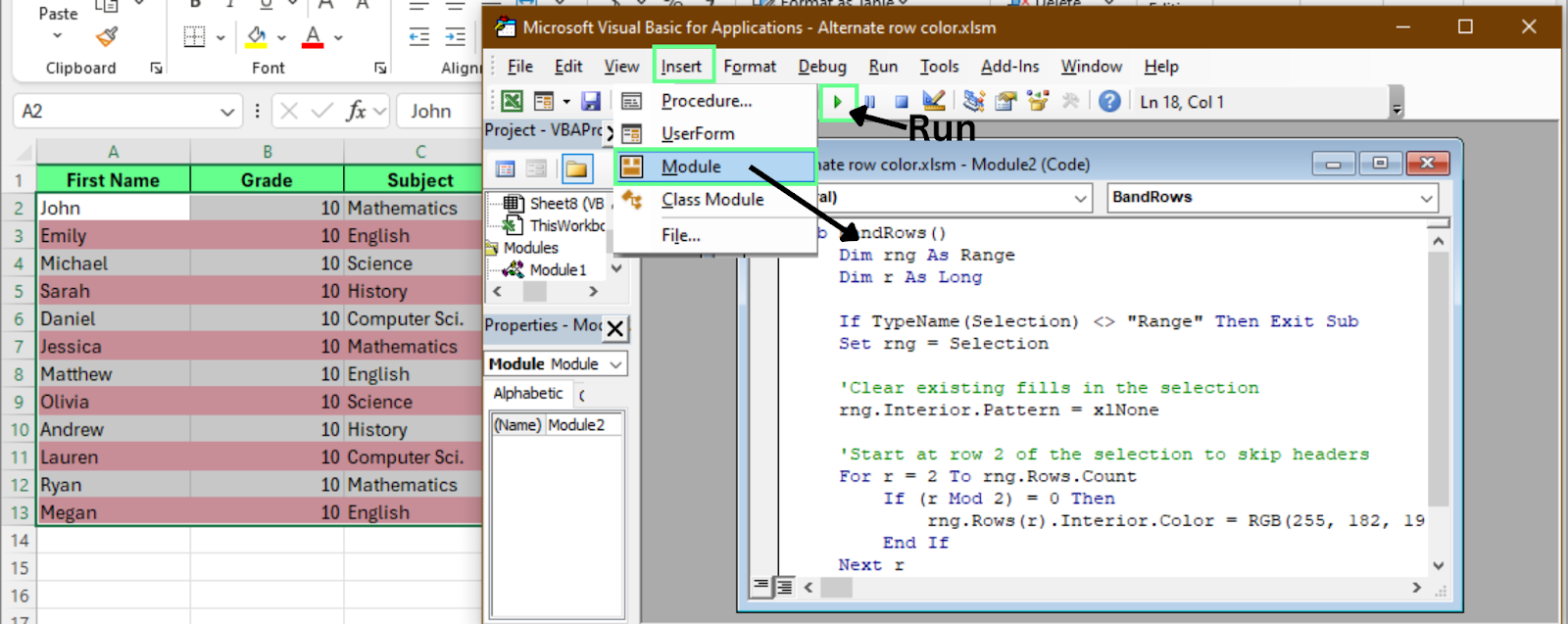
Abwechselnde Zeilen über den VBA-Editor färben. Bild: Autor.
Diese Methode wendet die Farben einmalig an und lässt sie statisch. Anders als Tabellen oder bedingte Formatierung, die sich besser für wachsende Datensätze eignen, ist sie ideal für finale Berichte oder Dateien, die du teilen willst.
Nutze VBA, wenn:
Wenn sich deine Daten ändern, kannst du Tabellen oder bedingte Formatierung für abwechselnde Zeilenfarben verwenden:
Wenn du einen Bereich in eine Tabelle umwandelst, steuert Excel die gegliederten Zeilen automatisch.
Folgendes passiert:
Da Tabellen häufige Änderungen souverän abfangen, sind sie die beste Option für dynamische Datensätze.
Die bedingte Formatierung berechnet die Formel neu, sobald sich deine Daten ändern.
Beim Hinzufügen, Löschen oder Sortieren von Zeilen bewertet Excel die Regel neu und setzt die Farben entsprechend.
Bestimmte Aktionen können jedoch die visuelle Reihenfolge beeinflussen:
Für individuelle Layouts und moderate Änderungen ist die bedingte Formatierung top. Bei laufender Dateneingabe und häufigen Updates bieten Tabellen die konstantere Erfahrung.
Für abwechselnde Spaltenfarben kannst du ebenfalls Tabelle, bedingte Formatierung oder VBA nutzen:
Excel-Tabellen haben eine eingebaute Option für abwechselnde Spalten. So aktivierst du sie:
Excel fürbt Spalten sofort abwechselnd ein. Deaktiviere Gegliederte Zeilen, wenn du nur die Spalten einfärben willst.
Das Spaltenmuster passt sich automatisch an, wenn du Spalten hinzufügst oder entfernst.
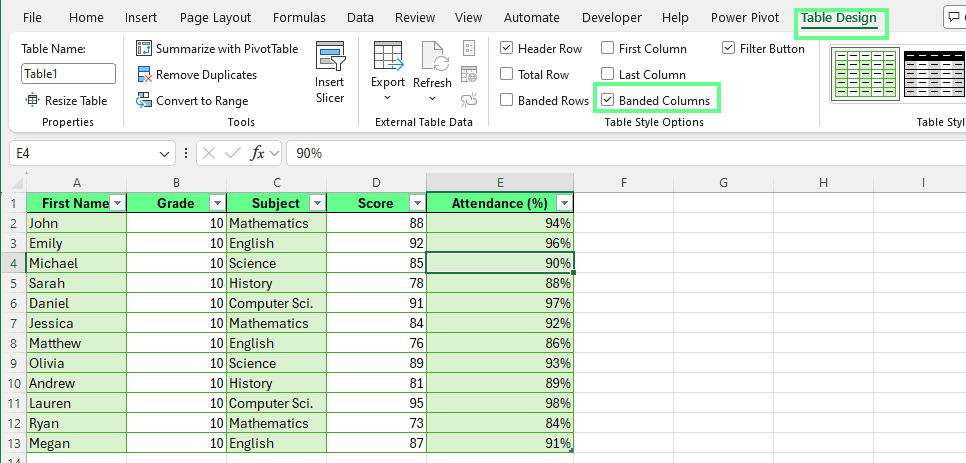
Abwechselnde Spaltenfarben mit der Option Gegliederte Spalten. Bild: Autor.
So nutzt du bedingte Formatierung für abwechselnde Spaltenfarben:
Markiere den Bereich, in dem die Spaltenfarben wechseln sollen
Gehe zu Start > Bedingte Formatierung > Neue Regel
Wähle Formel zur Ermittlung der zu formatierenden Zellen verwenden
Gib diese Formel ein: =MOD(COLUMN(),2)=0
So funktioniert sie:
COLUMN() gibt die aktuelle Spaltennummer zurück
MOD(Zahl,2) prüft, ob die Spalte gerade oder ungerade ist
=0 formatiert gerade Spalten
Nutze =1, um ungerade Spalten zu formatieren
Dann:
Excel färbt jede zweite Spalte im gewählten Bereich in der ausgewählten Farbe.
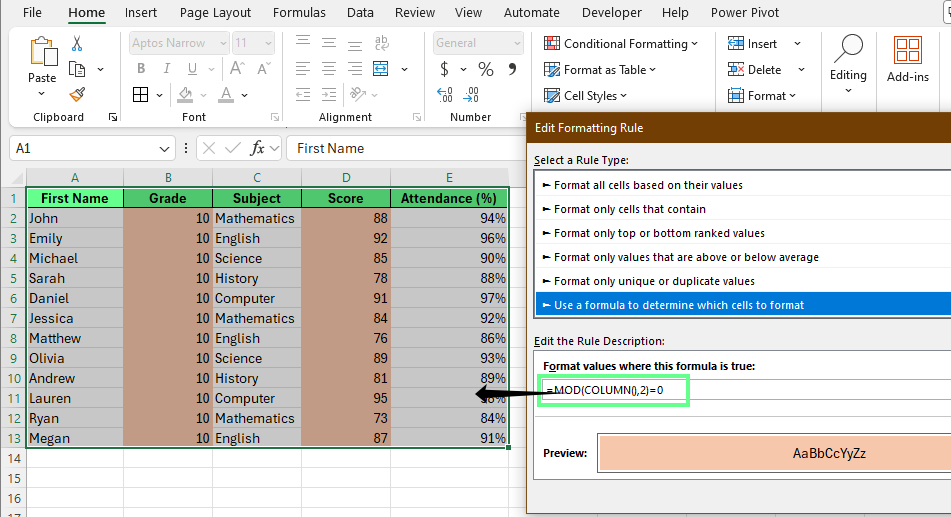
Abwechselnde Spalten mit bedingter Formatierung färben. Bild: Autor.
Um Spalten einmalig per VBA zu streifen, öffne den VBA-Editor und füge diesen Code in ein neues Modul ein:
Sub BandColumns()
   Dim rng As Range
   Dim c As Long

   If TypeName(Selection) <> "Range" Then Exit Sub
   Set rng = Selection

   'Clear existing fills
   rng.Interior.Pattern = xlNone

   'Start from column 2 to skip first column
   For c = 2 To rng.Columns.Count
       If (c Mod 2) = 0 Then
           rng.Columns(c).Interior.Color = RGB(255, 182, 193)
       End If
   Next c
End Sub
Führe das Makro aus, um jede zweite Spalte im markierten Bereich zu färben. Die erste Spalte wird übersprungen – sinnvoll, wenn dort Bezeichnungen stehen.
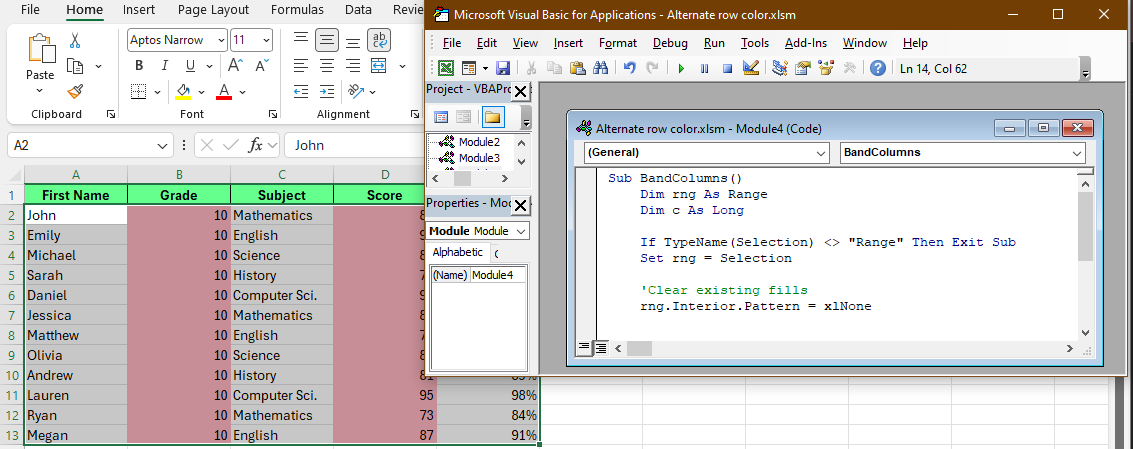
Abwechselnde Spalten über den VBA-Editor färben. Bild: Autor.
Zum Entfernen der Streifen kannst du Tabellenoptionen, Regeln der bedingten Formatierung oder das Zurücksetzen von Formaten (bei VBA-Färbung) nutzen – je nach Bedarf.
So entfernst du Farben über die Tabelle:
Du kannst auch die Checkboxen für Gegliederte Zeilen und Gegliederte Spalten unter Tabellenformatvorlagenoptionen deaktivieren. Excel entfernt dann die Streifen, die Tabellenstruktur bleibt erhalten.
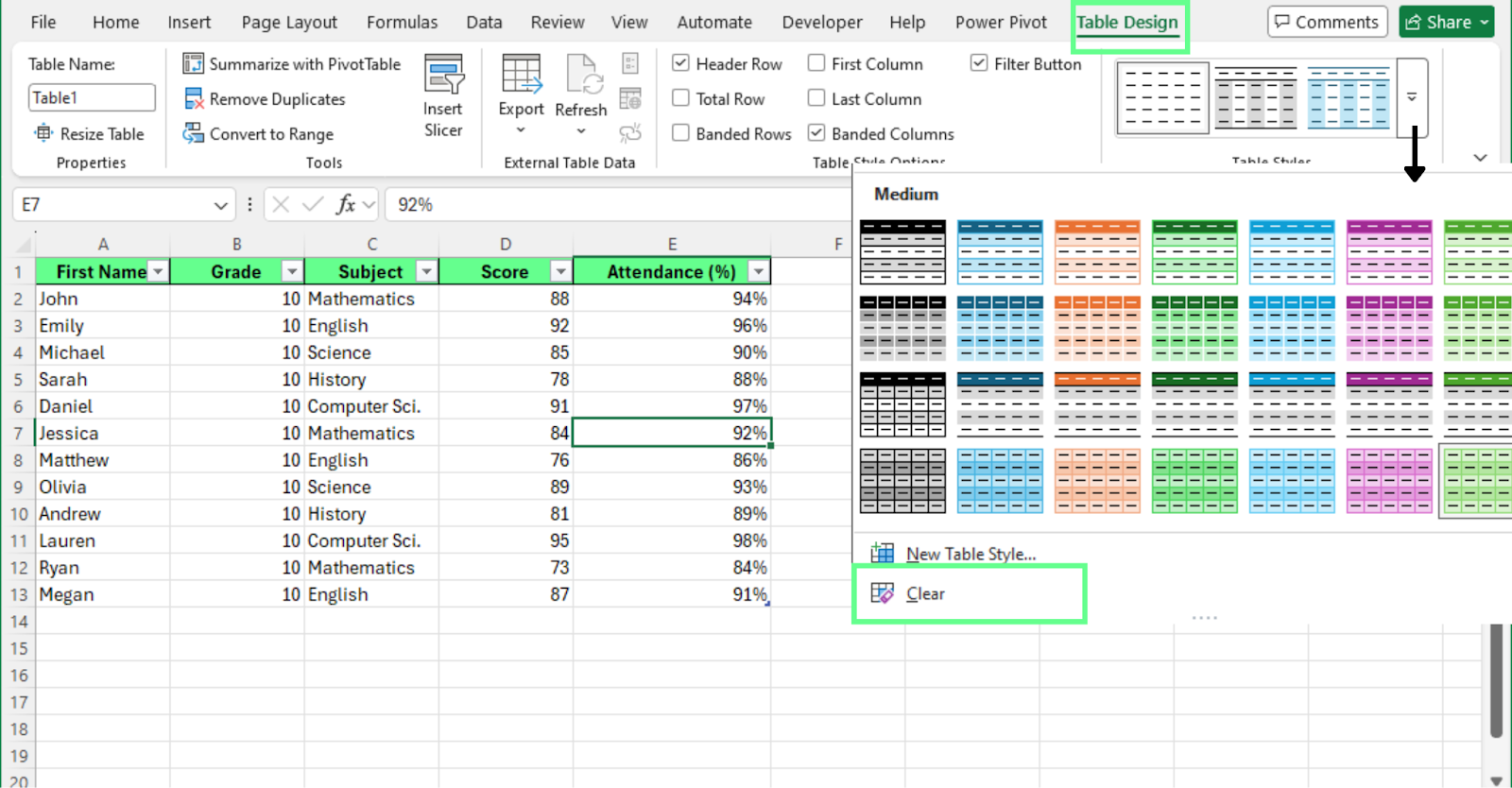
Abwechselnde Farben über den Tabellenentwurf entfernen. Bild: Autor.
Wenn du Streifen per bedingter Formatierung angewendet hast, entfernst du sie so:
Excel entfernt das Farbmuster im gewählten Bereich.
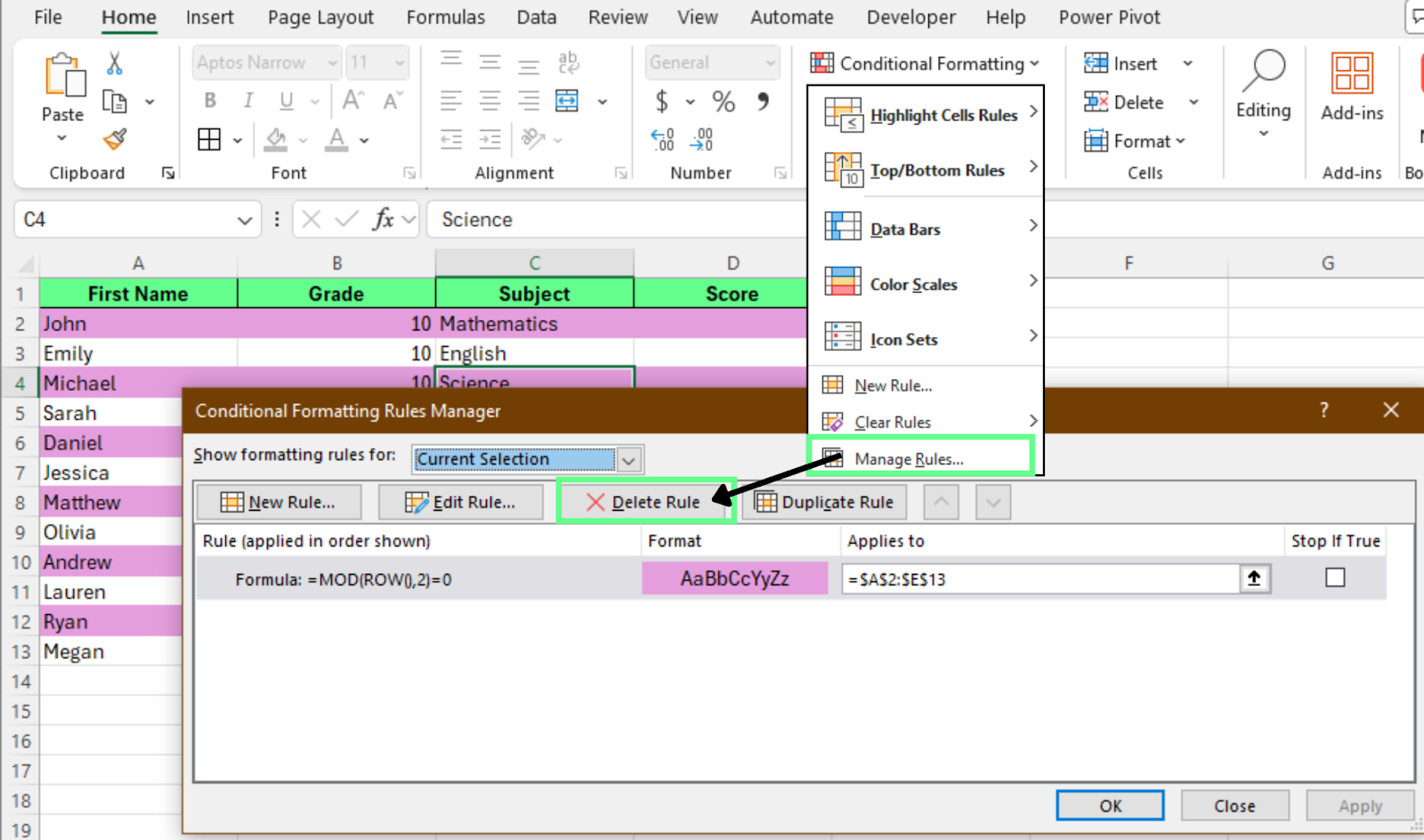
Bedingte Formatierung für Streifen entfernen. Bild: Autor.
So entfernst du Farben, die per Makro gesetzt wurden:
Excel entfernt alle Formatierungen der markierten Zellen, inklusive Hintergrundfarben. Dadurch werden sämtliche auf diese Zellen angewandten Formate gelöscht.
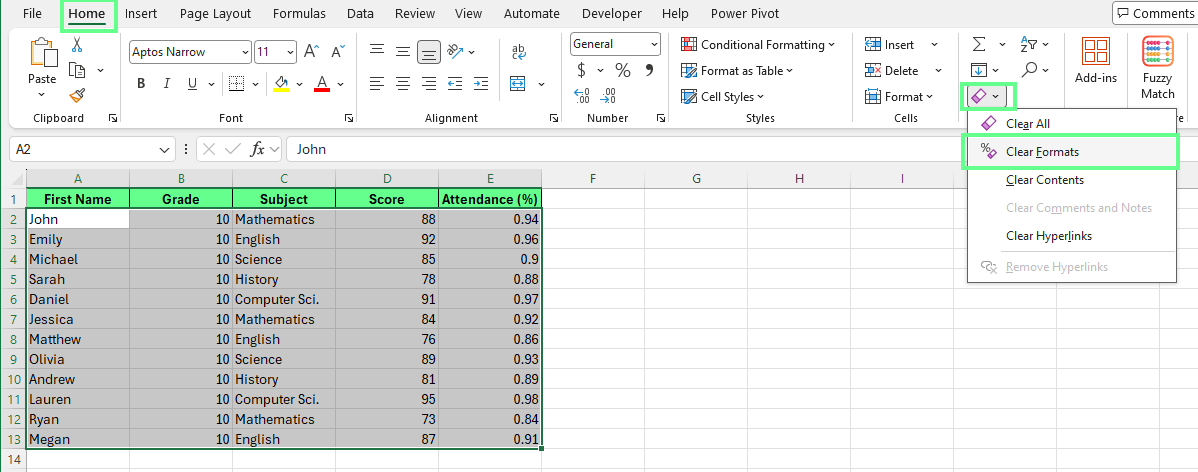
Abwechselnde Farben über „Formate löschen“ entfernen. Bild: Autor.
Prüfe dein Arbeitsblatt nach dem Entfernen der Farben. Achte darauf, dass:
Mit aufgeräumter Formatierung bleiben deine Daten auch ohne Streifen gut lesbar.
Abwechselnde Zeilenfarben erhöhen die Lesbarkeit – entscheidend ist aber, wie du sie einsetzt. Aus unserer Erfahrung halten ein paar einfache Gewohnheiten dein Arbeitsblatt sauber, konsistent und pflegeleicht.
Unsere Empfehlungen:
Jetzt weißt du, wie du abwechselnde Zeilenfarben in Excel nutzt. Wähle die Methode, die zu deinem Workflow passt:
Als nächsten Schritt stärke die Struktur deines Arbeitsblatts. Bereinige deine Daten, entferne leere Zeilen, und ordne Spalten, bevor du visuell formatierst. Außerdem lohnt sich DataCamps Leitfaden zum Hervorheben von Duplikaten in Excel, um noch mehr Klarheit zu schaffen und deine Tabellen leichter zu prüfen.
Lerne Excel mit DataCamp
Kurs
Kurs
Kurs