
Course
Data Analysis in Excel
3 hr
151.7K
Gain the skills to maximize Excel—no experience required.
In this section, I will compare the most common approaches, starting with the simplest and most direct option.
The fastest way to add days to a date in Excel is by using basic arithmetic. Since Excel stores dates as numbers, you can add or subtract days just like you would with any other numeric value. You can do the following with simple arithmetic:
If cell A2 contains a date, you can add days by simply adding a number. For example, the formula below adds seven calendar days to the date in A2 and returns the new date.
=A2 + 7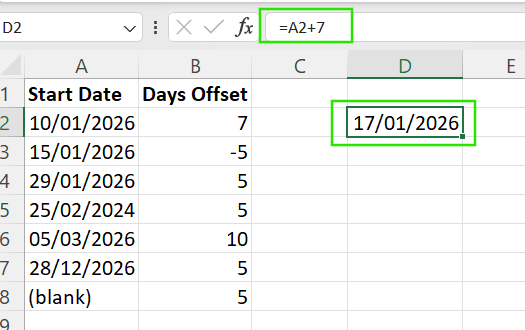
You can also subtract a number from a date to find a past date. For example, the formula below moves the date five days earlier.
=A2 - 5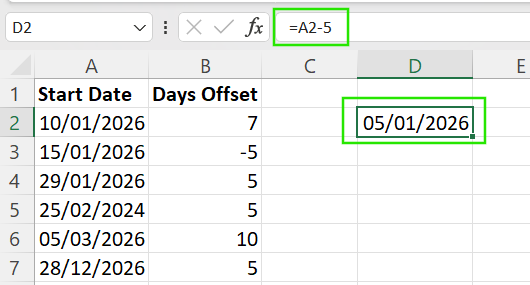
To apply the same logic to a list of dates:
Excel automatically adjusts the cell references, making this method efficient for large datasets.
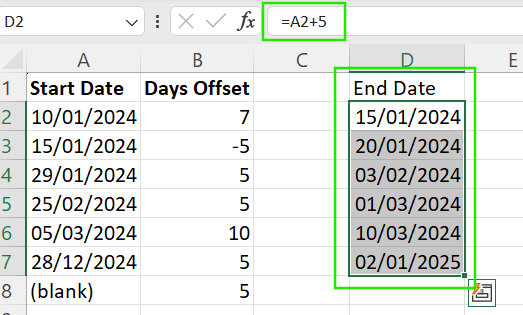
If you don’t want to use formulas at all, you can use Paste Special by following the steps below:
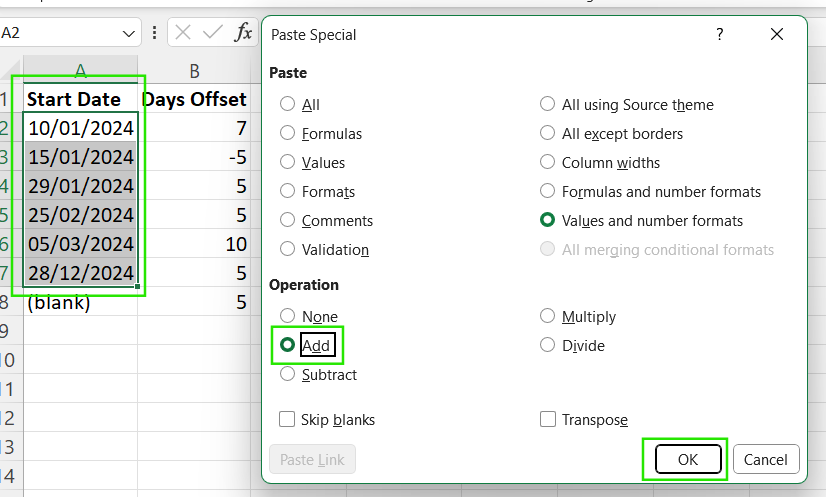
The limitation of the simple arithmetic method is that it always counts every calendar day. Therefore, weekends and holidays are included, which may not be suitable for business timelines, project schedules, or payroll calculations. In those cases, you’ll need a more advanced approach, which I’ll show you later in the tutorial.
The DATE() function is useful when you need more control over how dates are built or adjusted. This makes it ideal for structured calculations, conditional logic, and scenarios where dates may change dynamically.
Below is the basic syntax of the DATE() function.
=DATE(year, month, day)Where:
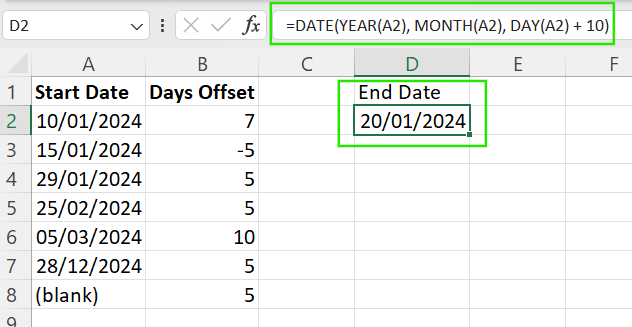
Therefore, you can reconstruct a date by extracting its parts. For example, the formula below adds ten days to the date in A2 by modifying only the day portion, while keeping the original year and month intact.
=DATE(YEAR(A2), MONTH(A2), DAY(A2) + 10)
`
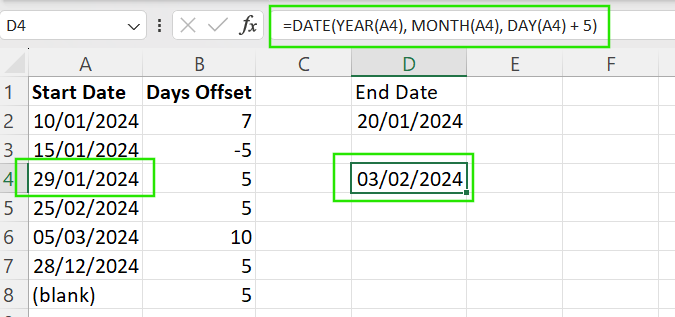
One of the strengths of the DATE() function is that it handles overflow automatically. For example, if you add 5 days to January 29th, Excel knows the result is February 3rd.
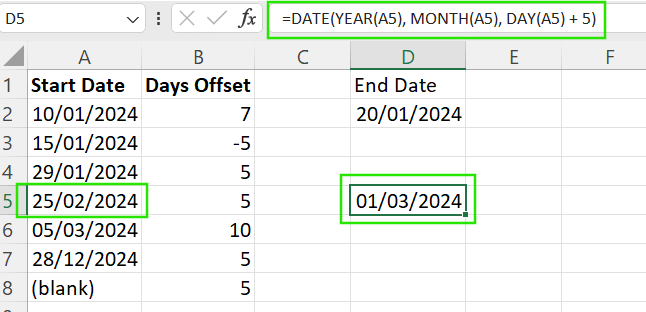
The DATE() function also handles leap years automatically. For example, if you add days to dates in February, which is a leap year, it will correctly account for February 29, without requiring extra logic.
Instead of hardcoding the values, you can reference the cells to make the formula dynamic and reusable across rows.
=DATE(YEAR(A2), MONTH(A2), DAY(A2) + B2)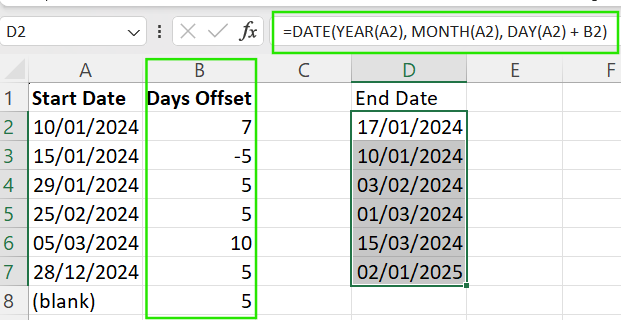
To avoid errors when source cells are empty or contain invalid data, you can wrap the formula in IF() or IFERROR(). These methods keep your worksheet clean and prevent unnecessary error messages.
The formula below returns a blank cell if the source cell is empty or has a value not in date format.
=IFERROR(DATE(YEAR(A2), MONTH(A2), DAY(A2) + B2), "")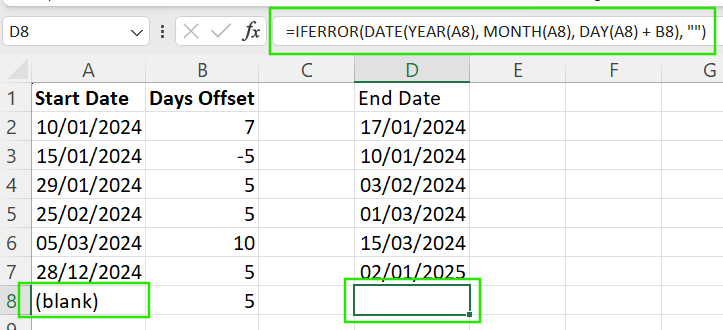
The EDATE() function in Excel is important in date calculations if you want to adjust your dates by a whole month or year.
The EDATE() function shifts a date by a specified number of months. Below is its syntax:
=EDATE(start_date, months)Where:
start_date: The original date
months: The number of months to add or subtract
The formula below adds 3 months to the existing date:
=EDATE(A2, 3)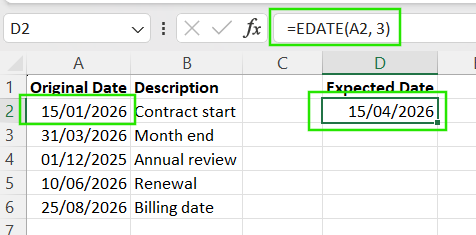
Similarly, you can subtract 3 months using the same logic but with a negative value.
=EDATE(A2, -3)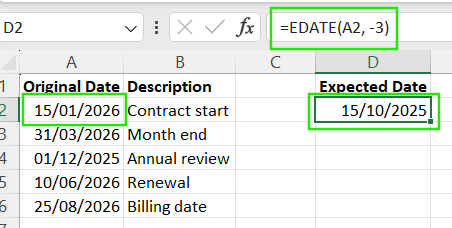
You can add or subtract years using the EDATE() function by using the number of months in the month argument. For example, the formula below subtracts 2 years (24 months) from the date in cell A2.
=EDATE(A2, -24)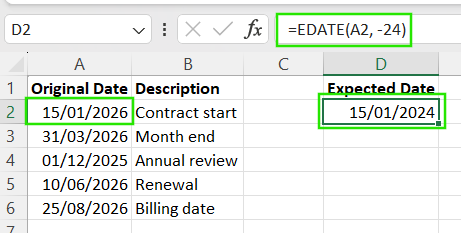
You can also combine the EDATE() function with month and day for specific use cases. For example, the formula below adds 2 months and adds seven calendar days to the date in cell A2.
=EDATE(A2, 1) + 7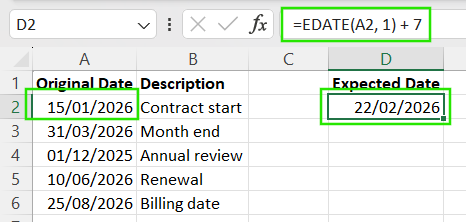
The WORKDAY() and WORKDAY.INTL() functions let you add or subtract days while automatically skipping non-working days. These functions are ideal for project timelines, due dates, and operational schedules.
The WORKDAY() function in Excel is designed to skip Saturdays and Sundays automatically. It has the following syntax:
=WORKDAY(start_date, days)Where:
start_date: The original date
days: The number of days to add or subtract
For example, the formula below adds five business days to the date in A2, skipping Saturdays and Sundays automatically.
=WORKDAY(A2, 5)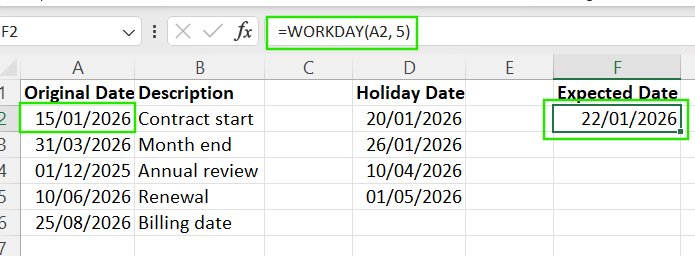
Let’s assume you want to add days in Excel but also want to account for holidays and company-wide days off. Follow the steps below to maintain accurate calculations:
Create a list of holiday dates in a separate range like D2:D5.
Add this range as the third argument in the WORKDAY() function.
=WORKDAY(A2, 5, D2:D5)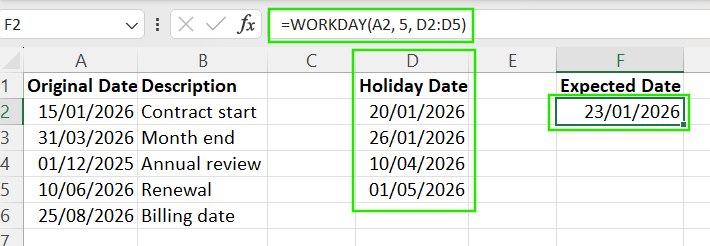
Using this method, any dates listed in the range D2:D5 are excluded from the calculation, even if they fall on weekdays.
Instead of hardcoding holiday cells, it’s best to keep holidays in a dedicated column or table. As a best practice, always use a named range or an Excel Table. This approach keeps your formulas clean and ensures all business-day calculations stay consistent across the workbook.
I recommend taking our Advanced Excel Functions course to learn more about offsetting and dynamic ranges in Excel.
Since not all work schedules follow a Saturday–Sunday weekend, Excel offers the WORKDAY.INTL() function, which lets you define custom weekend patterns. Its syntax is as follows:
=WORKDAY.INTL(start_date, days, weekend, holidays)Where:
start_date: The date from which the calculation begins and is not counted as a workday.
days: The number of working days to add or subtract.
weekend (optional): Specifies which days are considered weekends. It can be a number (1–17) representing predefined weekend patterns [1 → Saturday and Sunday (default), 2 → Sunday and Monday, 7 → Friday and Saturday]. It can also hold a 7-character text string like "0000011" where 1 marks weekend days and 0 marks workdays, starting from Monday.
holidays (optional): A range or array of dates that should also be excluded from workdays
For example, the formula below returns the date 10 working days after January 15, 2026, excluding Saturdays, Sundays, and the holidays listed in cells D2:D5.
=WORKDAY.INTL("2026-01-15", 10, 1, D2:D5)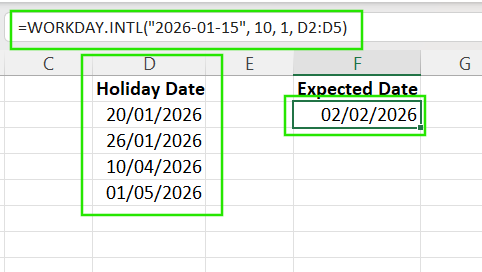
While WORKDAY() and WORKDAY.INTL() return a date, the NETWORKDAYS() and NETWORKDAYS.INTL() functions count how many business days fall between two dates. They are useful when you need to measure duration, not calculate a deadline.
The NETWORKDAYS() function counts business days between two dates, excluding Saturdays, Sundays, and optional holidays. In the example below, the formula returns 7, which is the number of business days between Jan 1 and Jan 10 (excluding weekends).
=NETWORKDAYS("2026-01-01", "2026-01-10")Similarly, the NETWORKDAYS.INTL() function counts business days with custom weekend rules, useful for regions with non-standard weekends. For example, the formula below returns the number of business days assuming Friday–Saturday are weekends.
=NETWORKDAYS.INTL("2026-01-01", "2026-01-10", 7)Although the WORKDAY() and WORKDAY.INTL() functions in Excel work well for standard business calendars, they have the following limitations:
As you work with dates in Excel, you may run into some unexpected results, usually not coming from the formula used. In this section, I will help you understand what’s happening behind the scenes and avoid common pitfalls.
Excel stores dates as serial numbers, where each whole number represents one day. For example, January 1, 1900, is stored as 1, January 2, 1900, as 2, and so on. Since dates are numeric values, you can add or subtract days using simple arithmetic, which is why date formulas work so naturally in Excel.
Not everything that looks like a date is actually a date. A true Excel date is a number with a date format applied. Text-based dates, often imported from external systems, won’t work correctly in calculations. Formulas that reference text dates may return errors or incorrect results.
To check for this inconsistency, change the cell format to General. If you see a number, it’s a real date, but if it stays the same, it’s text
Excel supports two date systems: the 1900 date system, which is the default on Windows, and the 1904 date system, historically used on macOS.
The difference between these two systems is 1,462 days. Therefore, it’s important to confirm that all users are using the same date system when sharing workbooks containing date calculations for consistency.
Excel automatically accounts for leap years when performing date calculations. However, for compatibility reasons, Excel treats 1900 as a leap year, even though it wasn’t one. This adjustment may explain how the old dates behave unexpectedly, but it does not significantly affect modern workflows.
From my experience working with dates in Excel, I have noted that common issues may come from the following:
These problems can cause formulas to fail silently or return incorrect results. I will show you how to troubleshoot such errors in the next section.
From what we have seen, not all errors in date calculations will come from incorrect formulas. Here are some of the methods to troubleshoot common date issues in Excel.
If a date is stored as text, functions like WORKDAY() or EDATE() won’t work. You can often convert text dates by re-entering the date manually or using DATEVALUE() when the text format is recognizable.
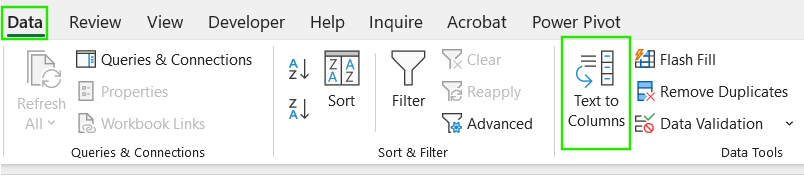
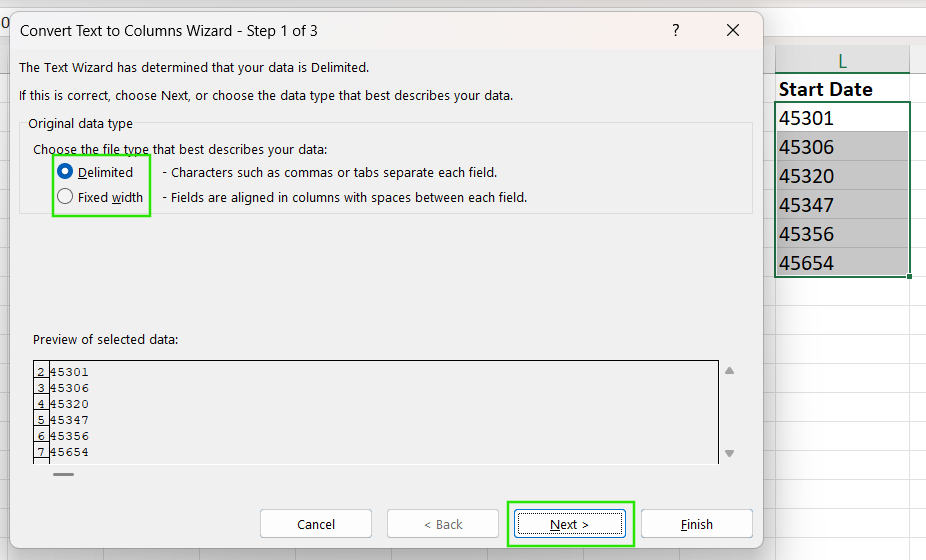
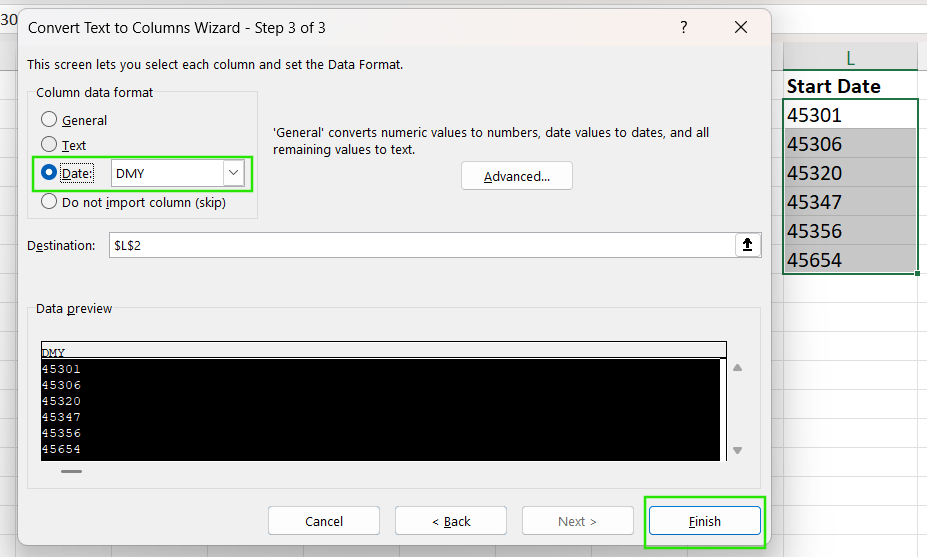
You can also use the Text to Columns tool to fix imported dates using the steps below:
Select the affected column
Go to Data → Text to Columns
Choose Delimited or Fixed Width
Set the column data type to Date. Select Finish.
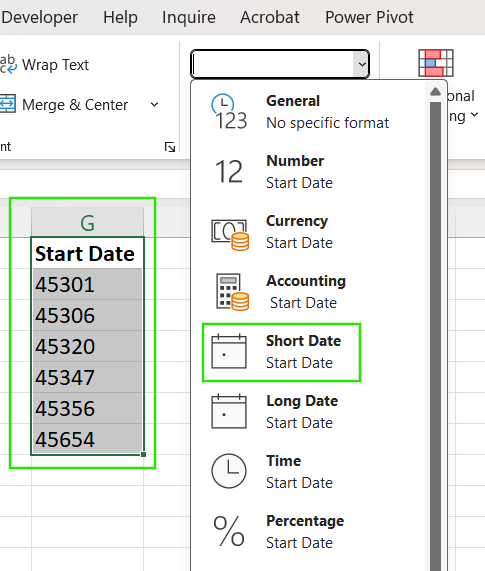
If a cell shows a number instead of a date, the value is usually correct but formatted incorrectly. To fix this issue, go to the Home tab, click the Number Format dropdown, and select Short Date.
Check out the Excel Shortcuts Cheat Sheet to learn how to improve productivity by learning the shortcuts for different Excel features.
Imported data may contain leading spaces or unusual separators such as " 01/21/2026". You can use functions like TRIM() or SUBSTITUTE() to remove the spaces before performing other operations.
Two-digit years can be interpreted differently depending on system settings. Excel generally treats 00-29 as the 2000s and 30-99 as the 1900s. To avoid such an issue, always use four-digit years like 2029 when entering or importing dates.
If your column has a mix of dates and notes like “TBD”, your calculations will break. To prevent this problem, use helper columns to clean or convert values or apply the IFERROR() function to catch invalid entries.
Once you’re comfortable with basic date functions, Excel allows you to build more dynamic and flexible calculations. In this section, I will show you how to build advanced date functions to automate your work.
You can always adjust multiple parts of a date within a single formula by combining functions. For example, the formula below adds one year, two months, and ten days to the original date in A2. Excel automatically handles any overflow across months or years.
=DATE(YEAR(A2) + 1, MONTH(A2) + 2, DAY(A2) + 10)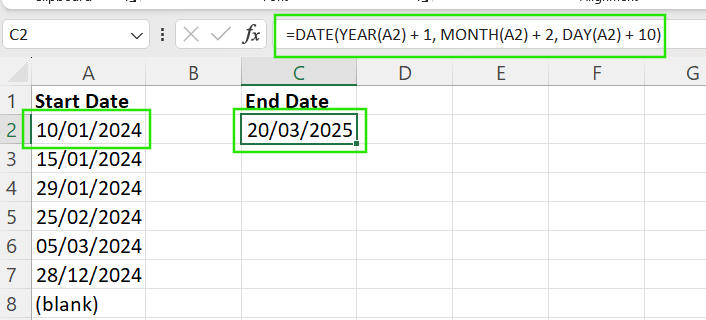
Not every organization follows a January-to-December calendar. You can calculate fiscal years by adjusting the month before extracting the year. For example, if your fiscal year starts in April, you can calculate the “Fiscal Year” from a standard date using the logic below to shift the date back by 3 months:
=YEAR(EDATE(A2, -3))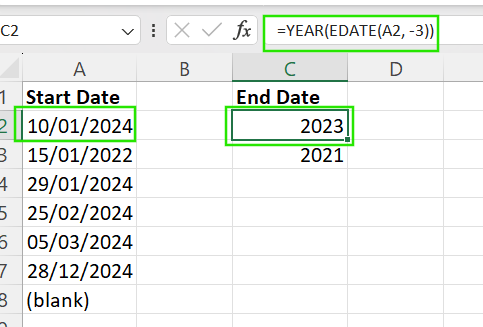
If you handle calculations that need to update automatically every day, you can use the following functions:
=TODAY(): Returns the current date.
=NOW(): Returns the current date and the exact time.
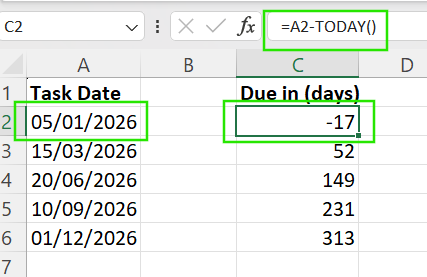
You can use the SEQUENCE() function if you need to quickly create a list of consecutive dates. For example, =SEQUENCE(30, 1, TODAY(), 1) creates a list of 30 dates starting today.
If you want to draw attention to important dates in your spreadsheet, you can use conditional formatting. For example, you can apply the formatting to highlight upcoming deadlines, flag overdue tasks, or visually separate past and future dates.
I recommend checking out our Conditional Formatting in Google Sheets course to learn how to apply conditional formatting to validate data for getting quick insights.
Excel offers multiple ways to add and manage dates, and choosing the right method depends on the use case. To maintain efficient workbooks, use simple arithmetic for calendar days, EDATE() for month-based cycles, and WORKDAY() for business schedules, while always verifying that your dates are stored as true serial numbers rather than text.
If you want to advance your Excel skills, I recommend taking our Data Analysis in Excel course. This course will help you master advanced analytics and propel your career. I also recommend taking our Intermediate Power Query in Excel course to learn about data transformation and using the M language for creating dynamic functions.
Learn Excel with DataCamp
Course
Course
Course
Tutorial
Laiba Siddiqui
5 min
Tutorial
Bexruz (Bex) Tuychiev
10 min
Tutorial
Vinod Chugani
7 min
Tutorial
Laiba Siddiqui
9 min
Tutorial
Samuel Shaibu
9 min
Tutorial
Abid Ali Awan
15 min