
Last chance! 50% off DataCamp Premium
Sale ends in
Buy Now
There are two main approaches to developing and deploying AI applications:
Both approaches have advantages and disadvantages. In our case, we have chosen the second approach, integrating multiple AI services. This allows us to build a fast AI application that takes only a few seconds to build and deploy. Our main focus is to reduce the Docker image size, which can be effectively achieved by integrating multiple AI services.
Check out the Local AI with Docker, n8n, Qdrant, and Ollama tutorial to build an LLM application using open-source tools and frameworks for enhanced privacy!
We will build a general-purpose Q&A chatbot that allows users to upload documents and chat with them in real time. It is quite similar to Google’s NotebookLM.
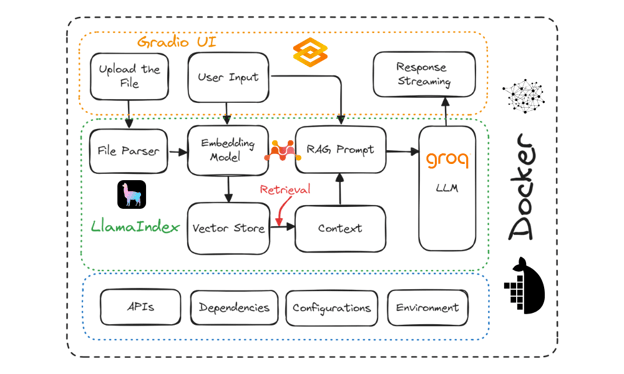
Project diagram. Image by Author
Here are the tools that we will be using in this project:
If you are new to LLMs, consider taking the Master Large Language Models (LLMs) Concepts course to learn the basic terminologies, methodologies, ethical considerations, and latest research.
Before building the LLM app, we need to download and install Docker from the official website.
.env file. We will use this file to store the API keys for LlamaCloud, MixedBread AI, and Groq Cloud.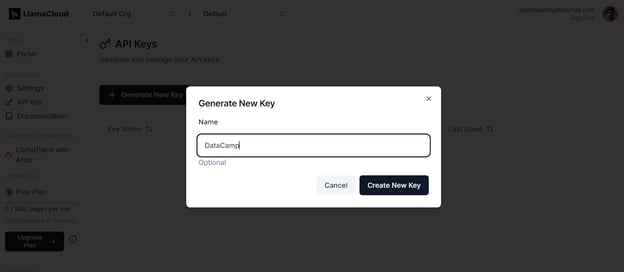
Generating a new key in LlamaCloud. Image source: LlamaCloud
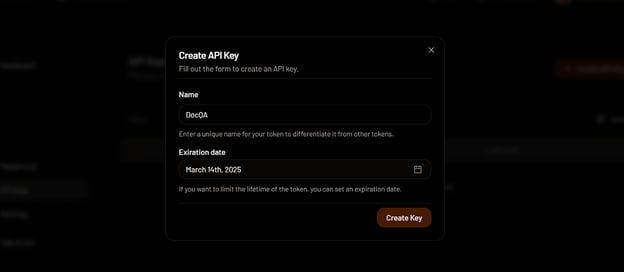
Creating an API key in MixedBread. Image source: MixedBread
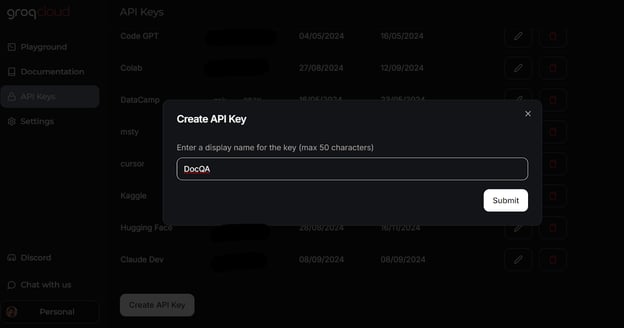
Creating an API key in GroqCloud. Image source: GroqCloud
Learn everything about GroqCloud by reading the article on Groq LPU Inference Engine. You will learn about the Groq API and its features with code examples. Additionally, learn how to build context-aware AI applications using the Groq API and LlamaIndex.
This is how your .env file should look like:
Remember to add the .env file to your .gitignore file to avoid accidentally exposing your API keys to the public.
We will now create a Python script called app.py and add the user interface components while integrating all the AI services using LlamaParser to develop the Retrieval-Augmented Generation (RAG) pipeline with LlamaIndex.
The app.py script will do the following:
.env file.mixedbread-ai/mxbai-embed-large-v1.llama-3.1-70b-versatile.Next, it will implement the following Python functions:
load_files(): This function will load the files, parse them using LlamaParser, convert them into embeddings, and store them in the vector store. Exception handling will be included to manage cases where non-files or unsupported file formats are uploaded.respond(): This function will take user input, retrieve content from the vector store, and use it to generate a response utilizing the Groq model. The response generation will be in streaming format, and exception handling will be included if no files have been uploaded.Finally, it will build the UI components, including a file uploader, buttons, a chat box, and the overall chat interface.
Learn more about the LlamaIndex framework by following the more straightforward LlamaIndex tutorial.
Here’s the app.py script:
import os

import gradio as gr
from llama_index.core import SimpleDirectoryReader, VectorStoreIndex
from llama_index.embeddings.mixedbreadai import MixedbreadAIEmbedding
from llama_index.llms.groq import Groq
from llama_parse import LlamaParse

# API keys
llama_cloud_key = os.environ.get("LLAMA_CLOUD_API_KEY")
groq_key = os.environ.get("GROQ_API_KEY")
mxbai_key = os.environ.get("MXBAI_API_KEY")
if not (llama_cloud_key and groq_key and mxbai_key):
    raise ValueError(
        "API Keys not found! Ensure they are passed to the Docker container."
    )

# models name
llm_model_name = "llama-3.1-70b-versatile"
embed_model_name = "mixedbread-ai/mxbai-embed-large-v1"

# Initialize the parser
parser = LlamaParse(api_key=llama_cloud_key, result_type="markdown")

# Define file extractor with various common extensions
file_extractor = {
    ".pdf": parser,
    ".docx": parser,
    ".doc": parser,
    ".txt": parser,
    ".csv": parser,
    ".xlsx": parser,
    ".pptx": parser,
    ".html": parser,
    ".jpg": parser,
    ".jpeg": parser,
    ".png": parser,
    ".webp": parser,
    ".svg": parser,
}

# Initialize the embedding model
embed_model = MixedbreadAIEmbedding(api_key=mxbai_key, model_name=embed_model_name)

# Initialize the LLM
llm = Groq(model="llama-3.1-70b-versatile", api_key=groq_key)


# File processing function
def load_files(file_path: str):
    global vector_index
    if not file_path:
        return "No file path provided. Please upload a file."

    valid_extensions = ', '.join(file_extractor.keys())
    if not any(file_path.endswith(ext) for ext in file_extractor):
        return f"The parser can only parse the following file types: {valid_extensions}"

    document = SimpleDirectoryReader(input_files=[file_path], file_extractor=file_extractor).load_data()
    vector_index = VectorStoreIndex.from_documents(document, embed_model=embed_model)
    print(f"Parsing completed for: {file_path}")
    filename = os.path.basename(file_path)
    return f"Ready to provide responses based on: {filename}"


# Respond function
def respond(message, history):
    try:
        # Use the preloaded LLM
        query_engine = vector_index.as_query_engine(streaming=True, llm=llm)
        streaming_response = query_engine.query(message)
        partial_text = ""
        for new_text in streaming_response.response_gen:
            partial_text += new_text
            # Yield an empty string to cleanup the message textbox and the updated conversation history
            yield partial_text
    except (AttributeError, NameError):
        print("An error occurred while processing your request.")
        yield "Please upload the file to begin chat."


# Clear function
def clear_state():
    global vector_index
    vector_index = None
    return [None, None, None]


# UI Setup
with gr.Blocks(
    theme=gr.themes.Default(
        primary_hue="green",
        secondary_hue="blue",
        font=[gr.themes.GoogleFont("Poppins")],
    ),
    css="footer {visibility: hidden}",
) as demo:
    gr.Markdown("# DataCamp Doc Q&A 🤖📃")
    with gr.Row():
        with gr.Column(scale=1):
            file_input = gr.File(
                file_count="single", type="filepath", label="Upload Document"
            )
            with gr.Row():
                btn = gr.Button("Submit", variant="primary")
                clear = gr.Button("Clear")
            output = gr.Textbox(label="Status")
        with gr.Column(scale=3):
            chatbot = gr.ChatInterface(
                fn=respond,
                chatbot=gr.Chatbot(height=300),
                theme="soft",
                show_progress="full",
                textbox=gr.Textbox(
                    placeholder="Ask questions about the uploaded document!",
                    container=False,
                ),
            )

    # Set up Gradio interactions
    btn.click(fn=load_files, inputs=file_input, outputs=output)
    clear.click(
        fn=clear_state,  # Use the clear_state function
        outputs=[file_input, output],
    )

# Launch the demo
if __name__ == "__main__":
demo.launch()Output:

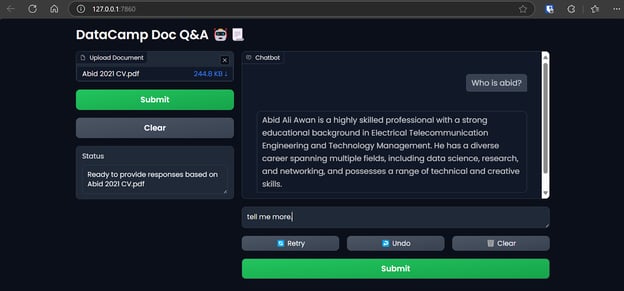
Accessing the Gradio app on the browser. Image by Author
We use LlamaIndex to deploy and build our LLM application for this tutorial. You can build a similar application with LangChain by taking the Developing LLM Applications with LangChain short course.
Dockerfile to package the application script, Python dependencies, and server configurations while initializing the Gradio server. The Dockerfile will perform the following tasks:
requirements.txt file to the /app directory. This file contains the names of all the required Python packages.requirements.txt file.app.py file to the /app directory.Here’s how the Dockerfile should look:
# Dockerfile

# Use the official Python image with the desired version
FROM python:3.9-slim

# Set the working directory inside the container
WORKDIR /app

# Copy the requirements file to the working directory
COPY requirements.txt /app

# Install the dependencies
RUN pip install --no-cache-dir -r requirements.txt

# Copy the rest of the application code to the working directory
COPY app.py /app

# Expose the port that Gradio will run on (default is 7860)
EXPOSE 7860

ENV GRADIO_SERVER_NAME="0.0.0.0"

# Command to run your application
CMD ["python", "app.py"]requirements.txt file looks like. Add it to your project as well:docqa docker image. It will use the Dockerfile to create the Docker image.We can see the logs of the processes taking place while building the Docker image:
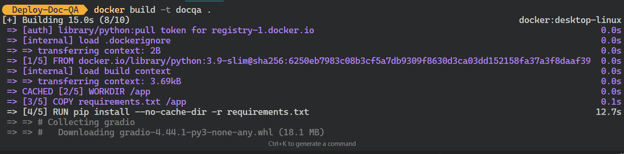
Building the LLM Docker image. Image by Author
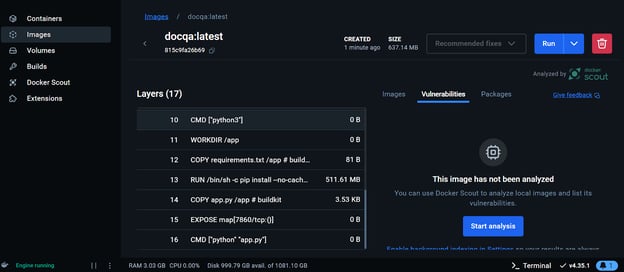
Viewing the Docker image on the Docker Desktop. Image by Author
We will now run the Docker container locally using the image. We will provide it with the port number, a .env file to set up environment variables, the Docker container name, and the Docker image tag.
Once the container starts running, you can access the Gradio app by pasting the URL, in this case, http://0.0.0.1:7860/ in the browser.
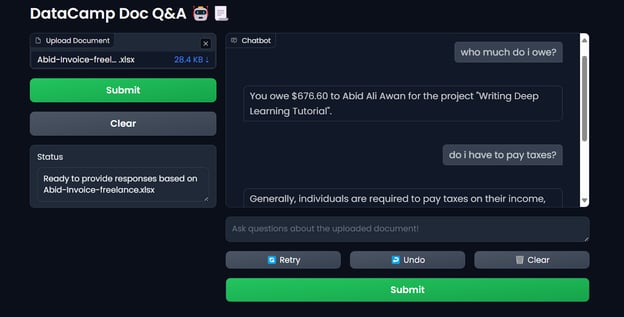
Testing the Docker container LLM application. Image by Author
Output:
CONTAINER ID   IMAGE     COMMAND           CREATED          STATUS          PORTS                    NAMES
ff2a11da13d7 docqa "python app.py" 17 seconds ago Up 16 seconds 0.0.0.0:7860->7860/tcp docqa-containerstop command:rm command:Once we have a Docker image, we can deploy our LLM application anywhere: GCP, AWS, Azure, or any cloud server that supports Docker deployment.
To simplify things for beginners, we will deploy the app using Docker on the Hugging Face Cloud (Spaces).
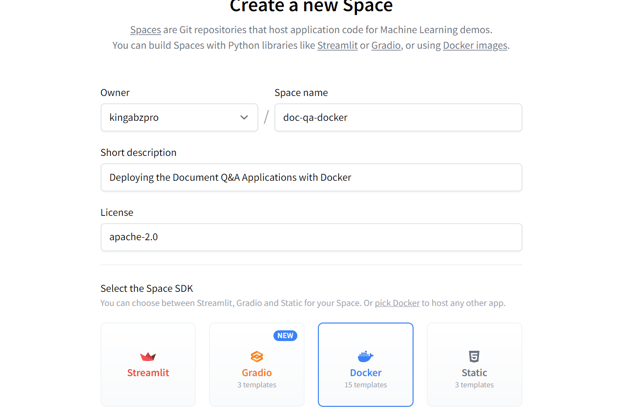
Creating the new Hugging Face Space using Docker. Image source: Hugging Face
Once the Space repository is created, you’ll receive instructions on how to clone it and add the necessary files.
This is how your project directory should look with all the files. Always ensure you do not push the .env file, so add it to the .gitignore.
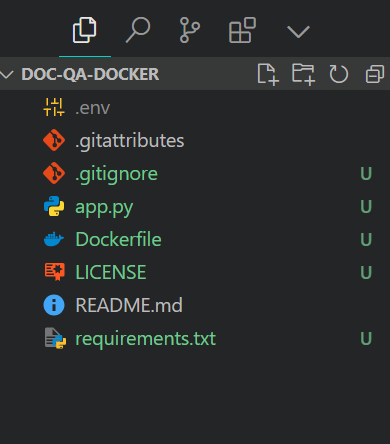
Project file structure. Image by Author
Output:
Enumerating objects: 8, done.
Counting objects: 100% (8/8), done.
Delta compression using up to 16 threads
Compressing objects: 100% (7/7), done.
Writing objects: 100% (7/7), 7.60 KiB | 7.60 MiB/s, done.
Total 7 (delta 0), reused 0 (delta 0), pack-reused 0 (from 0)
To https://huggingface.co/spaces/kingabzpro/doc-qa-docker
   afb20ad..5ca6388  main -> main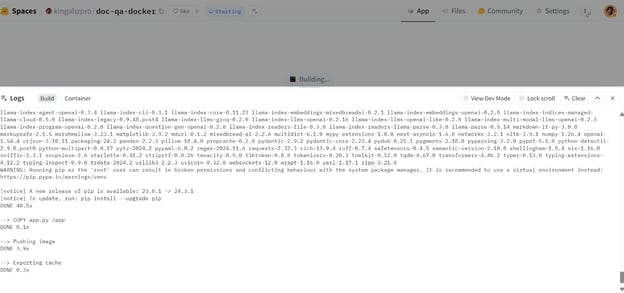
Building the Docker image in the Hugging Face Cloud. Image source: Doc Qa Docker
If you see an error like the one below, don't worry. It is due to missing environment variables. All we have to do is set up those variables in the Hugging Face Space.
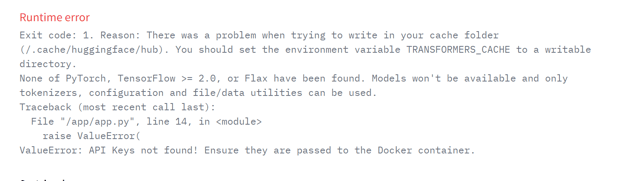
Runtime error on the deployed app. Image source: Doc Qa Docker
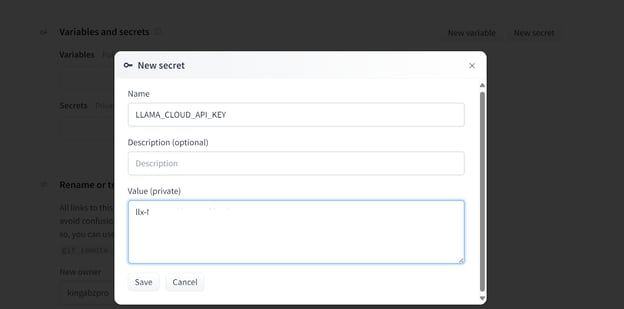
Adding secrets to the deployed app. Image source: Doc Qa Docker settings.
This is how your secrets should look after adding all the necessary API keys as environment variables:
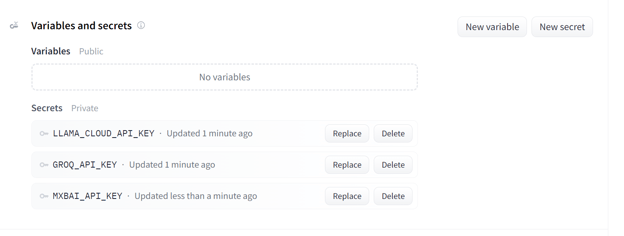
Secrets for the deployed app. Image source: Doc Qa Docker settings.
Once you have set up the secrets, the app will restart automatically, and you should see the app running. Use it and enjoy your document Q&A application on the cloud!
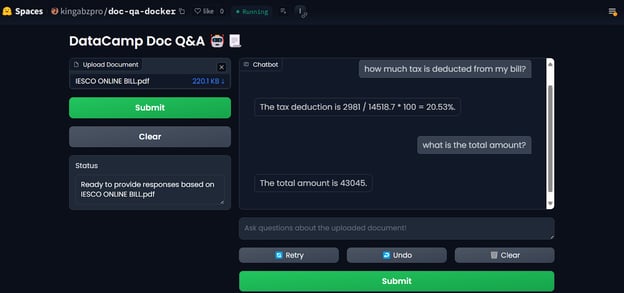
LLM app on the Hugging Face Spaces. Image source: Doc Qa Docker
To reproduce the results, all files and configurations can be found in the GitHub repository: kingabzpro/Deploy-Doc-QA.
Using AI services has advantages: You don't have to deploy or manage any services, you get high throughput, and you get a dashboard with the logs.
Your LlamaCloud dashboard logs all the documents that have been parsed. You can check out the history or request and compare usage.
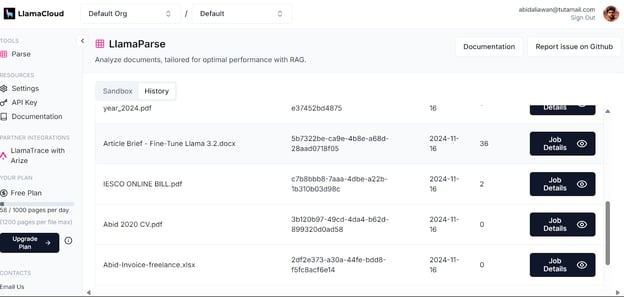
Llama Cloud dashboard. Image source: LlamaCloud
Similarly, you can also check the number of tokens we used for the embedding model and the number of requests generated.
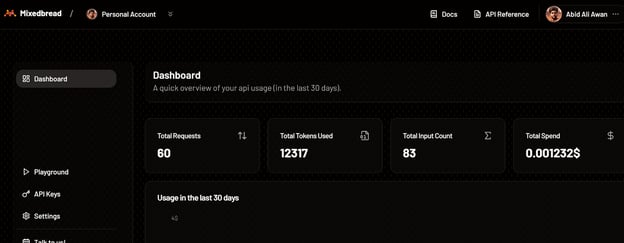
Mixedbread dashboard. Image source: Mixedbread
The most detailed logs of each API can be found on the GroqCloud, with information about the latency, the number of tokens, the AI key, and the request ID for you to debug the system.
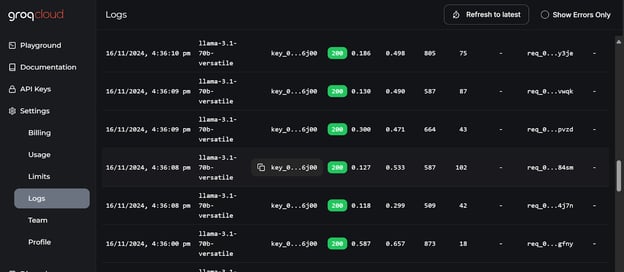
GroqCloud logs. Image source: GroqCloud
This guide taught us how to combine multiple services to build an efficient document Q&A application with minimal resource usage and computational overhead. All of the services and tools we have used are freely available for you to test and build your own application.
We have reduced our Docker image size by 600MB by using multiple out-of-the-box AI services. If we had deployed everything on our own, the image size would have been around 20GB or more.
I recommend taking the LLMOps Concepts: From Ideation to Deployment course as the next step in your learning journey. This course will help you gain insights into the LLM development lifecycle and the the challenges of deploying applications. It will also teach you how to apply these concepts effectively.
As a certified data scientist, I am passionate about leveraging cutting-edge technology to create innovative machine learning applications. With a strong background in speech recognition, data analysis and reporting, MLOps, conversational AI, and NLP, I have honed my skills in developing intelligent systems that can make a real impact. In addition to my technical expertise, I am also a skilled communicator with a talent for distilling complex concepts into clear and concise language. As a result, I have become a sought-after blogger on data science, sharing my insights and experiences with a growing community of fellow data professionals. Currently, I am focusing on content creation and editing, working with large language models to develop powerful and engaging content that can help businesses and individuals alike make the most of their data.

Tutorial
 Abid Ali Awan• 7 min

Tutorial
 Rajesh Kumar• 15 min

Tutorial
 Dr Ana Rojo-Echeburúa• 12 min
Learn more about LLMs with these courses!
Course
Discover how to build AI-powered applications using LLMs, prompts, chains, and agents in LangChain.
Course
Discover the full potential of LLMs with our conceptual course covering LLM applications, training methodologies, ethical considerations, and latest research.
Course
Learn the nuts and bolts of LLMs and the revolutionary transformer architecture they are based on!


Docker lets you create consistent, portable, and isolated environments, making it essential for LLMOps (Large Language Models Operations). By encapsulating various LLM applications and their dependencies in containers, Docker simplifies deployment, ensures cross-system compatibility, and streamlines testing.
In this tutorial, you will learn how to build a “document Q&A” chatbot application and deploy it to the cloud using Docker. We will use Gradio for the user interface, LlamaIndex for orchestration, LlamaParse for parsing documents, Mixedbread AI for embeddings, Groq for accessing large language models, Docker for packaging the application and its dependencies, and Hugging Face Spaces for deploying the application to the cloud.
This tutorial is designed to be straightforward, allowing anyone with limited knowledge of how AI applications work to build it for free.