Track
Power BI Fundamentals
17 hr
The Power BI REST API is a key component in expanding upon the capabilities of Microsoft Power BI.
It allows developers and organizations to provide programmatic access to reports, dashboards, datasets, and workspaces, rather than just providing a fixed GUI.
This capability is vital in modern BI solutions where automation, integration, and embedding are central to business processes.
In this guide, I'll provide an introduction to the Power BI REST API, a simple step-by-step guide on how to use it, some examples of how it can be used, and share some of the advanced features it provides
The Power BI API ecosystem is designed to scale across enterprises, offering robust capabilities for developers.
It allows organizations to treat Power BI as a service layer that integrates seamlessly into workflows and applications.
Here are the basic components of the ecosystem:
The API provides end-to-end management of Power BI assets for the following use cases:
These capabilities extend Power BI beyond its GUI, enabling organizations to operate at scale.
The API follows REST principles, which makes it accessible to developers.
Here are some components of the architecture:
requests, Node.js axios, or .NET HttpClient.The API also supports programmatic content management.
This means you can perform the following functions:
Authentication is fundamental for secure communication. The Power BI API relies on Azure Active Directory to authenticate applications and users.
To enable access:
Service principals are recommended for automation since they are not tied to individual users.
Power BI supports standard OAuth 2.0 flows:
Tokens are attached to requests:
Authorization: Bearer {access_token}Tokens expire after a short time (usually one hour), so applications must refresh them programmatically.
The Power BI API is divided into categories covering all aspects of Power BI content and user management.
Here are its core operations and functions:
The Power BI REST API lets you automate tasks (like refreshing datasets), manage users and workspaces, or embed reports in apps.
To use it, follow these steps:
Before your code can talk to Power BI, you must register an app in Azure Active Directory (Azure AD).
PowerBI-API-Testhttps://oauth.pstmn.io/v1/callback (this is Postman’s redirect URL).For our next step for authorization, there are two common approaches:
In this example, we'll be using the delegated flow method.
Dashboard.Read.AllReport.Read.AllDataset.Read.AllEvery API call requires an OAuth token. Without this, the API won’t know who you are or what permissions you have.
We'll be using Postman to get the API token.
https://oauth.pstmn.io/v1/callbackhttps://login.microsoftonline.com/<tenant_id>/oauth2/v2.0/authorizehttps://login.microsoftonline.com/<tenant_id>/oauth2/v2.0/tokenopenid profile offline_access https://analysis.windows.net/powerbi/api/Dashboard.Read.All https://analysis.windows.net/powerbi/api/Report.Read.All https://analysis.windows.net/powerbi/api/Dataset.Read.AllYou can also get an access token from Microsoft Azure using the following Python script using the requests library.
import requests

payload = {
    'grant_type': 'client_credentials',
    'client_id': CLIENT_ID,
    'client_secret': CLIENT_SECRET,
    'scope': 'https://analysis.windows.net/powerbi/api/.default'
}

response = requests.post(TOKEN_URL, data=payload)
access_token = response.json()["access_token"]
This token is short-lived; refresh it automatically in production.
Once you’ve obtained an access token (from Step 3), you can finally start talking to the Power BI REST API.
Think of the token as your “entry ticket.” Without it, every request will be rejected.
All Power BI REST API calls start with a URL:
https://api.powerbi.com/v1.0/myorg
Here's what each part of the string means:
You’ll append resource paths like /groups, /reports, /datasets.
Every request must include your access token in the Authorization header:
Authorization: Bearer <access_token>And for POST requests, add:
Content-Type: application/jsonIf you forget these headers, you’ll get a 401 Unauthorized error`.
To start, let’s try listing all workspaces (groups).
headers = {
    "Authorization": f"Bearer {access_token}"
}

groups_url = "https://api.powerbi.com/v1.0/myorg/groups"
groups_response = requests.get(groups_url , headers=headers)
The above GET request shows all workspaces your user has access to.
Example response:
{
  "value": [
    {
      "id": "1234-abcd-5678-efgh",
      "name": "Marketing Analytics"
    },
    {
      "id": "7890-ijkl-1234-mnop",
      "name": "Sales Reporting"
    }
  ]
}If you encounter any errors, here are some possible issues and what they mean.
Let’s take a look at some examples of the Power BI API in action.
This call retrieves all datasets within a workspace.
headers = {
    "Authorization": f"Bearer {access_token}"
}
# Example: List datasets in the default workspace
datasets_url = "https://api.powerbi.com/v1.0/myorg/groups/{workspaceId}/datasets"
datasets_response = requests.get(datasets_url, headers=headers)
for dataset in datasets_response.json()['value']:
    print(dataset['id'], dataset['name'])
Sample response:
{
  "value": [
    {
      "id": "1234abcd-5678-efgh-9101-ijklmnop",
      "name": "SalesDataset",
      "configuredBy": "user@contoso.com",
      "addRowsAPIEnabled": false,
      "isRefreshable": true
    },
    {
      "id": "9876wxyz-5432-ponm-1112-abcd1234",
      "name": "MarketingDataset",
      "configuredBy": "admin@contoso.com",
      "addRowsAPIEnabled": true,
      "isRefreshable": false
    }
  ]
}You can automate dataset refreshes instead of relying only on scheduled refreshes in the Power BI Service. This example triggers a dataset refresh, commonly used in ETL pipelines.
headers = {
    "Authorization": f"Bearer {access_token}"
}
datasets_refreshes_url = "https://api.powerbi.com/v1.0/myorg/groups/{workspaceId}/datasets/{datasetId}/refreshes"
refresh_response = requests.post(datasets_refreshes_url , headers=headers)

print("Refresh Status:", refresh_response .status_code)
Response:
HTTP 202 Accepted message. This means the refresh has been queued.In this next example, let’s look at a script that fetches reports in a workspace, useful for inventory or migration scripts.
Here’s a script to list reports:
headers = {
    "Authorization": f"Bearer {access_token}"
}
reports_url = "https://api.powerbi.com/v1.0/myorg/groups/{workspaceId}/reports"
reports = requests.get(reports_url , headers=headers).json()['value']

for report in reports:
    print(report['id'], report['name'])
Response:
{
  "value": [
    {
      "id": "a1b2c3d4",
      "name": "Executive Sales Report",
      "embedUrl": "https://app.powerbi.com/reportEmbed?reportId=a1b2c3d4",
      "datasetId": "1234abcd-5678-efgh-9101-ijklmnop"
    }
  ]
}We can also list out the names of dashboards we have in our Power BI workspace.
Here’s a script to list dashboards:
headers = {
    "Authorization": f"Bearer {access_token}"
}
dashboards_url = "https://api.powerbi.com/v1.0/myorg/groups/{workspaceId}/dashboards"
dashboards = requests.get(dashboards_url  , headers=headers).json()['value']

for dashboard in dashboards :
    print(dashboard ['id'], dashboard ['name'])
Response:
{
  "value": [
    {
      "id": "z9y8x7w6",
      "displayName": "Sales Performance Dashboard",
      "embedUrl": "https://app.powerbi.com/dashboardEmbed?dashboardId=z9y8x7w6"
    }
  ]
}Embedding Power BI extends analytics into external apps and portals beyond just sharing on the Power BI service. This is a good option for organizations that want to create dashboards for customer-facing applications.
Source: Microsoft Power BI
Embedding Power BI content involves rendering reports, dashboards, or visuals inside custom applications using the Power BI REST API and JavaScript SDK.
The architecture typically consists of:
There are two primary scenarios for embedding Power BI content, each with different licensing and security models:
The image below shows how the embed works.
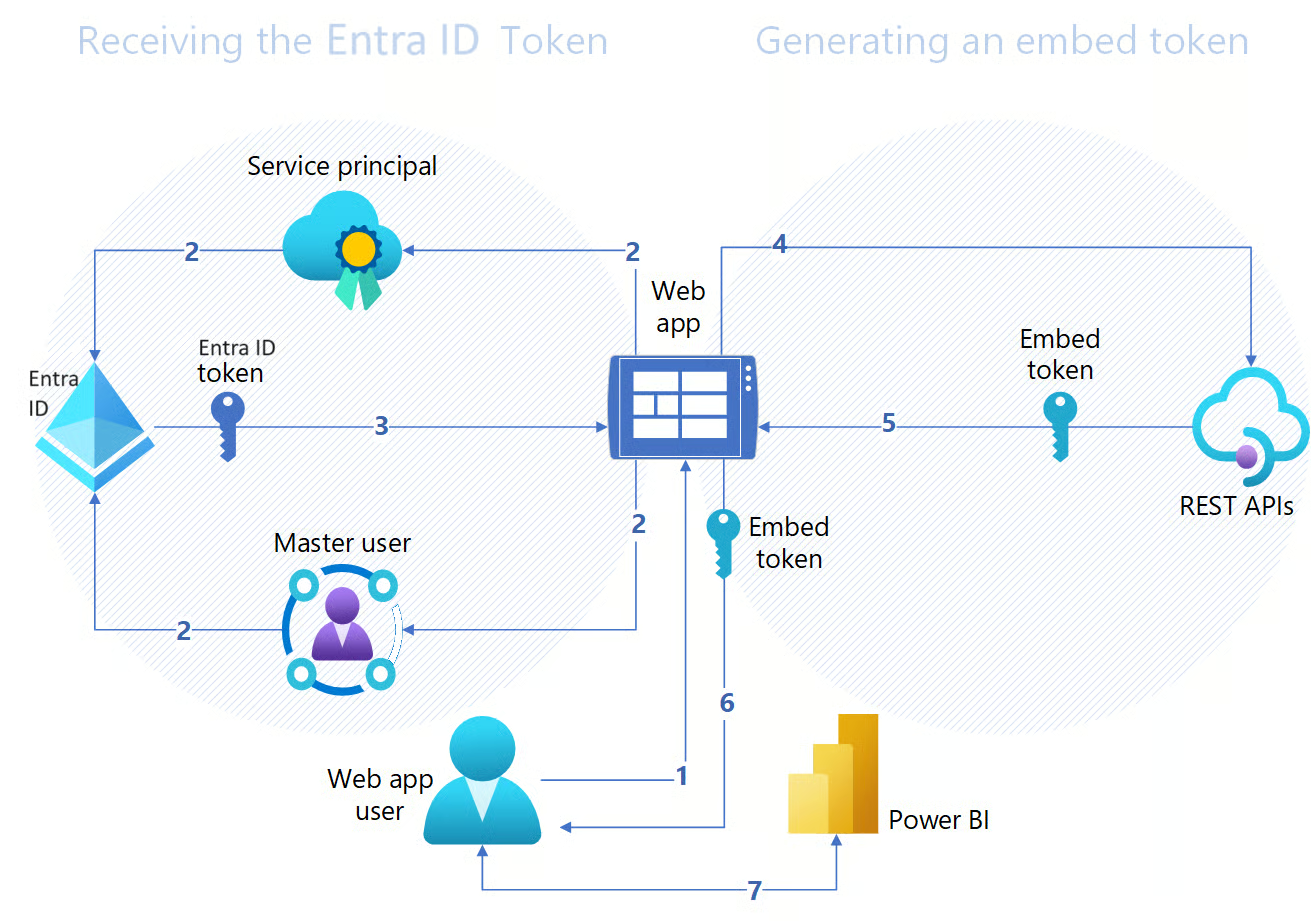
Source: Microsoft
To implement Power BI embedded, you'll need both backend authentication and frontend rendering.
Here are some general steps:
Efficient use of the Power BI API is essential for ensuring scalability, reliability, and responsiveness.
Since all APIs operate under rate limits and throttling rules, you'll need to design applications that handle these limits while maintaining high performance.
Here are some measures I found to be useful:
Power BI enforces API rate limits to maintain service stability and fair resource distribution across tenants. Each tenant has request quotas, and exceeding limits triggers the 429 Too Many Requests error.
Several techniques can minimize API calls, maximize throughput, and reduce load on Power BI services:
Visibility into API usage is key to managing quotas and troubleshooting performance issues.
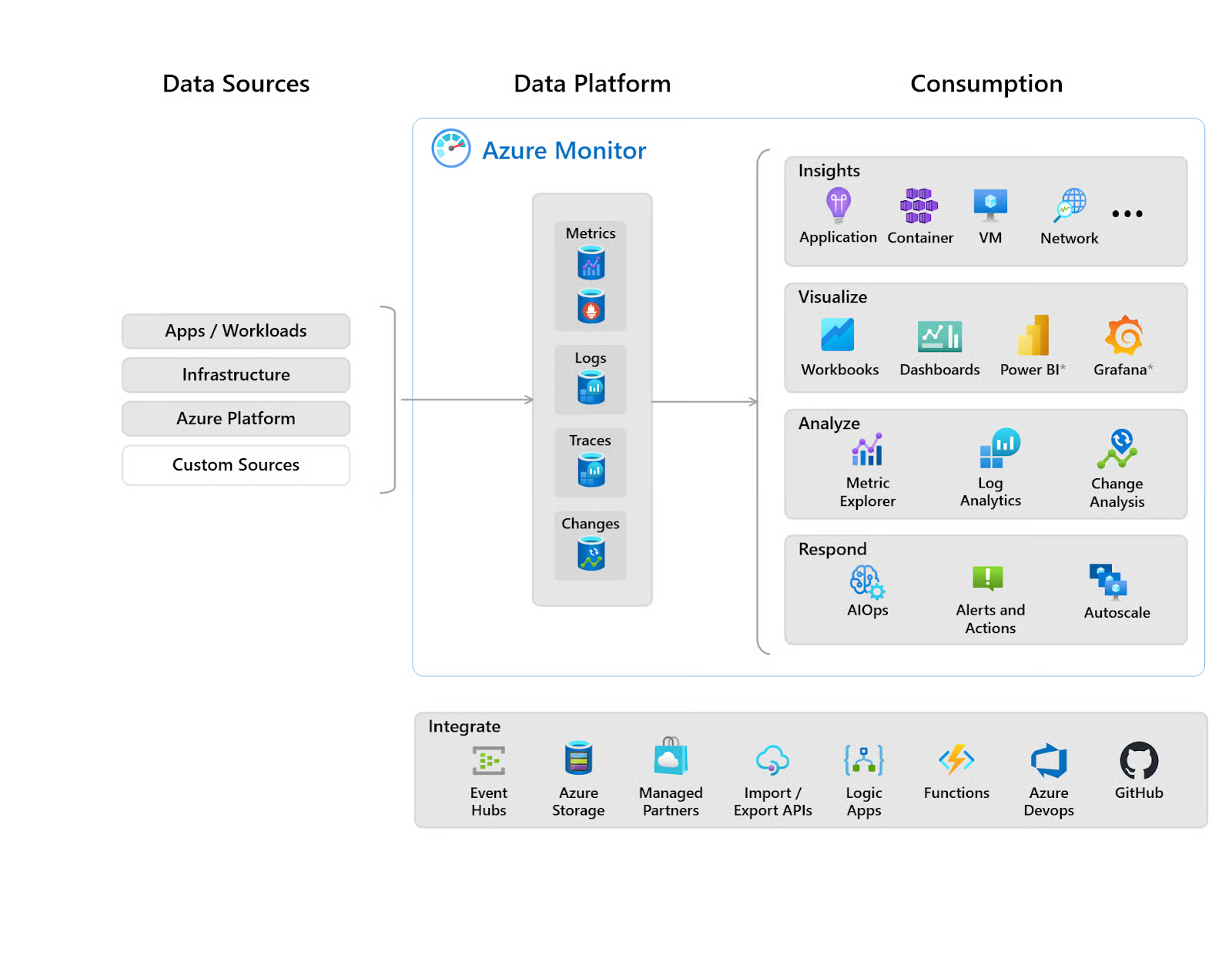
Source: Microsoft Azure Monitor
Here are some methods for API monitoring:
Security and governance are foundational pillars for any enterprise that intends to implement Power BI and its API ecosystem.
Here are some measures:
Use Azure Key Vault for secrets.
Access control ensures that only authorized users can view or manipulate datasets, reports, and dashboards.
To ensure data is well kept, here are some data protection strategies you can adopt:
Enterprises often operate in multiple regions, making compliance a critical factor.
Some aspects you should consider:
The Power BI .NET SDK provides a strongly typed interface that integrates seamlessly with the Microsoft stack. It is especially suited for enterprise developers who are already using Azure, C#, or ASP.NET applications.
Use cases: Automating report publishing, embedding dashboards in enterprise portals, and managing workspace assets.
Advantages: Type safety, robust error handling, and native support for Azure Active Directory authentication flows.
The Python SDK (and REST client libraries) is popular among data scientists and analysts who prefer scripting environments.
Use cases: Automating dataset refreshes, exporting report metadata, and integrating Power BI workflows into broader data pipelines.
Advantages: Rapid prototyping, rich ecosystem of data libraries (pandas, Polars, NumPy), and ease of integration with Jupyter notebooks.
The JavaScript SDK is essential for embedding Power BI content directly into web applications.
Use cases: Embedding reports into customer portals, SaaS products, or internal dashboards. Developers can also customize user interactions such as filtering, exporting, and drill-through directly from client-side code.
Advantages: Real-time interactivity, browser compatibility, and support for Single Page Applications (SPAs) with frameworks like React, Angular, or Vue.
When creating a development environment for running your API calls, you'll need to take note of these considerations:
Before deploying to production, ensure that the app registration in Azure AD has the correct API scopes and delegated or application permissions.
Run pre-deployment scripts or checks to confirm tokens grant the expected level of access.
SDKs tend to evolve alongside Power BI APIs.
You should track version updates to avoid breaking changes, especially if using preview features. Maintain pinned versions in requirements.txt (Python) or package.json (JavaScript).
To check if your API calls are running smoothly, you can do some tests afterward.
To do endpoint testing, use Postman to interactively test REST API endpoints. You can import Power BI API collections, authenticate via OAuth 2.0, and experiment with different request/response payloads before coding.
Implement unit tests for authentication flows and integration tests for end-to-end workflows.
Here are some testing frameworks:
If you’re having difficulties getting set up with the Power BI API, you can check out the errors and solutions below:
401 Unauthorized: Check token validity and scopes.
How to fix: Verify that the access token has not expired and that it was generated with the correct API permissions.
403 Forbidden: Permissions missing or denied.
How to fix: Confirm that the caller has the right role assignments (e.g., Contributor, Power BI Admin, or custom roles with the required permissions).
429 Too Many Requests: Throttling applied; retry after delay.
How to fix: Implement exponential backoff or retry logic in your code. Monitor API call volume and distribute requests over time.
On-premises or VNet data gateways are required for certain data sources. If the gateway is not installed, misconfigured, or offline, the API cannot refresh or access the dataset.
To prevent these issues, confirm the gateway is up to date, running, and properly mapped to the data source in the Power BI Service.
Dataset refreshes or API calls may fail if data source credentials have expired or changed.
To prevent this, regularly update credentials in the Power BI Service or configure credential rotation policies. You can also use managed identities or key vaults for more secure, automated management.
As Power BI matures into a central analytics platform, its advanced features and automation capabilities are critical for scaling analytics across the enterprise.
Next, let's look at some advanced features Power BI has to offer.
Deployment pipelines provide a structured way to manage the lifecycle of Power BI content across development, test, and production environments.
They help enforce change control, reduce risk, and ensure consistent deployment practices.
With these pipelines, developers can publish datasets and reports to the development stage. Using the REST API, content can then be promoted to test and production stages.
Automation around refreshes and user permissions is central to keeping data current and access compliant.
Here are some ways automated refreshes can be used:
Custom visuals can be created to expand the capabilities of Power BI and allow organizations to build tailored data experiences.
Here's a simple guide:
Integrating the Power BI API into business intelligence workflows delivers powerful automation and scalability. It enables you to work beyond just delivering dashboards using the built-in GUI.
If you’re interested in learning more about Power BI, I can recommend our Introduction to Power BI course and Power BI Fundamentals track. For more reading resources, check out our Power BI Dashboard Tutorial or Deploying and Maintaining Assets in Power BI tutorial.
Top DataCamp Courses
Track
Course
Course
blog
Wendy Gittleson
12 min
Tutorial
Austin Chia
7 min
Tutorial
Joleen Bothma
10 min
Tutorial
DataCamp Team
13 min
Tutorial
Joleen Bothma
12 min
Tutorial
Austin Chia
12 min