{count, plural, one {Course} other {Courses}}
Software Development with GitHub Copilot
{hours} hr {minutes} min
9.6K
Once you enable GitHub Copilot for a team, the configuration questions come fast. What data leaves the IDE? Which repos should be off-limits to suggestions? What happens when a suggestion matches public code?
Whether you're a developer managing your own setup or an admin rolling Copilot out across an organization, understanding the privacy and safety surface is part of using the tool well.
In this article, I will walk you through how Copilot handles your data and how you can configure privacy settings, content exclusions, and safeguards like the duplication filter, plus how to troubleshoot the most common issues when things stop working.
As we cover in our GitHub Copilot Best Practices tutorial, Copilot sends a snapshot of the surrounding code context to GitHub's servers whenever you type in your IDE. The model processes that context and returns a suggestion — this is the interaction data that powers the experience.
For individual plan users (Free, Pro, and Pro+), GitHub's Privacy Statement permits this interaction data to be used for model training. Users can opt out at any time through their personal privacy settings. Business and Enterprise plans operate under separate contractual terms that exclude interaction data from training entirely — no user action required.
Private repository code stored at rest is not used. However, interaction data generated while you actively use Copilot in a private repository can be used for training unless you opt out. But what is meant by “interaction data” exactly?
When you use Copilot, the system collects several types of data points to improve its coding assistance, including:
GitHub offers several account tiers: Free, Pro, Business, and Enterprise. Data handling varies by account type, as shown in the table below.
|
Dimension |
Free / Pro / Pro+ |
Business |
Enterprise |
|
Used for model training |
Opt-out required |
No. Contractually excluded |
No. Contractually excluded |
|
Private repo code at rest |
Not used |
Not used |
Not used |
|
Prompt / output retention |
IDE: not retained. Outside IDE: 28 days |
IDE: not retained. Outside IDE: 28 days |
IDE: not retained. Outside IDE: 28 days |
|
Admin controls |
Individual only |
Org-level policies and seat management |
All Business controls, plus enterprise-wide policy inheritance and audit logs |
|
Content exclusions |
Not available |
Available at the repo and org level |
Available enterprise-wide |
|
IP indemnity |
Not included |
Yes, with the duplication filter enabled |
Yes, with the duplication filter enabled |
Besides the opt-out for individual plans, the main takeaway is that Business and Enterprise users get content exclusions, IP indemnity, and org-level admin controls that aren't available on the free and individual tiers. For a deeper comparison of what each tier includes beyond data handling, see our GitHub Copilot Plans guide.
A few details worth noting: Content exclusions do not yet apply to Edit mode, Agent mode in IDE chats, GitHub Copilot CLI, or the cloud agent. IP indemnity coverage requires that the duplication detection filter be enabled and that the suggestion be used unmodified.
Data privacy has become a very important aspect for any business. Let’s walk through the settings that control whether your interactions feed back into model training when using GitHub Copilot.
For your individual account, you can opt out of model training on your data by visiting GitHub Settings and setting “Allow GitHub to use my data for AI model training” to Disabled, as shown in the screenshot below.
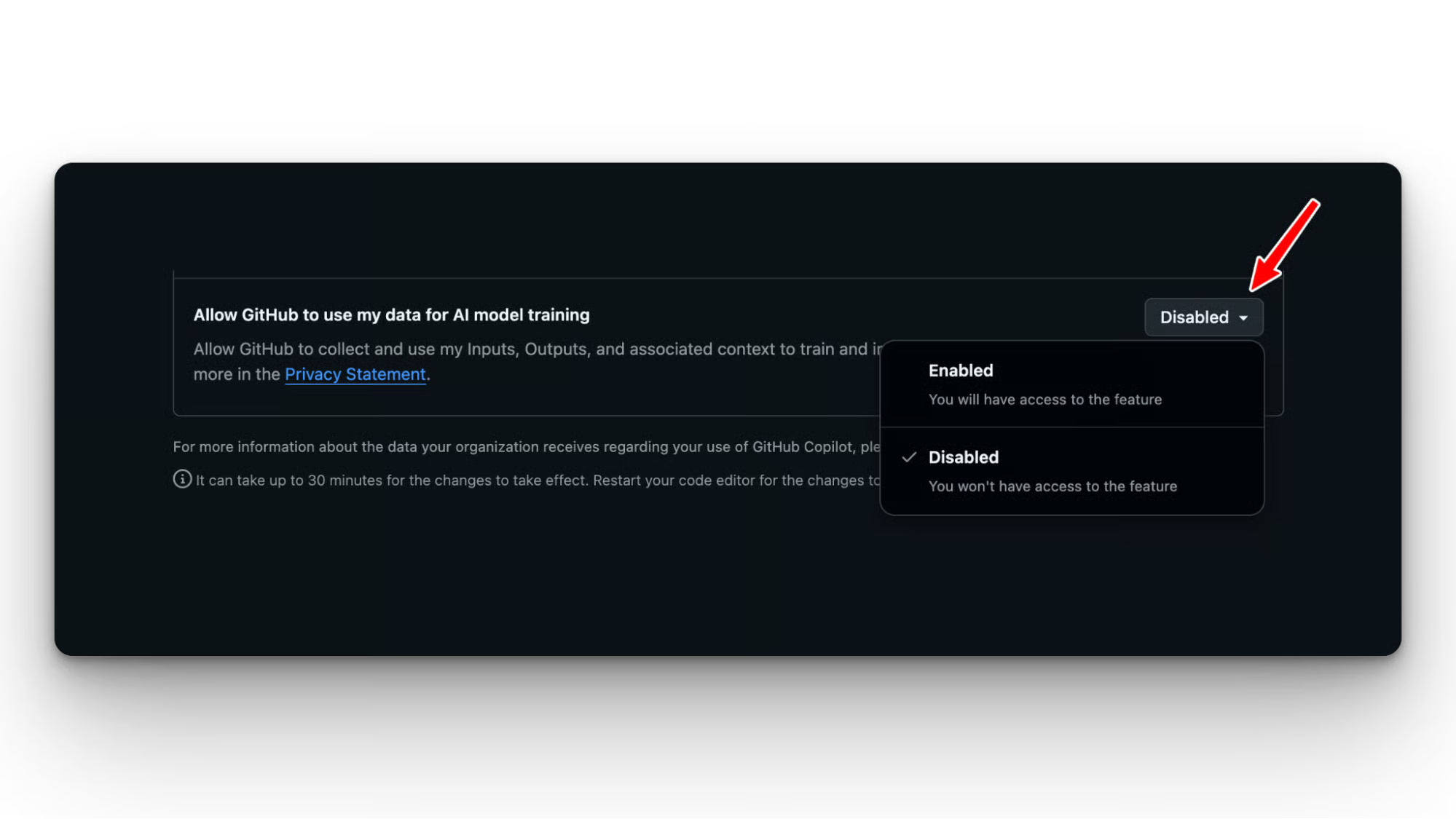
Opting out stops future data collection and does not reduce Copilot functionality. However, GitHub can not guarantee the removal of data already used in prior training, so your previously collected data may remain in existing training sets.
Business and Enterprise users are already excluded from model training, but admins should still review the data sharing policies to control what Copilot features are enabled across the org:
You can decide not to allow Copilot to access certain content. From the repository settings, you can dictate the content you would like Copilot to ignore.
For excluded files:
Exclusions can be configured by repository administrators, organization owners, and enterprise owners.
At the repo level, go to Settings > Copilot > Content Exclusion, and specify paths using glob patterns. Common patterns include **"**/secrets/**"** to exclude any path containing a secrets directory, and **"*.env"** to exclude all environment files.
The REST API gives you a programmatic option if you're managing exclusions across many repos and want to version-control your config.
At the org level, the path is: Org Settings > Copilot > Content Exclusion. Rules you set here apply across all repos in the org.
Org-level rules and repo-level rules are additive, so both apply simultaneously. Enterprise-level rules take precedence over org and repo-level rules.
To test that exclusions are actually working: open an excluded file and ask Copilot Chat to "explain this file." If Chat provides a meaningful response about the file's content, the exclusion is not applied. That's your signal to reload the extension and re-check the rule syntax.
While using GitHub Copilot content exclusions, it’s important to understand the following:
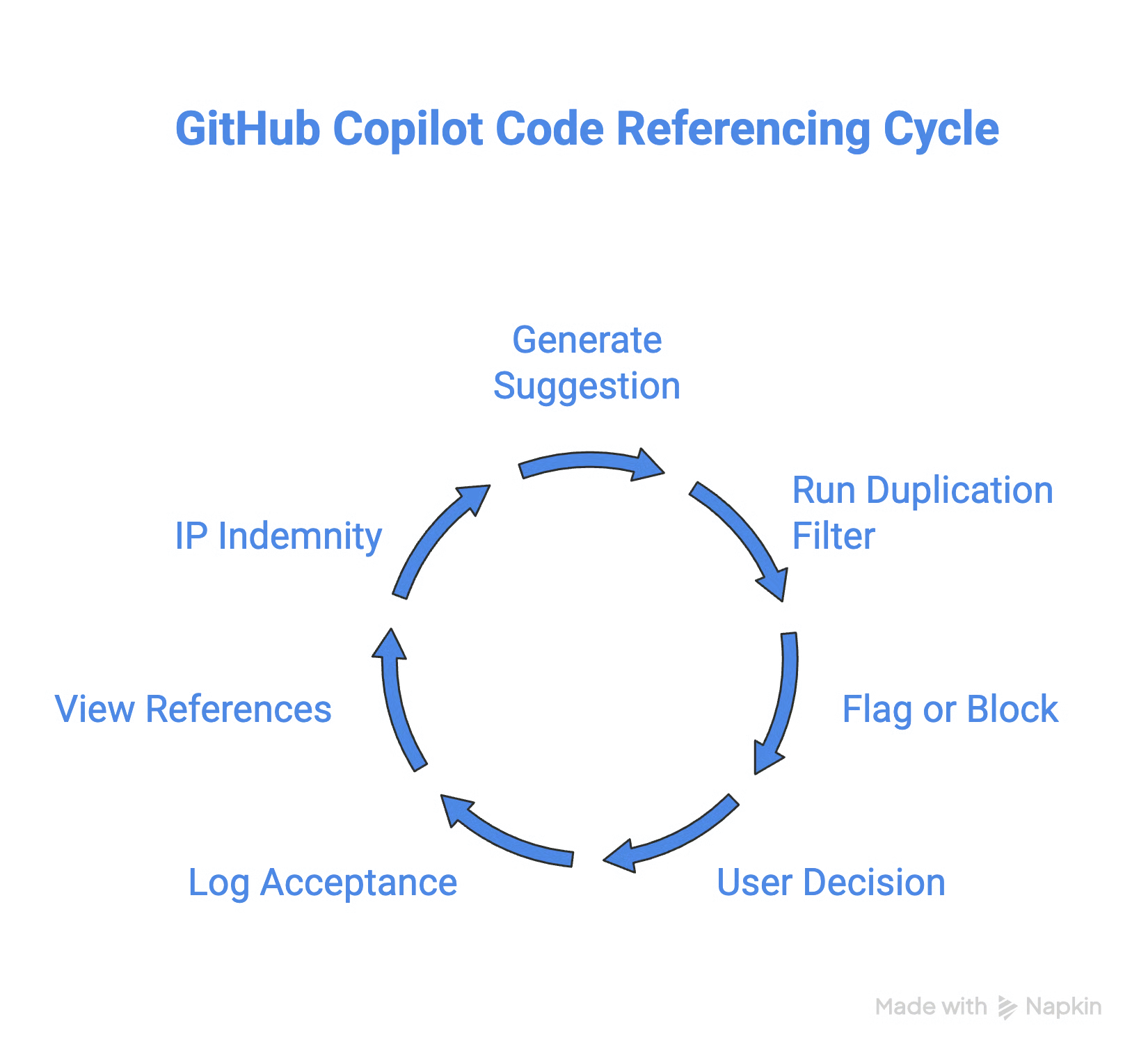
GitHub Copilot helps you understand the source of the code suggested by referencing and linking the code source. When you accept such a code suggestion, Copilot logs the URL of the source and its license.
Based on the information, you can decide whether to use that code snippet and what type of attribution to give it.
When Copilot generates a suggestion, it runs a filter against known public code. If the suggestion matches a public repository above a similarity threshold, the suggestion is either blocked or flagged with attribution.
When you accept the suggestion, Copilot logs
You can view code references directly in your IDE when a match is flagged. In VS Code, matched references appear in the Copilot output panel alongside the suggestion.
The duplication filter does not match the following:
The filter’s goal is to match verbatim/near-verbatim matches, not conceptual similarity.
GitHub offers Intellectual Property (IP) indemnity to Copilot Business and Enterprise customers. If a suggestion triggers an IP claim, GitHub covers the legal defense.
Two conditions apply:
Free and Pro users are not covered. This is a commercial safeguard, and it doesn't prevent matches from appearing. It covers the risk if a match causes a legal problem.
The Copilot policy page on GitHub.com is where org and enterprise admins control what Copilot can do across the team.
Admins can toggle code completions, Chat, code review, the GitHub CLI integration, and agent mode independently. This granularity matters if you want to roll out features progressively or restrict certain capabilities for specific teams.
Seat assignment lives here too: you control which members get access, and you can assign seats by user or by group.
Copilot now supports multiple underlying models, and admins can restrict which models are available to the org. You can lock it to a specific model, or allow all available options and let developers choose.
For government and regulated environments, GitHub supports Federal Risk and Authorization Management Program (FedRAMP)-compliant model options.
Check the Copilot policy settings under your org's Copilot tab to see what's available for your account tier.
Copilot usage metrics, including completion rates, active user counts, and feature and model trends, are available under the Insights tab at both the enterprise and organization level (Insights > Copilot usage).
The "Copilot usage metrics" policy must be enabled before the dashboard is accessible. Per-member breakdowns are available via NDJSON export.
Seat and license data are separate and live under Org Settings > Copilot > Access.
For a detailed breakdown of the new Usage Metrics API and other advanced features, make sure to read our GitHub Copilot Enterprise guide.
Note that the audit log does not include client session data, such as prompts; a custom solution is required for that. To retain history beyond 180 days or set up anomaly alerts, GitHub recommends streaming the audit log to a SIEM platform using its built-in streaming feature.
When Copilot stops working, the cause is almost always one of the following. Work through these before opening a support ticket.
Start with the Copilot status icon in your IDE status bar. A diagonal line through the icon means a content exclusion is active for the current file.
If the icon looks normal but suggestions aren't appearing, check these in order:
Proxy and VPN configurations are a common silent blocker. The IDE needs to reach Copilot's servers on GitHub's infrastructure, and corporate proxies sometimes block that without a clear error.
After you add or change content exclusions, it can take up to 30 minutes to take effect in IDEs where the settings are already loaded.
To apply changes immediately:
After reloading, test the exclusion explicitly: open the excluded file and ask Chat to explain it. If Chat responds with content about that file, the exclusion isn't applied, and you need to re-check the rule syntax.
Note that three Copilot features do not support content exclusions: Copilot CLI, Copilot coding agent (the cloud-based autonomous agent), and Agent mode in Copilot Chat in IDEs. If you're seeing unexpected file access in any of these, that's not a misconfiguration.
If Copilot is unavailable in VS Code despite being signed in, sign out via the Accounts icon in the bottom-left corner, reload the window (F1 > Developer: Reload Window in VS Code), then sign back in.
For Visual Studio, confirm the GitHub account signed in matches the one with the Copilot seat, refresh your credentials if needed, or try removing and re-adding your GitHub account and restarting Visual Studio.
Copilot's usage-based billing model means each plan has its own capacity limits, and premium models consume that capacity faster than base models.
If suggestions stop mid-session or Copilot Chat returns errors, switching to the Auto model selection (or a model with a smaller multiplier) can resolve it while the usage window resets.
Enterprise admins can monitor usage proactively through the Copilot analytics dashboard to stay ahead of limits.
For any service-level issues, check githubstatus.com before spending time debugging locally.
GitHub Copilot gives teams meaningful control over how their data is handled, from plan-level contractual protections to granular content exclusions and the duplication filter.
Understanding these settings (and knowing how to configure them correctly) lets you adopt Copilot with confidence, whether you're an individual developer or rolling it out across an enterprise. If something isn't working as expected, the troubleshooting steps above should get you back on track quickly.
If you want to get hands-on experience with GitHub Copilot, learn how to customize it and use all its smart features, I highly recommend taking our Software Development with GitHub Copilot course.
Learn with DataCamp!
{count, plural, one {Course} other {Courses}}
{count, plural, one {Course} other {Courses}}
{count, plural, one {Course} other {Courses}}
{count, plural, one {blog} other {blogs}}
Nikhil Adithyan
13 min
{count, plural, one {blog} other {blogs}}
Khalid Abdelaty
15 min
{count, plural, one {Tutorial} other {Tutorials}}
Eugenia Anello
8 min
code-along
Nuno Rocha