
Lernpfad
Excel-Grundlagen
16 Std.
Üben und Lernpfad deinen Fortschritt.
Weiter Mit GoogleDu kannst Wörter in Excel mit Formeln zählen, die die Anzahl der Leerzeichen in einer Zelle ermitteln und in eine Wortzahl umwandeln. Excel bietet keine integrierte Wortzählung, daher stützen sich die meisten Methoden auf Funktionen wie LEN(), SUBSTITUTE() oder neuere Funktionen in modernen Excel-Versionen.
In diesem Leitfaden zeigen wir mehrere einfache Wege, Wörter in Excel mit Formeln, modernen Funktionen und KI-Tools zu zählen. Außerdem gehen wir auf typische Fehler und Sonderfälle ein, die die Genauigkeit beeinflussen können.
Excel hat keine eingebaute Wortzählung, weil es für Zahlen und strukturierte Daten entwickelt wurde, nicht für Textanalyse. Das Zählen von Wörtern braucht daher einen Workaround.
Textverarbeitungen wie Microsoft Word konzentrieren sich auf Sätze, Absätze und Sprachregeln. Excel fokussiert Berechnungen und strukturierte Daten.
Aufgrund dieses Designs:
Auch die Definition eines Wortes kann zu Verwirrung führen.
Denke etwa an E-Mail-Marketing. Oder daran, dass manche Tools Bindestrich-Begriffe als ein Wort zählen, andere als zwei. Auch Akronyme sind Sonderfälle.
Excel wendet keine Sprachregeln an, um solche Fälle aufzulösen. Die meisten Excel-Formeln setzen voraus, dass Leerzeichen Wörter trennen. Daher weichen Excel-Wortzählungen manchmal von anderen Tools ab.
Viele von uns brauchen Wortzahlen weiterhin für praktische Aufgaben.
Häufige Situationen sind zum Beispiel:
In solchen Fällen kannst du Formeln nutzen, um Wortzahlen zu schätzen.
Kombiniere zum Wörterzählen in Excel die Funktionen LEN() und SUBSTITUTE(). Damit zählst du die Wörter in einer Zelle.
Angenommen, der Text steht in Zelle A2. Gib diese Formel in eine andere Zelle ein, z. B. B2:
=LEN(A2)-LEN(SUBSTITUTE(A2," ",""))+1So funktioniert die Formel:
LEN(A2) zählt alle Zeichen in der Zelle
SUBSTITUTE(A2," ","") entfernt Leerzeichen aus dem Text
LEN(SUBSTITUTE(...)) zählt die Zeichen nach dem Entfernen der Leerzeichen
Die Differenz beider Längen ergibt die Anzahl der Leerzeichen
Durch +1 wird die Leerzeichenanzahl in eine Wortzahl umgewandelt
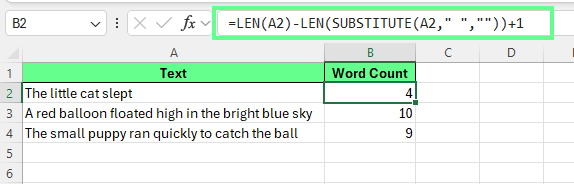
Gesamtzahl der Wörter in einer Zelle. Bild: Autor.
Weil Excel Zeichen und nicht Wörter zählt, dienen Leerzeichen als Trennsignal zwischen Wörtern.
Nimm als Beispiel den Text "The little cat slept" in Zelle A2:
Der Satz enthält drei Leerzeichen und vier Wörter. Zur Klarheit: Anzahl Wörter = Anzahl Leerzeichen + 1
Die Formel zählt zuerst die Leerzeichen und addiert dann eins, um die Wortzahl zu liefern.
Manchmal gibt es zusätzliche Leerzeichen oder Zellen sind leer. In solchen Fällen liefert die obige Formel falsche Werte, weil zwei typische Probleme entstehen:
Leere Zellen ergeben 1 statt 0.
Mehrere Leerzeichen zwischen Wörtern blähen die Zählung auf.
Kombiniere dafür LEN() und SUBSTITUTE() mit TRIM():
=IF(LEN(TRIM(A3))=0,0,LEN(TRIM(A3))-LEN(SUBSTITUTE(TRIM(A3)," ",""))+1)In dieser Formel:
TRIM(A2) entfernt führende, nachgestellte und doppelte Leerzeichen
LEN(TRIM(A2))=0 prüft, ob die Zelle leer ist oder nur Leerzeichen enthält
Ist die Zelle leer, liefert die Formel 0
Andernfalls zählt sie die Wörter per Leerzeichen-Logik
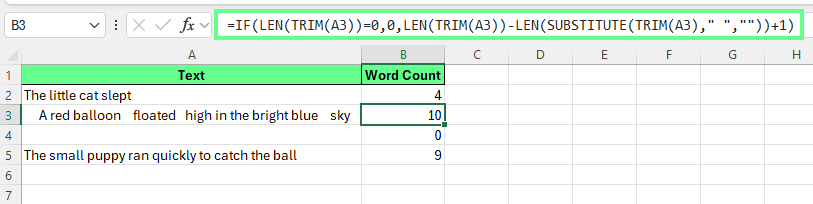
Mit TRIM-LEN-SUBSTITUTE Wörter zählen und doppelte Leerzeichen ausschließen. Bild: Autor.
Sobald die Formel für eine Zelle funktioniert, kannst du sie auf viele Zeilen anwenden. Drei Hauptwege:
So kopierst du die Formel eine Spalte hinunter:
Excel aktualisiert dabei die Bezüge automatisch:
A2 wird zu A3
A3 wird zu A4
Und so weiter
Jede Zeile berechnet ihre eigene Wortzahl.
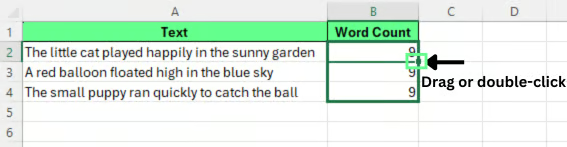
Ziehe oder doppelklicke den Ausfüllkästchen-Griff, um die Formel zu kopieren. Bild: Autor.
Um die Gesamtzahl der Wörter über mehrere Zellen zu berechnen, addiere die Einzelzählungen. Stehen die Wortzahlen z. B. in B2:B4, nutze:
=SUM(B2:B4)Das ergibt die Gesamtzahl der Wörter für den gesamten Bereich.
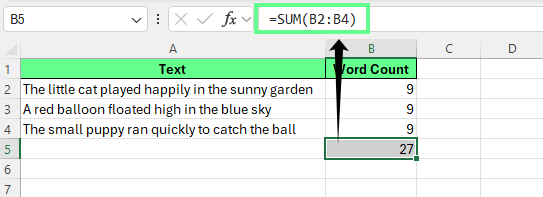
Gesamtzahl der Wörter über eine ganze Spalte. Bild: Autor.
Excel-Tabellen kopieren Formeln automatisch über die Zeilen und sind daher für strukturierte Daten praktisch. So zählst du Wörter in einer Tabelle:
Gib diese Formel in die erste Zeile der neuen Spalte ein:
=IF(LEN(TRIM([@Text]))=0,0,LEN(TRIM([@Text]))-LEN(SUBSTITUTE(TRIM([@Text])," ",""))+1)Hinweis: Meine Spalte heißt Text, ersetze sie in der Formel durch deinen Spaltennamen.
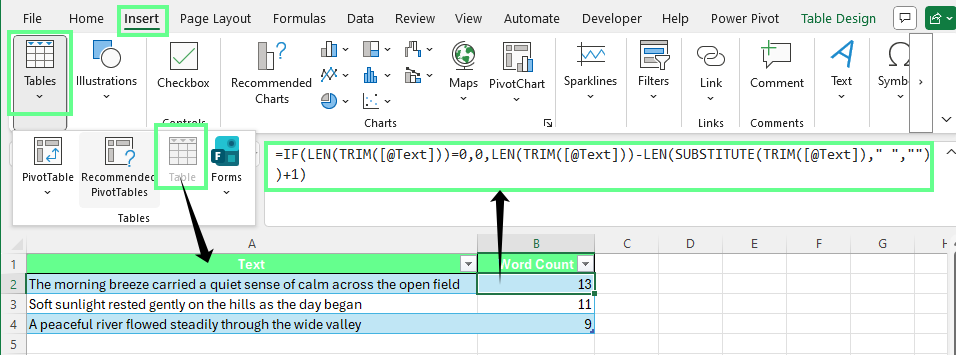
Wörter in einer Excel-Tabelle zählen. Bild: Autor.
Danach füllt Excel die Formel automatisch für jede Tabellenzeile aus. Das eignet sich gut, wenn du Wortzahlen in großen Datensätzen verfolgst.
Du kannst zählen, wie oft ein bestimmtes Wort in einer Zelle vorkommt, indem du LEN() und SUBSTITUTE() kombinierst.
Betrachte diese Formel:
=(LEN(A2)-LEN(SUBSTITUTE(A2,"cat","")))/LEN("cat")Diese Formel zählt, wie oft das Wort cat in Zelle A2 vorkommt.
So funktioniert es:
SUBSTITUTE(A2,"cat","") entfernt jedes Vorkommen des Wortes cat
LEN(A2) zählt die ursprüngliche Zeichenanzahl
LEN(SUBSTITUTE(...)) zählt die Zeichen nach dem Entfernen
Die Differenz zeigt, wie viele Zeichen entfernt wurden
Durch Teilen durch LEN("cat") wird die entfernte Zeichenzahl in die Anzahl der Wortvorkommen umgerechnet
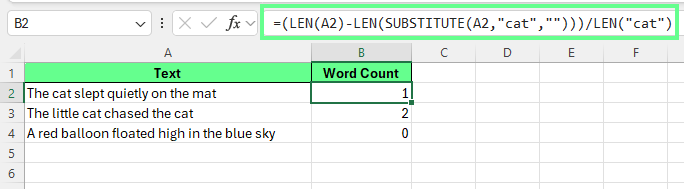
Ein bestimmtes Wort in einer Zelle zählen. Bild: Autor.
Excel-Formeln behandeln Text oft genau wie geschrieben. Wenn Groß-/Kleinschreibung ignoriert werden soll, wandle den Text in einheitliche Schreibweise um.
Das geht mit LOWER() oder UPPER().
Beispiel mit LOWER():
=(LEN(LOWER(A2))-LEN(SUBSTITUTE(LOWER(A2),"cat","")))/LEN("cat")Beispiel mit UPPER():
=(LEN(UPPER(A2))-LEN(SUBSTITUTE(UPPER(A2),"CAT","")))/LEN("CAT")Beide Formeln vereinheitlichen zuerst die Schreibweise, sodass Cat, CAT und cat gleich gezählt werden.
Der gleiche Ansatz funktioniert für Phrasen. Wenn du z. B. little cat zählen willst, ersetze das Wort in der Formel:
=(LEN(A2)-LEN(SUBSTITUTE(A2,"little cat","")))/LEN("little cat")Excel entfernt die Phrase, misst die Differenz in Zeichen und rechnet sie in die Anzahl der Vorkommen um.
Um ein bestimmtes Wort über mehrere Zellen zu zählen, wende die Formel je Zeile an und summiere die Ergebnisse.
Angenommen, dein Text steht in A2:A10 und du willst das Wort cat zählen. Gib diese Formel in B2 ein:
=(LEN(A2)-LEN(SUBSTITUTE(A2,"cat","")))/LEN("cat")Drücke Enter und ziehe die Formel bis B10 nach unten. Jede Zeile liefert die Anzahl der Vorkommen in dieser Zelle.
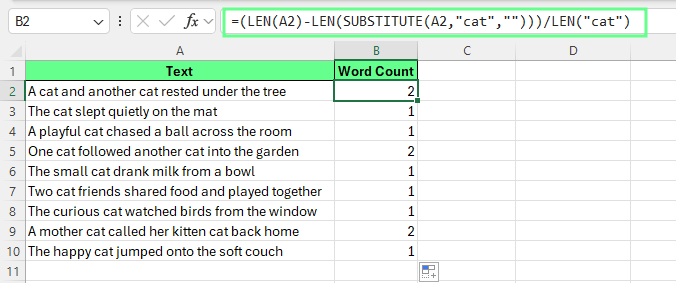
Das spezifische Wort zählen. Bild: Autor.
Manchmal zählt Excel ein Wort auch, wenn es in einem größeren Wort steckt. Das sind Teiltreffer.
Wenn du z. B. nach "cat" suchst, könnte Excel auch zählen:
Mit dieser Formel zählst du Vorkommen:
=(LEN(A2)-LEN(SUBSTITUTE(A2,"cat","")))/LEN("cat")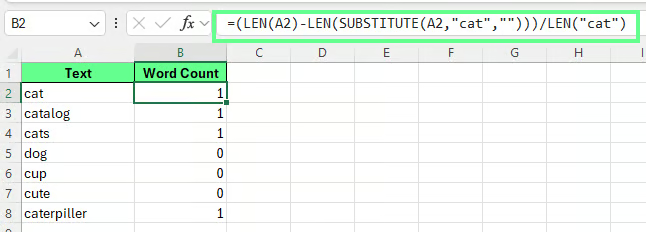
Teiltreffer zählen. Bild: Autor.
Excel-Formeln erkennen keine Wortgrenzen. Sie suchen nur nach passenden Zeichenfolgen im Text.
Deshalb können Formeln Teiltreffer mitzählen.
In vielen Tabellen-Aufgaben ist dieses Verhalten akzeptabel. Es eignet sich für schnelle Schätzungen, wenn strenge Sprachregeln nicht nötig sind.
Auch wenn Text über viele Zellen verteilt ist, kannst du eine Gesamtwortzahl berechnen. Der Ansatz baut auf derselben Formel auf wie für eine einzelne Zelle.
Um Wortzahlen über einen Bereich zu addieren, zähle das Zielwort je Zelle und addiere dann die Ergebnisse.
Steht dein Text in A2:A10, kannst du die Gesamtvorkommen von cat so berechnen:
=SUMPRODUCT((LEN(A2:A10)-LEN(SUBSTITUTE(A2:A10,"cat","")))/LEN("cat"))Die Formel prüft jede Zelle im Bereich, zählt die Vorkommen und liefert eine Gesamtsumme.
Wenn Groß-/Kleinschreibung ignoriert werden soll, wandle den Text zuerst um:
=SUMPRODUCT((LEN(LOWER(A2:A10))-LEN(SUBSTITUTE(LOWER(A2:A10),"cat","")))/LEN("cat"))Diese Variante behandelt Cat, CAT und cat identisch.
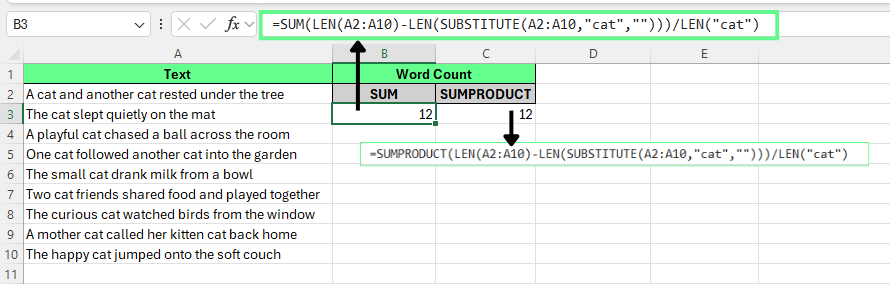
Wörter über mehrere Zellen mit SUMPRODUCT zählen. Bild: Autor.
Eine weitere Option nutzt eine Hilfsspalte.
Angenommen, der Text steht in A2:A10 und A1 ist die Überschrift.
Gib die Wortzähl-Formel in B2 ein
Doppelklicke den Ausfüllkästchen-Griff, um die Formel nach unten zu kopieren
Summiere die Ergebnisse mit: =SUM(B2:B10)
Excel addiert die Wortzahlen je Zeile und liefert die Spaltensumme.
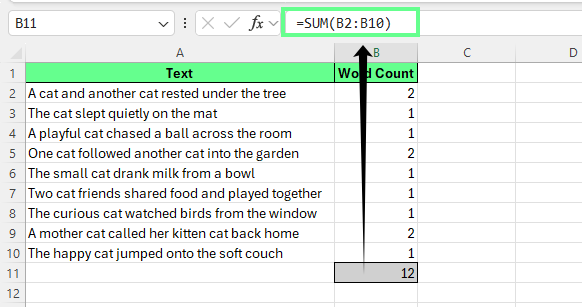
Wörter in der gesamten Spalte zählen und summieren. Bild: Autor.
Excel-Tabellen erleichtern das, weil Formeln automatisch auf neue Zeilen angewandt werden:
Gib in die erste Zeile der neuen Spalte ein:
=IF(LEN(TRIM([@Text]))=0,0,LEN(TRIM([@Text]))-LEN(SUBSTITUTE(TRIM([@Text])," ",""))+1)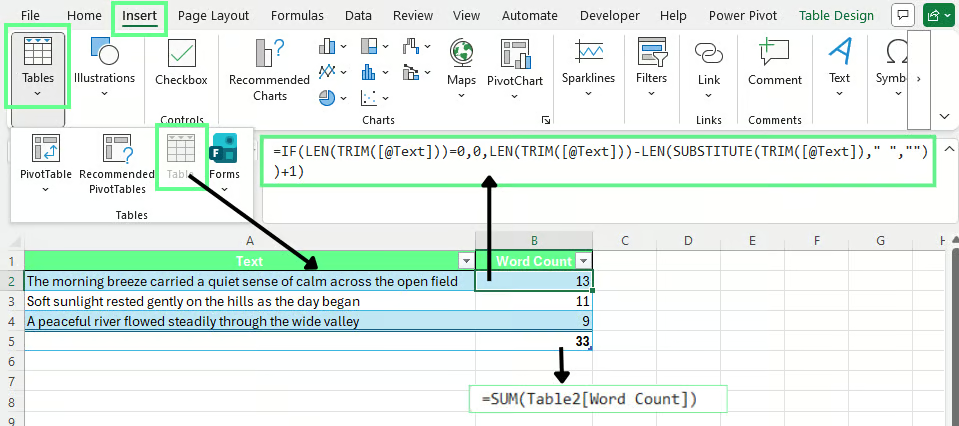
Wörter in einer Excel-Tabelle zählen. Bild: Autor.
Ersetze Text durch den tatsächlichen Spaltennamen deiner Tabelle. Excel füllt die Formel automatisch für jede Zeile. Um die Gesamtwortzahl der gesamten Tabelle zu berechnen, nutze:
=SUM(Table2[Word Count])Ersetze Table2 durch deinen Tabellennamen und Word Count durch den Spaltenkopf in deinem Blatt.
Wortzähl-Formeln in Excel funktionieren meist zuverlässig. Kleine Probleme in den Daten oder im Formelsatz können jedoch falsche Ergebnisse erzeugen. Die folgenden Lösungen adressieren die häufigsten Ursachen.
Hier sind einige häufige Fehler und wie du sie behebst:
Manchmal umfassen Formeln leere Zeilen oder Kopfzeilen. Das kann die Summe aufblähen oder Berechnungen verlangsamen.
So behebst du das: Begrenze den Bereich auf tatsächliche Datenzeilen. Verwende z. B. A2:A100 statt A:A.
Wenn eine Formel auf eine feste Zelle zeigt, liefert jede Zeile dasselbe Ergebnis.
So behebst du das: Nutze relative Bezüge wie A2 statt $A$2, es sei denn, derselbe Bezug ist gewünscht.
Zusätzliche Leerzeichen zwischen Wörtern können die Wortzahl erhöhen.
So behebst du das: Umarme den Text mit TRIM(), bevor du die Formel anwendest, damit Excel führende, nachgestellte und doppelte Leerzeichen entfernt.
So gehst du mit Sonderfällen beim Wörterzählen um:
Leere Zellen oder Zellen nur mit Leerzeichen
Zellen mit versteckten Leerzeichen können 1 statt 0 liefern. Nutze diese Formel, um für leere Zellen 0 zurückzugeben:
=IF(LEN(TRIM(A2))=0,0,LEN(TRIM(A2))-LEN(SUBSTITUTE(TRIM(A2)," ",""))+1)TRIM() entfernt überflüssige Leerzeichen, bevor Excel die Wortzahl berechnet.
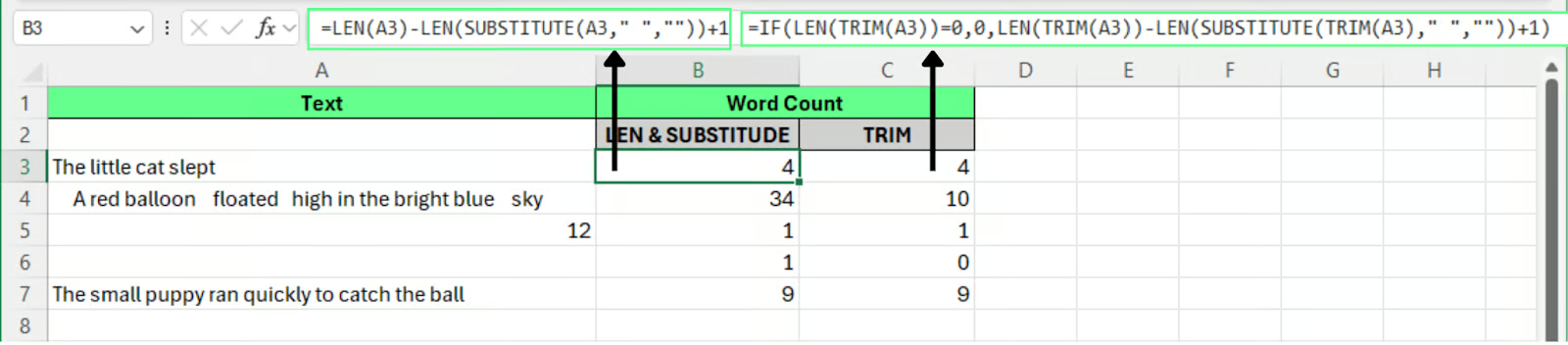
Mit TRIM leere Zellen beim Wörterzählen handhaben. Bild: Autor.
Excel zählt Zeichen auch in numerischen Zellen, was Ergebnisse verfälschen kann. Nutze ISTEXT(), um die Zählung auf Textzellen zu beschränken:
=IF(ISTEXT(A2),IF(LEN(TRIM(A2))=0,0,LEN(TRIM(A2))-LEN(SUBSTITUTE(TRIM(A2)," ",""))+1),0)Diese Formel liefert 0, wenn die Zelle keinen Text enthält.
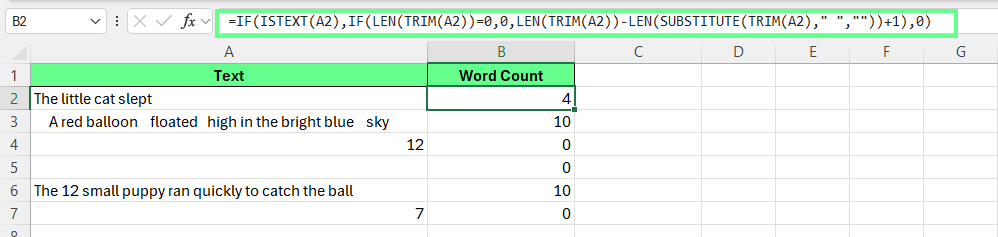
ISTEXT() nutzen, um Zahlenzellen beim Wörterzählen auszuschließen. Bild: Autor.
Aus anderen Quellen kopierter Text kann Zeilenumbrüche oder versteckte Zeichen enthalten. Diese können die Zählung beeinflussen.
Verwende TRIM() oder CLEAN(), um unnötige Zeichen zu entfernen, bevor du die Wortzähl-Formel anwendest.
Zusammengeführte Zellen können Formeln stören, die auf konsistente Bereiche angewiesen sind. Vermeide sie bei Berechnungen über große Datensätze.
Genaue Wortzahlen hängen von sauberen Eingangsdaten ab. Ein paar einfache Checks verhindern Fehler im Vorfeld.
Kopierter oder importierter Text enthält oft zusätzliche Leerzeichen oder versteckte Zeichen. Nutze eine Hilfsspalte mit TRIM(), bevor du die Wortzahl berechnest.
Dasselbe Wort kann in verschiedener Schreibweise erscheinen. Wandle Text vor Zählformeln mit LOWER() oder UPPER() in Klein- oder Großschreibung um.
Große Datensätze machen komplexe Formeln schwer überprüfbar. Teile den Prozess auf:
Diese Struktur erleichtert die Fehlersuche und verbessert die Performance.
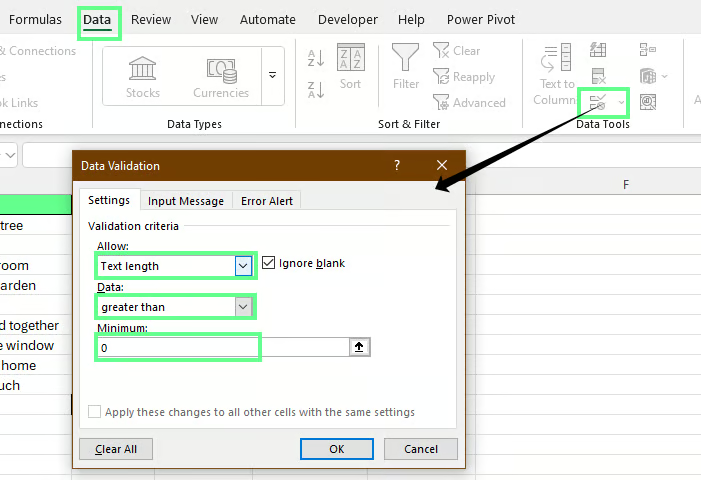
Du kannst leere Eingaben mit Excels Datenüberprüfung verhindern:
Markiere den Eingabebereich, z. B. A2:A100
Gehe zu Daten > Datenüberprüfung
Unter Zulassen wähle Textlänge
Unter Daten wähle größer als und setze den Wert auf 0
Datenvalidierung, um leere Zellen zu vermeiden. Bild: Autor.
Excel blockiert nun vollständig leere Eingaben und zeigt eine Fehlermeldung an, wenn jemand versucht, die Zelle leer zu lassen.
Neuere Excel-Versionen enthalten moderne Textfunktionen und integrierte KI-Features. Damit lässt sich Text leichter analysieren und die Wortzahl schätzen, ohne nur auf klassische Formeln angewiesen zu sein.
Moderne Excel-Versionen bringen neue Textfunktionen mit, die viele String-Aufgaben vereinfachen. Statt Leerzeichen manuell zu zählen, kannst du Text in einzelne Wörter aufteilen und direkt zählen.
TEXTSPLIT() teilt Text anhand eines Trennzeichens in mehrere Werte. Als Trennzeichen kannst du ein Leerzeichen verwenden, um Wörter zu trennen.
Steht der Text in A2, gib in B2 ein:
=COUNTA(TEXTSPLIT(TRIM(A2)," "))So funktioniert es:
TRIM(A2) entfernt überflüssige Leerzeichen
TEXTSPLIT(...," ") teilt den Text an jedem Leerzeichen
COUNTA() zählt die resultierenden Wörter
Dieser Ansatz ist leichter lesbar als klassische Leerzeichen-Zählformeln.
Er eignet sich besonders, wenn:
Bei Zeilenumbrüchen oder ungewöhnlichen Trennzeichen ist ggf. zusätzliche Bereinigung nötig.
Microsoft Excel bietet inzwischen KI-Unterstützung durch Copilot. Copilot kann Tabellendaten analysieren und auf natürliche Sprachbefehle reagieren, auch zu Textfragen.
Du kannst Copilot zum Beispiel fragen:
Count the number of words in this column.Copilot analysiert die Daten und liefert ein Ergebnis, ganz ohne Formeln.
In einfachen Tests liefert Copilot meist eine plausible Schätzung. Die Zahl muss jedoch nicht immer mit Formelergebnissen übereinstimmen.
Warum die Zahlen abweichen können
KI-Systeme analysieren Text oft über Tokens statt klassische Wörter. Ein Token ist ein vom Modell verarbeiteter Textbaustein. Tokens entsprechen nicht immer Wortgrenzen.
Zum Beispiel:
Deshalb interpretiert Copilot Text teils anders als Excel-Formeln, die sich bei der Wortschätzung auf Leerzeichen stützen.
| Vorteile | Einschränkungen |
|---|---|
| Schnell für große oder unaufgeräumte Textdatensätze | Vorgehen hängt davon ab, wie du die Anfrage formulierst |
| Nützlich für schnelle Analysen und Zusammenfassungen | Angewandte Logik ist nicht immer sichtbar oder prüfbar |
| Keine Formeln nötig | Weniger geeignet, wenn konsistente, reproduzierbare Zählungen gefordert sind |
Für präzise und prüfbare Wortzahlen bleiben Excel-Formeln der verlässlichste Ansatz. KI-Tools eignen sich am besten für schnelle Analysen oder zum explorativen Gegencheck.
Nutze diese Methoden zur Wortzählung als einfachen Workflow, wenn du mit Text in Excel arbeitest. Bereinige den Text zuerst, wende eine klare Formel an und prüfe die Ergebnisse über deinen Datensatz. Das hilft bei der Auswertung von Umfragen, der Prüfung von Inhaltsfeldern oder der Analyse von Notizen in Tabellen.
Du kannst darauf aufbauen, indem du Excel-Funktionen und Techniken zur Datenaufbereitung übst.
Erwerbe die Fähigkeiten, um Excel optimal zu nutzen - keine Erfahrung erforderlich.
Lerne Excel mit DataCamp
Lernpfad
Kurs
Üben und Lernpfad deinen Fortschritt.
Weiter Mit GoogleTutorial
Josef Waples
3 Min.
Tutorial
Allan Ouko
11 Min.
Tutorial
Josef Waples
8 Min.
Tutorial
Allan Ouko
11 Min.
Tutorial
Adel Nehme
6 Min.
Tutorial
Laiba Siddiqui
6 Min.