
Track
Excel Fundamentals
16 hr
Practice and track your progress.
Continue with GoogleYou can count words in Excel using formulas that measure the number of spaces in a cell and convert them into a word count. Excel does not provide a built-in word count feature, so most methods rely on functions such as LEN(), SUBSTITUTE(), or newer functions available in modern Excel versions.
In this guide, we’ll cover several simple ways to count words in Excel using formulas, modern functions, and AI tools. We will also look at common mistakes and edge cases that can affect the accuracy of the results.
Excel does not include a built-in word count feature because it was designed to work with numbers and structured data rather than text analysis. So counting words requires a workaround.
Word processors such as Microsoft Word focus on sentences, paragraphs, and language rules. Excel focuses on calculations and structured data.
Because of this design:
The definition of a word can also create confusion.
Consider email marketing, for example. Or else, consider how some tools treat hyphenated terms as one word, while others count them as two. Also, acronyms create edge cases.
Excel does not apply language rules to resolve these cases. Most Excel formulas assume that spaces separate words. That’s why Excel word counts sometimes differ from the counts you see in other tools.
Some of us still need to know word counts for many practical tasks.
Common situations may include:
In these situations, you can use formulas to estimate word counts.
To count words in Excel, combine the LEN() and SUBSTITUTE() functions. They count the words in one cell.
Suppose the text appears in cell A2. Enter this formula in another cell, such as B2:
=LEN(A2)-LEN(SUBSTITUTE(A2," ",""))+1Here is how the formula works:
LEN(A2) counts all characters in the cell
SUBSTITUTE(A2," ","") removes spaces from the text
LEN(SUBSTITUTE(...)) counts characters after removing spaces
The difference between the two counts gives the number of spaces
Adding +1 converts the number of spaces into a word count
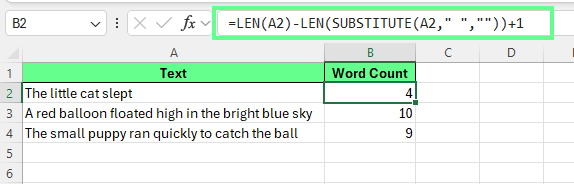
Total word count in a cell. Image by Author.
Since Excel counts characters and not words, spaces act as a signal that separates words.
Take the text "The little cat slept" in cell A2 as an example:
This sentence contains three spaces and four words. For clarity: Number of words = number of spaces + 1
The formula counts spaces first, then adds one to return the final word count.
Sometimes cells have extra spaces, or some cells are empty. In such cases, the above formula won’t work because extra spaces create two common problems:
Empty cells return 1 instead of 0.
Multiple spaces between words inflate the count.
To fix this, combine the LEN() and SUBSTITUTE() with the TRIM():
=IF(LEN(TRIM(A3))=0,0,LEN(TRIM(A3))-LEN(SUBSTITUTE(TRIM(A3)," ",""))+1)In this formula:
TRIM(A2) removes leading, trailing, and extra spaces between words
LEN(TRIM(A2))=0 checks if the cell is empty or contains only spaces
If the cell is empty, the formula returns 0
Otherwise, it counts words using the same space-based logic
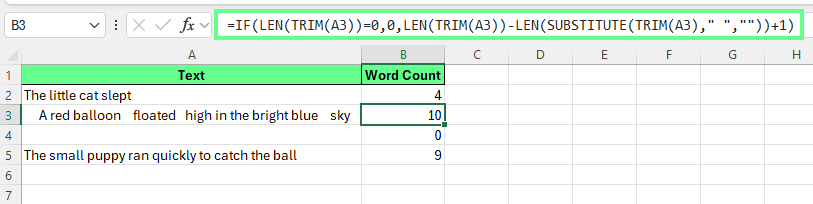
Use TRIM-LEN-SUBSTITUTE to count words excluding extra spaces. Image by Author
After the formula works for one cell, you can apply it across many rows. Let’s look at three main ways to do so:
To copy the formula down a column:
By doing so, Excel updates the references automatically:
A2 becomes A3
A3 becomes A4
And so on
Each row calculates its own word count.
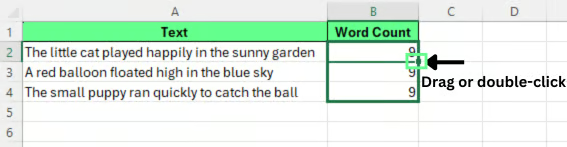
Drag or double-click the fill handle to copy down the formula. Image by Author.
To count the total number of words across several cells, add the individual counts together. For example, if the word counts appear in B2:B4, use:
=SUM(B2:B4)This gives you the total word count for the entire range.
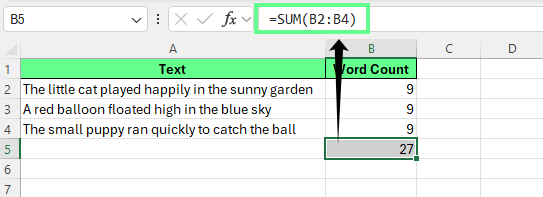
Count total words across an entire column. Image by Author.
Excel tables automatically copy formulas across rows, which makes them useful for structured data. To count words in a table:
Enter this formula in the first row of the new column:
=IF(LEN(TRIM([@Text]))=0,0,LEN(TRIM([@Text]))-LEN(SUBSTITUTE(TRIM([@Text])," ",""))+1)Note: My column name is Text so replace it with your column name in the formula above.
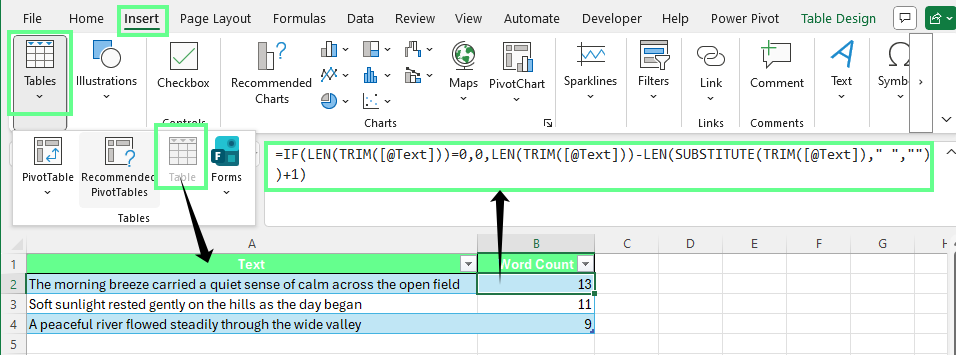
Count words in an Excel table. Image by Author.
Once done, Excel fills the formula automatically for every row in the table. This setup works well when you track word counts across large datasets.
You can count how many times a specific word appears in a cell by combining the LEN() and SUBSTITUTE() functions.
Consider this formula:
=(LEN(A2)-LEN(SUBSTITUTE(A2,"cat","")))/LEN("cat")This formula counts how many times the word cat appears in cell A2.
Here is how it works:
SUBSTITUTE(A2,"cat","") removes every occurrence of the word cat
LEN(A2) counts the original number of characters
LEN(SUBSTITUTE(...)) counts the characters after removal
The difference between the two lengths shows how many characters were removed
Dividing by LEN("cat") converts the removed characters into the number of times the word appears
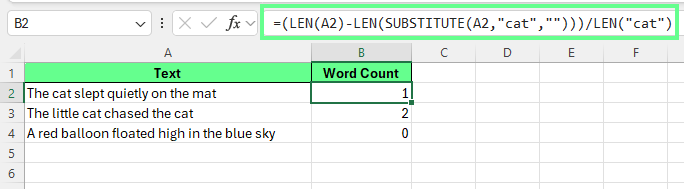
Count a specific word in a cell. Image by Author.
Excel formulas often treat text exactly as written. If you want the formula to ignore uppercase and lowercase differences, convert the text to the same case.
You can do that with LOWER() or UPPER().
Example using LOWER():
=(LEN(LOWER(A2))-LEN(SUBSTITUTE(LOWER(A2),"cat","")))/LEN("cat")Example using UPPER():
=(LEN(UPPER(A2))-LEN(SUBSTITUTE(UPPER(A2),"CAT","")))/LEN("CAT")Both formulas convert the text to the same case first, so Cat, CAT, and cat all count as the same word.
The same approach also works for phrases. For example, if you want to count little cat, replace the word in the formula:
=(LEN(A2)-LEN(SUBSTITUTE(A2,"little cat","")))/LEN("little cat")Excel removes the phrase, measures the difference in characters, and converts that difference into the number of times the phrase appears.
To count a specific word across multiple cells, apply the formula to each row and then total the results.
Suppose your text appears in A2:A10 and you want to count the word cat. Enter this formula in B2:
=(LEN(A2)-LEN(SUBSTITUTE(A2,"cat","")))/LEN("cat")Press Enter, then drag the formula down to B10. Each row will return the number of times the word appears in that cell.
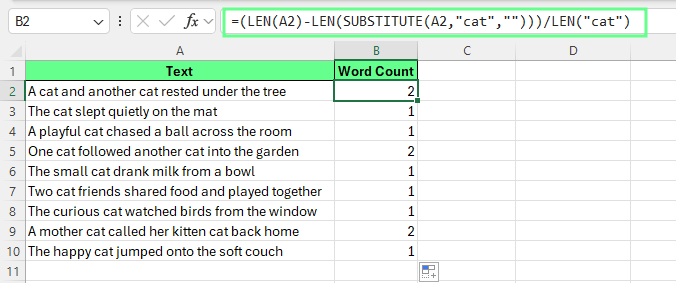
Count the specific word. Image by Author.
Sometimes Excel counts a word even when it appears inside a larger word. This is called a partial match.
For example, if you search for "cat", Excel may also count:
You can use this formula to count occurrences:
=(LEN(A2)-LEN(SUBSTITUTE(A2,"cat","")))/LEN("cat")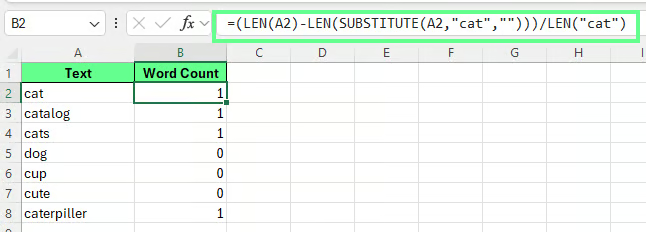
Count partial matches. Image by Author.
Excel formulas cannot detect word boundaries. They only search for matching characters inside the text.
Because of this limitation, formulas may count partial matches.
In many spreadsheet tasks, this behavior is acceptable. It works well when you want a quick estimate or when strict language rules are not necessary.
You can still calculate a single word count even when text appears across many cells. This approach builds on the same formula used to count words in a single cell.
To sum word counts across a range, count the target word in each cell. Then add the results across the range.
Suppose your text appears in A2:A10. You can calculate the total occurrences of cat with the following formula:
=SUMPRODUCT((LEN(A2:A10)-LEN(SUBSTITUTE(A2:A10,"cat","")))/LEN("cat"))This formula checks each cell in the range, counts how many times the word appears, and returns a single total.
If you want to ignore uppercase and lowercase differences, convert the text first:
=SUMPRODUCT((LEN(LOWER(A2:A10))-LEN(SUBSTITUTE(LOWER(A2:A10),"cat","")))/LEN("cat"))This version treats Cat, CAT, and cat as the same word.
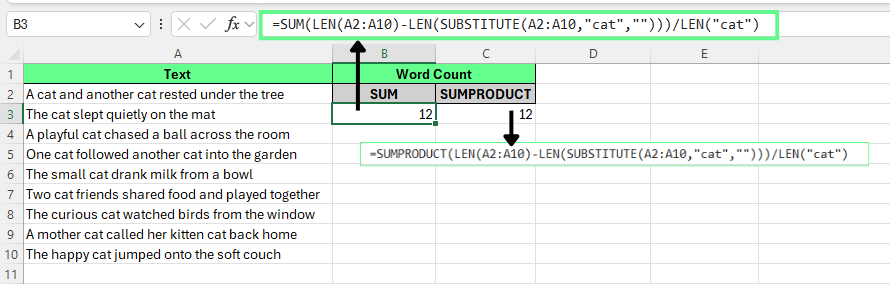
Count words across multiple cells using SUMPRODUCT. Image by Author.
Another option uses a helper column.
Suppose the text appears in A2:A10 and A1 contains the header.
Enter the word-count formula in B2
Double-click the fill handle to copy the formula down the column
Add the results with: =SUM(B2:B10)
Excel adds the word counts from each row and returns the total for the column.
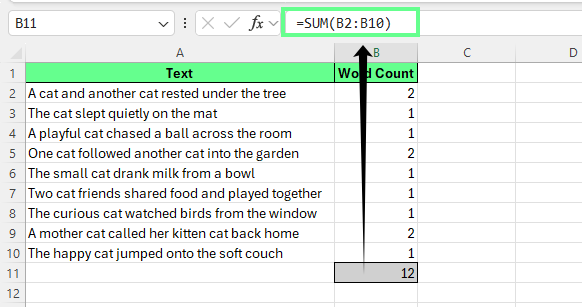
Count words in the entire column and sum them. Image by Author.
Excel tables make this process easier because formulas automatically apply to new rows:
In the first row of the new column, enter:
=IF(LEN(TRIM([@Text]))=0,0,LEN(TRIM([@Text]))-LEN(SUBSTITUTE(TRIM([@Text])," ",""))+1)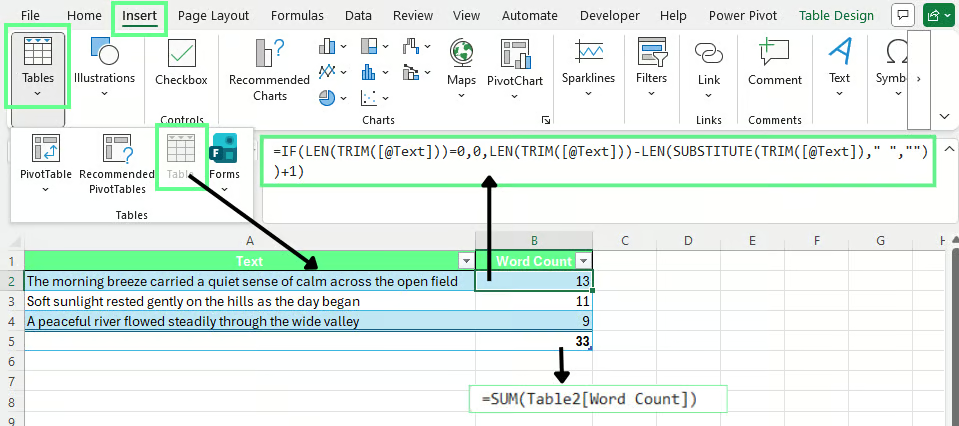
Count words in an Excel table. Image by Author.
Replace Text with the actual column name in your table. Excel automatically fills the formula for every row. To calculate the total word count for the entire table, use:
=SUM(Table2[Word Count])Replace Table2 with your table name and Word Count with the column header used in your sheet.
Word count formulas in Excel usually work well. However, small issues in the data or formula setup can produce incorrect results. The following fixes address the most common problems.
Here are some common errors and their solutions:
Sometimes formulas include empty rows or header cells. This can inflate the total count or slow down calculations.
To fix this: Limit the range to actual data rows. For example, use A2:A100 instead of A:A.
If a formula points to a fixed cell, every row will return the same result.
To fix this: Use relative references like A2 instead of $A$2 unless you want the formula to reference the same cell in every row.
Extra spaces between words can increase the word count.
To fix this: Wrap the text with TRIM() before applying the formula so Excel removes leading, trailing, and repeated spaces.
Let’s now see how to handle special cases when counting words:
Empty cells or cells with only spaces
Cells that contain hidden spaces may return 1 instead of 0. Use this formula to return 0 for empty cells:
=IF(LEN(TRIM(A2))=0,0,LEN(TRIM(A2))-LEN(SUBSTITUTE(TRIM(A2)," ",""))+1)TRIM() removes extra spaces before Excel calculates the word count.
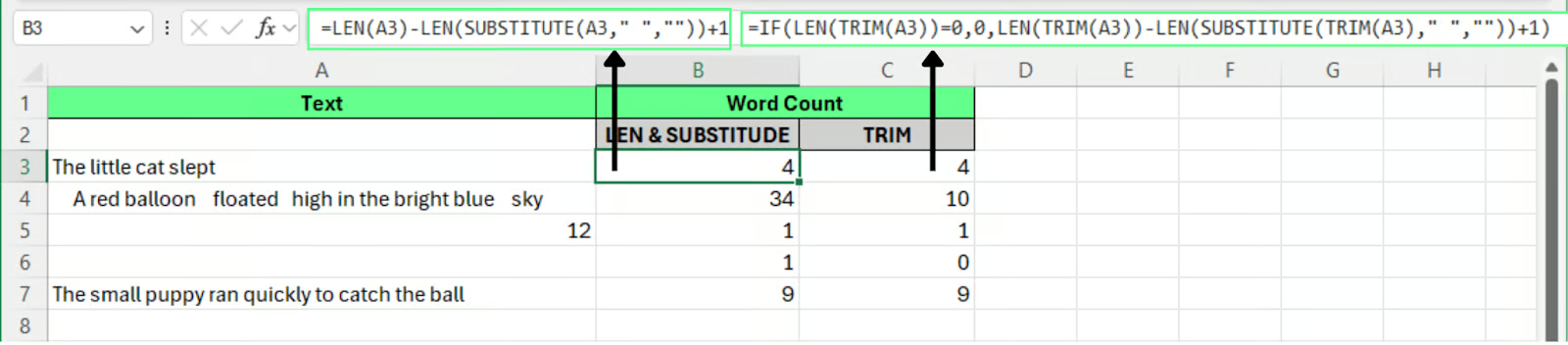
Use TRIM to handle empty cells when counting words. Image by Author.
Excel counts characters in numeric cells as well, which can affect results. Use the ISTEXT() function to restrict counting to text cells:
=IF(ISTEXT(A2),IF(LEN(TRIM(A2))=0,0,LEN(TRIM(A2))-LEN(SUBSTITUTE(TRIM(A2)," ",""))+1),0)This formula returns 0 when the cell does not contain text.
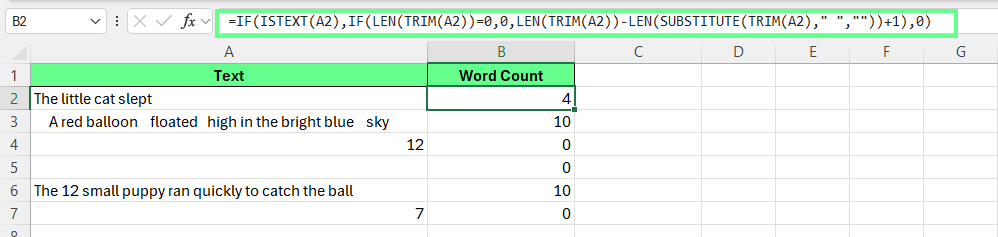
Use ISTEXT() to handle numbers in cells when counting words. Image by Author.
Text copied from other sources may include line breaks or hidden characters. These can affect the count.
To prevent this from happening, apply TRIM() or CLEAN() as they remove unnecessary characters before running the word-count formula.
Merged cells can break formulas that rely on consistent ranges. So avoid merged cells when performing calculations across large datasets.
Accurate word counts depend on clean input data. A few simple checks can prevent errors before they appear.
Copied or imported text often contains extra spaces or hidden characters. Use a helper column that applies TRIM() to clean the text before calculating the word count.
The same word may appear in different cases. Convert text to lowercase or uppercase with LOWER() or UPPER() before running formulas that count specific words.
Large datasets can make complex formulas difficult to review. Split the process into steps:
This structure makes errors easier to detect and improves performance.
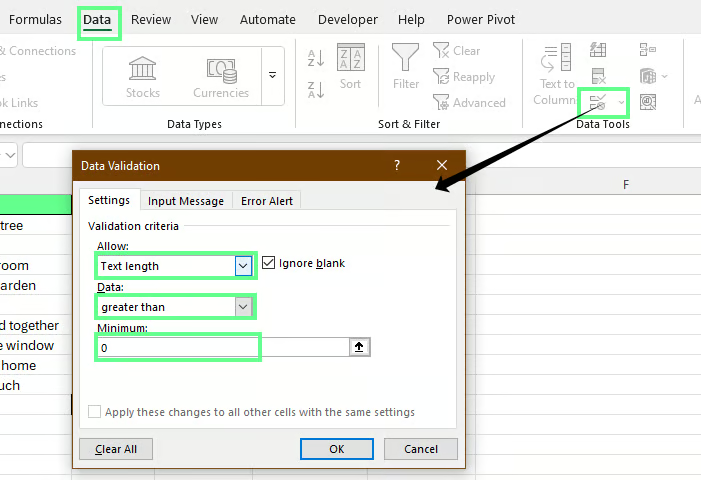
You can also prevent empty entries with Excel’s data validation feature:
Select the input range, such as A2:A100
Go to Data > Data Validation
Under Allow, select Text length
Under Data, choose greater than and set the value to 0
Data validation to avoid empty cells. Image by Author.
Excel will now block completely empty entries and display an error message if someone tries to leave the cell blank.
Newer versions of Excel include modern text functions and built-in AI features. These tools make it easier to analyze text and estimate word counts without relying only on traditional formulas.
Modern Excel versions include new text functions that simplify many string-handling tasks. Instead of counting spaces manually, you can split text into individual words and count them directly.
TEXTSPLIT() divides text into multiple values based on a delimiter. You can use a space as the delimiter to separate words.
Suppose the text appears in cell A2. Enter the following formula in B2:
=COUNTA(TEXTSPLIT(TRIM(A2)," "))How this works:
TRIM(A2) removes extra spaces
TEXTSPLIT(...," ") splits the text wherever a space appears
COUNTA() counts the resulting words
This approach is easier to read than traditional space-counting formulas.
It works best when:
If the text includes line breaks or unusual separators, you may need additional cleanup before splitting.
Microsoft Excel now includes AI assistance through Copilot. Copilot can analyze spreadsheet data and respond to natural language requests, including questions about text.
For example, you can ask Copilot:
Count the number of words in this column.Copilot analyzes the data and returns a result without requiring any formulas.
In simple tests, Copilot usually produces a reasonable estimate. However, the number may not always match the result from Excel formulas.
Why the numbers may differ
AI systems often analyze text using tokens rather than traditional words. A token represents a piece of text processed by the model. Tokens do not always match word boundaries.
For example:
Because of this, Copilot may interpret text slightly differently from Excel formulas that rely on spaces to estimate words.
| Benefits | Limitations |
|---|---|
| Fast for large or messy text datasets | Approach varies depending on how you phrase the request |
| Useful for quick analysis and summaries | Logic applied is not always visible or auditable |
| No need to write or remember formulas | Less suitable when consistent, repeatable counts are required |
For precise and auditable word counts, Excel formulas remain the most reliable approach. AI tools work best as a quick analysis method or an exploratory check.
Use these word-count methods as part of a simple workflow when you work with text in Excel. Clean the text first, apply a clear formula, and check the results across your dataset. This habit helps when you review survey responses, audit content fields, or analyze notes stored in spreadsheets.
You can build on these skills by practicing Excel functions and data preparation techniques.
Gain the skills to maximize Excel—no experience required.
Learn Excel with DataCamp
Track
Course
Practice and track your progress.
Continue with GoogleTutorial
Laiba Siddiqui
9 min
Tutorial
Khalid Abdelaty
10 min
Tutorial
Laiba Siddiqui
8 min
Tutorial
Laiba Siddiqui
8 min
Tutorial
Laiba Siddiqui
9 min
Tutorial
Laiba Siddiqui
5 min