Track
AI Fundamentals
9 hr
The AI coding assistant space has split into two categories. On one side are autocomplete engines that respond to your keystrokes. On the other are systems that reason about your codebase, plan changes across files, run tests, and hand you back a diff to review. Claude Code is firmly in the second group.
Anthropic describes Claude Code as "an agentic coding tool that reads your codebase, edits files, runs commands, and integrates with your development tools." The VS Code extension brings that workflow directly into your IDE, replacing the terminal back-and-forth with inline diffs and plan review so you can see what the agent actually changed. If you want the broader picture first, our Claude Code tutorial covers the full terminal workflow.
Before we go any further: "Claude in VS Code" can mean three different things right now. There is the native Claude Code extension (what this article covers), Claude models available through the GitHub Copilot model picker (a completely separate product), and running the claude CLI in VS Code's integrated terminal. I will come back to the Copilot distinction in its own section.
In this article, I cover how the extension works, setup steps, permission modes, multi-file workflows, debugging and refactoring patterns, comparisons with the terminal and GitHub Copilot, and security trade-offs. For the broader CLI picture, see our Claude Code overview and CLI workflow guide.
The native Claude Code VS Code extension bundles the CLI and connects through a local ide MCP server for inline diffs, diagnostics, and plan review.
Install the Anthropic extension from the VS Code Marketplace, sign in with a Pro plan or higher, and open a project file to see the Spark icon.
Use permission modes (default, plan, acceptEdits, auto) to control how much Claude asks before editing files or running commands.
The extension excels at multi-file refactors with side-by-side diff review; the integrated terminal still wins for pipe workflows and full slash-command access.
Claude Code is task-oriented, not keystroke autocomplete. Pair it with GitHub Copilot if you want both inline completion and agentic edits.
The Claude Code VS Code extension is a graphical panel layered on top of the Claude Code CLI. The CLI comes bundled with it when you install it, so there is nothing separate to manage.
When the extension activates, it runs a local MCP server named ide that the CLI connects to automatically. That connection is what lets the agent open diffs in VS Code's native diff viewer, read your current selection, and execute Jupyter notebook cells with a confirmation step.
The Spark icon is how you access Claude Code from the editor. It appears in three places: the Editor Toolbar (top-right, only when a file is open), the Activity Bar on the left sidebar, and the Status Bar at the bottom-right. That last one also works without a file open.
Send a prompt, Claude reads the relevant files, proposes changes as a side-by-side diff, and waits for your approval before writing anything. Permission modes control how much it asks, which I will cover in the capabilities section.
You need VS Code 1.98.0 or higher and an Anthropic account. No separate Node.js installation is needed with the native installer.
Check your plan before you start. Claude Code is not available on the Free plan. You need at least Pro ($20/mo), which gives you Sonnet 4.6. If you expect to use it heavily throughout the day, the Max 5x plan ($100/mo) raises the usage limit.
Here is how to install:
Press Cmd+Shift+X on Mac or Ctrl+Shift+X on Windows and Linux to open the Extensions view.
Search for "Claude Code" and install the extension published by Anthropic.
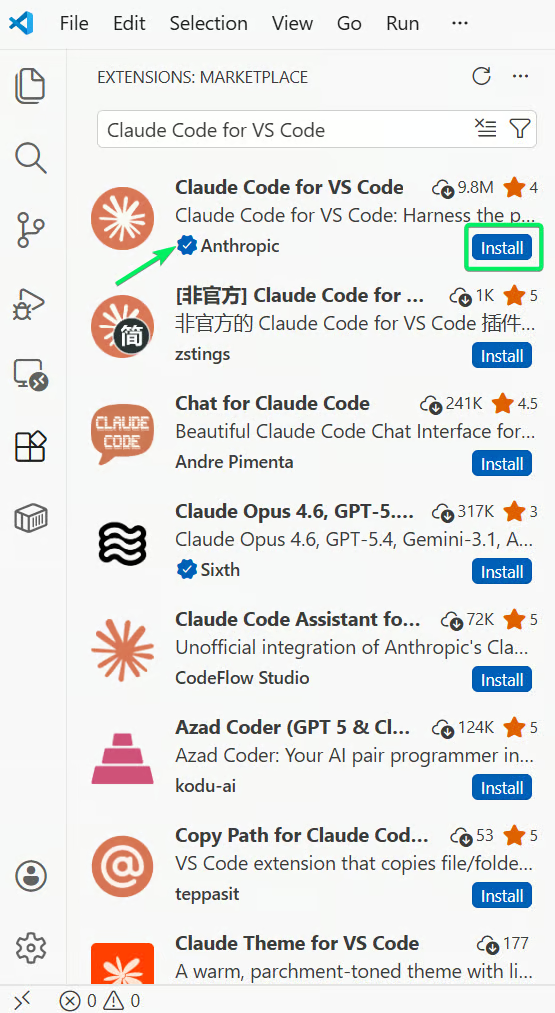
Claude Code extension listing in the VS Code marketplace. Image by Author.
Once installed, open a project file. The first launch opens a browser sign-in; if you are already logged into Anthropic in that browser, it is quick.
After authentication, the Spark icon appears in the Editor Toolbar. If it does not, confirm you have a file open, not just a folder. If the icon still does not appear, run "Developer: Reload Window" from the Command Palette, or temporarily disable other AI extensions like Cline or Continue since they can conflict.
Mac and Linux users can skip this paragraph. If you plan to use CLI features from the integrated terminal on Windows, Git for Windows is required first. Claude Code also does not work in VS Code Restricted Mode; switching the workspace to trusted fixes that.
After installation, create a CLAUDE.md file in your project root. Claude reads this plain markdown file at the start of every session, so you are not re-explaining your architecture or coding standards each time.
Run /init in the prompt box, and Claude will generate a starting CLAUDE.md by analyzing your codebase. It picks up build commands, test instructions, and conventions it can infer. What it will not find on its own are things like which patterns to avoid or any architectural decisions that live only in someone's head.
The extension covers most of what Claude Code can do.
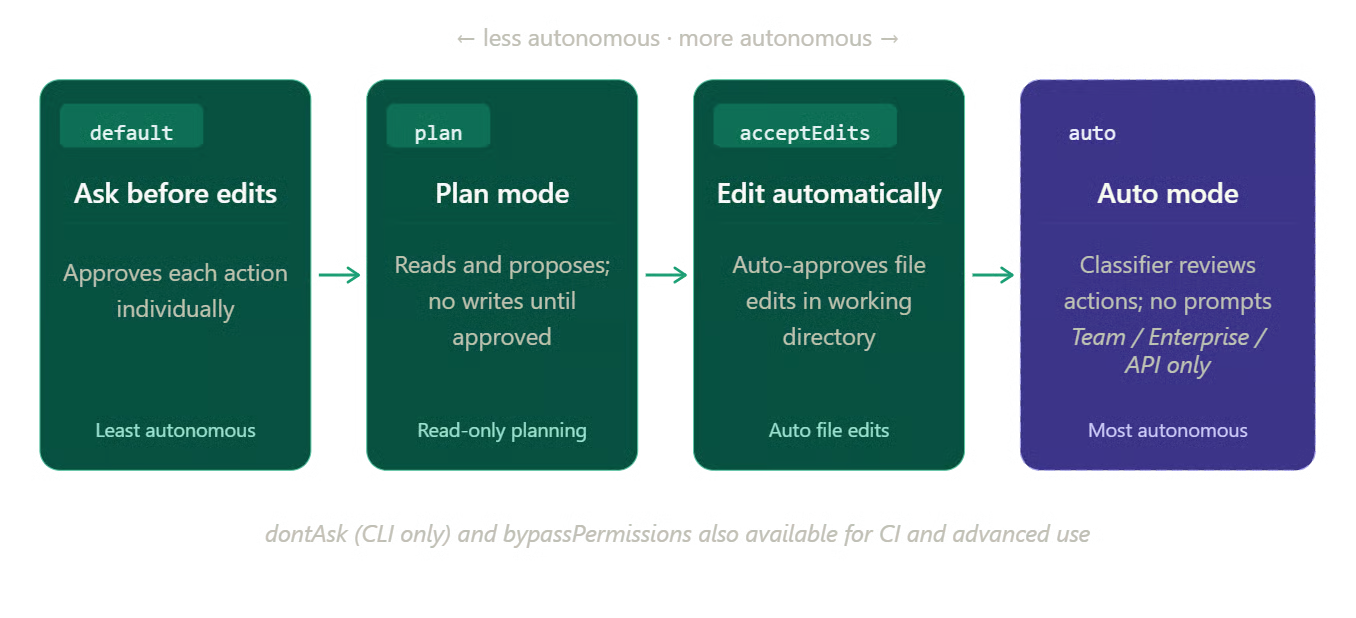
Claude Code permission modes from least to most autonomous. Image by Author.
Code generation and explanation. Describe a feature in plain language, and Claude plans the implementation across however many files it touches. For understanding unfamiliar code, type @ followed by a filename or folder path. Claude uses fuzzy matching, so @auth finds AuthService.ts, auth.js, and anything else close to that name.
Multi-file editing with diff review. Every proposed change shows as a side-by-side comparison in VS Code's diff viewer before Claude writes anything. Red means deleted, green means added. You accept or reject per file. You cannot approve individual hunks within a file yet (that feature has been requested but is not implemented as of July 2026), so for partial acceptance, you accept all and manually revert what you do not want.
Test generation. Ask Claude to write tests for a module, run them, and fix failures, all in one session.
Debugging. Paste an error message or describe the symptom. The extension runs an IDE MCP server that exposes mcp__ide__getDiagnostics, which means Claude can read your VS Code Problems panel directly. The red squiggles are already visible to it without copy-pasting. Use @terminal:name to pull terminal output into the prompt the same way.
Refactoring, git workflows, and code review. Claude handles coordinated changes across files, writes commit messages and PR descriptions, and the /code-review command audits your code for issues. Add a REVIEW.md file to the project root to customize what it looks for.
The permission mode you are running shapes all of this. In default mode, Claude asks before every action. Switch to plan mode, and Claude reads the codebase, asks clarifying questions, and writes a full implementation plan as a markdown document that VS Code opens for you to review. Nothing gets changed until you approve. Use it for anything touching more than a handful of files.
Auto-accept mode (acceptEdits) skips the per-edit approval and lets Claude write without pausing; useful once you trust the direction.
Auto mode removes prompts entirely using a background classifier; it is a research preview available on Team, Enterprise, and API plans only, and requires Sonnet 4.6, Opus 4.6, or a newer version. In VS Code, you also need to turn on Allow dangerously skip permissions in the extension settings before auto mode appears in the mode selector.
Multi-file work is where the editor integration matters most. Reviewing changes in a terminal means scrolling through colored text. In VS Code, each file gets its own diff tab. For a refactor touching fifteen files, stepping through them one at a time inside the editor makes the difference between actually catching a mistake and rubber-stamping a diff you are too tired to read properly.
Claude works at the project level. Rename a function, and it finds every call site.
As I covered in the capabilities section, plan mode works well for larger changes. One detail I skipped there: Claude also runs exploration commands first and saves the full plan to a file. Add your comments before anything gets written. I find the written plan useful even when I end up changing most of it.
For targeted context, use @-mentions with line ranges: @app.ts#5-10 focuses Claude on a specific region. Holding Shift while dragging files into the prompt box adds them as attachments. Option+K on Mac (or Alt+K on Windows and Linux) inserts an @-mention of your current file and selection directly.
These shortcuts come from Anthropic's VS Code extension docs and cover the ones I reach for most often in the panel.
| Action | Mac | Windows/Linux |
|---|---|---|
| Toggle focus between editor and Claude | Cmd+Esc |
Ctrl+Esc |
| Open Claude in a new editor tab | Cmd+Shift+Esc |
Ctrl+Shift+Esc |
| Insert @-mention for current file/selection | Option+K |
Alt+K |
| Add a new line without sending the prompt | Shift+Enter |
Shift+Enter |
| Reopen the last closed Claude session tab | Cmd+Shift+T |
Ctrl+Shift+T |
Permission mode cycling still lives in the CLI: press Shift+Tab in the integrated terminal to move between default, plan, and accept-edits modes. For the full slash-command set, see our Claude Code slash commands guide.
Checkpoints track Claude's file edits throughout the session. Hover over any message in the conversation to reveal the rewind button. The options are: fork the conversation while keeping code changes, rewind the code while keeping conversation history, or do both. Checkpoints persist for 30 days. They do not track bash commands: rm, mv, and cp are outside the checkpoint system. Git is still the right safety net for anything destructive.
Both workflows follow the same steps: give Claude context, review the proposed change, verify the result. The tricky part in each is gathering the right context.
Share the error by pasting it directly, referencing terminal output with @terminal:name, or letting Claude pull from the Problems panel via mcp__ide__getDiagnostics. Claude traces the root cause, proposes a fix as a diff, and you run your tests to verify.
Claude Code does not integrate with VS Code's native debugger: no breakpoints, no step-through, no live variables. The error-pasting and diagnostics route handles most cases. If you need the debugger specifically, there is a community MCP server (claude-debugs-for-you on GitHub) that bridges the gap, but it requires its own setup.
For live web debugging, @browser connects Claude to Chrome via the Claude in Chrome extension (version 1.0.36 or higher). A prompt like @browser go to localhost:3000 and check the console for errors lets Claude inspect the live browser state without you switching windows.
Claude handles coordinated file changes well: renaming a function across a large codebase, migrating from one library to another. The diff review step is what keeps it from being reckless.
The CLAUDE.md file matters here more than anywhere else in the article. Without project-specific conventions loaded, Claude defaults to whatever patterns it infers from the codebase, which may not match what you actually want. As I mentioned in the setup section, /init gives you a starting file; refining it before a large refactor session is worth the ten minutes.
Context compaction is the practical limit on long sessions. When the context window fills, Claude auto-compacts by summarizing older conversation. After that, it can lose track of earlier decisions. Running /compact manually before starting a new phase gives more predictable results than waiting for auto-compaction to kick in mid-task.
Anthropic's documentation calls the VS Code extension "the recommended way to use Claude Code in VS Code." The extension adds things the terminal cannot: the side-by-side diff viewer, plan review in a markdown document you can edit, multiple conversations in separate tabs, and @browser for live web debugging.
The terminal wins on capability. The ! bash shortcut, tab completion, the full slash command set, and pipe-based workflows like tail -200 app.log | claude -p "..." are all CLI-only. MCP server configuration is also terminal-only. From the extension you can manage existing servers with /mcp but cannot add new ones.
The two are not mutually exclusive. Running claude in VS Code's integrated terminal still gets you IDE integration: diff viewing, selection context sharing, and diagnostic sharing all work from there. Sessions started in the extension can be continued in the terminal with claude --resume. Run claude --ide from the integrated terminal when you want to force the CLI to connect to the VS Code diff viewer and diagnostics bridge.
Most developers land on both: VS Code for multi-file work and careful review, the terminal for quick tasks and automation. Some stay in the terminal for everything, and honestly that works fine too. If you prefer Cursor over VS Code, our Claude Code in Cursor guide covers the same extension workflow there. Our full CLI workflow is worth knowing either way.
As I mentioned at the start, "Claude in VS Code" can mean the native extension, Claude accessed through the GitHub Copilot model picker, or the CLI in the integrated terminal. The native extension and Copilot share a model but not a product, and the two work quite differently.
Through Copilot, the Claude model runs inside GitHub's chat and completion paradigm: no local OS sandbox, no custom MCP integrations, no native terminal commands. Through the Claude Code extension, the same model runs with up to a 1M token context window, executes tasks across files, and has access to checkpoints, plan mode, and MCP servers.
The tools are built for different jobs. Copilot offers inline autocomplete as its core feature. Claude Code does not do autocomplete at all. Copilot's agent mode has grown considerably, but in community benchmarks it tends to lag on tasks spanning many files. Neither is inherently better.
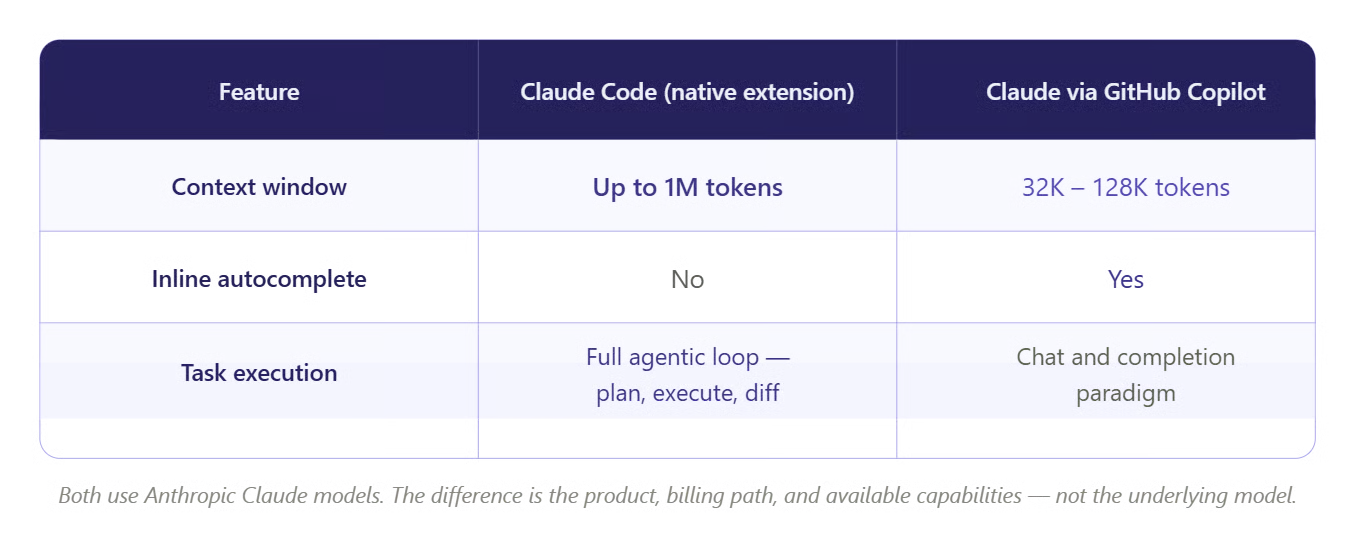
Native extension and Copilot: same model, different experience. Image by Author.
On pricing: Copilot Pro is $10/mo with 300 premium requests. Claude Code Pro is $20/mo. A common pattern among developers who use both is $10 for Copilot (autocomplete while typing) and $20 for Claude Code (deliberate, larger-scale tasks). The two products cover different parts of the workflow without much overlap. Anthropic has also partnered with GitHub to put Claude models inside Copilot, which handles the autocomplete side.
Anthropic does not use your code to train Claude models. Free, Pro, and Max users can opt out of data logging in account settings; Team, Enterprise, and API plans are excluded by default. For permission modes, MCP servers, and sandbox details beyond the VS Code surface, see our Claude Code security guide.
A fixed set of paths is always protected regardless of mode: .git, .vscode, .idea, .husky, and .claude (with exceptions for its own working subdirectories), plus .gitconfig, .gitmodules, and several shell and tool config files. This matters most in auto-accept mode, which writes without pausing and can touch settings.json and tasks.json. Check git diffs before committing.
Sandboxing isolates bash commands to your working directory and blocks unauthorized network access. It is off by default; turn it on with /sandbox.
Auto mode replaces per-action approval with a classifier that reviews actions before they run, blocking things like mass file deletion, sending data to unauthorized endpoints, and force-pushing to main. Anthropic describes it as a safer alternative to --dangerously-skip-permissions.
Local transcripts are stored in plaintext under ~/.claude/projects/ for 30 days (cleanupPeriodDays adjusts this). Enterprise setups on Amazon Bedrock, Google Vertex AI, or Microsoft Foundry follow those providers' data terms. Auto mode is not available on those providers; it requires the Anthropic API directly.
Most setup problems fall into a short list. I have hit all of these at least once.
Spark icon missing: Open an actual file, not just a folder. Reload the window from the Command Palette (Developer: Reload Window), or click the Spark entry in the Status Bar (bottom-right), which works even without a file open.
Extension conflicts: Temporarily disable other AI extensions (Cline, Continue, etc.) if Claude Code fails to activate.
Restricted Mode: Claude Code does not run in VS Code Restricted Mode. Mark the workspace as trusted.
Windows file locking: Collapse the Explorer pane and pause active debuggers before large multi-file sessions if writes fail mid-session.
macOS Tahoe Cmd+Esc conflict: The system Game Overlay may intercept Cmd+Esc. Rebind Claude Code: Focus input in VS Code Keyboard Shortcuts (Cmd+K Cmd+S) if focus toggle stops working.
Bedrock or Vertex instead of Anthropic login: You can point Claude Code at cloud provider endpoints. Our local and alternative model setup guide walks through non-subscription paths.
Anthropic maintains a dedicated troubleshooting guide if none of the above fixes your issue.
The extension is a subset of the CLI. As covered in the terminal comparison section, tab completion, the ! bash shortcut, and pipe-based workflows are all CLI-only, as is dontAsk mode for CI pipelines.
Background task visibility is limited; for anything you need to watch closely, the integrated terminal is more transparent.
Approval is per file, not per hunk: if Claude got one function right and another wrong in the same file, you accept everything and manually revert what you did not want.
Usage limits are the frustration most Pro users hit first. Rate limits run in rolling windows, not per-message, and deplete faster at peak hours. For occasional use Pro is fine; for a full working day, Max 5x or Max 20x is more realistic. I would not rely on community estimates; Anthropic does not publish exact counts and they change.
On Windows, file locking between VS Code's project explorer and Claude's write operations causes failures more than on macOS or Linux. Collapsing the explorer pane and pausing active debuggers before large multi-file sessions tends to prevent it.
Claude Code in VS Code is a task-oriented coding agent with a review-first UI. The diff viewer, plan mode, and checkpoints exist because catching what the agent actually changed matters more than getting a fast first draft.
The terminal workflow is not going away, and for scripted, automated, or CLI-heavy work it remains the better surface. But if you are doing the kind of work where you want to read every proposed change before it lands, the editor is the better fit.
Claude Code ships weekly updates, so parts of this article will date quickly. Our Claude Code best practices and Claude Code 2.1 guide are good follow-ups for staying current. The official changelog tracks releases. If something here does not match what you see, check there first.
If you want structured practice with Claude models and agent workflows, I recommend our Introduction to Claude Models course.
Learn AI with DataCamp!
Track
Course
Course
blog
Khalid Abdelaty
10 min
Tutorial
Vikash Singh
10 min
Tutorial
Aashi Dutt
10 min
Tutorial
Bexruz (Bex) Tuychiev
9 min
Tutorial
Khalid Abdelaty
12 min
code-along
Aimée Gott