Course
Data Analysis in Excel
3 hr
151.1K
A waterfall chart shows how a value changes step by step from a starting point to a final result. It clearly displays how different increases and decreases affect the total.
This makes it useful for explaining changes in revenue, budget adjustments, profit breakdowns, or any situation where values build on one another.
In this guide, we will walk through how to create a waterfall chart step by step.
To create a waterfall chart in Excel, follow these steps:
Create a simple two-column table with positive (increases) and negative (decreases) values:
Place the starting value at the top and the final value at the bottom. The rows in between should only contain the changes.
Do not calculate running totals in the table. Excel calculates them inside the chart.
Here is how the data should look:
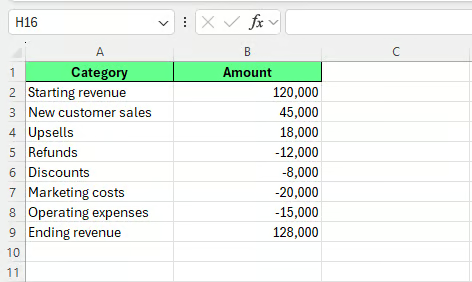
Create a dataset for a waterfall chart. Image by Author.
To insert the waterfall chart:
Excel will create the chart based on your data.
At this stage, the chart may not look completely correct. Some columns may appear as regular increases instead of totals.
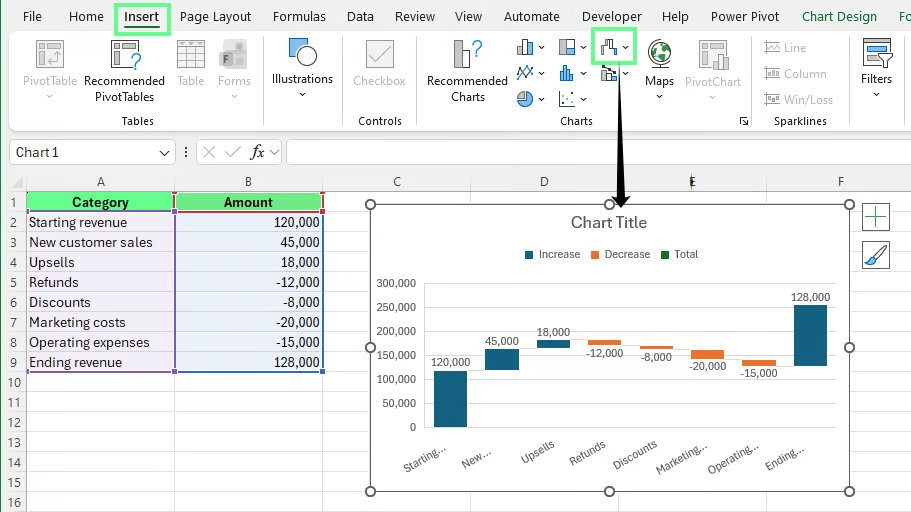
Insert a waterfall chart into the sheet. Image by Author.
To set totals:
Repeat the same process for the Net Profit column.
If your chart includes intermediate totals such as Subtotal or Operating Profit, mark those as totals as well.
When a column is set as a total, it anchors to zero and uses the total color. It no longer floats up or down in the chart.
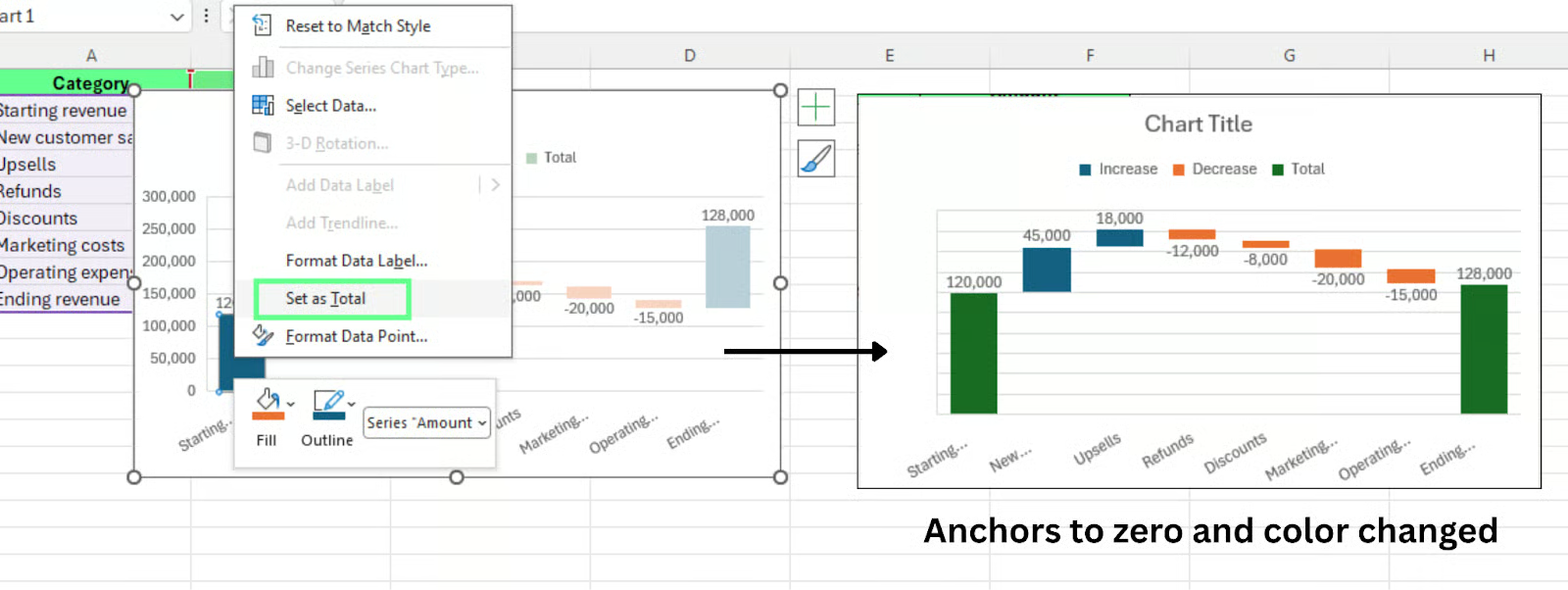
Set numbers as total. Image by Author.
Excel treats every value as a change by default. It does not automatically detect totals. You need to mark total columns manually. If you skip this step, totals will appear to float rather than anchor to zero.
After setting totals, you can improve the chart’s appearance, too.
Excel uses default colors for increases, decreases, and totals. To customize them:
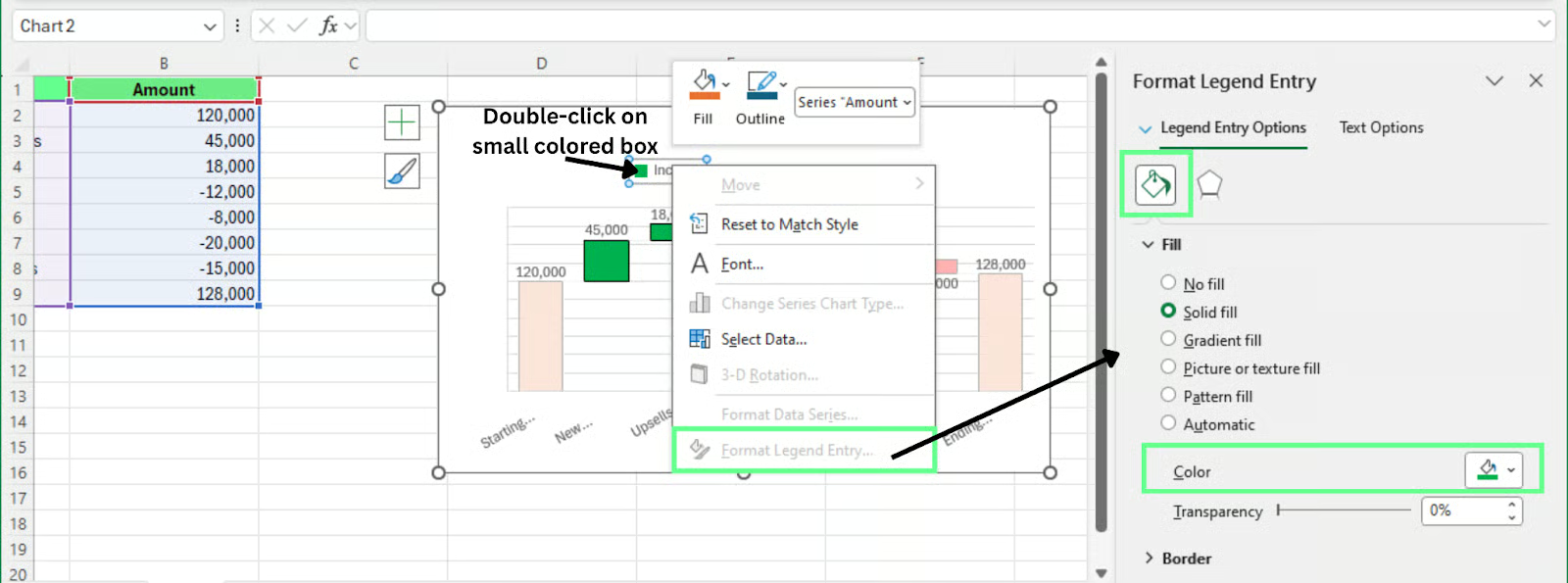 Color the bar in the waterfall chart. Image by Author.
To add or edit chart elements:
You can also double-click the chart title and rename it.
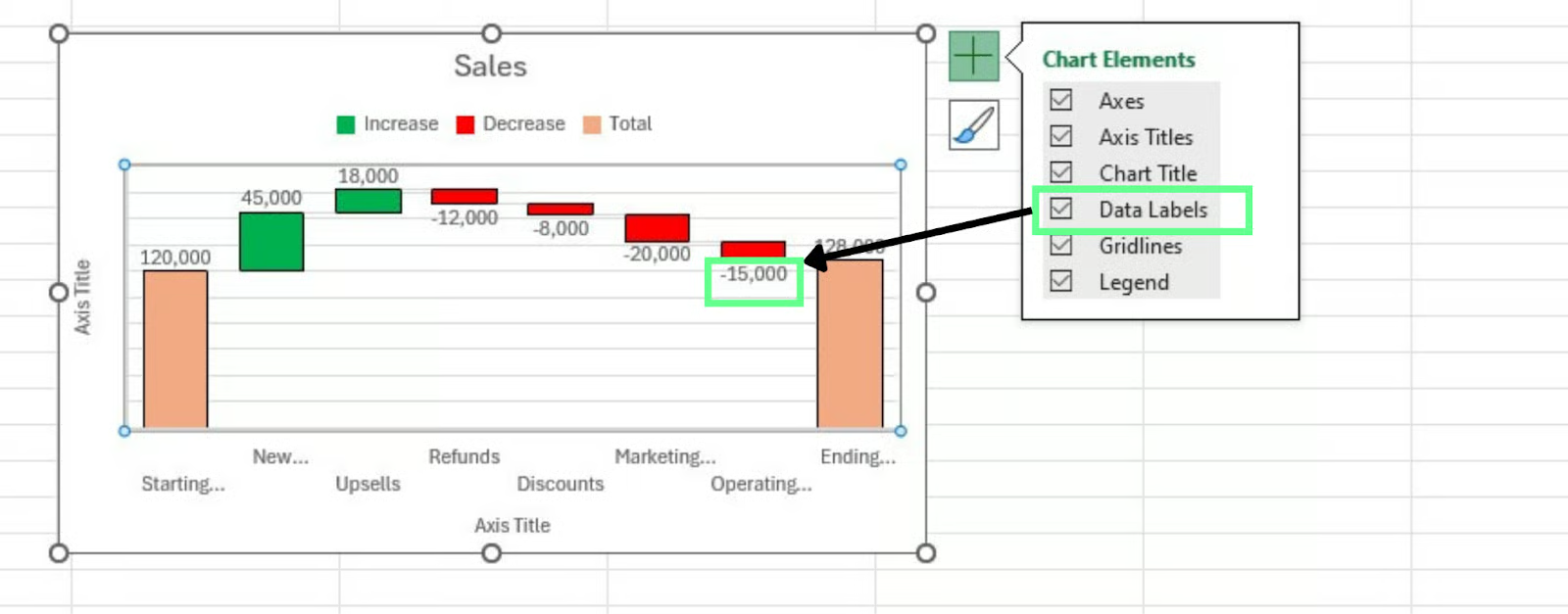
Adjust the waterfall chart. Image by Author.
If the labels overlap:
You can also adjust the number format in the Number section.
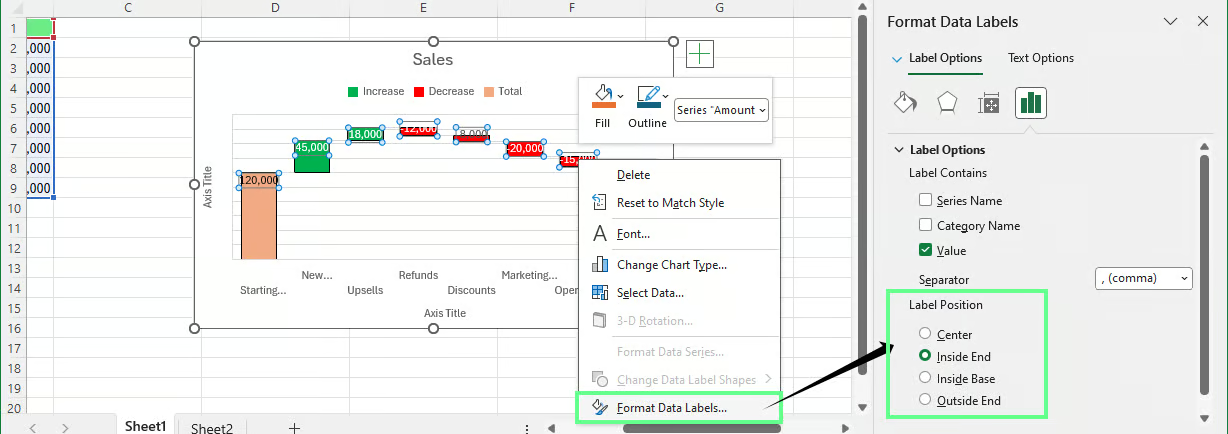
Adjust the label position inthe waterfall chart. Image by Author.
Tip: Use simple number formats and avoid unnecessary decimal places.
Connector lines link the bars and show how the values move from one step to the next. To enable them:
Connector lines make the flow between steps easier to follow. If they are hard to see, remove the gridlines to reduce visual clutter.
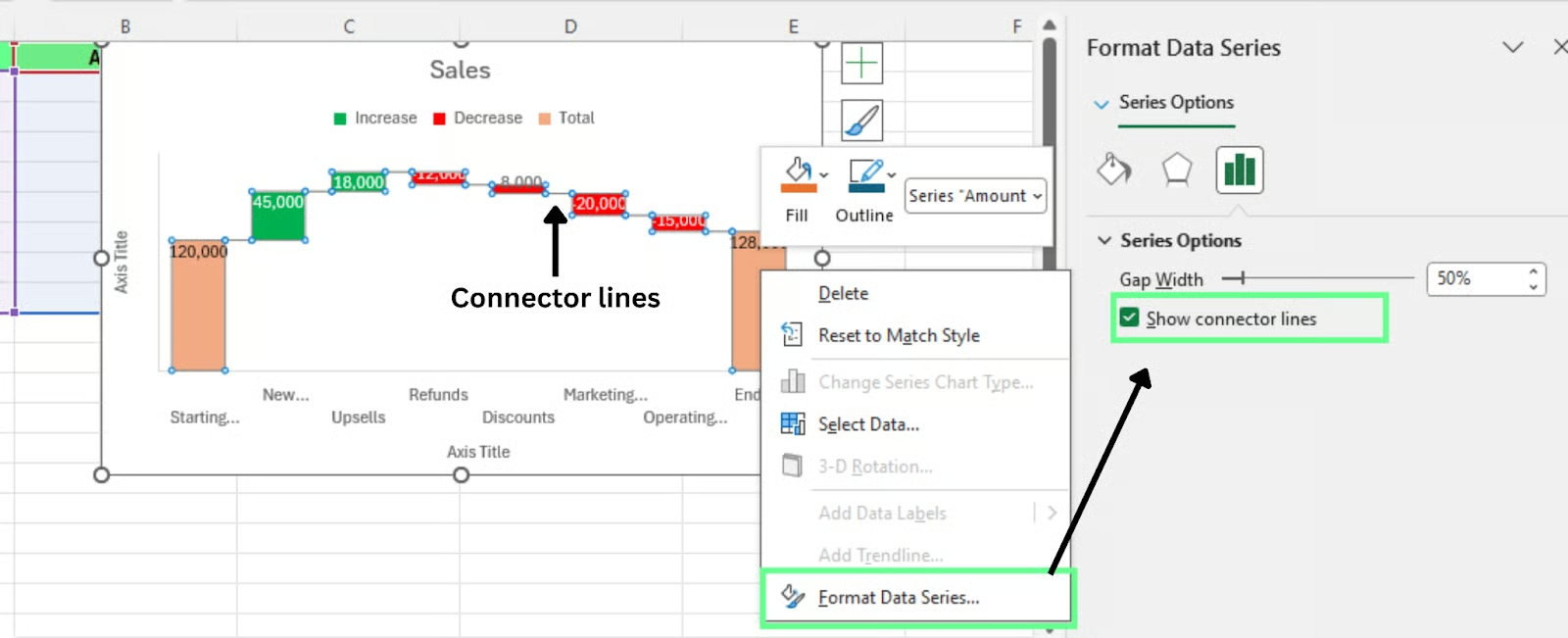
Enable the connector lines in the waterfall chart. Image by Author
Even if you follow the steps correctly, small issues can still appear in the chart. Here are the most common problems and how to fix them.
This usually happens when a total column is not marked as a total.
To fix this:
This happens when the order of the rows in the worksheet is incorrect. Excel follows the exact sequence of the data.
To fix this:
This occurs when Excel is not using different formats for increases and decreases.
To fix this:
This usually happens when the chart is too small or when there are many values.
To fix this:
Sometimes removing extra detail makes the chart easier to read.
This happens when the chart range does not include the new rows.
To fix this:
Tip: Convert your dataset into an Excel table first. Charts linked to tables update automatically when new rows are added.
A stacked waterfall chart shows how a value changes while also breaking each step into multiple contributors. To create one using a stacked column chart, follow this three-step high-level setup approach:
Structure your data with separate columns for each component. Each column represents one contributor to the change. For example:
You also need a Base column. This column controls where each stack begins and helps position the bars correctly.
Here is how my dataset looks:
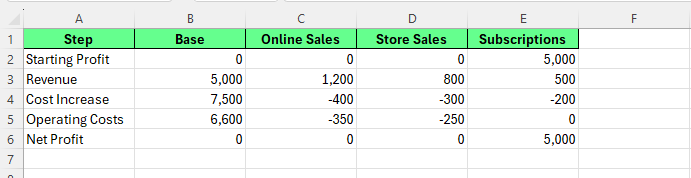
Create a dataset for a stacked waterfall chart. Image by Author.
To create the stacked chart:
Excel will insert a stacked column chart based on your data.
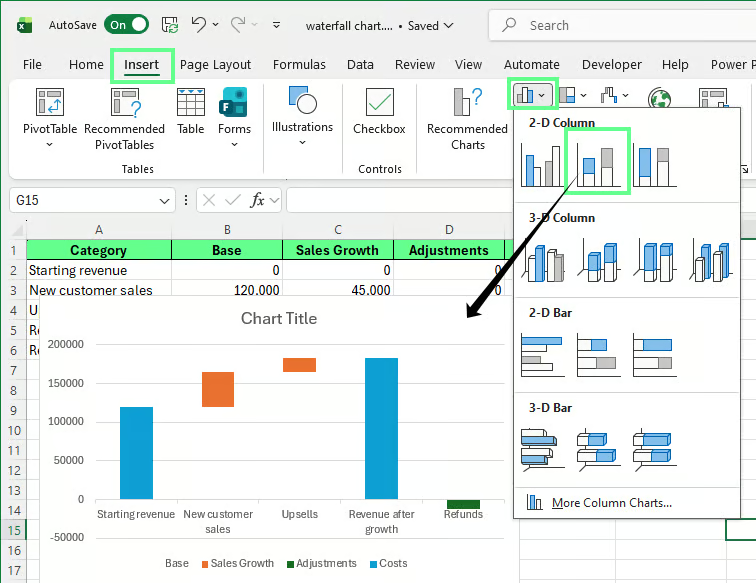
Insert a stacked column chart to create a waterfall chart. Image by Author.
The Base series is only used to position the stacks. We hide it so the bars appear to float like a waterfall chart.
To hide it:
After hiding the Base series, the remaining bars will appear to rise and fall from the previous step.
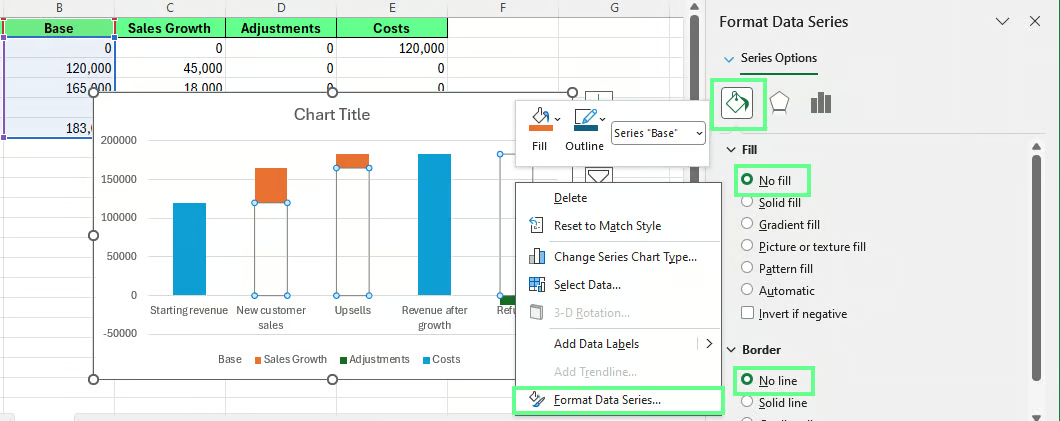
Remove the base series to create a waterfall effect. Image by Author.
Excel’s built-in waterfall chart does not support stacking. Each step can only display one value. Because of this, stacked waterfall charts:
This method is useful when you need to show detailed contributors within each step of the change.
In a standard waterfall chart, each step contains one value. A stacked waterfall splits the bar into parts. Each part represents a different component of the change.
For example, a revenue increase may come from:
All three appear inside the same bar. Together, they form the total change.
This allows the chart to answer two things at once:
|
Standard Waterfall Chart |
Stacked Waterfall Chart |
|
Shows one value per step |
Shows multiple values per step |
|
Uses Excel’s built-in waterfall chart |
Uses a stacked column chart |
|
Automatically handles totals |
Requires helper columns to position bars |
A dynamic waterfall chart is a chart that updates automatically when the underlying data changes. Instead of using a fixed cell range, it is linked to data that can expand or update, such as an Excel table.
This is helpful when the data changes frequently. For example, if you update financial results every month or add new rows to track performance, the chart adjusts automatically without rebuilding it.
To create a dynamic chart, connect your chart to an Excel table using these steps:
Once the chart is linked to the table, Excel updates the chart automatically when new rows are added or values change.
Tip: Keep the table structure consistent. Changing column order or inserting blank rows can break the chart logic.
Once you are comfortable with the basics of building a waterfall chart, focus on improving how you present the chart. Clear labels, correct totals, and simple formatting make the biggest difference when someone reads your chart.
If you work with reports that update frequently, connect your chart to an Excel table so it updates automatically. This small step can save time and prevent errors when the data changes.
Strengthen your broader data visualization and Excel skills. Our Data Visualization in Excel course is a good next step if you want to build better charts and dashboards.
For quick references while working, our Data Visualization Cheat Sheet and Excel Formulas Cheat Sheet can also help you work faster when preparing your data and charts.
Gain the skills to maximize Excel—no experience required.
Learn Excel with DataCamp
Course
Course
Course
Tutorial
Adejumo Ridwan Suleiman
8 min
Tutorial
Eugenia Anello
8 min
Tutorial
Derrick Mwiti
8 min
Tutorial
Derrick Mwiti
8 min
Tutorial
Joleen Bothma
12 min
Tutorial
Samuel Shaibu
10 min