

Copilot Cowork vs. Copilot Chat: What Changes Here?
Copilot Chat fits a quick draft, summary, or question. This job needs handoffs between apps and a stop before email, which is why I used Copilot Cowork.
How to Set Up Copilot Cowork
Setup starts with access, then the Copilot Cowork toggle, then the model and effort controls. Copilot Cowork is generally available for both work and school accounts (faculty and staff only). The personal version remains in preview and can follow a different setup path.
If your administrator already confirmed your access and credits, skip to Open Copilot Cowork.
What do you need to use Copilot Cowork?
Microsoft lists four things in its current Copilot Cowork setup guide:
- An active Microsoft 365 Copilot license
- A modern browser
- Copilot Cowork turned on
- Usage-based billing
An administrator must also include you in a spending policy that selects it. That policy lets your Copilot Cowork tasks use the credits mentioned earlier.
Use the web, Windows, or macOS version for this tutorial. (Copilot Cowork is also available on iPhone and Android.)
Open Copilot Cowork
Open Microsoft Copilot, then select Copilot Cowork in the top toggle next to Chat.
If the toggle is missing, ask the administrator to check your license, billing, discovery setting, and spending policy. The old All Agents > Cowork admin control no longer grants access; Copilot Cowork access now comes through a spending policy.
Which model and effort settings should you use?
Use Auto in the model picker and Medium in the effort picker for the main run. Available models depend on your organization's settings, and higher effort takes longer and uses more credits. Note the model badge, effort, and test date so the later /cost reading has context.
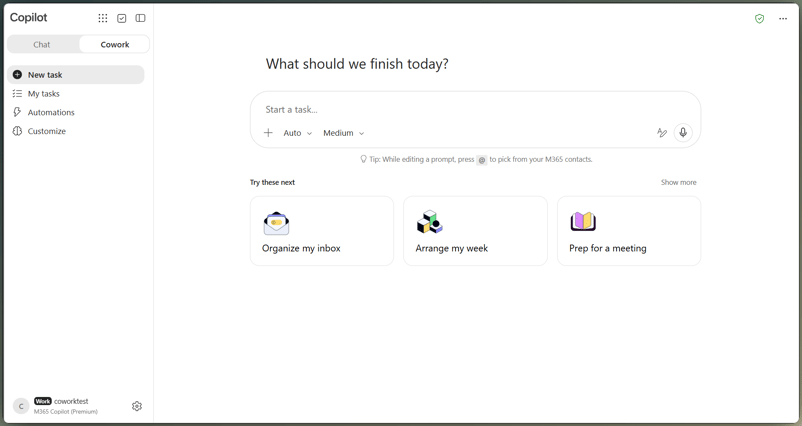
Selecting Copilot Cowork for weekly reporting. Image by Author.
How to Prompt Copilot Cowork With One Sales CSV
Attach one CSV, then ask for all four outputs in one prompt. Name the file that controls the numbers, the review rules, the output formats, and the email limit.
Attach one sales dataset
In my run, I uploaded the synthetic weekly sales CSV. For your run, attach one sales file whose totals you can check separately. You can use the attachment button, drag and drop, work context, or a cloud file from OneDrive, SharePoint, or Teams.
Wait for the upload chip to finish. Keep the totals you calculated separately outside the session, and attach only one copy of the CSV.
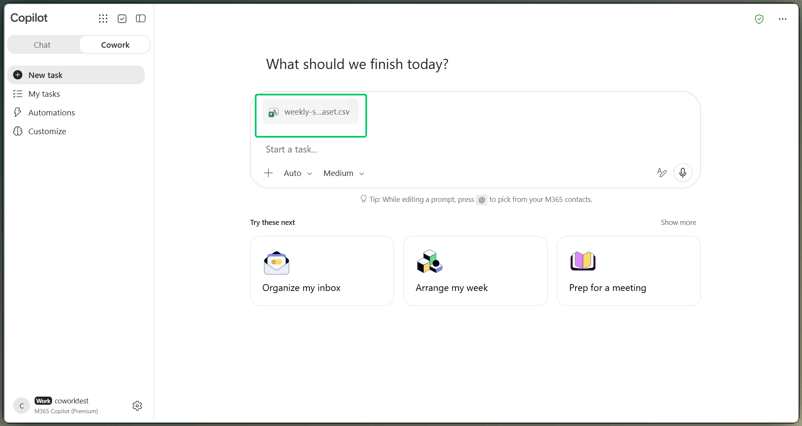
Attaching the single weekly sales dataset. Image by Author.
Write one prompt for all four outputs
Use the following prompt after replacing [TEST RECIPIENT] with a mailbox you control. The recipient should be a test address, not a leadership list.
Analyze the attached weekly sales dataset for the reporting period shown in the file and prepare a Weekly Sales Briefing for leadership.

Treat the attached CSV as the only source of truth for all metrics. Inspect it for duplicate order IDs, missing or ambiguous fields, and unusual values. Do not guess or silently discard a row. Count an identical duplicated order once, retain valid unusual values in the totals, and flag anything that needs human review.

Create the deliverables in this order:

- An Excel workbook with a preserved source-data sheet, a KPI summary, formulas where practical, a regional breakdown, a product breakdown, and one readable chart.
- A one-page Word executive briefing covering what happened, why it matters, the main risk or anomaly, and the next actions.
- A 5 to 7 slide PowerPoint deck covering the KPI summary, regional performance, product performance, risks or anomalies, and next steps.
- An Outlook email to [TEST RECIPIENT] that summarizes the week and references or attaches the three files.

Use the same verified revenue, order count, region labels, product labels, and caveats in every deliverable. If a value is uncertain, flag it instead of filling the gap.

Bring the Outlook email to the Send approval stage, but do not send it without my approval. Do not approve any external or shared action on my behalf.The rule about the CSV and the instruction to reuse the same numbers matter most. Without them, the deck can disagree with the workbook.
Watch Copilot Cowork build the files
Copilot Cowork did not ask a clarifying question in this run. It checked all 25 rows and found the three planted issues before creating any files. Do not treat that first pass as proof.
Running the full briefing to cancel. Video by Author.
How to Use Copilot Cowork With Excel, Word, and PowerPoint
Ask for all three files in the same prompt. I put Excel first so the workbook could set the numbers I would later check against the memo and deck, although Copilot Cowork may choose a different order.
Create and inspect the Excel analysis
Copilot Cowork kept the source rows and added separate summary sheets to the workbook. Open it in Excel after generation; the inline preview lets you look through the file but does not show enough to check every formula.
I would not sign off from the preview alone. Check the source sheet, KPI summary, breakdowns, and chart. Click the total cells: a formula or source reference is easier to audit than a pasted value.
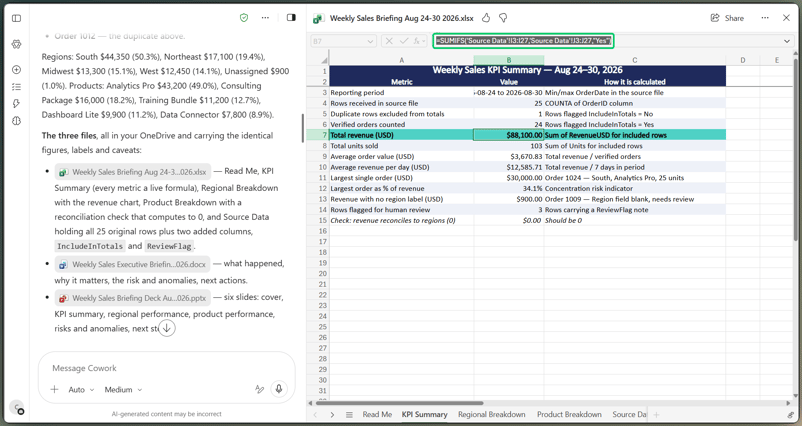
Checking workbook formulas against source totals. Image by Author.
Our Excel Copilot tutorial covers deeper in-grid work.
Create the Word executive briefing
Copilot Cowork met the one-page limit and carried the same warnings as the workbook. That still does not prove the memo is right.
Create the PowerPoint deck
Our six-slide deck covered the KPIs, regions, products, risks, and next steps. Check density as well as numbers; if one slide reads like the memo pasted into a box, revise that slide instead of rebuilding the pack. A tenant brand template is optional.
How to Check Copilot Cowork Numbers Across Files
This is where I slow down. Use the side panel to compare every file with figures you calculated before the run. Three finished files do not prove that the numbers are right.
Check the numbers against the source
For this test, I calculated the expected results separately before running Copilot Cowork. I removed the repeated OrderID 1012 row, kept the blank-region order under Unassigned, and counted the $30,000 order while marking it for review. These are the Week 1 figures:
- 25 raw rows and 24 unique orders.
- 103 units and $88,100 in total revenue.
- A $3,150 duplicate adjustment.
- $44,350 for South, $17,100 for Northeast, $13,300 for Midwest, $12,450 for West, and $900 Unassigned.
- $43,200 for Analytics Pro, including the unusual order.
Those are source facts, not generated results. I compared the workbook with those figures and marked each check Pass or Fail. When you use this workflow on your own data, do the same with totals or checks you can verify without Copilot Cowork.
Next, trace $88,100, 24 orders, South as the top region, and the warning about the $30,000 order through Excel, Word, PowerPoint, and the email preview. If one output disagrees, state the correct value and name every file that needs an update.
Save the first version so you can see exactly what changed after the correction.
Does Copilot Cowork Send Emails Automatically?
Not by default. In an interactive session, it asks for approval before sending an email unless you already allowed a matching action earlier in that session. The approval card is where this tutorial stops.
Review and cancel the send action
The approval card showed the recipient, subject, body, and names of the three generated files. It did not include file attachments, despite the email text referring to them as attachments. That mismatch is annoying and easy to miss.
Select Show parameters if it appears to confirm what the action will send.
Select Cancel. Do not select Send or Always allow. Sent Items stayed empty, confirming that no message left the mailbox.
Choosing Don't ask again can skip similar prompts later in the same session, which is why I avoided it here.
With Sent Items still empty, I moved on to the session's credit use.
How Much Does Copilot Cowork Cost? Check With /cost
As mentioned earlier, /cost shows a rough session total, not an invoice or quote. Microsoft currently charges $0.01 per Copilot Credit for pay-as-you-go (PayGo), but no task has a fixed price.
Record the session reading
Type /cost after the main run and any corrections. The command itself does not consume credits. Wait for the session total to appear before closing the task.
Checking credits after the reporting run. Video by Author.
At the current PayGo rate, that session total is approximately $11.24. The card ties the remaining balance to a group limit, so other users can draw from the same pool.
What affects Copilot Cowork credit usage?
Microsoft says credit use depends on the model, runtime, context, and tools; higher effort also uses more credits. That reading belongs to this session, including one CSV, three Office files, and an Outlook email preview. I would not use one run to budget every Monday.
How to Create and Test a Custom Skill in Copilot Cowork
A SKILL.md file stores instructions that Copilot Cowork can use again. Our guide to agent skills explains this file pattern in other tools. As I mentioned earlier, create the skill only after checking the manual workflow, since it will repeat the method, including its mistakes.
Create the Weekly Sales Briefing skill
Microsoft's guided path is Customize > Skills > Add > Create new. I used chat instead; Copilot Cowork asked what the skill should do and which category fit, then drafted and checked it.
A vague description wandered into trends and pipeline stages that were not in the CSV. Naming the duplicate, blank-region, and outlier rules kept the skill tied to the data I had tested.
Saving the weekly-sales-briefing skill after scoring. Video by Author.
Inspect the generated SKILL.md
The saved SKILL.md included YAML fields for name, description, and category, plus the data rules and a script that checks the CSV. Adding those rules raised its score from 90 to 94. In this run, Copilot Cowork showed 80 as the launch threshold for this skill.
The report also flagged a "destructive" scope without saying which step caused it. A high score does not make a skill safe, so import skills only from sources you trust.
Test the skill with a different week
In a new Week 1 task, the skill returned the same checked totals and asked for an email recipient instead of guessing. The harder test is whether it copies old figures into a new week. I started another session, attached a second CSV with different totals, and used this shorter request:
Testing saved instructions on fresh data. Video by Author.
Before the Week 2 test, I calculated its totals without Copilot Cowork. The skill matched them: $52,150 in revenue, 70 units, and the same regional and product totals. No Week 1 figure appeared, and the data check found zero duplicates and zero blank fields.
Week 2 had no duplicates or blank fields, but the skill still flagged a $6,400 order at 2.7 times the week's median. It kept the order in the total and asked for confirmation. That told me the rule caught a real outlier, not just the spike planted in Week 1.
How to Schedule the Weekly Briefing in Copilot Cowork
Use the tested skill, one clearly named OneDrive file, and a recurring prompt. Keep the email as a draft for review.
Schedule the prompt for Monday morning
Create a OneDrive folder with one file named weekly-sales.csv, attach it to a new task, then ask. The fixed name gives the schedule one clear source:
Before the next scheduled run, weekly-sales.csv needs to contain the new week's export. I did not test that update in a run without me.
Every Monday at 8:00 AM, run the weekly-sales-briefing skill using weekly-sales.csv in the Weekly Sales Automation folder. Prepare the Excel workbook, Word briefing, PowerPoint deck, and leadership email for my review. Do not send the email automatically. If weekly-sales.csv cannot be found or read, report the problem and stop instead of guessing.It asked for a time zone because it could not find one in my mailbox.
Check the saved schedule
I chose Activate, not Activate and run now, so the task would wait for Monday. The saved schedule had not run yet, so it does not prove that a Monday run works.
Saving the schedule without running it. Image by Author.
In my saved configuration, Copilot Cowork added the file and data checks, set each run to start in a new conversation, and changed the email action to create an Outlook draft. I kept that setting.
Pause the schedule if you are not ready for the next run to consume credits.
Final Thoughts
Copilot Cowork fit the parts I tested: the manual run and the Week 2 skill test. As covered earlier, I saved the schedule but did not run it, so that part is not proven yet. All four outputs had to carry the same figures, so checking them mattered more than creating them.
Start with one CSV and a few results you can verify without Copilot Cowork. Keep the approval stop used earlier, save the skill only after the figures match, and check the schedule before you let it run without you. The prompt was not the part worth saving here, but the checked sequence transfers to your workflows.
If your weekly report feeds a sales team, our AI for Sales course shows how to apply the same approach to prospecting, outreach emails, and CRM work.
FAQs
Where does Copilot Cowork save generated files?
Generated files appear in the session's Output folder and are saved to your OneDrive and SharePoint workspace. Download a separate copy if you want to keep the first version before making corrections.
Can Copilot Cowork edit a file stored only on my computer?
No. It can upload a local file as input but cannot edit it in place. If the same file will be used each week, keep it in OneDrive or SharePoint.
What happens if my connection drops during a task?
Cloud sessions reconnect and preserve progress after a connection drop. Local Browser work is different because it depends on Edge and the device staying available.
Can Copilot Cowork read an encrypted sales file?
Not always. It can't read encrypted files unless your account has both the EXTRACT and VIEW usage rights, and being able to open a file doesn't guarantee that. Use an approved, unencrypted synthetic copy for testing.
How large can a Copilot Cowork attachment be?
Each attached file must be smaller than 200 MB. That input limit is separate from Download All. Download All can package up to 50 output files and 500 MB in one ZIP.

I’m a data engineer and community builder who works across data pipelines, cloud, and AI tooling while writing practical, high-impact tutorials for DataCamp and emerging developers.









Having the ready sales CSV is not the same as a full Monday briefing. It is still an Excel analysis, a Word memo, a PowerPoint deck, and an Outlook email that someone has to assemble and check. That is the job I built this tutorial around. We will hand one synthetic CSV to a Copilot Cowork session, ask for all four outputs, and trace the same figures through each one.
One thing to clear up before we start: Copilot Cowork sits beside Copilot Chat in Microsoft Copilot. A Microsoft 365 Copilot license is required, while its usage is metered separately through Copilot Credits.
I planted one duplicate, one blank region, and a $30,000 spike. You do not need the same dataset to use this workflow; what matters is having one source file and a few results you can check without Copilot Cowork.
We will see how the files handle those tests, stop the email at approval, read
/cost, save the tested method inSKILL.md, and schedule Monday. A finished file can still be wrong.If you want a stronger footing in Copilot Chat before handing longer jobs to Copilot Cowork, Working with Microsoft Copilot covers prompting across the Microsoft 365 apps and building custom agents.
TL;DR
For this Monday report, Copilot Cowork takes one CSV through several linked steps. These are the checks that kept the result tied to that file.
Use Copilot Cowork when one source feeds several files; use Copilot Chat for a quick question or draft.
Describe the result, audience, source, and fixed rules in one prompt. Ask it to flag gaps rather than guess.
Check files against the source, especially totals, duplicates, unusual values, and figures repeated across apps.
Review the Outlook email at the approval card and select Cancel instead of Send.
Type
/costafter the run for an approximate session reading, not an invoice or a pre-run quote.Save the custom skill after the manual run works, test it with a different week's CSV, then schedule it.
I use this order on purpose. Check the manual run before reuse.