Formatting in Excel refers to how data is presented in a spreadsheet. This includes cell colors, fonts, borders, alignment, and number formats such as dates, currencies, and percentages.
Good formatting makes spreadsheets easier to read and interpret. For example, conditional formatting can help highlight high and low values in a sales report, while number formatting can make a value like 1000000 easier to read as 1,000,000.
However, formatting can also become messy. Spreadsheets passed between colleagues often contain inconsistent styles, such as bold text in some cells, random fill colors in others, or numbers displayed in the wrong format.
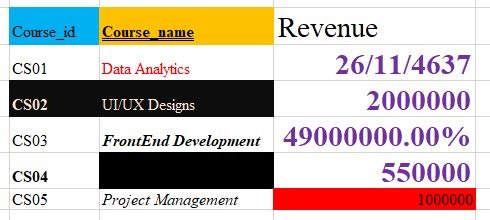
Example of inconsistent formatting in an Excel worksheet.
The good news is that you can remove these inconsistencies without deleting your actual data. In this guide, you will learn how to clear formatting in Excel using different methods, depending on what you want to remove and what you want to keep.
The easiest way to clear formatting in Excel is by using the Clear Formats option on the ribbon. This method removes formatting from selected cells while keeping the actual values, text, and formulas intact.
In the example below, the revenue value for ‘Data Analytics’ is displayed as a date because the cell has the wrong number format applied. We will use Clear Formats to remove that formatting without deleting the value.
To clear formatting using the ribbon:
- Select the cell or range of cells you want to clean.
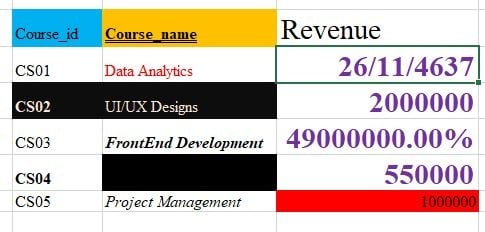
Selected Excel cell with incorrect date formatting applied to a revenue value.
2. Go to the Home tab
3. In the Editing group, click Clear.
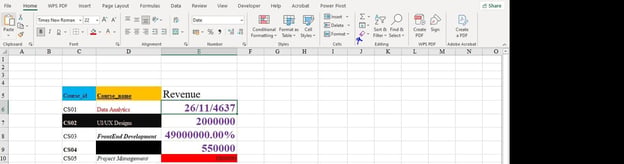
Using Clear Formats from the Home tab to remove formatting in Excel.
4. Select Clear Formats from the dropdown menu.
After applying Clear Formats, the value remains in the cell, but the visual styling and number formatting are removed.
If you clear formatting often, using a keyboard shortcut can save time. Instead of navigating through the ribbon each time, you can use Excel’s ribbon shortcut sequence.
To clear formatting with a shortcut on Windows:
-
Select the cell or range of cells you want to clean.
-
Press Alt, then H, then E, then F.
This performs the same action as Home → Clear → Clear Formats. It removes formatting while keeping the underlying values, text, and formulas intact.
This shortcut is available on Windows. On Mac, Excel does not have an exact equivalent for this ribbon shortcut, so the easiest option is to use the Home → Clear → Clear Formats menu.
How to Remove All Formatting (Including Content)
It is important to understand the difference between Clear Formats and Clear All.
Clear Formats removes only the appearance of a cell. This includes colors, fonts, borders, and number formatting. The underlying values, text, and formulas remain unchanged.
Clear All removes everything in the selected cell or range. This includes the formatting, values, text, formulas, comments, and hyperlinks.
Use Clear All only when you want to completely reset a cell or range.
To use Clear All:
- Select the cell or range you want to clear.
- Go to the Home tab.
- In the Editing group, click Clear.
- Select Clear All.
If your goal is to remove only the visual styling while keeping your data intact, Clear Formats is the appropriate choice. However, if the data is no longer needed and you want to reset the cell entirely, Clear All is the better option.
If unwanted formatting is scattered across your worksheet, you can clear formatting from the entire sheet at once. This is useful when you receive a heavily formatted file and want a clean slate before applying your own styles.
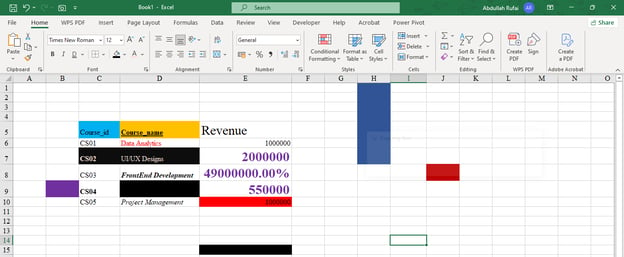
To clear formatting from an entire worksheet:
1. Press Ctrl + A to select all cells in the worksheet.
2. Go to the Home tab.
3. In the Editing group, click Clear.
4. Select Clear Formats.
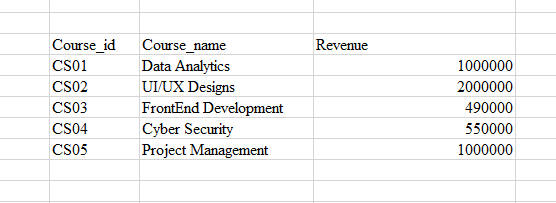
Excel removes the formatting across the worksheet while keeping the cell values, text, and formulas intact.
Conditional formatting is different from standard formatting because it is controlled by rules. For example, Excel can automatically highlight cells above a certain value or change cell colors based on performance.
Because conditional formatting is rule-based, clearing regular formatting may not always remove it. To fully remove it, you need to clear the conditional formatting rules.
To clear conditional formatting from selected cells:
- Select the cell or range of cells.
- Go to the Home tab.
- In the Styles group, click Conditional Formatting.
- Hover over Clear Rules.
- Select Clear Rules from Selected Cells.
To clear conditional formatting from the entire worksheet:
- Go to the Home tab.
- Click Conditional Formatting in the Styles group.
- Hover over Clear Rules.
- Select Clear Rules from Entire Sheet.
This removes the conditional formatting rules while keeping your actual data intact.
Excel tables often come with built-in styles, such as colored headers, banded rows, filters, and borders. These styles can make tables easier to read, but you may sometimes want a cleaner look.
Before removing table formatting, it is important to understand the difference between table formatting and table structure:
Table formatting refers to the visual style, such as colors, borders, and banded rows.
Table structure refers to the functional features, such as filters, structured references, and automatic expansion.
Option 1: Remove the table style and keep the table
Use this option if you want to keep the table features but remove the visual style.
- Click anywhere inside the table.
- Go to the Table Design tab.
- In the Table Styles group, open the style gallery.
- Select None.
This removes the table’s visual style while keeping features such as filters and automatic expansion.
Option 2: Convert the table to a range
Use this option if you no longer need the table features.
- Click anywhere inside the table.
- Go to the Table Design tab.
- Click Convert to Range.
- Confirm the action when prompted.
This converts the table into a normal range. If some formatting remains after conversion, use Home → Clear → Clear Formats to remove it.
The Clear Formats option removes all formatting from selected cells. This includes colors, fonts, borders, alignment, and number formats.
However, you may sometimes want to remove only the visual styling while keeping number formats such as dates, currencies, or percentages. For example, you may want to remove fill colors and bold fonts while keeping revenue values formatted as currency.
Excel does not have a single Clear Formats but keep number formats button, so you need to use a workaround:
- Note which number formats you want to keep, such as currency, date, or percentage.
- Select the cells and apply Clear Formats.
- Reapply the needed number formats from Home → Number Format.
This takes an extra step, but it gives you more control over what gets removed and what stays.
You can also use Paste Special to remove formatting by copying the formatting from a blank, unformatted cell and applying it to the cells you want to clean.
This method is useful when you want to quickly replace messy formatting with a clean, plain format.
To clear formatting using Paste Special:
-
Select an empty cell that has no special formatting.
-
Press Ctrl + C to copy it.
-
Select the cell or range you want to clean.
-
Press Ctrl + Alt + V to open the Paste Special dialog box.
-
Select Formats.
-
Click OK.
Excel applies the blank cell’s formatting to the selected range, which removes the previous formatting while keeping the cell values intact.
This method can be helpful when you are cleaning data copied from another workbook, report, or external source.
Even after clearing formatting, you may notice some unexpected behavior. Here are some common issues and how to fix them.
- Formatting keeps coming back: This often happens when your cells are part of an Excel table. Tables can automatically reapply their built-in styles. To fix this, remove the table style or convert the table to a normal range.
- Conditional formatting still appears: Clear Formats may not remove conditional formatting rules. To fix this, go to Home → Conditional Formatting → Clear Rules and choose whether to clear rules from selected cells or the entire sheet.
- Formatting is copied from another sheet: When you paste data from another workbook or worksheet, the formatting may come with it. To avoid this, use Paste Special → Values when you only want to paste the data.
- Number formats change unexpectedly: After clearing formats, dates, currencies, and percentages may return to the General format. For example, a date may appear as a serial number. To fix this, reapply the correct number format from Home → Number Format.
Knowing how to clear formatting is useful, but it is even better to avoid unnecessary formatting problems in the first place. Here are a few habits that can help:
- Use consistent styles: Apply the same formatting rules across similar headers, totals, and data fields.
- Avoid over-formatting: Too many colors, borders, and font styles can make a spreadsheet harder to read.
- Use tables carefully: Excel tables are helpful, but they can apply automatic styles. Remove the table style or convert the table to a range when you no longer need the table features.
- Use Paste Special when copying data: Paste values when you want to bring in data without carrying over unwanted formatting.
- Clean up before sharing: Before sending a workbook to others, review the formatting so the file is easier to read and work with.
Good formatting should make your spreadsheet clearer, not harder to understand.
Conclusion
The best clear formatting method depends on what you want to remove. Clear Formats is useful when you want to remove visual styling while keeping your data intact, while Clear All should only be used when you want to remove both formatting and content.
You have also seen that conditional formatting, table formatting, and number formats may require different approaches.
As you continue building your Excel skills, you may also find our guides on How to Clean Data in Excel and Conditional Formatting in Excel helpful. These articels build naturally on what you learned here and can help you create cleaner, more reliable spreadsheets.
%22%3E%3Cpath%20d%3D%22m-369%200h408v79h-408z%22%20fill%3D%22%237933ff%22%2F%3E%3Cpath%20d%3D%22m-148%200h306v45h-306z%22%20fill%3D%22%23974dff%22%2F%3E%3C%2Fg%3E%3C%2Fsvg%3E)
%22%2F%3E%3C%2FclipPath%3E%3Cg%20clip-path%3D%22url(%23a)%22%3E%3Cpath%20d%3D%22m76%200h484v36h-484z%22%20fill%3D%22%23974dff%22%2F%3E%3Cpath%20d%3D%22m0%200h384v24h-384z%22%20fill%3D%22%2306bdfc%22%20transform%3D%22matrix(1%200%200%20-1%200%2060)%22%2F%3E%3C%2Fg%3E%3C%2Fsvg%3E)





%22%3E%0A%20%20%20%20%20%20%20%20%3Crect%20fill%3D%22%2305192D%22%20height%3D%22180%22%20width%3D%22336%22%20%2F%3E%0A%20%20%20%20%20%20%20%20%3Crect%0A%20%20%20%20%20%20%20%20%20%20fill%3D%22%23B08EFF%22%0A%20%20%20%20%20%20%20%20%20%20height%3D%22106.6%22%0A%20%20%20%20%20%20%20%20%20%20transform%3D%22rotate(-30%20-208.588%20220.18)%22%0A%20%20%20%20%20%20%20%20%20%20width%3D%22456.125%22%0A%20%20%20%20%20%20%20%20%20%20x%3D%22-208.588%22%0A%20%20%20%20%20%20%20%20%20%20y%3D%22220.18%22%0A%20%20%20%20%20%20%20%20%2F%3E%0A%20%20%20%20%20%20%20%20%3Crect%0A%20%20%20%20%20%20%20%20%20%20fill%3D%22%237933FF%22%0A%20%20%20%20%20%20%20%20%20%20height%3D%2235.875%22%0A%20%20%20%20%20%20%20%20%20%20transform%3D%22rotate(-30%20-208.588%20220.18)%22%0A%20%20%20%20%20%20%20%20%20%20width%3D%22347.576%22%0A%20%20%20%20%20%20%20%20%20%20x%3D%22-208.588%22%0A%20%20%20%20%20%20%20%20%20%20y%3D%22220.18%22%0A%20%20%20%20%20%20%20%20%2F%3E%0A%20%20%20%20%20%20%20%20%3Crect%0A%20%20%20%20%20%20%20%20%20%20fill%3D%22%2372E5FE%22%0A%20%20%20%20%20%20%20%20%20%20height%3D%2235.875%22%0A%20%20%20%20%20%20%20%20%20%20transform%3D%22rotate(-30%20-226.525%20189.111)%22%0A%20%20%20%20%20%20%20%20%20%20width%3D%22347.576%22%0A%20%20%20%20%20%20%20%20%20%20x%3D%22-226.525%22%0A%20%20%20%20%20%20%20%20%20%20y%3D%22189.111%22%0A%20%20%20%20%20%20%20%20%2F%3E%0A%20%20%20%20%20%20%20%20%3Crect%0A%20%20%20%20%20%20%20%20%20%20fill%3D%22%235EB1FF%22%0A%20%20%20%20%20%20%20%20%20%20height%3D%22106.6%22%0A%20%20%20%20%20%20%20%20%20%20transform%3D%22rotate(-30%2085.5879%20256.055)%22%0A%20%20%20%20%20%20%20%20%20%20width%3D%22456.125%22%0A%20%20%20%20%20%20%20%20%20%20x%3D%2285.5879%22%0A%20%20%20%20%20%20%20%20%20%20y%3D%22256.055%22%0A%20%20%20%20%20%20%20%20%2F%3E%0A%20%20%20%20%20%20%20%20%3Crect%0A%20%20%20%20%20%20%20%20%20%20fill%3D%22%23B08EFF%22%0A%20%20%20%20%20%20%20%20%20%20height%3D%2235.875%22%0A%20%20%20%20%20%20%20%20%20%20transform%3D%22rotate(-30%2085.5879%20256.055)%22%0A%20%20%20%20%20%20%20%20%20%20width%3D%22184.5%22%0A%20%20%20%20%20%20%20%20%20%20x%3D%2285.5879%22%0A%20%20%20%20%20%20%20%20%20%20y%3D%22256.055%22%0A%20%20%20%20%20%20%20%20%2F%3E%0A%20%20%20%20%20%20%20%20%3Crect%0A%20%20%20%20%20%20%20%20%20%20fill%3D%22%2372E5FE%22%0A%20%20%20%20%20%20%20%20%20%20height%3D%2235.875%22%0A%20%20%20%20%20%20%20%20%20%20transform%3D%22rotate(-30%20227.432%20132.736)%22%0A%20%20%20%20%20%20%20%20%20%20width%3D%22271.625%22%0A%20%20%20%20%20%20%20%20%20%20x%3D%22227.432%22%0A%20%20%20%20%20%20%20%20%20%20y%3D%22132.736%22%0A%20%20%20%20%20%20%20%20%2F%3E%0A%20%20%20%20%20%20%3C%2Fg%3E%0A%20%20%20%20%20%20%3Cdefs%3E%0A%20%20%20%20%20%20%20%20%3CclipPath%20id%3D%22clip%22%3E%0A%20%20%20%20%20%20%20%20%20%20%3Crect%20fill%3D%22white%22%20height%3D%22180%22%20width%3D%22336%22%20%2F%3E%0A%20%20%20%20%20%20%20%20%3C%2FclipPath%3E%0A%20%20%20%20%20%20%3C%2Fdefs%3E%0A%20%20%20%20%3C%2Fsvg%3E)

%22%3E%0A%20%20%20%20%20%20%20%20%3Crect%20fill%3D%22%2372E5FE%22%20height%3D%22180%22%20width%3D%22336%22%20%2F%3E%0A%20%20%20%20%20%20%20%20%3Crect%0A%20%20%20%20%20%20%20%20%20%20fill%3D%22%237933FF%22%0A%20%20%20%20%20%20%20%20%20%20height%3D%22106.6%22%0A%20%20%20%20%20%20%20%20%20%20transform%3D%22rotate(-30%20-208.588%20220.18)%22%0A%20%20%20%20%20%20%20%20%20%20width%3D%22456.125%22%0A%20%20%20%20%20%20%20%20%20%20x%3D%22-208.588%22%0A%20%20%20%20%20%20%20%20%20%20y%3D%22220.18%22%0A%20%20%20%20%20%20%20%20%2F%3E%0A%20%20%20%20%20%20%20%20%3Crect%0A%20%20%20%20%20%20%20%20%20%20fill%3D%22%235EB1FF%22%0A%20%20%20%20%20%20%20%20%20%20height%3D%2235.875%22%0A%20%20%20%20%20%20%20%20%20%20transform%3D%22rotate(-30%20-208.588%20220.18)%22%0A%20%20%20%20%20%20%20%20%20%20width%3D%22347.576%22%0A%20%20%20%20%20%20%20%20%20%20x%3D%22-208.588%22%0A%20%20%20%20%20%20%20%20%20%20y%3D%22220.18%22%0A%20%20%20%20%20%20%20%20%2F%3E%0A%20%20%20%20%20%20%20%20%3Crect%0A%20%20%20%20%20%20%20%20%20%20fill%3D%22%23000820%22%0A%20%20%20%20%20%20%20%20%20%20height%3D%2235.875%22%0A%20%20%20%20%20%20%20%20%20%20transform%3D%22rotate(-30%20-226.525%20189.111)%22%0A%20%20%20%20%20%20%20%20%20%20width%3D%22347.576%22%0A%20%20%20%20%20%20%20%20%20%20x%3D%22-226.525%22%0A%20%20%20%20%20%20%20%20%20%20y%3D%22189.111%22%0A%20%20%20%20%20%20%20%20%2F%3E%0A%20%20%20%20%20%20%20%20%3Crect%0A%20%20%20%20%20%20%20%20%20%20fill%3D%22%237933FF%22%0A%20%20%20%20%20%20%20%20%20%20height%3D%22106.6%22%0A%20%20%20%20%20%20%20%20%20%20transform%3D%22rotate(-30%2085.5879%20256.055)%22%0A%20%20%20%20%20%20%20%20%20%20width%3D%22456.125%22%0A%20%20%20%20%20%20%20%20%20%20x%3D%2285.5879%22%0A%20%20%20%20%20%20%20%20%20%20y%3D%22256.055%22%0A%20%20%20%20%20%20%20%20%2F%3E%0A%20%20%20%20%20%20%20%20%3Crect%0A%20%20%20%20%20%20%20%20%20%20fill%3D%22%235EB1FF%22%0A%20%20%20%20%20%20%20%20%20%20height%3D%2235.875%22%0A%20%20%20%20%20%20%20%20%20%20transform%3D%22rotate(-30%2085.5879%20256.055)%22%0A%20%20%20%20%20%20%20%20%20%20width%3D%22184.5%22%0A%20%20%20%20%20%20%20%20%20%20x%3D%2285.5879%22%0A%20%20%20%20%20%20%20%20%20%20y%3D%22256.055%22%0A%20%20%20%20%20%20%20%20%2F%3E%0A%20%20%20%20%20%20%20%20%3Crect%0A%20%20%20%20%20%20%20%20%20%20fill%3D%22%23000820%22%0A%20%20%20%20%20%20%20%20%20%20height%3D%2235.875%22%0A%20%20%20%20%20%20%20%20%20%20transform%3D%22rotate(-30%20227.432%20132.736)%22%0A%20%20%20%20%20%20%20%20%20%20width%3D%22271.625%22%0A%20%20%20%20%20%20%20%20%20%20x%3D%22227.432%22%0A%20%20%20%20%20%20%20%20%20%20y%3D%22132.736%22%0A%20%20%20%20%20%20%20%20%2F%3E%0A%20%20%20%20%20%20%3C%2Fg%3E%0A%20%20%20%20%20%20%3Cdefs%3E%0A%20%20%20%20%20%20%20%20%3CclipPath%20id%3D%22clip%22%3E%0A%20%20%20%20%20%20%20%20%20%20%3Crect%20fill%3D%22white%22%20height%3D%22180%22%20width%3D%22336%22%20%2F%3E%0A%20%20%20%20%20%20%20%20%3C%2FclipPath%3E%0A%20%20%20%20%20%20%3C%2Fdefs%3E%0A%20%20%20%20%3C%2Fsvg%3E)
%22%3E%0A%20%20%20%20%20%20%20%20%3Crect%20fill%3D%22%23EFEBE4%22%20height%3D%22180%22%20width%3D%22336%22%20%2F%3E%0A%20%20%20%20%20%20%20%20%3Crect%0A%20%20%20%20%20%20%20%20%20%20fill%3D%22%2372E5FE%22%0A%20%20%20%20%20%20%20%20%20%20height%3D%22106.6%22%0A%20%20%20%20%20%20%20%20%20%20transform%3D%22rotate(-30%20-208.588%20220.18)%22%0A%20%20%20%20%20%20%20%20%20%20width%3D%22456.125%22%0A%20%20%20%20%20%20%20%20%20%20x%3D%22-208.588%22%0A%20%20%20%20%20%20%20%20%20%20y%3D%22220.18%22%0A%20%20%20%20%20%20%20%20%2F%3E%0A%20%20%20%20%20%20%20%20%3Crect%0A%20%20%20%20%20%20%20%20%20%20fill%3D%22%23000820%22%0A%20%20%20%20%20%20%20%20%20%20height%3D%2235.875%22%0A%20%20%20%20%20%20%20%20%20%20transform%3D%22rotate(-30%20-208.588%20220.18)%22%0A%20%20%20%20%20%20%20%20%20%20width%3D%22347.576%22%0A%20%20%20%20%20%20%20%20%20%20x%3D%22-208.588%22%0A%20%20%20%20%20%20%20%20%20%20y%3D%22220.18%22%0A%20%20%20%20%20%20%20%20%2F%3E%0A%20%20%20%20%20%20%20%20%3Crect%0A%20%20%20%20%20%20%20%20%20%20fill%3D%22%235EB1FF%22%0A%20%20%20%20%20%20%20%20%20%20height%3D%2235.875%22%0A%20%20%20%20%20%20%20%20%20%20transform%3D%22rotate(-30%20-226.525%20189.111)%22%0A%20%20%20%20%20%20%20%20%20%20width%3D%22347.576%22%0A%20%20%20%20%20%20%20%20%20%20x%3D%22-226.525%22%0A%20%20%20%20%20%20%20%20%20%20y%3D%22189.111%22%0A%20%20%20%20%20%20%20%20%2F%3E%0A%20%20%20%20%20%20%20%20%3Crect%0A%20%20%20%20%20%20%20%20%20%20fill%3D%22%23000820%22%0A%20%20%20%20%20%20%20%20%20%20height%3D%22106.6%22%0A%20%20%20%20%20%20%20%20%20%20transform%3D%22rotate(-30%2085.5879%20256.055)%22%0A%20%20%20%20%20%20%20%20%20%20width%3D%22456.125%22%0A%20%20%20%20%20%20%20%20%20%20x%3D%2285.5879%22%0A%20%20%20%20%20%20%20%20%20%20y%3D%22256.055%22%0A%20%20%20%20%20%20%20%20%2F%3E%0A%20%20%20%20%20%20%20%20%3Crect%0A%20%20%20%20%20%20%20%20%20%20fill%3D%22%23D87300%22%0A%20%20%20%20%20%20%20%20%20%20height%3D%2235.875%22%0A%20%20%20%20%20%20%20%20%20%20transform%3D%22rotate(-30%2085.5879%20256.055)%22%0A%20%20%20%20%20%20%20%20%20%20width%3D%22184.5%22%0A%20%20%20%20%20%20%20%20%20%20x%3D%2285.5879%22%0A%20%20%20%20%20%20%20%20%20%20y%3D%22256.055%22%0A%20%20%20%20%20%20%20%20%2F%3E%0A%20%20%20%20%20%20%20%20%3Crect%0A%20%20%20%20%20%20%20%20%20%20fill%3D%22%235646A5%22%0A%20%20%20%20%20%20%20%20%20%20height%3D%2235.875%22%0A%20%20%20%20%20%20%20%20%20%20transform%3D%22rotate(-30%20227.432%20132.736)%22%0A%20%20%20%20%20%20%20%20%20%20width%3D%22271.625%22%0A%20%20%20%20%20%20%20%20%20%20x%3D%22227.432%22%0A%20%20%20%20%20%20%20%20%20%20y%3D%22132.736%22%0A%20%20%20%20%20%20%20%20%2F%3E%0A%20%20%20%20%20%20%3C%2Fg%3E%0A%20%20%20%20%20%20%3Cdefs%3E%0A%20%20%20%20%20%20%20%20%3CclipPath%20id%3D%22clip%22%3E%0A%20%20%20%20%20%20%20%20%20%20%3Crect%20fill%3D%22white%22%20height%3D%22180%22%20width%3D%22336%22%20%2F%3E%0A%20%20%20%20%20%20%20%20%3C%2FclipPath%3E%0A%20%20%20%20%20%20%3C%2Fdefs%3E%0A%20%20%20%20%3C%2Fsvg%3E)
Formatting in Excel refers to how data is presented in a spreadsheet. This includes cell colors, fonts, borders, alignment, and number formats such as dates, currencies, and percentages.
Good formatting makes spreadsheets easier to read and interpret. For example, conditional formatting can help highlight high and low values in a sales report, while number formatting can make a value like
1000000easier to read as1,000,000.However, formatting can also become messy. Spreadsheets passed between colleagues often contain inconsistent styles, such as bold text in some cells, random fill colors in others, or numbers displayed in the wrong format.
Example of inconsistent formatting in an Excel worksheet.
The good news is that you can remove these inconsistencies without deleting your actual data. In this guide, you will learn how to clear formatting in Excel using different methods, depending on what you want to remove and what you want to keep.
How to Clear Formatting in Excel Using the Ribbon
The easiest way to clear formatting in Excel is by using the Clear Formats option on the ribbon. This method removes formatting from selected cells while keeping the actual values, text, and formulas intact.
In the example below, the revenue value for ‘Data Analytics’ is displayed as a date because the cell has the wrong number format applied. We will use Clear Formats to remove that formatting without deleting the value.
To clear formatting using the ribbon:
Selected Excel cell with incorrect date formatting applied to a revenue value.
2. Go to the Home tab
3. In the Editing group, click Clear.
Using Clear Formats from the Home tab to remove formatting in Excel.
4. Select Clear Formats from the dropdown menu.
After applying Clear Formats, the value remains in the cell, but the visual styling and number formatting are removed.
Excel Shortcut to Clear Formatting
If you clear formatting often, using a keyboard shortcut can save time. Instead of navigating through the ribbon each time, you can use Excel’s ribbon shortcut sequence.
To clear formatting with a shortcut on Windows:
Select the cell or range of cells you want to clean.
Press
Alt, thenH, thenE, thenF.This performs the same action as Home → Clear → Clear Formats. It removes formatting while keeping the underlying values, text, and formulas intact.
This shortcut is available on Windows. On Mac, Excel does not have an exact equivalent for this ribbon shortcut, so the easiest option is to use the Home → Clear → Clear Formats menu.
How to Remove All Formatting (Including Content)
It is important to understand the difference between Clear Formats and Clear All.
Clear Formats removes only the appearance of a cell. This includes colors, fonts, borders, and number formatting. The underlying values, text, and formulas remain unchanged.
Clear All removes everything in the selected cell or range. This includes the formatting, values, text, formulas, comments, and hyperlinks.
Use Clear All only when you want to completely reset a cell or range.
To use Clear All:
If your goal is to remove only the visual styling while keeping your data intact, Clear Formats is the appropriate choice. However, if the data is no longer needed and you want to reset the cell entirely, Clear All is the better option.
How to Clear Formatting from an Entire Worksheet
If unwanted formatting is scattered across your worksheet, you can clear formatting from the entire sheet at once. This is useful when you receive a heavily formatted file and want a clean slate before applying your own styles.
To clear formatting from an entire worksheet:
1. Press
Ctrl + Ato select all cells in the worksheet.2. Go to the Home tab.
3. In the Editing group, click Clear.
4. Select Clear Formats.
Excel removes the formatting across the worksheet while keeping the cell values, text, and formulas intact.
How to Clear Conditional Formatting in Excel
Conditional formatting is different from standard formatting because it is controlled by rules. For example, Excel can automatically highlight cells above a certain value or change cell colors based on performance.
Because conditional formatting is rule-based, clearing regular formatting may not always remove it. To fully remove it, you need to clear the conditional formatting rules.
To clear conditional formatting from selected cells:
To clear conditional formatting from the entire worksheet:
This removes the conditional formatting rules while keeping your actual data intact.
How to Remove Table Formatting in Excel
Excel tables often come with built-in styles, such as colored headers, banded rows, filters, and borders. These styles can make tables easier to read, but you may sometimes want a cleaner look.
Before removing table formatting, it is important to understand the difference between table formatting and table structure:
Table formatting refers to the visual style, such as colors, borders, and banded rows.
Table structure refers to the functional features, such as filters, structured references, and automatic expansion.
Option 1: Remove the table style and keep the table
Use this option if you want to keep the table features but remove the visual style.
This removes the table’s visual style while keeping features such as filters and automatic expansion.
Option 2: Convert the table to a range
Use this option if you no longer need the table features.
This converts the table into a normal range. If some formatting remains after conversion, use Home → Clear → Clear Formats to remove it.
How to Clear Formatting While Keeping Number Formats
The Clear Formats option removes all formatting from selected cells. This includes colors, fonts, borders, alignment, and number formats.
However, you may sometimes want to remove only the visual styling while keeping number formats such as dates, currencies, or percentages. For example, you may want to remove fill colors and bold fonts while keeping revenue values formatted as currency.
Excel does not have a single Clear Formats but keep number formats button, so you need to use a workaround:
This takes an extra step, but it gives you more control over what gets removed and what stays.
How to Clear Formatting Using Paste Special
You can also use Paste Special to remove formatting by copying the formatting from a blank, unformatted cell and applying it to the cells you want to clean.
This method is useful when you want to quickly replace messy formatting with a clean, plain format.
To clear formatting using Paste Special:
Select an empty cell that has no special formatting.
Press
Ctrl + Cto copy it.Select the cell or range you want to clean.
Press
Ctrl + Alt + Vto open the Paste Special dialog box.Select Formats.
Click OK.
Excel applies the blank cell’s formatting to the selected range, which removes the previous formatting while keeping the cell values intact.
This method can be helpful when you are cleaning data copied from another workbook, report, or external source.
Common Issues When Clearing Formatting
Even after clearing formatting, you may notice some unexpected behavior. Here are some common issues and how to fix them.
Best Practices for Managing Formatting in Excel
Knowing how to clear formatting is useful, but it is even better to avoid unnecessary formatting problems in the first place. Here are a few habits that can help:
Good formatting should make your spreadsheet clearer, not harder to understand.
Conclusion
The best clear formatting method depends on what you want to remove. Clear Formats is useful when you want to remove visual styling while keeping your data intact, while Clear All should only be used when you want to remove both formatting and content.
You have also seen that conditional formatting, table formatting, and number formats may require different approaches.
As you continue building your Excel skills, you may also find our guides on How to Clean Data in Excel and Conditional Formatting in Excel helpful. These articels build naturally on what you learned here and can help you create cleaner, more reliable spreadsheets.