Curso
Preparação de dados no Excel
3 h
93K
Adquira as habilidades para maximizar o Excel - não é necessário ter experiência.
Para combinar células com fórmulas, vamos a um exemplo simples:
Suponha que temos um conjunto de dados em que a coluna A contém primeiro nome e a coluna B contém sobrenome. Queremos que ambos apareçam juntos em uma única célula.
Para isso, crie uma coluna auxiliar:
Em seguida, clique na célula C2 e insira esta fórmula:
=A2 & " " & B2Veja o que a fórmula faz:
A2 puxa o primeiro nome
" " adiciona um espaço entre os nomes
B2 puxa o sobrenome
& junta tudo em um único texto
Pressione Enter para ver o nome combinado.
Agora mova o cursor até o pequeno quadrado no canto inferior direito da célula. Esse é o alça de preenchimento. Arraste para baixo para aplicar a fórmula às demais linhas. O Excel ajustará as referências automaticamente.
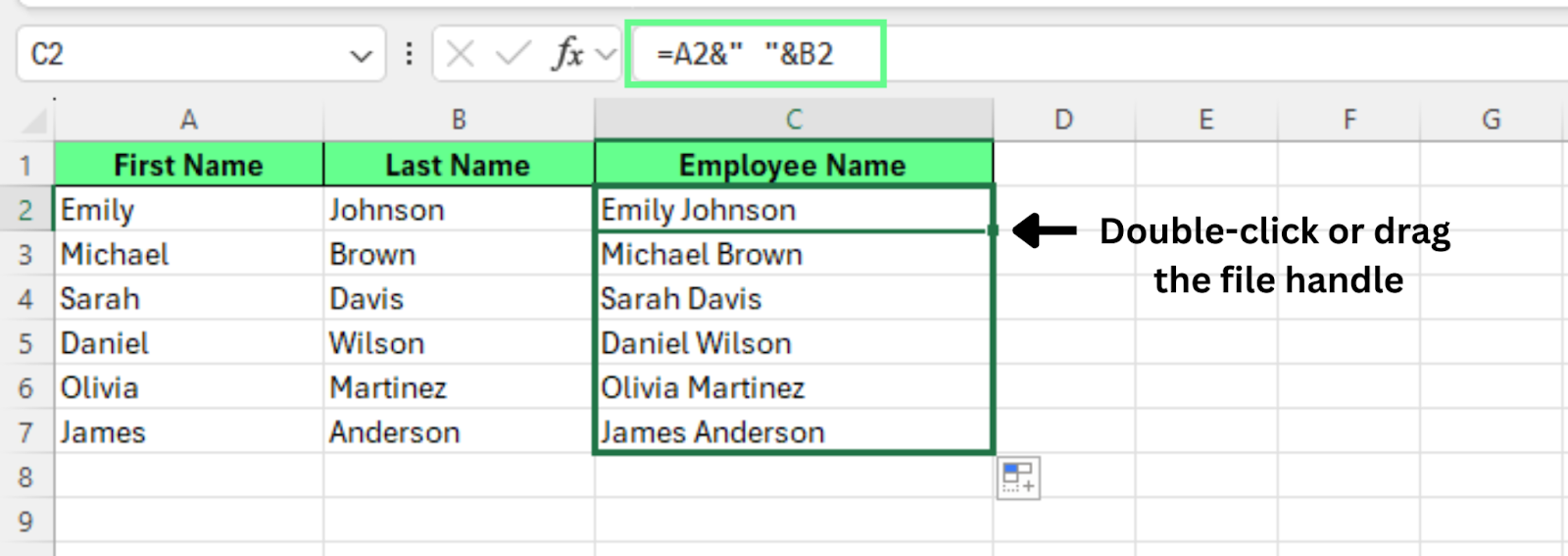
Combine duas células usando o operador &. Imagem do autor.
Esse método une o conteúdo de várias células sem alterar os dados originais. Como as fórmulas não sobrescrevem valores, elas são a forma mais confiável de combinar texto no Excel.
Para combinar células com funções nativas de texto, você pode usar duas opções:
CONCAT() ou CONCATENATE() reúnem valores de várias células em um único resultado.
TEXTJOIN() combina células permitindo definir um delimitador e ignorar células vazias.
Vamos ver as duas com exemplos simples.
CONCAT() e CONCATENATE() juntam textos de várias células em um único valor.
Para usá-las:
Crie uma coluna auxiliar
Clique na célula C2
Insira uma destas fórmulas:
=CONCATENATE(A2," ",B2)
=CONCAT(A2," ",B2)
Pressione Enter
Arraste a alça de preenchimento para baixo para aplicar às outras linhas
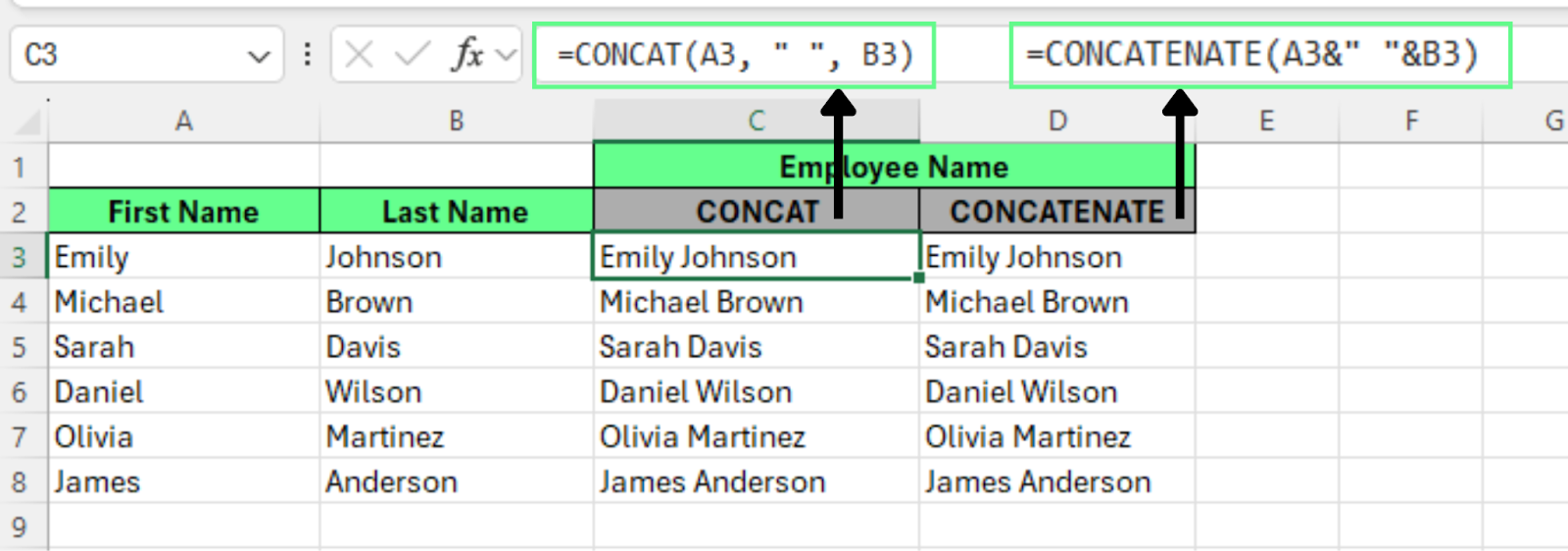
Combine células com as funções CONCAT e CONCATENATE. Imagem do autor.
Ambas retornam o mesmo resultado: primeiro nome e sobrenome com um espaço entre eles. As fórmulas ficam claras e fáceis de editar caso você adicione mais colunas depois.
TEXTJOIN() oferece mais controle. Podemos definir um delimitador e instruir o Excel a ignorar células vazias.
Suponha que queremos combinar Nome e País com uma vírgula entre eles. Para isso:
Crie uma coluna auxiliar
Clique na célula C2
Insira esta fórmula: =TEXTJOIN(",",TRUE,A2,B2)
Veja como funciona:
"," é o delimitador. Você pode usar espaço, vírgula, hífen ou qualquer caractere
TRUE indica ao Excel para ignorar células vazias
A2, B2 são as células que vamos combinar
Pressione Enter e depois arraste a alça de preenchimento para baixo para aplicar às demais linhas.
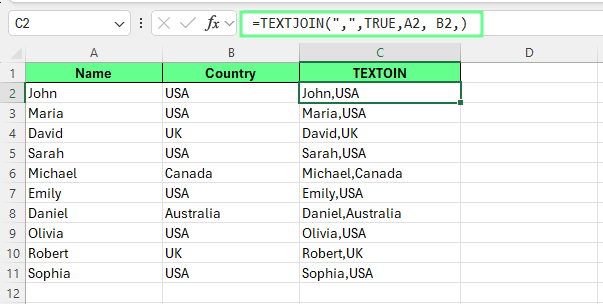
Combine células com um delimitador usando TEXTJOIN. Imagem do autor.
Observação: Você pode especificar apenas um delimitador em uma fórmula TEXTJOIN(). Se partes diferentes do texto precisarem de delimitadores distintos, será necessário usar colunas auxiliares separadas.
As duas abordagens funcionam, mas as funções de texto nativas escalam melhor. Quando o conjunto de dados cresce, basta atualizar o intervalo dentro da função. Não é preciso reescrever fórmulas longas.
Funções como CONCAT() e TEXTJOIN() também reduzem erros, pois o Excel lida melhor com espaçamentos e células vazias.
Para mesclar células visualmente:
O Excel vai mesclar as células selecionadas em uma célula maior.
Dica: use Mesclar & Centralizar quando quiser exibir um título ou cabeçalho por várias colunas. Evite usar dentro de conjuntos de dados, pois células mescladas podem causar problemas ao classificar, filtrar ou analisar.
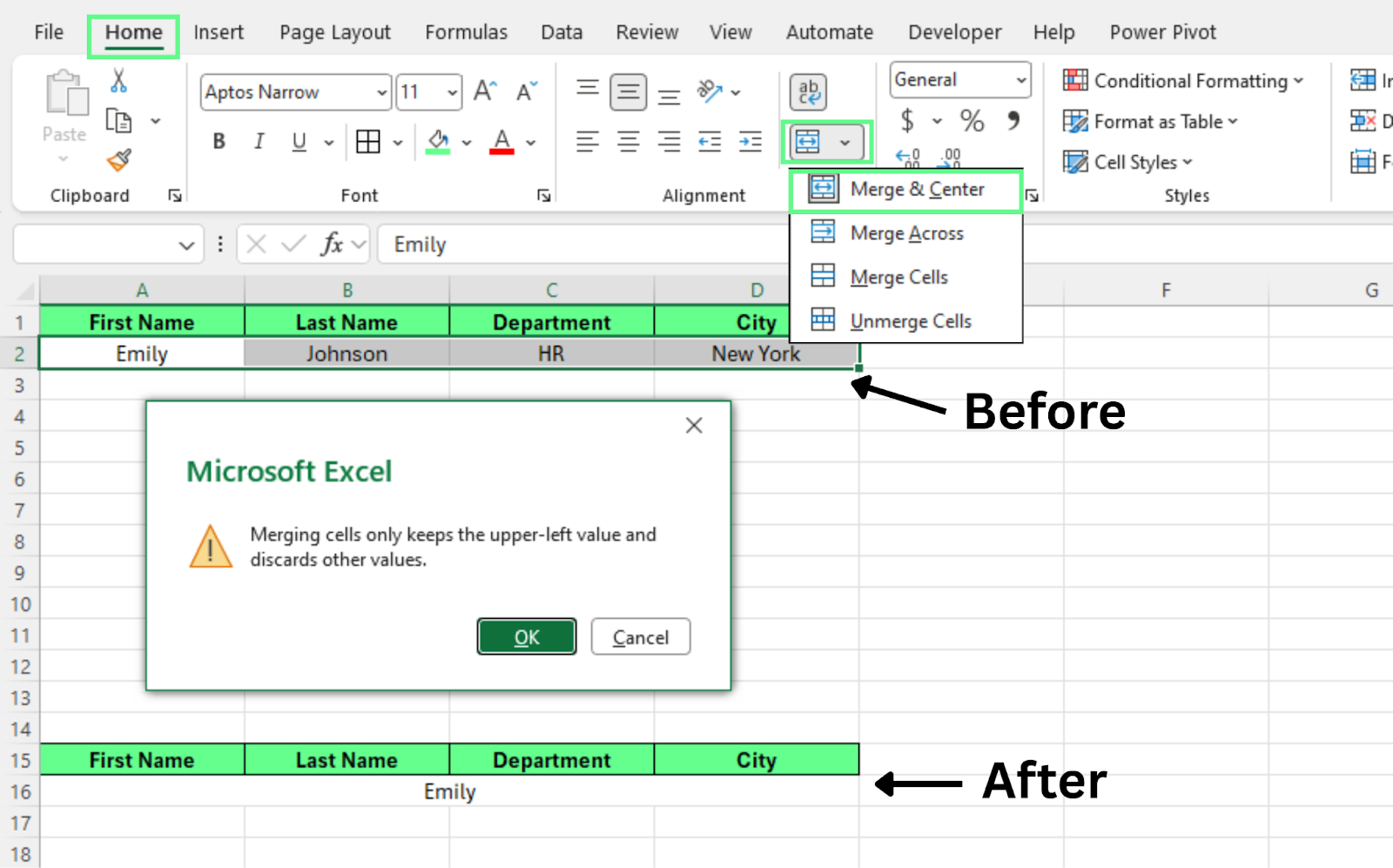
Mescle as células usando Mesclar & Centralizar. Imagem do autor.
Esse recurso altera o layout da planilha, mas não combina os dados de fato. Ao mesclar visualmente, o Excel mantém o valor da célula superior esquerda e remove quaisquer outros valores no intervalo selecionado.
No Excel, muita gente usa os termos mesclar e combinar como se fossem a mesma coisa. Mas eles se referem a ações diferentes. Uma altera os dados. A outra altera o layout.
Veja as diferenças entre os dois métodos.
Quando combinamos células com fórmulas como &, CONCAT() ou TEXTJOIN(), o Excel une os conteúdos mantendo os dados originais intactos.
Esse método:
Como os dados permanecem intactos, as fórmulas são a abordagem mais segura para o trabalho do dia a dia.
Ao mesclar com Mesclar & Centralizar, o Excel cria uma célula maior atravessando várias colunas — mas não combina os valores.
Esse método:
Depois de mesclar, o Excel trata o intervalo escolhido como uma única célula grande.
Aqui vai uma comparação lado a lado das duas abordagens:
|
Recurso |
Combinar células (fórmulas) |
Mesclar células (ferramenta Mesclar) |
|
Mantém todos os dados |
Sim |
Não |
|
Exclui valores |
Não |
Sim |
|
Funciona com fórmulas |
Sim |
Não |
|
Suporta classificação |
Sim |
Não |
|
Bom para análise |
Sim |
Não |
|
Melhor uso |
Processamento de dados |
Layout e design |
Devemos usar Mesclar células apenas para layout e apresentação. Funciona bem para títulos, cabeçalhos e outros elementos visuais. Não funciona bem dentro de conjuntos de dados reais, pois pode quebrar classificação, filtros e fórmulas. Não lida com dados, então evite mesclar.
Aqui vai um guia rápido para entender quando usar e quando evitar:
|
Você deve mesclar quando |
Você não deve mesclar quando |
|
Criar títulos de planilhas |
Trabalhar com tabelas de dados |
|
Criar cabeçalhos de relatório |
Usar fórmulas e funções |
|
Adicionar cabeçalhos de seção |
Classificar ou filtrar dados |
|
Formatar dashboards |
Analisar registros |
|
Criar capas |
Criar relatórios financeiros |
|
Construir modelos estáticos |
Preparar dados para gráficos |
|
Trabalhar apenas o layout |
Automatizar tarefas com macros |
Dica: quando estiver em dúvida, use fórmulas em vez de mesclar. As fórmulas mantêm os dados intactos e funcionam melhor na maioria das situações.
Centralizar na seleção é uma opção de alinhamento no Excel que centraliza o texto em várias células mantendo cada célula separada. O texto aparece visualmente centralizado nas colunas selecionadas, mas o Excel não mescla as células. Como as células permanecem independentes, classificação, filtros e fórmulas continuam funcionando normalmente.
Isso faz de Centralizar na seleção uma alternativa melhor ao Mesclar & Centralizar quando você quer apenas o efeito visual do texto centralizado sem alterar a estrutura da planilha.
Para aplicar Centralizar na seleção:
O Excel agora exibirá o texto centralizado nas células selecionadas.
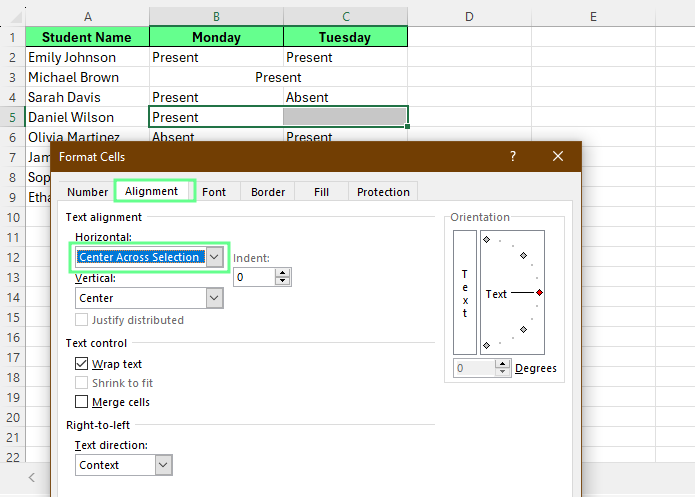
Centralize o texto com Centralizar na seleção. Imagem do autor.
O resultado fica quase idêntico ao de células mescladas. O texto aparece centralizado nas colunas selecionadas, semelhante a Mesclar & Centralizar.
No entanto, as células permanecem separadas. Você pode confirmar clicando em cada célula individualmente. O Excel vai selecioná-las uma a uma, em vez de tratar tudo como uma única célula mesclada.
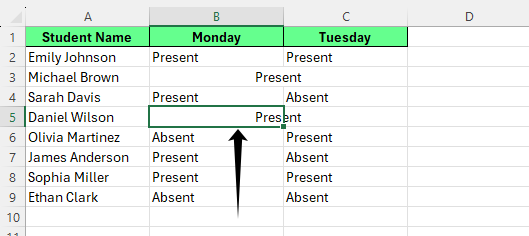
Verifique o Centralizar na seleção. Imagem do autor.
Ao combinar células com fórmulas, alguns problemas comuns podem surgir. A maioria envolve espaços extras ou erros de fórmula. Dá para corrigir facilmente com as funções certas:
Às vezes o resultado vem com espaços a mais. Isso geralmente ocorre quando uma célula já inclui um espaço ou quando um valor está faltando.
Podemos resolver com a função TRIM(). Ela remove espaços excedentes e mantém apenas um espaço entre as palavras.
Esta fórmula une os valores de A1 e B1 ao mesmo tempo que limpa espaços extras no resultado final.
Uma fórmula pode retornar erro se alguma das células referenciadas mudar, ficar vazia ou contiver um valor inesperado.
Podemos tratar isso com a função IFERROR(). Ela substitui o erro por um resultado limpo.
Se o Excel encontrar um erro, a fórmula retorna um resultado vazio em vez da mensagem de erro. Isso mantém a planilha limpa e fácil de ler.
Para separar o texto combinado de volta em células distintas usando o recurso Texto para colunas:
O Excel vai dividir os valores em colunas separadas com base no delimitador escolhido.
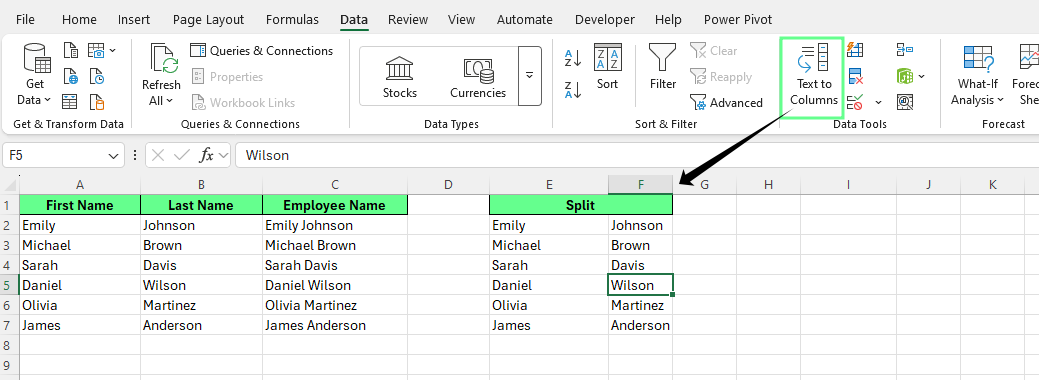
Separe as células combinadas. Imagem do autor.
Esse recurso separa dados com base em um delimitador como espaço, vírgula ou tabulação. Funciona bem quando nomes, locais ou outros valores estão juntos em uma única célula.
Vale seguir algumas práticas simples ao combinar células no Excel. Esses hábitos mantêm a planilha limpa, confiável e fácil de atualizar depois:
Use fórmulas para combinar dados sempre que possível: Funções como &, CONCAT() ou TEXTJOIN() unem valores mantendo os dados originais intactos e editáveis.
Evite mesclar células dentro de intervalos de dados: Células mescladas podem atrapalhar classificação, filtros e fórmulas.
Separe dados brutos de formatação: Quando dados e apresentação ficam separados, fica mais fácil atualizar ou reutilizar o conjunto depois.
Use mesclagem apenas para layout e apresentação: Células mescladas funcionam melhor para cabeçalhos, títulos ou seções visuais, não para armazenar dados.
Aplique formatação de forma consistente nas planilhas: Estilos consistentes tornam as planilhas mais fáceis de ler, manter e compartilhar.
Para continuar evoluindo no Excel, explore nossos cursos Data Preparation in Excel e Data Analysis in Excel. Eles ensinam na prática como limpar, organizar e analisar conjuntos de dados reais.
Você também pode manter referências rápidas por perto enquanto trabalha. Nossos Data Manipulation in Excel Cheat Sheet, Excel Formulas Cheat Sheet e Excel Shortcuts Cheat Sheet trazem resumos práticos para usar enquanto você cria ou revisa planilhas.
Aprenda Excel com a DataCamp
Curso
Curso
Programa
Tutorial
Abid Ali Awan
15 min
Tutorial
Elena Kosourova
11 min
Tutorial
Laiba Siddiqui
10 min
Tutorial
Chloe Lubin
12 min
Tutorial
Natassha Selvaraj
15 min
Tutorial
Avinash Navlani
10 min