
Course
Transformer Models with PyTorch
2 hr
9.2K
KTransformers is an open-source inference framework that lets the CPU and GPU actively execute different experts during inference, so you can run Mixture-of-Experts (MoE) models that are far larger than your GPU memory. Frameworks like vLLM can also offload weights to CPU memory, but KTransformers is built specifically around the sparse structure of MoE models.
In this tutorial, we'll use KTransformers and SGLang to run GLM-5.3-Flash, a 320B-parameter model whose weights don't fit into 192 GB of VRAM. We'll monitor CPU and GPU memory usage, experiment with expert placement, test the OpenAI-compatible API, and connect the model to Pi as a local coding agent.
The main idea is simple: instead of treating CPU memory as overflow storage, KTransformers uses both CPU compute and GPU compute during inference.
KTransformers is an open-source inference framework for running very large language models using a combination of GPU VRAM and CPU RAM. Normally, serving a large model requires loading most of its weights into GPU memory, which quickly becomes expensive for a model the size of GLM-5.3-Flash.
KTransformers takes a different approach: it keeps many MoE expert weights in system memory and reserves GPU memory for the parts of inference that benefit most from GPU acceleration.
This works well for MoE models because not every expert is used for every token. GLM-5.3-Flash, for example, has 288 routed experts, but its router selects only 8 of them (plus 1 shared expert) for each token. KTransformers can therefore distribute expert computation across the CPU and GPU:
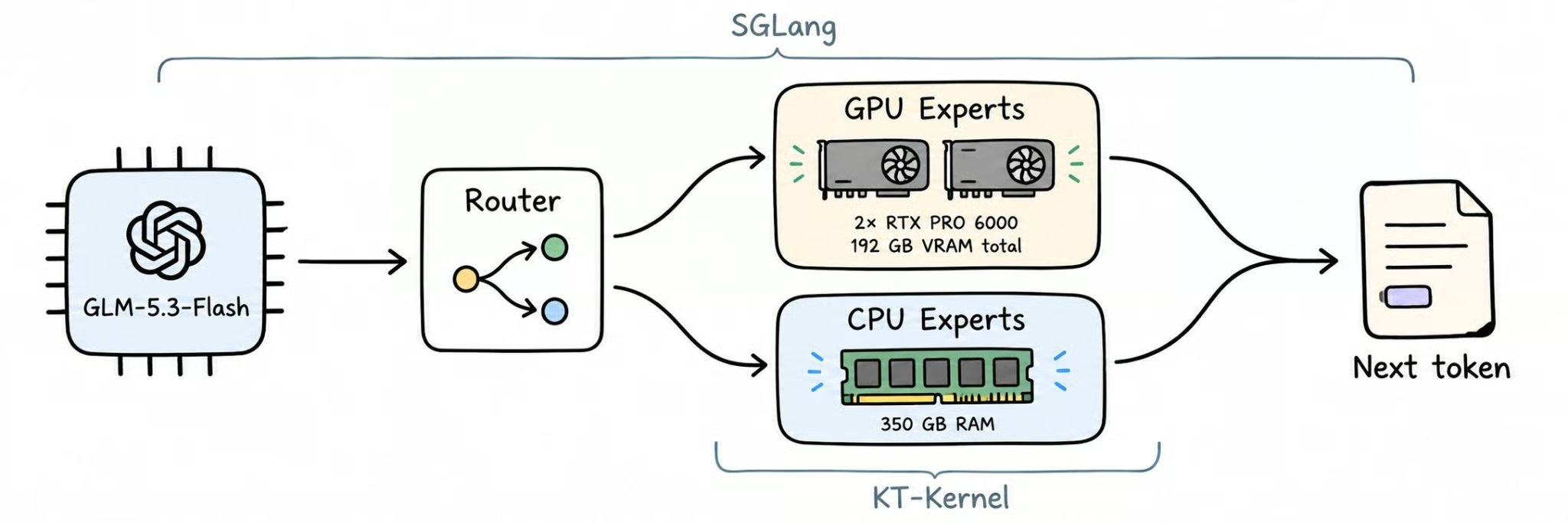
The current KTransformers stack integrates KT-Kernel with SGLang for heterogeneous CPU-GPU inference. Each component handles a different job:
KTransformers also supports changing expert placement based on workload patterns, as described in its expert scheduling tutorial.
In other words, KTransformers treats CPU memory and GPU memory as a shared inference system rather than requiring the entire model to fit inside GPU VRAM. That is what lets very large MoE models run on hardware with far less GPU memory than they would normally need.
GLM-5.3-Flash is Z.ai's open-weight, natively multimodal MoE model, released under the MIT license in August 2026. Despite the "Flash" name, it's a large model: 320B total parameters, with about 18B active per token.
These are the specs that matter for local inference:
zai-org/GLM-5.3-Flash)KTransformers reads the official FP8 weights directly, so there's no conversion or extra quantization step. For benchmarks and a full model overview, see our GLM-5.3-Flash guide.
For GLM-5.3-Flash, the hardware question is mostly about system RAM. The official KTransformers GLM-5.3-Flash tutorial recommends reserving at least 350 GB of available system memory.
For this tutorial, we use a RunPod instance with approximately:
GPU:         2× RTX PRO 6000
VRAM:        96 GB each
Total VRAM:  192 GB

System RAM:  350 GB+
Storage:     500 GB+
Python:      3.11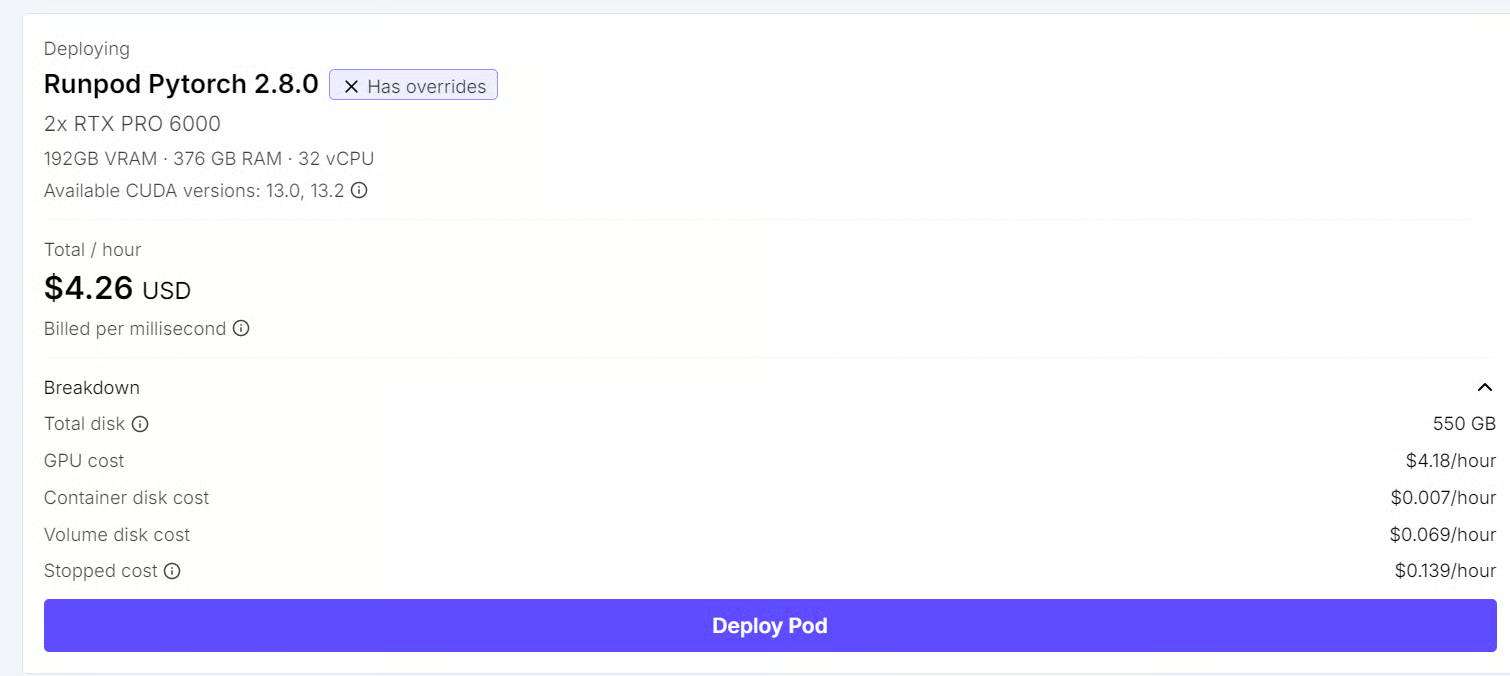
GLM-5.3-Flash's official FP8 checkpoint is approximately 306 GiB (about 329 GB), while our two GPUs provide 192 GB of VRAM in total. The full model therefore cannot simply be loaded into GPU memory.
Instead, KTransformers keeps a large portion of the MoE weights in system RAM and moves the most useful computation to the GPUs. The 350 GB recommendation leaves enough room for the model weights plus runtime overhead.
More GPU memory does not remove the need for RAM in this setup. CPU memory is an intentional part of KTransformers' heterogeneous inference design: expert weights remain in RAM while the GPU handles the parts of the model that benefit most from acceleration.
The current GLM-5.3-Flash implementation also has specific CPU and GPU requirements:
Yes, provided you have enough system RAM and a supported CPU. The official tutorial includes a single-GPU configuration that sets --kt-num-gpu-experts 0, so the MoE experts are handled on the CPU side.
We use two RTX PRO 6000 GPUs here, but that is not a strict minimum requirement. The second GPU gives us more VRAM and extra headroom while experimenting with a relatively new KTransformers implementation, rather than tuning the setup around the smallest hardware configuration that can possibly run the model.
Create a clean Python 3.11 environment and install KTransformers with SGLang support:
python3.11 -m venv /workspace/kt
source /workspace/kt/bin/activate

pip install --upgrade pip
pip install "ktransformers[sglang]"
Verify that KTransformers, KT-Kernel, SGLang, and CUDA are detected correctly:
kt versionYou should see output similar to:
KTransformers CLI v0.7.0.post4

Python      3.11.13
Platform    Linux 6.8.0-136-generic
CUDA        13.0

Packages:
kt-kernel   0.7.0.post4
sglang-kt   0.7.0.post4
This confirms that the KTransformers runtime and its SGLang backend are installed and ready to use.
Before starting the server, download the official GLM-5.3-Flash checkpoint from Hugging Face:
hf download zai-org/GLM-5.3-Flash \
  --local-dir /workspace/GLM-5.3-Flash
The checkpoint is around 306 GiB, so the download can take a while depending on your bandwidth.
Then point KTransformers to the local model path:
export MODEL_PATH=/workspace/GLM-5.3-FlashNow launch GLM-5.3-Flash with two-way tensor parallelism, using both RTX PRO 6000 GPUs. The model supports up to 1M tokens of context, and the official examples use a validated 501,025-token configuration. We start with a 32K context window instead, to keep memory usage predictable while testing the setup.
CUDA_VISIBLE_DEVICES=0,1 \
python -m sglang.launch_server \
  --model-path "$MODEL_PATH" \
  --kt-weight-path "$MODEL_PATH" \
  --served-model-name GLM-5.3-flash \
  --host 0.0.0.0 \
  --port 30000 \
  --tp-size 2 \
  --context-length 32768 \
  --max-total-tokens 32768 \
  --mem-fraction-static 0.85 \
  --chunked-prefill-size 2048 \
  --kt-method FP8 \
  --kt-cpuinfer 64 \
  --kt-threadpool-count 2 \
  --kt-num-gpu-experts 14 \
  --kt-gpu-prefill-token-threshold 2048 \
  --kt-expert-placement-strategy uniform \
  --cuda-graph-bs 1 2 4 \
  --enable-p2p-check \
  --tool-call-parser glm47 \
  --reasoning-parser glm45
This configuration exposes the model through an OpenAI-compatible SGLang server on port 30000. The two GPUs are used with --tp-size 2, while KTransformers keeps part of the MoE workload on the CPU and places selected experts on the GPUs.
The settings here are intentionally conservative for the first run: 32K context, 85% static GPU memory usage, 14 GPU experts, and 64 CPU inference threads. Once the server is stable, you can experiment with a larger context window, more GPU experts, or different memory settings to improve throughput.
Most of the flags above are standard SGLang options. These are the ones that control how KTransformers splits work between the CPU and GPU:
| Flag | Value | What it does |
|---|---|---|
--kt-method |
FP8 |
Sets the precision of the expert weights, matching GLM-5.3-Flash's native FP8 checkpoint. |
--kt-cpuinfer |
64 |
Number of CPU threads used for expert computation. |
--kt-threadpool-count |
2 |
Number of CPU thread pools, usually matched to the number of NUMA nodes. |
--kt-num-gpu-experts |
14 |
Number of experts per MoE layer placed on the GPU. |
--kt-expert-placement-strategy |
uniform |
How GPU experts are chosen. Other options include frequency, front-loading, and random. |
--kt-gpu-prefill-token-threshold |
2048 |
Prompt length above which prefill switches to the GPU-side layerwise path. |
Now that the server is running, we can verify how KTransformers is using GPU VRAM and system RAM, then change the number of GPU-resident experts to see how resource usage and performance shift.
On RunPod, free -h can be misleading because a container may see the host machine's total RAM rather than only the memory available to the pod. It is better to monitor GPU memory and container memory separately.
Open a new terminal and monitor GPU usage:
watch -n 1 nvidia-smi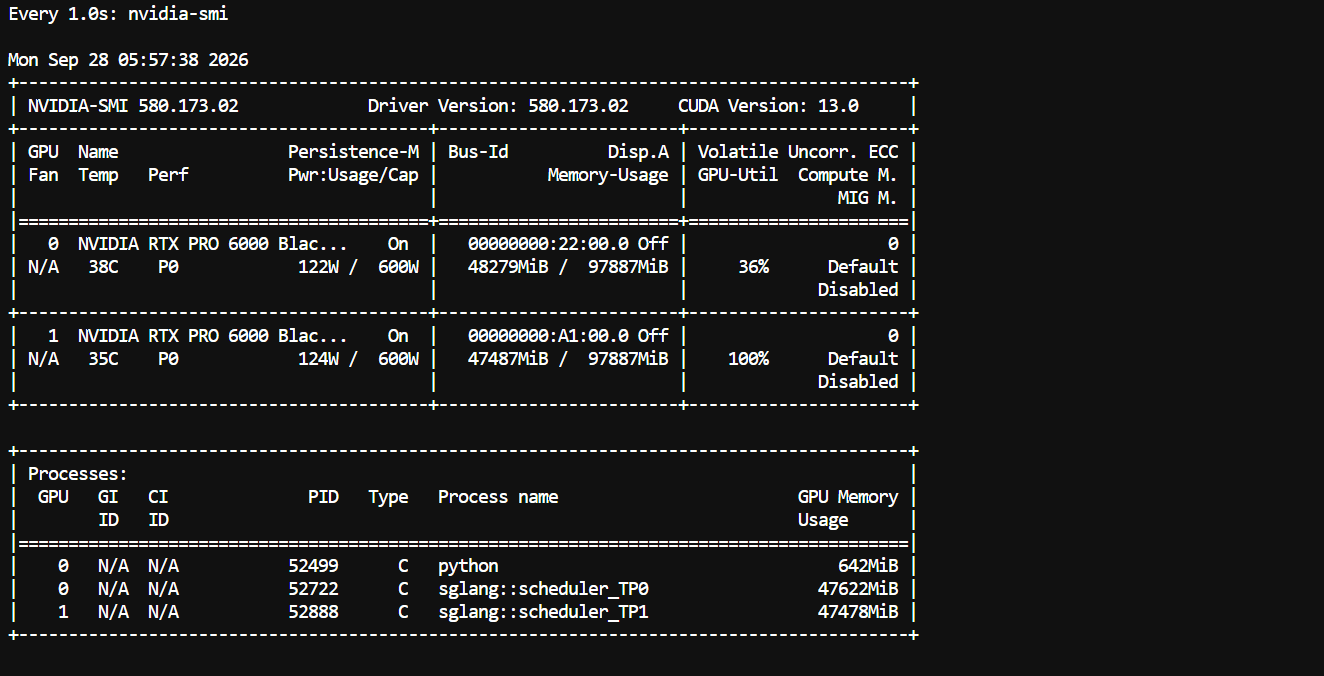
With our current configuration, the fully loaded model uses roughly 48 GB per GPU, leaving a large amount of VRAM unused. That suggests there is room to place more experts on the GPUs, or to test a single-GPU configuration with sufficient system RAM.
For container RAM, read the cgroup memory counters directly:
watch -n 1 'echo -n "Used: "; awk "{printf \"%.1f GiB\n\", \$1/1024/1024/1024}" /sys/fs/cgroup/memory.current; echo -n "Limit: "; awk "{printf \"%.1f GiB\n\", \$1/1024/1024/1024}" /sys/fs/cgroup/memory.max'
You should see that a large portion of the available system RAM is occupied by model weights and CPU-side experts. This is expected: KTransformers deliberately keeps many MoE experts in RAM instead of requiring them all to live in VRAM.
--kt-num-gpu-expertsNext, restart the server with different values of --kt-num-gpu-experts. For example, compare:
0
10
20
--kt-num-gpu-experts controls how many experts per MoE layer are placed on the GPU. With 0, expert computation stays on the CPU side; increasing the value moves more experts into GPU memory.
For each configuration, compare GPU VRAM usage, container RAM usage, tokens per second, and time to first token. In general, more GPU experts consume more VRAM but reduce CPU-side expert execution, which can improve inference performance when enough VRAM is available.
One caveat from the official tutorial: when Layerwise Prefill is enabled for GLM-5.3-Flash, the current implementation normalizes the resident GPU expert count to zero. If VRAM usage barely changes between runs, this is the likely reason.
This experiment shows the key advantage of KTransformers: CPU RAM and GPU VRAM become tunable parts of the same inference system, so you can trade memory placement against speed instead of requiring the entire MoE model to fit on the GPUs.
With the server running, we can now confirm that the model is available and send a real request through SGLang's OpenAI-compatible API.
First, check that the model is registered:
curl http://localhost:30000/v1/modelsNext, send a test prompt:
curl http://localhost:30000/v1/chat/completions \
  -H "Content-Type: application/json" \
  -d '{
    "model": "GLM-5.3-flash",
    "messages": [
      {
        "role": "user",
        "content": "Create a FastAPI application with a health endpoint."
      }
    ],
    "max_tokens": 500
  }'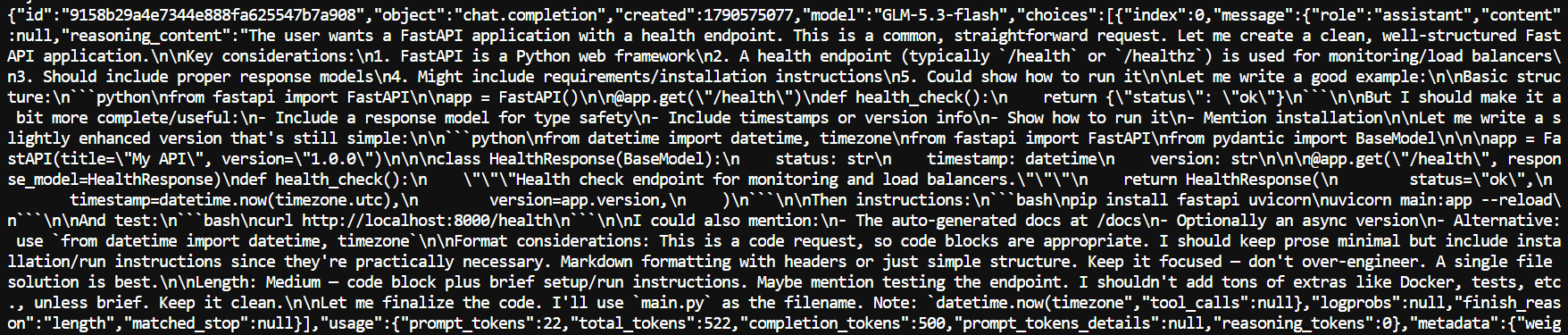
If the setup is working correctly, the server returns a normal chat completion response containing generated code and usage statistics.
Pi is a lightweight coding agent that can use any OpenAI-compatible model as its backend, which lets GLM-5.3-Flash work directly on coding tasks instead of only answering prompts.
Install Pi with its install script:
curl -fsSL https://pi.dev/install.sh | sh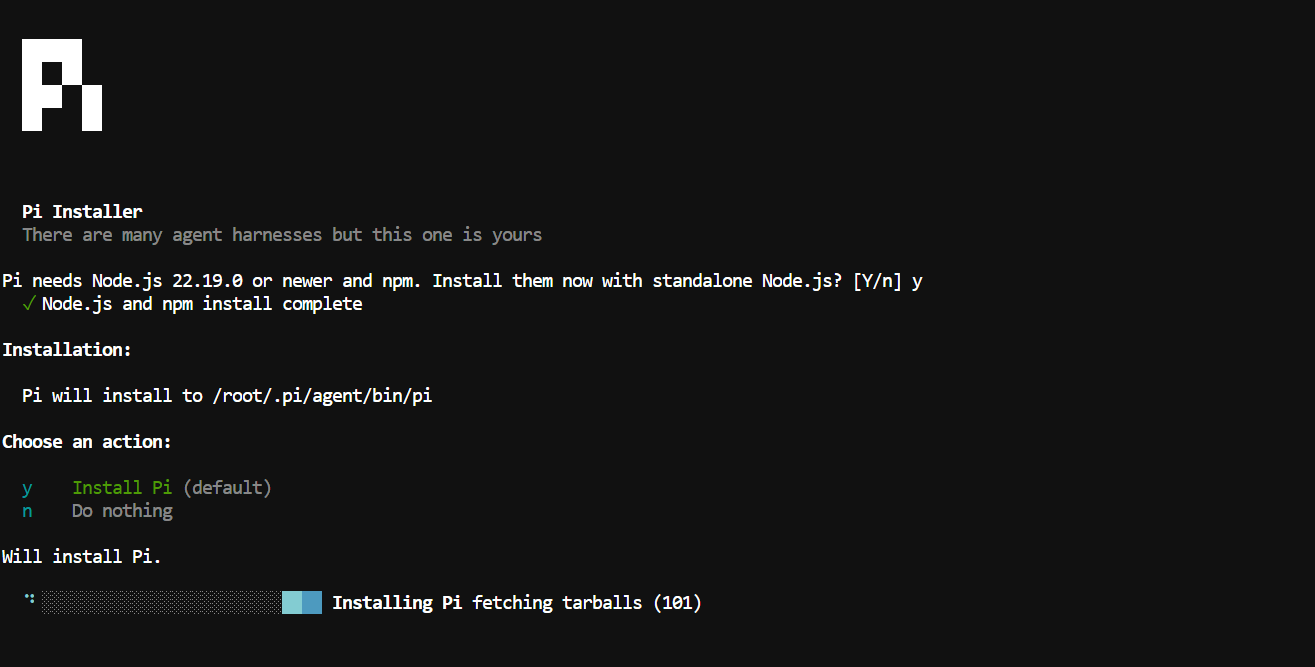
Then add Pi to your PATH:
echo 'export PATH="/root/.local/share/pi-node/current/bin:$PATH"' >> ~/.bashrc
source ~/.bashrcCreate a model configuration that points Pi to the local KTransformers server:
mkdir -p ~/.pi/agent && cat > ~/.pi/agent/models.json <<'EOF'
{
  "providers": {
    "ktransformers": {
      "baseUrl": "http://localhost:30000/v1",
      "api": "openai-completions",
      "apiKey": "local",
      "models": [
        {
          "id": "GLM-5.3-flash",
          "name": "GLM-5.3-Flash",
          "reasoning": true,
          "input": ["text"],
          "contextWindow": 32768,
          "maxTokens": 8192,
          "cost": {
            "input": 0,
            "output": 0,
            "cacheRead": 0,
            "cacheWrite": 0
          }
        }
      ]
    }
  }
}
EOF
Start Pi:
piThen open the model selector:
/model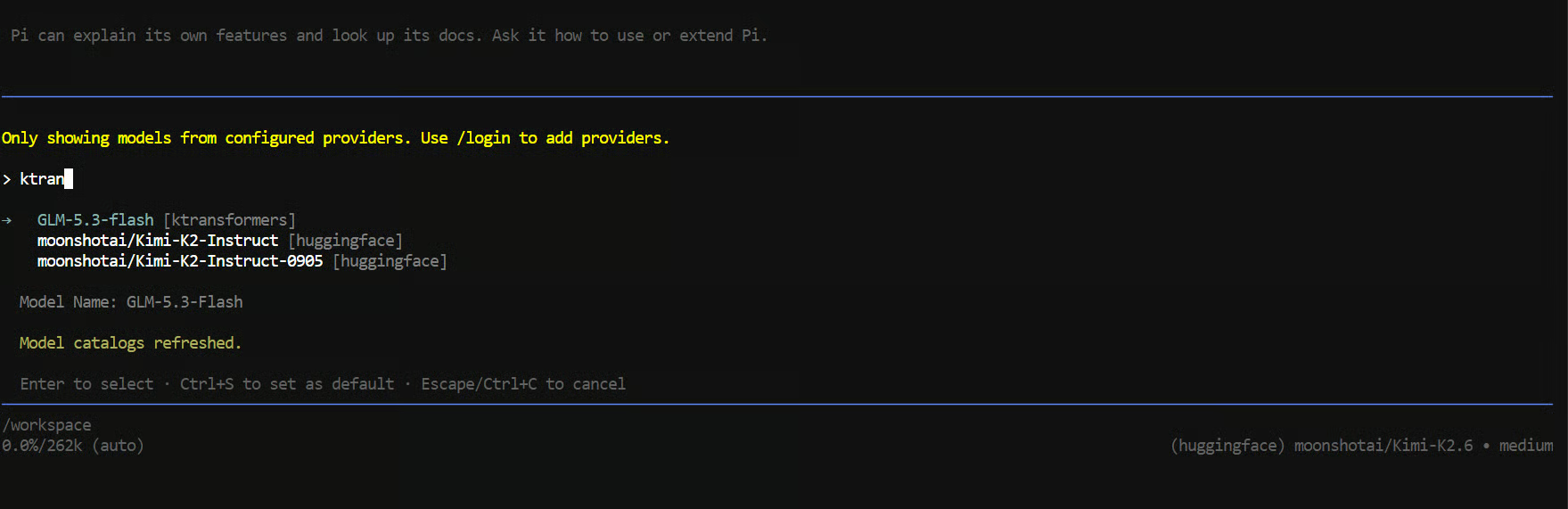
Choose GLM-5.3-Flash and try a real coding task:
Build a FastAPI service with /health and /users endpoints.
Add pytest tests and run them.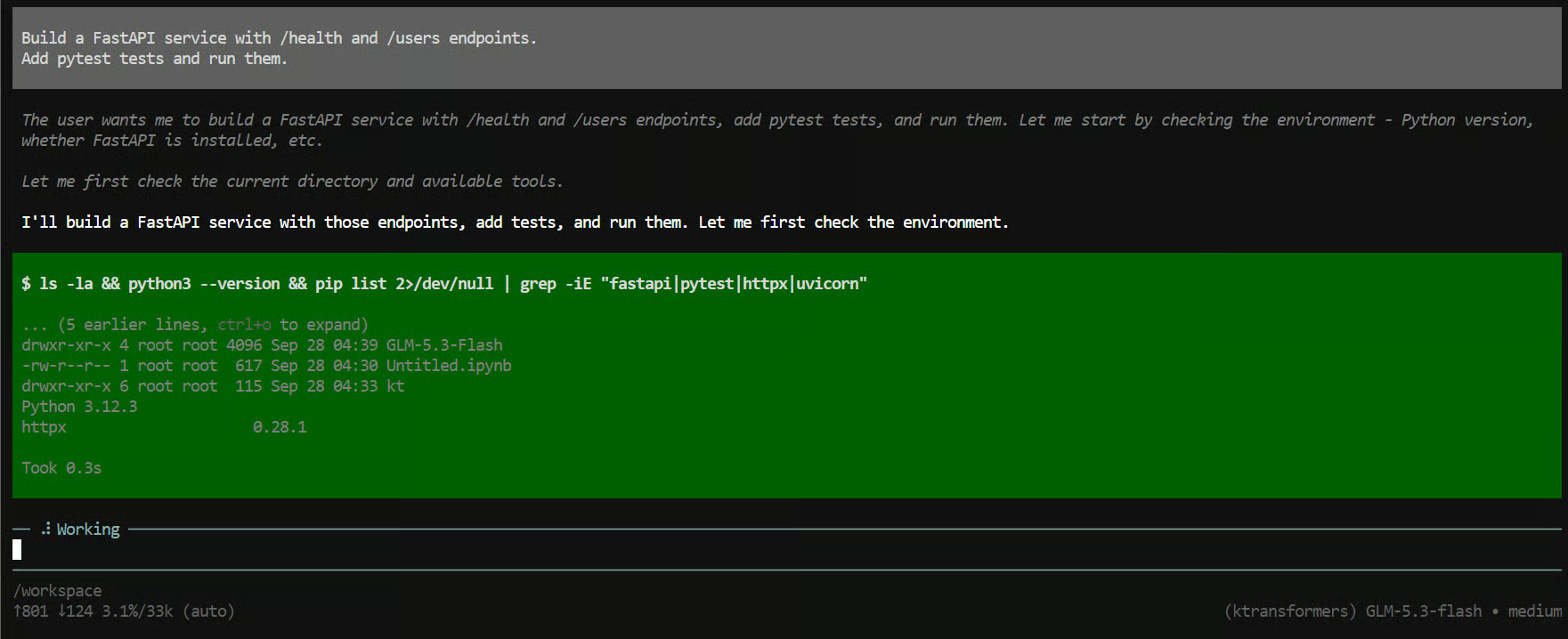
Within a few seconds, Pi should begin creating files, writing the API, running tests, and fixing problems as it works through the task.

You can also watch the first terminal, where the SGLang server is running. In our test, generation speed was around 11 tokens per second. That is reasonable for a model of this size running with substantial CPU offloading, and the setup can be tuned further by moving more experts onto the GPUs.
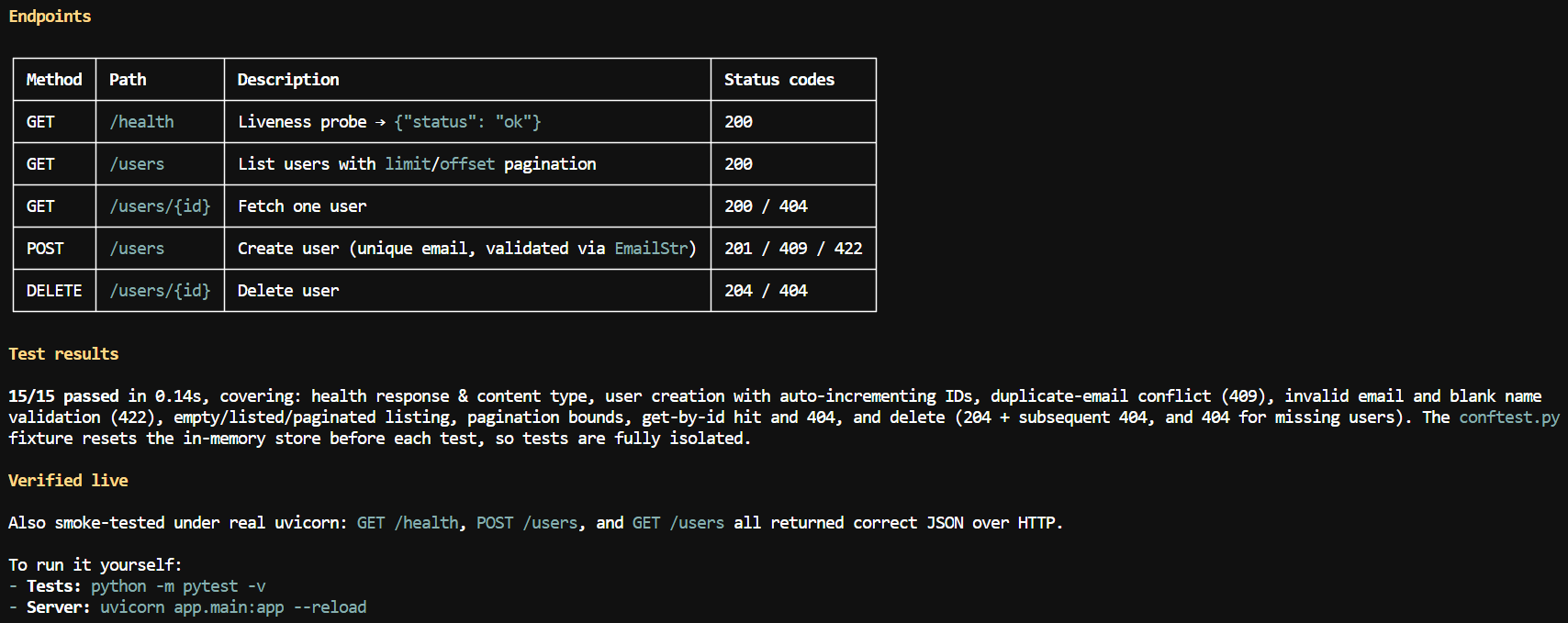
Within a few minutes, the model had created the endpoints, written and executed the tests, performed a smoke test, and produced a short summary explaining how to run the project.
The interesting part is that the complete model is running locally even though its weights are much larger than the available GPU VRAM. Pi handles the coding-agent loop, while SGLang and KTransformers handle the actual model inference.
KTransformers is not the only way to run a model that is larger than your VRAM. vLLM and llama.cpp both support CPU offloading, but they split the work differently:
| Framework | How it uses CPU memory | Where expert computation runs | Best fit |
|---|---|---|---|
| vLLM | Offloads part of the weights to CPU RAM (--cpu-offload-gb) and transfers them to the GPU when needed |
GPU | High-throughput serving when the model mostly fits in VRAM |
| llama.cpp | Splits layers between CPU and GPU, and can keep MoE expert tensors in RAM (--n-cpu-moe) |
CPU and GPU | Quantized GGUF models on consumer hardware |
| KTransformers + SGLang | Keeps most experts in RAM and places a set number of experts per layer on the GPU | CPU and GPU, with optimized AVX-512 expert kernels | Native-precision MoE models on machines with hundreds of GB of RAM |
SGLang and KTransformers are not competing in this setup. SGLang handles the serving side, while KTransformers handles the heterogeneous CPU-GPU MoE execution.
What I liked most about this setup is that KTransformers does something a little different from the usual inference stack. Instead of thinking only in terms of model layers, it places individual experts on the GPU while keeping others in system RAM, and the CPU actually takes part in expert computation. The CPU is not just acting as overflow storage.
In this tutorial, we ran the full GLM-5.3-Flash model locally on two RTX PRO 6000 GPUs, even though its weights are much larger than the available VRAM.
It is not the fastest setup. I was getting around 11 tokens per second, and there is still a lot of room to tune the number and placement of GPU experts. You could also experiment with a single GPU if you have enough RAM; I used two here simply to give the setup more headroom.
For me, that is the main takeaway from this guide: KTransformers is not special because it invented CPU offloading. It is special because it makes CPU RAM, CPU compute, and GPU compute work together around the sparse structure of MoE models.
Top DataCamp Courses
Course
Track
Track
Tutorial
Abid Ali Awan
11 min
Tutorial
Abid Ali Awan
10 min
Tutorial
Abid Ali Awan
8 min
Tutorial
Abid Ali Awan
8 min
Tutorial
Abid Ali Awan
10 min
Tutorial
Abid Ali Awan
9 min