Course
Working with Llama 3
2 hr
15.3K
DeepSeek V4 Flash is the smaller, faster, and more cost-efficient model in the DeepSeek V4 preview series. It is designed for practical inference workloads, with lower active parameters than DeepSeek V4 Pro and support for long-context tasks. The GGUF version used in this guide stores dense weights in FP8 and MoE expert weights in FP4, making it suitable for local inference through a custom llama.cpp build.
In this guide, we will run DeepSeek V4 Flash locally on RunPod using an RTX PRO 6000 GPU and a modified llama.cpp build. You will learn how to set up the GPU pod, install the required dependencies, compile llama.cpp with DeepSeek V4 support, download the FP4/FP8 GGUF model from Hugging Face, and serve it through the browser-based llama.cpp Web UI.
Before you begin, make sure you have:
A RunPod account
At least $5 in RunPod credit
Basic familiarity with Linux terminal commands
A Hugging Face account
A Hugging Face access token saved as HF_TOKEN
You will use the Hugging Face token to download the model faster and more reliably.
If you want to see how the model stacks up against its proprietary competitors from OpenAI, I recommend reading our DeepSeek V4 Flash vs GPT-5.4 Mini and Nano comparison guide.
First, create a new GPU pod on RunPod.
For this guide, we are using the RTX PRO 6000 GPU because it offers 96GB of VRAM at a much lower cost than an H100. This makes it a practical option for running the full DeepSeek V4 Flash model on a single GPU without paying premium H100 pricing.
In the RunPod dashboard, select an RTX PRO 6000 GPU pod and use the latest PyTorch template as the base image.
Before deploying the pod, edit the template settings and configure the storage, exposed port, and environment variables.
Use the following recommended setup:
|
Setting |
Recommended Value |
|
GPU |
RTX PRO 6000 |
|
Container Disk |
50 GB |
|
Volume Disk |
300 GB |
|
Exposed Port |
8910 |
|
Template |
Latest PyTorch template |
|
Environment Variable |
|
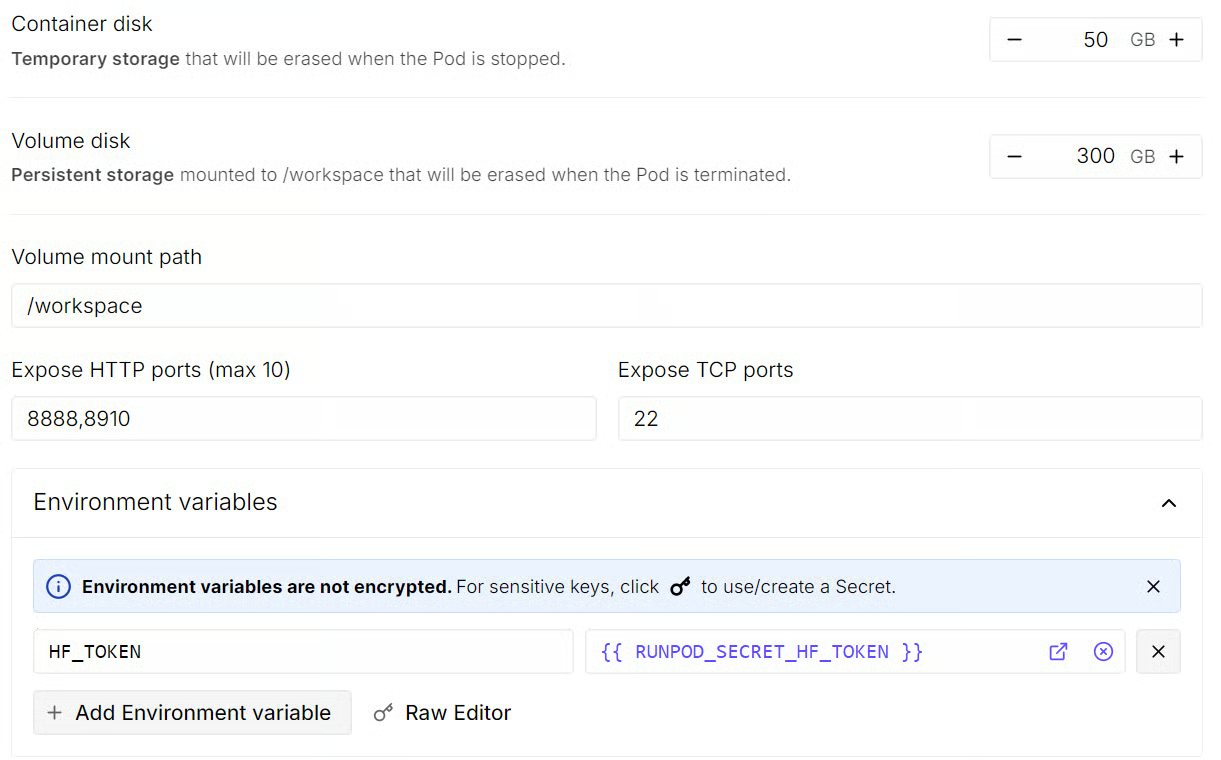
The exposed port 8910 is important because this is the port you will use to access the llama.cpp Web UI from your browser.
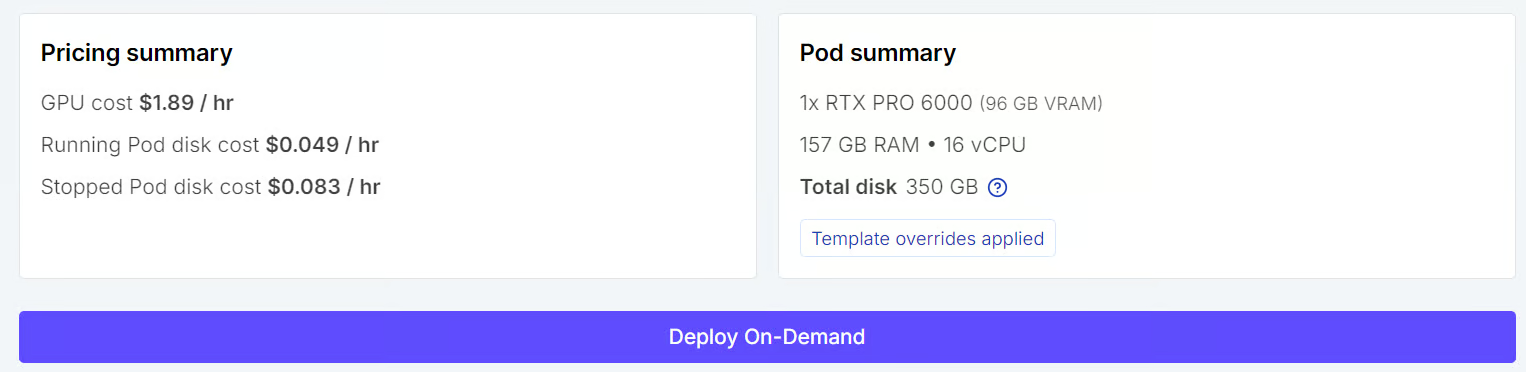
Once the pod is deployed, wait a few seconds for the RunPod dashboard to show the JupyterLab link.
Open JupyterLab, then launch a terminal. To confirm that the GPU is available, run:
nvidia-smi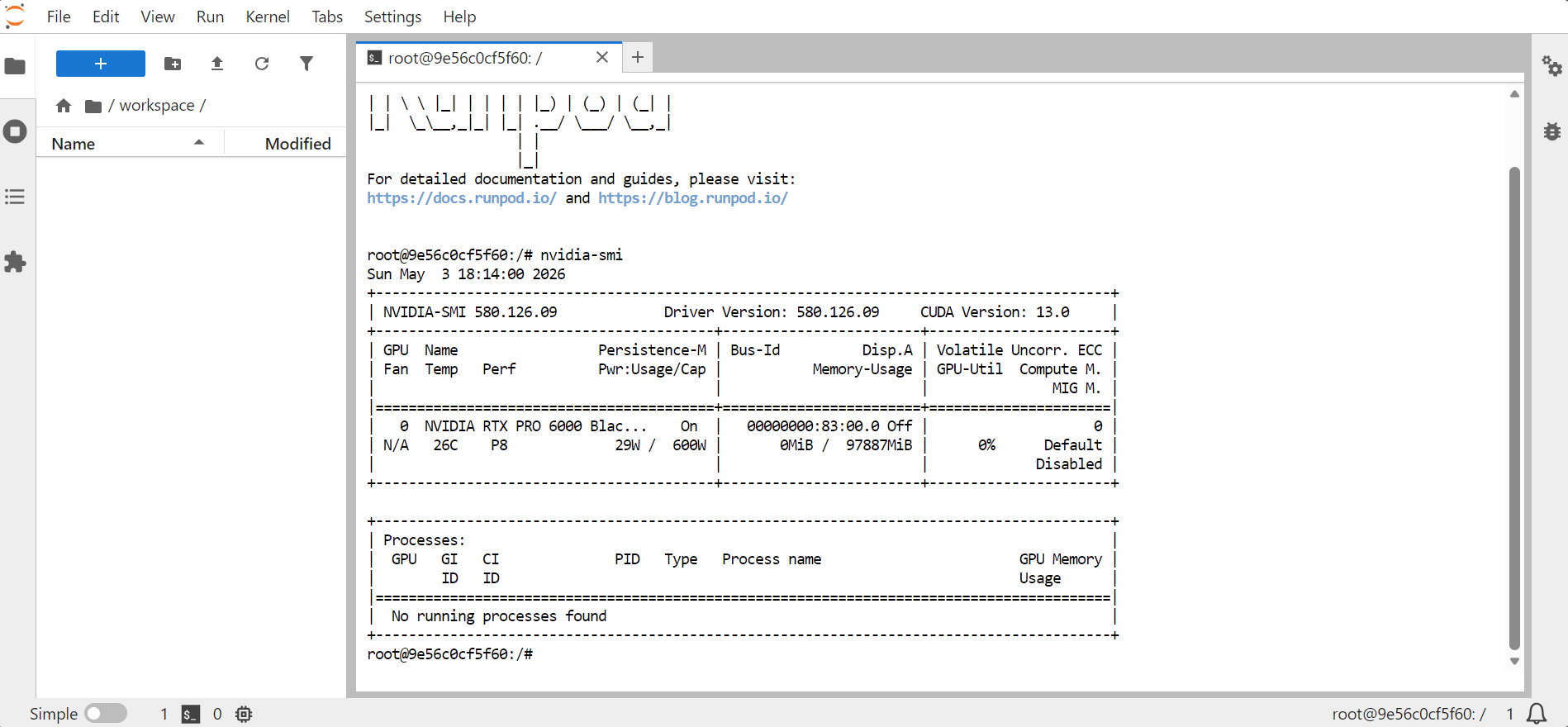
This should display information about the GPU, memory, CUDA version, and driver version.
Next, install the system dependencies required to build and run llama.cpp.
apt-get update

apt-get install -y \
 pciutils \
 build-essential \
 cmake \
 git \
 curl \
 wget \
 libcurl4-openssl-dev \
 tmux \
 python3 \
 python3-pip \
 Python3-venv
These packages include build tools, CMake, Git, Python, and other utilities needed to compile llama.cpp from source.
DeepSeek V4 Flash is still very new, so local support is not as straightforward as older models. At the time of writing, there is no widely adopted official GGUF release from major community providers such as Unsloth for running the full model through standard upstream llama.cpp.
The official DeepSeek V4 Flash model is available on Hugging Face, but the local GGUF route still depends on community conversions and experimental runtime support. The GGUF used in this guide specifically states that the stock upstream llama.cpp cannot load it and requires a work-in-progress build with DeepSeek V4 Flash architecture support, native FP8, and MXFP4 support.
Because of that, this setup uses an open-source contributor’s modified llama.cpp branch rather than the standard upstream version. This is currently the practical path for testing the full DeepSeek V4 Flash GGUF locally.
The upstream llama.cpp project also has an open model request for DeepSeek V4 support, which shows that official support is still being worked through rather than fully merged into the main project.
Move into the workspace directory:
cd /workspaceClone the modified repository:
git clone -b wip/deepseek-v4-support https://github.com/nisparks/llama.cpp.git llama.cpp-deepseek-v4Now configure the build using CMake:
cmake llama.cpp-deepseek-v4 \
 -B llama.cpp-deepseek-v4/build \
 -DBUILD_SHARED_LIBS=OFF \
 -DGGML_CUDA=ON \
 -DCMAKE_BUILD_TYPE=Release
This enables CUDA support, so the model can use GPU acceleration.
Build the required binaries:
cmake --build llama.cpp-deepseek-v4/build \
 --config Release \
 -j \
 --clean-first \
 --target llama-cli llama-server llama-gguf-split
After the build finishes, copy the binaries into the main project folder:
cp llama.cpp-deepseek-v4/build/bin/llama-* llama.cpp-deepseek-v4/Finally, check that the server binary works:
llama.cpp-deepseek-v4/llama-server --helpIf the help menu appears, the build was successful.
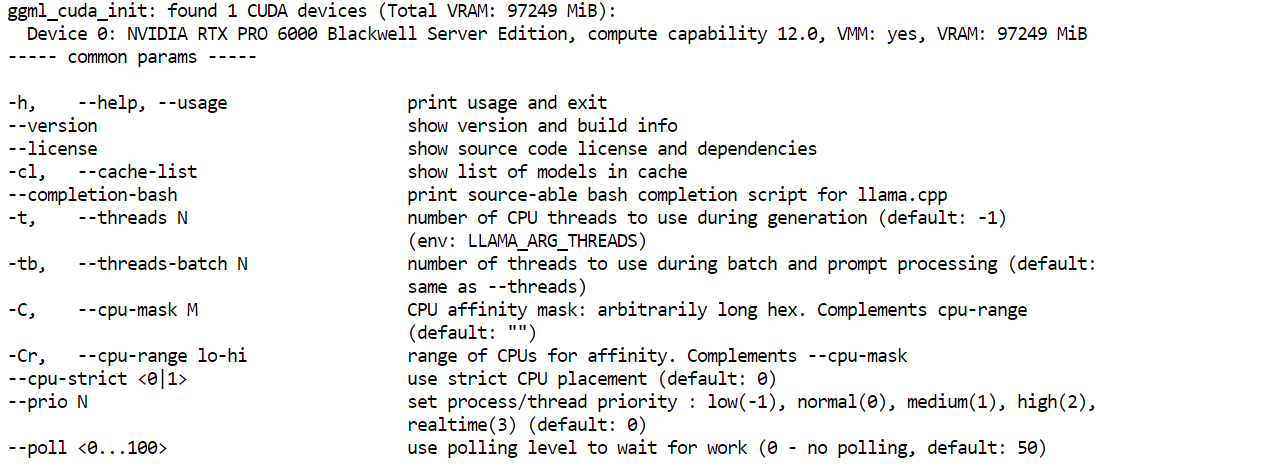
Next, install the Hugging Face download tools. This is where the HF_TOKEN you added earlier becomes important. Since this is a large model file, logging in with your Hugging Face token improves download reliability and gives you access to faster download methods.
Install the required packages:
pip install -U "huggingface_hub[hf_xet]" hf-xet hf_transferEnable faster Hugging Face downloads:
export HF_HUB_ENABLE_HF_TRANSFER=1Create a folder for the model:
mkdir -p /workspace/models/deepseek-v4-flash-fp4-fp8Download the GGUF model file:
hf download nsparks/DeepSeek-V4-Flash-FP4-FP8-GGUF \
 DeepSeek-V4-Flash-FP4-FP8-native.gguf \
 --local-dir /workspace/models/deepseek-v4-flash-fp4-fp8
With hf_transfer enabled and your HF_TOKEN already set in the RunPod environment, the model download can reach very high speeds.
In this setup, the download reached almost 2 GB per second, which makes downloading a large GGUF file much more practical. This speed is only possible when your Hugging Face token is configured properly, and the pod can authenticate with Hugging Face.

Once the download is complete, verify the file:
ls -lh /workspace/models/deepseek-v4-flash-fp4-fp8You should see a file similar to this:
total 146G
-rw-rw-rw- 1 root root 146G May 3 18:27 DeepSeek-V4-Flash-FP4-FP8-native.ggufNow that the model is downloaded and the modified llama.cpp build is ready, the next step is to start the local inference server so you can access DeepSeek V4 Flash through the browser-based Web UI and API endpoint.
Move into the llama.cpp directory:
cd /workspace/llama.cpp-deepseek-v4Start the model server:
./llama-server \
 --model /workspace/models/deepseek-v4-flash-fp4-fp8/DeepSeek-V4-Flash-FP4-FP8-native.gguf \
 --alias "DeepSeek-V4-Flash" \
 --host 0.0.0.0 \
 --port 8910 \
 --jinja \
 --fit on \
 --threads 16 \
 --threads-batch 16 \
 --ctx-size 32768 \
 --batch-size 2048 \
 --ubatch-size 512 \
 --flash-attn on \
 --temp 0.7 \
 --top-p 0.95 \
 --cont-batching \
 --metrics \
 --perf
This command loads the GGUF model, exposes the server on 0.0.0.0:8910, applies the Jinja chat template, uses --fit on to fit the model into the available GPU and system memory, sets a 32K context window, enables CUDA-friendly batching and Flash Attention for faster inference, and turns on metrics and performance logging so you can monitor the run.
The model may take at least a minute to load into the GPU and CPU memory.

When the server is ready, you should see a message showing that it is “listening on http://0.0.0.0:8910”.

This means the model server is running and ready to receive requests.
Go back to your RunPod dashboard. Look for the exposed port 8910, then click the port link.
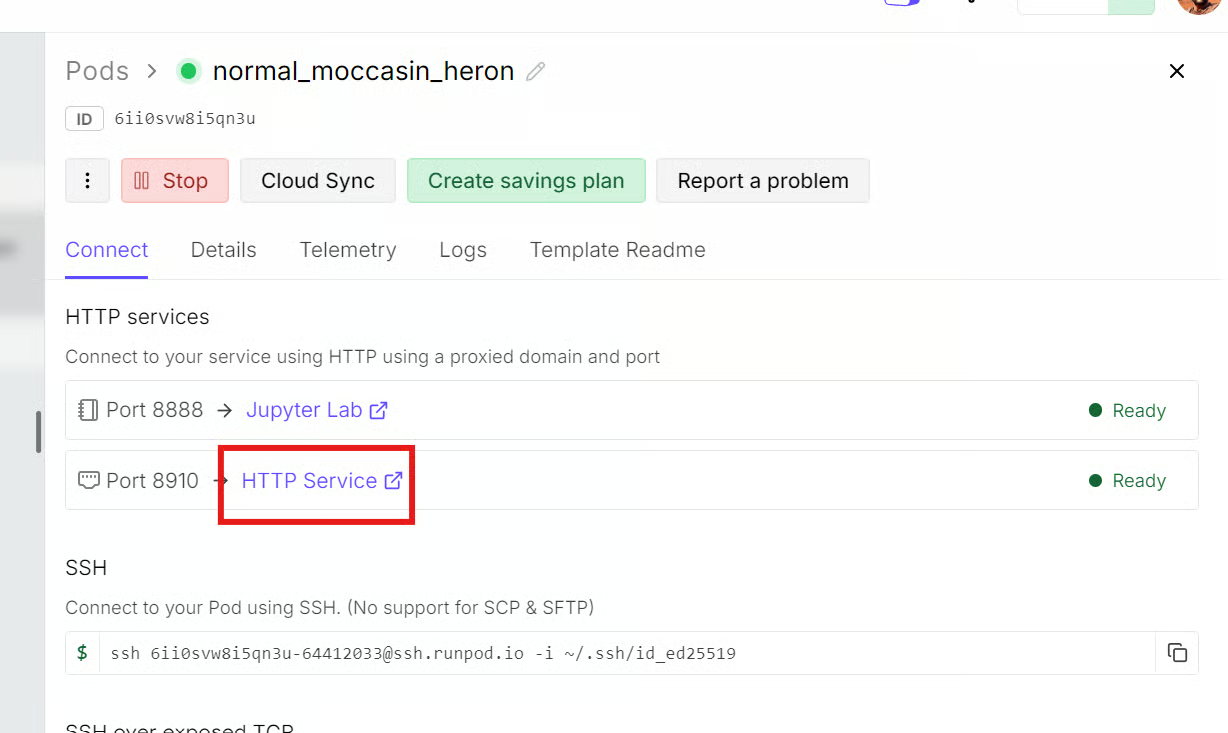
This will open the llama.cpp Web UI in your browser. The interface looks similar to a basic ChatGPT-style chat interface.
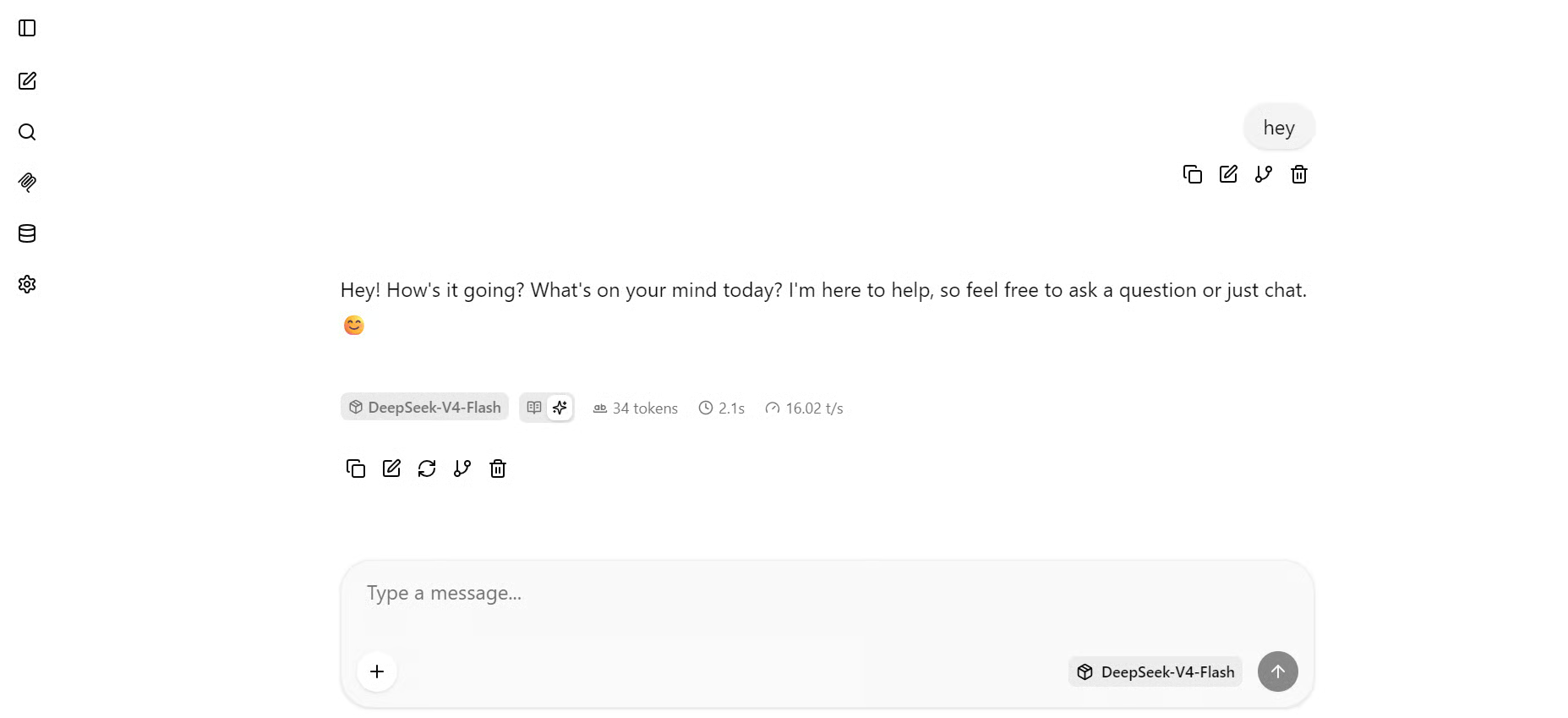
Once the page opens, the model should already be loaded. You can start chatting with it directly from the browser.
After the server is running, you can test the model using different types of prompts.
The goal is to check how well it performs across:
Use the following prompt:
Build a simple, single-screen HTML landing page for a fictional company called NovaGrid AI, with a centered headline, one short paragraph, three feature cards, and a "Get Started" button, using clean modern styling with no scrolling.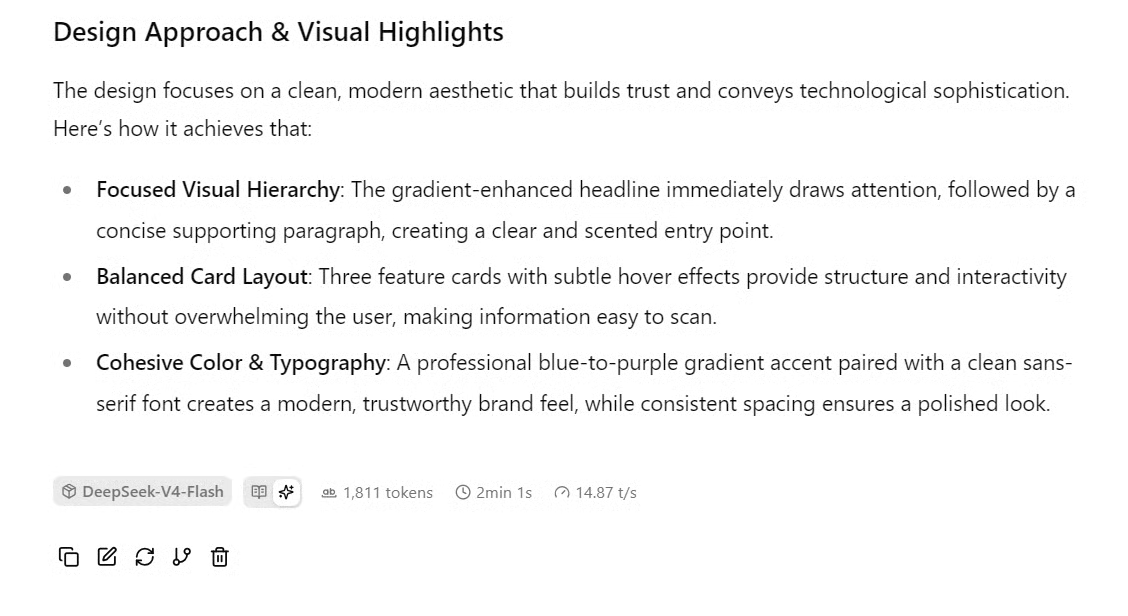
In this test, the model generated the HTML page in about 2 minutes, which is a reasonable time.
To preview the generated page, look for the eye icon near the code output in the Web UI. Click it to open the rendered web page.
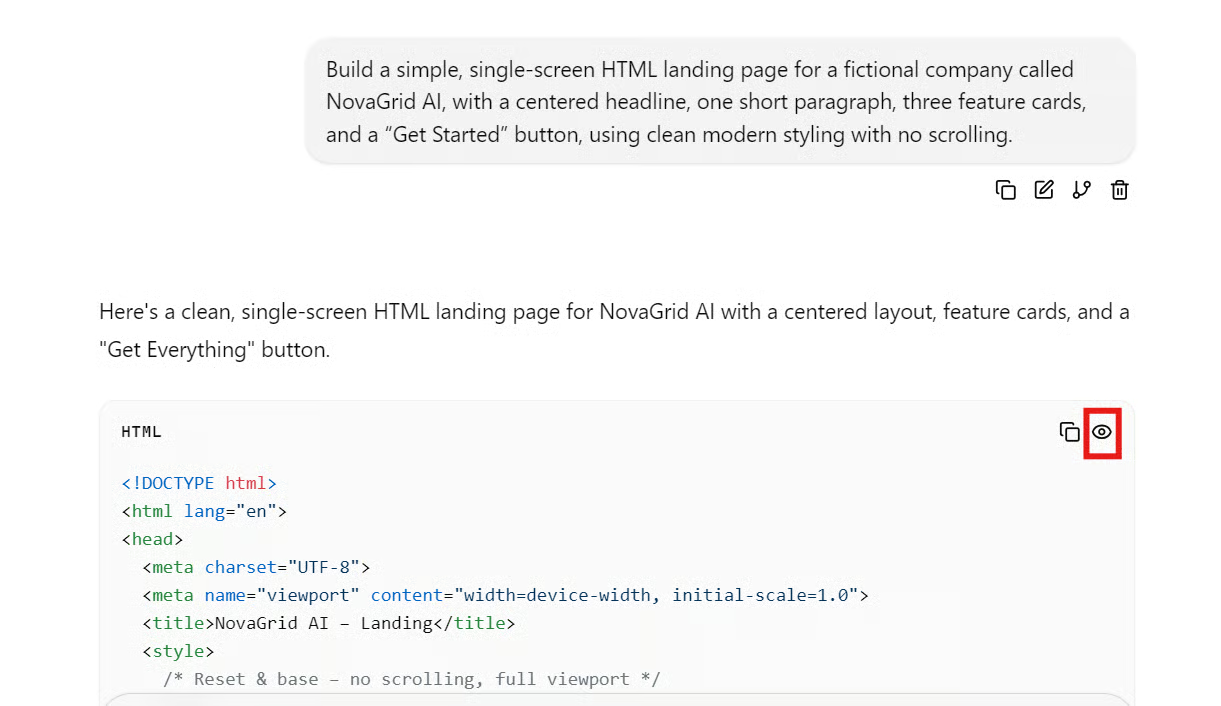
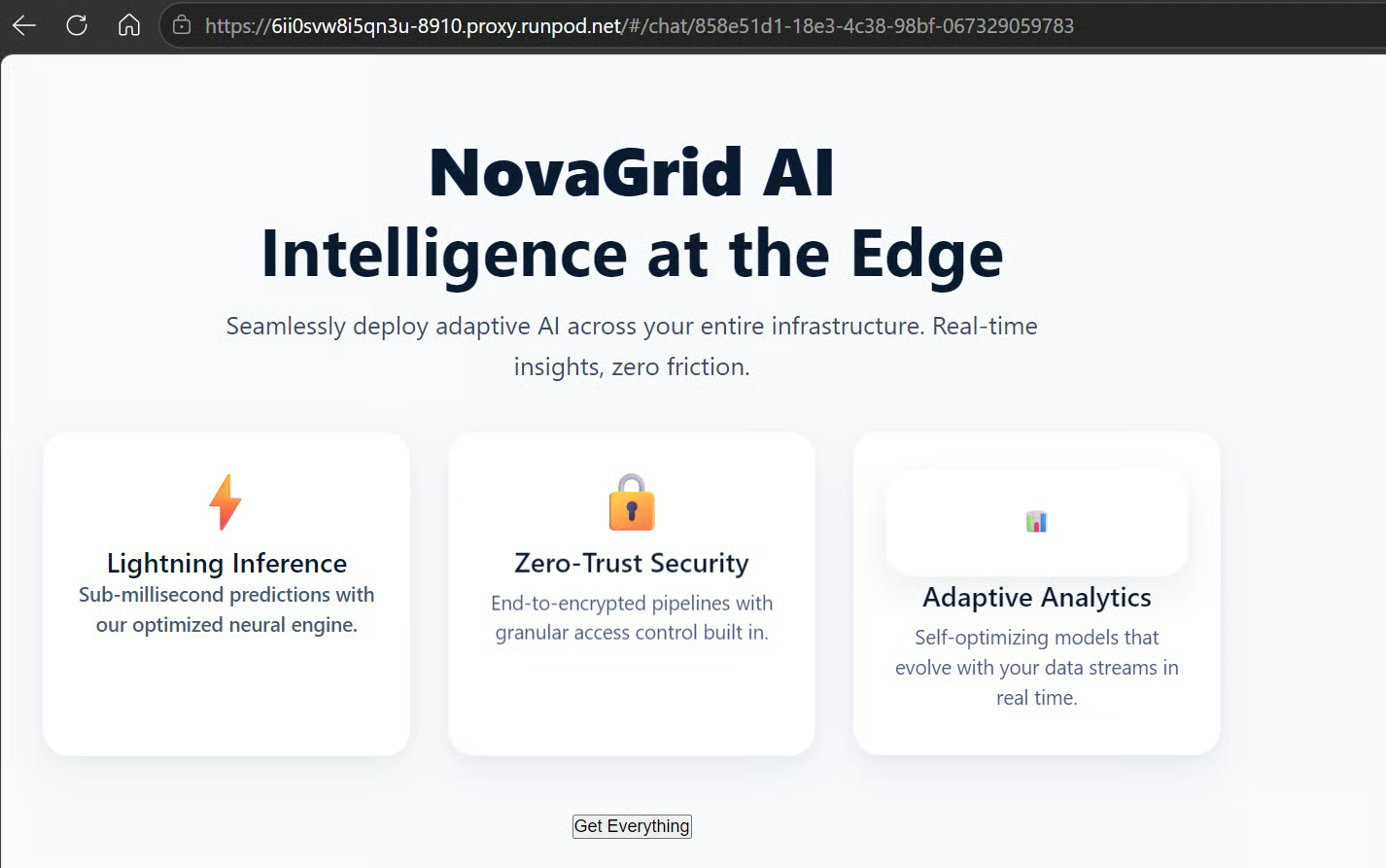
The page worked, but the visual quality was not very impressive. The layout was functional, but the design felt basic. Smaller models can sometimes produce more polished frontend outputs, so this result was underwhelming for UI generation.
Next, test the model’s writing ability.
Use this prompt:
Write an 800-word report on Agentic Skills, explaining what they are, why they matter for AI agents, key examples such as tool use, planning, memory, reflection, and task execution, and how they can help businesses automate complex workflows.
The model produced a clear and well-structured report. It explained the main ideas in a simple way and included useful examples of tool use, planning, memory, reflection, and business automation.
However, the output felt slightly generic and promotional in some places, especially near the conclusion. It also included several formatting and spelling issues, such as inconsistent bolding and wording errors like “Mainate Context.”
Now test the model’s reasoning ability with a simple algebra problem.
Use this prompt:
Solve the following math problem step by step. Show your reasoning clearly, check your work, and provide the final answer in a boxed format.
Problem:
A small online store sells notebooks and pens. A notebook costs $4 more than a pen. On Monday, the store sold 12 notebooks and 30 pens for a total of $156. What is the price of one notebook and one pen?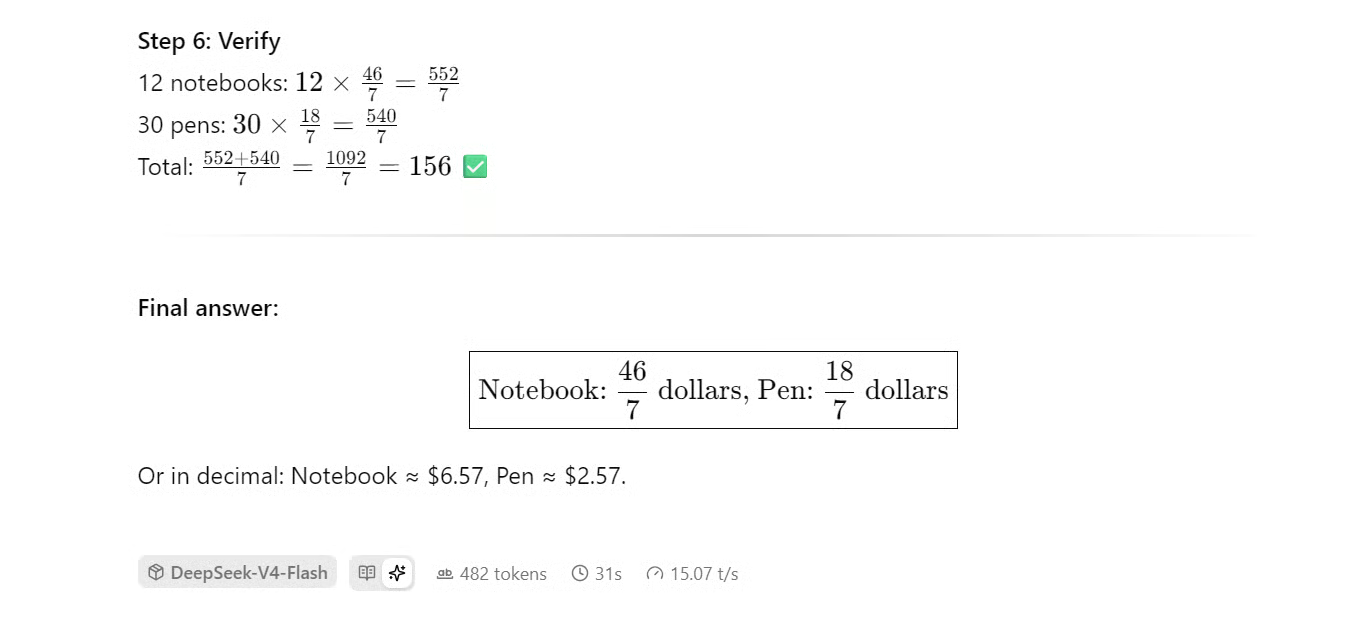
The model solved the problem correctly.
It defined the variables properly, created the correct equations, substituted values correctly, and checked the final answer.
The exact answer was:
As decimals, this is approximately:
The values correctly add up to the total of $156.
Finally, test whether the model can generate a complete beginner-friendly coding project.
Use this prompt:
Create a complete beginner-friendly Python project called Expense Tracker CLI.

Requirements:
- Use only Python standard libraries.
- Create a command-line app where users can add expenses, view all expenses, filter expenses by category, and see the total spending.
- Store expenses in a local JSON file called expenses.json.
- Include a clear file structure.
- Provide the full code for each file.
- Add comments where helpful.
- Include setup instructions and example commands to run the app.
- Keep the code clean, simple, and easy to understand.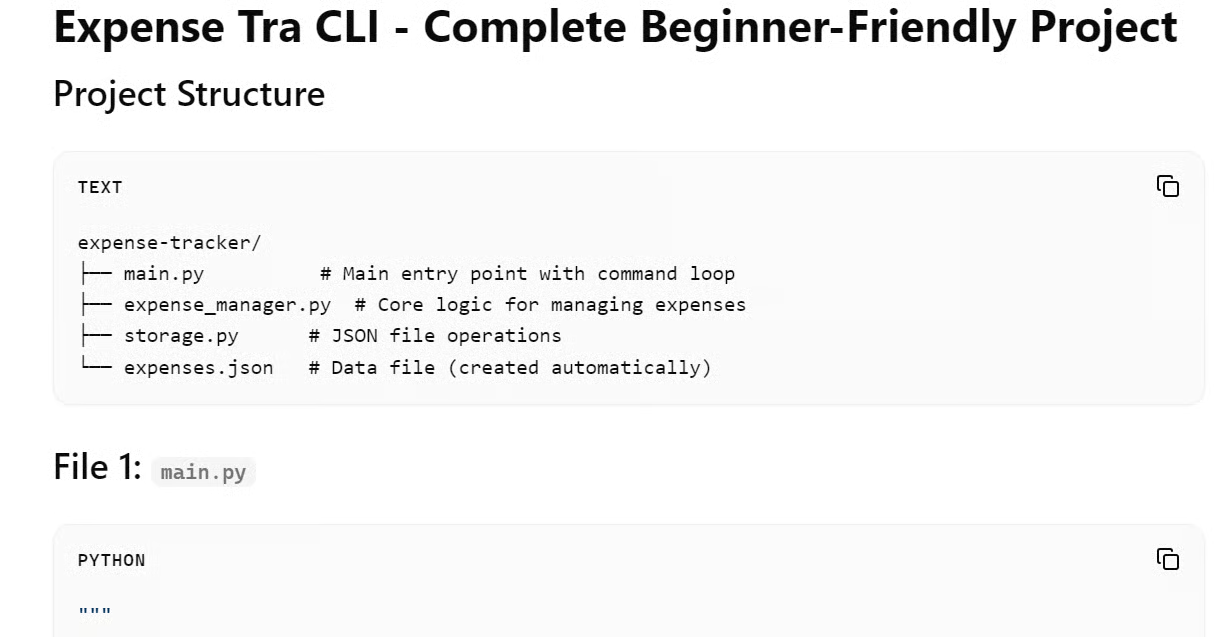
The response looked complete at first, and the project structure made sense. However, the generated code had several serious issues.
The output included:
For a beginner-friendly project, this is a major problem. A beginner should be able to copy, run, and understand the code with minimal fixes. In this case, the generated project would need significant debugging before it could be used.
After testing DeepSeek V4 Flash on UI generation, writing, reasoning, and project generation, the model showed mixed results.
It performed well on structured reasoning and basic explanatory writing. It was also able to generate outputs quickly through the llama.cpp Web UI.
However, it struggled with polished frontend design and reliable full-project code generation. The Python project output looked complete but contained too many syntax and naming errors to be useful without manual debugging.
|
Task |
Performance |
|
UI generation |
Average |
|
Writing and explanation |
Good |
|
Math reasoning |
Strong |
|
Full project generation |
Weak |
|
Speed |
Good |
|
Overall reliability |
Mixed |
Running DeepSeek V4 Flash locally was honestly a nightmare.
I first tried running it on a 4x H100 setup using an sglang Docker Compose configuration, but it still failed. I then tried running it with vLLM on 4x H100 RunPod using Python, but that also failed. The error kept pointing to DeepSeek V4 support in the latest version of transformers, even though I was already using the latest version. This made it clear that proper framework support is still not fully there.
Even the official Hugging Face model page does not provide a simple, standard inference example. Instead, it points users toward a custom torchrun approach, which is much heavier and takes more work to set up.
I also tested community-provided GGUF files, but ran into llama.cpp compatibility issues. Usually, I prefer using Unsloth GGUF files because they are fast, reliable, and easy to run, but for DeepSeek V4 Flash, there was no simple plug-and-play path.
After all that testing, the method shown in this guide was the easiest and most reliable way I found to run the full model locally. It still depends on a community GGUF file and a modified llama.cpp build, but compared with the other options, this setup actually worked.
That said, I do not think DeepSeek V4 Flash is worth running locally right now. The setup is too painful, the framework support is still immature, and the output quality does not justify the effort.
If you want a smoother local model experience, I would recommend trying models like MiniMax M2.7 or strong quantized models such as Qwen3.6-27B instead. They are easier to run, better supported across major frameworks, faster in practice, and often produce higher-quality results with far less setup frustration.
Top LLM Courses
Course
Track
Course
Tutorial
Abid Ali Awan
10 min
Tutorial
Aashi Dutt
12 min
Tutorial
Abid Ali Awan
10 min
Tutorial
Abid Ali Awan
11 min
Tutorial
Abid Ali Awan
13 min
Tutorial
Abid Ali Awan
14 min